

Future-Proof Your Office with UniFi: 2026 Guide
Complete guide to building a future-proof office network with Ubiquiti UniFi. Covers UDM Pro Max with Shadow Mode, WiFi 7 access points, Etherlighting switches, Site Magic VPN, and network security for businesses.

Ubiquiti's 2026 lineup, led by the UDM Pro Max and WiFi 7 access points, offers the first affordable enterprise-grade network stack for small and medium businesses. UniFi's ecosystem combines router, security gateway, WiFi 7, PoE switching, and video surveillance—all managed through a single interface.
This guide covers hardware selection, deployment planning, and cost analysis for building a future-proof UniFi network in 2026.
Affiliate Disclosure: This article contains affiliate links. If you make a purchase through these links, we may earn a small commission at no extra cost to you. As an Amazon Associate, iFeelTech earns from qualifying purchases.
Key Takeaways
| Future-Proofing Focus | Why It Matters | UniFi Solution |
|---|---|---|
| Scalability | Your network needs to grow with your business. | UniFi's modular hardware and centralized management make scaling up seamless. |
| Performance | Slow networks frustrate employees and hinder productivity. | WiFi 7 access points and 10G switches deliver exceptional speeds. |
| Resilience | Downtime costs money. | UniFi Power Backup and multi-WAN failover keep you online when issues arise. |
| Security | Protect your data from evolving threats. | UniFi's built-in security features and comprehensive video surveillance offer robust protection. |
| Multi-Site Connectivity | Unite your offices with seamless communication. | Site Magic makes setting up secure site-to-site VPNs straightforward. |
| Simplified Management | Don't get overwhelmed by complex IT tasks. | The UniFi Network Controller provides intuitive, centralized management. |
Building the Foundation: Core Network Infrastructure with UniFi
Ubiquiti's UniFi ecosystem provides a unified approach to building and managing business networks through centralized management and integrated hardware:
- UniFi Dream Machine Pro Max (UDM Pro Max): Combines router, security gateway, and network video recorder (NVR) capabilities. Supports up to 200+ UniFi devices with 5 Gbps IDS/IPS throughput.
- UniFi Switch Pro Max Series: PoE++ switches with Etherlighting™ port illumination. The Pro Max 24 provides 400W PoE budget for WiFi 7 access points and high-power devices.
- UniFi U7 Pro WiFi 7 Access Points: WiFi 7 access points with 6 GHz band support. Real-world single-client speeds of 1.5-2 Gbps on supported devices, with aggregate theoretical speeds up to 10.8 Gbps.
Introducing: UniFi Dream Machine Pro Max
Is the UDM Pro Max worth the upgrade for 2026?
Yes. The UDM Pro Max ($599) is the new standard for business because it introduces "Shadow Mode" (High Availability) and doubles the IDS/IPS throughput to 5 Gbps compared to the standard UDM Pro.
The UniFi Dream Machine Pro Max (UDM Pro Max) has effectively replaced the standard UDM Pro for serious business deployments in 2026. While it looks similar, the internal hardware is significantly upgraded to handle multi-gigabit ISP connections.
For micro-offices (under 10 users): Consider the Cloud Gateway Max (UCG-Max) as a compact alternative. It offers similar routing and security features in a fanless desktop form factor, though without the NVR capabilities or dual drive bays of the Pro Max.
- Performance: It supports 5 Gbps throughput with full Deep Packet Inspection (DPI) and IPS enabled, compared to 3.5 Gbps on older models.
- High Availability (Shadow Mode): The critical feature for 2026 is Shadow Mode. This requires two identical UDM Pro Max units connected via a direct link. Unlike traditional HA setups, it does not require a separate specialized HA port—it uses standard LAN/WAN ports. If the primary unit fails, the secondary takes over automatically, minimizing downtime.
- WAN Connectivity: It features (1) 10G SFP+ WAN port and (1) 2.5G RJ45 WAN port, allowing for seamless multi-gigabit internet redundancy without needing adapters.
- LAN Connectivity: To achieve full 5 Gbps+ throughput to your switches, use the 10G SFP+ LAN port with a DAC cable or fiber. The standard RJ45 LAN ports are 1 GbE only.
- NVR Storage: Dual drive bays allow for RAID 1 storage, protecting your security footage if a hard drive fails.
Important Note: Unlike the UDM-SE, the UDM Pro Max has no PoE ports. You must pair it with a PoE switch to power your cameras and access points.
By consolidating multiple functions into a single device, the UDM Pro Max streamlines network infrastructure and reduces complexity, making it ideal for businesses of all sizes.
View UDM Pro Max PricingFor comprehensive comparisons of current UniFi gateways, reference our UniFi gateway comparison guide.
What makes the UniFi Switch Pro Max series different?
The "Pro Max" switches feature Etherlighting™, which illuminates ports to visually indicate speed, VLAN assignment, or specific cable locations, alongside 2.5 GbE and PoE++ support.
Powering WiFi 7 access points requires robust switching. The UniFi Switch Pro Max 24 PoE is designed specifically for this high-power era.
- Etherlighting™: This is a technician's favorite feature. The ports light up in different colors to show native VLANs or link speeds, effectively ending the "trace the cable" guessing game.
- WiFi 7 Ready: With (8) 2.5 GbE ports, this switch prevents bottlenecks for U7 Pro access points, which can exceed Gigabit speeds.
- Power Budget: It offers 400W PoE budget (on the 24-port model), with support for PoE++ (60W) to power devices like PTZ cameras or access control hubs.
For additional switch options, explore the full UniFi Switch lineup including 16-port and 48-port models. See our dedicated UniFi switch comparison for the full Pro Max vs Pro XG vs Pro HD breakdown.
Do I need UniFi U7 Pro Access Points for a normal office?
Most likely. The U7 Pro ($189) is priced similarly to older WiFi 6 models but adds the 6 GHz band, which is essential for bypassing congestion in crowded office buildings.
The UniFi U7 Pro is the baseline for 2026 deployments. While marketing materials cite "10.8 Gbps" aggregate speeds, the real-world benefit for business is capacity and latency, not just raw speed.
- Real-World Expectations: Expect single-client speeds of 1.5 to 2 Gbps on supported devices (like the iPhone 16/17 or modern laptops).
- 6 GHz Spectrum: This is the "express lane" for new devices. It is completely separate from the cluttered 2.4 GHz and 5 GHz bands used by neighboring offices.
- Mounting Note: The U7 series uses a metal mounting bracket that may require different hole patterns than older U6-Lite/LR mounts, though a "Pro" retrofit bracket is often included or available.
Pro Tip: High-Density Areas
For conference rooms, cafeterias, or open offices with dozens of simultaneous devices, consider the U7 Pro Max instead. It offers 4x4 MIMO (vs. 2x2 on the standard U7 Pro) for significantly better performance when handling 30+ concurrent connections.
For 10GbE Networks: The U7 Pro XG & XGS
If your office runs on a 10G backbone (like the Switch Pro Max or Enterprise XG), the standard U7 Pro's 2.5GbE port becomes a bottleneck. The XG series eliminates this limitation.
U7 Pro XG ($199): Optimal balance of price and performance for most modern offices. It features a 10GbE uplink and a fanless, slim metal design that runs cooler and quieter than the standard Pro. This is the ideal choice for offices with 10G switching infrastructure.
U7 Pro XGS ($299): The high-density flagship. It adds 4x4 MIMO on the 5GHz band (vs 2x2 on the XG) and a dedicated Spectral Scanning Radio to actively fight interference in crowded city centers. Critical requirement: Requires PoE++ (60W) power—verify your switch supports this before ordering.
WiFi 7 Access Point Comparison:
| Feature | U7 Pro | U7 Pro XG | U7 Pro XGS |
|---|---|---|---|
| Best For | Standard Office | Modern 10G Office | High Density / Crowded Areas |
| Uplink | 2.5 GbE | 10 GbE | 10 GbE |
| MIMO | 2x2 / 2x2 / 2x2 | 2x2 / 2x2 / 2x2 | 2x2 / 4x4 / 2x2 |
| Cooling | Fan (Active) | Fanless (Silent) | Fanless (Silent) |
| Power | PoE+ | PoE+ | PoE++ (60W) |
| Price | $189 | $199 | $299 |
⚠️ CRITICAL: PoE++ Requirement for U7 Pro XGS
The U7 Pro XGS requires PoE++ (802.3bt, 60W) to function. Standard PoE+ switches will NOT power this access point. This is the #1 return reason for this model. Verify your switch supports PoE++ before purchasing, or plan to upgrade to a switch like the UniFi Switch Pro Max 24 PoE which provides full PoE++ support.
For Mission-Critical Environments: Large venues like stadiums, auditoriums, or hospital networks should consider the UniFi Enterprise 7 series. These access points offer redundant uplink ports and active RF filtering (Prism technology) that the U7 series lacks, providing additional reliability for environments where network downtime is unacceptable.
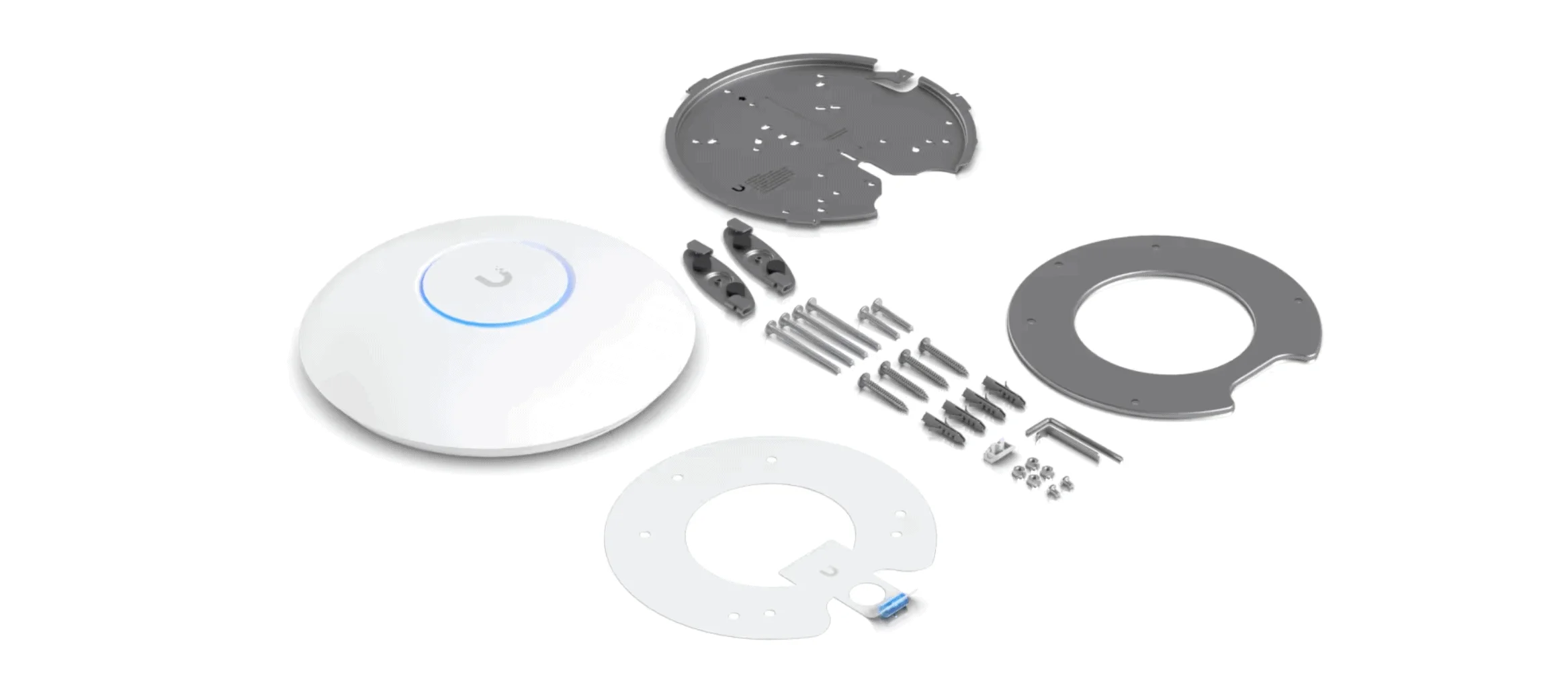
For a complete overview of WiFi 7 deployment strategies, see our UniFi WiFi 7 business guide.
Ensuring Network Resilience: Power Backup and Redundancy
Even the most advanced network can be ineffective if it's prone to outages. Incorporating power backup and redundancy into your network design helps ensure consistent operation.
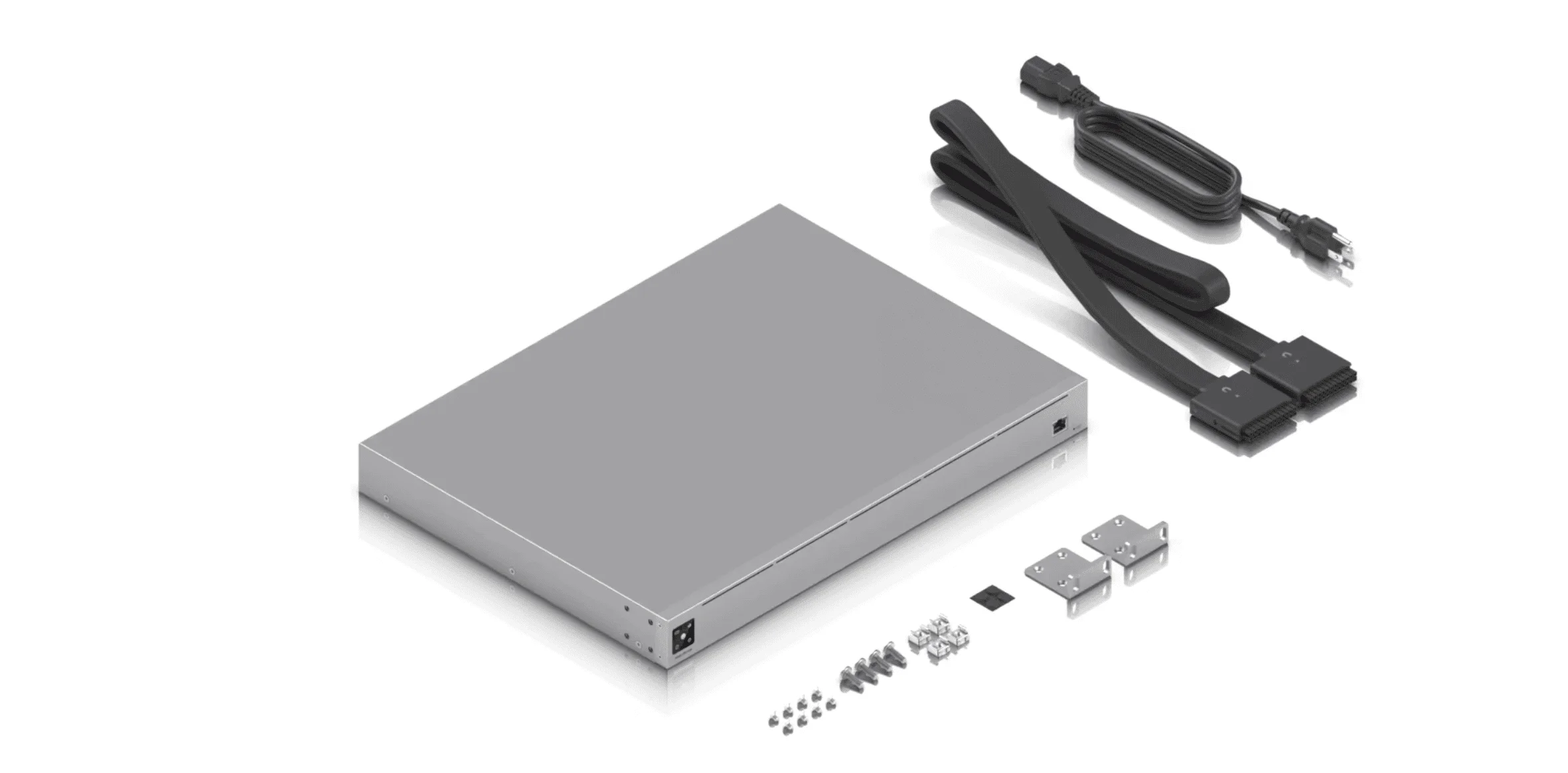
UniFi Redundant Power System (USP-RPS): Keeping Your Network Running Smoothly
Power outages and equipment failures happen. But with the UniFi Redundant Power System (USP-RPS), you can ensure your network stays operational. This device provides a backup power source for critical network devices, like your UDM Pro or network switches.
The USP-RPS serves as a safety net. While it doesn't include a battery like a UPS, if the main power supply to your device fails, the RPS instantly takes over, preventing any interruptions. This is particularly important for maintaining network uptime during power supply failures or planned maintenance.
Multi-WAN Failover for Internet Redundancy
A single internet connection represents a single point of failure. If that connection goes down, your business could be disconnected from online services. Having multiple internet connections from different providers provides redundancy for business continuity.
The UDM Pro Max makes this straightforward with its multi-WAN failover feature and dual WAN ports. If your primary internet connection fails, the UDM Pro Max automatically switches to your backup connection, ensuring continuous connectivity. You can even prioritize certain types of traffic to ensure that critical applications continue to function optimally.
Backup Internet Options
For comprehensive internet resilience, consider these backup options:
- UniFi LTE Backup Pro: This device provides a 4G/5G LTE connection as a tertiary backup in case both your primary and secondary internet connections fail. It's particularly useful for locations where wired backup connections aren't available.
- UniFi 5G Max: For businesses needing higher-speed cellular backup, the 5G Max (available February 2026) provides speeds comparable to cable internet, making it a viable primary or backup connection.
- Starlink Integration: While behind CGNAT, Starlink can serve as a reliable backup connection, especially in areas with limited ISP options.
For detailed guidance on implementing cellular failover, see our 5G failover setup guide.
UPS Integration and Power Protection
For comprehensive power protection beyond the USP-RPS:
- Standard UPS Compatibility: UniFi equipment integrates with standard UPS units for graceful shutdowns during extended power outages.
- USP-RPS (Redundant Power System): The UniFi Redundant Power System provides backup power source redundancy for critical network devices, instantly taking over if the main power supply fails.
- Network Monitoring: The UDM Pro Max can monitor UPS status and trigger alerts or automated actions during power events.
For comprehensive power protection, consider pairing the USP-RPS with a quality UPS system like the APC Smart-UPS 1500VA for smaller setups or the APC Smart-UPS 2200VA for larger deployments.
The Fan Noise Reality
Important consideration: The UDM Pro Max and Switch Pro Max are actively cooled with fans, making them noticeably louder than fanless equipment. These devices belong in a proper network rack or equipment closet, not on a desk in a quiet office environment. The fans are necessary to handle the high-power components and PoE loads, but they produce a constant hum that can be disruptive in open office spaces.
For guidance on proper rack setup, see our IT server room setup guide and cable management best practices.
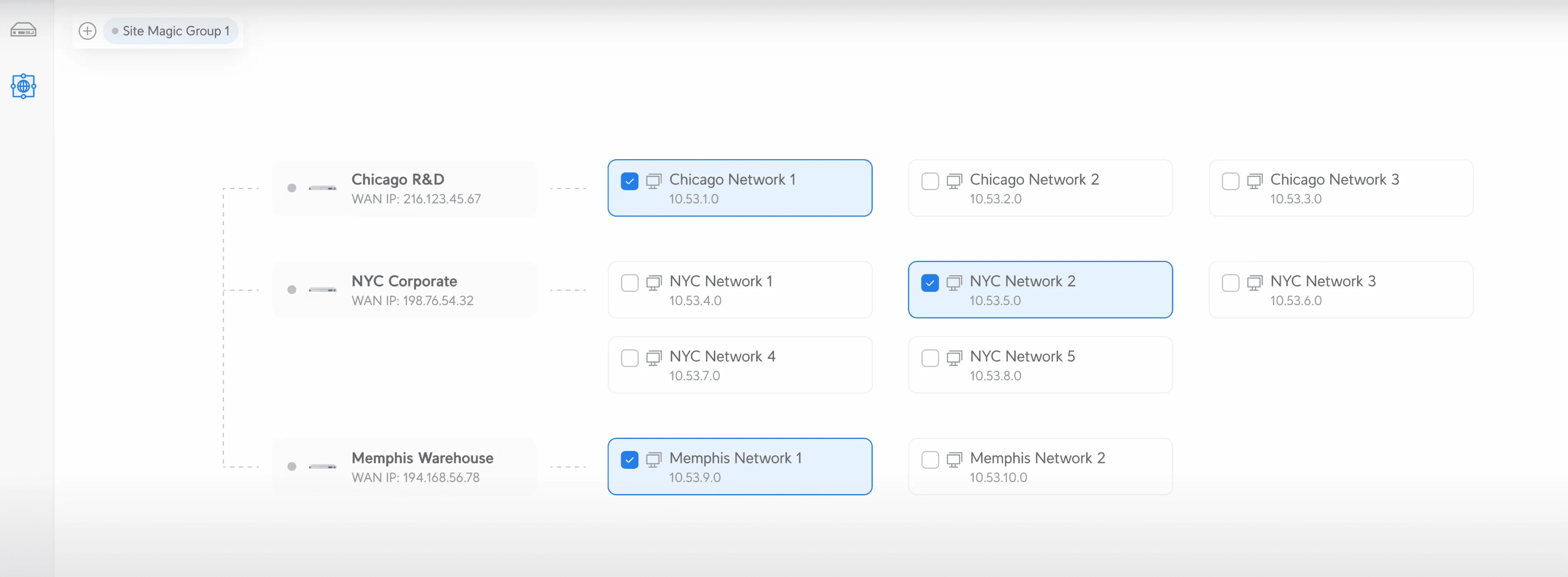
Seamless Site-to-Site Connectivity: UniFi VPN Solutions
For businesses with multiple locations, UniFi's Site Magic feature simplifies site-to-site VPN deployment through SD-WAN automation.
How does UniFi Site Magic simplify VPNs?
Site Magic allows you to link multiple UniFi gateways into a single SD-WAN mesh with one click, bypassing the need for static IPs, port forwarding, or complex OpenVPN configuration.
For businesses with multiple locations, Site Magic is the standout software feature of the UniFi OS.
- No Static IP Needed: It works even if your branch offices are behind residential ISPs or CGNAT (Starlink, 5G).
- Topology Limits:
- Mesh: Best for up to 20 sites. All sites connect directly to each other.
- Hub-and-Spoke: The UDM Pro Max supports up to 200 sites. For deployments requiring up to 1,000 sites, the Enterprise Fortress Gateway (EFG) is required as the central hub.
- Reliability: It automatically routes traffic between sites and handles failover if a site has backup internet (like 5G/LTE).
Site Magic Requirements
Site Magic requires specific UniFi gateway devices including the UDM Pro Max, UDM Pro, UDM SE, UDW, UDR, or UXG Pro. If your current setup doesn't include these devices, you'll need to upgrade before taking advantage of Site Magic.
For businesses with remote teams, also consider our business VPN guide for mobile teams which covers UniFi Identity and zero-config VPN options.
Advanced Network Security with UniFi
With cyber threats becoming increasingly sophisticated, safeguarding your network and sensitive data has become increasingly important. The UniFi ecosystem provides a multi-layered approach to security, offering comprehensive protection. For additional security guidance, see our cybersecurity services.
Is UniFi CyberSecure worth the $99 annual cost?
For businesses without a dedicated security team, yes. It adds real-time threat intelligence from Proofpoint and granular content filtering that the free version lacks.
While UniFi creates a great firewall out of the box, the CyberSecure subscription ($99/year/gateway) upgrades it to an enterprise-grade intrusion prevention system.
- What you get: Access to a database of 55,000+ active threat signatures (vs. static lists in the free version) and improved ad/malware blocking at the DNS level.
- Enterprise Tier: For larger deployments using the EFG, an "Enterprise" tier ($499/year) exists, offering 95,000+ signatures and higher-frequency updates.
- Zero-Config VPN: This license also enhances UniFi Identity, allowing employees to connect to the office network safely from their phones without typing passwords (using certificate-based auth).
Balanced perspective: The standard free IPS/IDS still blocks 90% of threats. CyberSecure is primarily for businesses requiring compliance (like CIPA for schools) or active threat intelligence. For most SMBs, the free tier combined with regular firmware updates provides adequate protection.
The UDM Pro Max maintains 5.0 Gbps throughput even with IDS/IPS enabled, combined with Deep Packet Inspection (DPI) for analyzing network packets and blocking malware, phishing attempts, and other harmful traffic.
For comprehensive security strategy guidance, see our security by design guide.
UniFi Identity Enterprise: Modern Access Control
Eliminate shared WiFi passwords with UniFi Identity Enterprise, which integrates physical access control with network authentication for a seamless employee experience.
What it enables:
- One-Tap Door Access: Employees tap their phone to unlock the front door using NFC or Bluetooth
- Automatic WiFi Connection: Once authenticated, devices automatically connect to Enterprise WiFi without typing passwords
- Zero-Config VPN: Remote employees connect to the office network with certificate-based authentication
- Unified Identity: Single identity across door access, WiFi, and VPN—no separate credentials to manage
Required hardware: To enable physical door access, you'll need UniFi Access hardware such as the UA-Hub (door controller) and UA-G2 Reader (NFC/Bluetooth reader) at each entry point.
This is particularly valuable for businesses with high employee turnover or multiple office locations, as you can instantly provision or revoke access across all systems from a single dashboard.
UniFi Protect: Networked Video Surveillance for Enhanced Security
Security isn't just about protecting your network from digital threats; it's also about safeguarding your physical premises. UniFi Protect seamlessly integrates with the UDM Pro Max to provide a comprehensive video surveillance solution.
By connecting UniFi Protect cameras to your network, you can monitor your office, warehouse, or retail space from anywhere at any time. This not only deters potential intruders but also provides valuable evidence in case of security incidents.
UniFi Protect offers a range of features, including:
- 4K Ultra HD Video: Capture crisp, detailed footage for easy identification and analysis.
- AI-Powered Detection: Advanced motion detection, person detection, and vehicle detection reduce false alerts.
- Remote Access: View live camera feeds and recorded footage from your smartphone, tablet, or computer.
- RAID Protection: The UDM Pro Max's dual drive bays provide RAID 1 protection for your surveillance footage.
With UniFi Protect, you can create a safer and more secure environment for your employees and assets. Explore UniFi cameras for your deployment, or see our UniFi Protect storage planning guide for capacity requirements.
Network Application Visibility and Control
UniFi's Network Application feature provides visibility into which applications are consuming bandwidth on your network. You can monitor and set traffic rules for specific applications, helping you prioritize business-critical traffic and identify potential security issues. While this isn't a full Zero Trust Network Access (ZTNA) solution like Cloudflare Access or Twingate, it provides useful application-level insights for network management.
Experience 6 GHz WiFi with UniFi 7
Optimizing the Wireless Experience with UniFi
A future-proof network isn't just about the backbone infrastructure; it's also about delivering an exceptional wireless experience to your employees and guests. Ubiquiti understands this, and its UniFi ecosystem offers features designed to optimize your WiFi performance.
Automated RF Optimization
UniFi's automated RF optimization continuously analyzes your network environment and adjusts settings for optimal performance. The system dynamically selects the best channels, adjusts transmit power levels, and optimizes roaming behavior. The 6 GHz band provides the most significant benefit, offering clean spectrum free from legacy device interference.
Advanced WiFi Features for Enhanced Performance
UniFi offers a suite of advanced WiFi features that work together to create a seamless wireless experience:
- Band Steering: This feature intelligently guides dual-band devices to the optimal frequency band (2.4 GHz, 5 GHz, or 6 GHz), improving overall performance.
- Load Balancing: UniFi access points can automatically distribute client devices across different access points and radio bands, preventing any single access point from becoming overloaded.
- Fast Roaming (802.11r): This feature ensures that your devices seamlessly switch between access points as you move around your office, preventing dropped connections and maintaining smooth connectivity.
- Multi-Link Operation (MLO): WiFi 7's MLO allows devices to simultaneously connect across multiple bands, providing improved reliability and reduced latency.
By utilizing these advanced features, UniFi helps ensure that your WiFi network can handle demanding environments, providing reliable connectivity for users throughout your facility.
Guest Portal and Hotspot Management
Whether you're in a coffee shop, hotel, or office building, providing a secure and convenient way for visitors to connect to the internet is essential.
UniFi makes this easy with its customizable guest portal and hotspot management features. You can create a branded guest portal that requires visitors to agree to your terms of service before accessing the internet. You can also set bandwidth limits, schedule access times, and even monetize your guest WiFi if desired.
Providing a well-managed guest network enhances the customer experience while protecting your internal network from unauthorized access.
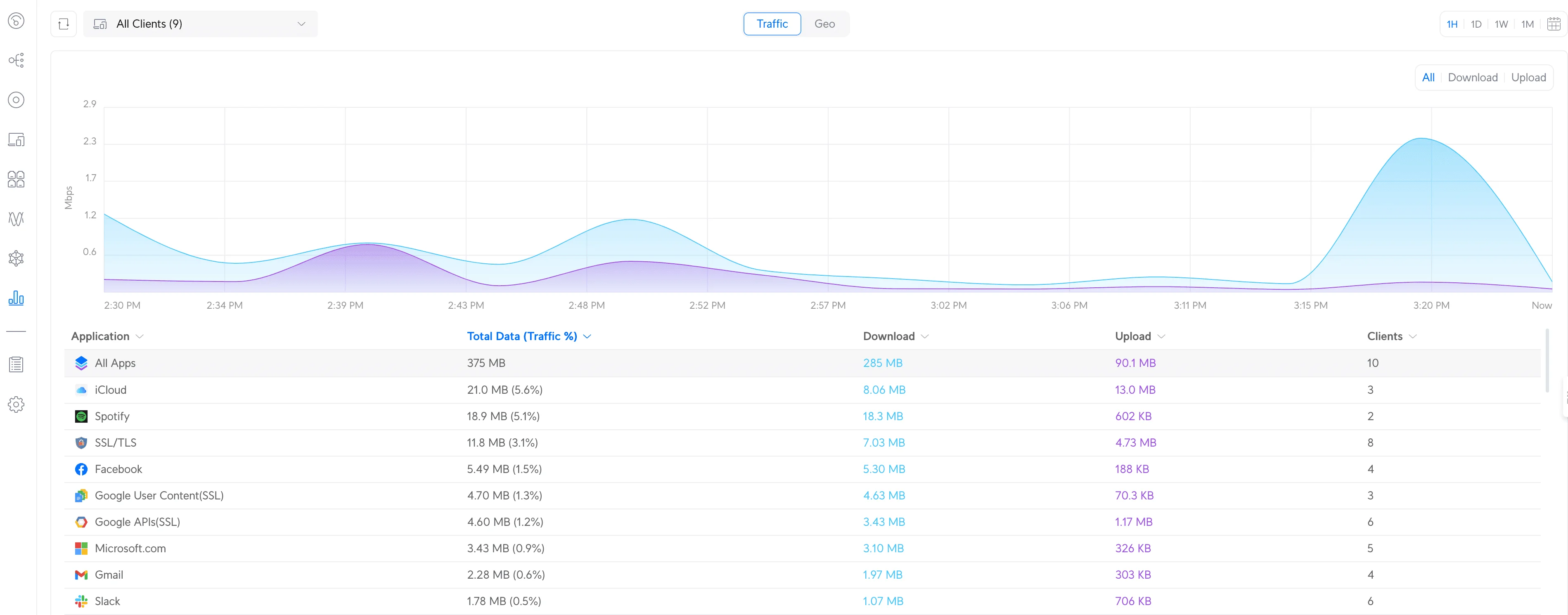
UniFi Network Management and Monitoring
A truly future-proof network isn't just about the hardware and software you deploy; it's also about how you manage and monitor that network to ensure optimal performance, security, and adaptability. Ubiquiti's UniFi ecosystem excels in this area, providing powerful local and cloud-based network management tools.
UniFi Network Controller: Your Centralized Network Hub
The UniFi Network Controller is the nerve center of your UniFi network. This software application gives you complete control over your entire network infrastructure from a single, intuitive interface. Whether you're managing a small office or a large enterprise, the UNC provides the tools you need to streamline network administration and gain valuable insights into your network's performance.
Here's what the UniFi Network Controller offers:
- Real-Time Monitoring: Keep tabs on your network's health with real-time statistics on bandwidth usage, connected devices, and potential issues.
- Historical Data Analysis: Identify trends and patterns in your network traffic to make informed decisions about capacity planning and upgrades.
- Device Management: Easily configure and manage all your UniFi devices, from access points and switches to security gateways and cameras.
- Configuration Backups: Safeguard your network settings with automated backups, ensuring you can quickly recover from unexpected events.
- Guest Portal Customization: Create a branded guest portal with your own logo, terms of service, and authentication options.
- Remote Access: Manage your network from anywhere using the UniFi mobile app or a web browser.
UniFi Cloud Management: Flexible Deployment Options
You have multiple options for hosting your UniFi Network Controller:
- Built-in Controller: The UDM Pro Max includes a built-in controller, eliminating the need for separate hardware or cloud services for smaller deployments.
- UniFi Cloud Management: This cloud-based option offers the convenience of remote access and automatic updates. It's ideal for businesses with multiple locations or those who prefer a hands-off approach to network management.
- Self-Hosted Controller: For businesses requiring complete control, you can host the controller on your own hardware or virtual machine.
All options offer the same powerful features and functionality, so the choice comes down to your specific needs and preferences.
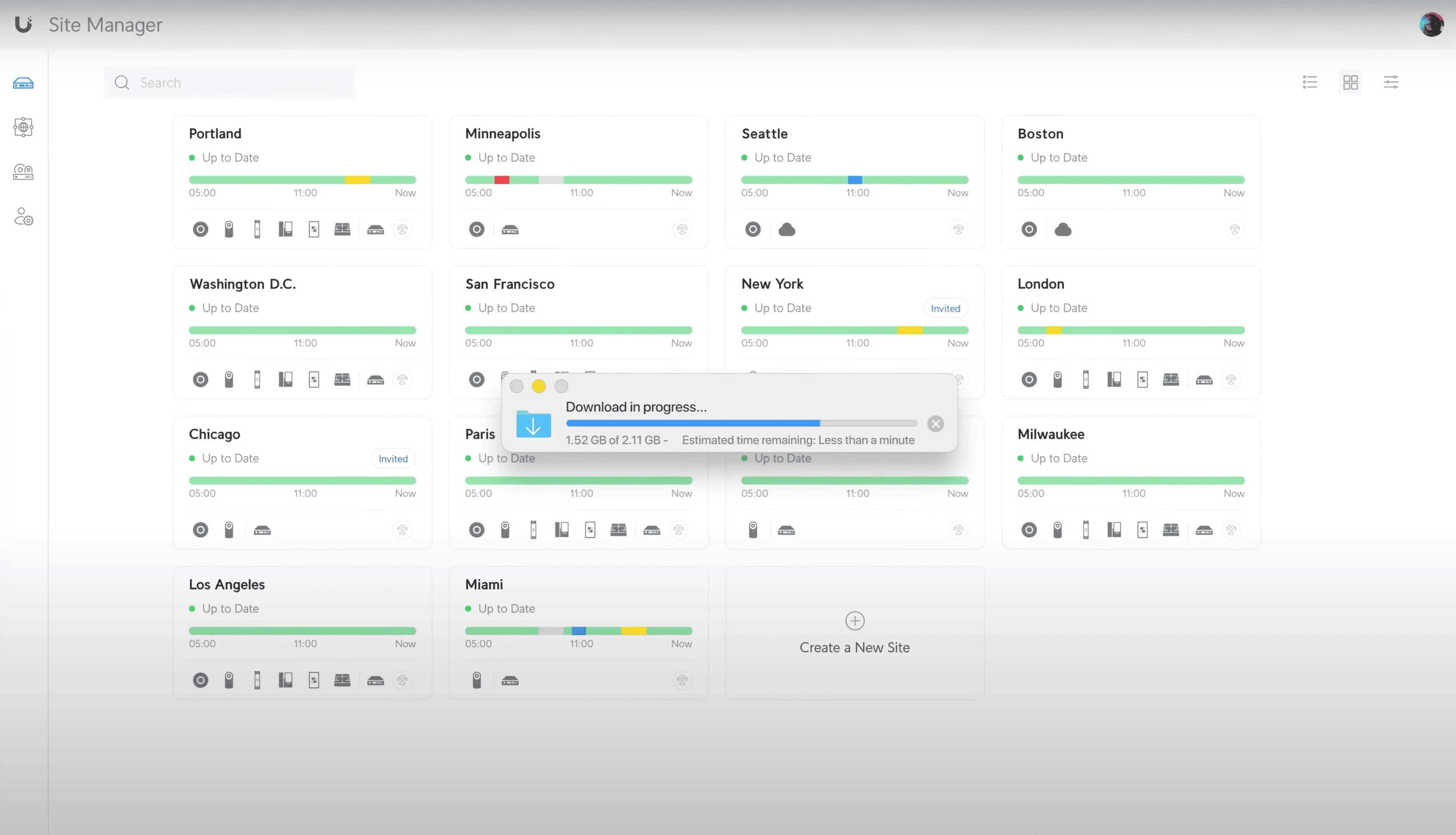
Additional Considerations for a Future-Proof Network
Building a future-proof network with Ubiquiti UniFi goes beyond the core components. To maximize the potential of your network and ensure its longevity, consider these additional factors:
PoE (Power over Ethernet) Planning
PoE technology simplifies your network by delivering power and data over a single Ethernet cable. This is especially beneficial for devices like WiFi access points, security cameras, and VoIP phones. However, proper PoE planning is crucial to ensure your switches can supply enough power to all connected devices.
When planning your PoE infrastructure, consider the following:
- PoE Budget: Calculate the total power consumption of all your devices to determine the PoE budget you'll need from your switches. WiFi 7 access points typically require 25-30W each.
- PoE Switch Selection: Choose PoE switches that can comfortably handle your PoE budget with headroom for future expansion. The UniFi Switch Pro Max 24 provides 400W total PoE budget.
- Cable Quality: Use high-quality Ethernet cables (Cat6A or higher) to ensure efficient power delivery and minimize signal loss, especially for longer runs.
For detailed PoE planning guidance, see our Power over Ethernet guide.
Cabling and Infrastructure
The physical infrastructure of your network is just as important as the hardware and software. Poorly designed cabling and inadequate infrastructure can lead to bottlenecks, signal degradation, and safety hazards.
When planning your network infrastructure, pay attention to:
- Cable Types: Use Cat6A or higher cables for optimal performance and future-proofing. Cat6A supports 10 Gbps speeds up to 100 meters. Consider bulk Cat6A cable for larger installations. See our best ethernet cable guide for tested product picks and Cat6 vs Cat6A comparisons.
- Professional Installation: Consider professional cabling installation to ensure proper organization, testing, and compliance with standards.
- Rack Organization: Properly organize your network equipment in racks to ensure adequate airflow and easy access for maintenance. See our network cabling checklist for best practices.
- Environmental Considerations: Ensure proper grounding, adequate ventilation, and appropriate environmental controls for your network equipment.
Future Technology Considerations
While WiFi 7 is the current cutting-edge technology, it's important to keep an eye on the horizon. The 6 GHz band opened by WiFi 6E continues to expand, offering additional spectrum for high-bandwidth applications.
Stay informed about emerging technologies such as:
- WiFi 8 (IEEE 802.11bn): Expected around 2028–2030, with business-grade managed APs unlikely before 2029. For the full timing analysis, see WiFi 8 Release Date: Should Small Businesses Buy WiFi 7 Now or Wait?
- 2.5G and 5G Ethernet: Multi-gigabit wired connectivity becoming standard
- AI-Driven Network Management: Increased automation and predictive maintenance capabilities
- Edge Computing Integration: Network infrastructure supporting distributed computing workloads
Implementation Best Practices
When implementing a UniFi network, consider these best practices:
- Use the UniFi Design Center: Don't guess how many APs you need. Upload your floorplan to the UniFi Design Center to simulate 6 GHz coverage and identify dead zones before you buy. This free tool helps you optimize AP placement and quantity based on wall materials, ceiling height, and expected client density.
- Phased Deployment: Implement your network in phases, starting with core infrastructure and expanding gradually
- Performance Testing: Thoroughly test your network performance before and after deployment to ensure it meets requirements
- Documentation: Maintain comprehensive documentation of your network configuration, including device locations, IP assignments, and VLAN configurations
- Staff Training: Ensure your team understands how to use and maintain the UniFi system effectively
- Regular Updates: Keep firmware and software updated to ensure security and performance
Real-World Implementation: Business Scenarios
To illustrate the practical benefits of UniFi networks, let's examine several real-world implementation scenarios:
Growing Professional Services Firm (50 Employees)
Challenge: A law firm needed to support increasing device counts, implement secure guest access, and prepare for planned office expansion.
Solution: UDM Pro Max with CyberSecure, UniFi Switch Pro Max 24, and U7 Pro access points provided the scalability and security needed. Site Magic enabled seamless connectivity to a branch office.
Results: 40% improvement in wireless performance, enterprise-grade security, and seamless multi-site connectivity with minimal IT overhead.
For similar office deployments, see our Miami office network planning guide.
Manufacturing Facility (100+ Devices)
Challenge: A manufacturing company needed reliable connectivity for both office staff and industrial IoT devices, with strict network segmentation requirements.
Solution: Multiple UniFi Switch Pro Max units provided PoE power for industrial access points, while VLAN segmentation separated office and production networks. UniFi Protect cameras enhance facility security.
Results: Improved operational efficiency, enhanced security monitoring, and simplified network management across diverse device types.
For VLAN configuration guidance, see our guest WiFi VLAN setup guide.
Investment Planning and Total Cost of Ownership
When planning your UniFi investment, consider the total cost of ownership beyond initial hardware costs:
Initial Investment Breakdown
Small Office (25 employees):
- UDM Pro Max: $599
- UniFi Switch Pro 24 PoE: $699
- 3x U7 Pro Access Points: $567 (approximately $189 each)
- CyberSecure (annual): $99
- Total: ~$1,964
Medium Business (75 employees):
- UDM Pro Max: $599
- UniFi Switch Pro Max 24 PoE: $799
- 6x U7 Pro Access Points: $1,134
- Additional Switch Pro 24 PoE: $699
- CyberSecure (annual): $99
- Hardware Subtotal: ~$3,330
Cabling Costs (Often Overlooked):
- Cat6A cable drops: $150-$200 per drop (professional installation)
- For 6 APs + network equipment: Estimate $1,200-$1,500 additional
- Total Project Cost: ~$4,530-$4,830
Ongoing Costs and ROI
UniFi's major advantage is its low ongoing costs:
- No Licensing Fees: Unlike many enterprise solutions, UniFi doesn't require recurring licensing for basic functionality
- Optional Services: CyberSecure ($99/year) provides enterprise-grade security at a fraction of traditional costs
- Energy Efficiency: Modern UniFi equipment is designed for efficient power consumption
- Reduced Support Costs: Simplified management reduces IT overhead and support requirements
Important consideration: Ubiquiti does not offer standard phone support. For mission-critical offices, having a trusted partner like iFeeltech or maintaining cold spare units is essential for rapid issue resolution. Community forums and documentation are the primary support channels for DIY deployments.
Ready to Start Your UniFi Deployment?
Explore the complete UniFi product lineup or contact us for a customized network assessment and deployment plan.
Day 1 Setup Checklist: Configuring Your UniFi Network
Once you have your hardware installed, follow this checklist to configure the essential features that make your network enterprise-grade.
1. Initial Device Adoption
Adopt your UDM Pro Max:
- Connect to the UDM Pro Max via
https://unifi.ui.comor directly athttps://192.168.1.1 - Create your UniFi account or sign in
- Follow the setup wizard to configure your WAN connection
- Set your local network subnet (default: 192.168.1.0/24)
- Create admin credentials and enable two-factor authentication
Adopt switches and access points:
- Navigate to Network > Devices in the UniFi Controller
- Your switches and APs should appear as "Pending Adoption"
- Click Adopt for each device
- Wait 2-5 minutes for firmware updates to complete
2. Enable Shadow Mode (High Availability)
Requirements: Two identical UDM Pro Max units
Configuration steps:
- Navigate to Settings > System > High Availability
- Click Enable Shadow Mode
- Connect the secondary UDM Pro Max using Port 7 to Port 7 (or SFP+ Port 10 to SFP+ Port 10 for 10G performance)
- The secondary unit will sync configuration automatically
- Test failover by disconnecting the primary unit's power
Note: Shadow Mode requires both units to run identical firmware versions.
3. Configure Network Segmentation (VLANs)
Create IoT VLAN for security cameras and smart devices:
- Navigate to Settings > Networks
- Click Create New Network
- Name: "IoT Devices"
- VLAN ID: 20 (or your preferred ID)
- Gateway/Subnet: 192.168.20.1/24
- Enable DHCP Server
- Under Advanced, enable Isolate Network to prevent IoT devices from accessing your main network
Create Guest WiFi VLAN:
- Create another network with VLAN ID: 30
- Name: "Guest WiFi"
- Enable Guest Policy to restrict access to local resources
- Set bandwidth limits if desired (e.g., 50 Mbps per client)
For detailed VLAN configuration, see our guest WiFi VLAN setup guide.
4. Activate UniFi CyberSecure
Enable enterprise-grade threat protection:
- Navigate to Settings > Security > CyberSecure
- Click Subscribe ($99/year for UDM Pro Max, $499/year for EFG)
- Enter payment information
- Enable Threat Management with IDS/IPS
- Configure Content Filtering categories (block malware, adult content, etc.)
- Enable Ad Blocking at the DNS level
- Review Security Dashboard for real-time threat detection
Recommended settings:
- IDS/IPS Mode: Detection & Prevention (blocks threats automatically)
- Threat Intelligence: Enabled (55,000+ signatures)
- DNS Security: Enabled
5. Configure Site Magic (Multi-Site VPN)
For businesses with multiple locations:
On the primary site (hub):
- Navigate to Settings > Site Manager
- Click Enable Site Magic
- Select topology: Hub-and-Spoke (for 2-200 sites)
- Note your Site Magic ID
On remote sites:
- Navigate to Settings > Site Manager
- Click Join Site Magic Network
- Enter the Site Magic ID from your hub
- Select WAN Failover priority (primary/backup)
- Wait 2-3 minutes for the VPN tunnel to establish
Verify connectivity:
- Navigate to Network > Site Magic
- Confirm all sites show "Connected" status
- Test by pinging devices across sites
6. Configure WiFi Networks
Create optimized WiFi 7 networks:
Corporate WiFi:
- Navigate to Settings > WiFi
- Create new network: "Corporate"
- Security: WPA3 Enterprise (or WPA2/WPA3 for compatibility)
- WiFi Band: 6 GHz + 5 GHz + 2.4 GHz
- Channel Width: 320 MHz (6 GHz), 160 MHz (5 GHz)
- Enable Automatic Channel Optimization for best performance
- Enable Fast Roaming (802.11r)
Guest WiFi:
- Create network: "Guest"
- Assign to Guest VLAN (VLAN 30)
- Enable Guest Portal with terms of service
- Set Password or use Voucher System
Best Practice for Wired Offices:
- Navigate to Settings > WiFi > Advanced
- Disable Wireless Meshing to improve stability and prevent APs from wirelessly connecting to each other
- This forces all APs to use wired uplinks, which is the recommended configuration for office deployments
7. Enable Etherlighting™ (Switch Pro Max)
Configure port illumination:
- Navigate to Network > Devices > [Your Switch Pro Max]
- Click Settings > Port Manager
- Select Etherlighting Mode:
- Speed Indicator: Ports light up by link speed (1G = green, 2.5G = blue, 10G = white)
- VLAN Indicator: Ports light up by VLAN assignment
- Custom: Assign specific colors to specific ports
- Click Apply
8. Configure Multi-WAN Failover
Set up internet redundancy:
- Connect secondary WAN to the 2.5G RJ45 WAN port (or remap SFP+ Port 10 to WAN2 if you have dual fiber connections)
- Navigate to Settings > Internet
- Configure WAN2 with your backup ISP settings
- Set Load Balancing to Failover Only (WAN1 primary, WAN2 backup)
- Set Failover Detection to Ping (recommended: 8.8.8.8)
- Test by disconnecting WAN1
Port remapping for dual fiber: Navigate to Network > Devices > UDM Pro Max > Ports and reassign Port 10 from LAN to WAN.
For cellular backup, connect the UniFi LTE Backup Pro or 5G Max (available February 2026) as WAN3.
9. Set Up UniFi Protect (Optional)
If using UniFi cameras:
- Navigate to Protect application
- Adopt cameras from Devices tab
- Configure Recording Schedule: Continuous or Motion-Only
- Enable Smart Detection: Person, Vehicle, Package
- Set Retention: Based on storage capacity (7-30 days typical)
- Configure Notifications for motion events
See our UniFi Protect storage planning guide for capacity requirements.
10. Final Verification
Test your deployment:
- Verify all devices show "Connected" in the controller
- Test WiFi speeds on 6 GHz band (should see 1.5-2 Gbps on compatible devices)
- Verify VLAN isolation (IoT devices cannot ping corporate network)
- Test WAN failover by disconnecting primary internet
- Verify CyberSecure is blocking test malware domains
- Check Site Magic connectivity between locations
- Review Network Insights for optimization recommendations
Professional Installation Available
Need help with deployment? Our team provides professional UniFi installation services including site surveys, configuration, and ongoing support.
Conclusion: Building a Future-Ready Network with UniFi in 2026
Building a future-proof office network is a strategic investment in your business's growth, efficiency, and security. The Ubiquiti UniFi ecosystem provides a comprehensive solution that addresses many of the challenges of today's digital landscape.
A properly configured UniFi network provides:
- Scalability to accommodate growing needs with support for 200+ devices per gateway
- Performance with WiFi 7 real-world speeds of 1.5-2 Gbps per client and 10 Gbps wired connectivity
- Security from cyber threats through integrated IDS/IPS and optional CyberSecure service ($99-$499/year)
- Multi-site connectivity through Site Magic SD-WAN (up to 1,000 sites in hub-and-spoke)
- High availability with Shadow Mode failover on dual UDM Pro Max setups
- Centralized monitoring through the UniFi Network Controller
Ubiquiti's ongoing development of features like Etherlighting™, Shadow Mode, and Identity Enterprise helps ensure that your network infrastructure remains current.
Ready to Build Your Network?
If you're ready to upgrade your network infrastructure, explore the UniFi product line and consider consulting with a network professional to design a customized solution for your business.
Related Resources
- UniFi Dream Machine Pro Max Review – Detailed UDM Pro Max analysis
- UniFi Gateway Comparison Guide – UDR7 vs UX7 vs UCG-Fiber
- UniFi WiFi 7 Business Guide – Complete WiFi 7 coverage
- UniFi Protect CCTV Guide – Video surveillance setup
- Power over Ethernet Guide – PoE planning fundamentals
- Cat6A Wiring Diagram Guide – Cabling best practices
- Business Fiber Network Upgrade Guide – Hardware upgrade sequence and cost breakdown for offices moving to a fiber ISP
- UniFi Network Services – Professional installation
Related Articles
More from Network Infrastructure
Professional WiFi 7 Network Implementation: Complete Business Guide
Complete guide to professional WiFi 7 network implementation for businesses. Covers infrastructure planning, UniFi equipment selection, cost analysis, and implementation best practices.
16 min read
How Often Should You Replace Your Router? The Security Signs We Look For on Every Job
Forget the 'every 3–5 years' rule. Here's the field checklist we run on a client's router before replacing it — plus what 4 years of fleet data says about how long networking gear actually lasts.
12 min read

What We Tell Every New Client About Their WiFi Before We Touch a Single Device
Before any access point gets ordered, we go through the same conversation. Here's what 40+ office network installs in South Florida taught us to check first.
12 min read