

What We Tell Every New Client About Their WiFi Before We Touch a Single Device
Before any access point gets ordered, we go through the same conversation. Here's what 40+ office network installs in South Florida taught us to check first.


The first thing we tell every new client about their WiFi has nothing to do with their router, their access points, or which ISP they're on — it starts with their power infrastructure.
After 40+ office network installations across South Florida — law firms, medical suites, boutique hotels, 10-person startups and 100-person operations — the pattern is consistent: power conditioning failures have caused more operational incidents than hardware defects. More than software bugs, cheap cables, or ISP outages. Voltage fluctuations during a Florida afternoon storm can bring down networking gear regardless of price point, and that risk rarely comes up in a standard vendor conversation.
Before we discuss access points or routers, we ask our clients a specific set of questions. Here is the foundation we check before every installation.
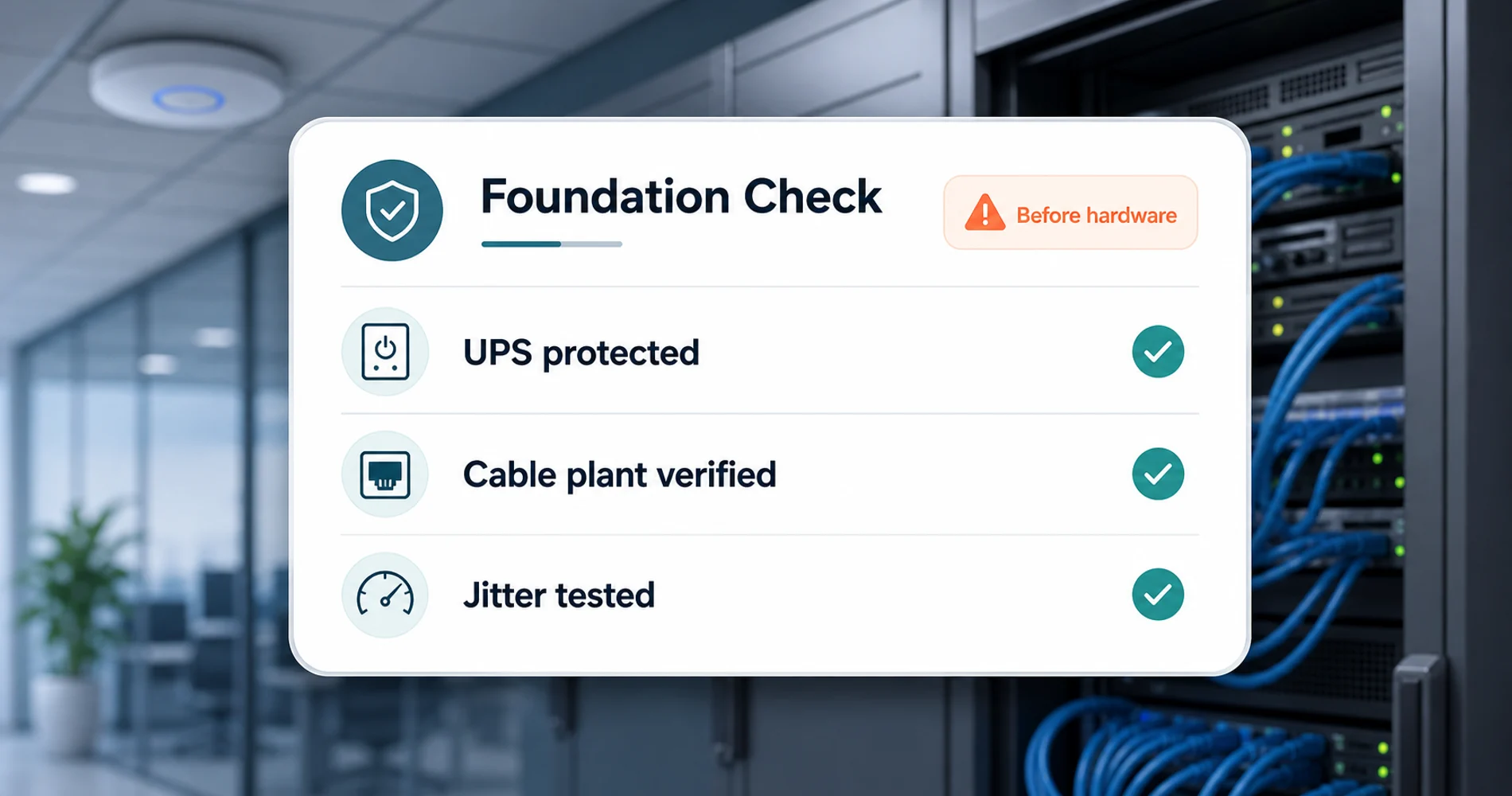
Before We Look at a Single Device: The Foundation Check
Every professional assessment of a network starts with what's invisible — not the router mounted in the server room, not the AP on the ceiling, but the infrastructure underneath everything else.
Power protection. The single most reliable intervention we've added to every iFeelTech deployment over the last two years isn't a better access point or a newer gateway. It's a UPS on the network closet. APC Back-UPS or CyberPower units in the $80–$200 range protect switching and routing gear from the voltage fluctuations that are a daily reality in Florida commercial buildings. We've seen surge damage take out hardware on connections that were supposed to have surge protection from a basic power strip. That's not a knock on the hardware — it's a statement about the building's electrical infrastructure and what it puts on the line. A UPS is now standard in every installation we do.
Cabling plant condition. Before any AP gets discussed, we want to know what the structured cabling looks like. Is it Cat5e or Cat6? Are there daisy-chained unmanaged switches under desks? Are patch panel ports labeled, or is it a rats' nest of unlabeled runs that no one has touched since 2014? The cabling plant sets the ceiling for everything above it. A properly sized UniFi switch on degraded cable runs won't perform like one on clean, tested Cat6. We want to know what we're working with before recommending anything. If runs need replacing, our business network wiring guide covers what that project involves.
ISP connection verification. Speed test numbers tell an incomplete story. What we also look at is jitter — variation in ping response time — because that's what degrades VoIP and video call quality. An office can have 500 Mbps download and jitter consistently above 30ms, which is at the threshold where Zoom calls start dropping audio frames. We run a quick jitter and latency test before the hardware conversation starts, because if the ISP connection is the problem, no amount of new gear will fix it. For anyone doing this themselves: WiFiman (Ubiquiti's free mobile app) and iPerf3 are the tools we use on-site — WiFiman for a fast AP-level latency and signal scan, iPerf3 for end-to-end throughput between two points on the network.
Network UPS: A Baseline for Office Reliability
A UPS for your network closet costs $80–$200 and protects against the failure mode we've seen most often across 40+ South Florida deployments: unstable power. It's rarely the first item on a budget, but it's the one that makes the rest of the investment more durable.
The Questions We Ask About How You Actually Use the Network
Once the foundation is confirmed, we need to understand what the network is actually doing — because the hardware recommendation changes completely based on the answers.
How many devices, and what kind? A 20-person office where everyone has a laptop and a phone is a different problem than a 20-person office with laptops, phones, VoIP desk phones, two NAS units, a cloud backup agent running 24/7, and a fleet of IoT conference room devices. Device count matters less than device behavior. One continuous-sync cloud backup client can consume more bandwidth than 15 people browsing.
What are the bandwidth-heavy applications? Video conferencing is the obvious one — but it's not just Zoom. Cloud backup, NAS synchronization, large file transfers to creative platforms, and VoIP are all network-intensive in ways that don't show up on a speed test. We ask specifically: do you run any applications where latency above 20ms causes noticeable problems? That determines whether we're solving a bandwidth problem or a latency problem, which are different problems with different solutions.
What's your downtime tolerance? Some offices have point-of-sale systems, patient check-in kiosks, or VoIP phone systems that cannot have any downtime — even a 30-second reboot during a firmware update creates a real operational problem. For those environments, redundancy requirements shape the architecture from the start. For a law firm where attorneys can close their laptops and wait 90 seconds, the design is simpler.
Is the guest network separated from staff? More offices than you'd expect have clients, vendors, and delivery personnel connecting to the same SSID as the staff network. That's a security exposure we flag before any other conversation — not because we're selling a security audit, but because fixing it costs nothing at installation time and costs real money (and risk) to retrofit later. We take this one step further on every installation: IoT devices — thermostats, smart TVs, conference room cameras, access control readers — go on a dedicated VLAN, isolated from both the staff network and the guest network. A compromised thermostat shouldn't be able to reach your file server. If you're also thinking about the security layer more broadly, our network security audit guide covers the full assessment process.
Are there physical barriers affecting signal? Concrete walls, server room enclosures, metal shelving racks, elevator shafts, and commercial kitchen equipment all attenuate WiFi in ways that don't show up on a floor plan. We ask about the building construction before doing a site walk, so we know what to expect.
What We're Looking For in the Physical Space
The site walk is where the abstract conversation becomes specific recommendations. This is where most clients expect us to just point at ceilings and say "put an AP there." The actual process is more systematic.
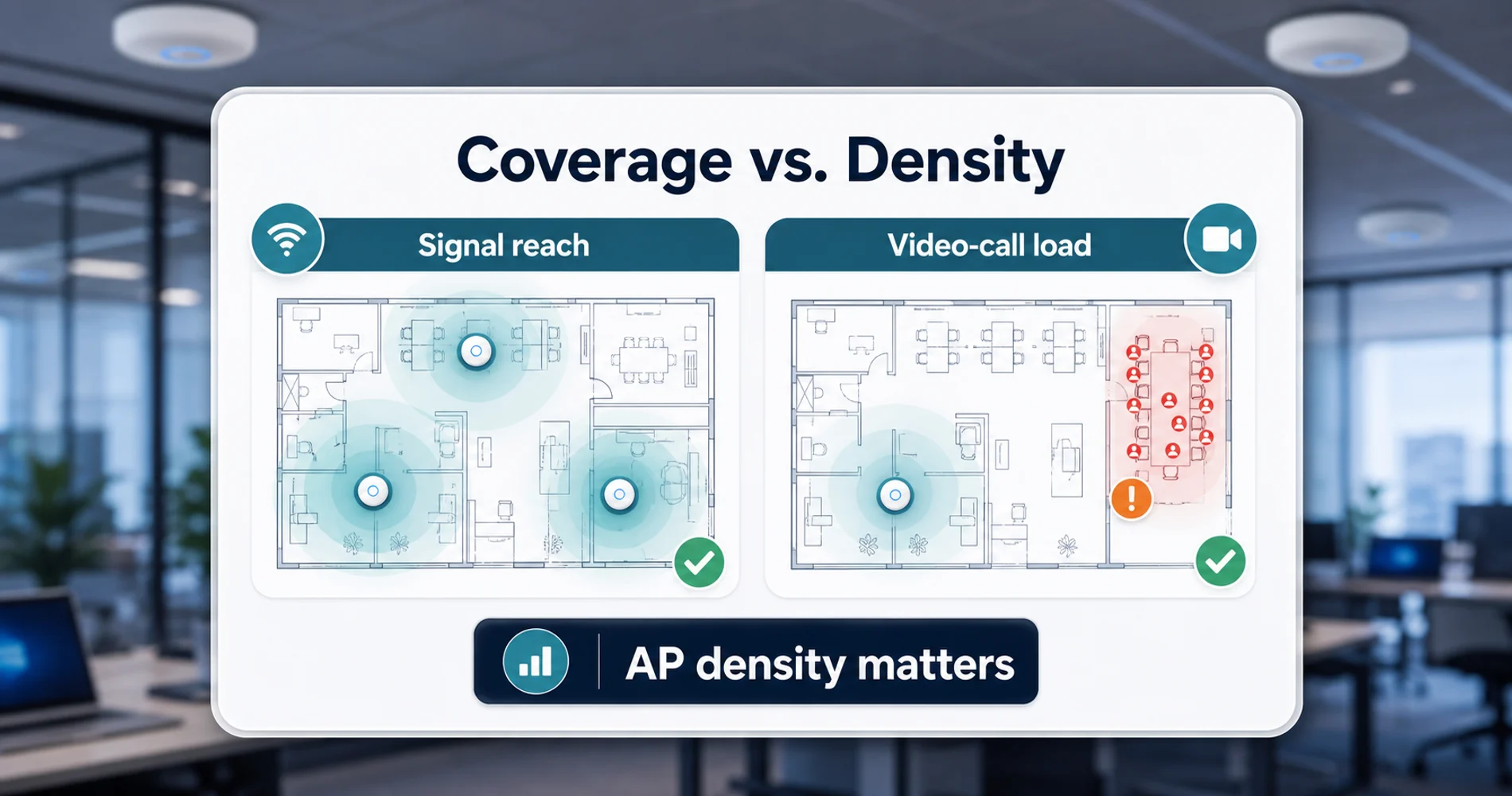
Coverage vs. density. The most common mistake in office WiFi design is treating it as a coverage problem when it's actually a density problem. One high-end AP can technically cover 3,000 square feet. It cannot simultaneously serve 30 people on video calls from that coverage area without degrading. Our rule of thumb from field experience: one AP per 1,000–1,500 sq ft of usable space, with a separate AP for any conference room running 5+ concurrent video sessions. The number goes up when you have dense deployments. For a sizing formula that accounts for device count, usage type, and floor plan together, our UniFi network sizing guide covers the math from 200+ installations. For offices running VoIP and Zoom across multiple APs, we also configure fast roaming (802.11r) at every installation — this enables seamless AP handoffs so calls don't drop or stutter when someone walks down the hall. Without it, a phone or laptop moving between APs re-authenticates from scratch, which is audible on an active call.
Common RF interference sources. Neighboring office SSIDs are visible in most commercial buildings — sometimes 15–20 of them on the 2.4 GHz band. IoT devices (thermostats, smart locks, access control readers) default to 2.4 GHz and can create a noisy RF environment. Microwave ovens near break rooms are a reliable 2.4 GHz disruptor. Bluetooth congestion in open offices with lots of wireless peripherals compounds this. We use a spectrum scan to see what's actually in the environment before deciding on channel and band configurations. For a fuller breakdown of how these variables interact, see why office WiFi underperforms.
Wired backhaul is the standard for professional installations. Mesh WiFi with wireless backhaul is designed for residential use. In any office with more than 15 employees, every AP should be wired back to a managed switch. The specifics — how many APs, where they go, how they connect — are covered in our UniFi network blueprint. The short version: wireless backhaul reduces usable bandwidth at every hop and adds variable latency that the marketing materials for these products don't highlight.
AP placement is determined by signal geometry, not aesthetics. The single most common mistake: APs placed where they look good on the ceiling rather than where they provide coverage. An AP centered in a hallway covers two hallways well and the offices on either side poorly. An AP in a corner covers one quadrant and creates dead zones in the other three. We walk the space and map the actual coverage geometry — which sometimes means recommending an AP location that requires running a new cable drop, rather than using an existing one in the wrong place. For offices dealing with specific dead zones before a full redesign, our WiFi dead zone guide covers room-by-room fixes.
When we got this right at a 25-person marketing agency — proper AP density, wired backhaul, channel optimization — latency dropped from 12ms to 4ms, with fifteen simultaneous Zoom calls running without a dropped frame. That outcome is documented in our WiFi 7 deployment guide, and it was less about the hardware and more about placing it correctly. For AP selection at this scale, our UniFi WiFi 7 AP guide covers the specific models we use in these deployments.
Setting Expectations Before Anything Gets Ordered
Before recommending any hardware, we walk clients through what real-world performance will look like — not the figures on the box.
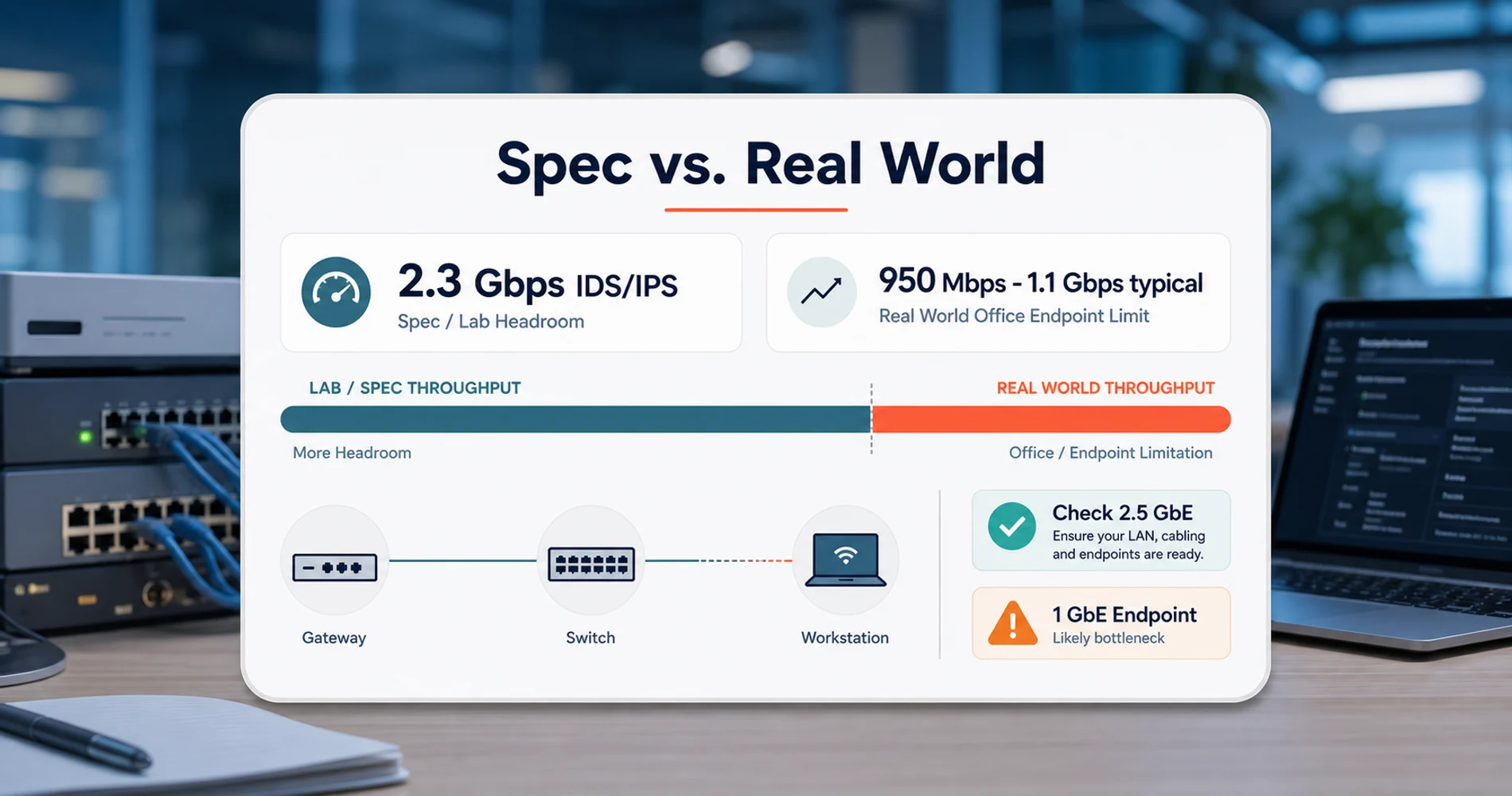
Spec sheets reflect controlled conditions. The most useful example: the UCG-Max is rated at 2.3 Gbps IDS/IPS throughput — and in real deployments, it delivers on that spec. In most South Florida offices we deploy into, where ISP plans run at 1 Gbps and workstations have 1 GbE NICs, we measure 950 Mbps to 1.1 Gbps end-to-end. That ceiling is the ISP plan and the client hardware, not the gateway. Where the distinction matters: if you're upgrading to a 2 Gbps fiber plan, the UCG-Max handles it — but only if your switches and client devices have 2.5 GbE ports to actually receive it. The model with the hard ~1 Gbps IDS/IPS ceiling is the UCG-Ultra ($129) — an important distinction when your ISP plan pushes past that. We walk clients through this before any hardware is ordered.
Spec vs. Real-World Throughput
The UCG-Max's 2.3 Gbps IDS/IPS spec reflects real-world performance — but you need 2.5 GbE switches and client NICs to measure it. In standard South Florida office deployments on 1 Gbps ISP plans with 1 GbE endpoints, you'll see 950 Mbps to 1.1 Gbps end-to-end. The gateway with the hard ~1 Gbps IDS/IPS ceiling is the UCG-Ultra ($129). If your ISP plan is at or above 1 Gbps and you want headroom, the UCG-Max is the right call — just confirm your client hardware supports 2.5 GbE to see the benefit.
Coverage does not equal capacity. A single high-end AP can blanket a floor with usable signal. It cannot simultaneously process the traffic from 30 people on video calls without degrading. Those are different hardware constraints — coverage is about radio power and antenna geometry; capacity is about the AP's processing power, the number of spatial streams, and the available spectrum. Clients often come in saying "my WiFi doesn't reach the back of the office" when the actual problem is "30 people are competing for the same 160 MHz channel." The fix for the first problem is an AP in a better location. The fix for the second is an additional AP, channel separation, or an upgrade to a platform that handles dense concurrent traffic better.
What "good WiFi" actually looks like, as a measurable outcome. When we say a network is performing well, we mean: sub-5ms average latency on the local network, zero dropped calls during a full video conference load test, and consistent throughput at the edge of the coverage area — not just next to the AP. Before we sign off on any deployment, we run these tests. A network that passes the demo at the router cabinet and fails at the corner office isn't done.
What a Typical Project Costs
Most articles about office WiFi setup don't include pricing. We do, because a client approaching a network project without a realistic number tends to make less informed decisions — about contractors, about scope, and about trade-offs between hardware quality and labor.
10–25 employee office infrastructure project: $3,500–$8,000. That range covers hardware (gateway, managed switch, 2–4 APs, a UPS) plus labor (site walk, installation, structured cabling work if needed, configuration, and a walk-through with your team). These are South Florida contractor rates from jobs we've done — not survey averages, not manufacturer estimates. The range is wide because the inputs vary significantly.
What drives the range:
- Structured cabling condition — an office with clean, tested Cat6 to every AP location is a half-day job. An office where we need to run new cable drops is a day and a half.
- Number of APs needed — a dense 3,000 sq ft open-plan office may need four APs. A 1,500 sq ft law firm with private offices may need two.
- Gateway complexity — a UCG-Max with VPN, VLAN segmentation, and guest network configuration takes longer than a basic installation.
- UPS requirement — adds $150–$400 in hardware depending on the equipment being protected.
Ongoing managed IT: If you want someone monitoring the network proactively, handling firmware updates, and responding when something goes wrong — not just fixing it after it's been down for a day — that's $125–$175/user/month for a managed services engagement in the South Florida market. That number is separate from the infrastructure project. Some clients want the infrastructure only; some want the ongoing management. Both are valid. For a full picture of what a complete small office network project involves, see our small office network setup guide. For South Florida-specific ISP options, infrastructure timelines, and local contractor context, our Miami office network planning guide covers the market in detail.
The Pre-Installation Checklist
This is what we actually go through before approving any hardware quote. Use the diagnostic below to check your current setup against each item — anything marked "No" is a gap to resolve before hardware gets ordered.
Pre-Installation Diagnostic
Office WiFi Readiness Assessment
Check each item against your current setup. Items marked “No” surface gaps to resolve before any hardware is ordered.
Power protection
Network gear is on a UPS — not a standard power strip
ISP baseline
ISP speed tested via Ethernet cable directly into the router — not over WiFi
Cabling plant
Structured cabling is Cat5e or Cat6 with no daisy-chained unmanaged switches
Connection quality
Jitter and latency tested — not just download and upload speed
The same items in list form, if you want to share them with your IT contact or bring them to a vendor meeting:
Before calling anyone — check these yourself:
- Is your network equipment on a UPS? (Power strip ≠ UPS)
- What's your ISP plan speed, and when did you last test it with an Ethernet cable directly in the router?
- What cable category runs to your AP mounting locations — Cat5e or Cat6?
- Are there any unmanaged switches in the office (the kind with no configuration interface)?
- Do guests and staff share the same WiFi network?
- Has anyone tested jitter and latency on your connection, not just download speed?
Before approving any hardware quote — have answers to these:
- How many devices connect to WiFi simultaneously at peak? (Include phones, tablets, IoT devices — not just laptops)
- Which applications are bandwidth-intensive or latency-sensitive? (Video conferencing, VoIP, cloud backup, NAS sync)
- Are there any systems where a 30-second network reboot creates an operational problem?
- What physical barriers exist between your AP locations and your densest work areas? (Concrete, metal shelving, server room walls)
- How many people will be on video calls simultaneously at peak? (This determines AP density)
- What's your internet plan speed, and is your current gateway handling it without becoming the bottleneck?
- Is structured cabling already in place for AP locations, or will new drops be needed?
- Do you have a timeline that requires a phased installation, or can everything go in at once?
A vendor who can't explain how these factors shaped their quote likely didn't ask about them.
If you're in South Florida and want us to run through this assessment for your office, reach out to schedule a site walk.
Frequently Asked Questions
Related Articles
More from Network Infrastructure

VLANs Without the Jargon: What They Are, What to Separate, and Why It Matters
A plain-language guide to VLANs for small business owners. Understand what network segments you already need — guest WiFi, IoT cameras, VoIP phones — and what belongs in each one.
10 min read
WiFi 7 Multi-Link Operation (MLO) Explained: What It Does, What It Doesn't, and Whether Your Office Can Use It
MLO is WiFi 7's most important — and most misunderstood — feature. This guide explains how it actually works, the difference between eMLSR and STR, which devices support it, and how to deploy it in UniFi.
17 min read
SSID Meaning: What It Is and Why Your Network Name Is a Security Decision
SSID stands for Service Set Identifier—your Wi-Fi network name. Learn what it means, why hiding it is a myth, and how to configure SSIDs properly for business security.
11 min read