

UniFi Guest WiFi VLAN Setup: Network 10.x Guide (2026)
Create a UniFi guest WiFi VLAN in Network 10.x: isolate guests with Network Isolation, map the SSID, add optional speed limits or a captive portal, and verify the firewall.

Most businesses need to offer guest WiFi, but without network segmentation a guest device may be able to discover or reach internal services—printers, file shares, point-of-sale systems, or cameras—depending on host firewalls and service configuration.
The fix is VLAN isolation. A dedicated guest VLAN with firewall rules limits guests to internet access and blocks access to other configured networks; client-to-client isolation is handled separately. If you are new to VLANs, our VLANs explained guide covers the concept. For a platform-comparison overview covering both UniFi and TP-Link Omada, see How to Set Up Guest WiFi the Right Way. This guide is the detailed UniFi implementation walkthrough.
Tested Environment
This guide was written and tested on UniFi Network 10.x running on a Cloud Gateway Ultra with U7 access points. Screenshots and menu paths reflect the current UniFi interface as of August 2026.
What you'll accomplish in about 20 minutes:
- Create a guest virtual network with a separate VLAN and subnet
- Enable Network Isolation to block inter-VLAN traffic
- Map the guest network to a WiFi SSID
- Enable Client Device Isolation so guests cannot communicate with each other on the same AP
- Optionally add speed limits, a captive portal, or switch-level ACL isolation
- Verify isolation with a multi-layer test
Prerequisites
You need a UniFi gateway (or a third-party router that supports VLANs) and at least one UniFi access point. The gateway creates the VLAN and applies firewall rules; the AP broadcasts the guest SSID.
Already have UniFi gear? Skip to the setup section.
Compatible Gateways
Prices are from the Ubiquiti US Store as of August 2026:
- Cloud Gateway Ultra — $129
- Dream Machine Pro — $379
- Dream Machine Pro Max — $599
- Dream Router 7 — $279 (all-in-one with built-in WiFi 7 AP)
Hardware Starting Points by Office Size
The table below shows gateway + AP subtotals only — PoE power, switching, cabling, and mounting are additional costs. Actual AP quantity depends on floor plan, wall materials, RF interference, and expected client density — not headcount alone. Verify prices before purchasing.
| Scenario | Gateway | Access Points | Gateway + AP Subtotal | PoE and Switching Notes |
|---|---|---|---|---|
| Small (<2,000 sq ft) | Cloud Gateway Ultra ($129) | 1× U7 Lite ($99) | ~$228 | The CGU has no PoE. Add a PoE+ adapter (~$18) or a Lite 8 PoE switch ($109) if powering multiple devices |
| Medium (multi-room) | Dream Machine Pro ($379) | 2–3× U7 Pro ($189 ea.) | ~$757–946 | The DMP has no PoE. Each U7 Pro draws up to ~20.5W — budget a PoE switch with sufficient wattage (the Lite 8 PoE's 52W cap may not cover 3× U7 Pro at peak draw) |
| Large (multi-floor) | Dream Machine Pro Max ($599) | 4–6× U7 Pro ($189 ea.) | ~$1,355–1,733 | Requires one or more PoE switches sized for total AP wattage, plus structured cabling and ceiling mounts |
For very small offices, the Dream Router 7 ($279) combines gateway, PoE switching, and a WiFi 7 AP in one device — no separate PoE equipment needed.
For detailed comparisons, see our UniFi Gateway Comparison Guide.
Step-by-Step: Set Up an Isolated Guest WiFi VLAN
Before you begin, make a backup of your UniFi configuration (Settings → Control Plane → Backups). Identify an unused VLAN ID that fits your documented numbering scheme (this guide uses VLAN 40 as an example) and choose a non-overlapping subnet.
Step 1: Create the Guest Virtual Network
- Open your UniFi controller at unifi.ui.com (or the local gateway IP address if self-hosted)
- Navigate to Settings → Networks
- Click Create New Network
Fill out the form:
| Setting | Value | Notes |
|---|---|---|
| Network Name | Guest | Internal label — guests will not see this |
| VLAN ID | 40 (example) | Use any unused VLAN ID that fits your scheme. Do not use your default/native VLAN for guest traffic |
| Gateway/Subnet | 10.40.0.1/24 | Must not overlap with your business subnet. A /24 supports up to ~253 clients |
| DHCP | Enabled | Assigns IP addresses to guest devices automatically |
Step 2: Enable Network Isolation
This is the setting that blocks inter-VLAN traffic — it prevents guest devices from reaching your business network.
- In the network you just created, find the Network Isolation toggle
- Enable it
When Network Isolation is on, UniFi automatically creates firewall rules that block traffic from this VLAN to all other VLANs. Guests can reach the internet but cannot initiate connections to devices on your corporate network.
What Network Isolation Does
Network Isolation is a one-click shortcut that creates firewall rules blocking inter-VLAN traffic. It replaces the manual process of writing rules to block RFC 1918 private address ranges. For more granular control, you can use Zone-Based Firewalls or the Hotspot firewall zone instead.
- Click Add Network or Save
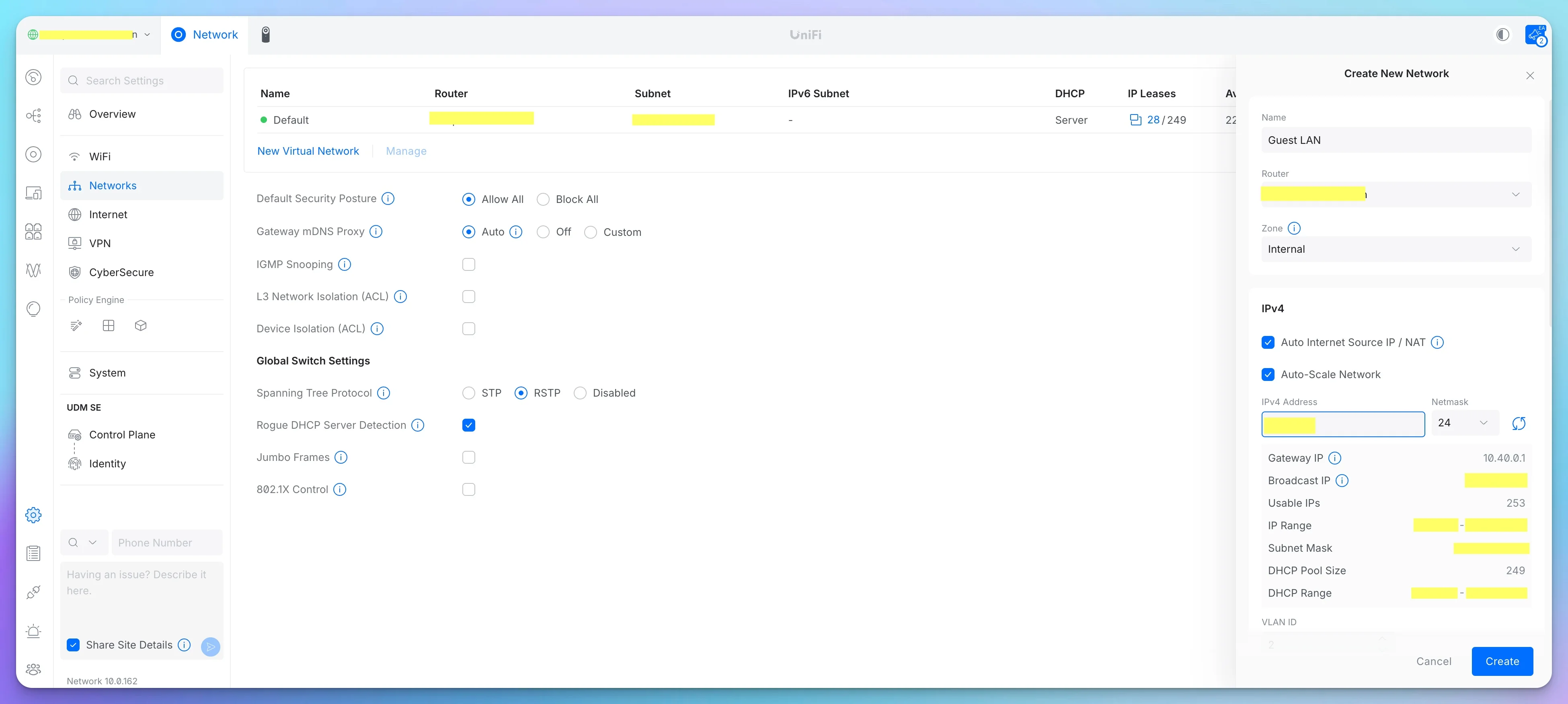
Your guest network now exists with inter-VLAN isolation. Next, you need to create the WiFi name (SSID) that guests will connect to.
Step 3: Create and Map the Guest WiFi SSID
Now create the WiFi name that guests will see on their devices.
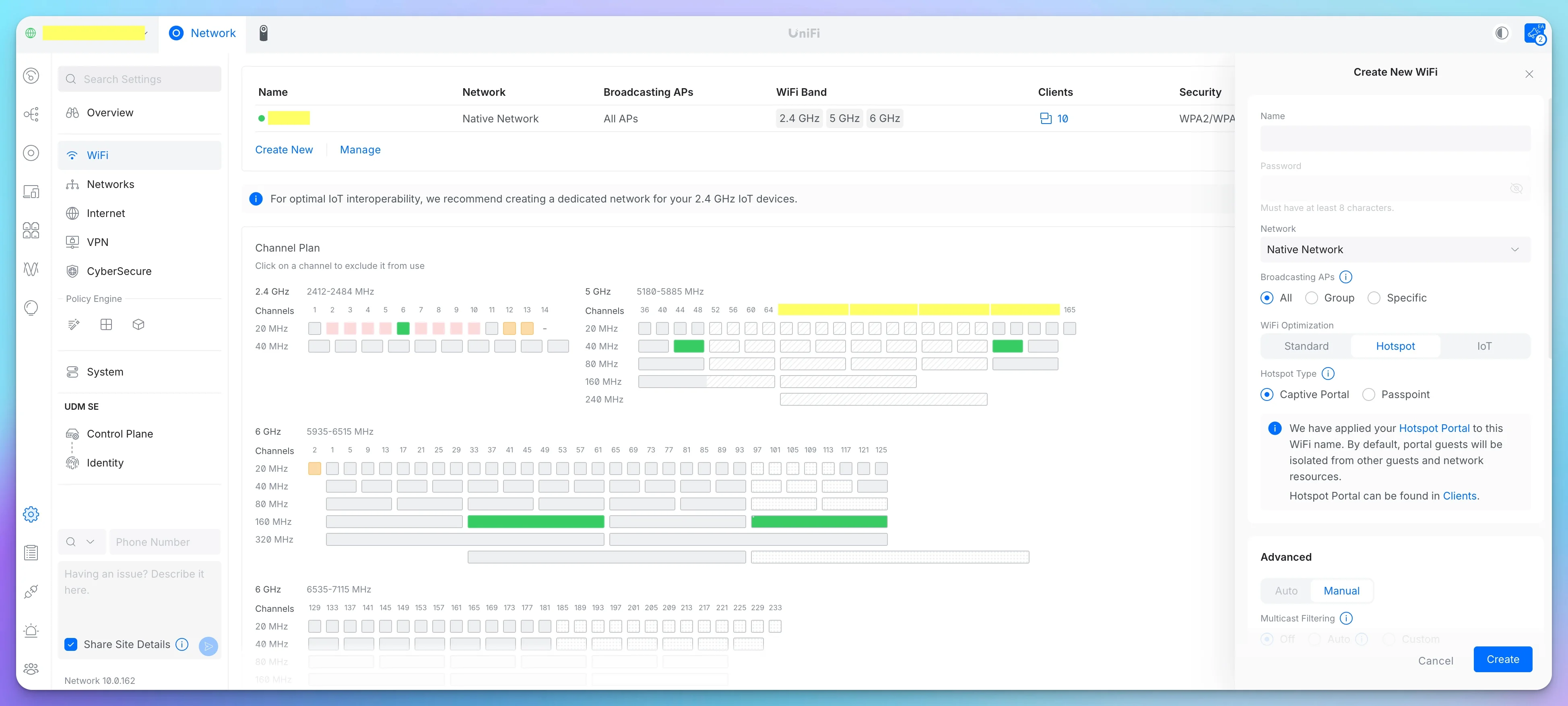
- Go to Settings → WiFi
- Click Create New WiFi Network
WiFi Name (SSID): Choose something guests will recognize, such as "YourCompany-Guest" or "Guest-WiFi." Avoid reusing your business WiFi name.
Network: Select the guest network you created in Step 1. This links the SSID to the isolated VLAN — if you skip this, guests will land on your default network with no isolation.
Security Protocol: WPA2/WPA3 Personal works for most deployments. WPA3 is preferred when all client devices support it; WPA2/WPA3 mixed mode provides compatibility with older devices. Set a passphrase guests can enter easily — prefer a long, memorable phrase over a short password with forced special characters (see current NIST guidance on passphrases).
If you plan to use a captive portal instead, you can leave the SSID open — but understand that an open SSID provides no WPA link-layer encryption. The portal controls onboarding, not encryption.
Step 4: Enable Client Device Isolation
- In Settings → WiFi, select your guest WiFi
- Enable Client Device Isolation
Client Device Isolation prevents devices connected to the same access point from communicating with each other. This is important for privacy in public spaces like waiting rooms and cafes.
Same-AP vs. Cross-Network Isolation
Client Device Isolation works at the AP level — it blocks communication between clients on the same access point. Network Isolation (Step 2) handles inter-VLAN traffic. For same-VLAN isolation across switches (not just within a single AP), also enable Device Isolation (ACL) under Settings → Networks → your guest network. See Implementing Network and Client Isolation in UniFi for details on each layer.
Step 5: Set a WiFi Speed Limit (Optional)
Speed limits prevent a single guest from saturating your connection. They cap each client's maximum throughput — but they are ceilings, not reservations. Actual bandwidth depends on WAN capacity, concurrent clients, overhead, and other traffic on the link.
How to configure:
- In Settings → WiFi, select your guest SSID
- Enable WiFi Speed Limit
- Set download and upload caps appropriate to your WAN speed and expected concurrency
Size limits from your actual WAN capacity and anticipated guest load. If your business has a 500 Mbps connection and you expect 10–20 concurrent guests, a 15–25 Mbps per-client cap is a reasonable starting point. Adjust based on observed usage.
Step 6: Save and Quick-Test
- Click Save
- Connect a phone to the guest SSID and confirm you get internet access
- While connected, try to open your business gateway's IP address (e.g.,
10.10.0.1) in a browser — the connection should fail
If the quick test passes, move to the full verification in the Testing section. If it fails, check the Troubleshooting section.
Optional: Captive Portal Setup
A captive portal is a splash page that appears when guests connect — common in hotels, airports, and cafes. It lets you present terms of service, collect consent, or require authentication before granting access.
A portal controls onboarding, not encryption. If you use an open SSID with a portal, traffic between the client and the AP is unencrypted. For WPA link-layer encryption, use WPA2/WPA3 on the SSID — you can combine a passphrase with a portal if needed.
When a Portal Is Useful
- You need guests to accept terms of service before connecting
- You want to collect email addresses for marketing (with explicit consent)
- You want branded onboarding with your company logo
- You use a voucher system for time-limited access
A portal is not required for isolation — Network Isolation and Client Device Isolation handle that independently.
Configure the Captive Portal
Step 1: Enable the Portal
- Go to Settings → WiFi, select your guest SSID, and enable Hotspot Portal → Captive Portal
Step 2: Choose Authentication Method
None / Click-through:
- Guests just click "I Accept" and get access
- Simplest option
Simple Password:
- Single shared password shown on the portal page
- Good middle ground between security and convenience
Voucher System:
- Generate time-limited access codes
- Great for paid access or temporary visitors
External Portal:
- Integrate with third-party systems
- Advanced option for enterprise
Step 3: Customize Your Portal
Upload Your Logo:
- PNG or JPG format
- Displayed at the top of the splash page
Set Your Colors:
- Background color: Match your brand
- Button color: Use your brand's primary color
Welcome Message:
- Keep it short: "Welcome to [Your Company]. Connect to browse."
Terms of Service:
- Link to your privacy policy and terms of use. If the portal collects personal data, disclose who is collecting it, the purpose, lawful basis, recipients, retention period, and data-subject rights. Obtain a separate, affirmative opt-in before using an email address for marketing — do not bundle marketing consent into basic WiFi access without legal review
Step 4: Session Settings
Access Duration:
- Set how long guests stay connected before needing to re-authenticate. 4–8 hours is common for office and retail environments
Step 5: Optional Redirect
Redirect URL (Optional):
- After authentication, redirect guests to your website or a welcome page
Step 6: Save and Test
- Save your portal settings
- Connect a test device to guest WiFi
- Expected: The device should open its captive-portal assistant or redirect the browser to your splash page. If neither happens, try loading
http://captive.apple.com. After completing the portal, internet access should work
Keep the portal minimal — fewer fields and faster onboarding lead to better guest experience.
Testing Your Guest Network
A single ping test is not enough. ICMP can be blocked while TCP services remain reachable. Run all five checks below before considering the setup complete.
Test 1: Internet Connectivity
- Connect a test device to the guest WiFi
- Open a browser and load an external site (e.g., google.com)
Expected: Page loads normally. If it fails, verify DHCP is enabled and the SSID is mapped to the correct network.
Test 2: VLAN Isolation (Inter-Network)
While connected to guest WiFi, test whether you can reach devices on your business network:
- Check your assigned IP — confirm it is in the guest subnet (e.g., 10.40.0.x), not your corporate range
- Ping the business gateway:
ping 10.10.0.1(use your actual corporate gateway IP) - Try HTTP access to a known internal device — a printer web interface, NAS dashboard, or file server
- Try a specific TCP port:
curl -v http://10.10.0.5:80or attempt an SMB connection to a file share
Expected: All connection attempts fail or time out. If ICMP fails but TCP succeeds, your firewall rules have gaps — review Network Isolation and any custom rules.
If IPv6 is enabled on your network, repeat these tests using internal IPv6 addresses. Firewall policies should match for both IPv4 and IPv6; an IPv4-only test may miss open IPv6 paths.
If Guests Can Reach Internal Devices
This means isolation is not working correctly. Check:
- Network Isolation is enabled on the guest network (Settings → Networks)
- The SSID is assigned to the guest network, not your default/corporate network
- No custom firewall rules are allowing guest-to-corporate traffic (check your firewall zones and rules under the gateway's security settings)
- Your AP uplink port carries the guest VLAN tag (check switch port profile)
Test 3: Client Device Isolation (Same-Network)
- Connect two devices to guest WiFi
- Note Device A's IP address (check WiFi settings on the device)
- From Device B, run:
ping [Device A's IP] - Also try:
curl -v http://[Device A's IP]:80(tests TCP, not just ICMP)
Expected: Both ping and TCP connections fail if Client Device Isolation is enabled. If ping fails but TCP succeeds, enable Device Isolation (ACL) at the switch level and retest. For thorough coverage, also test with two devices connected to different APs to verify cross-AP isolation.
Test 4: Speed Limits
- Run a speed test (speedtest.net) while connected to guest WiFi
- Compare results against your configured WiFi Speed Limit
Expected: Download and upload speeds should cap near your configured limits.
Test 5: Captive Portal (If Enabled)
- Forget the guest network on a test device and reconnect
- Open a browser in incognito/private mode
- Try to access any website
Expected: The device's captive-portal assistant should open, or the browser should redirect to your splash page. After completing the portal, internet access works.
If neither happens, try loading http://captive.apple.com or http://neverssl.com — HTTP URLs trigger the redirect more reliably than HTTPS-first sites.
Monitoring
View connected guest devices under Clients in the UniFi controller, filtered by the guest network. For portal activity (if using a hotspot), check Insights → Hotspot. For alerts, check Settings → Alarm Manager for available event triggers — options vary by firmware version.
Troubleshooting Common Issues
Guests Cannot Connect
Symptoms: Devices see the SSID but fail to associate, or they associate but never get an IP address.
Check in order:
- SSID mapped to the correct network? Edit the WiFi (Settings → WiFi) and confirm the Network dropdown points to your guest network
- DHCP enabled? Settings → Networks → select the guest network → verify DHCP is on
- AP uplink carries the VLAN? If your AP connects through a managed switch, confirm the switch port profile includes the guest VLAN as a tagged VLAN. A restricted trunk that omits VLAN 40 will silently drop guest traffic
- WPA passphrase correct? Try resetting it temporarily to rule out a typo
- AP status? Check Devices → select the AP. If it shows "Adopting" or "Provisioning," wait for it to finish. If it is stuck, restart the AP from the controller
Slow Guest WiFi
Check in order:
- Speed limit too low? Edit the SSID and check the WiFi Speed Limit setting. Adjust based on your WAN speed and expected concurrency
- Channel congestion? Check channel utilization under the AP's radio settings. Use Channel AI (AirView → Channel AI → Channel Plan) to optimize channel assignments
- Too many clients per radio? Capacity depends on airtime, client capabilities, and traffic mix — not just client count. If a single AP is overloaded, adding another AP or enabling band steering can help
- WAN saturated? Check overall internet usage under Insights. If business + guest traffic exceeds your connection, lower guest limits or upgrade your plan
Guests Can Reach Internal Devices
This means isolation is not working. Disable guest access until fixed.
- Network Isolation enabled? Settings → Networks → guest network → confirm Network Isolation is on
- SSID assigned to the correct network? An SSID on your default/corporate network has no isolation
- Custom firewall rules? Check your gateway's firewall zones and rule tables for any rules that allow traffic from the guest VLAN to corporate subnets. Remove or disable them
- Subnet overlap? If the guest network and corporate network use the same IP range (e.g., both 192.168.1.x) on the same VLAN, they share a broadcast domain and are not isolated. If they are on different VLANs but reuse the same subnet, routing will be ambiguous. In either case, assign the guest network a distinct, non-overlapping subnet
Captive Portal Not Appearing
- Test in incognito/private browsing to bypass cache
- Try loading an HTTP URL:
http://captive.apple.comorhttp://neverssl.com— HTTPS-first browsers may skip the redirect - Verify the Hotspot Portal is enabled on the guest SSID (Settings → WiFi → select SSID → Hotspot Portal)
- Check that DNS on the guest network points to the gateway
Getting Help
- UniFi Community Forums — active community with staff participation
- Official Ubiquiti Help Center — searchable knowledge base
- Contact our Miami IT team for professional UniFi deployment
Security Checklist
Deployment Checklist
- WPA2/WPA3 encryption enabled — WPA3 preferred; mixed WPA2/WPA3 mode for compatibility with older devices
- Strong passphrase set — use a long, unique passphrase rather than a short password with forced composition rules (NIST SP 800-63B Rev 4 recommends length over complexity). Avoid published examples
- Unique VLAN ID assigned — do not place guest traffic on your default/native VLAN; use a dedicated, unused VLAN ID that fits your numbering scheme
- Network Isolation enabled — blocks inter-VLAN traffic at the firewall level
- Client Device Isolation enabled — prevents same-AP client-to-client communication
- WiFi Speed Limit configured — sized from WAN capacity and expected guest concurrency
- Multi-layer isolation test passed — verified with ICMP, HTTP, and TCP (not just ping)
Ongoing Maintenance
- Rotate the guest passphrase after suspected exposure, misuse, relevant staff turnover, or compromise. Arbitrary periodic rotation (e.g., "every 90 days") is not a modern best practice — rotate when there is a reason to
- Review firewall rules periodically — confirm Network Isolation is still enabled and no custom rules have opened paths from the guest VLAN to corporate subnets
- Update UniFi firmware when stable releases are available (Settings → Control Plane → Updates). Read release notes before updating
- Monitor guest network usage — check for unusual bandwidth patterns or unexpected device types under Clients, filtered by the guest network
Advanced Options
- Device Isolation (ACL) — enable at the switch level for same-VLAN isolation across the switched network, not just per-AP. Note: ACLs require compatible UniFi switches throughout the traffic path. Ubiquiti excludes Flex, FlexMini, US-8, USW Industrial, and USW Ultra/Ultra-60W/Ultra-210W models. If your deployment includes unsupported or third-party switches, verify cross-AP isolation directly rather than assuming the ACL is enforced
- Voucher system — generate time-limited access codes instead of a shared passphrase
- Session time limits — auto-disconnect guests after a set duration
- Content filtering — the optional CyberSecure subscription ($99/year) provides Cloudflare-powered category filtering with per-VLAN policies. Filtering reduces casual abuse but is not a legal-liability shield — VPNs may bypass filtering unless VPN traffic is also controlled
- DNS-level filtering — block known malware and phishing domains via custom DNS settings
Privacy and Compliance Notes
If you collect personal data through a captive portal (email addresses, names, device identifiers):
- Display a privacy notice before the guest connects — disclose who collects the data, the purpose, lawful basis, recipients, retention period, and applicable rights
- For marketing use of collected data, obtain a separate, affirmative opt-in — pre-checked boxes do not satisfy GDPR consent requirements, and marketing consent should not be bundled with WiFi access
- Define and document a data retention period — GDPR requires the shortest period justified by your purpose; there is no universal 90- or 180-day rule. Delete or anonymize data when the retention period expires
CCPA note: CCPA applies to businesses that meet specific thresholds — currently $26.625 million in annual gross revenue (inflation-adjusted), or alternative data-volume/revenue tests. It applies only to California consumers. Small businesses below these thresholds may still have obligations under other state privacy laws. Consult legal counsel for your specific situation.
Password-only networks are not exempt: Even without a portal, IP addresses, MAC addresses, and connection logs can constitute personal data under GDPR. The absence of a portal does not eliminate compliance obligations if you retain network logs.
Frequently Asked Questions
Do I need a separate internet connection for guest WiFi?
No. Guest WiFi shares your existing internet connection. VLAN isolation happens at the gateway, not at your ISP. You use WiFi Speed Limits (per-client caps) and optionally Traffic Management to prioritize business traffic.
High-density venues (hotels, event spaces) with consistently large guest populations may benefit from a dedicated WAN link for guests, but most small-business deployments work well on a single connection.
Can guests see each other's devices?
Not if you enable isolation. UniFi provides three layers:
- Network Isolation — blocks inter-VLAN traffic (guest VLAN cannot reach corporate VLAN)
- Client Device Isolation — blocks client-to-client communication on the same AP
- Device Isolation (ACL) — extends client isolation across switches, covering clients on different APs within the same VLAN
For a guest network, enable all three for layered isolation, then verify each layer with testing. See Implementing Network and Client Isolation in UniFi for how each layer works.
What if I don't have a UniFi gateway?
VLAN isolation requires a managed router or gateway that supports VLANs and firewall rules. If you use a third-party router:
- Create a guest VLAN on that router
- Write firewall rules to block guest-to-corporate traffic
- Configure the UniFi controller to tag the guest SSID with that VLAN ID
This works, but you lose the one-click Network Isolation shortcut — you must manage firewall rules manually.
A Cloud Gateway Ultra ($129) is a cost-effective way to get full UniFi integration. For a broader setup walkthrough, see our UniFi Business Network Guide.
Should I enable content filtering?
Content filtering can reduce casual misuse (blocking adult content, torrents, gambling sites) but it is not a legal-liability shield. VPNs may bypass filtering unless VPN traffic is also controlled on the guest network.
UniFi's built-in content filter (Settings → CyberSecure → Content Filter) provides basic category blocking. The optional CyberSecure Enhanced subscription ($99/year) adds Cloudflare-powered filtering with 100+ granular categories and per-VLAN policies, plus Proofpoint-powered IDS/IPS.
Next Steps
With the setup complete and tested, your guest WiFi is isolated from your business network at multiple layers:
- Network Isolation blocks inter-VLAN traffic at the firewall
- Client Device Isolation prevents same-AP client communication
- WiFi Speed Limits cap per-client bandwidth
- Device Isolation (ACL), if enabled, extends isolation across switches
Related Guides
- UniFi Business Network Setup Guide — Full UniFi deployment from scratch
- UniFi Gateway Comparison Guide — Choosing the right gateway
- Power over Ethernet Guide — Understanding PoE for UniFi APs
- Small Business Network Security Audit — Going beyond guest WiFi
- Best WiFi 7 Access Points — AP selection guide
Professional Help
Multi-floor deployments, complex VLAN schemes, or environments with compliance requirements benefit from professional planning. iFeeltech offers UniFi network design, installation, and ongoing support across Miami, Coral Gables, Brickell, Doral, and South Florida.
Schedule a free consultation →
Related Reading
- How to Find Your Router IP Address — Access your gateway on Windows, Mac, iPhone, Android, or Linux
- Double NAT: How to Detect and Fix It — Troubleshooting gateway and subnet conflicts
- VLANs Explained for Small Business — Understanding network segmentation concepts
Questions about your setup? Leave a comment below or contact our Miami IT team.
Affiliate Disclosure: This article contains affiliate links. If you make a purchase through these links, we may earn a small commission at no extra cost to you. As an Amazon Associate, iFeelTech earns from qualifying purchases.
Related Articles
More from Network Infrastructure

How to Set Up Guest Wi-Fi the Right Way (And Why Most Businesses Get It Wrong)
Step-by-step guide to setting up a secure guest Wi-Fi network for your small business on UniFi or TP-Link Omada — without exposing your printers, payment terminals, or internal files.
18 min read
Dental Office Network Requirements: Dentrix, Eaglesoft & Open Dental
Eaglesoft, Dentrix and Open Dental server requirements for 2026, plus the imaging, VLAN and cabling design a dental practice network needs.
19 min read

VLANs Without the Jargon: What They Are, What to Separate, and Why It Matters
A plain-language guide to VLANs for small business owners. Understand what network segments you already need — guest WiFi, IoT cameras, VoIP phones — and what belongs in each one.
11 min read