

Setting Up 5G Failover for Business Internet: UniFi Guide
Learn how to set up reliable 5G cellular failover for your business internet using UniFi equipment. Keep operations running when your primary connection fails.

Affiliate Disclosure: This article contains affiliate links. If you make a purchase through these links, we may earn a small commission at no extra cost to you. As an Amazon Associate, iFeelTech earns from qualifying purchases.
5G cellular failover automatically switches your internet to a backup cellular connection when your primary link drops, keeping business operations online without manual intervention. This guide covers selecting the right UniFi hardware, configuring failover in the UniFi controller, managing cellular data costs, and testing the system end-to-end.
Still Deciding Whether You Need Dual WAN at All?
This guide assumes you've already decided on 5G as your failover technology and covers the hardware and configuration steps. If you're earlier in the decision — whether a second connection is worth it, carrier diversity vs. route diversity, and failover-only vs. load balancing — start with our dual-WAN architecture guide for business networks first.
Already on AT&T Business Fiber?
If you're on AT&T Business Fiber with a 1 Gig or faster plan, you may already have 5G failover built into your gateway — no additional device needed. See our AT&T built-in 5G failover guide for how it works and when a separate device is still worth adding.
If you're in an area with weak 5G coverage, or need complete infrastructure independence from local tower networks, Starlink Business failover is an alternative worth comparing.
Why Cellular Failover Makes Sense
5G offers practical advantages over other backup approaches:
- Automatic activation - Switches to backup within seconds
- Independent infrastructure - Uses cellular towers instead of cables
- Adequate speeds - Often 100+ Mbps for typical business needs
- Flexible costs - Pay-as-you-go options available
Unlike a second wired connection (which might share infrastructure) or satellite (which adds latency), cellular provides genuinely independent connectivity.
How UniFi Handles 5G Failover
Network Topology
How the U5G Reroutes Traffic During an Outage
Toggle between modes to see how failover works in practice.
Primary fiber or cable WAN is active. Packets flow directly from the ISP through the gateway to your clients at full speed. The U5G modem is powered via PoE and monitoring the network, but no cellular data is consumed.
UniFi's approach differs from most dual-WAN setups because the cellular modem is adopted as a managed network device rather than connected as a standalone WAN2 appliance.
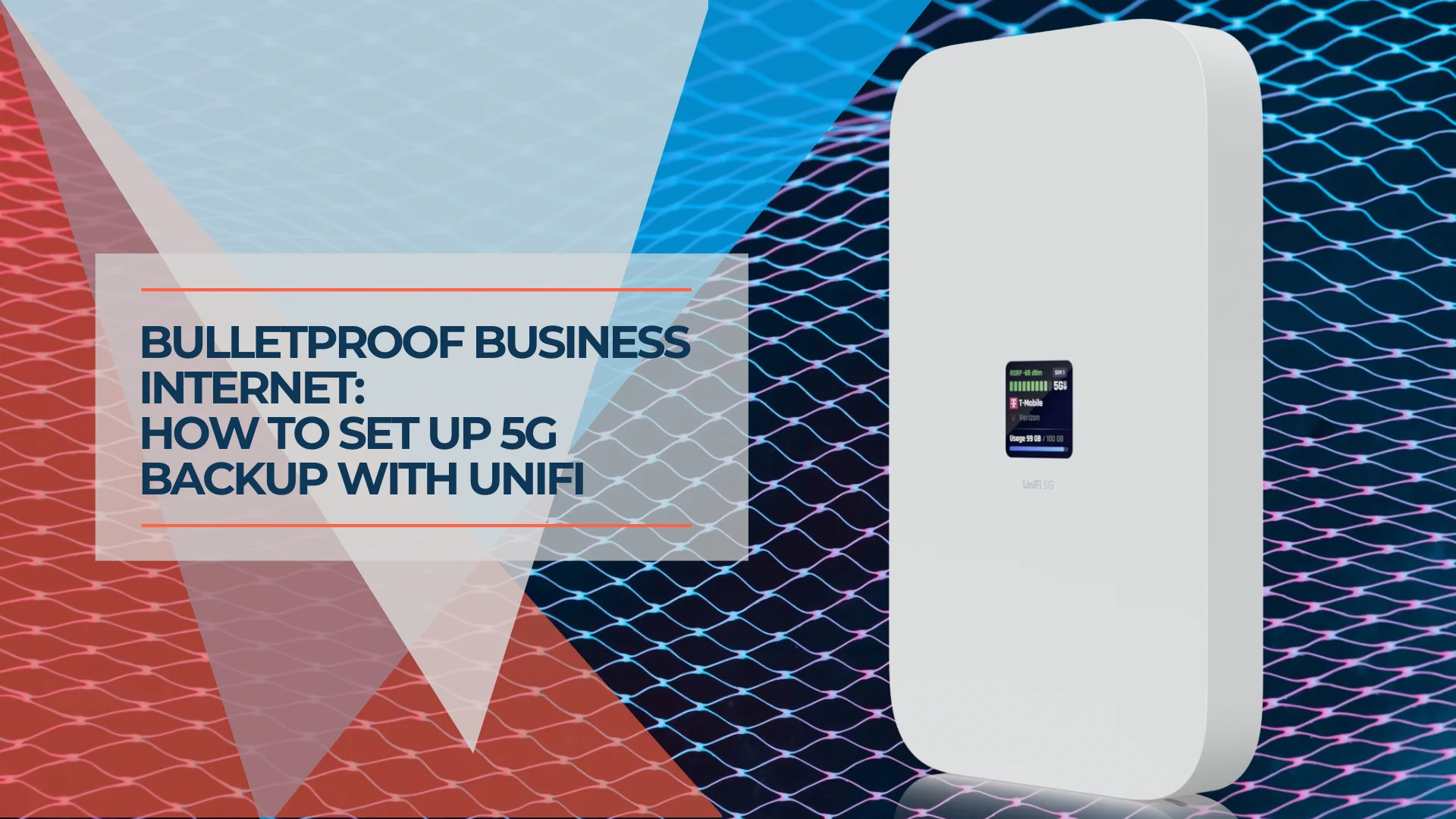
Native UniFi cellular devices (5G Backup, 5G Max, LTE Backup Pro) connect via PoE to any switch port and are managed through the same controller interface as your access points and cameras. The gateway monitors your primary ISP connection and routes traffic through the cellular modem within seconds of detecting a failure. When the primary connection recovers, it reverts automatically without manual intervention.
This integrated approach means you get unified alerting, per-network failover control, data usage monitoring, and signal diagnostics in a single dashboard. Third-party modems plugged into WAN2 work fine for the actual failover, but you lose the granular visibility and per-VLAN failover policies that the native integration provides.
Field Note: Coral Gables Law Firm Deployment
In a recent deployment for a 12-person law firm in Coral Gables, we configured a UniFi 5G Max on T-Mobile alongside their AT&T Fiber primary. During a planned fiber maintenance window, the failover activated in under 12 seconds. Their VoIP system (3CX) re-registered automatically, and active calls reconnected within one ring. The only visible indicator was a brief dashboard notification. The firm consumed 4.2 GB of cellular data over the 90-minute maintenance window — well within their 20 GB monthly bucket.
Hardware Requirements for UniFi 5G Failover
You need a dual-WAN capable UniFi gateway, a compatible cellular modem, and an active SIM card from a carrier to set up 5G failover.
A dual-WAN gateway like the Cloud Gateway Ultra or Dream Machine Pro is required to manage the routing. Most recent UniFi gateways—including the Cloud Gateway Max—support this. See our UniFi gateway comparison guide for help choosing the right gateway. For the modem, Ubiquiti offers several ecosystem options:
- UniFi 5G Backup ($99): Uses 5G RedCap for cost-effective, essential failover speeds (30–85 Mbps real-world). Connects via PoE to any switch port. Supports T-Mobile and AT&T.
- UniFi LTE Backup Pro ($279): Connects via PoE with automatic adoption, but is restricted to AT&T in the United States. Speeds top out at 150/50 Mbps.
- UniFi 5G Max ($399): Supports AT&T, T-Mobile, and Verizon with speeds up to 3.4 Gbps. Dual SIM and eSIM capable.
- Dream Router 5G Max ($499): An all-in-one Wi-Fi 7 gateway and 5G modem for greenfield deployments. Now available.
Third-party 5G modems like the Teltonika RUTX50 (approximately $600) or MikroTik Chateau 5G (approximately $350) connect to your gateway's WAN2 port and support any carrier — see the detailed comparison in Step 1 below.
How to Configure UniFi 5G Failover
Connect your modem via PoE or WAN2, adopt it in the UniFi controller, activate the SIM, and configure failover priority and data limits.
Step 1: Choose Your 5G Solution
Your choice of cellular modem depends on carrier requirements, performance expectations, and budget. Here's how the UniFi options compare head-to-head:
| 5G Backup | LTE Backup Pro | 5G Max | |
|---|---|---|---|
| Price | $99 | $279 | $399 |
| Max Speed | 30–85 Mbps | 150/50 Mbps | 3.4 Gbps |
| Technology | 5G RedCap | LTE Cat 6 | 5G NR (full) |
| Carriers (US) | T-Mobile, AT&T | AT&T only | AT&T, T-Mobile, Verizon |
| SIM | nano-SIM | nano-SIM | Dual nano-SIM + eSIM |
| Connection | PoE switch port | PoE switch port | PoE switch port |
| Best For | Budget failover | AT&T-committed sites | Max performance, multi-carrier |
Product Comparison
UniFi Cellular Backup Options: U5G vs LTE Backup Pro vs 5G Max
Select a device to see full specs and a recommendation.
UniFi 5G Backup
Best for most SMBsThe right starting point for most small businesses. 220 Mbps is more than enough to keep email, VoIP, POS, and VPN running during an outage. At $99 hardware and $60/year thereafter, the three-year total cost is under $250.
View on Ubiquiti Store →My recommendation: For most small businesses under 25 employees, the 5G Backup at $99 handles failover well — email, VoIP, POS, and basic cloud access all work within its 30–85 Mbps range. The 5G Max is worth the higher cost if you run bandwidth-heavy operations during outages (large file transfers, video production, multiple simultaneous video calls) or need Verizon support. The LTE Backup Pro remains a reliable option for AT&T-committed environments, though the newer 5G Backup offers broader carrier support at a lower price point.
UniFi 5G Backup ($99) is the most affordable entry point. It connects via PoE to any switch port and delivers 30–85 Mbps using 5G RedCap—sufficient for email, VoIP, POS, and VPN during outages. Supports T-Mobile and AT&T.
UniFi LTE Backup Pro ($279) connects via PoE to any switch port with no dedicated WAN port needed. In the United States, this device only works with AT&T. Speeds top out at 150 Mbps download and 50 Mbps upload.
UniFi 5G Max ($399) delivers theoretical speeds up to 3.4 Gbps and is now certified with AT&T, T-Mobile, and Verizon. The dual SIM and eSIM capability lets you configure failover between two different cellular providers.
Third-party 5G modems connect to your gateway's WAN2 port and support any carrier. Choose these when you need industrial-grade hardware, external antenna options, or advanced routing features that UniFi's native devices don't offer:
- Teltonika RUTX50 ($550–$650): Industrial-grade 5G router with dual SIM, 5x Gigabit Ethernet, and RutOS for advanced failover logic. Best for harsh environments (rated -40°C to 75°C) or deployments needing independent routing intelligence at the modem level. More than most offices require, but well-suited for warehouses, construction sites, or retail with outdoor equipment.
- Netgear Nighthawk M6 Pro ($899): 5G mmWave with WiFi 6E and a 2.5G Ethernet port. Primarily a portable hotspot, but its Ethernet output works as a WAN2 feed for your UniFi gateway. Consider this if your business needs a device that doubles as travel connectivity for executives. Expensive for fixed failover-only use.
- MikroTik Chateau 5G ($300–$400): Budget-friendly 5G with RouterOS for custom configurations. Good for IT teams comfortable with CLI-based management who want granular control over cellular routing policies.
Step 2: Physical Connection
For Native UniFi Devices (5G Backup, LTE Backup Pro, 5G Max):
All native UniFi cellular devices connect via Power over Ethernet to your switch, not to a WAN port on your gateway.
- Insert SIM into device
- 5G Backup: nano-SIM
- LTE Backup Pro: nano-SIM
- 5G Max: nano-SIM or eSIM (supports dual SIM)
- Connect device to any PoE+ switch port
- Gateway auto-detects it as a WAN source
Important: These devices connect to your internal network (LAN switch), not the gateway's WAN port. They appear on your network like any other UniFi device and are adopted through the controller. The gateway then recognizes them as available WAN connections.
UniFi LTE Backup Pro Setup Guide
For UniFi 5G Max:
Watch this setup walkthrough for the UniFi 5G Max:
UniFi 5G Max Setup and Review
For Third-Party 5G Modem:
Third-party modems follow the traditional dual-WAN setup:
- Insert SIM into 5G modem
- Power on modem
- Connect modem's ethernet port to gateway WAN2
- Configure modem per manufacturer instructions
Step 3: Activate SIM Card
Contact your carrier to activate the SIM:
- Provide device IMEI number (found on device label)
- Confirm data plan activation
- Verify working connection before proceeding
For AT&T with UniFi LTE Backup Pro, ensure the SIM is properly assigned to your device's IMEI to avoid connectivity issues.
Step 4: Configure in UniFi Network
Configuration Steps
Via UniFi Network Controller:
-
Adopt Device
- Go to Network → Devices
- Adopt the cellular modem when it appears
- Wait for adoption to complete
-
Configure WAN Failover
- Navigate to Settings → Internet
- Select your 5G/LTE connection
- Set as "Backup" (WAN2)
- Primary should be your wired connection (WAN1)
-
Set Data Limits (Important)
- Go to Device Settings → LTE Management
- Set monthly data cap (based on your plan)
- Configure warning threshold (e.g., 80%)
- Enable alerts for usage monitoring
-
Configure Failover Priority
- Primary: Wired connection (WAN1)
- Backup: 5G/LTE (WAN2)
- Failover: Automatic (default)
UniFi gateways are preconfigured for automatic failover when multiple WAN connections exist.
Step 5: Selective Network Backup (Optional)
Control which networks use backup:
Navigation: Settings → Networks → [Select Network] → Advanced → Failover Priority
Recommended Configuration:
- Enable for: Main business network, VoIP, POS systems
- Disable for: Guest Wi-Fi, non-critical IoT devices
- Why: Preserves cellular data for essential services
This prevents guests from consuming your backup data during outages. If you run Toast POS, the backup path must serve the Toast VLAN specifically — see our Toast POS network requirements guide for the deployment-model distinction and failover considerations.
How to Test UniFi 5G Failover
Unplug your primary internet connection to verify the system switches to cellular backup, then reconnect it to confirm automatic failback.
Before testing, document your current public IP address. Then follow this procedure:
- Disconnect primary WAN cable and wait 30 seconds
- Verify internet access is active and confirm your public IP reflects the cellular provider
- Test critical services — VoIP calls, POS transactions, VPN connections
- Reconnect primary line and ensure the system restores the original IP address within 30–60 seconds
Perform this test quarterly and after any firmware updates. Document results including failover time, failback time, and any services that dropped during transition.
How to Manage Cellular Backup Data
Set data limits at 80% of your plan capacity and disable failover for non-essential networks to control cellular costs during outages.
Usage Estimates
Video calls consume 2–4 GB per hour per participant, while basic browsing uses 1–2 GB per employee per day. VoIP calls are light at 80–100 MB per hour. Cloud software access typically runs 500 MB–2 GB per employee per day.
Cost Control Configuration
Prevent overages by restricting failover strictly to critical infrastructure (VoIP, POS, main business network). Navigate to Settings → Networks → [Network Name] → Advanced → Failover Priority to disable cellular backup for guest Wi-Fi and IoT devices.
Configure usage alerts at 50% and 75% directly in the UniFi dashboard under Device Settings → LTE Management. Set the hard data cap at 80% of your plan to leave a safety margin.
Data Usage Warning
Without data limits configured, an extended outage could result in unexpected charges. A 10-employee office on video calls during a day-long outage can consume 50+ GB. Always set limits before activating failover.
Choosing a Data Plan
Your plan choice depends on outage frequency:
- Pay-per-use ($10–20/GB): Ideal for businesses with rare outages (1–2 per year)
- Monthly bucket ($20–60 for 5–20 GB): Suits businesses experiencing regular downtime
- Unlimited plans: Available but cost significantly more than most small businesses need for backup
How to Optimize 5G Modem Signal Strength
Place the modem near a window away from metal obstructions and use the UniFi dashboard to verify the signal remains above -85 dBm.
Check signal metrics in the UniFi controller under Device → [Modem Name] → Signal Info:
- Strong signal: -70 dBm or better (optimal performance)
- Acceptable: -85 dBm (adequate for failover)
- Poor: -100 dBm or worse (requires immediate repositioning)
Placement Guidelines
- Position near exterior windows on the side facing the nearest cell tower
- Avoid metal server cabinets, concrete basements, and interior rooms
- Test signal strength in 3–4 locations before permanent mounting
- Keep the modem away from other radio equipment (Wi-Fi APs, microwave ovens)
External Antennas
If indoor placement yields poor results (consistently below -85 dBm), utilize third-party external antennas to boost reception. Most 5G modems including the UniFi 5G Max support external antenna connections that can improve signal by 10–15 dB.
eSIM Provisioning for UniFi 5G Devices
The UniFi 5G Max and Dream Router 5G Max support eSIM in addition to physical nano-SIMs, eliminating the need to source and insert a physical card.
To provision an eSIM via the UniFi controller:
- Navigate to Network → Devices → [5G Modem] → Settings → SIM
- Select "eSIM" and tap "Add eSIM Profile"
- Scan the QR code provided by your carrier (or enter the activation code manually)
- Wait for the profile to download and activate (typically 1–3 minutes)
- Verify connectivity under Device → Signal Info
If you previously used physical SIMs exclusively, note that eSIM profiles persist through factory resets. To switch carriers, deactivate the current profile before adding a new one. The 5G Max supports one active eSIM profile alongside one physical SIM, enabling dual-carrier redundancy.
What Happens to Active Connections During Failover?
Active TCP sessions (VoIP calls, VPN tunnels, video conferences) may drop during the 10–30 second failover transition because the device's public IP address changes.
UniFi gateways do not maintain TCP session state across WAN interfaces. When failover activates:
- VoIP calls will drop and must be redialed (unless your PBX supports automatic re-registration)
- VPN tunnels using IKEv2 or WireGuard typically reconnect automatically within seconds
- Video calls (Zoom, Teams) usually reconnect within 5–15 seconds if the app supports it
- Web browsing and email resume immediately with no user action
For businesses where call continuity is critical, consider SD-WAN solutions that maintain session persistence, or configure your PBX for automatic failover re-registration.
PoE Power Budget Considerations
UniFi cellular devices draw PoE power from your switch. Verify your switch has adequate PoE budget remaining before adding a modem.
| Device | PoE Draw | PoE Standard |
|---|---|---|
| UniFi 5G Backup | ~8W | PoE (802.3af) |
| UniFi LTE Backup Pro | ~6.5W | PoE (802.3af) |
| UniFi 5G Max | Up to 14.5W | PoE+ (802.3at) |
If your switch already powers multiple UniFi Protect cameras, access points, and other PoE devices, the additional 8–15W from a cellular modem can exceed the total budget. Check your current PoE consumption under Devices → [Switch] → Port Manager before connecting the modem. If budget is tight, consider a dedicated PoE injector for the cellular device.
Carrier Business Plan Comparison
Choosing the right carrier and plan for 5G failover depends on your coverage area, budget, and whether you need a static IP.
| Carrier | Backup Plan Options | Static IP | Notes |
|---|---|---|---|
| T-Mobile Business | 5–50 GB data buckets ($20–60/mo) | Available (add-on) | Best 5G mid-band coverage in most metro areas |
| AT&T Business | Data-only plans ($25–75/mo) | Available on Business Elite plans | Required for LTE Backup Pro; strong fiber+cellular bundles |
| Verizon Business | Data-only IoT plans ($20–50/mo) | Available (add-on) | Strong mmWave coverage in dense urban areas |
Static IP consideration: Businesses hosting local servers, running site-to-site VPNs, or requiring inbound connections during failover should confirm static IP availability with their carrier. Without a static IP, inbound services become unreachable when failover activates. For more on evaluating provider SLAs and uptime guarantees, see our business internet SLA guide.
Data-only vs. phone plans: For failover modems, always purchase a data-only plan. Phone plans include unnecessary voice/text services and often have different APN configurations that can cause provisioning issues with router-class devices.
Common Issues and Solutions
Failover Not Activating
- WAN priority correctly set (primary vs. backup)
- Cellular connection shows active in controller
- Data limit not exceeded
- SIM card properly activated
- PoE power budget not exhausted on switch
Slow 5G Speeds
- Verify carrier coverage in your area (check signal strength)
- Reposition modem or add external antenna
- Confirm 5G plan is active (not throttled to 4G/LTE)
- Test with different carrier if available (dual SIM devices)
Unexpected Data Usage
- Check which networks have failover enabled
- Disable automatic OS/software updates during failover
- Review large file sync services (Dropbox, OneDrive, backups)
- Restrict failover to critical VLANs only
How Much Does 5G Failover Cost?
Initial hardware costs range from $99 to $499, while ongoing cellular data plans typically run $20 to $60 per month for business backup.
Equipment Costs
| Component | Price | Notes |
|---|---|---|
| UniFi 5G Backup | $99 | 5G RedCap, T-Mobile/AT&T, PoE powered, failover only |
| UniFi LTE Backup Pro | $279 | LTE only, AT&T network, PoE powered |
| UniFi 5G Max | $399 | 5G, AT&T/T-Mobile/Verizon, up to 3.4 Gbps |
| Dream Router 5G Max | $499 | All-in-one Wi-Fi 7 gateway + 5G modem |
| Third-Party 5G Modem | $200–600 | Brand/features dependent |
| External Antenna (if needed) | $50–150 | Improves weak signal areas |
Ongoing Data Costs
| Plan Type | Cost | Best For |
|---|---|---|
| Pay-per-use | $10–20/GB | Rare outages (1–2 per year) |
| Monthly bucket | $20–60 for 5–20 GB | Regular downtime events |
| T-Mobile Business Backup | $30/month | Dedicated backup plans |
Most small businesses spend $20–40/month on backup data. Calculate your needs by estimating annual downtime hours and multiplying by expected data consumption per hour.
What to Buy: Recommendations by Business Size
Buying Guide
What Should Your Business Buy?
Select your business size and profile to get a specific hardware and data plan recommendation.
Select your business size above to see a hardware and plan recommendation.
After deploying failover across dozens of South Florida offices, here's what I recommend based on team size and operational requirements:
1–10 employees (basic office): Buy the UniFi 5G Backup ($99) on T-Mobile with a $30/month data bucket. Total first-year cost: approximately $460. This handles email, VoIP, POS, and basic cloud access during outages. Pair it with any existing UniFi gateway — no additional hardware needed.
10–30 employees (professional services): Buy the UniFi 5G Max ($399) with a T-Mobile or Verizon 20 GB plan ($50/month). Total first-year cost: approximately $1,000. The higher throughput keeps video calls stable for multiple simultaneous users, and the eSIM + physical SIM combo provides carrier redundancy without a second device.
30+ employees or high-uptime requirements (medical, legal, financial): Deploy the 5G Max ($399) as primary failover plus the Teltonika RUTX50 ($550–$650) on a second carrier as WAN3. This gives you independent cellular paths on different providers — if T-Mobile's tower goes down during a regional event, your Verizon backup still operates. Budget $1,500–$2,000 first year for hardware plus two data plans.
Remote or pop-up offices without wired internet: Buy the Dream Router 5G Max ($499). It combines gateway, WiFi 7, and 5G modem in a single device — no separate switch or modem needed. Add a $50/month data plan and you have a complete office network running entirely on cellular.
Getting Started
- Verify your gateway supports dual-WAN (Cloud Gateway Ultra, Cloud Gateway Max, Dream Machine Pro, or newer)
- Research 5G coverage in your area and confirm data-only plan availability
- Order hardware and plan 1–2 hours for physical setup, adoption, and testing
- Test failover quarterly and after firmware updates
Need help planning or deploying 5G failover across multiple offices? Our team specializes in UniFi network design and can recommend the right solution for your business. For multi-site deployments, our connecting multiple business locations guide covers VPN configuration and site-to-site failover strategy.
If your primary connection goes down before this setup is in place, see our guide on what to do when your business internet goes down for immediate triage steps. If you're still evaluating which ISP to use as your primary connection, our business internet provider comparison covers AT&T Fiber, Comcast, T-Mobile 5G, Verizon Fios, and Starlink side-by-side.
Frequently Asked Questions
Related Articles
More from UniFi Networks
UniFi Fiber and SFP Guide for 1G, 10G, 25G, and 100G Links
Match UniFi SFP, SFP+, SFP28, and QSFP28 ports with DAC, AOC, OM4, or OS2 cable by speed, connector, and distance.
20 min read
Complete UniFi Protect AI Security System Under $2000: Professional-Grade Surveillance for Small Business
Build a professional AI-powered security system with UniFi Protect for under $2,000. Complete guide to the UDM Pro SE, G6 Bullet cameras, and 8TB storage configuration.
13 min read

Luxury Home Network Design: 4,500 sq ft Smart Home Integration Case Study
Complete case study of a 4,500 sq ft Coral Gables smart home network installation featuring UniFi Wi-Fi 7, 12 security cameras, home automation integration, and $18K-$25K investment breakdown.
16 min read