

UniFi Protect Setup Guide 2026: Cameras, NVRs, Storage and Real Costs
Plan a UniFi Protect camera system with current 2026 NVR and camera choices, complete budgets, storage and PoE sizing, ONVIF support, installation steps and no-license-fee trade-offs.

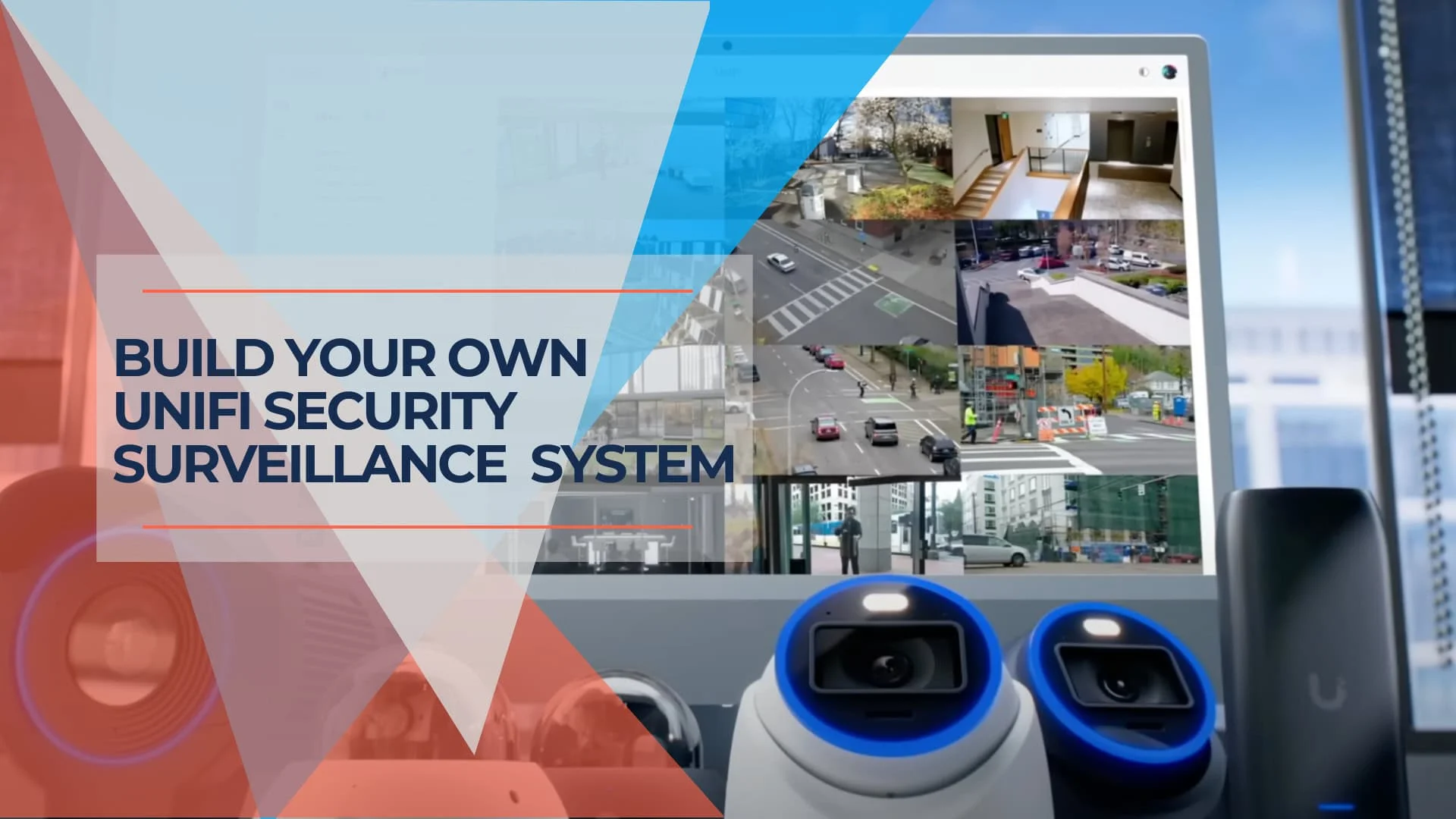
What's Current in August 2026
- G6 cameras deliver 4K + AI face recognition from $199—and the G6 Pro line extends this further
- No mandatory subscription — all core Protect features run locally with no license fee
- ONVIF support now includes motion events, PTZ control, and audio for compatible third-party cameras
- Protect 7.x is the current release, bringing improved smart detections and archiving options
This guide walks you through building a UniFi Protect surveillance system—from initial planning to ongoing maintenance. Whether you're a home DIYer or a business owner, you'll find practical advice for creating a working security setup without mandatory recurring fees.
Last updated: August 10, 2026. Prices checked against the Ubiquiti US store and exclude tax and shipping.
| Feature | Benefit | Why It Matters |
|---|---|---|
| No Mandatory Subscription | Core features (recording, live view, AI detections, app) have no recurring fee | Lower total cost of ownership and predictable budgeting |
| Local Storage | Keeps your video data on your hardware | Enhanced privacy and control over your sensitive footage |
| Scalable System | Start small and add cameras as needed | Cost-effective growth, the system adapts to your evolving needs |
| AI-Powered Smart Detection | Reduces false alerts and focuses on relevant events (people, vehicles) | More efficient monitoring and faster response to actual threats |
| User-Friendly Interface | Easy setup and management, even for non-experts | Less time spent on configuration and more on security |
| Remote Access & Alerts | Monitor your property from anywhere via the mobile app | Proactive security and peace of mind on the go |
| ONVIF Compatibility | Integrate existing third-party cameras without additional costs | Protect previous camera investments while upgrading gradually |
Understanding the UniFi Protect Ecosystem
UniFi Protect is Ubiquiti's video surveillance platform, designed to be robust and user-friendly. It's a comprehensive system beyond basic recording, offering features catering to novice users and experienced IT professionals. Unlike many traditional CCTV systems, UniFi Protect operates without monthly subscription fees. This is possible because recorded footage is stored locally rather than in the cloud. Let's explore the key features and requirements:
- No Mandatory Subscription: There is no recurring license fee for core Protect features—recording, live view, smart detections, and mobile app access are included. Optional paid services (cloud storage tiers, UI Care) exist but are not required.
- Local Storage: Video footage is stored directly on your own hardware, giving you greater control over your data and faster access to recordings.
- AI-Driven Smart Detection: G6 and AI-series cameras distinguish between people, vehicles, and other objects. Advanced models include face recognition (excluding 360 models) and license plate detection, reducing false alerts.
- ONVIF Compatibility: UniFi Protect supports third-party ONVIF cameras with live view, recording, motion events, PTZ control, and audio. Compatibility varies by model. AI smart detections require native UniFi cameras or a compatible ONVIF camera paired with an AI Port.
- Remote Access: The UniFi Protect mobile app (iOS and Android) provides live camera feeds and recording playback from anywhere with an internet connection.
- Scalability: Start with a few cameras and expand as needed—consoles range from the compact UNVR Instant (up to 6 4K cameras) to the ENVR Core (up to 300 4K cameras).
System Requirements
- UniFi OS Console: At the heart of the UniFi Protect system is a UniFi OS Console. This device acts as the central hub, managing your cameras, storing recordings, and providing the interface for accessing the system. Options include the CloudKey+, Dream Machine Pro/SE/Pro Max, UNVR Instant, UNVR, and UNVR Pro—each offering different storage capacity and camera limits.
- Network Infrastructure: A stable network is crucial for optimal performance. Wi-Fi camera models such as the G6 Instant can connect wirelessly; consoles, NVRs, and PoE cameras normally use wired Ethernet. Power over Ethernet (PoE) switches provide both power and data to cameras through a single cable, simplifying installation.
UniFi Protect Overview
Planning Your UniFi CCTV Deployment
Before installing any equipment, careful planning must ensure your UniFi Protect system meets your security needs. This involves a thorough site assessment and selecting the appropriate hardware for your specific environment.
Site Assessment: Laying the Groundwork for Success
- Identify Vulnerable Areas: Begin by identifying areas susceptible to security breaches. Consider potential entry points, such as doors and windows, as well as areas where valuable assets are stored. Don't overlook areas like loading docks, parking lots, and less-trafficked parts of your property.
- Camera Placement Strategy:
- Field of View: Each UniFi camera model has a specific field of view. Choose cameras with appropriate lenses to cover the desired areas effectively. Wider fields of view are suitable for large spaces, while narrower fields of view are better for focusing on specific points of interest.
- Height and Angle: Mounting height and angle significantly impact coverage. Generally, cameras should be mounted high enough to prevent tampering but low enough to capture clear facial details. Experiment with different angles to optimize visibility and minimize blind spots.
- Consider Obstructions: Be mindful of potential obstructions like trees, walls, or signage that could block the camera's view. Plan camera placement to avoid these obstacles or consider adjusting the environment if necessary.
- Lighting Conditions:
- Day/Night Vision: Most UniFi cameras feature infrared (IR) LEDs for night vision. However, the effectiveness of IR can vary. Evaluate the ambient lighting in each area and consider cameras with strong low-light performance for areas with minimal illumination.
- Supplemental Lighting: In areas with very poor lighting, consider installing external lighting to improve image quality and enhance the effectiveness of motion detection.
- Power Source Considerations:
- PoE (Power over Ethernet): PoE is the recommended method for powering UniFi cameras, as it simplifies installation by providing both power and data through a single Ethernet cable.
- PoE Switches/Injectors: Ensure you have a PoE switch with enough ports and a sufficient power budget for all your cameras. If you don't have a PoE switch, you can use PoE injectors to power individual cameras.
- Alternative Power Options: While less common, some cameras may be powered by separate AC or DC adapters if PoE is not feasible.
- Environmental factors: What type of weather will these cameras have to endure? Is there a risk of vandalism? Make sure you pick a suitable camera for the environment.
UniFi Design Center Feature: Floor Plans
Using the UniFi Design Center for Optimal Camera Placement
Ubiquiti offers a free online tool called the UniFi Design Center for planning your camera deployment. It lets you upload your floor plan and virtually place UniFi devices, including cameras, to visualize coverage and optimize placement.
Here's how to use the UniFi Design Center for planning your surveillance system:
- Create a New Project or Sign In: If you don't have an account, you'll need to create a new one. After that, you can create a new project.
- Upload Your Floor Plan: You can upload a floor plan image (PNG, JPG, or SVG) or create one from scratch using the tool's built-in design features. Ensure the scale of the floor plan is accurately set for realistic simulations.
- Select Your UniFi OS Console: Choose the console that will be the foundation of your system.
- Add Cameras to the Floor Plan: Select the UniFi Protect cameras you intend to use from the device list and drag and drop them onto your floor plan. You can adjust their position, rotation, and height to simulate real-world placement.
- Visualize Coverage: The Design Center will display the estimated coverage area for each camera, considering its field of view and mounting height. This helps you identify potential blind spots and ensure adequate coverage of critical areas.
- Experiment and Optimize: Try different camera positions and models to find the most effective layout. The Design Center allows you to easily move devices, change their settings, and see the real-time impact on coverage.
Choosing the Right Equipment
After completing a thorough site assessment, you can now select the appropriate UniFi Protect equipment for your specific needs. This includes choosing the right UniFi OS Console to manage the system and the best camera models for each location.
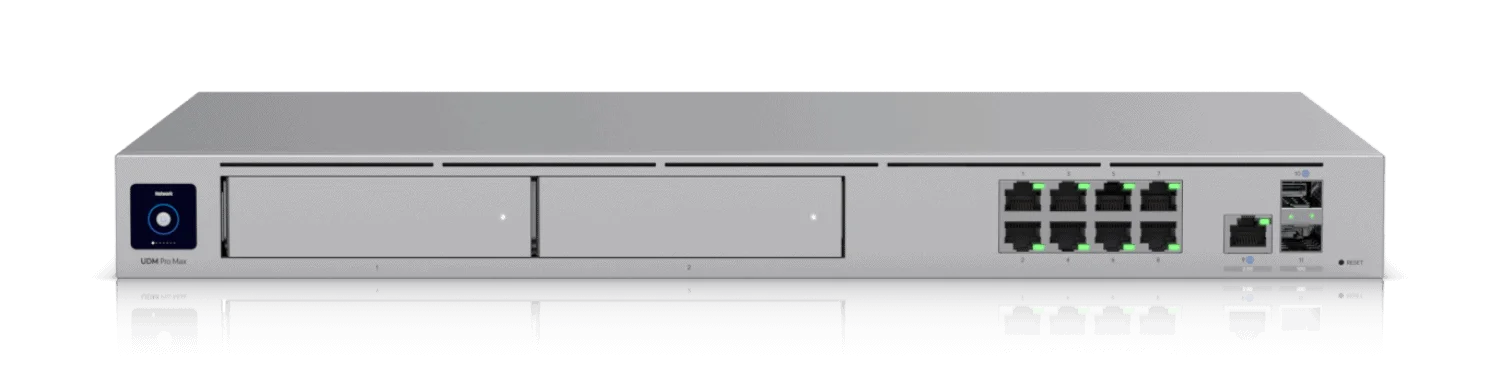
UniFi Protect Consoles
The UniFi OS Console is the central management device for your UniFi Protect system. It handles video recording, user access, and overall system configuration. Here are the primary options:
- UniFi CloudKey+ SSD (UCK-G2-SSD): A compact console suitable for smaller installations, supporting approximately 8 4K, 14 2K, or 24 HD cameras. The current $249 model includes a preinstalled 1TB SSD. (The older HDD variant at $199 is being phased out.) A good starting point for home users who don't need a full gateway.
- UniFi Dream Machine Pro (UDM-Pro): An all-in-one device combining NVR with a full-featured network gateway/controller. Supports approximately 8 4K, 14 2K, or 24 HD cameras (same general capacity range as the CloudKey+). Does not include built-in PoE — a separate PoE switch is required. Ideal for small to medium-sized businesses at $379.
- UniFi Dream Machine Special Edition (UDM-SE): Similar to the UDM-Pro, but includes built-in PoE ports and an integrated 128 GB SSD for faster UniFi OS responsiveness. Priced around $499.
- UniFi Dream Machine Pro Max (UDM-Pro-Max): The highest-capacity model in the UDM Pro family, with built-in Protect support. Designed for larger deployments with 200+ UniFi devices and 2,000+ clients, it supports up to 5 Gbps routing with IDS/IPS. Features Shadow Mode (VRRP) for high-availability failover. The built-in 128 GB SSD and dual 3.5" NVR HDD bays with RAID data protection make it a strong all-in-one choice. Priced at $599.
- UniFi Network Video Recorder (UNVR / UNVR Pro): Dedicated NVRs for larger deployments. The UNVR ($299) holds four 2.5/3.5" drives and supports up to 18 4K or 60 Full HD cameras. The UNVR Pro ($499) holds seven drives and supports up to 24 4K or 70 Full HD cameras. Both require a separate gateway for network routing. For a detailed comparison including the Gen 2 models, see our UNVR vs UNVR Pro vs UNVR G2 comparison.
- UniFi NVR Instant: The most affordable dedicated NVR at $199. Features an integrated 6-port PoE switch, HDMI output, and a single 3.5-inch drive bay. Supports up to 6 4K, 8 2K, or 15 Full HD cameras. Requires connection to a gateway or Layer 3 switch — the UNVR Instant is not itself a router.
- UniFi Enterprise NVR (ENVR): Enterprise-scale recorder with 16 drive bays supporting up to 70 4K or 210 Full HD cameras. Priced around $1,999. The newer ENVR Core ($4,999) extends capacity to 300 4K or 500 Full HD cameras with hot-swappable power supplies and optional storage expansion units.
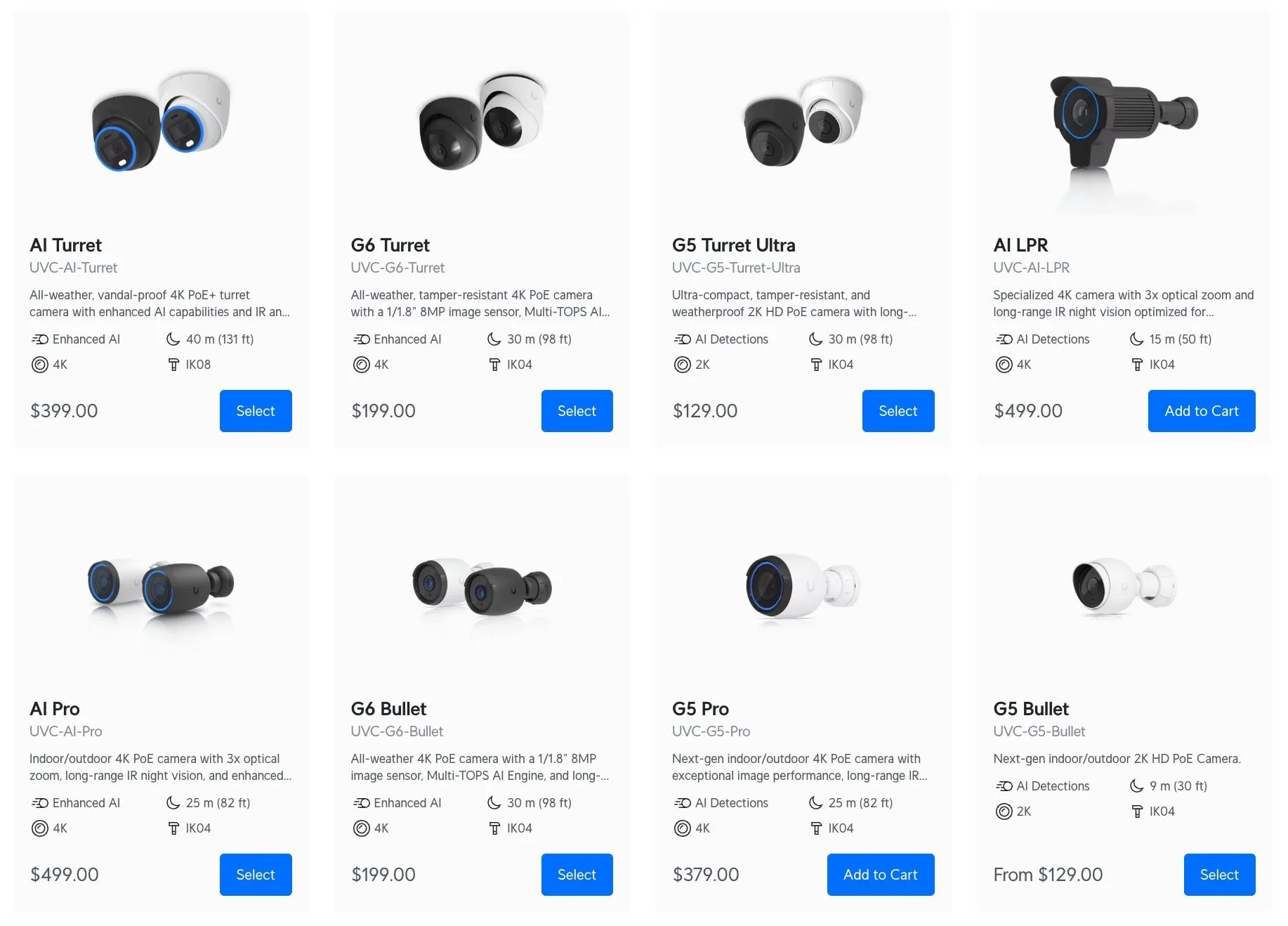
UniFi Camera Options
UniFi offers a diverse range of cameras to suit various surveillance needs. Here's a breakdown of the current models:
G6 Series (Current Generation)
The G6 series brings 4K AI capabilities to an accessible price point. For detailed comparisons, see our G6 buying guide:
- G6 Bullet: Outdoor camera with a 1/1.8" 8MP sensor delivering 4K resolution at $199. Includes AI face recognition and license plate detection, IR illumination up to 30 m, and IP66 weather resistance. Available in black or white.
- G6 Turret: Same sensor and AI capabilities as the G6 Bullet in a compact turret form factor for $199. Suited to locations where a lower-profile camera is preferred. 3-axis manual adjustment for flexible installation.
- G6 Instant: Wi-Fi camera at $179 with 4K resolution and AI capabilities for locations without Ethernet access. Uses UniFi Auto-Link for setup and shares the same 1/1.8" 8MP sensor as the wired G6 models.
- G6 Dome: An ultra-robust dome camera at $279 with IK10 vandal-proof rating and 4K 8MP imaging, ideal for high-traffic areas requiring tamper resistance.
- G6 180: Combines two 1/1.8" 8MP sensors at $299 for a stitched 16MP, 180-degree ultra-wide image — useful for covering large areas with fewer cameras.
- G6 PTZ: An upgraded PTZ camera at $399 featuring dual cameras, 4K video capability, 10× hybrid zoom, integrated LED spotlight, speaker for two-way audio, and a MicroSD card slot for edge recording.
- G6 Pro Series: The G6 Pro Bullet, Pro Turret, and Pro Dome extend the G6 line with larger sensors, enhanced low-light performance, and optical zoom for more demanding environments. See the G6 buying guide for full specifications and pricing.
AI Series (Premium Line)
- AI Pro: 4K resolution with enhanced low-light performance from a large 1/1.8" sensor, 3× optical zoom, and AI features including facial recognition and license plate detection.
- AI Turret: An all-weather, vandal-proof 4K PoE+ turret camera with enhanced AI capabilities, long-range night vision, and a large image sensor with IR and visible LEDs.
- AI Dome: All-weather, vandal-proof 4K PoE dome camera with enhanced AI capabilities and long-range IR night vision.
- AI 360: This camera provides a wide, 360-degree view using a fisheye lens and de-warping software, ideal for covering large rooms or open spaces with AI-powered motion detection.
- AI Theta: A unique, discreet camera system with a separate lens and body connected by cable, supporting different lens options, including 360-degree coverage for specialized installations.
- AI PTZ Industrial: Built to withstand extreme environments, this $1,299 PTZ camera combines a hardened enclosure with 4K imaging and advanced AI features like person, vehicle, and animal detection.
- AI PTZ Precision: Industrial-grade 4K PTZ camera ($1,999) with 31× optical zoom, LiDAR-assisted autofocus, and 100 m adaptive IR night vision.
G5 Series (Value-Focused)
- G5 Bullet: This versatile camera is suitable for indoor and outdoor use. Its 5MP sensor provides sharp and detailed images, and its infrared LEDs ensure clear visibility even in low-light conditions.
- G5 Dome: Designed for discreet indoor or outdoor installations. It features a low-profile design and a 5MP sensor, similar to the G5 Bullet.
- G5 Flex: A compact and versatile 2K (4MP) PoE camera suitable for indoor or sheltered outdoor use. Flexible table or ceiling mounting. Currently $129.
- G5 Pro: Enhanced image quality with a large 1/1.8" sensor, 4K resolution at 30 FPS, 3× powered optical zoom, and long-range adaptive IR LEDs.
- G5 Turret Ultra: Ultra-compact, tamper-resistant, and weatherproof 2K HD PoE camera with long-range night vision. Currently $129.
- G5 Dome Ultra: This ultra-compact and tamper-resistant 2K HD PoE camera with night vision is designed for low-profile indoor security.
- G5 PTZ: This compact, all-weather camera features ultra-low latency pan-tilt-zoom control and versatile mounting options.
G4 Series (Professional Grade)
- G4 Doorbell Pro: A video doorbell with dual cameras — a primary camera for visitors and a secondary downward-facing camera for package monitoring. Includes two-way audio and integrates with the UniFi Protect system like any other camera.
- G4 PTZ: A 4K Pan-Tilt-Zoom camera with 22× optical zoom, long-range IR night vision, motion tracking, and auto-patrol. Suitable for applications requiring variable framing from a single position.
AI Port - Transform Legacy Cameras
The AI Port at $199 brings AI capabilities to older UniFi cameras (G3/G4/G5) and third-party ONVIF cameras:
- Camera Capacity: Supports up to 5 Protect cameras (depending on resolution) or 1 4K / 2 2K / 3 HD ONVIF cameras
- Face Recognition & LPR: Adds facial recognition and license plate detection to connected cameras
- ONVIF Camera Support: Integrates third-party cameras with AI analytics
- Edge Recording: MicroSD slot for local backup recording (supported now)
- PTZ Control: Supports PTZ on compatible ONVIF cameras
- Power Output: When powered via PoE+, provides up to 12.95 W to the connected camera. PoE++ input is required for up to 25.5 W output
Storage Considerations
The amount of storage you need depends on the number of cameras, recording resolution, frame rate, and how long you want to retain recordings. UniFi Protect includes storage management features that allow you to optimize usage effectively.
- Hard Drive Selection: Surveillance-grade drives (Seagate SkyHawk, Western Digital Purple) are designed for continuous write workloads and are generally preferable for NVR use. Verify that any drive is compatible with the recorder and expected workload before purchasing.
- Storage Policies: UniFi Protect allows different retention periods for high-quality versus low-quality recordings, maximizing storage efficiency while preserving critical footage longer. For detailed planning, see our storage planning guide.
Step-by-Step Installation
With your equipment selected, it's time to begin the installation process. This involves physically mounting and connecting your cameras and configuring the UniFi Protect software.
Physical Installation
Mounting Cameras:
- Tools Required: Gather the necessary tools, typically including a drill, drill bits (appropriate for your mounting surface), a screwdriver, a level, a pencil or marker, and possibly wall anchors.
- Step-by-Step Mounting Instructions: Each camera model will have specific mounting instructions, usually found in the box or available online. Generally, this involves:
- Positioning the Mount: Use the included mounting template (if provided) to mark the screw hole locations on the wall or ceiling.
- Drilling Holes: Drill pilot holes at the marked locations. If mounting into drywall or masonry, use wall anchors.
- Securing the Mount: Attach the camera mount to the surface using appropriate screws. Ensure it's firmly secured and level.
- Attaching the Camera: Connect the camera to the mount, following the camera-specific instructions.
- Weatherproofing: Ensure all connections and openings are correctly sealed for outdoor installations to prevent water damage. Use weatherproof enclosures or sealant if necessary.
Pro Tip
When mounting G6 Turrets outdoors, apply dielectric grease on the Ethernet connection to prevent corrosion—even if you use the weather-sealing gland. It's a $5 insurance policy for your $199 camera.
Cabling:
- Running Ethernet Cables: Run Ethernet cables from your PoE switch or injector to each camera location. Consider using conduits or raceways to protect cables and maintain a neat appearance, especially in exposed areas.
- Connecting to PoE Switch/Injector: Connect one end of each Ethernet cable to a camera and the other to a corresponding port on your PoE switch or injector. Ensure the connections are secure.
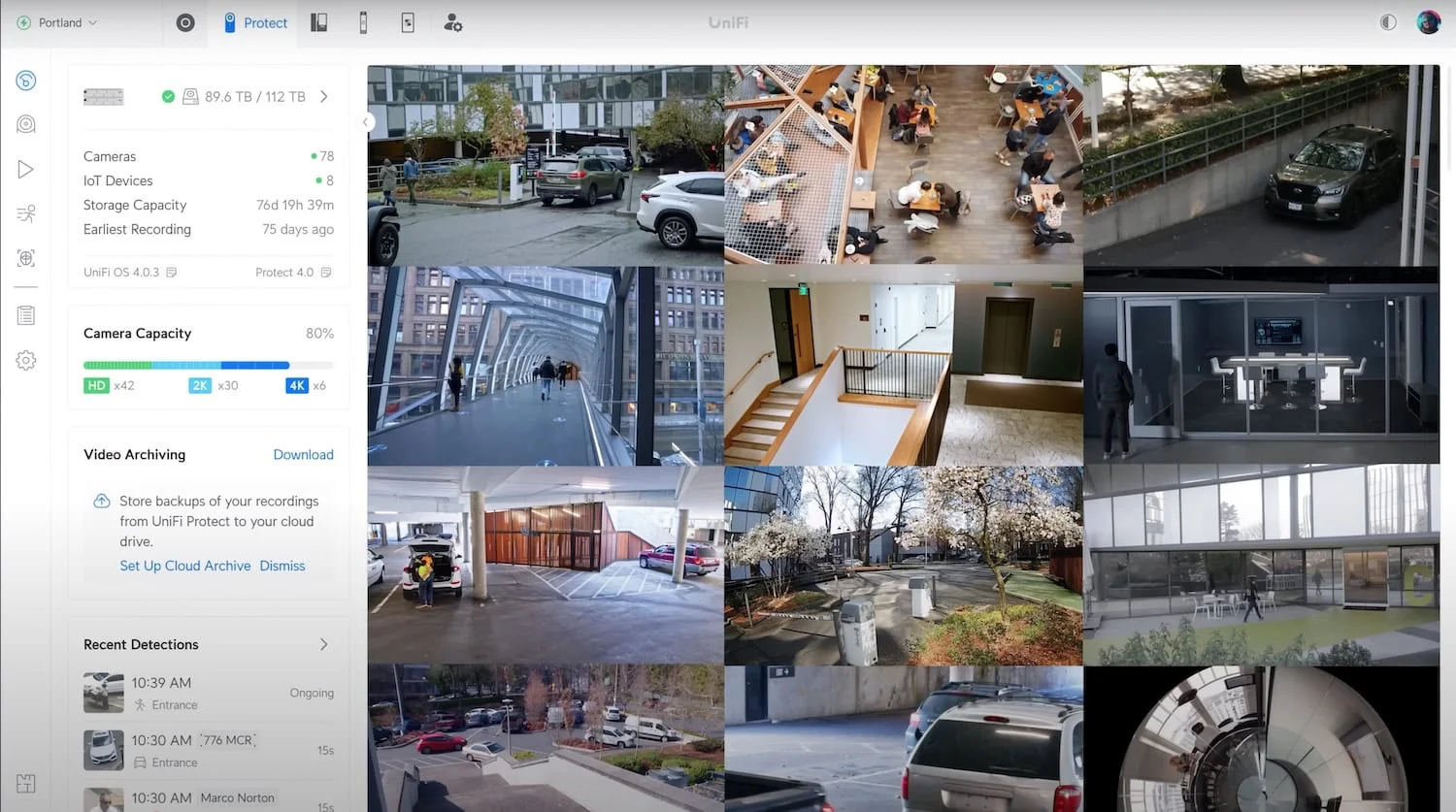
Software Configuration
Setting up the UniFi OS Console:
- Initial Setup: Connect your UniFi OS Console to your network (and power it if it doesn't support PoE) and follow the initial setup instructions. This typically involves accessing the console's web interface through a browser and following an on-screen wizard.
- UniFi OS Interface: Familiarize yourself with the UniFi OS interface. This is where you'll manage all your UniFi devices, including your cameras.
Adopting Cameras:
- Discovery Process: Once powered on and connected to the network, your cameras should be automatically discovered by the UniFi Protect application within your UniFi OS Console.
- Adoption Process: The UniFi Protect interface shows a list of discovered cameras. Click the "Adopt" button next to each camera to add it to your system.
Basic Camera Settings:
- Naming Cameras: Assign descriptive names to each camera (e.g., "Front Door," "Backyard," "Warehouse Entrance") for easy identification.
- Setting Time Zone and Date: Ensure the correct time zone and date are configured on your UniFi OS Console for accurate timestamping of recordings.
Optimizing Camera Settings for Performance and Storage Efficiency
Once your cameras are installed and adopted, it's important to fine-tune their settings to achieve optimal performance and manage storage effectively.
Video Quality and Storage
- Resolution: Higher resolutions provide more detail but consume more storage space. For general surveillance, 2K is often sufficient, while critical areas (entrances, cash registers, license plates) benefit from 4K. The G6 series makes 4K accessible at $199 per camera.
- Frame Rate (FPS): A higher frame rate results in smoother video and increases storage usage. For most surveillance scenarios, 15-20 FPS is a good balance between fluidity and storage efficiency. You might choose a higher FPS for areas with fast-moving objects.
- Bitrate: This setting determines the amount of data used to encode each second of video. Higher bitrates generally result in better image quality but consume more storage. UniFi Protect typically offers automatic bitrate adjustment, which is suitable for most cases.
Motion Detection and Recording
- Motion Zones: Define specific areas where motion detection should be active within the camera's field of view. This helps to reduce false alerts triggered by irrelevant movements, such as swaying trees or passing cars outside your property.
- Sensitivity: Adjust the sensitivity of the motion detection to fine-tune its responsiveness. Higher sensitivity detects smaller movements but may increase false alerts. Finding the right balance depends on the specific environment and camera placement.
- Schedules: Schedules are configured separately and control when recording is active.
- Smart Detections: Utilize UniFi Protect's AI-powered smart detection features (available on G6, AI series cameras, and legacy cameras with AI Port) to identify specific objects like people, vehicles, or even faces and license plates.
Storage Management
- Recording Modes: UniFi Protect offers three recording modes per camera:
- Always: Continuous 24/7 recording for complete coverage.
- Detection Only: Records only when a smart detection or motion event is triggered, reducing storage use.
- Never: Disables recording for specific cameras (useful for privacy or testing).
- Schedules are configured separately and control when recording is active.
- Retention Policies: Define how long recordings are stored before automatic deletion. You can set different retention policies for high-quality versus low-quality recordings.
- Cloud Archiving: UniFi Protect supports archiving recordings to Google Drive, OneDrive, Dropbox, and NAS destinations for off-site redundancy.
ONVIF Integration and Third-Party Camera Support
UniFi Protect supports ONVIF (Open Network Video Interface Forum) cameras, allowing integration of third-party cameras from other manufacturers.
ONVIF Camera Integration
- Compatibility: Add ONVIF-compliant cameras to your UniFi Protect system without additional licensing fees. However, implementation compatibility varies by model—not every ONVIF camera works equally well.
- Supported Features: Motion events (must be generated by the camera), PTZ control, and audio are now supported on compatible third-party cameras. Audio consumes transcoding resources on the console.
- Gradual Migration: Maintain existing camera investments while transitioning to UniFi cameras over time.
- Setup Process: Enable "Discover Third-Party Cameras" in UniFi Protect settings, ensure your ONVIF cameras are properly configured with authentication, and they should appear for adoption in the UniFi Devices page.
- Remaining Limitations: AI smart detections (person, vehicle, face, LPR) require native UniFi cameras or a compatible ONVIF camera paired with an AI Port. Some advanced codec or feature combinations may not work with all third-party models.
AI Port Enhancement
- Legacy Camera Revival: The AI Port transforms older G3, G4, and G5 cameras into smart devices with face recognition, license plate detection, and advanced analytics.
- ONVIF Camera AI: Connect third-party ONVIF cameras to the AI Port to gain AI capabilities (1 4K, 2 2K, or 3 HD ONVIF cameras per AI Port).
- Multi-Camera Support: Each AI Port now supports up to 5 Protect cameras depending on resolution mix.
Monitoring and Maintenance
Regular monitoring and maintenance are crucial for ensuring the continued effectiveness and reliability of your UniFi Protect system.
Regular System Checks
- Live View: Periodically check each camera's live view to ensure it is functioning correctly and has a clear, unobstructed view.
- Recording Playback: Test playback of recent recordings to verify that the system is recording properly and that the image quality meets your expectations.
- System Logs: Review system logs within the UniFi OS Console for any error messages or alerts that might indicate a problem.
- AI Detection Performance: Monitor the performance of face recognition and license plate detection features, adjusting sensitivity settings as needed.
Firmware and Software Updates
- Importance of Updates: Ubiquiti regularly releases firmware updates for cameras and software updates for the UniFi OS Console. These include security patches, performance improvements, and new features. Check the Ubiquiti Community releases page before updating production systems.
- Update Process: The UniFi OS Console provides a centralized way to update camera firmware and console software. For business environments, use staged manual updates — test on a non-critical camera first. Automatic updates are a reasonable convenience for low-risk home systems.
Troubleshooting
Common issues and solutions:
- Camera Offline: Check network connectivity, PoE power, and cabling.
- Poor Image Quality: Adjust camera settings (resolution, bitrate, focus), check for obstructions, and ensure adequate lighting.
- Recording Issues: Verify storage capacity, retention policies, and recording settings.
- ONVIF Camera Problems: Verify ONVIF is enabled on the camera, check authentication credentials, and ensure correct date/time settings.
For a deeper look at camera reliability in production environments, our 4-year fleet reliability report covers every hardware incident across 383 cameras and 538 total UniFi devices. The Ubiquiti Community forums are also an excellent resource for troubleshooting tips and advice from other UniFi users.
Cost Analysis and Budgeting
UniFi Protect eliminates mandatory subscription fees, but the upfront hardware cost is real. These budgets are complete bills of materials so you know the true minimum spend before buying.
Breakdown of Costs (August 2026)
Cameras:
- G6 Series: G6 Bullet and G6 Turret at $199 each, G6 Instant at $179, G6 Dome at $279, G6 180 at $299, G6 PTZ at $399
- G5 Series: G5 Flex at $129, G5 Turret Ultra at $129, G5 Dome at $179
- AI Series: AI Pro around $499, AI PTZ Industrial at $1,299, AI PTZ Precision at $1,999
- For detailed camera comparisons, see our G6 buying guide
UniFi OS Console:
- CloudKey+ SSD: $249 (includes 1 TB SSD)
- Dream Machine Pro: $379
- Dream Machine Pro SE: $499 (includes PoE ports)
- Dream Machine Pro Max: $599
- UNVR: $299
- UNVR Pro: $499
- UNVR Instant: $199 (includes 6-port PoE switch)
- ENVR: $1,999 | ENVR Core: $4,999
Often-Overlooked Costs:
- PoE Switch: Required for any console without built-in PoE (UDM Pro, UNVR, CloudKey+). An 8-port Layer 2 PoE switch starts at $109 (USW-Lite-8-PoE); a Layer 3 Pro model is $349 (USW-Pro-8-PoE)
- Storage: Surveillance-grade drives — approximately $60 for 1 TB, $120 for 4 TB, $350+ for 8 TB
- Gateway/Router: The UNVR Instant, UNVR, and UNVR Pro all require a separate gateway for internet routing
- Cabling, mounts, surge protection: Budget $20–$50 per camera run
- UPS: $100–$300 for basic backup power
Comparison with Other Solutions
- Subscription-Based Cloud Cameras: Cloud-camera costs vary by vendor, camera count, and retention plan. Compare the total hardware and subscription cost over your intended ownership period against the one-time UniFi hardware investment.
- Analog CCTV Systems: Entry-level analog systems can cost less upfront, although image analytics, app quality, and expansion options vary significantly by DVR and camera platform.
- Premium NVR Ecosystems: If you're comparing premium ecosystems like UniFi Protect against Synology Surveillance Station, the choice often comes down to mobile app experience versus server-based flexibility and cloud backup options.
Example Budget Scenarios
All scenarios below assume you already have a working internet router or UniFi gateway unless a gateway is explicitly listed. Every scenario includes PoE switching and storage. Prices exclude tax, shipping, cabling, and any temporary surcharges.
Starter Setup (2 cameras, UNVR Instant):
- 1 × UNVR Instant — $199 (includes 6-port PoE switch)
- 2 × G5 Turret Ultra — $129 each = $258
- 1 × 1 TB Surveillance Hard Drive — $60
- Estimated Total: ~$517 with existing router
- With new gateway (e.g., Cloud Gateway Ultra at $129): ~$646
- Note: The UNVR Instant Kit bundles 4 cameras for $699.
- The UNVR Instant is not itself a router; it requires connection to a gateway or Layer 3 switch.
4K Home Setup (3 cameras, CloudKey+):
- 1 × CloudKey+ SSD — $249 (includes 1 TB SSD, no additional drive needed)
- 3 × G6 Bullets — $199 each = $597
- 1 × USW-Lite-8-PoE switch — $109
- Estimated Total: ~$955 with existing router
Small Business (6 cameras, Dream Machine Pro):
- 1 × Dream Machine Pro — $379
- 6 × G6 Turrets — $199 each = $1,194
- 1 × USW-Pro-8-PoE switch — $349
- 1 × 4 TB Surveillance Hard Drive — $120
- Estimated Total: ~$2,042
Large Business (17 cameras, UNVR Pro):
- 1 × UNVR Pro — $499
- 1 × Gateway (e.g., UDM Pro at $379)
- 15 × G6 Bullets — $199 each = $2,985
- 2 × AI PTZ Industrial — $1,299 each = $2,598
- 1 × USW-Pro-24-PoE switch — $699 (24 ports, 400 W budget with PoE++ — sufficient for 17 cameras)
- 4 × 8 TB Surveillance Hard Drive — $359 each = $1,436
- Estimated Total: ~$8,596
Legacy Upgrade Setup:
- 1 × Dream Machine Pro — $379
- 4 × existing cameras (no cost)
- 2 × AI Ports — $199 each = $398
- 1 × USW-Lite-8-PoE switch — $109
- 1 × 2 TB Surveillance Hard Drive — $80
- Estimated Total: ~$966 (leveraging existing camera investment)
Introducing: Protect Generation 6 Cameras
Advanced Features
Beyond basic recording, UniFi Protect (currently at version 7.x) offers intelligent monitoring capabilities.
AI-Powered Smart Detection
- Face Recognition: Available on AI-series cameras, G6 series (excluding 360 models), and legacy cameras with AI Port. Identifies and labels faces with Person of Interest alerts for immediate notification when specific individuals are detected.
- License Plate Recognition (LPR): Available on cameras with the appropriate AI engine and the AI Port. Useful for parking areas, driveways, and business entrances.
- Multi-Object Detection: Person, vehicle, and animal detection with vehicle classification by type and color on supported models.
- Audio Classification: Detects audio events like glass breaking, speaking, or car alarms on microphone-equipped cameras.
- Person Re-identification: Available through the AI Key hardware accessory, enabling person tracking across multiple cameras. Requires the AI Key device ($799) connected via PoE++. This is a significant hardware investment and is not a software-only feature.
Third-Party Camera Integration
- ONVIF Support: Integrate cameras from manufacturers that support the ONVIF standard. Motion events, PTZ control, and audio work on compatible models. AI smart detections require native UniFi cameras or a compatible ONVIF camera paired with an AI Port.
- AI Port Enhancement: The $199 AI Port adds AI capabilities to legacy UniFi cameras and ONVIF cameras, extending their useful life.
- Gradual Migration: Maintain existing camera investments while transitioning to UniFi cameras over time.
- Unified Management: Manage UniFi and third-party cameras through a single interface.
Storage and Archive Management
- Tiered Retention: Set different retention periods for high-quality versus low-quality recordings, optimizing storage while preserving critical footage longer.
- Cloud Archiving: Archive recordings to Google Drive, OneDrive, Dropbox, or NAS for off-site redundancy. This is optional—there is no mandatory cloud component.
- Edge Recording: AI Port and some newer cameras support MicroSD card edge recording for local backup.
- Storage Policies: Auto retention removes older footage as storage fills, while Enhanced Retention can preserve recent recordings at high quality and older recordings at lower quality.
Real-Time Alerts and Remote Monitoring
The UniFi Protect mobile app continues to improve with enhanced features:
- View Live Feeds: Access live streams from all your cameras from anywhere with an internet connection.
- Multi-Camera Playback: Review footage from multiple cameras simultaneously for comprehensive incident investigation.
- Receive Advanced Notifications: Get instant alerts for face recognition matches, license plate detections, and custom smart detection events.
- Two-Way Audio: Communicate through cameras equipped with speakers and microphones.
- Remote PTZ Control: Control PTZ cameras remotely with smooth, responsive operation.
Integration with Other UniFi Devices
- UniFi Access: UniFi Protect integrates with UniFi Access door control systems, triggering recordings when doors are accessed.
- UniFi Network: Purpose-built compatibility with UniFi networking equipment ensures optimal performance and reliability of your camera system.
- UniFi Connect: Create custom video walls and monitoring stations using UniFi Connect displays for professional monitoring setups.
Conclusion
UniFi Protect is a strong option for homeowners and businesses who want local-first surveillance with no mandatory subscription. The G6 camera series provides 4K AI capabilities at accessible price points, ONVIF support protects existing camera investments, and the AI Port extends smart detections to legacy hardware.
Where UniFi Protect works well:
- No recurring license fees for core features
- G6 cameras deliver competitive image quality with built-in AI under $200
- ONVIF integration for gradual migration from other systems
- Single-app management for cameras, NVRs, and access control
- Scalable from 2 cameras to 300+ 4K cameras
Where to set realistic expectations:
- Higher upfront hardware cost than basic cloud cameras
- Ecosystem lock-in — cameras, NVRs, and networking work best together
- No battery-powered camera options
- Storage administration (drive health, RAID, capacity planning) is your responsibility
- Firmware updates occasionally introduce issues; monitor community forums before updating production systems
Need Help?
Planning a surveillance system can be complex — from camera selection to storage and retention planning. You can also book a free site assessment with us, and we can assist you in designing and implementing your system. Our team specializes in UniFi security camera installations throughout Miami and South Florida.
Where to Buy
UniFi Dream Machine Pro: Available at the UniFi Store for $379.
UniFi Dream Machine Pro SE: Available at the UniFi Store for $499.
UniFi Dream Machine Pro Max: Available at the UniFi Store for $599.
Prices checked August 10, 2026 against the Ubiquiti US store (base prices). All prices exclude tax, shipping, and any temporary surcharges that may apply at checkout. Storage drive prices are from representative vendors and may vary. Prices are subject to change. We may earn affiliate commissions from purchases made through our links, which helps support our independent testing and reviews.
Affiliate Disclosure: This article contains affiliate links. If you make a purchase through these links, we may earn a small commission at no extra cost to you. As an Amazon Associate, iFeelTech earns from qualifying purchases.
Frequently Asked Questions
Related Articles
More from UniFi Networks
UniFi Protect vs. Synology Surveillance Station: A Complete 2026 Comparison
A detailed comparison of UniFi Protect and Synology Surveillance Station for small business and home security. We examine hardware, software, pricing, and real-world use cases to help you choose the right system.
11 min read
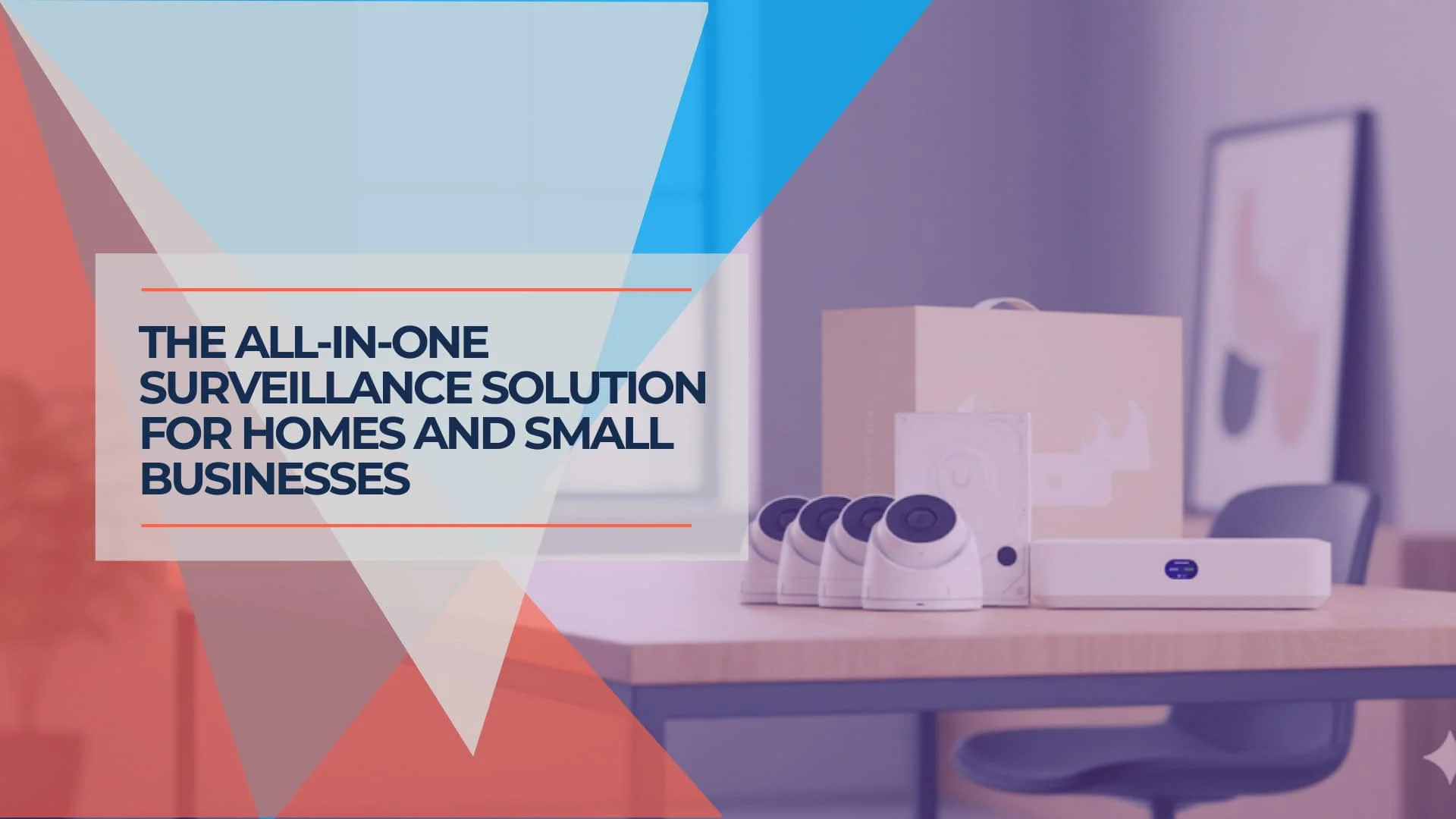
UniFi UNVR Instant Review (2026): The Best All-in-One NVR for Homes?
Complete review of the UniFi UNVR Instant NVR with integrated PoE switch. Perfect for residential homes and small businesses needing 4-6 cameras with professional-grade surveillance.
12 min read
We Ran 538 Ubiquiti Devices for 4 Years. Here's What Actually Failed.
Real fleet data: 538 UniFi devices tracked over 4 years. 0.74% replacement rate, 99.99% core uptime, and five incident post-mortems from commercial sites.
15 min read