

Upgrading to Business Fiber: What Your Network Actually Needs to Handle It
Fiber is installed but your speed test is disappointing. Here's every component — gateway, switches, APs — that determines whether your network actually uses the bandwidth you're paying for.

AT&T Fiber shows up, the tech installs the ONT and hands you a static IP. You plug it into the router you already have. The speed test says 350 Mbps down. You signed up for a gigabit plan.
This is the most common post-fiber-installation experience for small businesses. The ISP review articles cover speeds and pricing. The hardware guides cover individual products in isolation. This article covers the complete picture: every layer of your internal network that determines whether you actually use the bandwidth you're paying for.
We've done this upgrade for dozens of South Florida businesses — professional services firms, dental offices, small manufacturers, law practices. The fiber itself is rarely the problem. The problem is the stack behind it: a router with a throughput ceiling, switches that max out at a gigabit, access points that can't deliver the speeds over WiFi even when the wired infrastructure is solid. Each layer can be a bottleneck, and fiber exposes all of them at once.
Affiliate Disclosure: This article contains affiliate links. If you make a purchase through these links, we may earn a small commission at no extra cost to you. As an Amazon Associate, iFeelTech earns from qualifying purchases.
What Fiber Delivers to Your Building — and Where It Stops
AT&T fiber terminates at an ONT installed inside your building; everything from that ethernet port inward is your equipment's responsibility.
When AT&T Business Fiber gets installed, the technician runs fiber to a wall-mounted unit called an ONT (optical network terminal). On most current installations, that ONT is integrated directly into the AT&T-provided gateway — a single box where the fiber terminates. Older installs sometimes have a separate ONT with a Cat5/6 ethernet cable running to a router.
Either way, the handoff to your equipment happens at an ethernet port. That's the physical boundary between AT&T's responsibility and yours. Everything from that RJ45 jack inward — your router, your switches, your wireless access points, every cable between them — determines whether the bandwidth you're paying for actually reaches your users.
This is also why AT&T diagnostics can show a "healthy" connection while your users experience slow speeds. AT&T measures at the ONT. Your network's performance is measured after it.
Before connecting your new gateway, there is one configuration step to complete first. AT&T's integrated gateway (typically a BGW320) runs its own NAT and DHCP by default. Connecting a second router directly to it without adjusting that configuration creates double NAT — two separate private address spaces — which causes routing problems, breaks VPN tunnels, and adds unnecessary latency. The solution is IP Passthrough mode: in the BGW320 web interface, navigate to Firewall → IP Passthrough, set Allocation Mode to Passthrough, and enter your UCG-Fiber's WAN MAC address. This passes the public IP directly to the UniFi gateway and resolves the issue before it affects anything.
Do You Need a New Router for Gigabit Fiber?
Standard business routers built before 2022 typically cap at 300–600 Mbps of real-world throughput due to internal processor limitations.
Most routers — including ones marketed as "business class" — were designed before multi-gigabit fiber was a realistic SMB purchase. The internal processor that handles NAT translation and stateful firewall inspection has a throughput ceiling. When that processor hits its limit under load, it stops processing packets fast enough, and your speed tests reflect it.
The WAN port speed vs. throughput gap
A router with a gigabit WAN port does not guarantee gigabit throughput. The limiting factor is the CPU, not the connector. Most SMB-class routers deployed before 2022 cap at 300–600 Mbps under real-world NAT and firewall load — regardless of the port specifications on the label.
The specific failure mode is easy to test: run a speed test from a device plugged directly into the AT&T gateway's LAN port (bypassing your router entirely) and you see full gigabit speeds. Run the same test from inside your network, through your router, and you see 300–500 Mbps. That gap is your router's throughput ceiling.
This isn't a brand quality issue. A $400 router purchased in 2019 was likely spec'd to handle 500 Mbps with headroom to spare — and it probably did, until you upgraded to a gigabit fiber plan.
The compounding factor is IDS/IPS (intrusion detection and prevention). Enabling deep packet inspection drops throughput significantly on any older appliance. Routers that advertise "1 Gbps WAN" usually mean 1 Gbps with IDS/IPS turned off. With security features enabled, real-world throughput on pre-2022 hardware regularly falls below 400 Mbps.
Which UniFi Gateway Is Right for Your Office?
The UCG-Fiber ($279) handles 5 Gbps IDS/IPS throughput and is the correct starting point for 1–20 seat offices on fiber.
The gateway is the right first upgrade. It's the single piece of hardware that determines how much of your fiber bandwidth enters your network, and it's where firewall, VPN, and security processing happen.
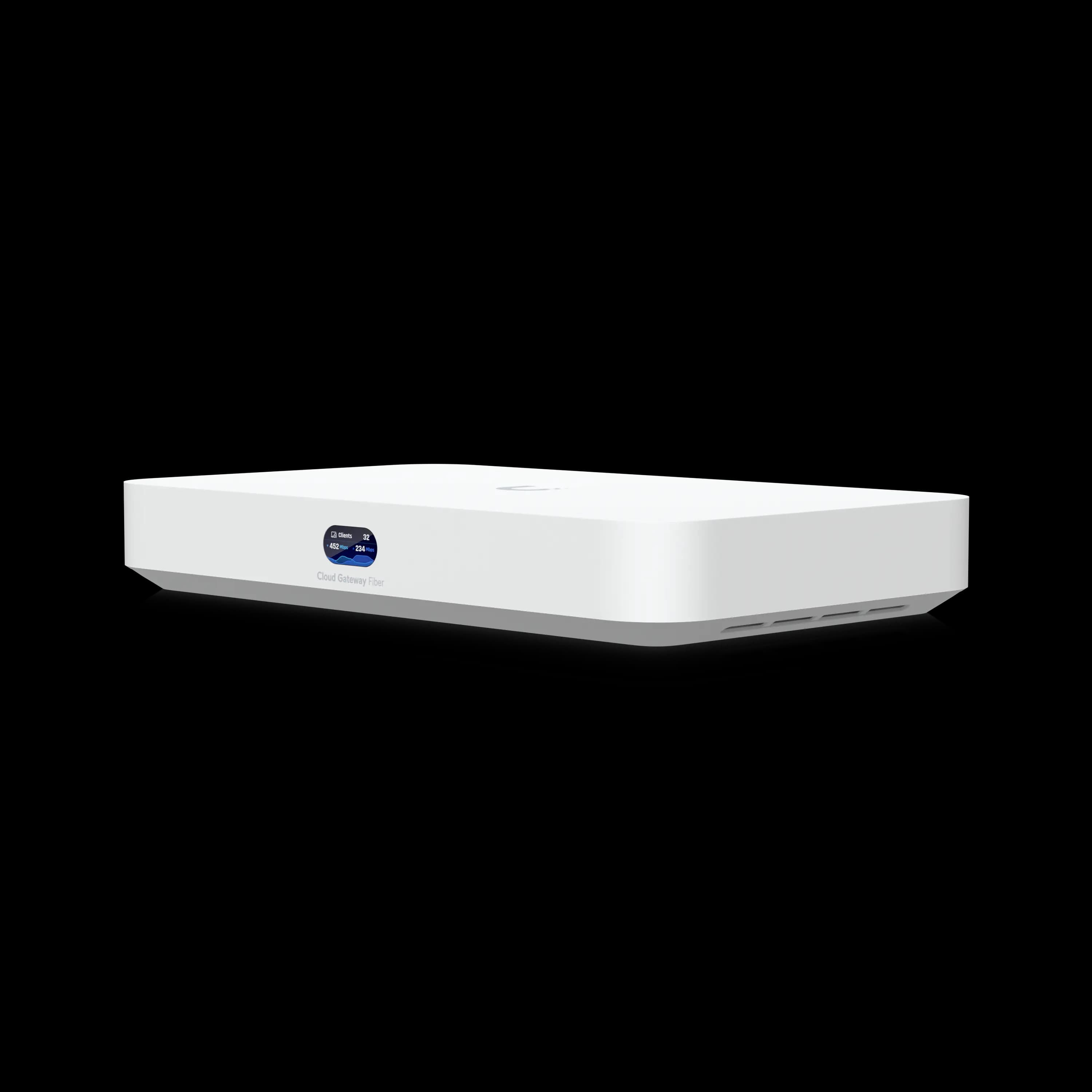
UniFi Cloud Gateway Fiber (UCG-Fiber)
Fanless desktop gateway with 5 Gbps IDS/IPS throughput, three 10G ports, and integrated 4-port 2.5 GbE switch. The right starting point for most SMBs upgrading to fiber.
- 5 Gbps IDS/IPS throughput
- 10G SFP+ and 10G RJ45 WAN ports
- Fanless — completely silent operation
- Supports 50+ managed devices, 500+ clients
- Integrated 2.5 GbE switch (4 ports, 1 PoE+)
*Price at time of publishing
UCG-Fiber ($279): The default choice for 1–20 seat offices. Fanless — no noise, no moving parts to fail. Handles 5 Gbps IDS/IPS throughput. Connects via 10G SFP+ or 10G RJ45 WAN, so it works with AT&T's current ethernet handoff and any future ISP with a fiber SFP+ handoff. Dual-WAN load balancing and failover are included; the secondary WAN port is the right place for a cellular LTE or 5G backup modem — a local fiber cut that would otherwise take your office offline becomes a brief, transparent handoff. The integrated 4-port 2.5 GbE switch (one PoE+) simplifies smaller deployments where a single AP can connect directly.
UDM Pro ($379): The step-up for offices with rack installation requirements, 50+ managed devices, or a need for dedicated hardware video recording. 1U rack form factor, supports 100+ UniFi devices and 1,000+ clients, 3.5 Gbps IPS throughput. Right for 20–50 seat offices or any environment that needs structured rack infrastructure.
UDM Special Edition ($499): Matches the UDM Pro at the same IPS throughput level but adds integrated PoE switching ports — useful for consolidating gateway and PoE switch hardware in a compact server room or single-rack setup.
March 2026 FCC router authorization update
On March 23, 2026, the FCC banned new equipment authorizations for all consumer-grade routers manufactured outside the US. This affects every major brand — TP-Link, Asus, Netgear, Linksys, Eero, Google Nest Wi-Fi, and Ubiquiti, which manufactures in Vietnam and China. Currently authorized UniFi models (UCG-Fiber, UDM Pro, UDM SE) can still be purchased and used normally. Firmware support continues through at least March 2027 under the FCC's companion waiver. For a full breakdown of what's affected and what your business should plan for, see our FCC foreign router ban guide.
UniFi Cloud Gateway Fiber Setup & Overview
For the majority of South Florida SMBs we deploy fiber for — professional offices, medical practices, small manufacturers — the UCG-Fiber at $279 is the right answer. You're not paying for rack space you don't need or device-management scale you won't reach.
Do You Need 2.5 GbE Switches After a Fiber Upgrade?
On any plan above 1 Gbps, standard gigabit switches cap individual device speeds at ~940 Mbps regardless of gateway performance.
Even after installing a capable gateway, if your internal switches only support 1 Gbps per port, they become the speed ceiling for every device on your network. For offices on a 2 GIG or 5 GIG fiber plan, those switches become an immediate bottleneck — no single device will exceed ~940 Mbps regardless of the gateway's capability.
For most offices on a 1 Gbps plan, standard gigabit switches are barely adequate under simultaneous load — video conferencing, cloud backup, remote desktop sessions, and large file transfers all compete for the same bandwidth. The contention shows up as intermittent slowdowns rather than a clean speed-test failure.
The practical upgrade target for most wiring closets is 2.5 GbE switches. Not 10 GbE — the hardware cost premium is significant, and most office endpoints (laptops, desktops, printers) top out at 1 GbE at the NIC anyway. 2.5 GbE on your core switches and uplinks provides the headroom without overbuilding.
For UniFi switch recommendations:
- USW-Lite-8-PoE — 8 ports, PoE, compact. Right for small offices under 10 seats or as a secondary distribution switch. A clean upgrade from the entry-level gear most offices are currently running.
- USW-Pro-24-PoE — 24 ports, 2.5 GbE uplinks, full PoE budget. The workhorse for offices with 10–30 seats. Enough ports to cover a wiring closet without daisy-chaining.
For the full comparison of current UniFi switch options across all tiers, see our full UniFi switch guide. If you're deploying this as part of a complete 2.5 GbE buildout, Building a Budget-Friendly 2.5 Gbps UniFi Network covers the full architecture. For the throughput comparison of why 2.5 GbE is the practical upgrade for most offices — and when 10 GbE makes sense — that article has the full analysis.
If your internal cabling also needs to be evaluated alongside the switch upgrade, Business Network Cabling: Fiber vs Cat6A covers structured cabling decisions.
Selecting WiFi 7 Access Points for Multi-Gigabit Speeds
WiFi 5 APs use 1 GbE uplink ports and congested frequency bands, making them a physical ceiling for any office on a multi-gig fiber plan.
Older WiFi 5 (802.11ac) APs have two constraints that can't be engineered around. First, the 1 GbE uplink port on most SMB-class WiFi 5 hardware caps the AP's total throughput to approximately 940 Mbps regardless of the wireless connection speeds it reports. Second, the theoretical maximum throughput for the 3x3 and 4x4 configurations typical of SMB WiFi 5 APs is 1.3–1.7 Gbps — and real-world, mixed-client throughput is substantially lower.
WiFi 7 (802.11be) resolves both constraints. Multi-Link Operation (MLO) lets compatible devices aggregate bandwidth across multiple frequency bands simultaneously. The 6 GHz band delivers higher throughput in dense environments with less interference. And current WiFi 7 APs use 2.5 GbE uplink ports, matching the switch tier recommended above.
Primary recommendation: UniFi U7 Pro ($189)
WiFi 7, 6 spatial streams, 6 GHz support, ceiling-mount form factor. The uplink port is 2.5 GbE. At $189 per unit it's the most cost-efficient path to multi-gig WiFi for business-class devices and modern laptops.
For conference rooms or dense open-plan spaces, the U7 Pro Wall offers the same chipset in a wall-plate form factor — better geometry for long narrow rooms or installations where ceiling mounting isn't feasible.
Phase your AP upgrade
For most offices, AP replacement is Phase 2 — after the gateway and switch layers are addressed. Wired infrastructure changes have more impact per dollar and are less disruptive. Getting the gateway and switches right first also means you can properly benchmark what the APs need to deliver before purchasing them. This approach also distributes the hardware cost across two budget cycles if needed.
Real-world result from a recent deployment: at a dental practice in Coral Gables, replacing a three-AP WiFi 5 array with three U7 Pros increased iPad wireless speeds from 280 Mbps to 850 Mbps on a 1 GIG AT&T Business Fiber line. The gateway and switches had already been upgraded; the APs were the remaining ceiling.
Most current business laptops and mobile devices already support WiFi 6E or WiFi 7. The bottleneck in most existing deployments is the AP, not the client — which means the upgrade benefit shows up immediately, not after a device refresh cycle.
What a Business Fiber Network Upgrade Costs
A complete hardware upgrade for a 10–25 person office typically costs $960–$1,640 before installation, with a 6–12 month ROI against the fiber subscription already being paid.
| Component | Recommended Hardware | Estimated Cost |
|---|---|---|
| Gateway | UniFi Cloud Gateway Fiber (UCG-Fiber) | $279 |
| Switches | 2–3 units (USW-Lite-8-PoE or USW-Pro-24-PoE) | $300–$600 |
| Access Points | 2–4 x UniFi U7 Pro | $380–$760 |
| Hardware total | $960–$1,640 |
Installation and configuration are variable. For a typical 15-person office with two wiring closets and four APs, professional installation adds $500–$1,000 to the above.
AT&T Business Fiber plans run $140/mo for 1 GIG symmetrical, $185/mo for 2 GIG, and $285/mo for 5 GIG (standalone pricing without wireless bundle discounts). If your current network limits a gigabit plan to 350 Mbps of actual throughput, the gap between what the ISP delivers and what your users experience is a hardware problem, not a plan problem. At $140/mo, the hardware upgrade pays back in 6–12 months against the speed you're already paying for — before accounting for productivity.
Accept the BGW320 — but decline AT&T's Wi-Fi add-ons
AT&T's BGW320 gateway is required infrastructure — the technician will not leave without it installed, because it handles authentication for the fiber connection. You cannot decline the physical box. What you should decline are the managed Wi-Fi service, Wi-Fi extender rentals, and AT&T Business Manager add-ons AT&T commonly offers during installation. These add monthly cost without adding capability. Configure IP Passthrough (as covered in the implementation steps below) and the BGW320 becomes a transparent bridge to your UCG-Fiber.
Need help sizing bandwidth requirements before committing to a fiber tier? The business internet requirements calculator walks through the per-user and per-application math.
How to Phase Your Business Fiber Network Upgrade
Install the gateway first, then upgrade core switches, then access points — in that order — to minimize downtime and isolate configuration issues at each stage.
1. Configure AT&T IP Passthrough before swapping any hardware.
Log into the AT&T BGW320 web interface (typically at 192.168.1.254). Navigate to Firewall → IP Passthrough. Set Allocation Mode to Passthrough and Passthrough Mode to DHCPS-fixed, then enter the MAC address of your UCG-Fiber's WAN port. This passes the public IP directly to the UniFi gateway and eliminates double NAT. Save and confirm before proceeding.
2. Install the gateway and test to baseline.
Connect the UCG-Fiber's WAN port to the AT&T gateway's LAN port. Configure WAN settings (static IP or DHCP as appropriate) and run a full wired speed test before touching any other hardware. You should see the full fiber speed here. If you don't, the issue is the gateway configuration or ISP handoff — not anything downstream.
3. Swap switches from the wiring closet outward.
Replace the core switch in the main wiring closet first. Then replace secondary distribution switches. Don't start with edge switches at individual desks; those have the least impact and should come last.
4. Upgrade APs last.
During a maintenance window, replace APs one at a time — verify each comes online in the UniFi controller and confirm client connectivity before moving to the next. The unified management console makes this significantly less painful than managing third-party APs across multiple vendor dashboards.
5. Repurpose or shelf the previous router.
The old router can serve as a secondary device for guest VLAN isolation (on a dedicated SSID with VLAN segmentation), as a failover test unit, or as a lab device for configuration testing without touching the production network.
For the full UniFi deployment guide — controller setup, VLAN configuration, VPN — Future-Proof Your Office with UniFi: 2026 Guide covers the complete deployment from initial setup through ongoing management.
Fiber is the right ISP decision for most South Florida businesses. The technology is solid, the speeds are real, and AT&T's network reliability is strong. But the ISP delivers bandwidth to a port in your wall — what happens from that point is entirely determined by the gear on your side of the connection.
The gateway, the switches, and the APs each have the potential to be a speed ceiling. The upgrade sequence in this article removes them in order of impact. Most offices can complete this in one project or phase it across two budget cycles without major disruption. The hardware cost is recoverable within a year against the fiber subscription already being paid.
If you're still finalizing the ISP decision, the AT&T Business Fiber review covers pricing, plan comparisons, and what the installation process looks like.
Related Resources
- UniFi Cloud Gateway Fiber Review — Full review of the UCG-Fiber with specs, comparisons against the UDR7 and UCG Max, and deployment guidance.
- Best Business Internet Providers Guide 2026 — ISP comparison covering AT&T Fiber, Comcast, Verizon Fios, T-Mobile 5G, and Starlink — for businesses still finalizing their ISP decision.
- UniFi Home Network Case Study: Cat5e Retrofit — The residential equivalent of this type of project: Cloud Gateway Max, Pro Max 16 PoE, and four U7 In-Wall APs on existing Cat5e cabling.
- AT&T Business Fiber Review 2026 — Deep dive on AT&T's business fiber plans, pricing, installation experience, and who it's right for.
- FCC Foreign Router Ban: Business Impact Guide — What the March 2026 FCC equipment authorization update means for SMB hardware purchasing.
- Best UniFi Switches 2026 — Full comparison of every current UniFi switch tier, with recommendations by office size and use case.
- Building a Budget-Friendly 2.5 Gbps UniFi Network — Full 2.5 GbE architecture guide for offices that want multi-gig networking without a full 10G spend.
- 2.5 Gigabit vs. 10 Gigabit Ethernet — When 2.5 GbE is the right tier and when it makes sense to step up to 10G.
- Future-Proof Your Office with UniFi: 2026 Guide — Complete UniFi deployment guide from controller setup through VLAN and VPN configuration.
Frequently Asked Questions
Related Articles
More from Network Infrastructure

WiFi 7 Multi-Link Operation (MLO) Explained: What It Does, What It Doesn't, and Whether Your Office Can Use It
MLO is WiFi 7's most important — and most misunderstood — feature. This guide explains how it actually works, the difference between eMLSR and STR, which devices support it, and how to deploy it in UniFi.
17 min read
2.5GbE vs 5GbE vs 10GbE: Small Business Upgrade Guide
Compare 2.5GbE, 5GbE, and 10GbE for small business. Check cabling, UniFi costs, reference builds, and test performance with iperf3.
28 min read
2.5 Gigabit vs. 10 Gigabit: Why 2.5 GbE Might Be the Best Choice for Your Network
Comprehensive comparison of 2.5 Gigabit vs 10 Gigabit Ethernet. Learn why 2.5 GbE offers the best value for most home and small business networks.
9 min read