

UniFi Protect Storage Calculator and Retention Planning Guide
Complete guide to planning UniFi Protect storage. Learn how to calculate NVR capacity, choose the right drives, configure RAID, and optimize retention for your business cameras.

Affiliate Disclosure: This article contains affiliate links. If you make a purchase through these links, we may earn a small commission at no extra cost to you. As an Amazon Associate, iFeelTech earns from qualifying purchases.
Key Takeaway
Size UniFi Protect storage from four inputs: camera settings, retention days, RAID choice, and a growth buffer. As an example, a small business with 6-8 mixed-resolution cameras on motion or Smart Detection recording may fit a modest plan, but continuous 4K can require much more. Use the estimator below and UniFi's built-in calculator as your baseline, add a 30-50% buffer, account for RAID overhead, and always use surveillance-rated drives.
Storage planning comes down to four inputs: camera settings, retention time, RAID overhead, and a buffer for real-world variability. The estimator and tables below turn those into a concrete drive-purchase plan.
Quick answer — practical starting ranges for 30-day retention
| Deployment | Practical starting point |
|---|---|
| 6–8 cameras | 4–10 TB usable, depending on recording mode |
| 16 cameras | 8–18 TB usable, more for continuous 4K |
| 24 cameras | 18–34 TB usable in higher-activity 4K-heavy systems |
These are usable-capacity ranges before RAID overhead. Add RAID and a 30–50% buffer on top.
How much UniFi Protect storage do you need?
Most systems should be sized from camera settings, retention days, RAID choice, and a growth buffer. Estimate usable storage first, then convert it to raw drive capacity after RAID—this prevents the common mistake of buying enough raw terabytes but not enough usable, protected capacity.
The planning formula is:
Usable storage needed = daily recording total × retention days × buffer
Use the estimator below for a planning-grade starting range, then confirm against UniFi's online capacity calculator and the built-in estimator in UniFi Protect, which reflects your exact camera models and encoding.
Storage Planning Tool
UniFi Protect Storage Estimator
Enter your cameras, recording style, and retention goal for a planning-grade estimate. Treat the output as a starting range — validate real retention after 7–14 days of recording.
4K
8MP — entrances, POS, LPR
2K
4MP — general coverage
1080p
2MP — overview / low-risk
Recording mode
Typical mixed-activity estimate (varies 30–70%).
Retention goal
Variability buffer
Data protection
Add cameras above to estimate daily storage, usable capacity, and raw drives to buy.
Static storage estimator
Use this table for budget planning only. Final retention should be validated after 7–14 days of real recording. The matrix below shows typical usable-storage ranges before RAID, based on mixed 2K/4K systems with motion or Smart Detection recording on most cameras. Busy scenes, continuous recording, and full-4K deployments push toward the high end.
| Cameras | Recording style | 30 days | 60 days | 90 days |
|---|---|---|---|---|
| 6 | Mixed 2K/4K, mostly event-based | 2–5 TB | 4–9 TB | 6–14 TB |
| 8 | Mixed 2K/4K, mixed recording | 4–8 TB | 7–15 TB | 10–22 TB |
| 16 | Mixed 2K/4K, business use | 8–18 TB | 16–34 TB | 24–50 TB |
| 24 | Mostly 4K, higher activity | 18–34 TB | 35–66 TB | 52–98 TB |
Estimator assumptions
Ranges start from continuous H.265 planning bitrates near 8/4/2 Mbps for 4K/2K/1080p, then apply recording-mode reductions for motion or Smart Detection. They are planning estimates, not guaranteed retention figures. Continuous 4K recording lands at or above the top of each range. Figures are usable footage capacity before RAID—add RAID overhead and a 30-50% buffer on top.
What affects UniFi Protect storage use?
Resolution, recording mode, scene activity, frame rate, and compression determine storage use. A 4K camera generally needs more storage than a 2K or 1080p camera, but the exact difference depends on bitrate, frame rate, codec, lighting, and motion. Busy scenes, night footage, rain, reflections, and high-traffic areas all increase recording size.
Camera resolution: where detail matters
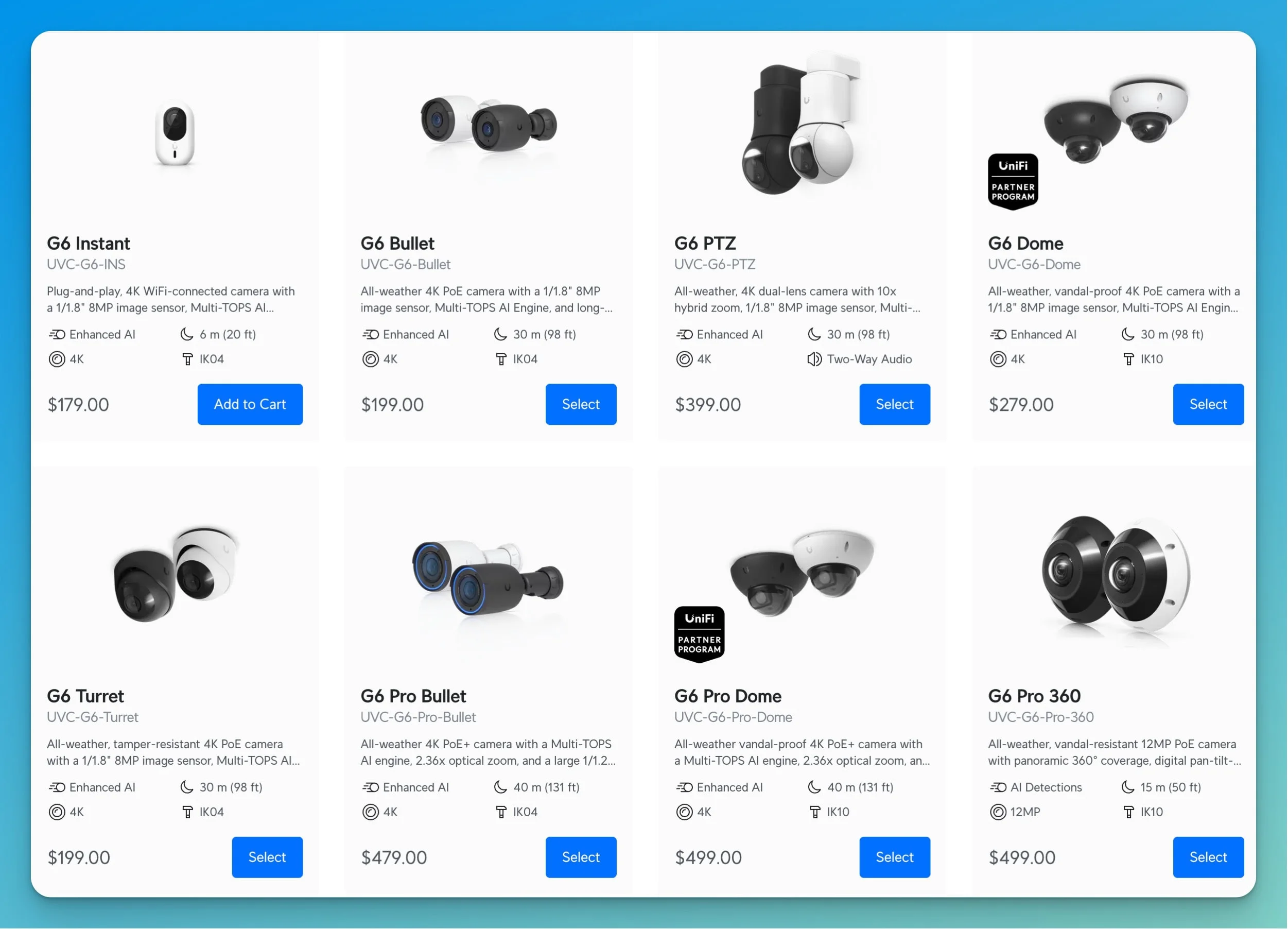
Use higher resolution where identification matters—entrances, cash-handling areas, loading docks, parking choke points, and anywhere face or license-plate detail may be needed. Use standard resolution or event-based recording for lower-risk overview areas. The current G6 lineup gives you flexibility across these roles.
Strategic Resolution Deployment
You don't need maximum resolution everywhere. Deploying higher resolution where it matters and standard resolution elsewhere can meaningfully reduce storage use without compromising security effectiveness in the areas that count.
Recording modes: continuous vs. motion vs. Smart Detection
How you record matters as much as what resolution you use. UniFi Protect offers three approaches, each with different storage implications.
Continuous recording captures everything 24/7, providing complete coverage but using maximum storage. Use this for critical areas where you can't afford gaps: main entrances, cash handling areas, high-value inventory zones.
Motion-based recording activates only when cameras detect movement. Storage savings vary by location—a busy retail floor might see only a 20-30% reduction because constant activity keeps cameras recording, while a quiet back office could save 60-70%. The tradeoff is potential brief gaps before motion triggers recording.
Smart Detection recording uses AI to identify specific events, such as people or vehicles, while ignoring irrelevant motion like swaying trees. Support varies by camera model and feature: many G4, G5, G6, and AI-series cameras handle people and vehicle detections, while advanced features may require newer AI-capable hardware, an AI Key, or an AI Port. Where supported, it provides better efficiency than simple motion detection in high-activity areas.
Recording Strategy
Most effective deployments mix these approaches: continuous for critical areas, motion or Smart Detection for secondary coverage.
Camera count and retention period
More cameras and longer retention directly increase storage needs. What's less obvious is that adding even 2-3 cameras to your initial count is common as you identify coverage gaps during deployment—planning NVR capacity for growth costs less than upgrading later. If you're still settling on a camera count, the density bands in our network sizing guide give a per-square-foot starting point by coverage level.
Frame rate and compression
Higher frame rate and higher bitrate settings increase storage use, but current G6 models are generally capped at 30 FPS or lower—the G6 Bullet, G6 Pro Bullet, G6 Instant, G6 Turret, and G6 PTZ top out at 30 FPS, while the G6 180 runs at 20 FPS and the G6 Pro 360 at 24 FPS. UniFi Protect handles frame rate automatically in most cases. Use the defaults as a baseline, then validate actual retention after 7-14 days before changing them.
Compression varies by scene
Compression efficiency varies by camera generation, codec, firmware, and scene complexity, so two cameras at the same resolution can still use different amounts of storage. Busy retail environments compress less efficiently than empty hallways—which is exactly why buffer capacity is part of the plan.
How to use UniFi's built-in calculator
UniFi Protect includes a storage estimator in Settings that calculates requirements from your actual camera models and settings. Because it accounts for specific camera encoding and your configuration, it is more accurate than any generic formula.
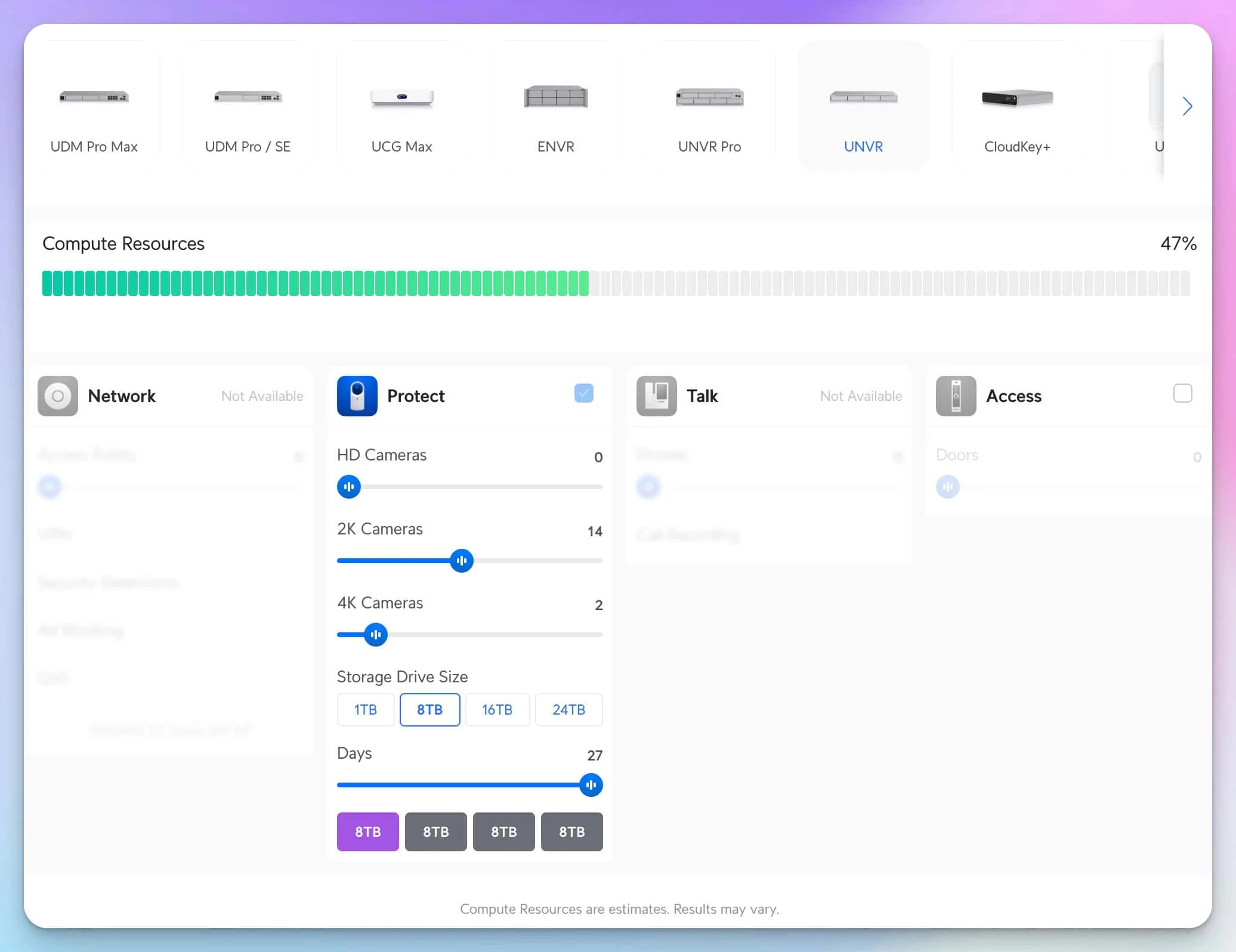
Configure your cameras as you intend to deploy them—set resolution, choose recording mode, and enable Smart Detection if you plan to use it. The calculator shows daily storage consumption per camera and total system requirements. Multiply by your target retention period for a baseline, then add a 30-50% buffer to absorb busier-than-expected periods, seasonal variation, and later setting changes. A G6 Bullet uses storage differently than a G4 Pro at the same resolution, so equipment-aware estimates beat per-camera rules of thumb.
How should RAID be calculated for UniFi NVR storage?
RAID reduces usable storage because part of the array is reserved for drive-failure protection. Don't treat RAID 5 as a universal 75% rule—efficiency depends on the number of drives installed. In UniFi, recorders apply this automatically through Basic Protection (two drives run as RAID 1, three or more as RAID 5) and Advanced Performance (RAID 10 with an even number of drives). On ENVR, Basic Protection configures nine or more drives as RAID 6 (dual-parity), providing two-drive failure tolerance.
The single- and dual-parity formulas are simple:
- Single-parity usable estimate (RAID 5):
(number of drives − 1) ÷ number of drives - Dual-parity usable estimate (RAID 6, ENVR with 9+ drives):
(number of drives − 2) ÷ number of drives
The bitrate-to-storage conversion behind these estimates is:
Daily storage in TB ≈ total bitrate in Mbps × 0.0108
For example, a system pushing 40 Mbps of combined camera bitrate would need roughly 40 × 0.0108 × 30 days = 12.96 TB of usable capacity before buffer and RAID overhead.
Usable capacity rises as you add drives:
| Drive count | UniFi NVR class | RAID 5 usable | RAID 6 usable |
|---|---|---|---|
| 4 drives | UNVR / UNVR G2 | 75% | — |
| 7 drives | UNVR Pro | 86% | — |
| 8 drives | UNVR G2 Pro | 88% | — |
| 9 drives | ENVR (RAID 6 minimum) | 89% | 78% |
| 16 drives | ENVR / ENVR Core | 94% | 88% |
RAID 6 dual-parity is not available on UNVR, UNVR Pro, UNVR G2, or UNVR G2 Pro—it requires an ENVR with at least nine HDDs installed.
RAID Planning
Convert usable capacity to raw capacity before buying drives. In a four-drive RAID 5 array (75% usable), 20TB usable needs about 27TB raw—roughly four 8TB drives. In an eight-drive RAID 5 array (88% usable), the same 20TB usable needs only about 23TB raw.
For most small and midsize business systems, Basic Protection (RAID 1/5) is the practical default when single-drive failure protection is enough. The UNVR and UNVR Pro support Basic Protection (RAID 1/5) and Advanced Performance (RAID 10 with an even number of drives)—RAID 6 is an ENVR-level option that requires nine or more drives. The UNVR Instant uses a single drive with no redundancy, suitable only where footage loss on drive failure is acceptable.
Which UniFi NVR should you choose in 2026?
Choose the NVR based on camera count, drive bays, redundancy needs, and growth. In May 2026, Ubiquiti added a second-generation line alongside the original recorders, so confirm which model you are buying before sizing drives. The table below compares the current lineup.
| Model | MSRP | Bays | Max 4K cameras | Data protection | Best fit |
|---|---|---|---|---|---|
| UNVR Instant* | $199 | 1 | 6 | None | Very small, non-critical systems |
| UNVR | $299 | 4 | 18 | Basic (RAID 1/5), RAID 10 | Budget-conscious small business |
| UNVR Pro | $499 | 7 | 24 | Basic (RAID 1/5), RAID 10 | Larger small-business systems |
| UNVR G2 | $699 | 4 | 30 | Basic (RAID 1/5), RAID 10 | New 4-bay deployments with AI |
| UNVR G2 Pro | $999 | 8 | 50 | Basic (RAID 1/5), RAID 10 | Larger new deployments, more headroom |
| ENVR | $1,999 | 16 | 70 | + RAID 6 (9+ drives) | Large business systems |
| ENVR Core | $4,999 | 16 (+expansion) | 300 | + RAID 6 (9+ drives) | Enterprise-scale systems |
*Note: the UNVR Instant requires connection to a UniFi Gateway or Layer 3 switch—it is not a fully standalone recorder.
MSRP and availability change frequently—the UNVR G2 Pro, for example, has been shown as sold out on the U.S. store. Prices and camera-capacity figures were verified against Ubiquiti's official store and tech-spec pages in June 2026. Confirm current details before purchase.
UNVR G2 HDMI ViewPort caveat
Ubiquiti lists the UNVR G2 at up to 30 4K cameras normally, but only 20 4K cameras when using the built-in HDMI Viewport for local display. If you plan to drive a wall monitor directly from the recorder, size your camera count against the lower figure.
The original UNVR and UNVR Pro remain useful when budget matters and add NVR stacking as a scaling path. The G2 models are stronger choices for new deployments where on-device AI analytics, HDMI output, faster uplinks, and future growth matter. For a full head-to-head, see our UNVR vs UNVR Pro vs UNVR G2 comparison.
Should you stack NVRs or move to ENVR?
Stacking helps some growing systems, but it has important limits. Use it only when you are adding a second compatible recorder and understand the tradeoffs—it is not the same as a fully scalable enterprise cluster. Ubiquiti's support guidance actually discourages stacking and points larger sites toward an ENVR or Vantage Point.
NVR stacking limitations
Per Ubiquiti's current UNVR Stacking article:
- Stacking supports two matching UNVR Pros, or two matching UNVRs (standard UNVRs need UniFi OS 3.1+). ENVRs cannot be stacked.
- Existing cameras do not automatically rebalance; moving a camera between parent and child erases its prior recordings.
- Face Recognition and License Plate Recognition are not supported on cameras attached to the child console, and AI Key/AI Port work only on the parent.
- You cannot access the child console directly—if the parent fails, you are locked out of the child.
For larger sites, multi-NVR management through Vantage Point (which can manage up to five NVRs in one interface) or a move to the ENVR / ENVR Core is usually cleaner than stretching a small recorder beyond its intended use.
What hard drives should be used for UniFi Protect?
Use surveillance- or enterprise-rated drives designed for continuous recording workloads. WD Purple, Seagate SkyHawk, and UniFi Enterprise HDDs are more appropriate than standard desktop drives—the key difference is workload rating and intended operating profile, not just capacity.
Recommended Drives
Western Digital Purple and Seagate SkyHawk are rated for always-on surveillance workloads around 180TB/year, while the UniFi Enterprise HDD is rated at 550TB/year. Desktop drives carry far lower workload ratings and aren't built for 24/7 NVR duty.
For most small business deployments, 8TB to 16TB drives are practical starting points. Larger drives (16TB+) take longer to rebuild after a failure, extending the RAID vulnerability window; smaller drives cost more per terabyte and consume more bays. Use identical drive sizes inside the same RAID array—mixing a 6TB drive into an array of 10TB drives forces all of them to be treated as 6TB, wasting capacity you paid for.
What is UniFi Enhanced Retention?
Enhanced Retention is a UniFi Protect Storage Manager option that keeps footage at high quality for a chosen period, then downgrades older footage to a lower quality to extend how far back you can look. It directly affects storage planning: you can keep more days of usable history without buying proportionally more capacity.
Downgrade is permanent
Ubiquiti notes that footage downgraded by Enhanced Retention cannot be restored to high quality. Set your high-quality retention window to cover the period you're most likely to need for identification or evidence, and treat the downgraded tail as overview history.
How long should a business keep security footage?
Most businesses plan around 30-60 days unless compliance, insurance, or risk requires more. General offices often start at 30 days; retail, warehouse, healthcare, and financial environments may need longer depending on investigation timelines and policy.
- General business — 30-45 days: Covers typical incident discovery, most insurance claims, and common disputes.
- Retail — 45-60 days: Supports loss-prevention work that reviews patterns over several weeks.
- Healthcare and financial services — 60-90 days: Longer windows for patient-interaction and cash-handling areas; treat as a starting point, not a mandate.
- Warehouses and industrial — 30 days: Usually sufficient for safety incidents and loading-dock activity unless a specific rule applies.
Confirm regulated retention with a professional
HIPAA does not create a single universal surveillance retention period—HHS frames it around safeguarding electronic protected health information (ePHI), and video can raise PHI, privacy, and access-control issues. Regulated businesses should confirm retention rules with their legal counsel, insurer, or compliance officer before finalizing storage rather than assuming a fixed number.
UniFi Protect supports per-camera retention, so you can prioritize storage for critical areas while using shorter retention elsewhere.
Practical storage planning examples
These illustrative examples show the planning judgment behind the numbers, not just the formula.
Example 1 — 8-camera office, 30-day goal
Setup: 8 cameras (4K at two entrances, 2K interior), mostly Smart Detection recording, RAID 5 on four bays.
Plan: Estimator put usable need near 5TB; a 50% buffer brought the target to ~7.5TB usable. At four-drive RAID 5 (75% usable), that's ~10TB raw, comfortably met by four 4-6TB surveillance drives in a UNVR.
After 14 days: Actual consumption tracked slightly under estimate because interior cameras stayed event-based—retention landed comfortably past 30 days with buffer to spare.
Example 2 — 16-camera retail site
Setup: Mix of continuous (entrances, POS) and Smart Detection (aisles, stockroom), 45-day target. Sized on a UNVR Pro with seven bays for RAID and growth headroom.
Drive set: Six 12TB surveillance drives in RAID 5 provide about 60TB usable from 72TB raw capacity. That gives enough room for the 45-day target, a growth buffer, and two planned cameras.
Example 3 — Warehouse / loading dock
Setup: Higher motion variability from forklifts, doors, and weather at the dock. Motion-heavy scenes pushed daily consumption above the initial estimate.
Lesson: The original 30% buffer was too thin once dock activity spiked seasonally. Rebuilding at a 50% buffer (and moving two dock cameras to Smart Detection) restored the target retention window without new hardware.
Strategic Camera Configuration by Location
Match resolution and recording mode to each camera's job. Use 4K and continuous recording only where detail matters most—entrances, POS, and license-plate views. The table below maps common locations to a sensible default.
| Location | Resolution | Recording mode |
|---|---|---|
| Main entrances, POS, cash handling | 4K | Continuous |
| Loading docks, parking choke points | 4K / 2K | Smart Detection |
| Aisles, lobbies, general floor | 2K | Smart Detection |
| Back offices, storage rooms, low-traffic halls | 2K / 1080p | Motion |
Deploy 4K where you need to identify faces, read license plates or documents, or may need digital zoom during review. The current G6 lineup—including the G6 Bullet and G6 Instant—handles those critical roles; see our complete G6 camera buying guide for specs on all models. Use 2K or 1080p for overview coverage where knowing that something happened is enough.
Common Planning Mistakes
Four mistakes account for most UniFi Protect storage problems: undersizing for current cameras, ignoring RAID overhead, using desktop drives, and recording everything at maximum settings.
Planning Only for Current Camera Count
Most deployments add cameras within 12-18 months as coverage needs become clearer. Planning only for the current count means expensive storage expansion sooner than necessary. Build in 25-50% growth capacity from the start—storage is easier and less costly to specify initially.
Ignoring RAID Overhead
Buying drives expecting 20TB usable but only getting 15TB after RAID 5 represents a significant gap. Always calculate usable capacity after RAID when planning purchases. Raw drive capacity isn't what you'll actually have available for footage.
Using Desktop Drives
Desktop drives carry much lower workload ratings than surveillance drives and aren't designed for always-on NVR recording. The savings are usually not worth the added failure risk, potential footage loss, and lack of warranty coverage for continuous operation. Specify surveillance- or enterprise-rated drives instead.
Everything at Maximum Settings
Recording all cameras at maximum resolution and continuous recording uses substantial storage without proportional security improvement. Strategic configuration—higher quality where it matters, standard settings elsewhere—can often reduce storage use compared with recording every camera continuously at maximum settings, while maintaining security effectiveness.
Frequently Asked Questions
How much storage do I really need?
It depends on camera count, resolution, recording mode, and retention. As an example, an 8-camera small business mixing 2K and 4K with motion or Smart Detection recording may fit 4-10TB usable for 30-day retention, while continuous 4K can require far more. Use the estimator above and UniFi's calculator, then add a 30-50% buffer for real-world variability.
Should I use surveillance-rated drives?
Yes. Surveillance and enterprise drives like WD Purple, Seagate SkyHawk, and UniFi Enterprise HDD are rated for always-on recording workloads. WD Purple and SkyHawk are rated around 180TB/year, and the UniFi Enterprise HDD is rated at 550TB/year. Desktop drives carry much lower workload ratings and aren't built for continuous NVR use.
What happens when storage fills up?
UniFi Protect automatically overwrites the oldest footage first, maintaining continuous recording. You won't lose recent footage, but your retention window shortens. If you planned for 30 days but storage fills at 25 days, you'll maintain a rolling 25-day window. This is why buffer capacity matters—it protects against unexpected activity increases.
Can I add drives later?
With RAID-capable NVRs, you can add drives to empty bays, but rebuilding the array is time-consuming. It's more cost-effective to size appropriately from the start. However, choosing an NVR with extra bays (like the 7-bay UNVR Pro) gives you expansion room without starting over.
Which RAID level should I use?
On UNVR and UNVR Pro, UniFi handles this automatically: Basic Protection runs two drives as RAID 1 and three or more as RAID 5, while Advanced Performance configures RAID 10 with an even number of drives. RAID 5 usable capacity is roughly (drives - 1) / drives, so it varies by drive count rather than a fixed 75%. RAID 6 dual-parity protection is an ENVR-level option that engages with nine or more drives installed.
What is UniFi Enhanced Retention?
Enhanced Retention is a UniFi Protect Storage Manager option that keeps footage at high quality for a set period, then downgrades older footage to a lower quality to extend retention. The trade-off is permanent: downgraded footage cannot be restored to high quality.
Do all cameras need maximum quality?
No. Focus 4K resolution and continuous recording on critical areas where detail matters: entrances, point-of-sale locations, and high-value areas. Use 2K or motion-based recording for overview coverage and less critical monitoring. This strategic approach can often reduce storage use compared with recording every camera continuously at maximum settings, without compromising security where it matters.
How long should I keep footage?
Most businesses plan around 30-60 days. Extend to 45-60 days if budget allows for more comfortable investigation windows. Reserve 90+ days for regulated industries, but confirm exact requirements with your legal, compliance, or insurance contact rather than assuming a fixed rule. UniFi Protect supports different retention periods per camera.
What if I outgrow my storage?
You can adjust retention downward, optimize recording settings (motion-based instead of continuous), add drives to empty bays if available, or upgrade to a larger NVR if you've maximized capacity. This is why choosing an NVR with extra drive bays and planning with buffer capacity matters—it provides upgrade paths without complete system replacement.
Your Storage Planning Checklist
Use this framework to plan storage with confidence:
Planning Steps
- Configure cameras in UniFi Protect as you'll deploy them
- Review storage calculator estimates for daily consumption
- Multiply by target retention period (30-60 days typically)
- Add 30-50% buffer for real-world variability
- Account for RAID efficiency by drive count (RAID 5 ≈ (drives−1)/drives; RAID 6 ≈ (drives−2)/drives)
- Choose an NVR model based on camera capacity, bays, and growth
- Select surveillance- or enterprise-rated drives in 8-16TB capacities
- Use identical drive sizes within RAID arrays
- Validate actual retention after 7-14 days and adjust settings
We provide UniFi Protect planning and installation services throughout Miami and surrounding areas—from site assessment through system optimization.
Sources
Last verified: June 2026
Pricing, capacity, and spec figures are drawn from Ubiquiti's official store and documentation as of June 2026. Confirm current details before purchase, since Ubiquiti updates models and pricing frequently.
- Ubiquiti Store — UNVR G2 / G2 Pro / ENVR Core (pricing, bays, camera capacity)
- UniFi G6 Pro Bullet — Tech Specs (frame-rate limits)
- Storage Protection and Data Redundancy in UniFi (RAID)
- UNVR Stacking (stacking limits)
- UniFi Vantage Point: Multi-NVR Camera Management (up to five NVRs)
- Managing Storage and Retention in UniFi Protect (Enhanced Retention)
- UniFi Protect Cameras — AI Detections and Facial Recognition (Smart Detection support by model)
- Ubiquiti Store — UNVR Instant (requires Gateway or Layer 3 switch)
- WD Purple workload rating · HHS — HIPAA Security Rule
Related Resources
- UNVR Instant Review – Entry-level NVR evaluation for small deployments
- UNVR vs UNVR Pro Comparison – Detailed NVR comparison
- Can UniFi Protect Use a NAS? UNAS vs UNVR Explained – When UNAS helps in a camera deployment, when it doesn't, and how to choose between a gateway, UNVR, and UNAS
- UniFi Protect AI Security System Under $2000 – Budget-friendly surveillance implementation
- Best NAS for Small Business 2026 – Synology, UGREEN, and UniFi NAS comparison with pricing and specs
- UniFi Business Network Guide – Complete ecosystem overview
- UniFi Protect CCTV Guide – Complete camera system guide
- UniFi Dream Router 7 Review – If you're running Protect on a gateway with a built-in 64GB microSD (UDR7), this review covers real-world camera storage limits and retention expectations
- UDM Pro Max as Standalone NVR – When a gateway can replace a dedicated NVR for camera storage
- UniFi Protect vs Synology Surveillance Station – Platform comparison covering hardware, AI features, and storage approaches
Related Articles
More from UniFi Networks
Best UniFi Protect Cameras 2026: Complete G6 Lineup Buying Guide
Compare every UniFi G6 camera from the $179 Instant to the $499 Pro Dome. Real-world testing, pricing, specs, and recommendations for home and business security.
21 min read
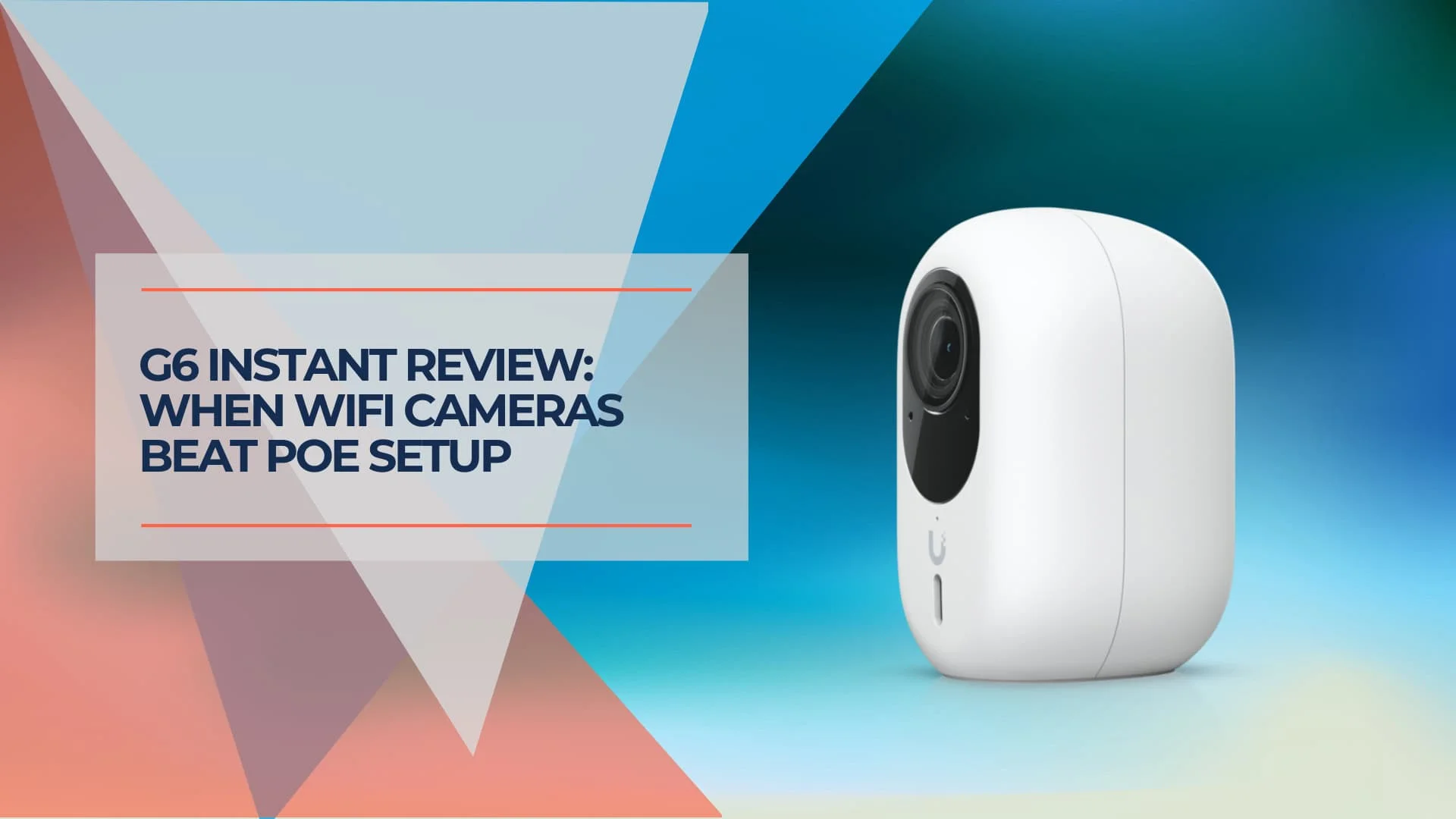
UniFi G6 Instant Review (2026): 4K WiFi vs. PoE for Business Security
Real-world UniFi G6 Instant review comparing WiFi vs PoE camera installation. See how 12 cameras deployed in under 4 hours with about 44% cost savings over traditional wired systems.
11 min read
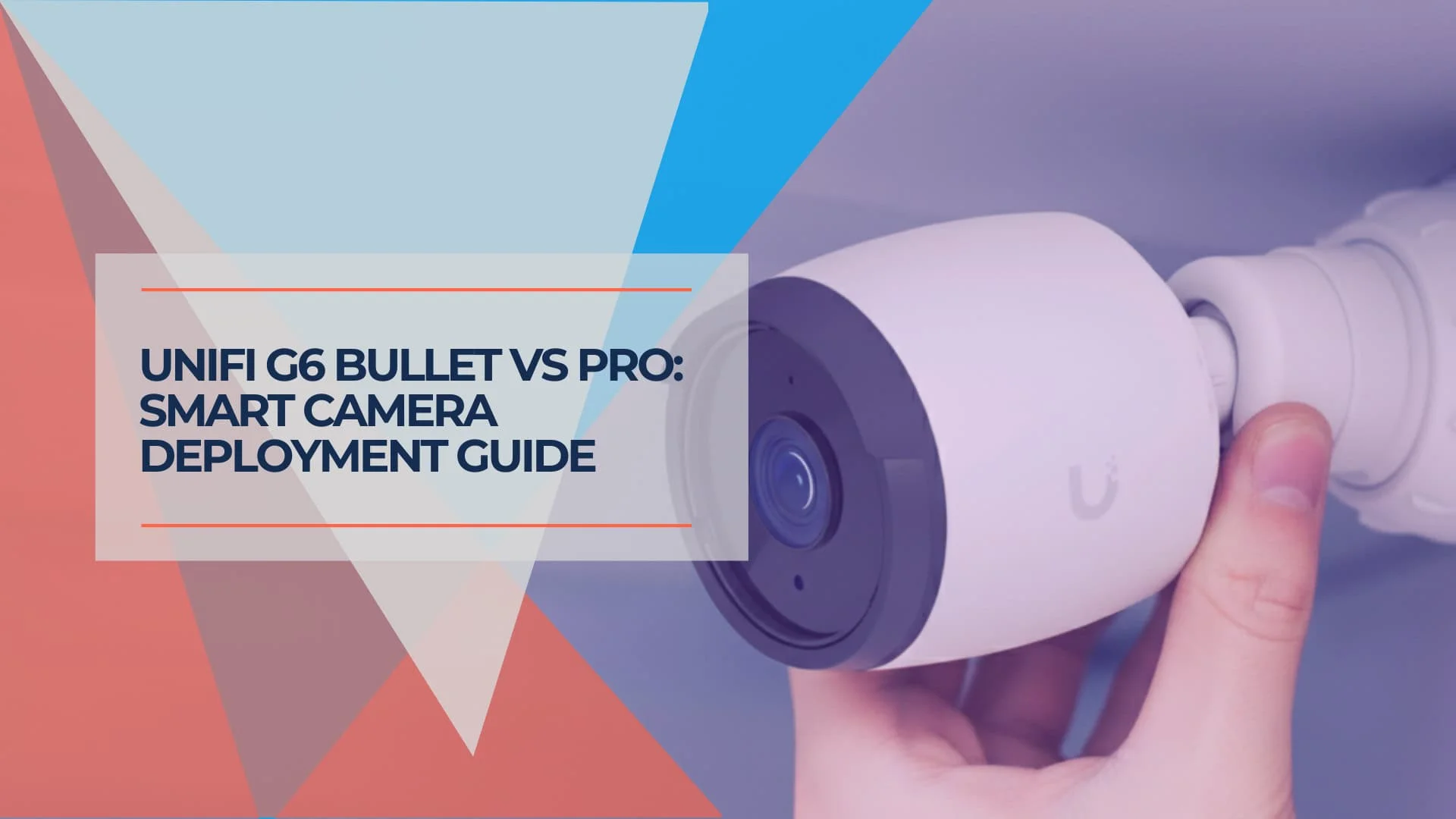
UniFi G6 Bullet vs Pro Bullet vs G6 PTZ: Which Should You Buy?
Compare the UniFi G6 Bullet, G6 Pro Bullet and G6 PTZ by image quality, zoom, night vision, PoE needs and 2026 business deployment cost.
16 min read