Best Small Business Servers 2026: On-Premise vs Cloud vs Hybrid Compared
Compare on-premise servers, NAS ecosystems, SaaS, and cloud infrastructure for small businesses. Includes illustrative 3-year TCO analysis with July 2026 pricing, and a practical decision framework.

Affiliate Disclosure: This article contains affiliate links. If you make a purchase through these links, we may earn a small commission at no extra cost to you. As an Amazon Associate, iFeelTech earns from qualifying purchases.
Not sure if you need a server at all? Our decision guide helps you determine whether a server, NAS, or cloud-only setup is the right fit before you start comparing models.
Key Takeaways
- NAS-based infrastructure (Synology DS925+) has the lowest estimated three-year cost in our illustrative scenario at approximately $166/month (including IT management and cloud backup)
- Hybrid is common: many small businesses keep daily workloads local and push backup and disaster recovery to cloud
- On-premise servers suit Active Directory, SQL Server, GPU, and workloads requiring physical data control
- SaaS collaboration (Microsoft 365, Google Workspace) is often the most practical "cloud" option for small offices
- Factor in Windows Server 2025 licensing ($1,176 MSRP + $50–55/CAL) and verify all hardware prices with current vendor quotes
How Do On-Premise, Cloud, and Hybrid Server Costs Compare?
In our illustrative scenario, the NAS ecosystem has the lowest estimated three-year cost among the options compared—though the architectures differ in storage capacity, compute, and capabilities.
In our illustrative scenario for a 10-person office, a NAS costs ~$5,980 all-in (including IT management), while a traditional Windows server reaches ~$13,760—though these architectures differ significantly in storage capacity and capabilities (see the TCO section below for assumptions). Cloud costs vary widely by architecture: raw IaaS compute and storage runs ~$10,400 over three years, but SaaS collaboration (Microsoft 365, Google Workspace) at $6–22/user/month may be the more appropriate comparison for many offices. Traditional servers require high upfront capital and Windows licensing. Cloud platforms like Google Cloud eliminate hardware but introduce ongoing compute, storage, and management costs. NAS bridges the gap by bundling file sharing, backup, and application hosting without per-seat software licensing.
In practice, many companies run on-premise infrastructure alongside cloud services rather than committing entirely to one model. The right mix depends on your specific workloads, team structure, and compliance requirements.
Which Infrastructure Paths Should Small Businesses Consider?
Small businesses typically evaluate several infrastructure paths, each suited to different workloads and team structures:
On-Premise Servers — best when you need Active Directory, Windows-dependent applications, GPU workloads, or full physical control over data. A Dell PowerEdge T160 or HPE ProLiant ML30 in your server room provides full hardware control at the cost of higher upfront capital and ongoing licensing. Server pricing has moved significantly in 2026 because of the DRAM shortage: TrendForce reported server DRAM contract price increases of 60–90% quarter-over-quarter in Q1 2026 as cloud providers locked in DDR5 capacity for AI infrastructure. By mid-2026, the pace moderated to 13–18% QoQ, though prices remain elevated compared to 2025. Treat every hardware price in this guide as a starting point and get a current quote before budgeting.
NAS Ecosystems — best for file-sharing-centric offices that want backup, containers, virtual machines, and remote access without Windows Server licensing. A Synology DS925+ handles most of what small offices need—file sharing, backup, and remote access—at a lower hardware cost than a traditional server (though with significantly different compute and expandability trade-offs).
Pure Cloud — best for fully remote teams with no office, seasonal burst workloads, or startups prioritizing deployment speed. Zero hardware and monthly billing, though costs add up for storage-heavy or always-on workloads.
Feature Comparison at a Glance
| Capability | Traditional Server | NAS Ecosystem | Pure Cloud / SaaS |
|---|---|---|---|
| Active Directory | Yes (native) | Synology Directory Server or AD join | Managed AD or cloud identity (varies by service) |
| File Sharing | Yes (LAN speed) | Yes (LAN speed) | Yes (internet-dependent; SaaS includes file sync) |
| Virtualization | Hyper-V, Proxmox, free ESXi | Virtual Machine Manager + Docker | EC2, Lightsail, Azure VMs |
| GPU / AI Workloads | Yes (PCIe slots) | No | Yes (pay-per-use) |
| Automated Backup | Built-in basic (Windows Server Backup); third-party commonly used for centralized or immutable backup | Built-in, license-free (Active Backup) | Varies; S3 versioning is not a standalone backup solution |
| Remote Access | VPN or ZTNA required | Synology QuickConnect built-in | Native (internet-based) |
| Ransomware Immutability | Third-party required | Btrfs immutable snapshots (Btrfs required) | S3 Object Lock (when configured correctly) |
| Recurring Software Licenses | Windows Server + CALs | DSM included; optional C2, VMM Pro, and other add-ons | Pay-as-you-go or per-user SaaS |
| Upfront Hardware Cost | $4,299–6,200+ | $1,840–2,040 | $0 |
| IT Management Complexity | High (MSP recommended) | Low to moderate | Moderate (cloud/SaaS expertise) |
When Is an On-Premise Server the Right Choice?
On-premise servers suit businesses needing Active Directory, SQL databases, or GPU-accelerated workloads.
They provide full control over hardware, data, and network performance—essential for Windows-dependent applications, local AI inference, and environments where physical data control simplifies compliance.
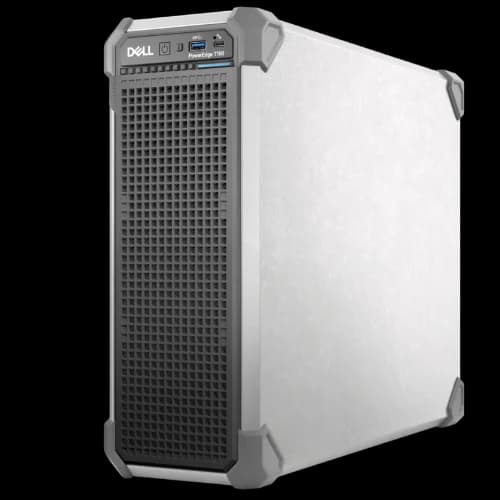
Dell PowerEdge T160
Dell PowerEdge T160
~$4,299Dell's entry-level tower server in a compact 3U chassis, ideal for basic file/print or AD.
Dell's entry-level tower server for small businesses. The T160 ships in a compact 3U chassis and supports a single processor socket, making it a straightforward choice for offices that need a dedicated file/print server or lightweight Active Directory controller without the complexity of a larger platform.
As of July 2026, Dell lists a base configuration at ~$4,299 with an Intel Pentium G7400 (dual-core, 3.7 GHz), 32GB RAM, and 1TB storage (including ProSupport). Upgrading to a Xeon E-2400 processor brings the price to approximately $5,000–6,000, while Xeon 6 Performance series (6315P/6325P) configurations start around $6,200. For a 10-person file server, the base Pentium configuration is functional. Active Directory, virtualization, or multi-service workloads benefit from the Xeon E-2400 upgrade. Verify pricing and exact SKU at Dell's T160 configurator—server pricing changes frequently.
Best for: Small offices needing a basic file/print server, entry-level Active Directory, or a single-purpose workload on a limited hardware budget.
Dell PowerEdge T360
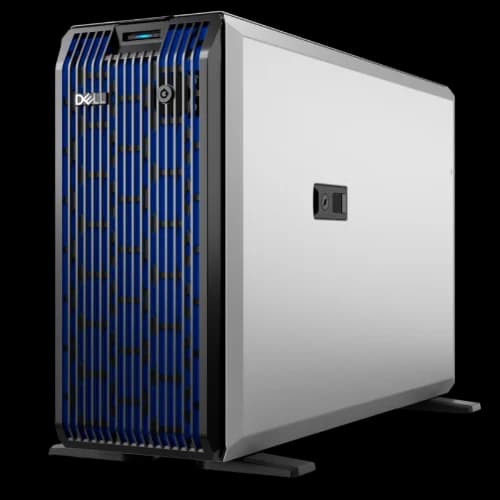
Dell PowerEdge T360
~$4,999Dell's step-up tower server with GPU capability and redundant power for multi-service workloads.
Dell's step-up tower server for small businesses that need hot-swap drives, redundant power, and GPU capability. The T360 is built for offices running multiple workloads on a single machine—file sharing, virtualization, and potentially light inference—where uptime and expandability matter more than minimizing upfront cost.
As of July 2026, the entry configuration lists at approximately $4,999, with mid-tier Xeon builds reaching $5,500–6,000. The T360 supports up to 8 hot-plug 3.5" drive bays and offers redundant hot-swap power supply options, which the T160 lacks. The T360 supports a single NVIDIA A2 GPU, though Dell documents the A2 operating at a reduced 40W power limit in this chassis—suitable for light inference and GPU-assisted workloads, but not a general-purpose AI server. Verify pricing at Dell's T360 configurator.
Best for: Growing offices running virtualization (Hyper-V, Proxmox), multi-service workloads, or businesses planning to add light GPU-assisted inference. The hot-swap drives and redundant PSU options provide better resilience and serviceability than the T160.
HPE ProLiant ML30 Gen11
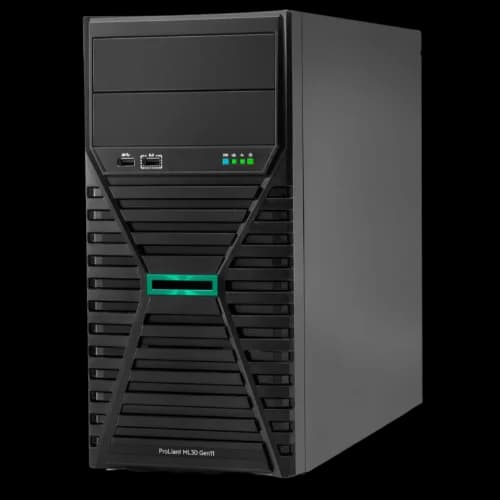
HPE ProLiant ML30 Gen11
~$3,128HPE's alternative features Xeon processing, PCIe 5.0 support, and iLO 6 management.
HPE's direct competitor to the Dell PowerEdge T160. The currently listed ~$3,128 configuration through HPE's direct store uses a Xeon processor, although the ML30 Gen11 platform also supports the Pentium G7400. It includes PCIe 5.0 support and HPE's iLO 6 remote management platform for out-of-band management and firmware updates. Third-party resellers and Amazon may list stripped-down configurations lower, but verify the exact CPU, RAM, storage, and warranty included (as of July 2026).
The ML30 Gen11 also offers more storage flexibility than the T160, with options for 4 large-form-factor or 8 small-form-factor hot-plug drive bays, plus two 5.25" media bays for tape or RDX backup.
Best for: Businesses that want Xeon-class performance, offices with existing HPE/iLO management workflows, and environments needing flexible storage configurations (SFF/LFF) or built-in tape/RDX backup bays. For a detailed rack-mount alternative, see our HP ProLiant DL320 Gen11 review.
New vs. Refurbished: A Budget-Conscious Option
Many budget-conscious SMBs purchase refurbished previous-generation servers—such as 14th or 15th Gen Dell PowerEdge models—at significant discounts compared to new pricing. Refurbished PowerEdge T340 or T440 units with Xeon E-2200 series processors typically list in the $800–1,500 range on reseller marketplaces, though prices vary by CPU, RAM, RAID controller, drives, warranty, and seller. The trade-off is shorter remaining warranty life, older power efficiency, and no current-generation features like DDR5 or PCIe 5.0. For businesses where upfront cost is the primary constraint, refurbished hardware can be a practical stepping stone while budgeting for a future upgrade.
Compliance Considerations: HIPAA, SOC 2, and CMMC
Regulated industries have specific infrastructure requirements, but cloud is not automatically disqualified. The right architecture depends on the regulation, your organization's maturity, and the controls you can demonstrate.
- HIPAA — HHS explicitly permits cloud computing for ePHI, provided a Business Associate Agreement (BAA) is in place and the covered entity conducts appropriate risk analysis. An on-premise server with encrypted storage and access logging can be simpler to audit for small practices without dedicated compliance staff, but it is not the only compliant path. AWS, Azure, and Google Cloud all offer HIPAA-eligible services with BAA support.
- SOC 2 — evaluates an organization's controls, not its hosting model. Cloud providers can supply inherited control evidence (SOC 2 Type II reports), which can simplify portions of the audit. However, the customer retains responsibility for configuration, access management, and monitoring. On-premise infrastructure gives direct control but requires demonstrating equivalent controls independently.
- CMMC — defense contractors at Level 2+ must demonstrate Controlled Unclassified Information (CUI) handling practices. CMMC permits qualifying cloud services subject to CUI scoping and FedRAMP Moderate-equivalent authorization. On-premise servers in a controlled facility remain a straightforward path for small subcontractors, but cloud-based CUI environments are architecturally valid.
For small businesses without dedicated compliance teams, on-premise hardware with proper physical security, encrypted storage, and documented access controls can reduce the complexity of demonstrating compliance—but it is not the only option. Consult with a qualified compliance advisor before making infrastructure decisions based on regulatory requirements.
The Broadcom/VMware Effect on Small Business Servers
Following Broadcom's acquisition of VMware in 2023 and the end of perpetual licensing for paid editions, many small businesses reconsidered VMware. However, in 2025 Broadcom reintroduced a free standalone ESXi 8.0 U3e edition for basic hypervisor use—without the advanced capabilities, vCenter management, or support of paid offerings. For SMBs needing more than a standalone host, the main alternatives are:
- Windows Server 2025 with Hyper-V — included with every Windows Server Standard license, which permits two Windows Server virtual machines. Note that virtualization itself is included, but management, backup, and support carry their own costs.
- Proxmox VE — open-source and free to use, but production enterprise repositories and support subscriptions cost €120–€1,100 per CPU socket annually. The free no-subscription repository receives updates later and without enterprise-level testing.
This landscape gives SMBs more options than before, though each carries its own cost and support trade-offs.
Don't Forget: Windows Server Licensing Adds Up
The server hardware price is only the starting point. Windows Server 2025 Standard carries an MSRP of $1,176 for a 16-core license (all physical cores must be licensed, with a 16-core minimum). Add Client Access Licenses (~$50–55/user at current reseller pricing) and a UPS for power protection ($200–800). For a 10-user deployment: $1,176 + 10 CALs at $50–55 = $1,676–$1,726 in licensing alone. Even with the base T160 configuration (~$4,299), total deployment cost reaches $6,200–7,000+ before a Xeon processor upgrade.
For qualifying single-CPU deployments with up to 25 users or 50 devices, also consider Windows Server 2025 Essentials (OEM-only, 10-core license), which eliminates the need for separate CALs and may reduce licensing cost for the smallest offices.
When on-premise is the right fit: Active Directory environments, SQL Server or line-of-business applications requiring Windows, GPU workloads, environments where physical data control simplifies compliance, and offices where local network speeds (2.5–10 Gbps) outperform internet bandwidth for daily operations.
When Is a NAS Ecosystem the Best Small Business Server?
NAS ecosystems are ideal for offices of 5 to 25 people needing file sharing and backups without expensive Windows licensing.
They deliver core file-sharing functionality—including container support, remote access, and automated backup—at a lower hardware cost than a traditional server. The trade-off is reduced raw compute power and no native Microsoft Active Directory support.
Synology DS925+
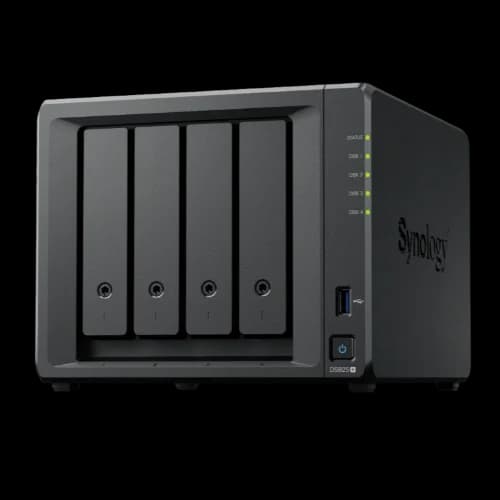
Synology DS925+
The current Plus-series 4-bay NAS for small businesses, offering native 2.5GbE and license-free backup.
- AMD Ryzen V1500B
- 4GB DDR4 ECC (up to 32GB)
- 4× Drive Bays + 2× M.2 NVMe
- 2× 2.5GbE Networking
*Price at time of publishing
How We Evaluated
This recommendation is based on hands-on client deployments and specification analysis. We assessed the DS925+ on features (file sync, backup, containers, VM support), management simplicity (DSM interface, update process), networking (native 2.5GbE), expandability (expansion units, M.2 NVMe pools), and value at current drive prices. The DS925+ excels at bundling enterprise-adjacent features at a lower cost than a traditional server, but its compute power, single-drive-bay expansion path, and lack of 10GbE are genuine limitations. This product includes an affiliate link—see our affiliate disclosure for details.
The Synology DS925+ is the current Plus-series 4-bay NAS at a street price of approximately $639. It replaced the DS923+ with native 2.5GbE networking (the DS923+ used 1GbE). Both models have two M.2 NVMe slots; the M.2 slots can support cache or storage pools on supported configurations using compatible NVMe drives.
The main advantage of the DS925+ is the software. Synology's DSM operating system includes:
- Synology Drive — private file synchronization and sharing
- Active Backup for Business — license-free backup for PCs, servers, and VMs
- Docker/Container Manager — run business apps without separate servers
- Snapshot Replication — rapid point-in-time rollback; snapshots on the same NAS are not an independent backup (requires Btrfs volumes)
- Synology C2 — native cloud backup integration for offsite disaster recovery
Pair the DS925+ with four 8TB compatible drives and the all-in hardware cost depends on the drives you choose. As of July 2026, 8TB Seagate IronWolf NAS drives list at approximately $300 each (current retail listing), making four drives ~$1,200 and the total hardware package approximately $1,840. DSM is included at no additional cost, though cloud backup via C2 ($7.99/TB/month) or a third-party service adds a recurring expense for offsite protection.
Drive Compatibility: What Buyers Need to Know
Synology's drive compatibility policy changed significantly with DSM 7.3. For 2025 Plus-series models including the DS925+, third-party HDDs and 2.5-inch SATA SSDs now work without the warnings or feature lockouts that initially accompanied these models at launch. Established NAS drives such as Seagate IronWolf and WD Red Pro are fully functional. Restrictions remain more significant for unlisted M.2 NVMe drives used as cache or storage pools—check the Synology compatibility list for NVMe specifically.
Synology's own HAT3320 (Plus-series) and HAT5320 (enterprise) drives are fully validated and support DSM-managed firmware updates, but current prices vary substantially by model and seller. As of July 2026, the HAT3320-8T lists at approximately $350–435 at major US retailers, while the enterprise HAT5320-8T lists at approximately $650. Compare exact, in-stock SKUs before purchasing—a Seagate IronWolf 8TB at ~$300 may offer better value given that DSM 7.3 restored full third-party HDD support.
Network Requirements for NAS Performance
The DS925+ ships with native 2.5GbE networking, but those speeds only materialize if the rest of your network supports 2.5 Gbps. If the NAS connects to a legacy 1GbE switch, throughput is capped at ~110 MB/s regardless of drive performance.
For offices deploying a NAS as their primary file server, upgrading to a 2.5GbE or 10GbE switch (such as the UniFi Switch Pro models) is worth budgeting for. An additional $200-500 in switch infrastructure allows the NAS to deliver its full rated throughput to connected workstations.
The NAS Sweet Spot
For offices with 5–25 employees doing primarily file sharing, backup, and collaboration, the NAS ecosystem tends to have a low total cost of ownership relative to traditional servers. It provides features typically associated with enterprise infrastructure—snapshots, RAID, automated backup—without Windows Server licensing. SaaS collaboration (Microsoft 365, Google Workspace) may be simpler for remote-first teams.
When NAS is the right fit: File-heavy workflows, backup-centric strategies, small teams without dedicated IT staff, businesses migrating away from aging Windows servers, and environments prioritizing low power consumption and quiet operation.
When NAS falls short: Heavy compute workloads, full Active Directory domains (Synology offers Directory Server and AD joining, but with limitations compared to native Windows AD), GPU-accelerated tasks, and environments requiring Windows-specific applications.
For deeper NAS comparisons including UGREEN and UniFi alternatives, see our Best NAS for Small Business guide.
When Does Cloud Infrastructure Make Sense for Small Businesses?
Cloud infrastructure suits fully remote teams, seasonal burst workloads, and startups prioritizing speed.
It eliminates hardware entirely—no server closet, no maintenance, no upfront capital. The trade-off is ongoing monthly costs that accumulate over time, and for always-on workloads with predictable utilization, owned hardware may cost less over a multi-year period depending on utilization, labor, redundancy, and committed pricing.
AWS EC2 + S3: The Numbers
A small business running a basic compute instance on AWS with object storage (note: this is not equivalent to an on-premise SMB file server—see the caveat below):
| AWS Service | Spec | Monthly Cost |
|---|---|---|
| EC2 (t3.medium) | 2 vCPU, 4GB RAM, us-east-1, Linux on-demand | ~$30/mo |
| EBS Storage (gp3) | 200GB SSD (OS/apps) | ~$16/mo |
| S3 Storage | 4TB (object storage) | ~$92/mo |
| Data Egress | First 100GB/month | $0 (free tier) |
| Total | ~$138/month |
Over 36 months, that totals approximately $4,968—a pure operational expense with no residual hardware value. Additional egress beyond 100GB/month costs $0.09/GB.
This Is Not a Like-for-Like File Server Comparison
S3 is object storage, not an SMB/CIFS file share. A true cloud equivalent to an on-premise Windows file server would require a Windows EC2 instance, EBS-only storage, VPN or directory services, backup, and monitoring—or a managed service like Amazon FSx for Windows File Server. For many 10-person offices, SaaS collaboration (Microsoft 365 Business at $12.50–$22/user/month, or Google Workspace at $7–$22/user/month on annual plans) is the more realistic cloud comparison to a local file server. The figures above are included to illustrate raw IaaS costs, not to represent a production-ready architecture.
When Cloud Is the Right Fit
Cloud infrastructure excels for:
- Fully remote teams with no physical office (no server closet, no one to reboot hardware)
- Burst workloads that spike seasonally (spin up, scale down, pay only for usage)
- Startups prioritizing speed over optimization (deploy in minutes, optimize later)
- Global distribution where users need low-latency access from multiple continents
- Offices replacing endpoints entirely — Windows 365 Cloud PCs eliminate both the server and the traditional laptop, running full Windows 11 desktops from Microsoft's data centers at $28–$56/user/month
Zero-Egress Alternatives Worth Considering
The AWS cost estimates above assume standard S3 pricing with its $0.09/GB egress fees. In 2026, two alternatives eliminate egress charges entirely:
- Cloudflare R2 — S3-compatible object storage with zero egress fees. Storage pricing is ~$0.015/GB/month. Note that while egress is free, Class A and Class B operation (API request) charges still apply—these are typically modest but not zero for high-request workloads.
- Backblaze B2 — storage at $6.95/TB/month (~$0.00695/GB). Egress is free up to 3× your average monthly storage volume, then $0.01/GB beyond that. Additional free egress is available through CDN and compute partners including Cloudflare.
These alternatives can significantly reduce the storage and egress line items in the cloud cost equation, though compute and management costs remain.
When Cloud Costs Escalate
Even with egress-friendly providers, cloud costs escalate in predictable scenarios:
- Storage grows steadily — at $0.015–0.023/GB/month, 4TB costs $720–1,104/year in storage alone
- Workloads run 24/7 — an always-on EC2 instance accumulates costs that may exceed equivalent owned hardware over a multi-year period, depending on instance type, committed pricing (Reserved Instances or Savings Plans), and management labor
- Compute is the constant — cloud compute creates a recurring service charge ($30–120/month for EC2), while local compute is primarily paid through hardware, power, and maintenance
When cloud IaaS may cost more: Always-on workloads with predictable utilization (evaluate Reserved Instances or Savings Plans first), storage-heavy environments exceeding 4TB, and teams with fast local internet who benefit more from LAN speeds. Compliance requirements do not automatically disqualify cloud—see the compliance section above.
3-Year Server Total Cost of Ownership Comparison
In this illustrative scenario, the NAS ecosystem has the lowest estimated three-year cost at approximately $5,980 for a 10-person office. That figure includes IT management labor. The architectures and storage capacities compared are not equivalent—see the assumptions below the table.
The following comparison assumes a 10-person office needing file sharing and backup (for more on planning your IT budget, see our dedicated guide). Important: these three columns are not architecturally equivalent—see the assumptions below the table:
| Cost Element | Traditional Server | NAS Ecosystem | IaaS Reference (AWS)† |
|---|---|---|---|
| Hardware | $4,299 (Dell T160 base**) | $1,840 (DS925+ + drives*) | $0 |
| OS & Licensing | $1,700 (Win Server 2025 + 10 CALs) | $0 (DSM included) | N/A |
| Monthly Compute | $0 | $0 | $30/mo ($1,080) |
| Monthly Storage | $0 | $32/mo C2 backup ($1,152) | $108/mo ($3,888) |
| Power (3 years) | $360 (~$10/mo) | $108 (~$3/mo) | $0 |
| UPS | $200 | $180 | $0 |
| Egress (3 years) | $0 | $0 | $0 (first 100GB free) |
| IT Management*** | $7,200 ($200/mo MSP) | $2,700 ($75/mo) | $5,400 ($150/mo) |
| 3-Year Total | ~$13,760 | ~$5,980 | ~$10,368 |
| Monthly Equivalent | ~$382/mo | ~$166/mo | ~$288/mo |
*Uses four 8TB Seagate IronWolf drives at ~$300 each (July 2026 retail pricing). Synology-branded HAT3320-8T drives list at ~$350–435; enterprise HAT5320-8T at ~$650—both higher than the IronWolf at current prices. Four 8TB drives in SHR-1 (single-disk redundancy) provide approximately 24TB usable—well above the minimum for most 10-person offices. A network upgrade ($200–500 for a 2.5GbE switch) or a spare drive could push the NAS total toward $6,200–$6,500.
**Base Pentium G7400 configuration with 32GB RAM, 1TB storage, and ProSupport (as of July 2026). Upgrading to Xeon E-2400 adds approximately $700–1,700 to the hardware cost. Verify current pricing at Dell's configurator.
***IT management estimates are the author's sample rates based on typical MSP contracts, not industry benchmarks. Traditional Windows Server environments average $150–300/month for monitoring, patching, and support. NAS ecosystems are simpler to manage ($50–100/month for basic oversight). Cloud infrastructure requires cloud expertise, typically $100–200/month through a managed services provider. In-house IT staff changes the math significantly—these estimates assume outsourced management.
†The IaaS column is a raw cost reference, not a production architecture. S3 is object storage, not an SMB file share. A like-for-like cloud file server would require a Windows EC2 instance, EBS-only storage, VPN, directory services, backup, and monitoring—or a managed service like Amazon FSx for Windows File Server. For many small offices, SaaS collaboration (Microsoft 365 at $12.50–22/user/month, Google Workspace at $7–22/user/month on annual plans) is a more appropriate cloud comparison. The NAS column includes a C2 backup subscription ($7.99/TB/month for 4TB), which is a recurring software cost.
The traditional server and cloud paths represent different capital structures: the server is a capital expense you own outright (with residual value after three years), while cloud and SaaS are operational expenses. The NAS provides significantly more raw storage (24TB vs. 1TB or 4TB) but less compute power and no Windows application support.
Not sure which cost model fits your business? Request a free infrastructure audit to get a personalized TCO breakdown for your specific workloads and team size.
Watch for Data Egress Fees
AWS now provides the first 100GB/month of internet data transfer out free across services. Beyond that, egress costs $0.09/GB. For teams transferring 500GB/month, the excess 400GB adds $36/month—$1,296 over three years. Cloudflare R2 eliminates egress fees entirely, and Backblaze B2 includes free egress up to 3× average monthly storage. Local infrastructure has zero egress costs.
What Is the Hybrid Cloud Approach for Small Businesses?
Hybrid keeps daily workloads on local hardware and uses cloud for backup, DR, and remote access.
Hybrid is common among offices that need both fast local access and off-site recovery, combining local network speed for daily operations with cloud-backed resilience for disaster recovery and remote work.
Keep local:
- Daily file access and collaboration (LAN speed vs. internet speed)
- Backup repositories (avoid cloud egress on restores)
- AI inference and GPU-accelerated workloads
- Sensitive data subject to compliance requirements
Push to cloud:
- Offsite disaster recovery (Synology C2, iDrive, or Acronis)
- Remote access via ZTNA, overlay networking, or vendor relay services (Tailscale, Cloudflare Tunnels, Synology QuickConnect) — increasingly used alongside or instead of traditional VPNs
- SaaS applications (email, CRM, accounting)
- SaaS data backup (Google Workspace, Microsoft 365)
In practice, this looks like a Synology NAS or Dell PowerEdge handling local workloads, with Synology C2 or a third-party service replicating critical data to the cloud nightly. The team gets gigabit-speed local access during the day and cloud-backed disaster recovery around the clock.
When Is Internet Redundancy Necessary?
Any cloud or hybrid deployment is only as reliable as the office internet connection. If the ISP goes down, cloud servers become unreachable and offsite backups stall. For business-critical cloud access, dual-WAN or SD-WAN connectivity is strongly recommended. Affordable dual-WAN routers—such as the UniFi Dream Machine or TP-Link ER7206—allow automatic failover between two ISPs for $150–350 in hardware, plus the cost of a second ISP ($30–100/month depending on your area). Not every office needs dual-WAN, but any business where cloud downtime means lost revenue should evaluate it.
The hybrid three-year cost aligns with the NAS-only figure above—because C2 backup is already included in that calculation. Local performance and cloud resilience for approximately $166/month (including IT management).
How Does AI Readiness Affect Server Choice?
Local AI inference requires GPU hardware, and whether owning that hardware costs less than cloud depends on utilization, model requirements, GPU memory needs, power, and maintenance. There is no universal spending threshold where local hardware automatically becomes cheaper.
| Approach | Cost (checked July 2026) | Best For |
|---|---|---|
| Cloud AI APIs (OpenAI, AWS Bedrock) | Model-specific per 1M tokens; input, cached input, and output priced separately. Examples: GPT-5.6 Luna ~$1/$6, GPT-5.6 Sol ~$5/$30 (input/output). | Light to moderate usage, experimentation |
| Cloud GPU Instances (AWS g5/g6) | $1–12+/hour | Model training, burst inference |
| Local GPU Server | $5,000–15,000 one-time + power/cooling/depreciation | Heavy daily inference, data privacy |
AI API pricing varies widely by model and changes frequently. Check current model pricing for exact per-million-token rates before comparing to local hardware costs.
For businesses exploring AI, the practical path is: start with cloud APIs, measure actual usage patterns, and evaluate local hardware when you have concrete utilization data.
A Dell PowerEdge T360 with an NVIDIA A2 GPU (operating at 40W in this chassis) provides entry-level local inference capability for smaller models. For larger-scale private AI deployments, dedicated workstations with RTX-class GPUs offer more GPU memory and compute per dollar than the A2.
How to Plan Small Business Disaster Recovery
Small businesses should implement the 3-2-1 backup rule: three copies of data, on two media types, with one offsite.
Our 3-2-1 backup rule guide covers the reasoning in depth. To put it into practice:
- Identify critical data — business files, databases, email, and configuration backups
- Establish local backup — Synology Active Backup, Windows Server Backup, or Veeam to local storage
- Replicate offsite — Synology Hyper Backup to C2 ($7.99/TB/month as of June 2026), Acronis, or iDrive to cloud
- Test recovery quarterly — verify backup integrity and measure recovery time objectives (RTO)
| Infrastructure | Recommended DR Strategy |
|---|---|
| Traditional Server | Windows Server Backup + cloud replication (Acronis or iDrive) |
| NAS Ecosystem | Synology Active Backup + Hyper Backup to C2 or S3 |
| Pure Cloud | Independent cross-account or cross-region backup, Object Lock where appropriate, protected identities/KMS keys, and tested restoration procedures |
| Hybrid | Local snapshots + nightly cloud sync |
One practical benefit of the NAS ecosystem: Synology Active Backup for Business is license-free, backing up PCs, servers, and VMs without per-device fees. Combined with Hyper Backup to C2, this provides a useful backup foundation without enterprise backup licensing costs. A complete disaster recovery strategy also requires recovery infrastructure, documented procedures, and tested RTOs. For a detailed look at the financial impact of server failure, read our real-world recovery case study.
Ransomware Protection: Why Immutable Backups Matter
Traditional backup strategies alone may not meet current security and insurance expectations. Ransomware operators increasingly target backup repositories, and cyber insurance underwriters increasingly ask about immutable or WORM (Write Once, Read Many) storage in their questionnaires—though actual requirements vary by policy and carrier.
Key immutability options by infrastructure path:
- Synology — Immutable snapshots in DSM prevent deletion or modification for a defined retention period. Available on Btrfs volumes at no additional cost.
- Windows Server — Windows Server Backup does not natively support immutability. Third-party tools like Veeam with hardened Linux repositories are required.
- AWS S3 — S3 Object Lock can support WORM and retention controls when configured correctly. Adds complexity but can help meet regulatory requirements.
Any disaster recovery plan built in 2026 should include at least one immutable backup copy as a security best practice. Note that RAID, snapshots, and synchronization are not independent backups—ensure your strategy includes genuinely separate backup copies with defined RPO (Recovery Point Objective) and RTO (Recovery Time Objective) targets, and test restores regularly.
How to Choose the Right Server Infrastructure
The right infrastructure depends on workload requirements, team structure, and budget. This decision matrix maps common business profiles to the most appropriate path:
| Your Situation | Best Path | Why |
|---|---|---|
| 5-20 employees, file sharing focus | NAS Ecosystem (Synology DS925+) | Low estimated TCO for file-centric workloads, simpler management, built-in backup |
| Active Directory, SQL Server, or line-of-business apps | Traditional Server (Dell T160/T360 or HPE ML30) | Windows-dependent workloads need Windows Server |
| Fully remote, no office | Pure Cloud | No location to host hardware |
| Local files + remote team + DR | Hybrid (NAS + cloud backup) | Local speed + cloud resilience, ~$166/month |
| AI/ML workloads planned | Start cloud, evaluate local | Start with APIs or cloud GPUs, measure utilization, then evaluate local hardware |
| Rapid growth, unpredictable needs | Cloud → Hybrid | Start cloud, migrate as patterns stabilize |
A hybrid NAS can be a practical option for file-centric offices, but SaaS may be simpler for remote-first teams. The NAS scales with expansion units and transitions to either more on-premise hardware or more cloud services as needs evolve.
The Bottom Line
The best small business server is not a single product—it is an infrastructure strategy matched to your specific workloads. For many small businesses, that strategy is hybrid: a local NAS or server handling daily operations, with cloud services providing backup, disaster recovery, and remote access.
A ~$1,840 NAS with drives (at July 2026 pricing) provides local file storage with gigabit LAN speeds and no egress fees. In our illustrative scenario, NAS-based infrastructure has the lowest estimated three-year cost, though the architectures compared differ in storage capacity and compute capabilities. Cloud and SaaS options serve different needs—SaaS collaboration may be the right answer for offices that prioritize remote access and minimal management over local performance.
For file-centric workloads, the Synology DS925+ offers a practical starting point. For Windows Server requirements, the Dell PowerEdge T160 or HPE ProLiant ML30 are well-suited. For fully remote teams, evaluate Microsoft 365 or Google Workspace before building IaaS infrastructure.
The right infrastructure depends on your workloads, team structure, and growth plans. For many small business environments, a combination of local hardware for daily work and cloud services for backup, collaboration, and resilience offers a reasonable balance of performance, cost, and reliability. All prices in this guide are as of July 2026—verify current pricing before making purchasing decisions.
Frequently Asked Questions
Related Articles
More from Business Hardware
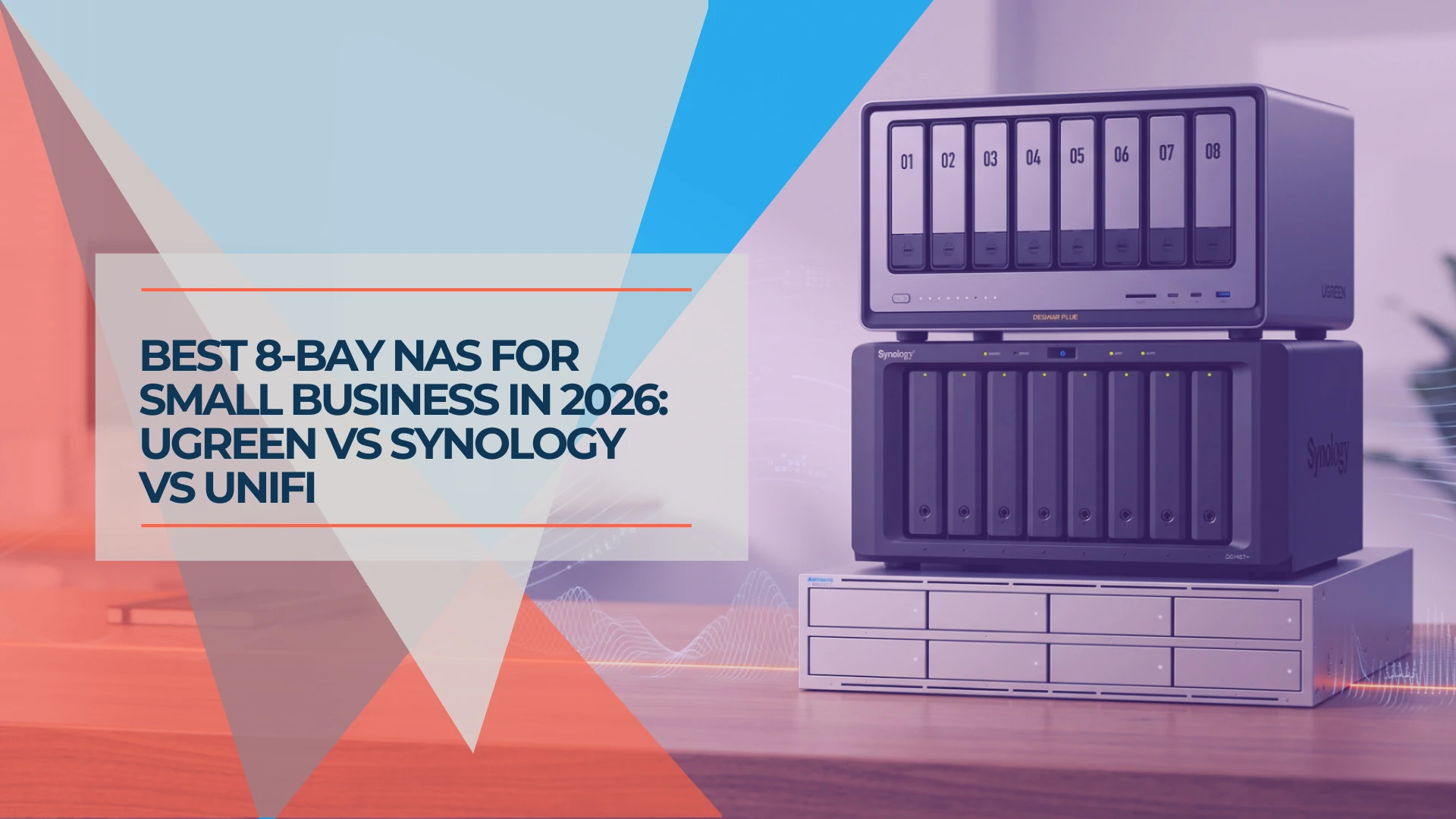
Best 8-Bay NAS for Small Business in 2026: UGREEN vs Synology vs UniFi
Compare UGREEN DXP8800 Plus, Synology DS1825+ and UniFi UNAS Pro 8 by usable capacity, 10GbE, backup software, expansion and complete cost.
19 min read
UNAS Pro 4 vs UGREEN DXP4800 Plus: Which 4-Bay NAS Should You Buy in 2026?
Two good 4-bay NAS units built on opposite philosophies. Verified specs, complete system costs, and where each one fits in a small business.
12 min read
UniFi UNAS 2 vs UNAS 4 Review: Desktop NAS for Offices Without a Rack
UNAS 2 ($199) and UNAS 4 ($379) compared for real SMB deployment — specs, RAID options, caching limits, backup, file-server replacement, and practitioner guidance on desktop vs rackmount.
11 min read