The 3-2-1 Backup Rule: Why It Still Works and How to Implement It in 2026
The 3-2-1 backup rule is a proven data protection framework. Learn what it means, why it still works against ransomware and disasters, and how to implement it step-by-step with specific tools and a real cost example for your small business.

When Sophos surveyed 5,000 IT leaders for its 2024 State of Ransomware report, 59% said their organization had been hit by ransomware in the previous year. The recovery cost averaged $1.53 million. Yet among those with a tested backup strategy, 97% recovered their data without paying the ransom.
The common thread among the businesses that bounced back? A backup plan built on the 3-2-1 rule.
The 3-2-1 backup rule has been the foundational data protection framework for over two decades. Despite evolving threats, cloud-first workflows, and distributed teams, this straightforward strategy remains the backbone of every sound backup plan. It addresses the three ways data loss actually happens: hardware failure, local disasters, and cyberattacks that encrypt everything on your network.
This guide explains what the 3-2-1 rule is, why it still holds up, and how to implement it step by step — with specific tools, current pricing, and a cost example you can adapt to your own business.
Affiliate Disclosure: This article contains affiliate links. If you make a purchase through these links, we may earn a small commission at no extra cost to you. As an Amazon Associate, iFeelTech earns from qualifying purchases.
What Is the 3-2-1 Backup Rule?
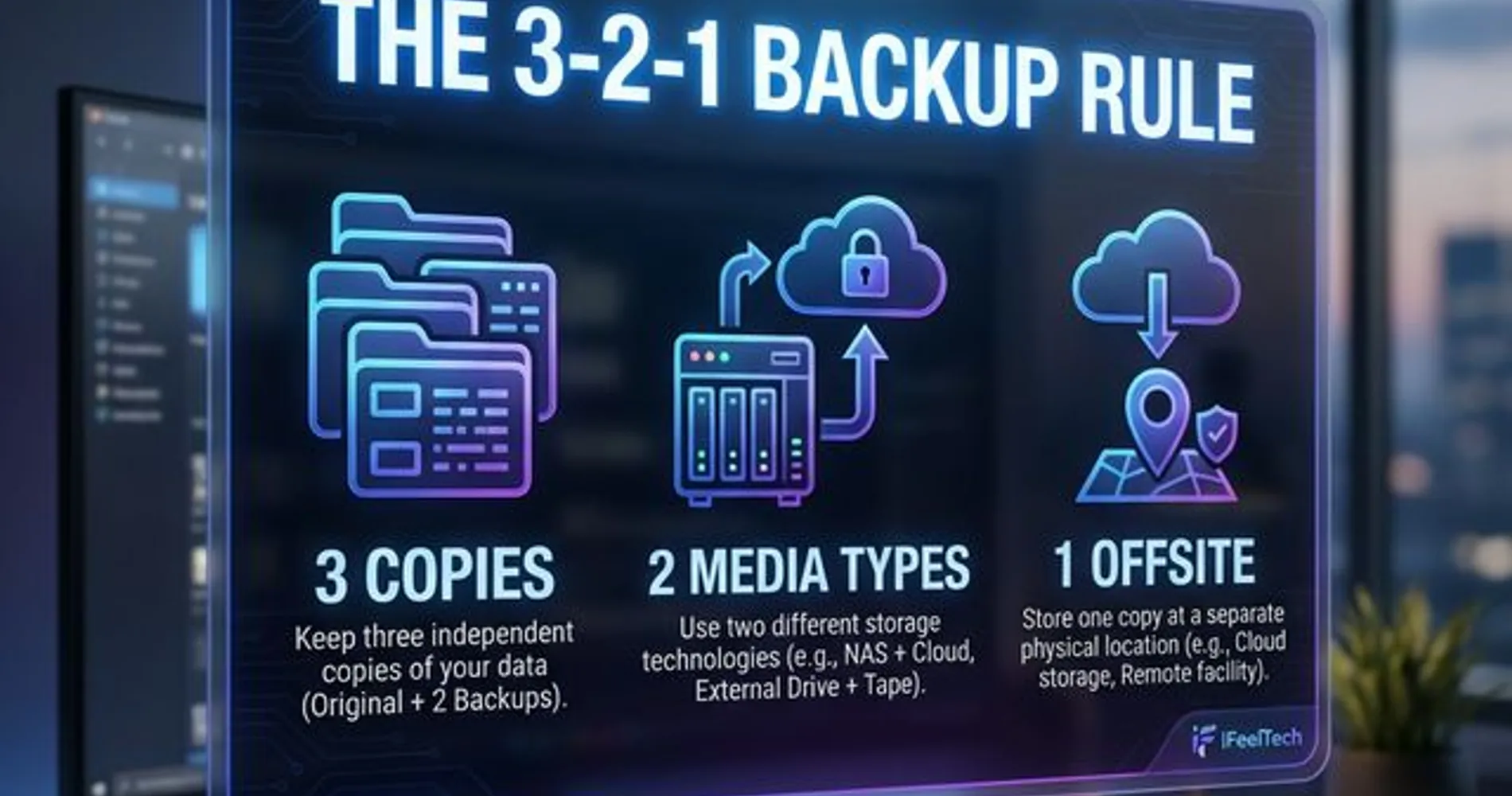
The 3-2-1 backup rule is a data protection strategy requiring three total copies of data, stored on two different media types, with one copy kept offsite. By diversifying where and how data is stored, this framework eliminates single points of failure.
| Component | What It Means | What It Protects Against |
|---|---|---|
| 3 copies | Keep at least 3 copies of your data (1 primary + 2 backups) | Single point of failure |
| 2 media types | Store backups on 2 different types of storage (e.g., local NAS + cloud) | Media-specific failures |
| 1 offsite | Keep 1 copy in a physically separate location | Site-level disasters |
Why each number matters
Three copies means that even if two copies fail simultaneously — say your laptop dies and your external drive is corrupted — you still have a third. Three independent storage systems rarely fail at the same time.
Two different media types protects against correlated failures. A fire that destroys your office server also destroys the NAS sitting next to it. But your cloud backup, stored in a data center hundreds of miles away, survives. Different media types break the chain of shared risk.
One offsite copy protects against site-level disasters: fire, flood, theft, or ransomware that encrypts every device on your local network. If your entire office becomes inaccessible, that offsite copy is what gets your business running again.
The Key Insight
The 3-2-1 rule isn't about any specific technology. It's a framework that works whether you're a 5-person startup or a 500-person company. Only the tools scale — the principle stays the same.
Why the 3-2-1 Rule Still Works in 2026
You might wonder whether a framework from the early 2000s can hold up against modern threats. It can — and the reasons are practical.
Ransomware is the top threat to business data. Modern ransomware doesn't just encrypt your files — it targets connected backups. Attacks increasingly go after backup drives and NAS devices on the same network. This was a critical factor in the Slopoly ransomware attack, where attackers maintained a backdoor for over a week before deploying their payload. The "1 offsite" component of 3-2-1 addresses this directly, because a cloud backup that isn't accessible from your local network can't be encrypted by local ransomware.
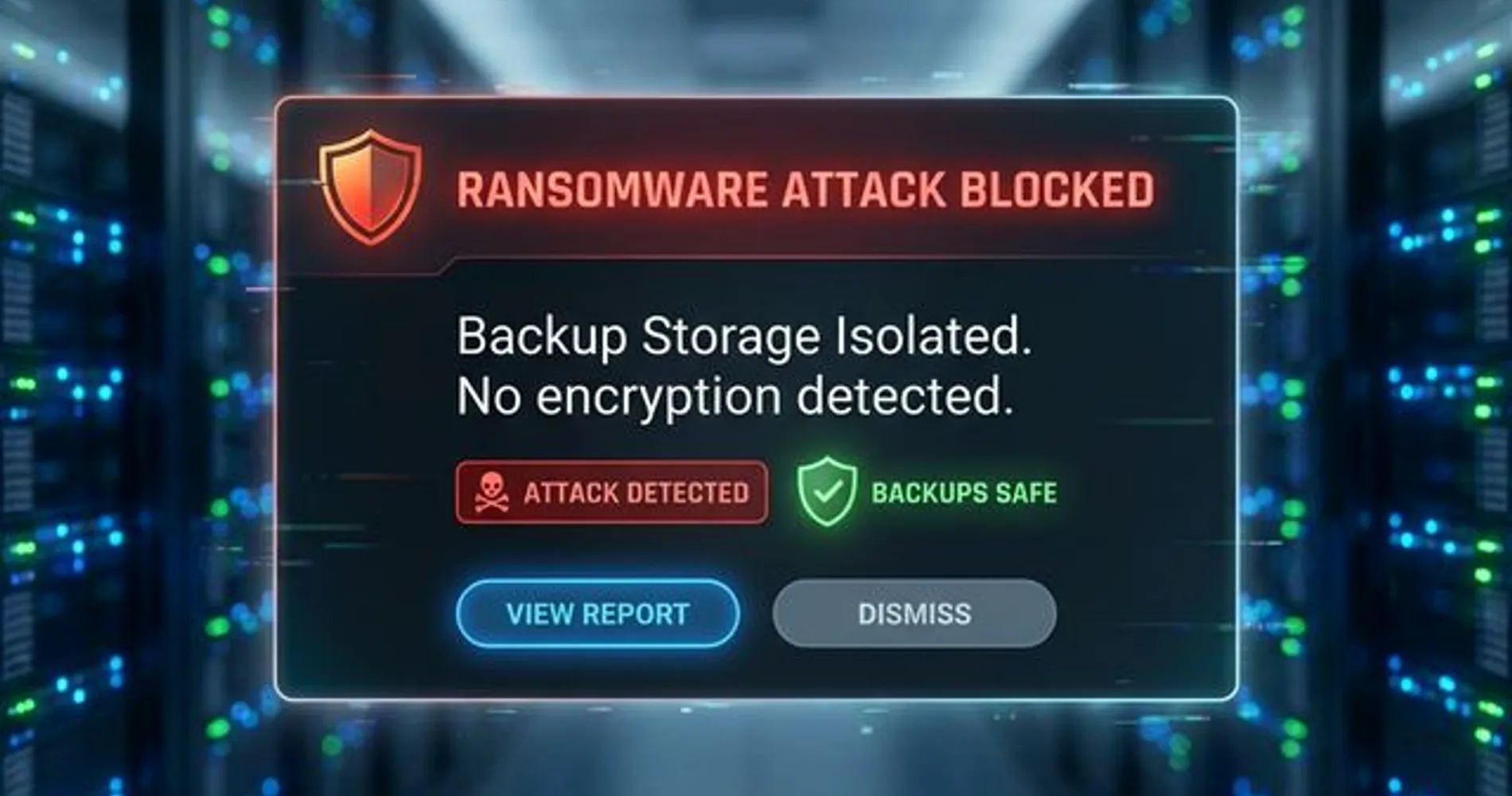
Cloud sync is not backup. This is the most common misconception in small business IT. OneDrive, Google Drive, and Dropbox sync files across devices — they don't create independent backup copies. If you delete a file, it's deleted everywhere. If ransomware encrypts files on your laptop, those encrypted files sync to every connected device. The 3-2-1 rule requires actual backup copies with version history, not file synchronization.
Remote work has scattered business data. With employees working from home offices, coffee shops, and co-working spaces, critical data lives on dozens of endpoints outside your office. A 3-2-1 strategy ensures every device is backed up to both a local store and the cloud, regardless of where the employee is sitting.
Compliance demands it. HIPAA, SOC 2, and most cyber insurance policies require a documented backup strategy with offsite storage. The 3-2-1 rule is the universally recognized baseline that auditors and insurers expect. If you don't have it, you're likely out of compliance and may not be covered when you need to file a claim.
The cost has never been lower. Cloud backup pricing continues to drop while NAS devices have become more capable and affordable. A complete 3-2-1 implementation for a 15-person business now costs roughly $50 per employee per year — less than a single hour of downtime for most businesses.
The Modern Update: 3-2-1-1-0
The original 3-2-1 rule was created before ransomware existed as a business threat. Security professionals have since extended it to address modern attack patterns:
- 3-2-1-1: Add 1 immutable or air-gapped backup — a copy that cannot be modified or deleted, even by an administrator. This protects against ransomware that specifically targets backup systems.
- 3-2-1-1-0: Add 0 errors in backup verification — regularly test your restores to confirm backups are complete and recoverable.
Immutability Matters
In 2025, 87% of ransomware attacks involved data exfiltration and 85% involved data encryption. Attackers increasingly target backup infrastructure directly. An immutable backup copy — one that can't be altered after creation — adds a critical layer of protection.
The 3-2-1-1-0 framework isn't a replacement for 3-2-1 — it's an enhancement. For most small businesses, getting a solid 3-2-1 implementation in place is the essential first step. Once that foundation exists, adding immutability and automated restore testing builds on it naturally.
How to enable immutability on a Synology NAS: Open the Snapshot Replication package and enable Immutable Snapshots on your backup shared folders. Set a minimum protection period of at least 14 days. This ensures that even if an admin account is compromised by ransomware, backup snapshots cannot be deleted or modified within that window. iDrive also supports immutable storage on its cloud tier, giving you immutability at both the local and offsite layers.
How to Implement 3-2-1 for Your Business
Here's the practical breakdown, tier by tier, with specific tools and recommendations.
Tier 1: The Primary Copy (Your Production Data)
This is your working data — files on employee laptops, documents on your file server, data in cloud apps like Microsoft 365 and Google Workspace. It's the copy your team uses every day.
No additional action is needed for this copy — it already exists. But it's also the copy most exposed to loss: a stolen laptop, a failed hard drive, or a ransomware infection can make it unavailable. That's why the next two tiers matter.
Tier 2: Local Backup on a Separate Device
A local backup provides the fastest recovery time by keeping a redundant copy on your office network for immediate restoration without internet bottlenecks. While cloud backup is essential for disaster recovery, restoring terabytes of data over the internet can take days. A local device lets you recover accidental deletions or corrupted files in minutes.
The most common local backup device for small businesses is a Network Attached Storage (NAS) unit — a dedicated storage appliance that sits on your office network and runs automated backups on a schedule.
Why a NAS works well for this tier:
- Speed. Recovering files over a gigabit local network takes minutes, not hours.
- No ongoing subscription costs. Unlike cloud storage, a NAS is a one-time hardware purchase. The storage is yours.
- Centralized management. A single NAS can back up every laptop, server, and virtual machine in your organization automatically.
- Immutable snapshots. Modern NAS devices support immutable snapshots that protect backup data from ransomware encryption.
Recommended tools: Synology DS925+ (4-bay) or Synology DS725+ (2-bay) with Active Backup for Business
The Synology DS925+ (released mid-2025) is a reliable option for small business backup. For businesses requiring less storage or a lower entry point, the Synology DS725+ 2-bay NAS offers the exact same software ecosystem. Both include Active Backup for Business at no additional license cost — a backup suite that covers Windows PCs, Mac endpoints, file servers, VMware and Hyper-V virtual machines, and even Microsoft 365 and Google Workspace data. For a complete setup walkthrough, see our Synology Active Backup for Business guide.
Sizing rule of thumb: Plan for 2-3x your total data size to accommodate versioning and growth. A business with 500GB of data across all endpoints should look at a NAS with at least 1-1.5TB of usable capacity. The DS925+ with four 8TB drives in RAID 5 provides roughly 24TB of usable storage — sufficient for most small businesses, with room to grow.
Not sure which NAS is right for your team? Our best NAS for small business guide compares the top options.
Tier 3: Offsite Backup in a Separate Location
Offsite cloud backup isolates data from physical office disasters and local ransomware by storing an encrypted copy in a geographically separate data center. Unlike local drives that can be destroyed by fire or encrypted by network-aware malware, cloud storage remains separated from your local environment until you need it.
Cloud backup is the simplest way to satisfy the offsite requirement because it runs automatically in the background, requires no manual intervention, and stores data hundreds or thousands of miles from your office.
Recommended tool: iDrive Business
iDrive Business is well-suited for 3-2-1 implementations because it charges based on storage capacity, not the number of devices. This is what separates the Business plan from cheaper alternatives — it includes full server OS, SQL database, and Exchange backup alongside endpoint protection:
- Storage-based pricing with unlimited devices. The 1.25TB plan at $499.50/year covers every computer, server, and NAS in your organization under a single account.
- Server and workstation support. iDrive backs up Windows servers, SQL databases, Exchange, and Hyper-V — not just employee laptops. This is the key reason to choose the Business plan over the Team plan.
- HIPAA compliance. iDrive signs Business Associate Agreements and meets the technical safeguards required for healthcare and regulated industries. For maximum security, select the Private Encryption Key option during setup — this means only you hold the decryption key, which is essential for compliance. Note that if you lose this key, iDrive cannot recover your data.
- Physical courier recovery. In the event of a total site failure, iDrive Express ships a physical drive with your data to speed up recovery, bypassing slow download speeds. This was the missing link for the firm in our Monday morning server failure case study, who lacked an offsite copy and faced a five-day recovery timeline.
For a detailed look at features and performance, read our iDrive Business review. If you're evaluating alternatives, our iDrive vs Backblaze comparison breaks down the key differences, and our best cloud backup for small business guide covers the full landscape.
Example 3-2-1 Implementation: A 15-Person Business
Abstract frameworks are useful, but seeing the 3-2-1 rule applied to a real scenario makes it concrete. Here's how a typical small business would implement it.
The company: A 15-person accounting firm in Miami with 500GB of data spread across 15 employee laptops, one Windows file server, and Microsoft 365.
Copy 1: Production Data
Data lives on employee laptops, the file server, and in Microsoft 365 cloud apps. This is what the team works with daily.
Copy 2: Local NAS Backup
| Component | Specification | Cost |
|---|---|---|
| NAS device | Synology DS925+ (4-bay) | ~$640 |
| Storage | 4x Seagate IronWolf 8TB (RAID 5 = ~24TB usable) | ~$780 |
| Total hardware | ~$1,420 |
Synology Active Backup for Business runs nightly backups of all 15 laptops and the file server. Local restores complete in minutes over the office gigabit network. No ongoing license costs.
Copy 3: Cloud/Offsite Backup
| Component | Specification | Cost |
|---|---|---|
| Cloud backup | iDrive Business 1.25TB plan | $499.50/year |
| Coverage | All 15 laptops + file server + M365 data | Included |
| Disaster recovery | iDrive Express physical drive shipment | Included (3x/year) |
iDrive runs continuously in the background, backing up the same endpoints the NAS covers. If the office is destroyed by a hurricane — a real concern in South Florida — all data is safe in iDrive's cloud, and a physical recovery drive arrives within days.
Total Cost of Protection
| Cost Component | Annual Amount |
|---|---|
| Cloud backup (iDrive Business) | $499.50/year |
| NAS hardware (amortized over 5 years) | ~$284/year |
| Total annual cost | ~$784/year |
| Per employee | ~$52/year |
That's roughly $52 per employee per year for a complete 3-2-1 backup strategy that includes fast local restores, cloud disaster recovery, and physical drive shipment if needed. For context, the average cost of recovering from a ransomware attack (excluding ransom payments) is $1.53 million.
Cost Perspective
At ~$52 per employee per year, a complete 3-2-1 backup strategy costs less than a single hour of downtime for most businesses. The NAS hardware pays for itself after the first avoided data recovery incident.
Common 3-2-1 Mistakes to Avoid
Even businesses that understand the 3-2-1 rule often get the implementation wrong. These are the six most common mistakes we see in client environments.
1. Treating file sync as backup
OneDrive, Dropbox, and Google Drive sync files between devices. They do not create independent backup copies with version history. If ransomware encrypts files on one device, those encrypted files propagate to every synced device within minutes. Sync is a productivity tool, not a data protection strategy.
2. Keeping both backups in the same location
A NAS and an external hard drive sitting in the same server closet does not satisfy the "1 offsite" requirement. A fire, flood, or theft that affects one affects both. The offsite copy must be in a physically separate location — ideally a different geographic region.
3. Never testing restores (the "0 errors" gap)
A backup that can't restore has no value, and you won't know it's broken until you need it. This is the "0 errors" in the 3-2-1-1-0 framework, and it's the step most businesses skip. Our backup restore testing guide covers the full quarterly procedure — here's the short version:
- Restore one random file from the NAS backup
- Boot one virtual machine or full system image from backup
- Request a file restore from your cloud backup provider (e.g., iDrive)
- Document the result and time-to-restore for each test
If any test fails, you've found a gap before a real disaster does. This is not a theoretical risk — most small businesses that have backup have never verified it actually works, making untested backup the most dangerous underspend in the typical IT budget.
4. Forgetting cloud applications
Microsoft 365 and Google Workspace data is production data that belongs in your 3-2-1 plan. Microsoft's Shared Responsibility Model is explicit: Microsoft ensures service availability and infrastructure security, but the customer is solely responsible for protecting and retaining their own data. Accidental deletions, ransomware encryption, and retention policy gaps are your problem — not Microsoft's. Both iDrive and Synology Active Backup support Google Workspace and M365 backup directly.
5. Ignoring mobile devices
Smartphones and tablets contain business emails, documents, photos of whiteboards, and client communications. iDrive backs up iOS and Android devices under the same business plan, closing a gap that many backup strategies overlook.
6. Leaving backup accounts unprotected
Enable multi-factor authentication (MFA) on every backup account — both your Synology NAS admin and your iDrive cloud account. Ransomware operators increasingly target backup credentials first. If an attacker obtains the iDrive password from a compromised browser, they can log in and delete the cloud backup before deploying ransomware on the network. MFA prevents this by requiring a second verification step that the attacker doesn't have.
Frequently Asked Questions
Is cloud backup alone enough?
No. Cloud-only backup gives you two copies (production + cloud) but violates the "2 media types" principle. You also lose the ability to do fast local restores. To put it concretely: restoring 500GB over a typical 100Mbps small business connection takes roughly 12-15 hours under ideal conditions — and during that window, you're consuming all available bandwidth. A local NAS provides the speed for everyday recovery, while cloud provides the offsite safety net.
How often should I back up?
Daily at minimum. For critical data — financial records, customer databases, active projects — continuous or hourly backup is better. Both Synology Active Backup and iDrive support continuous data protection that captures changes in near real-time.
What if my business only uses cloud apps and has no servers?
You still need 3-2-1. Your cloud apps (Microsoft 365, Google Workspace) are the production copy. You need a local backup of that cloud data (Synology Active Backup can pull M365 and Google Workspace data to your NAS) plus a separate cloud backup (iDrive's cloud app backup). Deleting data in a cloud app doesn't mean it's backed up somewhere — retention policies are not backup.
How much does a 3-2-1 strategy cost for a small business?
Based on the example above: roughly $50-55 per employee per year for a complete implementation. That's less than the cost of a single hour of downtime for most businesses, and a fraction of the $1.53 million average ransomware recovery cost.
Building Your Business Backup Foundation
The 3-2-1 backup rule has endured for over two decades because it's simple, effective, and adaptable. It doesn't depend on any specific vendor or technology — just three principles: redundancy, media diversity, and geographic separation.
The businesses that recover from ransomware attacks, hardware failures, and natural disasters are the ones that had a 3-2-1 strategy in place before the incident. Research consistently shows that 60% of small businesses that suffer a major data loss close within six months. Just remember that a backup addresses recovery, not data exposure: modern double-extortion ransomware steals a copy of your files before encrypting, so a 3-2-1 strategy is the floor of a defense rather than the whole plan.
Start with the foundation: a Synology NAS for fast local backup and iDrive Business for cloud offsite protection. Once you're running a solid 3-2-1, you can layer on immutable snapshots and automated restore testing to reach the 3-2-1-1-0 standard.
For a broader view of how backup fits into your overall resilience plan, see our small business disaster recovery guide.
Affiliate Disclosure: This article contains affiliate links. If you make a purchase through these links, we may earn a small commission at no extra cost to you. As an Amazon Associate, iFeelTech earns from qualifying purchases.
Related Articles
More from IT Guides
The Monday Morning Their Server Died (And What Happened Next)
When a server fails with no tested backup, recovery takes 3–5 days and costs $20,000–30,000. Here's the full timeline, what it cost, and how to prevent it.
15 min read
How to Run a Backup Restore Test for a Small Business
A practical backup restore test procedure for small businesses — with measured restore times, a quarterly checklist, and a real audit failure story.
16 min read
Small Business Disaster Recovery: Building IT Resilience That Actually Works
A practical disaster recovery guide for small businesses. Learn the 3-2-1-1-0 backup rule, understand RTO/RPO, and build a recovery plan that protects against ransomware, outages, and data loss.
15 min read