
SaaS Backup vs Cloud Storage: What Google & OneDrive Don't Protect
Cloud storage synchronizes files but doesn't back them up. Learn the difference between sync and backup, retention limits, and how to implement proper SaaS backup.

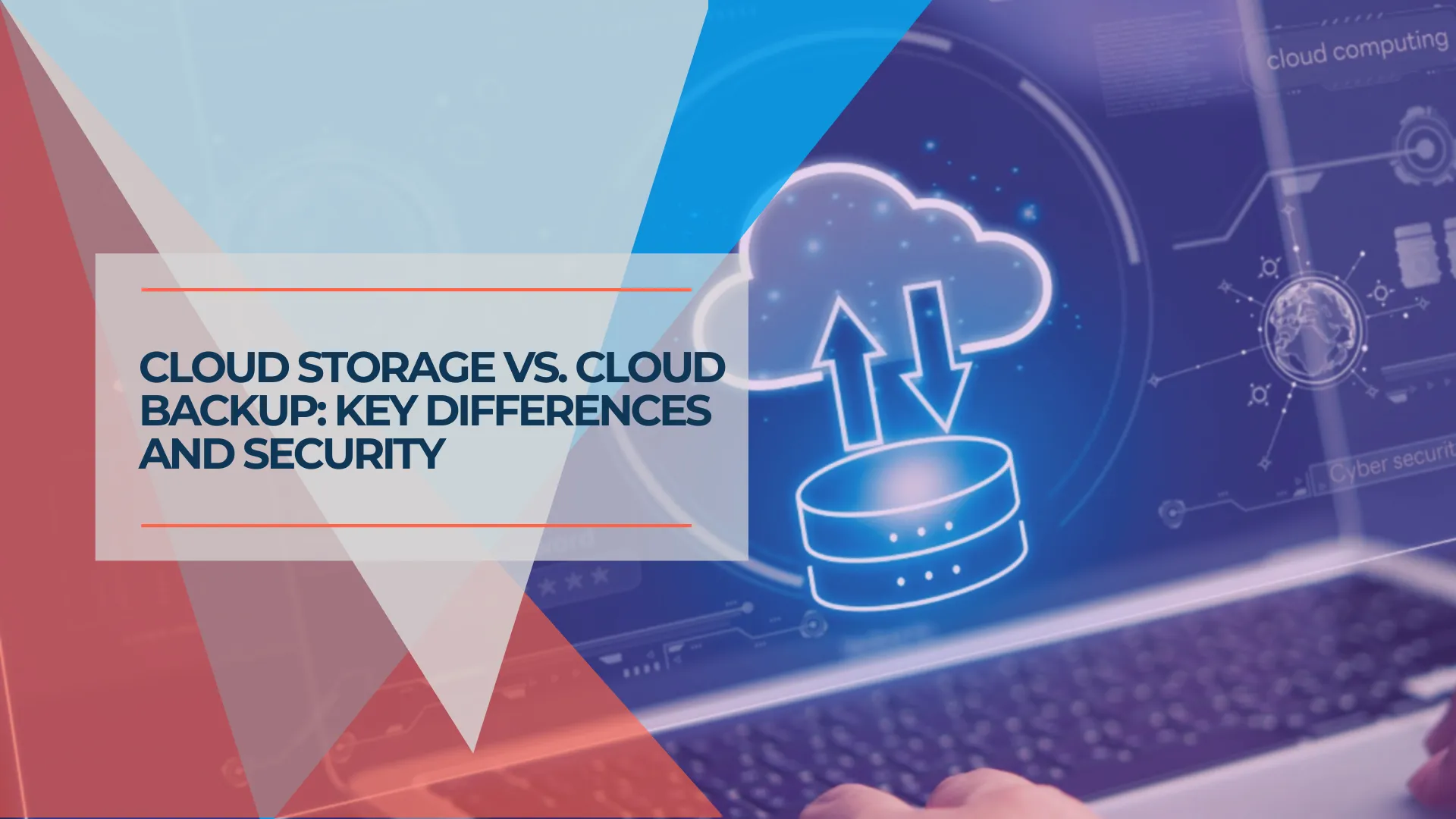
Cloud storage synchronizes files across devices but does not create independent backup copies. Understanding this distinction helps organizations make informed decisions about data protection and recovery planning.
Quick Summary
Cloud storage protects against hardware failure (like a broken laptop). Backup protects against operational errors (like accidental deletion or ransomware). Most businesses benefit from both.
Affiliate Disclosure: This article contains affiliate links. If you make a purchase through these links, we may earn a small commission at no extra cost to you. As an Amazon Associate, iFeelTech earns from qualifying purchases.
What Is the Difference Between Sync and Backup?
Cloud storage synchronizes real-time changes across devices, while backup creates static recovery points. Think of cloud storage like a mirror: if you delete a file on your laptop, that reflection disappears immediately from the cloud. A true backup works differently by taking a snapshot of your files at a specific time, allowing you to restore a clean version even if the live file is corrupted or deleted.
This distinction matters because sync services are designed for collaboration and accessibility, not disaster recovery. Both capabilities serve important purposes, but they address different risks.
Who Is Responsible for Data in the Cloud?
Cloud providers secure the physical infrastructure and uptime, while customers are responsible for data protection and user access. Microsoft and Google formalize this as the Shared Responsibility Model. They act like a commercial landlord guaranteeing the building is secure (servers, power, physical access), but they do not manage who has the keys or what happens inside your office (accidental deletion, ransomware, or unauthorized access).
| Provider Responsibility | Customer Responsibility |
|---|---|
| Physical data center security | Data backup and recovery |
| Network infrastructure uptime | Access control and user management |
| Service availability (99.9% SLA) | Compliance retention (6-7+ years) |
| Application updates and patches | Recovery from accidental deletion |
| Disaster recovery of their systems | Disaster recovery of your data |
This division of responsibility isn't a shortcoming—it's how cloud services are designed. Once you understand the model, you can plan accordingly.
How Long Does Google Workspace Retain Deleted Data?
Google Workspace permanently deletes data 55 days after it is moved to the trash. This cycle breaks down as follows:
- Days 1-30: The file remains in the user's Trash folder. Users can restore it themselves.
- Days 31-55: The file is removed from Trash. Only an administrator can recover it during this 25-day window.
- Day 56+: Data is permanently deleted from Google's servers and cannot be recovered.
Google Vault can extend retention for legal and compliance purposes, but it is designed for e-discovery rather than rapid restoration. Retrieving files through Vault is a manual process that works well for audits but less efficiently for day-to-day recovery needs.
Archived User licenses offer a lower-cost option for preserving departed employee data without maintaining a full Workspace license. For organizations comparing platforms, our Google Workspace vs Microsoft 365 comparison covers retention differences in detail.
What Are the 2025 OneDrive Unlicensed Account Fees?
Since January 2025, Microsoft charges per-gigabyte fees to access archived OneDrive data from unlicensed accounts. Previously, organizations could remove a license from a departing employee and keep their data accessible at no additional cost.
Under the current policy, unlicensed OneDrive data is archived after 93 days. Accessing this data requires:
- Storage Fees: ~$0.05 per GB/month
- Reactivation Fees: ~$0.60 per GB
(Note: Microsoft removed these fees for SharePoint site archives in March 2025, but they still apply to personal OneDrive accounts.)
For a deeper look at Microsoft 365's specific data gaps — including exactly what retention windows apply to email, SharePoint, and OneDrive — see Does Microsoft 365 Back Up Your Data?.
For a departing employee with 50GB of data, reactivation costs approximately $30 plus ongoing storage fees. Organizations with regular employee turnover should factor these costs into IT budgeting or consider third-party backup as a more predictable cost structure.
What Is the Difference Between Legal Hold and Backup?
Legal hold preserves data for compliance and litigation, while backup enables rapid restoration to resume operations. Many IT managers rely on Google Vault or Microsoft Purview as a backup substitute, but these tools serve different purposes.
| Legal Hold (Vault/Purview) | Backup |
|---|---|
| Preserves data in place | Creates restorable copies |
| Designed for e-discovery and audits | Designed for operational recovery |
| Cannot easily restore folder structure | Restores files to original locations |
| May take days to extract data | Typically restores in hours |
| Included in some enterprise plans | Separate subscription required |
If your priority is "get back to work quickly after an incident," you need backup. If your priority is "preserve data for potential litigation," you need legal hold. Many organizations need both.
Limitations of Native Cloud Restoration Tools
Native restoration APIs are subject to processing limits that slow down large-scale recovery. While recovering a single file is instant, restoring thousands of files after a ransomware attack or mass deletion can take days using native tools. Dedicated SaaS backup solutions bypass these bottlenecks using parallel restore capabilities or snapshot-based recovery.
Recovery Time Comparison
| Scenario | Native Tools | Dedicated SaaS Backup |
|---|---|---|
| Single file restore | Minutes | Minutes |
| 1,000 files | 1-2 hours | 15-30 minutes |
| 50GB folder structure | 1-3 days | 2-4 hours |
| Full account (100GB+) | 3-7 days | 4-8 hours |
These estimates vary by provider and configuration, but the pattern holds: native tools work well for occasional single-file recovery but face limitations at scale.
Does Cloud Storage Prevent Ransomware?
Cloud storage alone cannot prevent ransomware because infected files sync immediately to the cloud. Modern ransomware attacks often compromise the authenticated user session, causing the cloud platform to treat file encryption as a legitimate "edit." Version history may help recover individual files, but systematically restoring thousands of encrypted files is time-consuming.
Air-gapped backup addresses this by storing immutable copies with separate credentials. Even if the primary admin accounts are compromised, the backup remains accessible through an independent recovery path.
Team Storage Considerations
Most organizations store critical data in shared locations—SharePoint Sites or Google Shared Drives—rather than personal drives. A single user with edit permissions can affect files that many colleagues depend on, making backup particularly valuable for collaborative storage.
For broader security planning, see our cybersecurity software guide for small business.
How Does SaaS Backup Fit the 3-2-1 Backup Rule?
SaaS backup satisfies the "off-site" requirement of the 3-2-1 backup rule by storing copies in a separate cloud environment. The 3-2-1 rule recommends:
- 3 copies of important data
- 2 different storage types (e.g., local + cloud)
- 1 copy off-site (physically separate location)
For cloud-native organizations, SaaS backup provides the off-site copy stored with independent credentials. The backup vendor's infrastructure is separate from your primary Google or Microsoft environment, ensuring data remains accessible even during a major incident affecting your main platform.
Comparing Native Tools and Dedicated Backup
| Scenario | Native Cloud Tools | Dedicated SaaS Backup |
|---|---|---|
| Deleted file (Day 1) | ✅ Easy self-restore | ✅ Easy restore |
| Deleted file (Day 60) | ⚠️ Admin may recover | ✅ Easy restore |
| Deleted file (Day 120) | ❌ Beyond retention | ✅ Available |
| Large-scale restore | ⚠️ Processing limits | ✅ Parallel restore |
| Former employee (M365) | ⚠️ Archive fees apply | ✅ No extra fees |
| Compromised account | ⚠️ Attacker may delete | ✅ Air-gapped copy |
What to Look for in a SaaS Backup Solution
Effective SaaS backup requires independent storage, granular recovery, and compliance-ready retention. Key capabilities to evaluate:
- Separate credentials: Backup stored with independent authentication, isolated from your primary environment
- Granular recovery: Ability to restore specific files, emails, or calendar items rather than entire accounts
- Compliance retention: Support for multi-year retention policies if your industry requires them
- Cross-platform support: Protection for Google Workspace, Microsoft 365, and other SaaS apps from one dashboard
Pricing Overview
SaaS backup pricing generally follows two models:
Endpoint Backup (computers and servers): iDrive Business offers tiered storage pricing starting at approximately $99/year for smaller deployments.
SaaS Backup (cloud application data): Per-seat pricing for protecting email, Drive/OneDrive, and other cloud data typically starts at $2-4 per user per month (or approximately $20-50/user annually depending on volume).
For organizations that want endpoint protection alongside backup, Acronis Cyber Protect bundles backup with security features.
For detailed analysis, see our iDrive Business Review.
Getting Started: A Practical Approach
Step 1: Assess Current Capabilities
A simple test: ask your IT administrator to restore a specific file deleted 65 days ago. If they can do it easily, your current setup handles basic retention. If not, you've identified a gap worth addressing.
Also worth checking:
- Can you restore a specific email from several months ago?
- How long would restoring a large shared folder take?
Step 2: Evaluate and Deploy
If you decide to implement backup:
- Select a solution based on your platform (Google, Microsoft, or both)
- Configure retention policies matching compliance requirements
- Run an initial backup and verify completion
- Test a recovery to confirm the process works as expected
Step 3: Ongoing Best Practices
- Periodic testing: Verify recovery works by restoring something quarterly
- License awareness: Track Microsoft 365 license changes to anticipate archive fees
- Coverage reviews: Evaluate backup needs as you adopt new SaaS tools
Cost Perspective
For a 20-person company, SaaS backup typically costs $400-1,000/year depending on features and provider.
Compare this to the alternatives:
- Microsoft archive fees for former employee data
- Extended downtime during large-scale recovery
- Potential compliance gaps if retention requirements aren't met
For most organizations, backup represents a modest investment relative to the operational flexibility it provides.
Additional Resources
- Google Workspace Backup Guide — Implementation details for Google environments
- Box Business Review — Cloud content management with compliance certifications (not a backup replacement)
- iDrive Business Review — Detailed pricing and feature analysis
- Small Business Security Compliance Guide — Broader compliance context
Related Articles
More from Business Software

Google Workspace vs Microsoft 365: An IT Pro's Implementation Guide for SMBs
Practical guidance on Google Workspace vs Microsoft 365 based on real-world SMB implementations — when each platform excels and which fits your specific situation.
9 min read
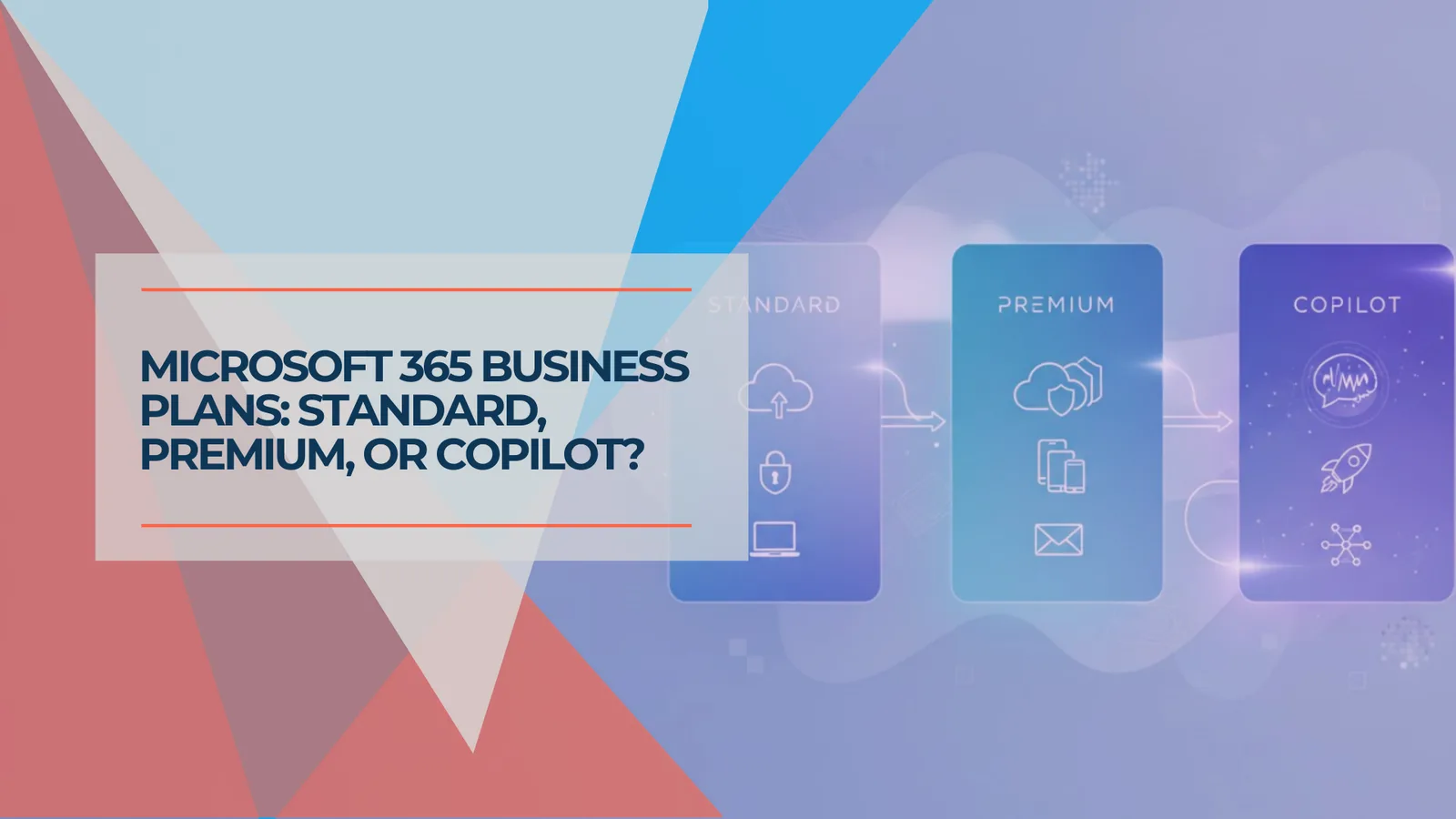
Microsoft 365 Price Increase 2026: New Business Pricing and What to Do
Microsoft 365's July 2026 prices are now active. Compare Business Basic, Standard, Premium, and Copilot, then decide whether to renew, right-size, upgrade, or switch.
18 min read
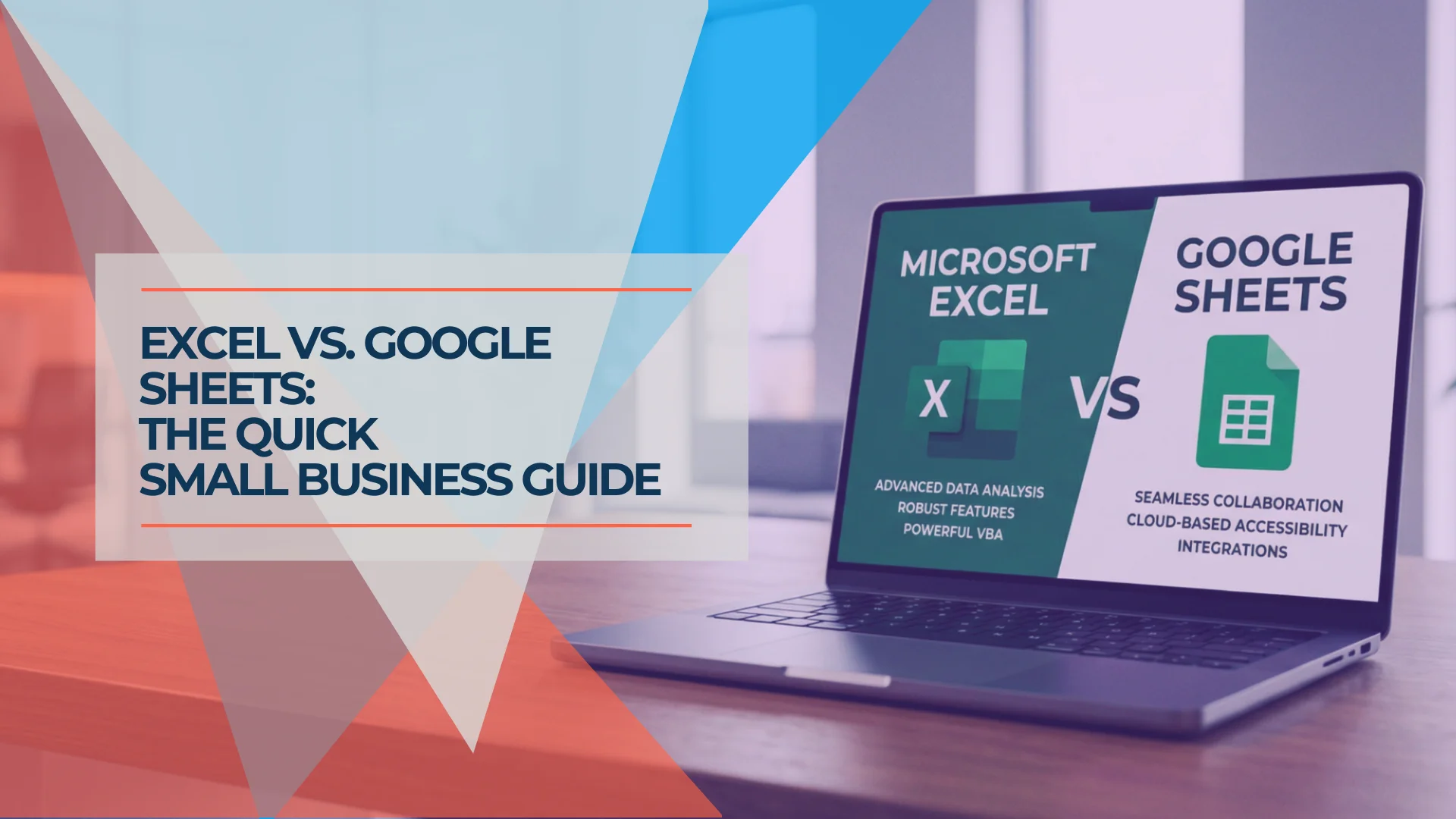
Excel vs Google Sheets: Which Should Your Business Use?
A practical comparison of Excel and Google Sheets for small businesses in 2026: where Google has caught up, where Excel still leads, and how to decide.
11 min read