

2.5GbE vs 5GbE vs 10GbE: Small Business Upgrade Guide
Compare 2.5GbE, 5GbE, and 10GbE for small business. Check cabling, UniFi costs, reference builds, and test performance with iperf3.

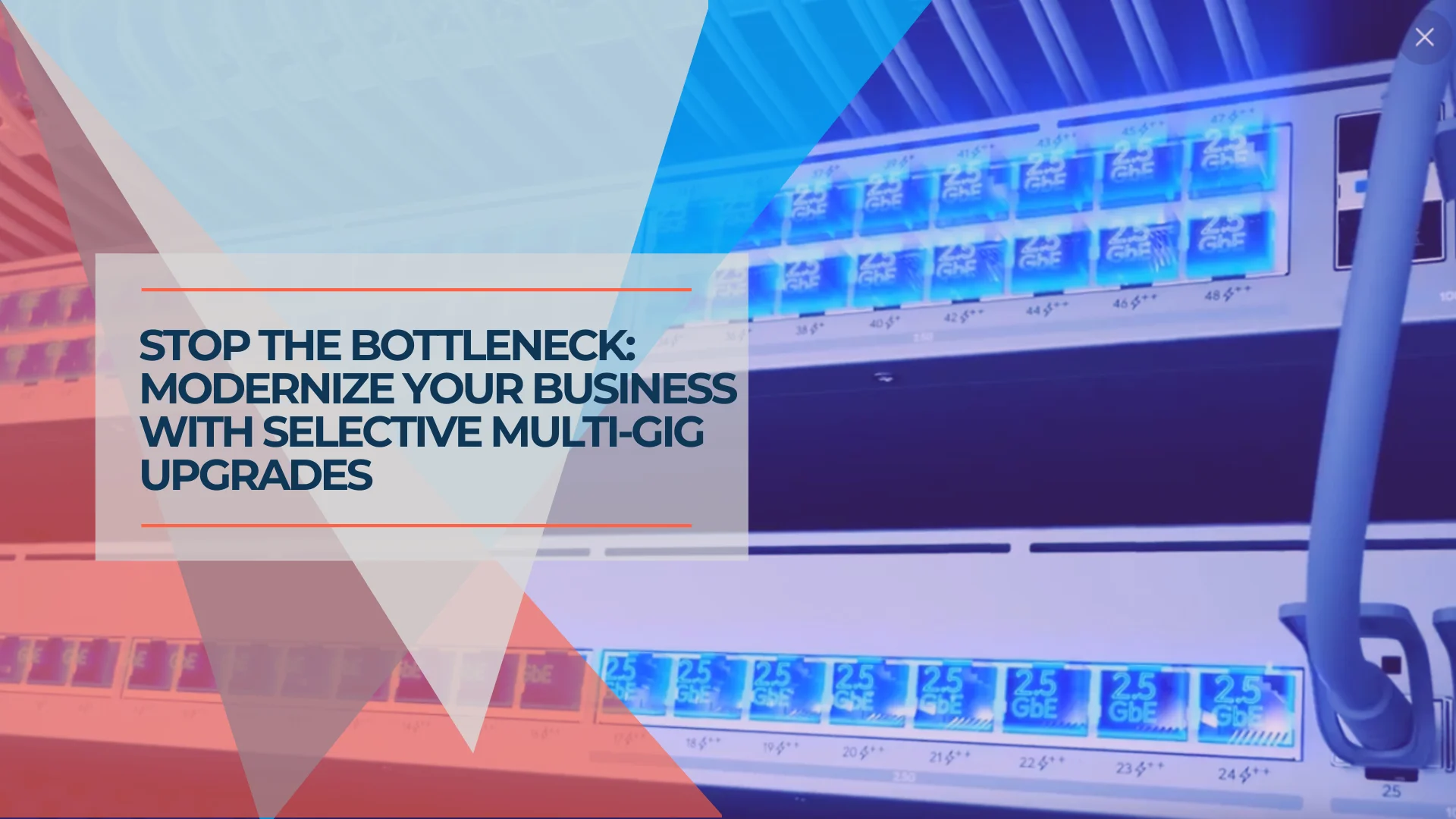
Key Takeaway
Multi-gig networking has become more affordable and relevant to specific small business workloads—particularly WiFi 7 AP uplinks, NAS-heavy workflows, and video production. The IEEE 802.3bz standard enables 2.5GbE over existing Cat5e cabling without rewiring. Gigabit Ethernet remains adequate for many offices.
If you transfer large files to a NAS, run WiFi 7 access points, or edit video over the network, your 1GbE infrastructure may be the bottleneck. This guide helps you determine whether 2.5GbE, 5GbE, or 10GbE is appropriate, what it costs, and how to implement and test it.
Note: The reference builds in this guide are UniFi-focused, reflecting the equipment we deploy and support. The underlying principles—cabling compatibility, speed selection, and testing methodology—apply to any vendor.
Affiliate Disclosure: This article contains affiliate links. If you make a purchase through these links, we may earn a small commission at no extra cost to you. As an Amazon Associate, iFeelTech earns from qualifying purchases.
Do You Actually Need Multi-Gig?
Most network equipment from the past decade handles gigabit connections well for typical business use—cloud services, video calls, email, and general internet access. 1GbE remains adequate for many office endpoints. Multi-gig becomes valuable when you have specific, measurable bottlenecks:
LAN file transfers: Moving large files to a NAS or server—CAD assemblies, video footage, database backups—where 1GbE throughput (~115 MB/s) creates waiting time.
WiFi 7 AP uplinks: WiFi 7 access points with 2.5GbE uplinks can deliver aggregate client throughput exceeding 1 Gbps. A 1GbE uplink caps that capacity. Some WiFi 6/6E deployments can also benefit, though many WiFi 6 APs ship with 1GbE uplinks and perform adequately at that speed depending on client count and utilization.
New office buildouts: When installing new cabling and infrastructure, designing for 2.5GbE or higher from the start avoids a near-term re-investment.
Important: Diagnose where your actual bottleneck is before purchasing equipment. If your WAN circuit or firewall tops out at 1 Gbps, replacing the access switch does not give cloud applications more Internet capacity. Evaluate WAN, gateway, LAN, storage, and endpoints separately.
Cost-Effective Upgrade Path
The IEEE 802.3bz (NBASE-T) standard enables 2.5GbE over existing Cat5e cabling at the full 100-meter distance. Most businesses can upgrade to 2.5GbE without rewiring—a Cat5e cable from 2015 supports 2.5GbE today with only switch and adapter changes.
Note: 5GbE is also defined for Cat5e at 100 m, but installed bundle conditions, termination quality, and alien crosstalk can reduce effective reach. For reliable 5GbE, Cat6 or better is recommended. Test the channel before depending on 5GbE over Cat5e. Complete infrastructure replacements cost significantly more.
| Use Case | 1GbE Adequate? | 2.5GbE Benefit | 10GbE Necessary? |
|---|---|---|---|
| General office work (email, web, documents) | ✅ Yes | Minor improvement | ❌ No |
| WiFi 6 deployment (1GbE uplink APs) | ✅ Usually adequate | Helpful if AP has 2.5GbE uplink | ❌ No |
| WiFi 7 deployment (2.5GbE uplink APs) | ⚠️ Constrains AP capacity | ✅ Matches AP uplink | ⚠️ For high-density venues |
| Video editing (1080p/4K) | ⚠️ Borderline | ✅ Noticeable improvement | ✅ Beneficial for 4K+ |
| Large NAS backups (500 GB+) | ⚠️ Slow | ✅ ~2.5× faster | ✅ ~10× faster (if storage can sustain it) |
| Multi-location site-to-site sync | Depends on WAN | Depends on WAN | Depends on WAN |
Choosing Your Speed
The right multi-gig speed depends on your existing cabling and actual workload—not employee count alone. Measure utilization, count your APs, check NAS/storage capability, and evaluate uplink oversubscription before choosing a tier.
Start with Your Current Infrastructure
Assess your existing cabling—this determines the most cost-effective path.
Identify your cable type: Look for labels on cable jackets near patch panels or in network closets. You'll see "Cat5e," "Cat6," or "Cat6a" printed along the cable.
If you have Cat5e:
- ✅ 2.5GbE: Reliably supported at 100 meters (IEEE 802.3bz)
- ⚠️ 5GbE: Defined at 100 m, but installed bundle conditions and alien crosstalk can reduce reach. Test the channel before relying on 5GbE. Cisco warns that traditional Cat5e channel specifications do not reliably support full 100 m above 2.5 Gbps.
- ❌ 10GbE: Not a recognized 10GBASE-T deployment medium for Cat5e
Cat5e from 2000–2015 installations works well for 2.5GbE with zero cabling investment.
If you have Cat6:
- ✅ 2.5GbE & 5GbE: Fully supported at 100 meters
- ⚠️ 10GbE: Existing Cat6 should operate to about 37 m; 37–55 m depends on alien crosstalk conditions. Testing is necessary. Cat6A is the proper 100 m choice for new 10GBASE-T installations. (Fluke Networks)
Cat6 handles 10 Gigabit Ethernet on short runs, but measure your longest cable paths and test before committing to 10GbE. Our Cat6 vs Cat6A office guide covers how to assess existing runs and where new Cat6A is worth specifying.
If you have Cat6A (or planning new installation):
- ✅ 2.5GbE, 5GbE, 10GbE: All fully supported at 100 meters
Cat6A provides complete flexibility for any multi-gig speed without infrastructure constraints.
Match Speed to Workload
| Workload Profile | Recommended Speed | Why |
|---|---|---|
| General office (email, web, SaaS) | 1GbE or 2.5GbE | 1GbE is often sufficient; 2.5GbE adds headroom for WiFi 7 AP uplinks |
| Mixed office with NAS and WiFi 7 APs | 2.5GbE | Matches AP uplinks, improves NAS transfers |
| Heavy concurrent NAS usage or 5GbE APs | 5GbE | Higher throughput for shared storage; requires Cat6+ cabling |
| Video production, CAD/engineering | 10GbE (selective) | Deploy 10GbE for workstation-to-NAS, 2.5GbE elsewhere |
| Multi-location with site-to-site sync | Depends on WAN | LAN speed matters less than WAN circuit capacity |
For most small businesses, 2.5GbE represents the best balance of cost and performance improvement. It provides a meaningful speed boost over 1GbE without requiring new cabling in most cases.
Where Does 5GbE Fit?
5GbE is a niche middle tier rather than the default SMB choice. The Pro Max switches' copper access ports are 2.5GbE, not 5GbE — so you cannot get 5GbE from a standard Pro Max deployment.
5GbE requires multirate 10GBASE-T equipment that can auto-negotiate down to 5 Gbps. It makes sense when a specific device — an AP, workstation, or NAS — already supports 5GbE but full 10GbE switching is unnecessary or too expensive.
Current UniFi 5GbE-capable equipment:
- U7 Pro XG ($199) — WiFi 7 AP with a 10/5/2.5/1 GbE multirate uplink. Connect it to a 10GBASE-T switch port and it can negotiate at 5GbE if that matches the link conditions.
- 5GbE USB-C Adapter ($49) — Plug-and-play adapter that adds 5GbE to any USB-C device.
- Pro XG series switches — Provide 10GBASE-T ports that support multirate negotiation (10/5/2.5/1 GbE).
For most small businesses, 2.5GbE over Cat5e is the practical starting point. Consider 5GbE when you have Cat6 cabling, 5GbE-capable APs or NAS equipment, and workloads that benefit from more than 2.5 Gbps but do not justify full 10GbE switching.
Selective 10GbE deployment makes sense for specific high-bandwidth links: a video editing workstation to a central NAS, connections between core switches, or uplinks from access switches to a core switch. This hybrid approach delivers performance where it matters while controlling costs.
Budget Reality Check
| Component | 2.5GbE Access | Selective 10G Uplinks | High-Density 10GbE Access |
|---|---|---|---|
| Switch (24-port) | $799 (Pro Max 24 PoE: 8× 2.5GbE + 2× 10G SFP+) | $999 (Pro HD 24 PoE: 22× 2.5GbE + 2× 10GbE + 4× SFP+) | $1,799 (Pro XG 24 PoE: 16× 10GbE + 8× 2.5GbE + 2× 25G SFP28) |
| Network Adapter | $20–50 USB/PCIe (2.5GbE) | $20–50 USB/PCIe (2.5GbE) | $150–200 Thunderbolt (10GbE) |
| Cabling | $0 (uses Cat5e/6) | $0 (uses Cat5e/6) | $279–499 per 1,000 ft Cat6A |
The Pro Max 24 PoE is a 2.5GbE access switch with two selective 10G SFP+ uplinks — not a 24-port 10GbE switch. For deployments needing more than eight 2.5GbE ports, the Pro HD 24 PoE ($999) provides 22× 2.5GbE plus 2× 10GbE copper ports.
What You Actually Need: Component Breakdown
Understanding the specific hardware components required for a multi-gig upgrade helps you build an accurate budget and make informed purchasing decisions.
Multi-Gig Switches
The network switch represents the central component of any multi-gig deployment. It determines what speeds are available and how many devices can connect at those speeds.
Primary Recommendation: UniFi Switch Pro Max 24 PoE ($799)
- 8× 2.5GbE PoE++ ports (60W each)
- 16× 1GbE ports (mix of PoE+ and PoE++)
- 2× 10G SFP+ uplinks
- 400W total PoE budget
- Layer 3 switching, Etherlighting
Note: This is a rack-mount unit with active cooling fans. If placing it in an open office area, consider the noise level or use a sound-dampened cabinet.

The eight 2.5GbE ports connect WiFi 7 access points, high-bandwidth workstations, and NAS at higher speeds. The sixteen 1GbE ports handle standard office devices. The 10G SFP+ uplinks provide fiber or DAC connections to other switches or servers. For the full UniFi switch comparison—including when to step up to Pro XG for 10GbE at every port—see our Best UniFi Switches guide.
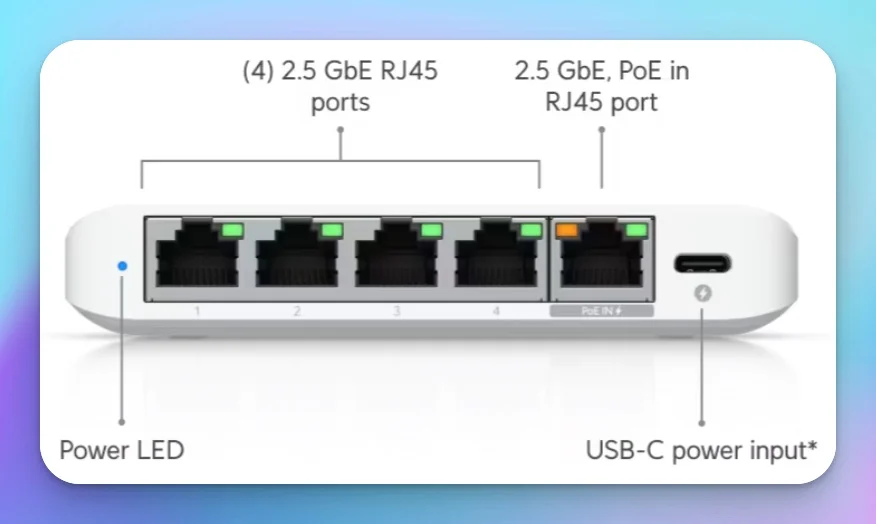
Budget Alternative: UniFi Flex Mini 2.5G ($49)
- 5× 2.5GbE ports
- Compact, fanless design (117 × 90 × 21 mm)
- PoE or USB-C powered
- 12.5 Gbps throughput
Works well for small offices or as a desktop switch connecting a workstation and NAS at 2.5GbE without requiring rack space.
Additional Options:
- UniFi Switch Pro Max 16 PoE ($399) — 4× 2.5GbE PoE++, 12× 1GbE PoE+, 2× 10G SFP+, 180W PoE budget. Compact option for smaller offices.
- UniFi Switch Pro HD 24 PoE ($999) — 22× 2.5GbE PoE++, 2× 10GbE PoE++, 4× 10G SFP+, 600W PoE budget. When you need more 2.5GbE ports than the Pro Max 24 provides.
- UniFi Switch Pro Max 48 PoE ($1,299) — 16× 2.5GbE, 32× 1GbE, 4× 10G SFP+, 720W PoE budget. For larger deployments.
Network Adapters (NICs)
Many existing office endpoints still have 1GbE ports. To use multi-gig switching, those devices need network adapters—USB dongles for laptops or internal PCIe cards for desktops. Inventory your actual hardware before budgeting.
USB 2.5GbE Adapters ($25–47)
USB adapters offer the simplest upgrade path for laptops and devices where internal expansion is not practical:
- Plugable USB-C 2.5GbE: ~$25
- ALFA AUE2500C: ~$30
- StarTech USB-A: ~$47
These adapters work with USB 3.0 ports and newer. Most modern operating systems (Windows 10/11, macOS, Linux) include built-in drivers. USB 2.5GbE adapters commonly use Realtek RTL8156B controllers. Check driver compatibility for your OS before purchasing.
Important: Install the latest drivers from the manufacturer (not just plug-and-play) to avoid connection drops during large transfers, especially on older Windows installations.
PCIe 2.5GbE Cards ($20–43)
For desktop workstations and servers, internal PCIe network cards provide a permanent installation:
- Intel I225-V/I226-V based cards: $20–33
- TP-Link TX201: ~$20
- StarTech PCIe card: ~$43
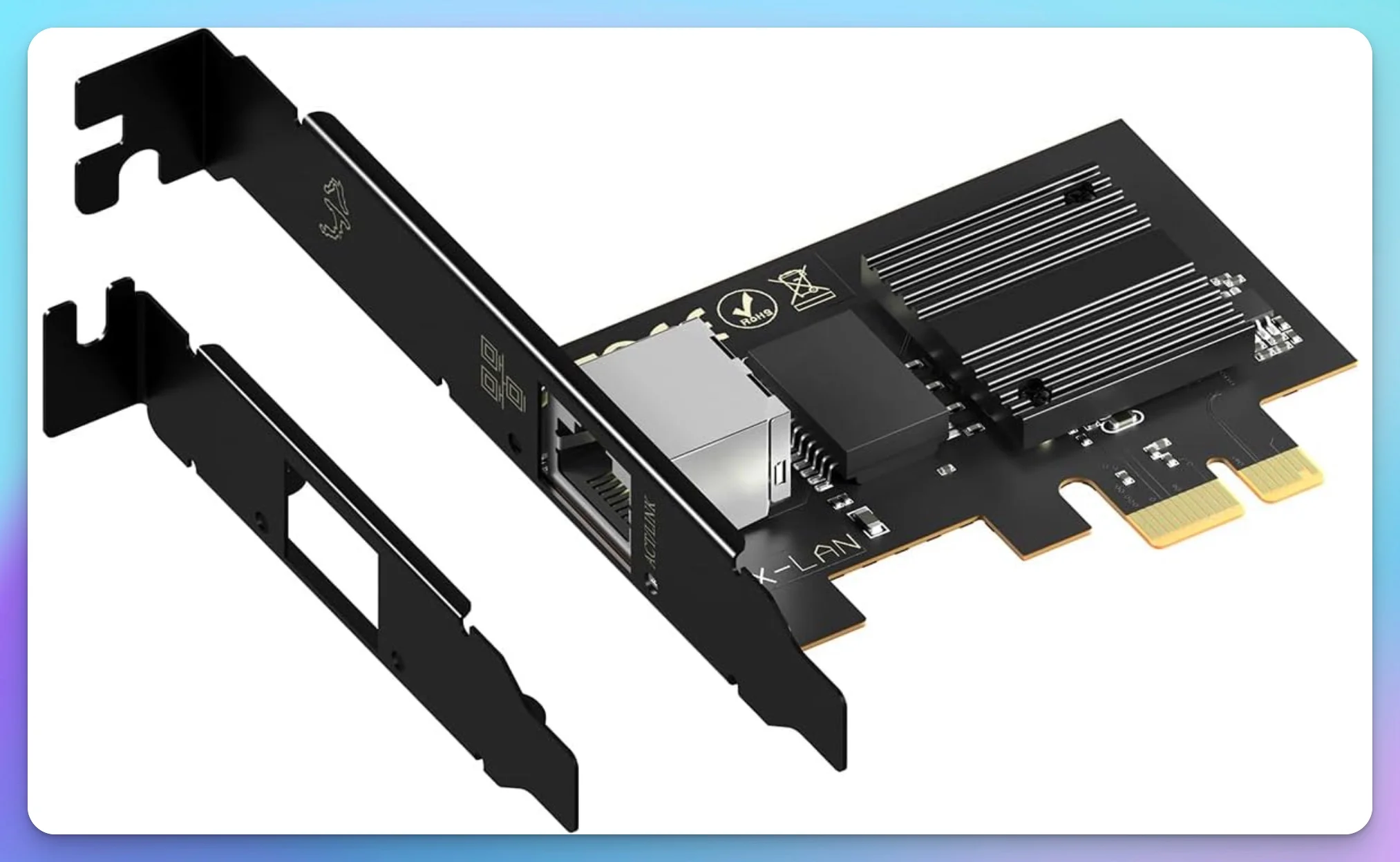
PCIe cards offer better thermal management than USB adapters. Intel I226-V is a PCIe Ethernet controller (not a USB chipset) found in many 2.5GbE PCIe cards and on recent motherboards. Performance depends on chip revision, driver version, and operating system—check compatibility for your specific setup rather than assuming universal stability. Realtek RTL8125BG is a common alternative in PCIe cards.
Cabling
The NBASE-T standard works with existing cabling—for many businesses, no cabling investment is needed for 2.5GbE.
| Cable Type | Cost (1,000 ft) | When to Use |
|---|---|---|
| Existing Cat5e | $0 | 2.5GbE (no rewiring) |
| Existing Cat6 | $0 | 2.5GbE/5GbE, short-run 10GbE |
| Cat6A CMR (Riser) | $279 | New 10GbE installations |
| Cat6A CMP (Plenum) | $499 | Air-handling spaces (fire code) |
Prices: UniFi US Store, checked August 2026, before tax and shipping.
Rule of thumb: Do not replace Cat5e/Cat6 unless you need 10GbE over distances that exceed your cable's tested limit. Rewiring costs typically outweigh performance benefits for most small businesses.
For new installs, Cat6A is the current standard for future-proofing. A 1,000 ft box costs $279 (CMR), plus $150–200 per drop for professional installation.
Cost-Saving Tip for 10G Rack Connections: For short 10G connections within a rack (switch-to-switch or switch-to-server), Direct Attach Copper (DAC) cables are significantly cheaper than SFP+ transceivers plus fiber. A UniFi DAC cable starts at $13 for short lengths. For a short multimode fiber link (two 10G SFP+ modules at $20 each plus an OM4 patch cable), expect roughly $45–60—not the $100–200 sometimes quoted for longer single-mode runs. DAC cables work for in-rack connections up to about 7 meters.
Router Considerations
If your internet connection exceeds 1 Gbps (common with fiber internet services offering 2Gbps, 5Gbps, or 10Gbps options), verify that your router or firewall includes a multi-gig WAN port.
UniFi Gateway Options:
- UniFi Cloud Gateway Max — 2.5GbE WAN/LAN, 2.3 Gbps IDS/IPS throughput, optional NVR storage ($279)
- UniFi Cloud Gateway Fiber — 10G WAN/LAN capability, 5 Gbps IDS/IPS ($279)
- UniFi Dream Machine Pro Max — Enterprise gateway with 10G WAN, 5 Gbps IDS/IPS ($599)
The router's IDS/IPS throughput rating matters more than raw port speed. A 10G WAN port does not guarantee 10G throughput if security features like intrusion detection reduce effective capacity.
Note: A gateway with only 1GbE LAN ports constrains WAN throughput and routed inter-VLAN traffic, but does not limit same-VLAN traffic switched locally. If your WAN plan exceeds 1 Gbps or you route between VLANs at multi-gig speeds, choose a gateway with 2.5GbE or faster LAN ports.
| UniFi Switch Model | 2.5GbE Ports | 10GbE Copper | 1GbE Ports | 10G SFP+ | PoE Budget | Price |
|---|---|---|---|---|---|---|
| Flex Mini 2.5G | 5 | — | — | — | — | $49 |
| Pro Max 16 PoE | 4 (PoE++) | — | 12 (PoE+) | 2 | 180W | $399 |
| Pro Max 24 PoE | 8 (PoE++) | — | 16 (PoE+/++) | 2 | 400W | $799 |
| Pro HD 24 PoE | 22 (PoE++) | 2 (PoE++) | — | 4 | 600W | $999 |
| Pro Max 48 PoE | 16 (PoE+/++) | — | 32 (PoE+/++) | 4 | 720W | $1,299 |
Specs from Ubiquiti Tech Specs, checked August 2026.
Budget Estimates by Business Size
Understanding what a multi-gig upgrade actually costs helps set realistic expectations and plan implementation. These budget estimates reflect current 2026 pricing for complete deployments.
Small Office (5–10 Endpoints) — ~$2,800–$2,900 Before Cabling
Scenario: Single-floor office, approximately 3,000 sq ft, existing Cat5e cabling, no new cable runs needed
| Component | Product | Qty | Cost |
|---|---|---|---|
| Router/Gateway | UniFi Cloud Gateway Max | 1 | $279 |
| Core Switch | UniFi Switch Pro Max 24 PoE | 1 | $799 |
| WiFi Access Points | UniFi U7 Pro | 2 | $378 |
| Network Adapters | 2.5GbE USB-C adapters | 5 | $125–235 |
| Installation Labor | Professional setup (8 hours) | 1 | $1,200 |
| Equipment + install total | $2,781–$2,891 | ||
| 2.5GbE ports used | 1 gateway + 2 APs + 5 adapters = 8 of 8 |
Prices checked August 2026. Self-installation reduces total by ~$1,200. If you need more than 8 multi-gig connections (e.g. 3 APs plus more adapters), step up to the Pro HD 24 PoE ($999, 22× 2.5GbE ports).
Mid-Size Office (15–30 Endpoints) — ~$5,900–$6,200 Before Cabling
Scenario: Multi-room office, approximately 6,000 sq ft, existing Cat6 cabling, some video editing workflows
| Component | Product | Qty | Cost |
|---|---|---|---|
| Equipment | |||
| Router/Gateway | Cloud Gateway Fiber | 1 | $279 |
| Core Switch | UniFi Switch Pro Max 48 PoE | 1 | $1,299 |
| Department Switch | UniFi Switch Pro Max 16 PoE | 1 | $399 |
| WiFi Access Points | UniFi U7 Pro | 4 | $756 |
| Network Adapters | 2.5GbE mix USB + PCIe | 15 | $450–645 |
| 10G NIC for workstation | PCIe 10G card | 2 | $300–400 |
| Network install labor | Professional setup + cutover (16 hours) | 1 | $2,400 |
| Equipment + install total | $5,883–$6,178 | ||
| Optional structured cabling | |||
| Cat6A cable runs | For selective 10GbE drops (video workstations, NAS) | 5–20 | $750–4,000 |
| With cabling | $6,633–$10,178 | ||
| 2.5GbE ports used | PM48: 4 APs + 10 adapters + 1 gateway = 15 of 16; PM16: 5 adapters = varies |
Prices checked August 2026. The Pro Max 48 PoE has 16 multi-gig copper ports, not 48 — plan your 2.5GbE port allocation accordingly. Cabling labor here covers cable pulls, termination, and certification. Network install labor covers switch/AP configuration and cutover.
Large/Complex Office (30–50+ Endpoints) — ~$12,500–$13,400 Before Cabling
Scenario: Multi-floor deployment, 10,000+ sq ft, multiple departments
| Component | Product | Qty | Cost |
|---|---|---|---|
| Equipment | |||
| Router/Gateway | UniFi Dream Machine Pro Max | 1 | $599 |
| Core Switches | UniFi Switch Pro Max 48 PoE | 2 | $2,598 |
| Access Switches | UniFi Switch Pro Max 16 PoE | 2 | $798 |
| WiFi Access Points | UniFi U7 Pro / U7 Pro XG | 6–8 | $1,134–$1,592 |
| 10G SFP+ modules | Multimode modules for inter-floor links (3 links = 6 modules) | 6 | ~$120 |
| Network Adapters | Mix USB + PCIe | 30 | $900–1,290 |
| UPS Battery Backup | Allowance (size to actual load and runtime) | 2 | ~$1,600 |
| Network install labor | Professional setup, VLAN config, cutover (32 hours) | 1 | $4,800 |
| Equipment + install total | $12,549–$13,397 | ||
| Structured cabling | |||
| Cat6A cable runs + fiber backbone | Material, termination, and certification | Full office | $5,000–8,000 |
| With cabling | $17,549–$21,397 |
Prices checked August 2026. U7 Pro is $189; U7 Pro XG is $199. UPS sizing depends on connected load and required runtime — get a specific quote.
Note: Multiple switches provide additional port capacity. They do not automatically provide redundancy unless you configure redundant paths, power feeds, gateways, and failover.
Budget Reality Check
Equipment and installation costs range from roughly $2,800 for a small office reusing Cat5e to $13,400 for a large multi-floor deployment — before any new cabling. Structured cabling (Cat6A runs, fiber backbone, termination, and certification) is a separate budget that varies widely by building and scope. Phased upgrades can spread costs — implement core infrastructure (switches and gateways) first, then add network adapters to workstations as budget allows.
Upgrade Paths by Current Infrastructure
Your current cabling infrastructure determines the most cost-effective upgrade path. These specific recommendations help you avoid unnecessary expense while achieving the performance improvements your business needs.
Path 1: You Have Cat5e Cabling
Recommendation: Deploy 2.5GbE networking
✅ Advantages:
Cat5e reliably supports 2.5GbE at the full 100-meter distance specified by IEEE 802.3bz. This means zero cabling investment—your existing infrastructure handles the higher speed without modification.
Implementation:
- Replace your core switch with a 2.5GbE model like the UniFi Pro Max 24 PoE
- Add 2.5GbE network adapters to workstations (USB or PCIe based on device type)
- Deploy WiFi 7 access points with 2.5GbE uplinks
- Keep all existing Cat5e cabling in place
Estimated Cost: ~$2,800–$2,900 equipment + professional install (no cabling needed)
Example Products:
- UniFi Switch Pro Max 24 PoE — $799
- 2.5GbE USB adapters — $25–50 each
- UniFi U7 Pro — $189 per access point
Path 2: You Have Cat6 Cabling
Recommendation: Deploy 2.5GbE broadly; use 5GbE or 10GbE selectively for compatible endpoints
✅ Advantages:
Cat6 cabling handles 2.5GbE and 5GbE across the full 100-meter distance. For 10GbE, Cat6 typically supports runs up to about 37 m reliably, with 37–55 m depending on alien crosstalk—test before committing. This creates an opportunity for hybrid deployment: use 10G SFP+ connections for short, critical links while maintaining 2.5GbE for general connectivity.
Implementation:
- Replace core switches with multi-gig models featuring 10G SFP+ uplink ports
- Deploy 10G fiber or DAC connections for short, critical links (server room to core switch, switch-to-switch trunks)
- Use 2.5GbE for all desktop connections
- Connect WiFi 7 access points using 2.5GbE uplinks
Estimated Cost: ~$5,900–$6,200 equipment + install (no cabling). Add $750–$4,000 if selective Cat6A runs are needed for 10GbE drops.
Example Setup:
- Core switches: Two UniFi Pro Max 48 PoE units with 10G SFP+ uplinks between them
- 10G fiber: Server room to core switch (short run providing maximum bandwidth to central storage)
- 2.5GbE: High-priority devices on the 16 multi-gig ports per Pro Max 48; remaining devices on 1GbE ports
Path 3: Starting from Scratch (New Office or Full Rewiring)
Recommendation: Install Cat6A for full 10GbE capability
✅ Advantages:
Starting with Cat6A cabling provides complete flexibility. Deploy 2.5GbE equipment initially to control costs, then upgrade to 10GbE switches and adapters later without any infrastructure changes. Cat6A supports current 10GBASE-T operation at up to 100 m.
Implementation:
- Professional Cat6A installation (plenum-rated if building codes require it for air-handling spaces)
- Deploy 2.5GbE switches initially (UniFi Pro Max series)
- Use 10G SFP+ ports for backbone and uplink connections
- Upgrade to full 10GbE switches when business needs justify it
Cabling Budget:
- Cat6A CMR cable: $279 per 1,000 ft box
- Cat6A CMP (plenum) cable: $499 per 1,000 ft box
- Professional installation: $150–200 per cable run (including termination and testing)
- Typical office (30 cable runs): $4,500–6,000 for cabling alone
Prices: UniFi US Store, checked August 2026.
| Current Infrastructure | Recommended Speed | Rewiring? | Equipment + Install | Cabling (if needed) |
|---|---|---|---|---|
| Cat5e | 2.5GbE | No | ~$2,800–$2,900 | $0 |
| Cat6 | 2.5GbE broadly, selective 5GbE/10GbE | No | ~$5,900–$6,200 | $750–$4,000 for selective 10GbE drops |
| No existing cabling | Start with 2.5GbE on Cat6A | Yes | ~$12,500–$13,400 | $5,000–$8,000 |
| Cat6A (existing) | Any speed up to 10GbE | No | ~$2,800–$13,400 | $0 |
Step-by-Step Implementation Guide
A phased implementation approach minimizes disruption to business operations while allowing you to spread costs over time if budget constraints require it.
Phase 1: Assessment (1-2 hours)
1. Inventory Current Network
Create a comprehensive list of all network-connected devices:
- Computers (desktops and laptops)
- Printers and multi-function devices
- Network-attached storage (NAS)
- IP phones
- Security cameras
- Access points
- Servers
Identify which devices handle large file transfers or would benefit most from higher bandwidth. Video editing workstations, CAD computers, and central file servers rank as high priority. Standard office devices like printers can remain on 1GbE connections.
2. Test Existing Cabling
If you have accessible cable runs (in drop ceilings, network closets, or near patch panels), check the cable jackets for printed identifiers. Look for text like "Cat5e," "Cat6," or "Cat6a." This marking typically appears every few inches along the cable length.
Measure your longest cable runs if possible. This information helps determine if 10GbE deployment is viable across your entire office (Cat6 is limited to about 37 m for reliable 10GBASE-T).
Note any problem areas where you experience weak connectivity or intermittent connection drops. These might indicate damaged cables that should be replaced regardless of speed upgrade decisions.
3. Define Requirements
Answer these planning questions:
- How many 2.5GbE ports do you need today?
- How many devices will you add in the next 12-24 months?
- What Power over Ethernet capacity do you need for access points, cameras, and phones?
- What is your current internet connection speed? (This influences router selection)
- Do you have any compliance requirements (HIPAA, FINRA) affecting network documentation?
Phase 2: Planning (2-4 hours)
1. Select Your Speed Tier
Use the speed-selection guidance above to determine whether 2.5GbE, 5GbE, or 10GbE makes sense for your infrastructure and use case. Verify cable compatibility with your chosen speed.
2. Choose Equipment
Based on your requirements assessment:
- Core switch sized for your current port count plus 30-50% growth capacity
- Router/gateway matched to your WAN speed (multi-gig if internet exceeds 1 Gbps)
- WiFi access points providing adequate coverage (the U7 Pro is rated for ~1,500 sq ft; real coverage depends on a predictive plan or site survey)
- Network adapters for workstations without built-in multi-gig ports
3. Create Budget Spreadsheet
List all equipment with current pricing:
- Switches, routers, access points
- Network adapters (USB and PCIe)
- Cables, patch panels, mounting hardware
- Installation labor if using professional services
- Add 15% contingency for unexpected needs or price fluctuations
Phase 3: Phased Implementation (Recommended)
Week 1: Core Infrastructure
- Schedule installation during off-hours or a weekend to minimize business disruption
- Replace core switch with multi-gig model
- Verify all existing 1GbE connections continue functioning (they should auto-negotiate to 1GbE)
- Document baseline speeds for comparison after full implementation
Week 2-3: WiFi Upgrade
- Deploy new WiFi 7 access points with 2.5GbE uplinks
- Configure settings in the UniFi controller
- Migrate devices to new SSIDs gradually, monitoring for issues
- Retire old access points once migration completes
Week 4: Workstation Upgrades
- Add 2.5GbE adapters to high-priority workstations first (video editing, CAD, developers)
- Test file transfer speeds to network-attached storage
- Roll out adapters to remaining workstations based on priority
- Document any connectivity or driver issues for troubleshooting
Phase 4: Testing & Validation
Step 1: Isolate network throughput with iperf3
Run iperf3 between two multi-gig endpoints to measure raw network performance without disk, protocol, or application overhead. Install iperf3 on both machines, start a server on one (iperf3 -s) and run a client from the other (iperf3 -c <server-IP>).
Expected iperf3 results:
- 2.5GbE link: roughly 2.35 Gbps (~275–295 MB/s after TCP overhead)
- 5GbE link: roughly 4.7 Gbps (~550–580 MB/s after TCP overhead)
- 10GbE link: roughly 9.3–9.4 Gbps
Step 2: Test storage separately
After confirming network throughput, copy a large file (10 GB+) from a workstation to NAS to measure end-to-end storage performance. File-copy speed depends on disk type (HDD vs SSD), RAID level, filesystem, SMB/NFS protocol, CPU, and even antivirus scanning—not just the Ethernet link. If iperf3 shows full link speed but file copies are slow, the bottleneck is storage, not the network.
Step 3: Verify link speeds in UniFi Controller
Navigate to Devices → Switches → Select your switch → Port Management. Each port will display its current link speed. Verify that multi-gig devices show "2.5 Gbps FDX" (full duplex).
Speed Testing Checklist:
- Run
iperf3between two multi-gig endpoints - Test internet download/upload speeds (should match ISP plan capacity)
- Test file-copy speeds to NAS (separate from iperf3 to identify storage bottlenecks)
- Test WiFi speeds at multiple office locations
- Verify PoE devices receive power correctly
- Check switch port link speeds in UniFi controller
Performance Baselines:
| Test | 2.5GbE | 5GbE | 10GbE |
|---|---|---|---|
iperf3 throughput | ~2.35 Gbps | ~4.7 Gbps | ~9.3 Gbps |
| File copy to SSD-backed NAS | 250–295 MB/s | 500–580 MB/s | 800–1,100 MB/s |
| Internet speed test | Matches ISP plan | Matches ISP plan | Matches ISP plan |
Note: File-copy speed to a NAS with spinning HDDs may be significantly lower than the network's capacity. Modern HDDs can sustain 150–250 MB/s sequentially depending on the drive, but random I/O is far slower. A sufficiently fast multi-disk HDD array or SSD-backed storage may be needed to approach multi-gig network speeds — benchmark your actual array rather than relying on theoretical drive specs.
Phase 5: Documentation
Create a Network Map:
Document these details for future reference and troubleshooting:
- Switch locations and specific port assignments
- WiFi AP locations with channel assignments
- Critical device IP addresses (servers, NAS, network printers)
- VLAN assignments if you've implemented network segmentation
- Cable run identification (which wall jack connects to which switch port)
Save Equipment Information:
Maintain a spreadsheet or document with:
- Model numbers and serial numbers for all equipment
- Purchase dates and warranty expiration dates
- Admin passwords stored in a secure password manager
- UniFi controller login credentials
- Professional installer contact information
Professional Install vs. DIY
DIY Appropriate For:
- Single switch replacement using existing infrastructure
- Small office (under 15 ports)
- Team member with networking experience
- Budget under $5,000
Professional Recommended For:
- New cabling installation required
- Multiple switches with VLAN configuration
- Compliance requirements (HIPAA, FINRA) — involve your compliance lead alongside the installer
- Budget exceeding $10,000
Professional installation typically costs $150-200 per hour, with most small business projects requiring 8-32 hours depending on complexity.
Worked Examples
These are composite scenarios illustrating how different types of small businesses might approach multi-gig upgrades. Equipment costs are based on verified August 2026 pricing. Transfer-time estimates use theoretical throughput with realistic protocol overhead—actual results depend on storage, RAID configuration, and workload.
Example 1: 10-Person Accounting Firm
Situation:
A small accounting practice with 10 endpoints in a 2,500 sq ft single-floor office experiences slowdowns during tax season when multiple staff members transfer large client files to the central NAS simultaneously. The office has Cat5e cabling installed in 2015 and a basic 1GbE switch from the same era.
Solution:
- UniFi Cloud Gateway Max ($279)
- UniFi Switch Pro Max 24 PoE ($799)
- 2× UniFi U7 Pro access points ($378)
- 5× USB-C 2.5GbE adapters for high-priority staff laptops ($125)
- Self-installation over a weekend
2.5GbE ports used: 1 gateway + 2 APs + 5 adapters = 8 of 8
Total Cost: ~$1,581
The remaining five staff connect at 1GbE via the switch's standard ports — adequate for email, web, and SaaS applications. If all ten staff need 2.5GbE, step up to the Pro HD 24 PoE ($999, 22× 2.5GbE ports) for ~$1,781.
Expected Improvement:
At 2.5GbE, an iperf3 test should show roughly 2.35 Gbps. A 100 GB backup to SSD-backed NAS storage could complete in approximately 6–7 minutes versus ~15 minutes at 1GbE (assuming storage can sustain the throughput). WiFi 7 AP deployment with 2.5GbE uplinks should improve wireless client speeds for compatible devices on wide channels — actual throughput depends on client capability, channel width, band, and RF environment.
Whether this translates to meaningful time savings depends on how often staff transfer large files and whether the NAS storage is the bottleneck. Measure before-and-after with iperf3 and separate file-copy tests.
Example 2: 25-Person Marketing Agency
Situation:
A creative agency with 25 endpoints across two floors (6,000 sq ft total) needs faster video production workflows. Editing staff working in Adobe Premiere and DaVinci Resolve frequently transfer 4K footage between their workstations and a central NAS. The building has Cat6 cabling throughout, installed during construction in 2018.
Solution:
- UniFi Cloud Gateway Fiber ($279)
- UniFi Switch Pro Max 48 PoE — Main floor ($1,299)
- UniFi Switch Pro Max 16 PoE — Second floor ($399)
- 4× UniFi U7 Pro access points ($756)
- 10G fiber link between floors using SFP+ modules (~$50)
- 5× workstations with 2.5GbE USB adapters ($125)
- 2× video editing workstations with 10G PCIe network cards ($400)
- Professional installation and configuration ($2,400)
Total Cost: ~$5,708
Expected Improvement:
A 200 GB project transfer at 10GbE has an ideal lower bound of about 2.7 minutes (assuming storage sustaining ~1,100 MB/s). At 1GbE, the same transfer takes approximately 27 minutes — a 10× improvement. This math works only if the NAS can sustain that throughput; benchmark your storage array to verify before assuming 10GbE will deliver proportional gains.
General office workstations with 2.5GbE would see improved NAS access for design files and standard applications without requiring 10GbE everywhere.
Example 3: 50-Person Engineering Firm
Situation:
An engineering firm with 50 endpoints across three floors (12,000 sq ft) needs network infrastructure capable of handling large CAD files, project collaboration, and a mix of technical applications. Their existing infrastructure combines Cat5e (older wing) and Cat6 (newer wing) cabling. They need network segmentation for security purposes: separating guest WiFi, employee access, and production systems.
Solution:
- UniFi Dream Machine Pro Max ($599) — Centralized gateway and NVR capability
- 2× UniFi Switch Pro Max 48 PoE — Floors 1 & 2 ($2,598)
- 1× UniFi Switch Pro Max 24 PoE — Floor 3 ($799)
- 6× UniFi U7 Pro access points ($1,134)
- 10G fiber backbone between floors using SFP+ modules (~$200)
- 30× 2.5GbE adapters for general workstations ($900)
- 5× 10G network cards for CAD workstations ($1,000)
- Professional installation including VLAN configuration (32 hours: $4,800)
- Security audit and compliance documentation ($1,500)
Total Cost: ~$13,530
Expected Improvement:
All standard workstations gain 2.5GbE connectivity—a meaningful improvement over the previous mix of 100 Mbps and 1GbE connections. CAD workstations with 10GbE should see faster load and save times for large assembly files, provided the central storage can sustain the throughput.
The fiber backbone eliminates inter-floor bottlenecks for switch-to-switch trunks. VLAN segmentation addresses security audit concerns. The infrastructure provides 120 total switch ports for future growth.
Note: Multiple switches provide additional port capacity, not automatic redundancy. True redundancy requires redundant paths, power feeds, gateways, and failover configuration.
Common Pitfalls & How to Avoid Them
Learning from common implementation mistakes helps you avoid expensive problems during your own deployment.
Pitfall 1: Assuming All Devices Support Multi-Gig
The Mistake: Purchasing an expensive 10GbE switch without confirming that existing devices can actually utilize those speeds. Many existing office endpoints still have only 1GbE ports.
The Solution: Inventory your actual hardware before purchasing. Budget specifically for network adapters (USB or PCIe) for devices that lack built-in multi-gig ports. This adapter budget often represents $500–1,500 for a typical small business deployment—a notable amount that catches many buyers by surprise.
Pitfall 2: Ignoring Power over Ethernet Requirements
The Mistake: Buying a non-PoE switch to save money, then discovering you need separate PoE injectors for access points and cameras. This creates cable management problems and adds cost that exceeds the initial savings.
The Solution: Calculate total PoE wattage requirements before selecting a switch. A UniFi U7 Pro access point consumes up to 21W, security cameras typically use 15–30W depending on features, and IP phones use 5–15W. Add all PoE device power requirements and choose a switch with at least 20% more PoE budget than your calculated total to allow for future additions.
Pitfall 3: Mixing Up SFP and SFP+ Modules
The Mistake: Purchasing 1G SFP modules when the switch has 10G SFP+ ports, or vice versa. While SFP+ ports accept standard SFP modules (backward compatible), you won't achieve 10G speeds with 1G modules.
The Solution: SFP+ ports on UniFi switches accept compatible 1G SFP and 10G SFP+ modules, though some combinations may require manual link-speed configuration. Verify module compatibility with UniFi documentation before purchasing. If you need 10G fiber connections, ensure you purchase 10G SFP+ transceivers, not 1G SFP modules.
Pitfall 4: Underestimating Cable Run Distances
The Mistake: Planning for 10GbE deployment over Cat6 cabling without measuring cable runs, only to discover that several runs exceed the distance at which 10GBASE-T works reliably over Cat6 (about 37 m guaranteed; 37–55 m conditional on alien crosstalk).
The Solution: Measure your longest cable runs before finalizing speed decisions. If you have Cat6 and runs exceed 37 meters, either plan for 2.5GbE/5GbE on those runs or budget for Cat6A cable replacement on the specific long runs that require 10GbE capability. Cat6A supports 10GbE at the full 100-meter distance.
Pitfall 5: NAS Storage Bottleneck
The Mistake: Upgrading to a 2.5GbE network expecting faster NAS transfers, only to see speeds limited by storage I/O rather than the Ethernet link.
The Reality: A modern HDD can sustain 150–250 MB/s sequentially depending on the drive model, but random I/O is far slower. Whether your NAS can approach the ~275–295 MB/s potential of 2.5GbE depends on drive count, RAID implementation, controller, filesystem, and workload. Benchmark your actual array rather than assuming it can saturate the link.
The Solution: Before upgrading your network to multi-gig, verify your NAS can actually deliver those speeds. Run iperf3 to confirm the network link is performing correctly, then test storage separately with a large sequential file copy. If storage is the bottleneck, consider SSD-backed volumes or a higher-performance array configuration.
Pitfall 6: Inadequate Network Closet Ventilation
The Mistake: Installing multi-gig PoE++ switches in enclosed network closets without considering their significantly higher heat output compared to older 1G equipment.
The Solution: Multi-gig switches with full PoE++ budgets (400W+) generate substantial heat. Follow the manufacturer's clearance and airflow requirements in the installation guide. In enclosed spaces:
- Ensure adequate ventilation or active cooling rated for the total heat dissipation of all equipment
- Add temperature monitoring (the UniFi controller displays switch temperature)
- Calculate total heat load in BTU/hr from equipment datasheets and verify the space can dissipate it
Overheating leads to thermal throttling, unexpected reboots, and shortened equipment lifespan.
Pitfall 7: Not Testing Configuration Backups
The Mistake: Removing the old core switch without backing up its configuration, then losing VLAN assignments, port configurations, and other settings that took time to establish correctly.
The Solution: Export your UniFi controller configuration before making any major infrastructure changes. Document current VLAN configurations, static IP assignments, and port profiles. Test your rollback plan: can you restore the old equipment if something goes wrong with the new deployment? Keep old equipment available for at least one week after successful new equipment deployment before decommissioning.
Frequently Asked Questions
Is WiFi 7 necessary for multi-gig networking?
WiFi 7 is not strictly required, but it provides the best return on a multi-gig infrastructure investment. WiFi 7 access points like the UniFi U7 Pro include 2.5GbE uplinks that can use the faster switch ports. Many WiFi 6 APs—such as the U6 Pro—ship with 1GbE uplinks and perform adequately at that speed depending on client count and utilization. A 1GbE uplink does not necessarily bottleneck a WiFi 6 AP unless aggregate client throughput regularly exceeds 1 Gbps.
Should I hire a professional or DIY the installation?
| Scenario | Recommendation |
|---|---|
| Single switch replacement, existing infrastructure | DIY if comfortable with basic networking |
| New cabling runs required | Hire professional (specialized tools and expertise) |
| Large deployment (3+ switches) with VLAN requirements | Hire professional (configuration complexity) |
| HIPAA/FINRA compliance requirements | Involve both a qualified network professional and your compliance lead |
Professional network installation in 2026 typically costs $150–200 per hour. Most small business projects require 8–32 hours depending on scope and complexity.
Putting It All Together
Multi-gigabit networking has become a practical option for small businesses with the right workloads. 1GbE remains adequate for many endpoints, but WiFi 7 AP uplinks, NAS-heavy workflows, and video production can benefit from faster LAN speeds.
Quick Decision Guide:
- 2.5GbE: Best for Cat5e infrastructure, WiFi 7 AP uplinks, and general office workflows needing more than 1GbE
- 5GbE: For Cat6 cabling with heavier concurrent NAS usage or 5GbE-capable APs
- 10GbE: Deploy selectively for high-bandwidth links (video workstations to NAS, switch trunks, servers)
Implementation approach: Replace switches first → add WiFi 7 APs → deploy adapters based on priority → test with iperf3 and separate storage tests.
Related Resources
- 2.5 Gigabit Ethernet Upgrade Guide — Focused coverage of 2.5GbE deployment
- 10 Gigabit Ethernet Guide — Deep dive into 10GbE networking
- Cat6a Wiring Diagram Guide — Cat6A installation reference
- UniFi WiFi 7 Access Points Business Guide — WiFi 7 deployment and AP selection
- Power over Ethernet Guide — PoE fundamentals and budgeting
Need help planning your multi-gig network upgrade? Our team provides comprehensive network design and professional installation services throughout South Florida. Contact us for a detailed assessment tailored to your specific infrastructure and business requirements.
Related Articles
More from Network Infrastructure

WiFi 7 Multi-Link Operation (MLO) Explained: What It Does, What It Doesn't, and Whether Your Office Can Use It
MLO is WiFi 7's most important — and most misunderstood — feature. This guide explains how it actually works, the difference between eMLSR and STR, which devices support it, and how to deploy it in UniFi.
17 min read
WiFi 8 Release Date for Business: Buy WiFi 7 Now, or Wait?
WiFi 8 ratifies around 2028 — and no managed SMB APs exist yet. Here's why WiFi 7 is the right buy today, and what infrastructure to fix before the AP matters.
13 min read
Upgrading to Business Fiber: What Your Network Actually Needs to Handle It
Fiber is installed but your speed test is disappointing. Here's every component — gateway, switches, APs — that determines whether your network actually uses the bandwidth you're paying for.
12 min read