

The Monday Morning Their Server Died (And What Happened Next)
When a server fails with no tested backup, recovery takes 3–5 days and costs $20,000–30,000. Here's the full timeline, what it cost, and how to prevent it.

Affiliate Disclosure: This article contains affiliate links. If you make a purchase through these links, we may earn a small commission at no extra cost to you. As an Amazon Associate, iFeelTech earns from qualifying purchases.
What This Article Covers
This is a composite account based on real client engagements. A 12-person firm lost four months of accounting data and spent nearly $25,000 recovering from a server failure that a $500/year backup system would have prevented. This article walks through the full timeline, explains the 3-2-1 backup rule, and covers what a realistic recovery actually looks like — including how long it takes and what it costs.
When a Server Fails: The First Hour
A single-point-of-failure server going offline can halt an entire office within minutes — before IT is even notified.
It was 9:04 AM on a Monday when the call came in. A 12-person interior design firm in Brickell had opened their office to find that their server — the one running their client database, their accounting software, and their shared project drives — was not turning on.
The office manager had checked the power cable, toggled the surge protector, and pressed the power button several times. The machine had been running without interruption for about five years in a small closet off the main hallway. That morning, the status lights were dark and the machine was silent.
The firm's 12 employees had no access to the files, applications, or shared drives they needed to work. Client presentations, finish schedules, vendor contracts, and the accounting system were all hosted on that one machine.
We told them we'd be there within the hour.
Why "We Have Google Drive" Is Not a Backup
Cloud sync services like Google Drive mirror files across devices but do not create independent, versioned backup copies — a distinction that becomes critical when data needs to be recovered.
When we arrived, we didn't start with the server. We started with a question.
"When was your last backup?"
The office manager pointed to a USB external hard drive sitting on the shelf next to the server. It had been part of a backup routine at some point — someone would plug it in on Fridays, and a script would copy files over. But that routine had slipped. The last successful copy was from November. It was now March. Four months of work existed only on the dead server.
We asked if they had anything else. They mentioned Google Drive. Several employees had been saving files there — design boards, some client correspondence, a few spreadsheets.
The distinction worth understanding here: Google Drive is a sync service, not a backup. It mirrors files across devices, which is useful for access. But if a file is deleted, corrupted, or encrypted by ransomware, that change propagates to every synced location. There is no independent, versioned copy stored separately from the source. The firm's Google Drive contained fragments — some project files, some photos, scattered documents — but nothing that could serve as a complete, recoverable copy of their business data.
For a deeper look at why sync and backup are fundamentally different, we've written a full guide on the 3-2-1 backup rule.
The Real Problem: No Recovery Path
Hardware failure is rarely the root cause of a prolonged outage — the root cause is the absence of a tested recovery plan.
We pulled the server out of the closet and opened it up. The diagnosis was straightforward: a failed power supply. Not catastrophic in itself — power supplies are replaceable components, and the drives appeared physically intact. But the server was a five-year-old Dell PowerEdge running Windows Server 2019. The original warranty had expired three years ago. No service contract. No spare parts on hand.
We could have sourced a replacement power supply — and eventually did — but the situation was more complicated than a single failed component. The RAID controller's battery backup had also degraded, and two of the four drives in the RAID 5 array showed SMART warnings we didn't like. Getting the server powered on was possible. Trusting it to run reliably afterward was a different question.
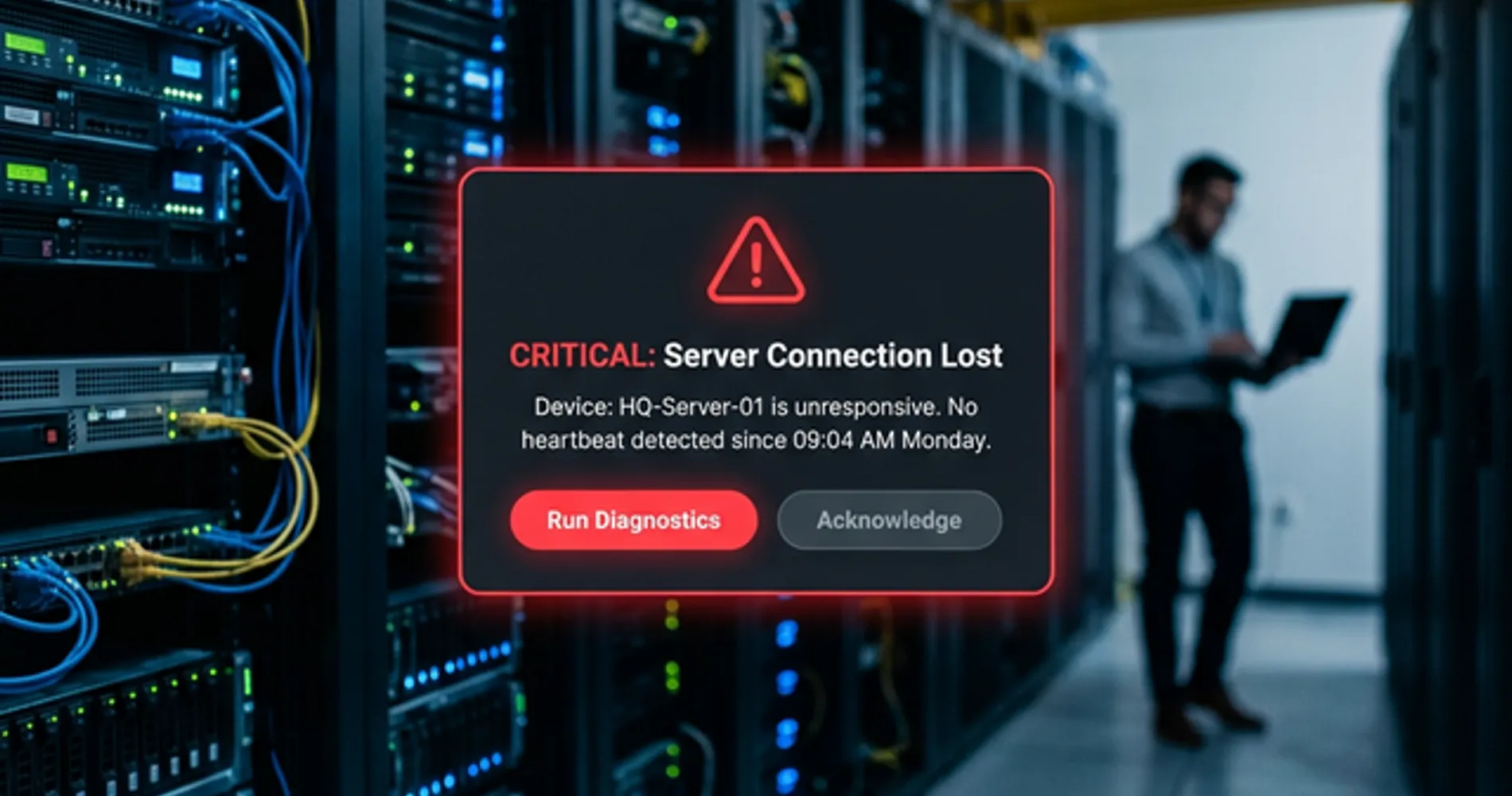
The hardware failure was fixable. The more significant problem was that this firm had no tested path from "server is down" to "we are working again." They had a partial backup on a USB drive and some scattered cloud files — but no documented recovery process, no tested restore procedure, and no clear answer to the question that matters most in this situation.
A backup is a copy of data. A recovery is the process of getting your business operational again. A backup answers: "Do we still have the files?" A recovery answers: "How long until our team is working?" Those are different questions, and in this case, the answers were four months and four days apart, respectively.
What Data Was Lost — And What Was Recoverable
An accurate inventory of available backups is the first step in any server recovery — and often the moment when the true scope of data loss becomes clear.
With the server offline, we inventoried what the firm actually had and what they'd lost access to.
What they had:
- A USB backup from November (four months stale) with most file shares
- Scattered files on individual Google Drive accounts
- Email history in Microsoft 365 (cloud-hosted, unaffected)
- A few employees had local copies of recent project files on their laptops
What they didn't have:
- Accounting data from the past four months (QuickBooks Desktop ran on the server, and the database wasn't in any backup since November)
- The current project management database
- Recent client contracts and change orders
- Four months of organized, filed project documentation
The accounting gap was the most painful. Four months of invoices, expenses, and payroll entries existed only on those drives. Even if we recovered the data from the physical disks, there was no guarantee the QuickBooks database file would be intact and consistent.
We gave the firm's principal a realistic timeline. Best case, if the drives were healthy: 2–3 days to get the server operational and data restored. Worst case, if we needed professional data recovery: 1–2 weeks and $2,000–5,000 in recovery fees with no guarantee of full retrieval.
The firm had no documented answer to that question. A disaster recovery plan exists precisely to provide one.
How Long Does Small Business Server Recovery Actually Take?
Restoring a failed server with degraded hardware and an outdated backup typically requires three to five business days of dedicated IT labor — even when the physical drives are intact.
On Tuesday, we sourced a compatible power supply from a local supplier and got the server to POST. The drives were readable. Rebuilding a functional server from degraded hardware takes time, even when the data is intact. Here is what the next three days looked like:
Tuesday — Replaced the power supply. Verified RAID array integrity. Started a full disk image to an external drive as a safety net before touching anything else. That imaging process alone took 11 hours.
Wednesday — Replaced the two drives showing SMART warnings and rebuilt the RAID array. Reinstalled Windows Server updates that had fallen behind. Verified that shared folders were accessible and permissions were intact. Tested the QuickBooks database — it opened, but threw consistency errors on two months of records.
Thursday — Worked with the firm's bookkeeper to reconcile the QuickBooks data. Some transactions from January and February needed to be re-entered manually from bank statements and email records. Reconfigured the backup script on the USB drive and verified it actually ran.
During those three days, the firm's designers worked from whatever files they had on laptops and Google Drive. Two client presentations were postponed. An invoice run was delayed by a week. The principal estimated that the disruption cost the firm somewhere between $15,000 and $20,000 in delayed billings, staff downtime, and the contractor hours to fix everything.
The bill for our work — emergency response, hardware, and three days of on-site restoration — came to approximately $4,800.
How to Implement a 3-2-1 Backup Strategy
A 3-2-1 backup strategy protects business data by maintaining three total copies across two different media types, with one copy stored offsite.
After restoring the server, we focused on preventing a repeat.
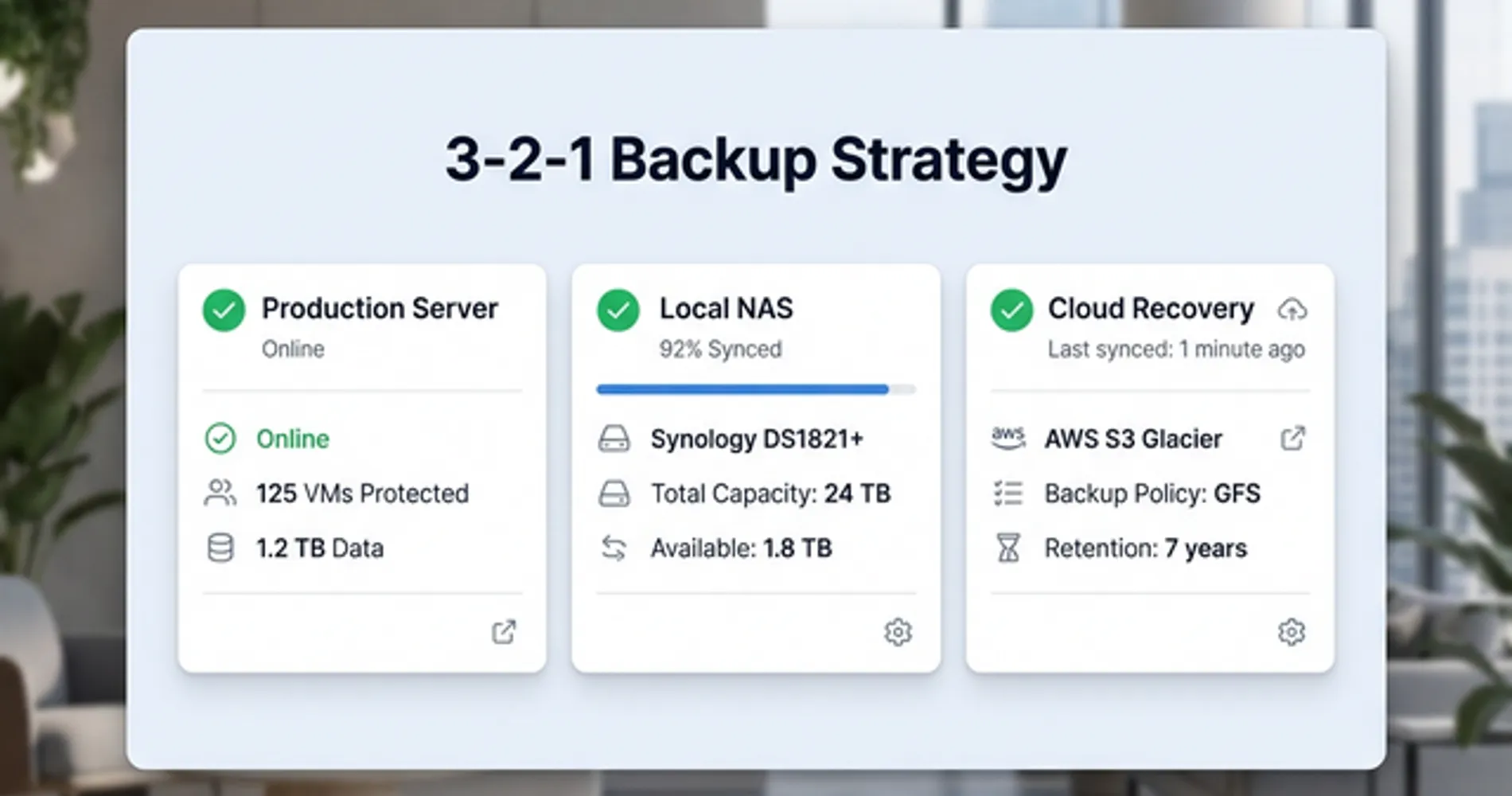
We implemented a 3-2-1 backup strategy. The concept is simple: 3 copies of your data, on 2 different types of storage, with 1 copy stored offsite. In practice, here's what that looked like for this firm:
Copy 1 — Production data. The server itself. This is what people work from every day. It's not a backup. It's the thing you're backing up.
Copy 2 — Local NAS backup. We installed a Synology DS925+ with two 8TB drives in the server closet. Synology's Active Backup for Business runs nightly image-level backups of the entire server — not just files, but the operating system, the applications, and the configurations. If the server fails again, we can restore the full environment to new hardware, not just the files.
The DS925+ costs roughly $640 diskless, plus $300–400 for a pair of NAS-rated drives. It's a one-time purchase. The backup software is included.
Copy 3 — Offsite cloud backup. We set up iDrive Business (see our full iDrive review) to back up the NAS contents to the cloud nightly. iDrive backs up unlimited devices under a single storage plan, starting at $99.50/year for 250 GB and scaling up from there. For this firm's roughly 2TB of data, the annual cost was under $200.
The cloud copy protects against the scenarios that a local NAS can't — fire, flood, theft, or a ransomware attack that spreads across the local network. If the office is gone, the data is still there.
For firms that want the simplest possible cloud backup with zero configuration, Backblaze Business (read our Backblaze vs iDrive comparison) is a strong alternative at $99/year per computer with unlimited storage. It's endpoint-focused rather than server-focused, so it's best suited for teams backing up workstations rather than a central server.
For organizations running virtual machines or more complex server environments, Veeam Data Platform provides enterprise-grade backup orchestration with tested recovery workflows, starting at roughly $500/year for five workloads.
And for straightforward per-user endpoint backup, CrashPlan offers unlimited storage at $8/month per endpoint — a good fit for remote teams where each person's laptop is the primary work machine.
We also introduced one additional concept: the 3-2-1-1-0 extension. The extra "1" means at least one backup copy should be immutable — meaning it cannot be modified or deleted, even by an administrator. This protects against ransomware that targets backup files, like the AI-written Slopoly ransomware which can maintain backdoors for weeks before triggering. The "0" means zero unverified backups — every backup must be tested regularly to confirm it can actually be restored. For small businesses, we recommend Acronis Cyber Protect (read our Acronis review) which includes automated backup verification to ensure your files are actually restorable.
Cyber Insurance Now Requires This
In 2026, most cyber insurance carriers require documented proof of the 3-2-1 rule — with at least one immutable or offline copy — as a condition of coverage. Insurers conduct post-breach audits to verify that the backup controls attested on the application were actually in place. If they weren't, the claim can be denied regardless of policy limits. A February 2026 case study from C2 Technology Partners documented a $300,000 claim denial after an accounting firm's backup controls failed audit. The 3-2-1-1-0 framework, with its "0 unverified backups" requirement, aligns directly with what insurers now expect to see documented.
Our full breakdown of this framework is in the 3-2-1 backup rule guide.
Cost Comparison: Server Failure vs. Preventative Backup
The financial impact of an unplanned server failure averages $20,000 to $30,000, compared to the roughly $500 annual cost of maintaining a 3-2-1 backup system.
| Cost category | Without a backup plan | With a 3-2-1 setup |
|---|---|---|
| Emergency IT response | ~$4,800 | ~$500 (monitoring + quick restore) |
| Hardware replacement/repair | ~$1,200 | Same or covered by warranty |
| Data recovery attempt | $0–5,000 (varies) | Not needed |
| Staff downtime (3 days) | ~$12,000–15,000 | 4–8 hours |
| Lost/corrupted data | 4 months of accounting records | None (nightly backups) |
| Delayed client billings | ~$3,000–5,000 | Minimal |
| Total estimated impact | $20,000–30,000 | ~$2,000–3,000 |
| Annual prevention cost | |
|---|---|
| Synology DS925+ (amortized over 5 years) | ~$200/year |
| iDrive Business cloud backup | ~$200/year |
| Backup monitoring and verification | ~$100/year |
| Total annual cost | ~$500/year |
Prevention vs. Recovery: The Annual Cost Gap
A reliable backup system for a small office costs roughly $500 per year. A single unplanned server failure without one typically costs $15,000–30,000. This firm had gone five years without a proper backup in place. The cost of that gap was paid all at once.
What RTO and RPO Mean for a Small Business
Two metrics define whether a business can recover from a server failure quickly: RTO (how long you can afford to be down) and RPO (how much data you can afford to lose).
The numbers from this engagement illustrate the gap between having a backup and having a recovery plan. The firm had a USB backup — it existed, it had data on it — but it was four months old, it covered only file shares rather than the full server environment, and no one had ever tested whether those files could be used to restore operations.
RTO — Recovery Time Objective — is the maximum amount of time a business can be offline before the disruption becomes unacceptable. RPO — Recovery Point Objective — is the maximum amount of data loss that is acceptable, measured as time since the last backup.
For a 10–15 person office without mission-critical infrastructure, these are the practical 2026 benchmarks:
| Metric | Practical target | What it means in practice |
|---|---|---|
| RPO | 24 hours | Nightly backups are the minimum; hourly for accounting and billing systems |
| RTO | 4–8 hours | With a tested recovery plan and a local NAS, operational within one business day |
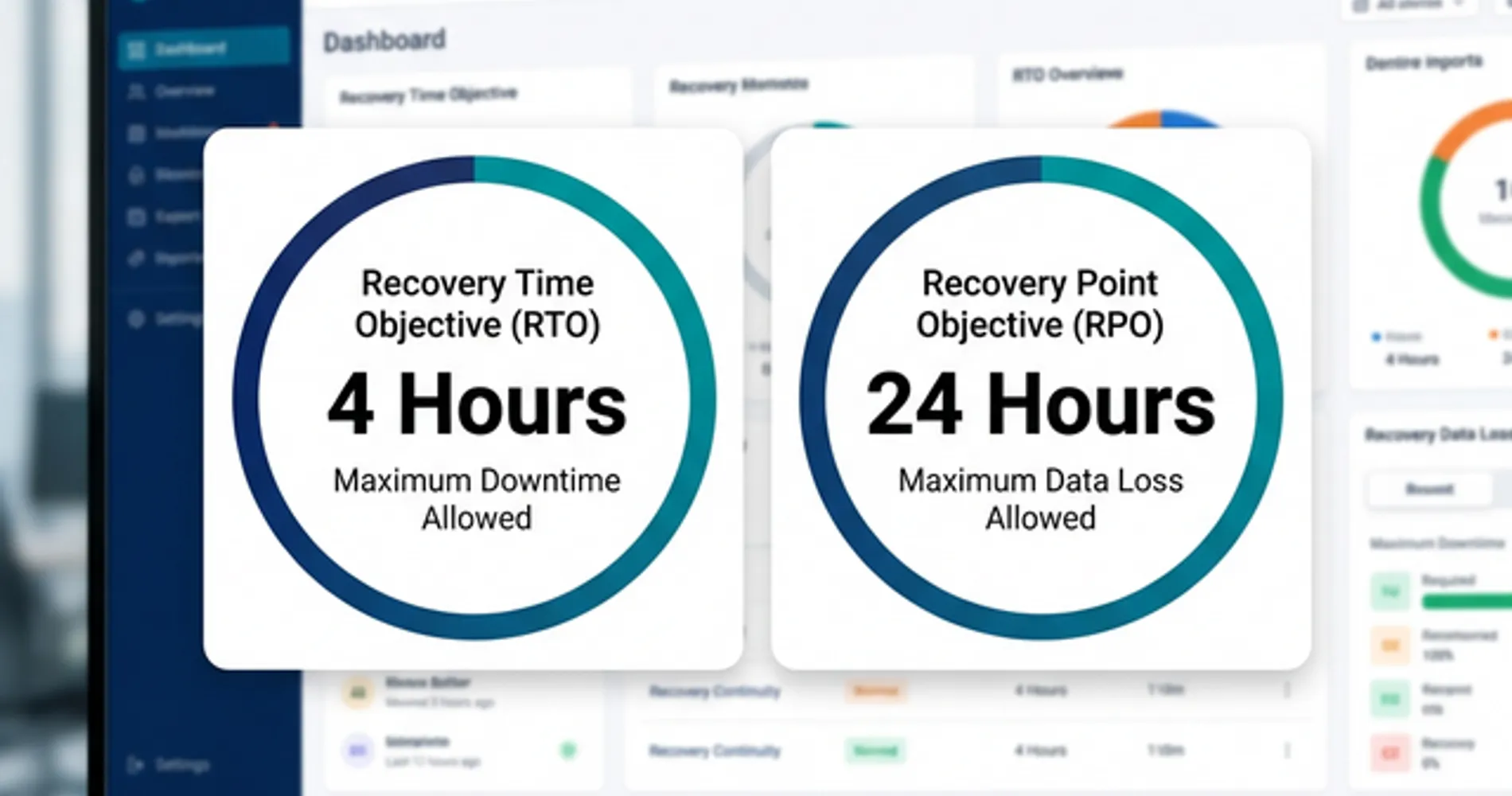
The Brickell firm's actual RPO was four months. Their actual RTO was four days. The gap between those numbers and the benchmarks above is entirely a function of preparation — specifically, the absence of a documented recovery plan and a tested backup.
Defining these targets before an incident is what separates a backup from a recovery plan. Our small business disaster recovery guide includes a full RTO/RPO table by business type and a step-by-step process for documenting recovery priorities.
Hardware Failure vs. Ransomware: Why Immutable Backups Matter
Hardware failure and ransomware are both data loss events, but they require different backup properties to recover from — and ransomware is now the more common threat.
The Brickell firm's failure was hardware-driven: a power supply gave out after five years of continuous operation. That is a predictable, manageable failure mode. A standard backup — even an imperfect one — would have significantly reduced the recovery time and cost.
Ransomware is a different problem. Modern ransomware variants are designed to find and encrypt backup files before triggering the main attack. If your backup is accessible from the same network as your production data, it is a target. A backup that has been encrypted by ransomware is not a backup — it is another encrypted file.
This is why the "1" in the 3-2-1-1-0 framework specifically requires an immutable copy. Immutable backups cannot be modified or deleted by any process, including ransomware, for a defined retention period. Synology's Active Backup for Business supports immutable snapshot protection. iDrive Business includes versioned backups with a 30-day retention window by default. Both approaches ensure that at least one recovery point exists that ransomware cannot reach.
The practical takeaway: a backup that protects against hardware failure may not protect against ransomware. The 3-2-1-1-0 framework addresses both. If your current backup solution does not include at least one immutable or air-gapped copy, it is worth reviewing before you need it.
Should You Replace the Server or Migrate to the Cloud?
When a server fails, it raises a legitimate question: is this the right moment to move to the cloud instead of replacing the hardware?
For many small businesses in 2026, the answer is yes — at least partially. Email, documents, and collaboration tools have mature cloud equivalents. Microsoft 365 with SharePoint and OneDrive handles most document-sharing workflows well, and migrating away from a file server for those workloads is straightforward. If a firm's server was primarily serving as a shared drive for Word documents and PDFs, a failure can be a reasonable trigger for a full cloud migration.
The Brickell firm's situation was different. Interior design firms work with large project files — rendered images, AutoCAD drawings, and presentation boards that routinely run 2–10 GB per project. Uploading and downloading files of that size over a standard business internet connection creates real workflow friction. A designer waiting several minutes to open a project file, or an upload that takes 20 minutes before a client meeting, is a productivity problem that cloud storage doesn't solve cleanly. The firm also ran QuickBooks Desktop in a multi-user configuration on the server. QuickBooks Online exists, but it does not have a full feature-equivalent for the multi-user Desktop workflows that accounting-heavy firms rely on.
The practical answer for most design, architecture, and engineering firms is a hybrid approach: cloud services for email, calendars, and lightweight documents; a local NAS for large project files and server-hosted applications. This configuration also makes the most sense from a backup standpoint — the NAS provides fast local recovery for large files, while cloud backup provides offsite protection. For businesses still deciding whether to invest in on-premise infrastructure, our server decision guide covers when it's warranted and when it isn't. If you've already made that call, our guide to small business servers and NAS covers hardware selection in detail.
Five Steps to Take Before a Server Failure Happens
These are the steps we walk through with every new client. None require significant technical expertise, and all of them directly reduce the cost and duration of a recovery.
1. Verify that your backups actually run — and test a restore. The most common backup failure is not a technical one. It is a backup that was configured once, stopped running at some point, and was never checked. Review your backup logs this week. Then test a restore: pick a file and recover it from the backup. If you have never completed a test restore, you do not yet know whether your backup is usable.
2. Know the difference between sync and backup. If your only backup is Google Drive, Dropbox, or OneDrive, your data is not protected against deletion, corruption, or ransomware. Sync tools mirror changes in both directions — including destructive ones. A true backup creates independent, versioned copies stored separately from the source. At least one of your backup copies should be a dedicated backup service, not a sync folder.
3. Implement the 3-2-1 rule. Three copies of your data, on two different types of storage media, with one copy stored offsite. For most small businesses, this means: production data on the server, a local NAS running nightly image-level backups, and a cloud backup service storing an offsite copy. The full implementation guide is at 3-2-1 backup rule guide.
4. Document your recovery process. Write down what happens if your server is offline tomorrow morning. Who gets called first? What systems get restored in what order? Where does replacement hardware come from? How long can the business operate without the server? A recovery plan that exists only in someone's head is not a recovery plan.
5. Establish an IT support relationship before you need one. Emergency IT response is slower, more expensive, and less effective when the provider has no prior familiarity with your environment. Having a support relationship in place — even a basic one — means faster response times and a technician who already knows your infrastructure.
The Bottom Line
The Brickell firm now runs with monitored, automated backups. Data is copied nightly to a local NAS and to the cloud. The office manager and the principal both have a written recovery plan that documents what to do, in what order, and who to call. The total ongoing cost is approximately $40/month.
The change that mattered was not the technology — it was the recognition that a running server and a recoverable business are two different things. A server that is powered on is not the same as a business that can recover from a failure. The gap between those two states is filled by a backup system that is tested, documented, and actually running.
For a detailed comparison of cloud backup services for small business — including pricing, restore speed estimates, and server backup coverage — see our full guide: Best Cloud Backup for Small Business.
Related Resources
- The 3-2-1 Backup Rule: A Complete Guide for Small Business — The full breakdown of the backup framework we deployed for this client, including implementation tiers, costs, and common mistakes.
- Small Business Disaster Recovery Guide — How to build a complete disaster recovery plan, including RTO/RPO planning, testing schedules, and cyber insurance requirements.
- Best Cloud Backup for Small Business — Head-to-head comparison of iDrive, Backblaze, Veeam, CrashPlan, and other cloud backup services with pricing and restore speed estimates.
- Best Small Business Servers and NAS Devices — When to keep workloads on-premise vs. migrate to the cloud, with hardware recommendations by team size and use case.
Frequently Asked Questions
Related Articles
More from IT Guides
Small Business Disaster Recovery: Building IT Resilience That Actually Works
A practical disaster recovery guide for small businesses. Learn the 3-2-1-1-0 backup rule, understand RTO/RPO, and build a recovery plan that protects against ransomware, outages, and data loss.
15 min read
The 3-2-1 Backup Rule: Why It Still Works and How to Implement It in 2026
The 3-2-1 backup rule is a proven data protection framework. Learn what it means, why it still works against ransomware and disasters, and how to implement it step-by-step with specific tools and a real cost example for your small business.
13 min read

Where Should Your Business Files Actually Live?
A NAS, Google Drive, and Proton Drive solve three different problems. Which one your files belong in depends on four questions — here they are.
14 min read