

Router vs Switch vs Access Point: How an Office Network Fits Together
What a router (gateway), switch and access point each do, how data travels from a laptop to the internet, when traffic stays local, and an install order.

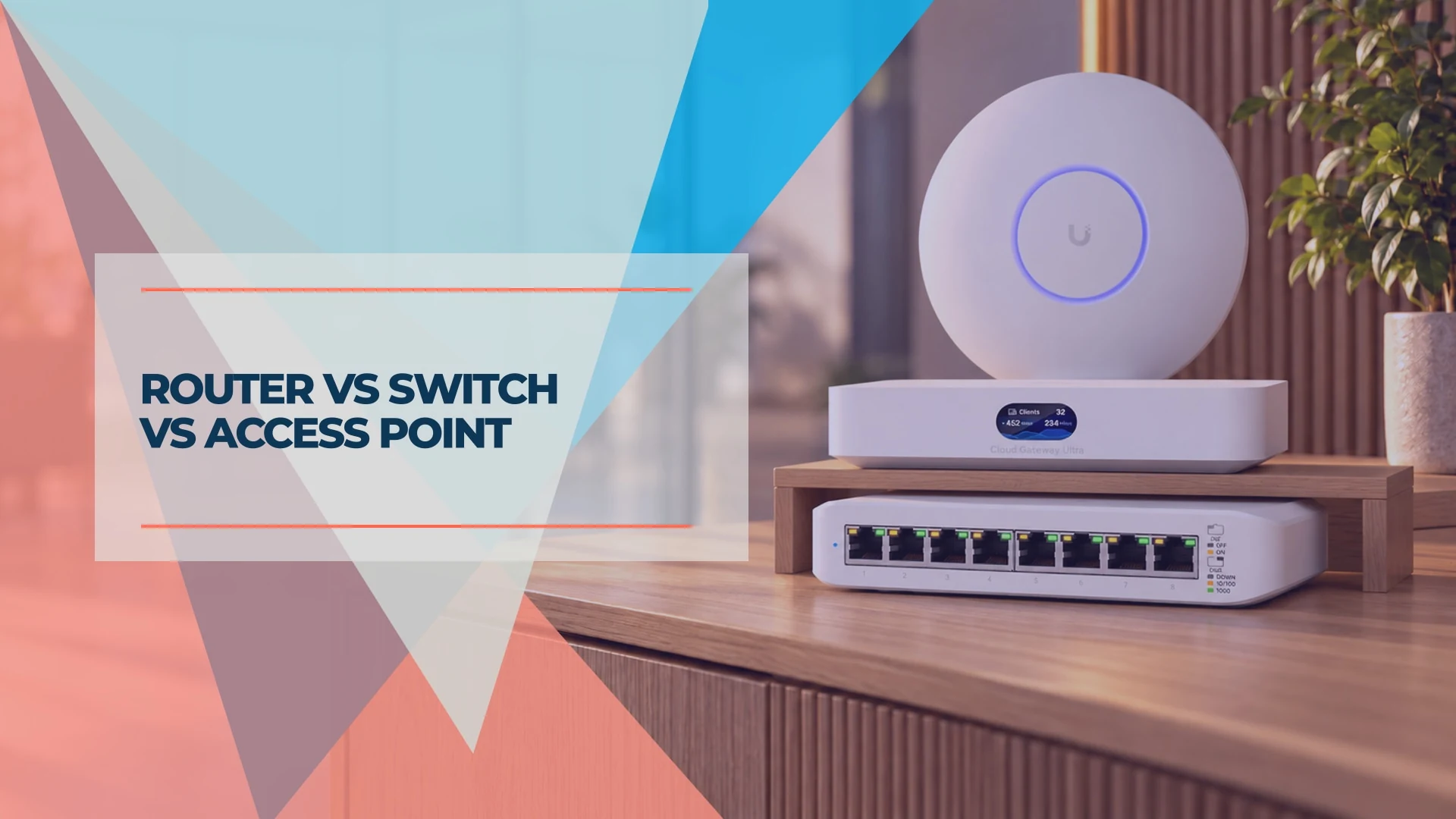
An office network has several jobs to do. The router or gateway connects networks and usually runs the internet firewall. The switch connects wired devices. Access points connect Wi-Fi devices to that wired network. These roles can share one case or live in separate devices. In this guide we call the business router and firewall the gateway, the term many managed-network products use. Knowing which role does which job makes it easier to choose equipment and trace a fault.
This guide follows one internet request, from a laptop in a conference room to the internet and back, then shows when traffic never leaves the office. It finishes with where each box goes in the closet and a practical install sequence.
The short version
- Internet in: the provider's fiber box (ONT) or cable modem brings the connection into the building.
- Gateway: routes traffic between your office and the internet, usually runs the firewall and hands out addresses.
- Switch: connects wired devices, and a PoE switch also powers cameras and access points.
- Access point: bridges Wi-Fi onto a wired port, usually mounted on a ceiling.
- Patch panel: the tidy middle step between the wall cables and the switch.
What does each box do in an office network?
Each box has one main role in this example, though offices can combine roles or have more devices. The table shows the main roles at a glance.
| Box | Usual primary role | What it usually does not do |
|---|---|---|
| ONT or modem | Turns the provider's signal into Ethernet (a standalone ONT or modem) | Create a network or Wi-Fi; combined provider gateways also route and offer Wi-Fi |
| Gateway | Connects your network to the internet, firewall, addresses, rules between networks | Provide many wired ports or power devices, though integrated models can |
| Switch | Moves data between wired devices; PoE models power them | Connect to the internet by itself or act as the firewall |
| Access point | Bridges Wi-Fi clients onto a wired port | Hand out addresses or act as a firewall in a standard bridge-mode setup |
The first row is covered in our modem vs router guide: fiber offices use an ONT instead of a modem, and the provider usually supplies and manages it, so check your service. This guide starts where that one ends, at the Ethernet cable leaving the ONT.
The word gateway has two meanings
Internet providers call their all-in-one modem and router a gateway. In network design, a gateway is the router and firewall that sits between your office and the internet. When you add your own business gateway behind a provider's combined box, put the provider's box into bridge or pass-through mode if your provider supports it, and check first whether phone or TV services depend on it. Otherwise you get two routers in a row, which becomes double NAT when both translate addresses, and our double NAT guide shows how to detect and fix it.
What path does your data take from a laptop to the internet?
In a simple single-uplink office, an internet request leaves the laptop over Wi-Fi, reaches an access point, runs down a cable to the switch, crosses to the gateway and exits through the ONT to the internet. The reply returns along the same path. Here is the sequence in order:
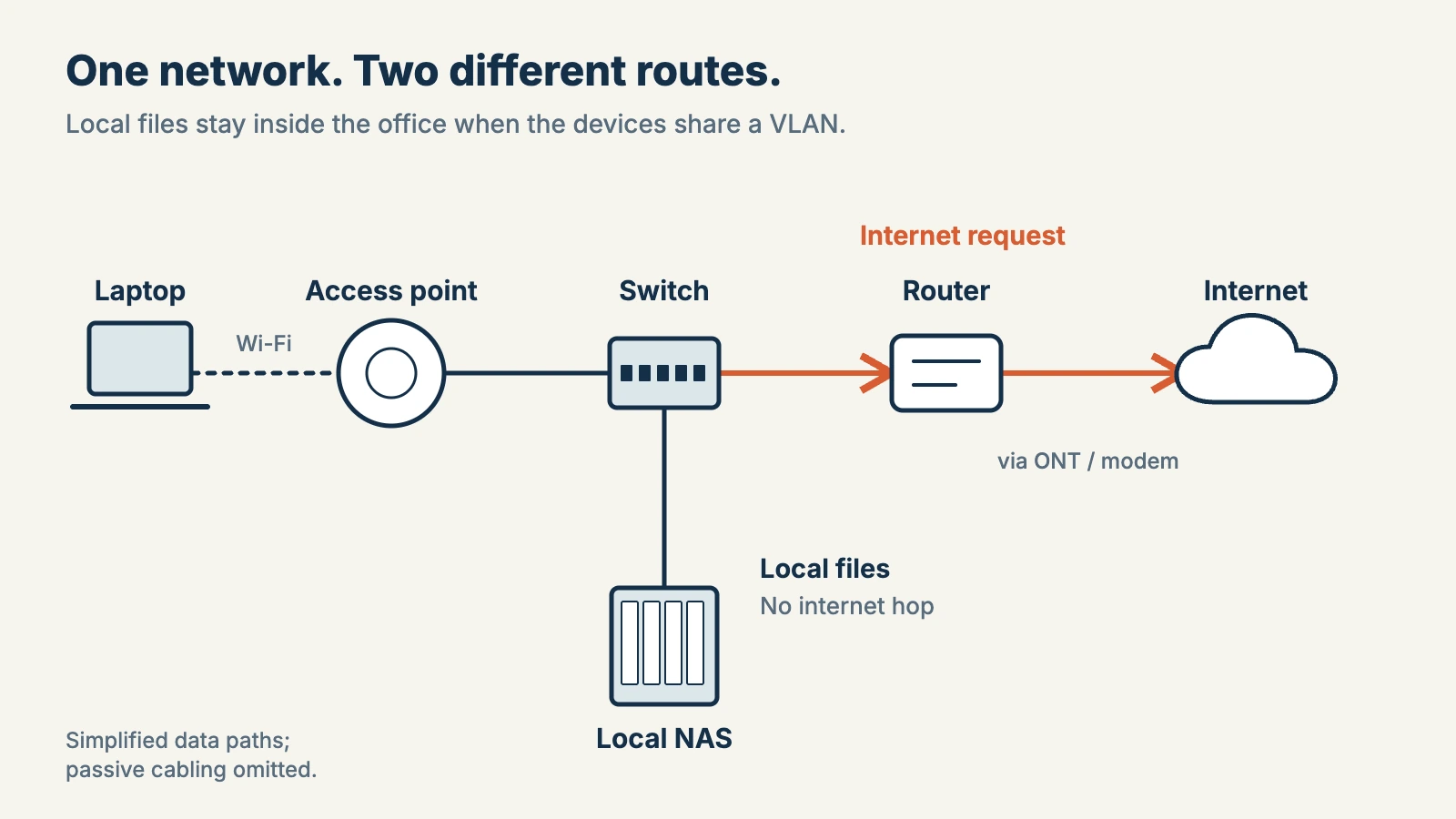
- The laptop sends a request over Wi-Fi to the access point it is connected to, which is not always the nearest one.
- The access point bridges the data onto its Ethernet cable. In this design it does not choose the route to the internet.
- The cable run goes through the ceiling and wall to a jack, then through a patch panel in the closet. The panel is passive cabling, not a forwarding step.
- The switch receives the data and normally forwards known traffic out the matching port, here the one toward the gateway.
- The gateway checks the firewall rules, on a typical IPv4 connection swaps your private address for the office's public one (NAT) and sends the request out.
- The ONT or modem converts it to the provider's signal and sends it to the internet.
The reply comes back through the same boxes in reverse, and the gateway knows which laptop asked because it remembers the request.
What happens when the traffic never leaves the office?
Opening a file on a NAS on the same local network (the same VLAN, in the terms used later in this guide) takes a shorter path: laptop → access point → switch → NAS. That traffic normally stays inside the office. Increasing your internet plan will not speed up a transfer limited by Wi-Fi or the NAS connection. It is also why some local functions can keep working during an internet outage while cloud services do not. The diagram above separates the internet path from this local route. If you are choosing a NAS for shared files, our NAS buying guide covers the options.
What does the gateway do?
The gateway is the one box that connects your private network to the outside world. In a typical small office it does five things, and in other designs they can be split across devices:
- Routing. It moves traffic between your office network and the internet, and between separate internal networks if you have them.
- NAT. On a typical IPv4 connection, network address translation lets the devices in the office share the single public address the provider assigns to your location. IPv6 and services with several public addresses work differently. The modem vs router guide covers this.
- DHCP. It gives each device an address when it joins the network, so nobody types them in by hand.
- Firewall. A configured stateful firewall typically blocks unsolicited inbound connections from the internet, and your rules decide which internal networks may talk to each other. That depends on the policy you set, not on the router alone.
- Optional extras. Business gateways can add intrusion detection and prevention, VPN access for remote staff and the controller software that manages your switches and access points.
The gateway is the usual policy point for the traffic it routes, such as traffic between your office and the internet, or between separate VLANs. Traffic inside one VLAN does not need to cross it, so switch, access point and device settings matter too. Our VLAN guide explains how the gateway keeps guest Wi-Fi, cameras and staff computers apart.
What does a switch do, and why not a hub?
A switch connects the wired devices in your office and normally forwards known traffic only to the port where its destination sits. It learns which device is behind each port by watching the hardware addresses on the traffic, then forwards each frame to the matching port. Broadcasts, and traffic to destinations it has not learned yet, are sent out the other ports.
A hub, the older box, copied every message to all the other ports. That is why you rarely see one in an office today. If you meet the word in an old tutorial, the modern equivalent is a switch.
Three switch facts matter when you plan an office:
- Ports and speed. A switch link cannot move data faster than its ports. A 2.5 gigabit NAS on a gigabit switch port connects at gigabit, and real file throughput is a little lower than the link rate.
- PoE. A PoE switch is the power source for access points, cameras and phones. The device sits at the end of the cable and draws power from the switch, so check both the switch's total budget and what each port supports. Our power over Ethernet guide shows how to add up the power budget, including a worked small-office example that comes to 168 watts after a 20% margin, which is our design recommendation.
- Managed or unmanaged. An unmanaged switch has no user-configurable management interface. A smart or managed switch lets you separate wired devices into different networks and, on many models, disable and re-enable a port remotely. Power-cycling a PoE device remotely needs controllable PoE, which not every managed or smart switch offers. Our managed vs unmanaged switch guide sorts the choice by what your office runs.
What does an access point do, and how is it different from a router?
In this design, the access point bridges Wi-Fi clients onto the wired network. The gateway handles routing and usually supplies addresses. Some access points offer additional routing or guest-network functions, so check their operating mode. It sits at the end of an Ethernet cable and extends the network over radio.
That makes it different from the router in a home Wi-Fi box. A home router usually bundles gateway, switch and access point in one case. In an office you often separate them because each job has a different best location. The gateway sits in the closet. Access points sit where people work, usually on the ceiling. Base placement on a site survey rather than a fixed rule: more access points can also add interference if channels and power are not planned.
If you already own a mesh system, the mesh Wi-Fi vs access points guide covers keeping it, wiring it or replacing it. For coverage problems in one room, see our dead-zone guide. Which band each radio should serve is covered in our 2.4 vs 5 vs 6 GHz Wi-Fi guide.
Where does the patch panel fit?
A patch panel is the termination point for the cables that run inside your walls. Each wall jack's cable ends at a numbered port on the panel. A short patch cable then connects that port to a port on the switch. The panel reduces how often the permanent cables are handled, which cuts wear when you change connections.
Two limits to keep in mind:
- Length. A conventional standards-compliant copper Ethernet channel is limited to 100 meters in total: 90 meters of permanent cable plus up to 10 meters of patch cords. Fiber and some other Ethernet variants have different limits. Measure the real cable route, not the straight line.
- Layout. We recommend alternating patch panels and switches with cable managers between them. Our network rack guide explains the sandwich layout, where 6-inch patch cables replace long loops.
What is a practical install sequence?
This is an optional checklist, not a protocol requirement; planning, configuration and bench testing can happen earlier. The data path goes ONT, gateway, switch, patch panel, cable, access point, but a practical project sequence builds from the bottom up:
- Cabling and jacks. Run and label every cable before the walls close. See the network cabling checklist and the wiring installation guide.
- Rack, UPS and patch panel. Mount the heavy items first, then terminate the cables on the panel.
- Switch. Patch the panel to the switch and check the PoE budget.
- Gateway. Connect it to the ONT or modem and to the switch, then set up the network.
- Access points. Mount them last, once the cable runs are tested.
- Storage and cameras. A NAS or camera recorder plugs into the switch as one more wired device.
For the full project plan, see our network setup guide.
Do you need four separate boxes?
Not always. Some gateways include a built-in switch and Wi-Fi. These all-in-one models suit a small single-room office with a handful of devices. The trade-offs are limited ports and a single Wi-Fi location. For anything larger, separate boxes let you place Wi-Fi where people sit and add ports as you grow.
Our UniFi gateway comparison covers the gateway models, and the Dream Router 7 review looks at the all-in-one option in detail.
What are the most common mistakes?
- Router in the access point's place. A second router behind the first can create double NAT, which can complicate some VPN, inbound-access and VoIP setups. Use access point mode.
- PoE budget overlooked. A switch can have enough ports but not enough watts. Compare the total power budget with the combined draw, not just the port count.
- Gateway and ISP box both routing. Ask whether your provider supports bridge or pass-through mode on its box, and whether phone or TV services depend on it.
- Copper runs beyond the length limit. A copper run past the 100 meter channel design is outside the standard. Common solutions are fiber or a switch part-way along the route.
- One access point for the whole office. Coverage gets weaker with every wall. Survey placement, channels and power before adding access points, because adding access points without planning channels and power can increase interference.
- Everything on one network. Cameras, guests and staff computers share the same address range. Segment them with VLANs and firewall rules.
What should you do next?
Count your wired devices, list your access point locations and add up the PoE draw. Then choose a gateway, a switch with enough ports and watts, and enough access points to cover the floor plan. If you want help planning the closet, our network setup guide walks through the project in phases. Our team also offers UniFi network design and installation and structured cabling services.
Related resources
- Modem vs router — how the ISP box, modem and router differ.
- Double NAT: detect and fix — what happens when two routers sit in a row, and how to check.
- What is a VLAN? Does a small office need one? — how to keep guests, cameras and staff on separate networks.
- Power over Ethernet guide — how to add up the PoE budget for access points and cameras.
- Managed vs unmanaged switch — which switch type fits which office.
- Do you need a network rack? — rack layout, patch panels and cable management.
- 2.4 vs 5 vs 6 GHz Wi-Fi — which band each access point radio should serve.
Frequently Asked Questions
Related Articles
More from Network Infrastructure
How Often Should You Replace Your Router? The Security Signs We Look For on Every Job
Forget the 'every 3–5 years' rule. Here's the field checklist we run on a client's router before replacing it — plus what 4 years of fleet data says about how long networking gear actually lasts.
12 min read
What the FCC Router Ban Means for Your Business Network (And What to Do About It)
The FCC banned new equipment authorizations for foreign-made routers on March 23, 2026. Learn how this affects your business and what to do next.
12 min read
How to Find Your Router IP Address on Windows, Mac, iPhone, Android & Linux
Find your router IP address on Windows, Mac, iPhone, Android, or Linux. Includes default IPs and login notes for common router brands and app-managed systems.
12 min read