

How to Detect and Fix Double NAT on Business Networks
Double NAT breaks VPN connections, VoIP calls, and remote access. Learn how to detect it with traceroute and fix it with bridge mode—the right way for SMB networks.

Your new UniFi Cloud Gateway Ultra just arrived. You configured VLANs, set up IDS/IPS, created the perfect network segmentation plan. But when you try to connect your VPN from home, connections fail. Your VoIP phones have audio issues. Remote Desktop sessions won't establish.
You run a diagnostic, and everything looks fine. But there's a common network misconfiguration affecting your setup—double NAT.
For small business networks, double NAT is a stability problem that breaks VPNs, VoIP systems, remote access, and any application that requires reliable inbound connections.
In this guide, I'll show you how to detect double NAT (even if you've never heard of it), understand why it happens, and fix it properly—with a focus on business-grade equipment like UniFi and Firewalla.
Affiliate Disclosure: This article contains affiliate links. If you make a purchase through these links, we may earn a small commission at no extra cost to you. As an Amazon Associate, iFeelTech earns from qualifying purchases.
The Business Impact: Why Double NAT Actually Matters
Double NAT is a common network configuration issue where two routers both perform address translation, creating connectivity problems for business applications.
What breaks with double NAT:
- Traditional VPNs drop connections — IPsec and OpenVPN connections fail mid-session, impacting remote work productivity. (Note: Modern WireGuard-based VPNs like UniFi Teleport are more resilient to double NAT but still perform better with a clean connection.)
- VoIP phones have one-way audio or severe jitter — Business phone systems like Nextiva or RingCentral experience call quality issues because voice packets can't route properly.
- Remote Desktop (RDP) fails from external networks — You can't access your office workstation when working remotely.
- Security cameras become inaccessible — Network video recorders for surveillance systems won't connect from mobile apps when you're off-site.
- Port forwarding doesn't work — Any service requiring inbound connections (web servers, SSH access) silently fails.
These issues affect both business networks and home offices with remote workers. If you're experiencing connection problems while working remotely, double NAT may be the cause.
What is Double NAT?
Double NAT occurs when two routers on the same network both perform Network Address Translation, causing traffic to be translated twice before reaching the internet.
Network Address Translation (NAT) is the process that lets multiple devices share a single public IP address. Your router assigns private IPs to your devices (like 192.168.1.100) and translates them to your ISP's public IP when they communicate with the internet.
Normal network flow:
Internet (Public IP) → Your Router (NAT) → Your Devices (Private IPs)
Double NAT occurs when TWO devices perform NAT sequentially:
Internet (Public IP) → ISP Gateway (NAT #1) → Your Router (NAT #2) → Your Devices
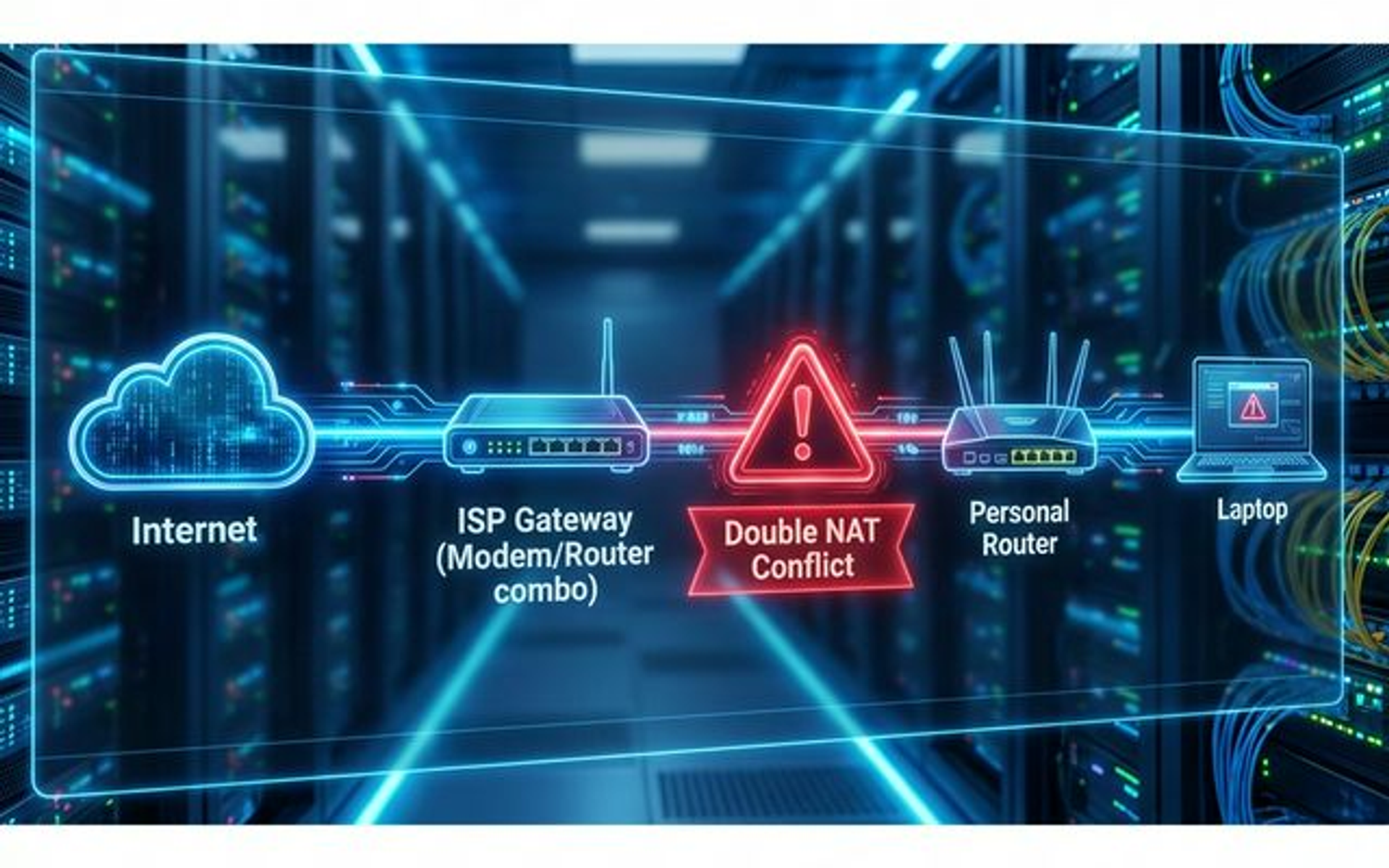
Think of it as two tollbooths on the same highway. Every packet has to get translated twice—once by your ISP's gateway, once by your router. This creates two separate private networks, and devices on the "inner" network can't reliably receive inbound connections.
Why It Happens
The most common scenario: You connect a new router to an ISP-provided "all-in-one" modem/router combo.
Your ISP gives you a gateway device that's both a modem AND a router. When you plug your UniFi Cloud Gateway, Firewalla Gold, or Eero into it, you've created a second router behind the first. Both are performing NAT. That's double NAT.
How to Detect Double NAT
You can detect double NAT by comparing your router's WAN IP address against the public IP address shown on a detection site like whatismyip.com.
Before you fix it, you need to confirm you have it. Here are two reliable tests.
Test 1: The WAN IP Check (Easiest Method)
This is the fastest way to check, and it works on any router.
Steps:
- Log into your router's admin interface (UniFi Network, Firewalla app, etc.) — see our guide to finding your router's IP address if you're not sure how to get there
- Check your WAN IP address — this is the IP your router receives from the ISP gateway
- Open a browser and visit whatismyip.com to see your public IP
- Compare the two IP addresses
If they match: You have a clean connection. No double NAT.
If they DON'T match AND your WAN IP is a private address (10.x.x.x, 192.168.x.x, 172.16-31.x.x), you have double NAT.
If your WAN IP starts with 100.64 through 100.127, that is the address range reserved for your ISP's carrier-grade NAT (see the CGNAT section below). The fix is on the ISP's side, not yours.
Example: Double NAT Detected
- Your router's WAN IP:
192.168.0.100 - Whatismyip.com shows:
72.14.207.99
That's a mismatch with a private WAN IP. You have double NAT.
Method 2: Traceroute Validation
If you want technical confirmation, use traceroute to see the path your packets take.
On Windows:
- Press
Win + R, typecmd, press Enter - Type:
tracert 8.8.8.8(Google's DNS server) - Press Enter
On Mac/Linux:
- Open Terminal
- Type:
traceroute 8.8.8.8 - Press Enter
How to interpret the results:
Look at the first TWO hops.
- Hop 1: Your router (e.g.,
192.168.1.1) - Hop 2: Should be your ISP's public IP
If BOTH hop 1 AND hop 2 show private IP addresses, you have double NAT. Treat the traceroute as confirmation of the WAN IP check, not a replacement for it: some gateways do not answer traceroute probes, so a missing hop proves nothing.
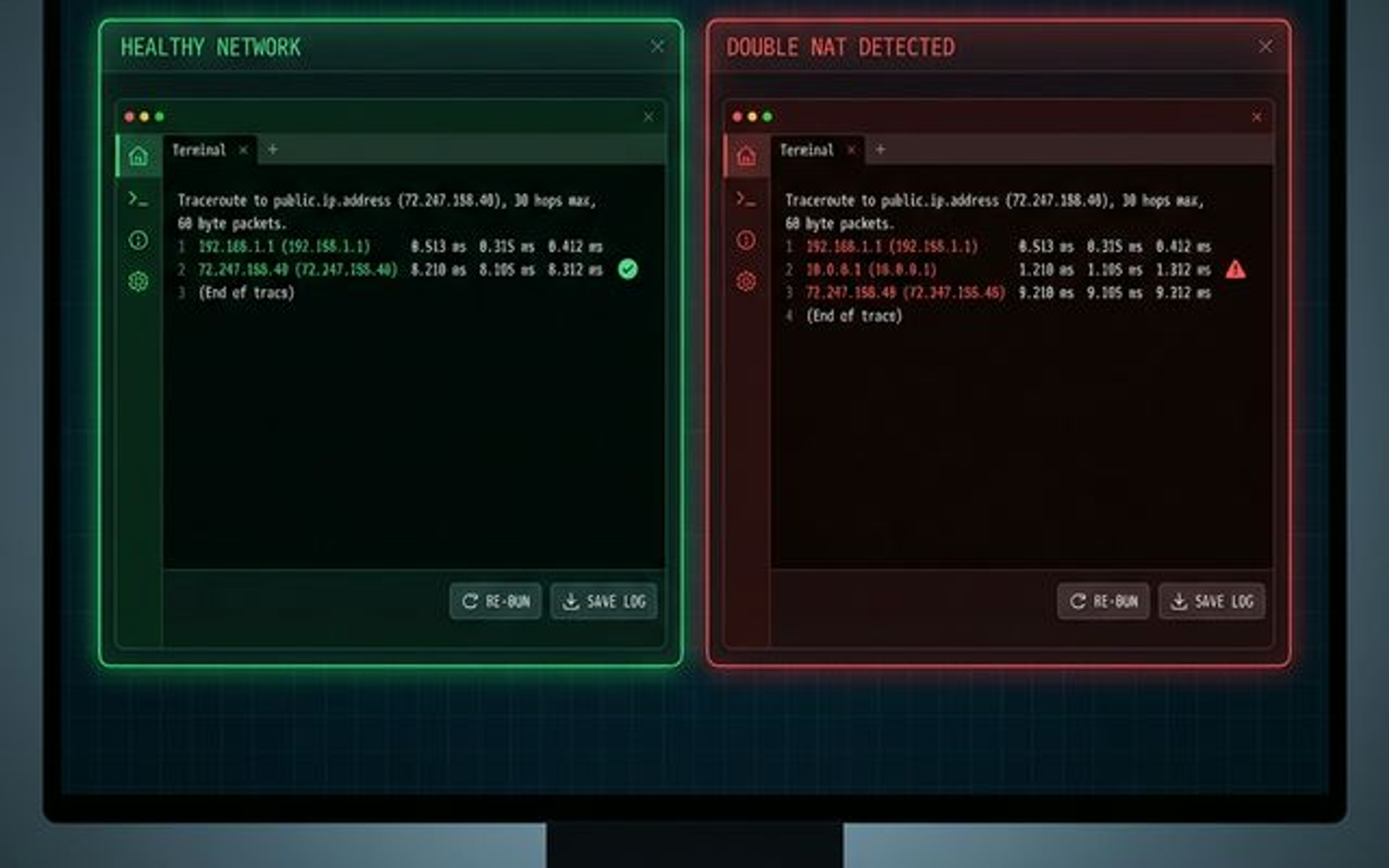
Example: Healthy Trace (No Double NAT)
1    192.168.1.1        2 ms
2    72.14.207.1       12 ms  ← Public IP
3    72.14.207.50      15 ms
Example: Double NAT Detected
1    192.168.1.1        2 ms  ← Your router
2    192.168.0.1        5 ms  ← ISP gateway (still private!)
3    72.14.207.1       15 ms  ← Finally public
This confirms double NAT is present.
The CGNAT Curveball (Carrier-Grade NAT)
There's a third possibility: CGNAT (Carrier-Grade NAT).
This is when your ISP performs NAT before your traffic even reaches your modem. If you see IP addresses in the 100.64.x.x to 100.127.x.x range in your traceroute, you're behind CGNAT.
Critical distinction: You cannot fix CGNAT with bridge mode. CGNAT is on your ISP's infrastructure, not your local network.
Solutions for CGNAT:
- Upgrade to a business internet line with a static public IP
- Use an overlay network like Tailscale or ZeroTier (these create peer-to-peer connections that bypass NAT entirely)
- Contact your ISP to request removal from CGNAT (some ISPs allow this)
Starlink & 5G Home Internet Users
Starlink (on its default setting) and the major US 5G home internet services (T-Mobile, Verizon and AT&T) generally place residential customers behind CGNAT, so inbound connections from the internet cannot reach you. You cannot fix this with bridge mode. Solutions include:
- Overlay networks: Tailscale, ZeroTier (peer-to-peer mesh networking) and similar tools work because both ends connect outward
- UniFi Teleport: For remote access to a UniFi gateway, Teleport works when the gateway or the client is behind NAT. UniFi Site Magic is different: at least one of the two gateways needs a public IP address
- A public IP option: Starlink offers an optional public IPv4 address on its Priority plans, and some business internet plans include a static IP. Check with your provider
- IPv6: Starlink provides native IPv6 on every plan, which is not affected by CGNAT
IPv6 Alternative: Many ISPs (Comcast, AT&T, Verizon) now offer native IPv6, which bypasses NAT entirely for IPv6-enabled services. If your ISP supports it and your applications support IPv6, this is the cleanest long-term solution. However, most business applications still rely on IPv4.
For the rest of this guide, we're focusing on local double NAT—the fixable kind.
The Fixes: How to Eliminate Double NAT
There are three main approaches, ranked from best to worst.
How to Enable Bridge Mode to Fix Double NAT
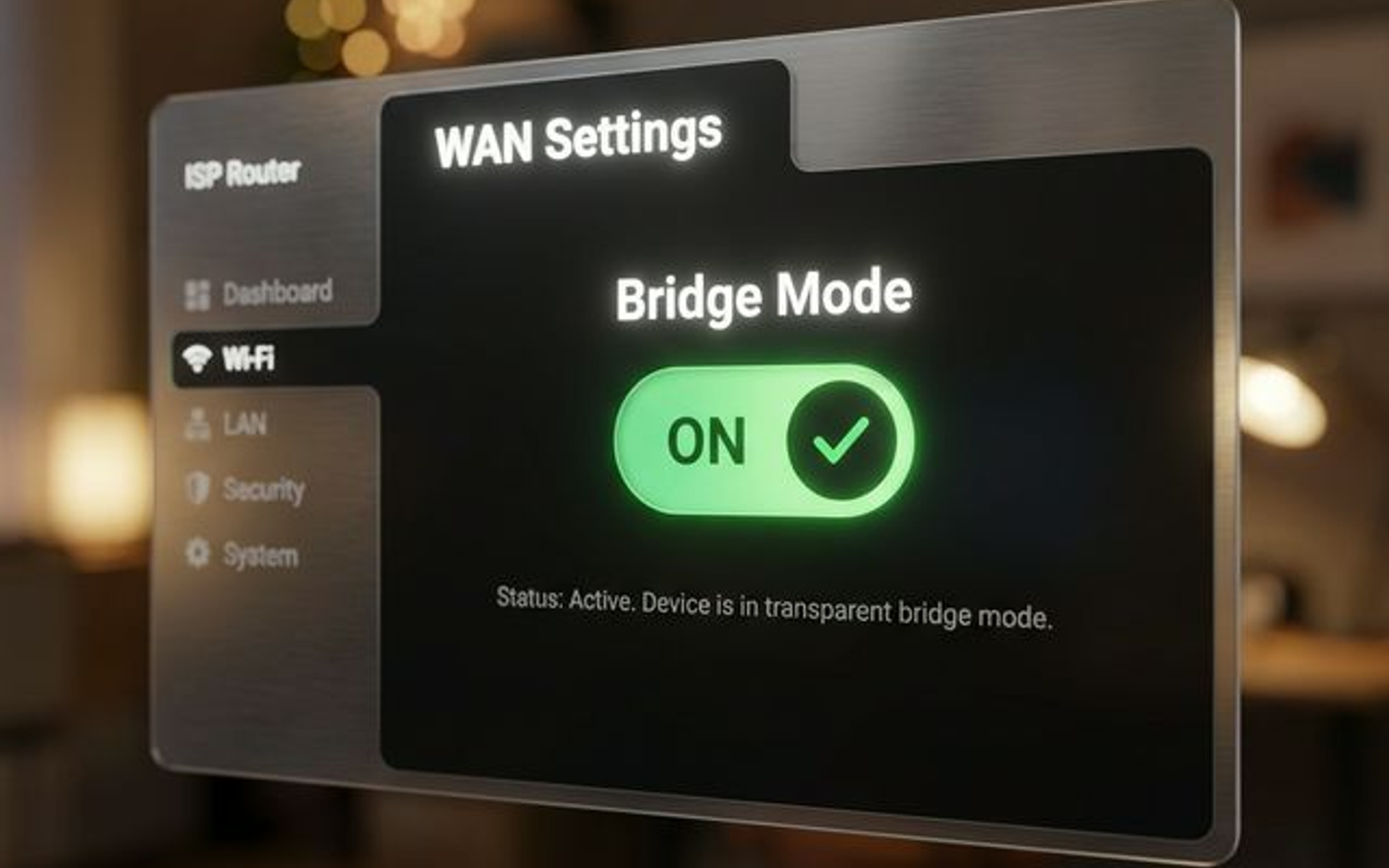
Bridge Mode disables the routing and NAT functions of an ISP gateway, allowing your personal router to receive the public IP address directly.
This is the preferred solution for business networks.
Steps:
-
Connect to your ISP gateway
- Plug a computer directly into one of the LAN ports on the ISP device
- Open a browser and navigate to its admin interface (usually
192.168.1.1or192.168.0.1) - Login credentials are often printed on a sticker on the device
-
Find the bridge mode setting
- Look for sections labeled "Network," "WAN Settings," or "Advanced"
- The option might be called:
- "Bridge Mode"
- "IP Passthrough"
- "Transparent Bridging"
- "DMZ Plus Mode" (AT&T specific)
-
Enable bridge mode
- Select your router's MAC address (if prompted)
- Save settings
-
Disable Wi-Fi on the ISP gateway (crucial step!)
- Navigate to wireless settings
- Turn off both 2.4GHz and 5GHz radios
- This eliminates Wi-Fi interference and confirms the device is truly in bridge mode
-
Reboot both devices
- Restart the ISP gateway
- Restart your router
- Verify the fix
- Check your router's WAN IP—it should now match your public IP
- Re-run
tracert 8.8.8.8—hop 2 should be a public IP
Result: Your router now handles all NAT, firewall, and routing. Your UniFi VLANs and advanced features work as intended.
Pro Tip
Some ISPs (especially fiber providers like AT&T and Verizon) make bridge mode difficult to find or require a phone call to enable. If you can't locate the setting after 10 minutes, contact your ISP's technical support. Ask specifically for "bridge mode" or "IP passthrough."
Note: Fiber providers like AT&T often use "IP Passthrough" instead of true Bridge Mode. This is functionally similar for most users but retains the ISP box's session table, so a traceroute may still show the ISP box as the first hop even when everything works.
Tip: Give your own router a different LAN subnet than the ISP gateway (for example 10.20.0.0/24 if the gateway uses 192.168.1.0/24). Two networks on the same subnet cause conflicts, and a separate subnet keeps the gateway's admin page reachable if its settings ever reset.
Alternative: Using DMZ Mode
If your ISP's hardware blocks bridge mode (common with some fiber ONT units), DMZ is the next best option.
Concept: The ISP gateway stays in routing mode but forwards ALL inbound traffic to your router.
Steps:
-
Assign a static IP to your router's WAN interface
- In your router's settings, set a static IP on the WAN (e.g.,
192.168.0.2) - Important: This must be within the ISP gateway's subnet but outside its DHCP range
- In your router's settings, set a static IP on the WAN (e.g.,
-
Log into the ISP gateway
- Navigate to "Firewall," "NAT," or "DMZ" settings
-
Add your router's WAN IP to the DMZ
- Enter the static IP you assigned (e.g.,
192.168.0.2) - Save settings
- Enter the static IP you assigned (e.g.,
Result: Technically still two NATs, but all inbound ports are forwarded to your router. Your router's firewall handles security.
Trade-off: Slightly less efficient than bridge mode, but functionally equivalent for most business use cases.
Security Note
With DMZ enabled, your router is exposed to all inbound traffic. Make sure your router has a strong firewall enabled (which UniFi and Firewalla do by default). Do NOT put a computer or IoT device in the DMZ—only your router.
Access Point Mode (Not Recommended for Business)
Concept: Stop using your router as a router. Configure it as a Wi-Fi access point only.
Why this option isn't ideal for business:
You lose ALL advanced features:
- No firewall (IDS/IPS disabled)
- No VLANs
- No custom routing
- No network segmentation
- No traffic inspection
If you purchased a $129 UniFi Cloud Gateway Ultra or a $899 Firewalla Gold Pro for its security features, access point mode disables those capabilities entirely.
When to use it: Only if you're stuck with an ISP gateway that blocks both bridge mode AND DMZ, and you don't need advanced routing. For most SMBs, this is not acceptable.
If you're in this situation, consider replacing the ISP gateway entirely with a modem-only device (see below).
Can I Replace My ISP Modem?
Cable internet users can often eliminate double NAT and rental fees by replacing the ISP gateway with a dedicated modem.
Benefits:
- Eliminates double NAT permanently
- Saves $10-15/month in rental fees (typical ISP charge)
- Full control over your network
Equipment recommendation:
For cable internet (Xfinity, Spectrum, Cox), the DOCSIS 3.1 Arris Surfboard S33 remains the standard for Gigabit plans in 2026. It supports up to 2.5 Gbps. For future-proofing with multi-gig plans (>2Gbps), DOCSIS 4.0 modems are beginning to emerge, though the S33 is sufficient for most SMBs.
Important: This only works if your ISP allows customer-owned equipment. Fiber services (AT&T Fiber, Verizon Fios) often require their ONT and may not support customer modems.
Validation: Confirm the Fix Worked
After implementing bridge mode or DMZ:
- Re-run Test 1: Check your router's WAN IP vs.
whatismyip.com—they should match - Re-run Test 2: Run
tracert 8.8.8.8—hop 2 should be a public IP - Test your broken services:
- Try connecting to your VPN remotely
- Make a test VoIP call
- Access your security cameras via mobile app
- Test port forwarding rules (if applicable)
If everything works, you've successfully fixed double NAT.
Ready to Upgrade Your Network?
If you're solving double NAT because you upgraded to business-grade routing equipment, here are the top choices for 2026:
UniFi-Specific Guidance
If you're running UniFi equipment, here's how to check your setup:
In UniFi Network (Controller):
- Navigate to Settings → Internet
- Check the WAN IP listed
- Compare to your public IP
Good sign: WAN IP matches public IP (bridge mode is working)
Bad sign: WAN IP is 192.168.x.x (still behind ISP gateway)
UniFi Recommendations for Business:
For most small-to-medium businesses, the standard is the UniFi Dream Machine Pro ($379) or Special Edition ($499). These are rack-mountable, enterprise-grade gateways that integrate the controller, security, and NVR in a professional form factor.
Note for Micro-Offices: If you lack a server rack or have a very small footprint (e.g., a single retail counter), the UniFi Cloud Gateway Max ($199) is a powerful desktop alternative, but be aware it cannot be managed by an external central controller.
When to Call for Help
If you've tried bridge mode and DMZ and still have issues:
- Contact your ISP — Some ISPs remotely enable bridge mode or require a tech visit
- Check for CGNAT — If you're behind CGNAT, you need a static IP or business internet plan
- Consider professional setup — If you're managing a multi-location network, consult an MSP
For Miami-based businesses, iFeelTech offers network assessments that include double NAT diagnosis and optimization.
Related Network Topics
Now that you've fixed double NAT, explore these related guides:
- WAN vs LAN: Business Network Basics — Understand how your network layers work
- UniFi Network Blueprint Guide — Plan remote access and gateway design
- Best VPN for Remote Work — Why VPNs fail with double NAT
- How to Find Your Router IP Address — Locate your gateway address on any device before you start troubleshooting
Frequently Asked Questions
Does double NAT slow down my internet?
Usually not noticeably. The extra translation step adds very little delay for everyday browsing and streaming. The real problems are broken or unreliable inbound connections for VPNs, VoIP, and remote access.
Can I have double NAT and CGNAT at the same time?
Yes, unfortunately. Some ISPs use CGNAT and provide a gateway that performs NAT. In this case, you're dealing with triple NAT, which requires both a static IP from your ISP and bridge mode on your local gateway.
Will bridge mode disable my ISP's Wi-Fi?
Not always. Many gateways keep their Wi-Fi radios on in bridge or passthrough mode, so turn them off yourself. Otherwise you end up with two Wi-Fi networks competing for the same channels, and devices that join the gateway's network are not on your router's network or its security rules.
What if my ISP says they don't support bridge mode?
Ask specifically about "IP passthrough" or "DMZ mode." These are alternative names for similar functionality. If they refuse, consider:
- Switching to a business internet plan (usually includes static IP)
- Replacing their gateway with your own modem (if allowed)
- Using a VPN tunnel with port forwarding to bypass the issue
Does fixing double NAT affect my existing network?
Your devices' IP addresses may change after enabling bridge mode (if your ISP gateway was handling DHCP). Static IP assignments on your router's LAN side won't change, but any port forwarding rules on the ISP gateway will become irrelevant (which is good—your router will handle it).
Related Articles
More from Network Infrastructure
How to Find Your Router IP Address on Windows, Mac, iPhone, Android & Linux
Find your router IP address on Windows, Mac, iPhone, Android, or Linux. Includes default IPs and login notes for common router brands and app-managed systems.
12 min read

WiFi Keeps Disconnecting? A Technician's Troubleshooting Guide
A systematic guide to isolating exactly why your WiFi drops — covering driver fixes, router configuration, interference, and when it's time for new hardware.
19 min read
How Often Should You Replace Your Router? The Security Signs We Look For on Every Job
Forget the 'every 3–5 years' rule. Here's the field checklist we run on a client's router before replacing it — plus what 4 years of fleet data says about how long networking gear actually lasts.
12 min read