

Mesh Wi-Fi vs Access Points: Keep, Wire, or Upgrade?
Already have eero or Deco? Compare keeping it, adding Ethernet, using bridge/AP mode, or moving to UniFi or Omada—with practical small-business scenarios.

The Short Answer
A mesh node is also an access point. "Access point" describes what it does for clients; "mesh" describes how it's coordinated and connected upstream to the rest of the network. A consumer mesh kit you already own can often stay in place. Start here: if a room has weak Wi-Fi, check whether that node has a usable Ethernet path before you touch anything else. Wiring one node frequently fixes what a whole new system was about to be blamed for.
Replace mesh with managed UniFi or Omada access points when you need something a mesh app can't give you — real VLANs, delegated administration, PoE cameras and access control on the same controller, or a defined support owner who isn't you. A rack helps organize that equipment; it doesn't create the requirement.
Affiliate Disclosure: This article contains affiliate links. If you make a purchase through these links, we may earn a small commission at no extra cost to you. As an Amazon Associate, iFeelTech earns from qualifying purchases.
A business owner has two mesh units and a conference room where the Wi-Fi drops mid-call. Someone — a vendor, a well-meaning IT friend — suggests ripping it all out for a rack-mounted system. Before that happens, it's worth asking what's actually broken: is it coverage, the link between nodes, who's handling DHCP, or the lack of controls the mesh app was never going to offer? Those are four different problems with four different fixes — and depending on which one it is, the fix might be free, or it might not be. If the roles of the router, switch and access point are unfamiliar, our router vs switch vs access point guide explains how they fit together.
This guide walks through what to keep, what a cable solves, what changing the operating mode changes, and which requirements genuinely justify managed Wi-Fi. If your existing kit meets your needs after working through it, that's a successful outcome — not a sign you did the exercise wrong.
Prefer to watch? Our five-minute explainer follows an office WiFi problem through the options: keep the mesh, add Ethernet, change operating mode, or upgrade to access points. The written guide follows below.
Mesh Wi-Fi vs Access Points: Keep, Wire, or Upgrade?
Mesh and Access Points Are Not Opposites
The apparent choice — "mesh" versus "access points" — actually bundles three separate decisions. Untangling them is most of the work.
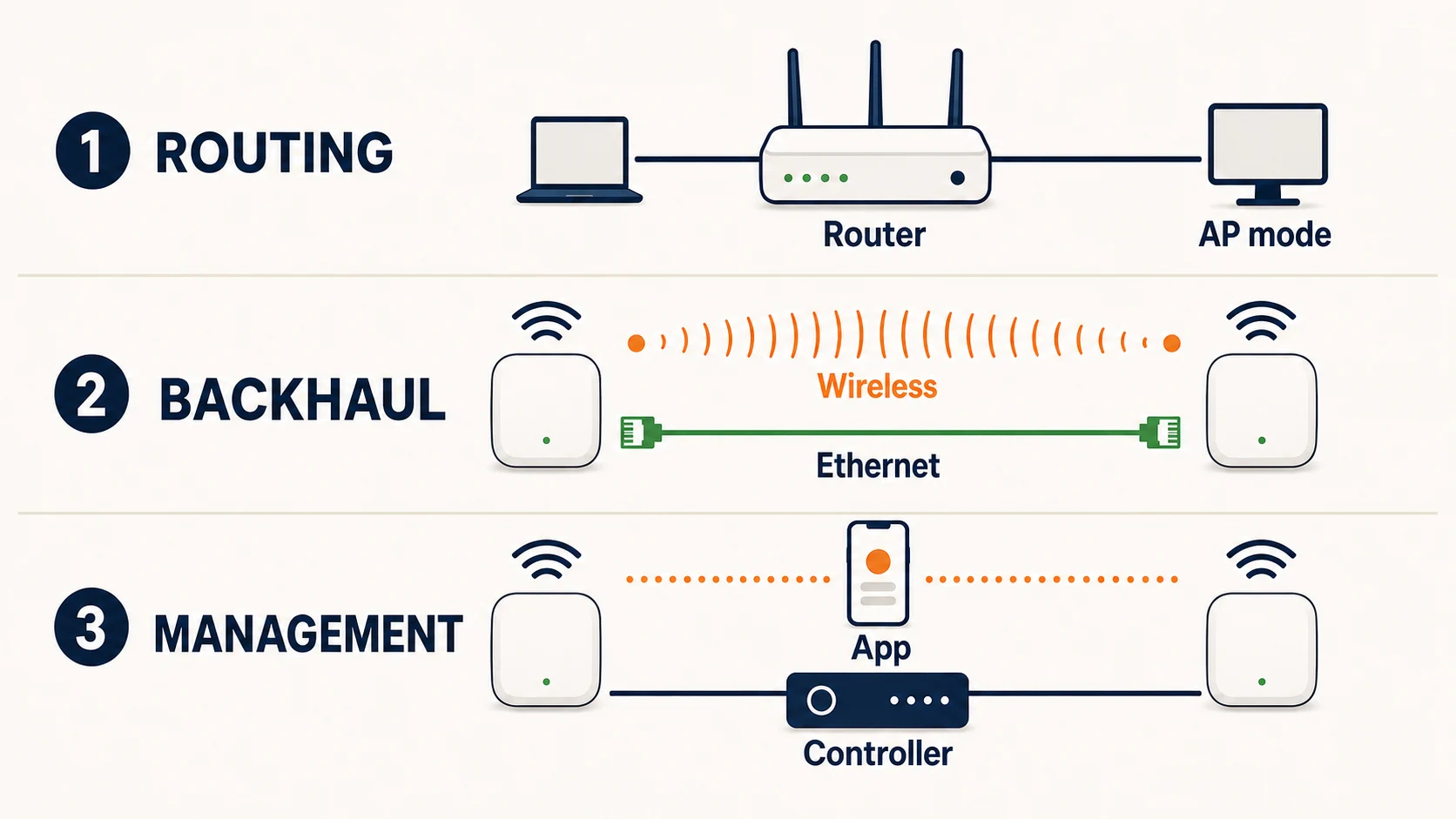
Three Decisions, Not One
- Routing: Which device handles the internet connection, local addressing (DHCP), and firewall policy?
- Backhaul: How does each Wi-Fi unit connect upstream — Ethernet or wireless? ("Backhaul" is just the connection from a Wi-Fi unit back to the rest of the network.)
- Management: What visibility, control, and ownership does this site actually need — an app on your phone, or a controller someone administers?
An access point provides Wi-Fi. A consumer mesh kit contains access points and usually a router. Compatible mesh units can run Ethernet backhaul. Managed APs can run a wireless uplink. None of these terms are interchangeable, and none of them require replacing the others.
A single all-in-one router can be enough for a one-room office. Adding access points later doesn't automatically mean retiring an adequate router. The question that should drive every decision below isn't "which product category sounds more professional" — it's what has to change to meet this specific site's needs.
Start With What You Already Have
Before comparing anything, inventory the setup you're standing in front of:
- Exact model and hardware version of every mesh node or access point (not just "the eero" — which eero)
- Firmware and support status for that model
- Current operating mode: standalone router, AP/bridge mode, or unknown
- Which units are Ethernet-capable, and whether any wall jacks are actually connected, correctly terminated, and reaching the right room
- Who owns the equipment and the account — you, a landlord, an ISP, or a previous IT provider
- The specific task that's failing: a dropped video call, a printer that won't connect, a dead zone in one room
Do a short isolation test before you conclude the Wi-Fi is the problem: plug a laptop directly into the same wall jack that feeds the weak-signal node, and run the actual failing task over that wired connection. If the task is still slow or unreliable over that wired connection, the internet connection or the upstream device is at least part of the problem — new Wi-Fi hardware won't fix that, though it doesn't rule out a separate Wi-Fi issue existing at the same time. For a full troubleshooting walkthrough, see our Wi-Fi disconnection guide; for office-wide slowdowns rather than one bad room, see why office Wi-Fi underperforms.
Keep Your eero or Deco — and Wire It If That Solves the Problem
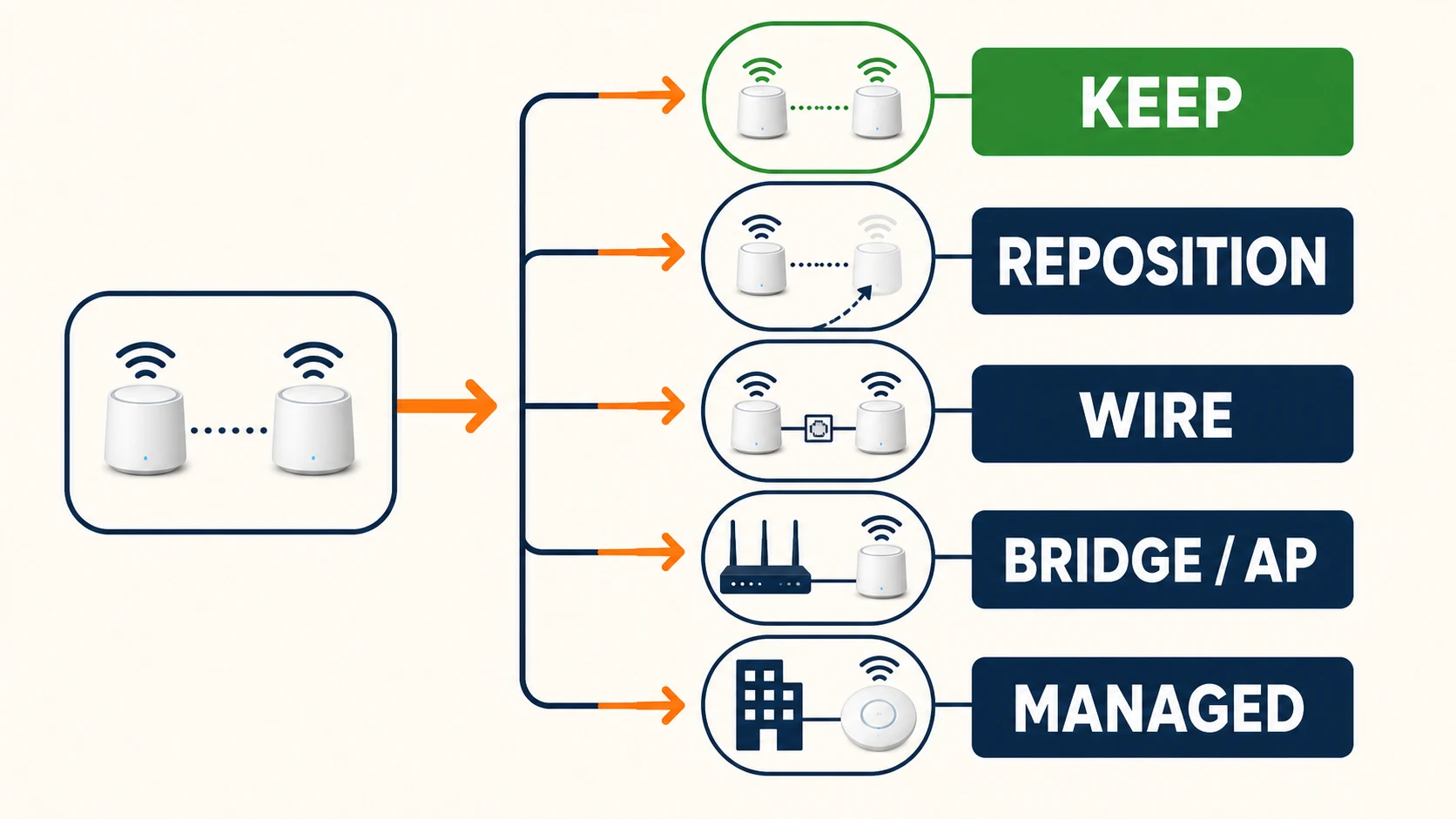
If you already own a functioning mesh kit, replacement should be the last option you consider, not the first. Work through these in order:
1. Reposition first. A wireless satellite needs a usable upstream radio path back to the main unit — walls, metal, and distance all degrade that link. Before assuming a room needs a new device, confirm the existing node covering it has a decent signal from its upstream neighbor, not just that it's plugged in.
2. Wire it, if a cable reaches. If a usable Ethernet run already exists — or a landlord will approve one — connecting a compatible node by cable instead of Wi-Fi removes the wireless radio path as a variable. It doesn't remove every variable: cable quality, termination, port speed, and switch capacity all still matter, and a bad cable or the wrong switch can undo the benefit. On TP-Link Deco, router-mode wired satellites sit downstream of the main unit's LAN; mixed wired-and-wireless nodes are supported. On eero, the designated gateway eero stays upstream of the others, wired or not — don't apply Deco's parallel-wiring layout to an eero system, they're not interchangeable. Ethernet-capable eero models can be wired; the Beacon and eero 6 Extender cannot, so check your exact model. If the only existing cable between the rooms is coax, a pair of MoCA adapters can carry the Ethernet link; our MoCA adapter guide covers how to check the coax and set it up.
Portless Extenders Can't Be Wired
Not every mesh-branded device has an Ethernet port. Portless eero extenders and some compact satellites are wireless-only regardless of what cable you have available. Check the model's spec sheet before assuming a wired upgrade is possible.
3. Partial reuse still counts. You don't have to wire every node to benefit. If one strategically placed unit — the one covering your worst room — gets a cable while the rest stay wireless, that's a legitimate, useful change. Confirm the active backhaul type in the app after making the change; don't assume the cable is being used just because it's plugged in.
The goal here is reliable performance for the actual task that was failing — not a promised speed multiplier. If wiring the weak node solves the dropped-call problem, you're done, and you own the same equipment you started with plus one cable run.
Keep Your Router and Use the Mesh Kit for Wi-Fi
If the office already has a router or firewall that needs to stay in charge — because it holds VPN configuration, static routes, or business rules you don't want to rebuild — you don't have to remove it to add better Wi-Fi coverage. Both eero and Deco support running behind an existing router, but the two implementations aren't identical.
Deco AP mode: the existing router keeps handling DHCP and routing; the Deco units stop routing and become Wi-Fi access points (Layer-2 bridges) instead — their Ethernet ports can still bridge wired devices onto the network, they just aren't assigning addresses anymore. Some Deco-specific features — parts of HomeShield, certain parental controls, port forwarding, reservations, DDNS — aren't available in this mode, and the exact list depends on your model and firmware. AP mode does not add Omada-style management; it's still the consumer Deco app underneath.
eero bridge mode: Wi-Fi stays available, but eero-managed device profiles, port forwarding, IP reservations, and some eero Plus features (ad blocking, content filtering, advanced threat detection) are lost, because the router upstream is now responsible for that layer. The designated gateway eero must remain wired upstream of the other units even while bridged.
Don't Copy This Across Brands
Google's Nest Wifi and Google Wifi document bridge mode for a single device, not the primary unit of a multi-device mesh — don't assume it behaves like eero or Deco. And putting any consumer mesh system behind a managed firewall doesn't automatically create per-SSID VLAN mapping or roaming visibility equivalent to a managed AP platform. A switch port assigned to one network is not proof every downstream device landed on the policy you intended — test the actual traffic path.
Either arrangement keeps your existing router in charge of what it already does well, while letting the mesh kit do what it does well: easy-to-place Wi-Fi radios. What you give up is centralized, subscription-free control over guest networks and device segmentation — which is exactly the gap the next two sections address.
When eero Business Is Enough — and When It Isn't
If you already own compatible eero hardware and want a guest portal and simpler administration, eero Business is a legitimate alternative to replacing the hardware — not just an upsell. eero Business costs $299.99/year, per eero's Business FAQ (checked September 1, 2026; older comparisons on this site cite a lower legacy price — treat this as the current figure). It adds up to four SSIDs, a captive portal, bandwidth limits, and advanced security to a compatible eero network — but it is not the same as eero Plus, and it is not available in bridge mode.
Before subscribing, check:
- Model compatibility. eero Business supports most Wi-Fi 6 and Wi-Fi 7 eero models, but the original eero 6 Extender is excluded, and incompatible devices must be removed from the network before you can subscribe.
- Bandwidth Limit isn't available on networks that include an eero Max 7 or use a PPPoE connection — the rest of the feature set still applies.
- Bridge mode blocks it entirely. If you set up eero behind another router using bridge mode (previous section), you cannot also run eero Business on that network.
- Who owns renewal. A subscription lapse quietly turns off Business SSIDs and any port forwarding or reservations tied to them — plan a cancellation like a network change, not a billing change.
Not a Universal Manual-DHCP Rule
eero's own documentation is inconsistent about custom DHCP settings and eero Business eligibility. Don't publish or rely on an absolute rule here — check the current signup requirements in the app for your specific network before assuming compatibility.
If your requirement is genuinely "one guest network and basic segmentation for an existing compatible eero system," this is worth pricing against a hardware swap before you rule it out.
When UniFi or Omada Becomes the Better Business Choice
Managed access points earn their place when the requirements outgrow what an app-managed mesh kit — subscribed or not — can offer:
- Consistent policy across wired and wireless clients
- Multiple managed networks (not just SSIDs) with real VLAN segmentation
- PoE for cameras, access control, or dedicated APs
- Monitoring and alerting beyond "is it online"
- Delegated administration with real role limits — not just multiple logins, but different people restricted to different permissions (this needs a paid controller tier; see the caveat in Worksheet 3 below)
- Roaming-sensitive tasks across a larger footprint
- A defined support owner, internal or contracted, responsible for the network
None of these depend on owning a rack. Having a rack, having 50 devices, taking card payments, or wanting Wi-Fi 7 are not automatic replacement rules — they're circumstances that may or may not line up with an actual requirement above. A rack organizes equipment; it does not run Ethernet through your walls, and it is not proof that simpler Wi-Fi has stopped being adequate.
Gateway choice and AP choice are also separate decisions. A managed Wi-Fi project can reuse a capable firewall you already trust — a new rack-mounted gateway and 10GbE switching are not mandatory just because you're adding UniFi or Omada access points. For the platform decision itself, see our detailed UniFi vs eero comparison and UniFi vs Omada Wi-Fi 7 comparison; if you've already decided to move off consumer mesh, our consumer mesh to Omada migration guide covers the workflow.
A Compact Managed Setup Doesn't Need a Rack
A cloud gateway or controller can sit on a shelf. One or two access points can run from PoE injectors instead of a PoE switch. The absence of a rack doesn't rule out managed Wi-Fi — space, heat, cable permission, available power, and who will actually operate the controller matter more than whether there's a cabinet to put it in.
Eight Starting Points, and What Would Change the Answer
These are labeled illustrative scenarios to help you locate your own situation — not client case studies or tested outcomes. "Headcount" describes a situation, not a hard capacity threshold.
| Starting point | First thing to evaluate | Likely move | What would change the answer |
|---|---|---|---|
| One-room office; existing router already covers the space | Keep it | Improve placement if needed; no automatic multi-node purchase | Unsupported firmware, a confirmed coverage gap, or a hardware fault |
| Rented two-room studio; owns eero/Deco; no approved cable route | Reposition, then check the upstream signal at each satellite | Keep and optimize before buying anything | Walls block a usable wireless path, or the landlord approves a cable run |
| Owns eero/Deco; a usable cable already reaches the weak room | Test wired backhaul before replacing anything | Keep the nodes; wire the one that needs it | Bad cable, wrong switch, or a control requirement the kit can't meet |
| Small office has a router/firewall that must stay in charge | Evaluate Deco AP mode or eero bridge mode | Keep the router; assign DHCP/routing to it explicitly | Lost features the business actually relies on, or an eero Business requirement |
| Shop owns compatible eero and wants a guest portal | Evaluate eero Business as its own path | Keep the hardware; subscribe only if the features justify the cost | Model, ISP, or account ineligibility; a bridge-mode requirement |
| Permanent space with usable cabling, PoE needs, several trust groups, and an IT provider | Prefer managed UniFi or Omada | Reuse good cable and a capable gateway; replace only the actual gaps | Requirements are genuinely simple, or wired mesh already passes an acceptance test |
| No rack, but real business controls are needed | A compact managed setup still applies | Shelf-mounted gateway/controller, PoE injectors, well-placed APs | Space, power, cabling permission, and who will operate it |
| Landlord, ISP, or POS vendor owns the network, or one building can't be cabled | Establish ownership and constraints first | Preserve provider equipment; consider a wireless uplink within those limits | Unauthorized changes are a real risk here — get sign-off before touching anything |
The Keep / Change / Verify Worksheet
Copy this table for your own site. It's built to force a smallest-change answer instead of a hardware guess.
Labeled example (fictional): a two-room design studio already owns two Ethernet-capable Deco units in router mode, and a working Cat6 run already reaches the meeting room where calls keep dropping.
| Field | Outcome A: wiring meets the requirement | Outcome B: coverage improves, but a policy requirement remains |
|---|---|---|
| Site/room | Meeting room, rear of studio | Meeting room, rear of studio |
| Failed/required task | Video calls drop when the door is closed | Same, plus: needs an isolated guest network for visiting clients |
| Current router | Deco unit #1 (router mode) | Deco unit #1 (router mode) |
| Wi-Fi unit model/version | Deco unit #2, Ethernet-capable, current firmware confirmed in-app | Same |
| Firmware/support checked | Yes, current as of setup date | Yes |
| Current mode | Wireless backhaul between units | Wireless backhaul between units |
| Upstream link | Weak — one interior wall between units | Weak |
| Cable/port/power available | Existing Cat6 run confirmed live and terminated | Same |
| Guest/staff communication requirement | None specified | Isolated guest SSID with no access to studio NAS |
| Proposed smallest change | Connect Deco unit #2 via the existing cable; confirm wired backhaul in-app | Same wiring change, plus a segmentation requirement |
| Equipment retained | Both Deco units | Both Deco units |
| Incremental cost | $0 (cable already exists) | $0 for wiring. If Deco's built-in guest-network toggle tests clean for isolation, $0 total; if it doesn't, price a managed AP replacement separately — don't substitute eero Business pricing here, it's a different product |
| Features lost | None | None from wiring; Deco's own guest-network toggle may or may not meet the isolation requirement — verify before relying on it |
| Support owner | Business owner | Business owner, or a contracted IT provider if segmentation must be verified and maintained |
| Acceptance result | Calls hold up with the door closed; backhaul confirmed wired in-app | Calls fixed; guest isolation still needs a verified test before it counts as met |
| Rollback plan | Revert to wireless backhaul in-app; no equipment removed | Same, plus: re-evaluate managed APs if Deco's guest isolation doesn't test clean |
Both outcomes are legitimate stopping points. Outcome A means the kit stays and the job is done. Outcome B means the kit still stays, but the guest-isolation requirement gets tested properly before anyone declares it solved — and if it doesn't pass, that's the specific, narrow reason to look at managed access points, not a general sense that the network should be "more professional."
Compare the Next Investment, Not Just the Box Price
Once you know which path fits, price the actual change — not a generic new-kit total. These three worked examples are hypothetical, not client invoices; reprice everything against current listings before buying.
Worksheet 1 — Retain and wire an owned Deco kit
| Line item | Detail |
|---|---|
| Coverage objective | Fix one weak conference room; rest of the space already works |
| Existing assets retained | 2× Deco units already owned, router mode |
| New purchase | One 50 ft Cat6 cable run (about $25) to the existing node; no new hardware if a compatible port exists |
| Power | None new — nodes already powered |
| Switch/controller | None required |
| Installation | Self-installed cable run, or about 1 hour of professional labor if fishing through a wall |
| Subscriptions | None required |
| Support owner | Business owner |
| Excludes | Tax, any drywall repair if the run isn't surface-mounted |
Worksheet 2 — Retain the router, change the Wi-Fi operating mode
| Line item | Detail |
|---|---|
| Coverage objective | Add reliable Wi-Fi without disturbing an existing firewall's VPN and routing config |
| Existing assets retained | Business router/firewall; 2× eero units already owned |
| New purchase | None — this is a configuration change (eero bridge mode) |
| Power | None new |
| Switch/controller | None required |
| Installation | 30–60 minutes; expect a reboot and possible re-authentication of connected devices |
| Subscriptions | None for basic bridged Wi-Fi. eero Business is unavailable in bridge mode — if a guest portal or multi-SSID is a real requirement, you cannot have both this arrangement and eero Business on the same network. Retain eero as the router in a supported DHCP mode instead (previous section), or choose a managed Wi-Fi path for that requirement |
| Support owner | Whoever manages the existing router, plus the Wi-Fi app for day-to-day changes |
| Excludes | Any lost eero-managed features (profiles, port forwarding, IP reservations) — confirm these aren't needed before committing |
Worksheet 3 — Install managed access points, reusing existing infrastructure
| Line item | Detail |
|---|---|
| Coverage objective | Segmented Wi-Fi (staff/guest/IoT) for a growing office |
| Existing assets retained | Existing cable runs (if usable) and, potentially, an existing capable firewall |
| New purchase | 2× Omada EAP772 access points ($169.99 each) and SG2210MP 8-port Gigabit PoE+ switch ($174.99) — prices checked against the official Omada store September 1, 2026 |
| Power | Supplied by the PoE switch — no injectors needed at this size |
| Switch/controller | SG2210MP for PoE; free Omada Cloud Essentials for controller — no separate hardware controller required |
| Installation | 2–4 hours for mounting, cabling verification, and VLAN configuration |
| Subscriptions | None required for the Essentials controller tier at this scale |
| Support owner | Whoever administers the Omada controller — internal IT or a contracted provider |
| Excludes | Tax, shipping, and any new gateway if the existing router/firewall isn't reused |
If there's no existing firewall worth keeping, the Omada ER707-M2 (about $100) is the natural router to pair with this setup — add it to the worksheet as a line item, not an assumed sunk cost. If UniFi is the better fit for your situation instead of Omada (see the platform comparison above), the equivalent hardware is the UniFi Cloud Gateway Max for the controller/gateway and the U7 Pro Wall for the access point — reprice this worksheet with those instead rather than assuming the two platforms cost the same.
This Switch Caps the AP's Uplink at 1 Gbps
The EAP772 has a 2.5GbE PoE+ port, while the SG2210MP provides Gigabit PoE+ ports, so each AP's wired uplink is limited to 1 Gbps. Whether that limitation matters depends on your internet speed, client capabilities, local-network traffic, and number of simultaneous users. For a modest office, that's often an acceptable, deliberate cost tradeoff, not an oversight. If you specifically need the 2.5GbE headroom (dense client counts, heavy simultaneous local transfers), use a multi-gig PoE switch like the SG2210XMP-M2 ($249.99, checked September 1, 2026) instead, which adds roughly $75 to this worksheet.
Cloud Essentials Doesn't Give You Role-Based Delegation
Free Omada Cloud Essentials supports multiple user logins, but TP-Link's own documentation confirms customized permissions aren't supported — every added user gets the same default access. If "delegated administration" for this site actually means different people restricted to different permissions, you need the paid Cloud Standard tier or a hardware/software controller instead. Our Omada controller guide covers the tier differences and current per-device licensing.
Don't compare three mesh nodes against two access points as equivalent without checking that both actually cover the same square footage — placement matters more than unit count.
Test the Change Before You Retire the Old Setup
Whatever you choose, don't factory-reset the old equipment, cancel a subscription, or take equipment out of service until the new setup has proven itself.
Before any change: get the owner's or provider's sign-off, write down the current wiring and operating mode, back up configuration where possible, and pick a maintenance window. Mode changes can reboot units and change IP addresses, reservations, port forwarding, and VPN behavior — plan around that, not through it.
After the change, verify:
- Wi-Fi actually works in the rooms where work happens
- A real video call holds up while someone walks between rooms, where that matters
- Printer/NAS access works from an authorized device
- Guest internet works, and a known restricted internal service is actually blocked from the guest network (a failed ping alone doesn't prove isolation — test a real connection attempt)
- Devices get correct addresses after a reconnect
- You know the vendor-supported way to roll back if something breaks
If the existing, supported equipment now meets every documented requirement, stop there. Buying more hardware to "complete the stack" isn't a requirement — it's a purchase with no job to do. For guest-network configuration specifics once you've decided your architecture, see setting up guest Wi-Fi the right way; for sizing a managed AP deployment, see our UniFi network sizing guide; and if range rather than architecture is your actual problem, our wireless range and extender guide covers that separately.
Related Resources
- Wi-Fi Keeps Disconnecting? A Technician's Troubleshooting Guide — Diagnose a specific dropped-connection symptom before assuming it's an architecture problem.
- Why Office Wi-Fi Underperforms — Broader office-wide performance diagnosis, separate from a single dead zone.
- UniFi vs eero Comparison — Detailed product, feature, and cost comparison once you've decided architecture matters more than app simplicity.
- UniFi vs TP-Link Omada Wi-Fi 7 — Choosing between managed platforms once controls and support justify the move.
- Omada Wi-Fi 7 Business Setup: Three Scalable Builds — Complete Omada equipment builds with matched APs, switches, PoE budgets, and gateways for 5–75 users.
- Consumer Mesh to Omada Business Migration — The migration workflow once you've decided to move off consumer mesh.
- UniFi Network Sizing Guide — AP and port sizing rules for a managed deployment.
- Omada Controller Guide — Cloud Essentials vs. Cloud Standard vs. hardware controllers, including current per-device licensing, if role-based delegation is a real requirement.
- How to Set Up Guest Wi-Fi the Right Way — Guest-network configuration once your architecture is chosen.
- Wireless Internet Range Extender Guide — For range and placement questions rather than an architecture decision.
Frequently Asked Questions
Related Articles
More from Network Infrastructure
Homelab Network Cables: Cat6A, Cat8, DAC, or Fiber for Each Link
Which cable links your switch, NAS and APs? DAC, fiber, Cat6A and RJ45 SFP+ modules mapped to UniFi, Omada, Synology and UGREEN ports, with cost and power.
20 min read
Omada Wi-Fi 7 Business Setup: Three Scalable Builds
Three Omada Wi-Fi 7 builds with matched APs, PoE switches, gateways, and controllers — sized for 5 to 75 users with verified pricing.
17 min read
Dental Office Network Requirements: Dentrix, Eaglesoft & Open Dental
Eaglesoft, Dentrix and Open Dental server requirements for 2026, plus the imaging, VLAN and cabling design a dental practice network needs.
19 min read