

How to Find Your Router IP Address on Windows, Mac, iPhone, Android & Linux
Find your router IP address on Windows, Mac, iPhone, Android, or Linux. Includes default IPs and login notes for common router brands and app-managed systems.

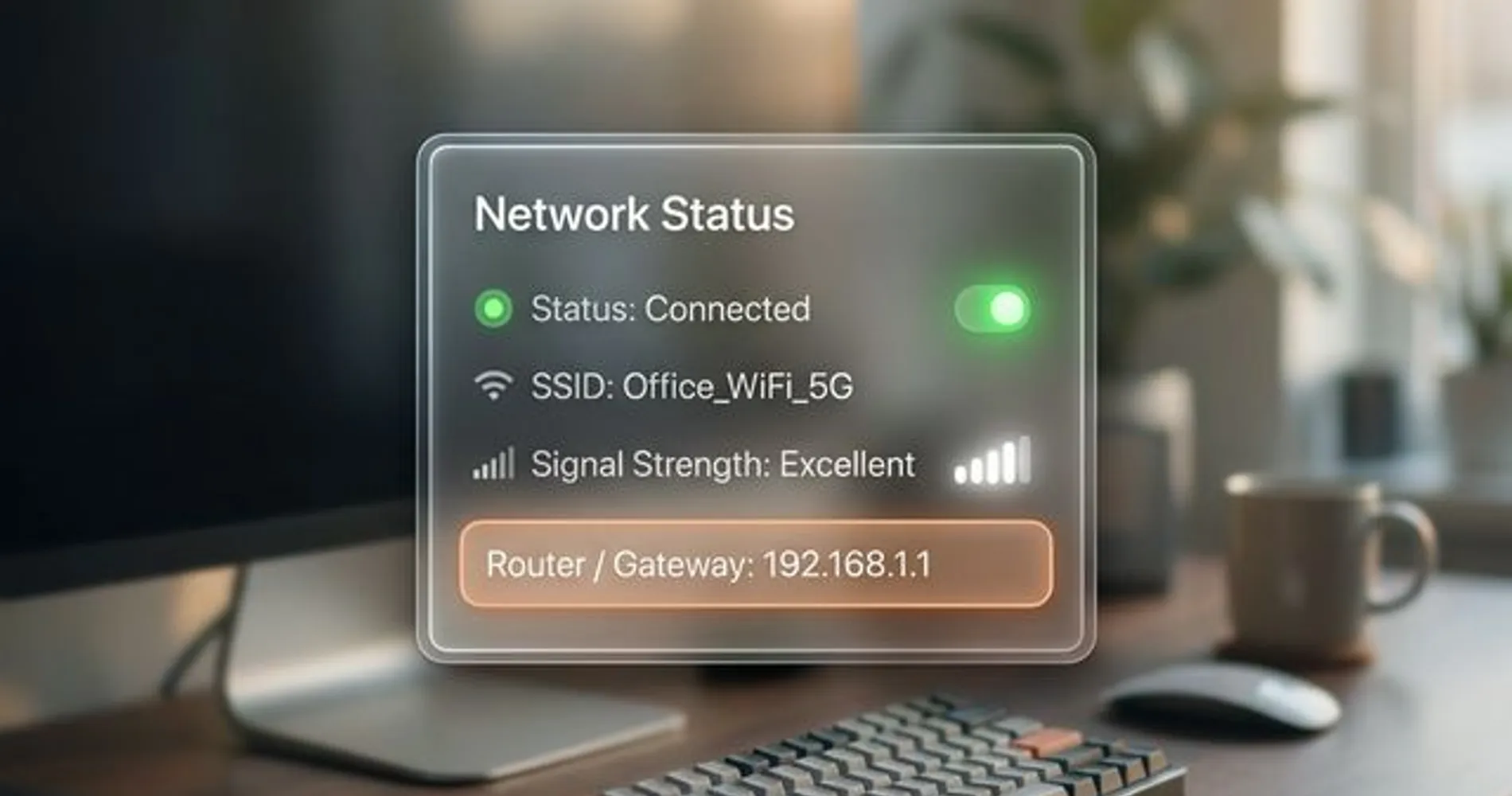
Your router IP address (Default Gateway) is the numerical label assigned to your router that allows you to access its settings panel. For most home networks, this is 192.168.1.1 or 192.168.0.1.
You need this address to change your Wi-Fi password, set up port forwarding, or update firmware. Below are the specific commands to find your router's IP on Windows, macOS, and mobile devices.
Affiliate Disclosure: This article contains affiliate links. If you make a purchase through these links, we may earn a small commission at no extra cost to you. As an Amazon Associate, iFeelTech earns from qualifying purchases.
Quick Reference: Default Router IPs by Brand
Try the brand default first, but trust the device label or gateway setting when they differ.
| Brand | Try First | Login Note |
|---|---|---|
| TP-Link | tplinkwifi.net or 192.168.0.1 | Older models use admin/admin; newer models require you to create a custom admin password on first login |
| Netgear | routerlogin.net, 192.168.1.1, or 192.168.0.1 | Typical default is admin/password, but many units now require a custom password during setup |
| ASUS | asusrouter.com or 192.168.50.1 | Newer Wi-Fi 6/7 models default to 192.168.50.1; some older models use 192.168.1.1 — check the label |
| Linksys | myrouter.local or 192.168.1.1 | Default password is often admin; username handling varies by model and firmware |
| D-Link | dlinkrouter.local or 192.168.0.1 | Default username is usually admin with a blank password |
| Ubiquiti (UniFi) | UniFi app, UniFi Console, or the gateway IP | Credentials vary by device and setup state — see the UniFi note below |
| Google Nest / Wifi | Google Home app; LAN gateway is usually 192.168.86.1 | App-managed; there is no traditional browser admin panel |
| Eero | Eero app; check Settings > Advanced networking for gateway and subnet details | App-managed; use the app for all settings |
| Starlink | Starlink app; 192.168.100.1 is a device/status page | Starlink has no router administrator portal — configuration happens in the app |
| Apple (AirPort) | AirPort Utility; often 10.0.1.1 | Discontinued hardware; manage through AirPort Utility only |
App-Only Routers & QR Code Login
Mesh systems like Eero, Google Nest WiFi, and Starlink do not use a traditional browser-based admin panel. Navigating to their default IP often redirects to a "Download the App" page.
Some newer routers and mesh systems include setup QR codes for their companion apps. Check the label, app, or setup guide before assuming the IP address opens a browser admin page.
If none of these work — or you don't know your router brand — use the method below for your specific device to find the exact address.
How do I find the router IP on Windows?
Run the ipconfig command in Command Prompt or PowerShell to reveal your Default Gateway address.
- Press Win + R, type
cmd, and press Enter - Type
ipconfigand hit Enter - Locate the Default Gateway line under your active adapter (Wi-Fi or Ethernet)
The IPv4 address listed (e.g., 192.168.1.1) is your router's login URL. Ignore any long alphanumeric strings (IPv6) starting with fe80.
Pro Tip: Copy to Clipboard
To copy the entire network configuration to your clipboard for troubleshooting, run ipconfig | clip instead. You can then paste the full output into a text editor or support ticket.
How do I find the router IP on macOS?
Check the TCP/IP tab in System Settings or run a terminal command to view the router's gateway address.
Method 1: System Settings (Ventura 13 or later — includes Sonoma, Sequoia, and Tahoe)
- Go to System Settings > Wi-Fi
- Click Details next to your connected network
- Select TCP/IP from the sidebar — the address is listed next to Router
Method 2: System Preferences (Monterey 12 and earlier)
- Open System Preferences > Network
- Select Wi-Fi > Advanced
- Click the TCP/IP tab and look for Router
Method 3: Terminal
Open Terminal and run one of these commands to get the router's gateway address directly:
route -n get default | awk '/gateway/ {print $2}'
netstat -nr | grep default
Avoid ipconfig getifaddr en0 for this purpose — that command returns your Mac's own IP address on the network, not the router's gateway address.
Can I find my router IP on iPhone or Android?
Yes, both iOS and Android display the router's Gateway IP inside the details menu of the active Wi-Fi network.
iPhone / iPad
- Confirm you are connected to Wi-Fi, then go to Settings → Wi-Fi
- Tap the (i) icon next to your network
- Scroll to the IPV4 ADDRESS section to see Router
Android
- Confirm you are connected to Wi-Fi, then go to Settings → Network & internet → Wi-Fi (or Settings → Connections → Wi-Fi on Samsung)
- Tap the gear icon next to your connected network
- Tap Advanced or Manage Network — the address is under Gateway
(Users with Eero, Google Nest, or Starlink must use their respective mobile apps to manage router settings, as browser-based access is disabled on these systems.)
Can't Find It on Android?
Menu labels vary significantly across Android manufacturers and versions. If the gateway is not visible under Wi-Fi details, check the mesh or router's own companion app instead — most brands (Eero, Google Home, Orbi, ASUS Router) surface the gateway address directly. A reputable network scanner app can also help if you need to confirm it manually.
How to Find Your Router IP on Linux and ChromeOS
On Linux, the router IP appears after "default via"; on ChromeOS, it appears next to Gateway.
Linux
Open a terminal and run:
ip route | grep default
The output will look like: default via 192.168.1.1 dev wlan0. The IP address after via is your router.
Alternatively, on older distributions:
route -n | grep UG
ChromeOS
- Click the clock in the bottom-right corner
- Click the Wi-Fi icon, then your network name
- Select the Network tab
- Your router IP is listed next to Gateway
Default Router Login Credentials
Check the router label first; default passwords vary by model and setup state. Modern routers increasingly require you to create credentials on first login rather than shipping with a fixed default. Work through these in order:
- Check the sticker on the router or ISP gateway.
- Try the brand's app or setup URL (many current routers use QR-code or app-based pairing instead of a fixed password).
- Check the model-specific manual if the sticker is missing or worn.
- Try public defaults below only as a last resort, mainly useful for older routers.
- Change the admin password immediately after logging in.
Check the Sticker First
ISP-provided gateways from AT&T, Comcast/Xfinity, Spectrum, and similar providers often print the default IP address and admin credentials on a sticker on the side or bottom of the unit. Checking the label is often faster than looking up the information digitally.
| Brand | Default Username | Default Password |
|---|---|---|
| TP-Link | admin | admin on older models; newer models require you to create a custom password on first login |
| Netgear | admin | password is typical, but many current models require a custom password during setup |
| ASUS | admin | admin on older models; newer app-paired models require you to set a password during setup |
| Linksys | (varies by model) | Often admin; newer models use the app or a password printed on the device label |
| D-Link | admin | (blank — leave empty) |
| Ubiquiti (UniFi) | (varies by device and setup state) | Unadopted devices may still use ubnt/ubnt; current UniFi Consoles and gateways use root/ui, and some APs use ui/ui. Once adopted, credentials are managed in the UniFi Network application |
| Google Nest | (managed via Google Home app) | — |
| Eero | (managed via Eero app) | — |
| Starlink | (managed via Starlink app) | — |
Change Default Credentials
If default credentials still work on your router, the admin panel has not been secured — public default logins should never remain active on a working network. Change the admin password immediately after your first login by navigating to Administration or System settings and setting a strong, unique password. For help choosing one, see our password manager comparison.
If you have already changed the password and forgotten it, hold the router's reset button (usually a small pinhole on the back) until the LEDs indicate a reset — typically 5–15 seconds depending on the model. This erases all custom settings, including your Wi-Fi name and password. Check the manual before resetting a business network.
If the login page reveals outdated firmware, missing security updates, or limited VLAN/guest-network controls, it may be worth comparing a modern router or gateway instead of spending more time troubleshooting old hardware — see the upgrade options later in this guide.
Why You Need Your Router IP Address
Accessing the router admin panel gives you control over several important network functions:
- Changing your Wi-Fi password — the most common reason people look this up
- Updating firmware — manufacturers release patches for security vulnerabilities and stability improvements. Keeping firmware current is a straightforward way to maintain network security
- Setting up port forwarding — required for remote desktop access, self-hosted services, or security camera systems
- Configuring guest Wi-Fi — isolating visitor traffic from your business devices (see our UniFi VLAN setup guide)
- Checking connected devices — reviewing which devices are on your network and identifying anything unfamiliar
- Adjusting DNS settings — switching to faster or more private DNS servers like Cloudflare (
1.1.1.1) or Google (8.8.8.8)
Router IP vs. Public IP vs. Localhost
Your router IP is local; your public IP identifies your internet connection.
- Router IP (e.g.,
192.168.1.1): Private, internal address for accessing your router's admin panel. - Public IP: The address the internet sees, assigned by your ISP. Find it at whatismyip.com.
- Localhost (
127.0.0.1): Points to your own computer, not the router. Typing this into a browser accesses services running on your device, not network hardware.
How to Detect Double NAT (Router Behind a Router)
Double NAT is likely when your router's WAN IP is another private address.
If you log into your router and notice a WAN IP address that starts with 192.168.x.x, 10.x.x.x, or 172.16–31.x.x, your router is behind another router — typically the ISP's combo gateway. This configuration is called double NAT, and it can cause issues with VPNs, port forwarding, and remote access.
The standard fix is to set the ISP gateway to bridge mode so it functions as a modem only, letting your own router manage the network. Our double NAT detection and fix guide walks through the full process.
Before You Enable Bridge Mode on a Business Network
Document the current ISP gateway settings, static IP assignments, port forwards, VPN rules, and Wi-Fi configuration before making any changes. A factory reset or bridge-mode switch can break remote access, VoIP, cameras, and payment systems that depend on the existing setup.
Field Note
On small-business networks, the fastest reliable path is usually checking the client's current Default Gateway first, then confirming whether that gateway is the ISP modem, firewall, or Wi-Fi router. Guessing 192.168.1.1 often wastes time on networks running UniFi, Omada, Comcast Business, or AT&T gateways — or dealing with double NAT.
Why can't I access my router login page?
Login failures usually come down to the wrong IP, an HTTPS mismatch, an app-only router, or double NAT.
"This site can't be reached"
Try HTTP manually: if HTTPS fails, manually type http:// before the IP (e.g., http://192.168.1.1). Many routers serve their admin page over local HTTP or use a self-signed certificate, which browsers can flag as insecure even though the connection is fine on a local network.
The Page Loads but Will Not Accept the Password
If you have changed the password before and forgotten it, a factory reset is the only option. Press and hold the small reset button (usually a pinhole on the back of the router) until the LEDs indicate a reset — typically 5–15 seconds depending on the model, so check the manual for your specific device. The router will reboot with factory defaults, including the original Wi-Fi name, password, and admin credentials from the table above.
I see two different IP addresses — which one is my router?
If you have an ISP-provided combo unit (modem + router gateway), you might see two separate admin panels:
- ISP Gateway IP (often
192.168.0.1or192.168.100.1): Controls the modem/gateway from your internet provider. - Your Router IP (often
192.168.1.1or10.0.0.1): Controls your personal router if you added one.
If you see an unfamiliar panel, you are likely accessing the ISP's gateway instead of your router. Try both addresses — the one with your customized Wi-Fi name is your router.
The IP Address Does Not Respond at All
Confirm your device is connected to Wi-Fi rather than mobile data. If the connection is active and the page still does not load, the router may need a reboot. Unplug it for 30 seconds, reconnect power, and wait 2–3 minutes for it to finish starting up before trying again. If the router connects via ethernet, check that the cable between the modem and router is firmly seated.
Router Upgrade Options After You Find the IP
Consider new hardware only when the router is outdated, unsupported, or missing controls you actually need — not simply because the login page was hard to find.
UniFi Dream Router 7 ($279) — Best fit for small offices that want an all-in-one UniFi gateway: WiFi 7, a 10G SFP+ WAN port, PoE, and an integrated screen for real-time throughput stats. The UniFi mobile app handles VLANs, connected-device monitoring, and firmware updates alongside the standard browser admin panel. Not the right fit if you just need a simple home router. Read our full review.
TP-Link Omada ER707-M2 (around $100–$130) — Best fit for businesses that want a wired multi-gig VPN gateway with dual-WAN failover and already plan to use separate access points, since this device has no built-in Wi-Fi. It can be managed standalone or through an Omada Controller/cloud-managed Omada environment for centralized multi-site control. Not the right fit if you need Wi-Fi out of the box.
For help deciding between these and other options, our small business network setup guide covers the full planning process.
Frequently Asked Questions
What is the most common router IP address?
192.168.1.1 and 192.168.0.1 are two of the most common router gateway addresses. If neither works, check your device's Default Gateway or Router field using the ipconfig (Windows) or System Settings (Mac) method above.
Can I change my router's IP address?
Yes. Log into the admin panel, navigate to LAN settings, and change the router's IP to any valid private address (e.g., 10.0.0.1 or 192.168.50.1). After saving, all your devices will need to reconnect because the DHCP server address changes. There is rarely a practical reason to do this unless you are resolving a double NAT conflict.
Is my router IP address the same as my public IP?
No. Your router IP (like 192.168.1.1) is a private address used only within your local network. Your public IP is the address assigned by your ISP that the rest of the internet uses to reach you. They serve completely different purposes. To find your public IP, visit whatismyip.com.
Why does my WiFi keep disconnecting when I try to access the router?
If your Wi-Fi drops while you are trying to reach the admin panel, the issue is typically separate from the IP address itself. Common causes include overheating, firmware bugs, or the router being overloaded with too many connected devices. Our WiFi keeps disconnecting troubleshooting guide covers a systematic process for isolating the root cause.
Related Reading
- Modem vs Router: What's the Difference? — The two devices that power your connection
- WAN vs LAN Explained — How your internal network connects to the internet
- WiFi Keeps Disconnecting? Troubleshooting Guide — Systematic fix for wireless drops
- Small Business Network Setup Guide — Full planning and implementation walkthrough
- UniFi Dream Router 7 Review — Cloud-managed WiFi 7 for small offices
- Double NAT: How to Detect and Fix It — When your router is behind another router
- Guest WiFi with UniFi VLANs — Network segmentation for business
Related Articles
More from Network Infrastructure
WiFi Keeps Disconnecting? A Technician's Troubleshooting Guide
A systematic guide to isolating exactly why your WiFi drops — covering driver fixes, router configuration, interference, and when it's time for new hardware.
19 min read
Modem vs Router: What's the Difference? (Business Owner's Guide)
A modem connects you to the internet. A router creates your office network. Learn which one actually matters for your business and which upgrades are worth it.
12 min read
How to Detect and Fix Double NAT on Business Networks
Double NAT breaks VPN connections, VoIP calls, and remote access. Learn how to detect it with traceroute and fix it with bridge mode—the right way for SMB networks.
12 min read