

2.4 vs 5 vs 6 GHz Wi-Fi: Which Band Should Your Office Use?
What 2.4, 5 and 6 GHz Wi-Fi each offer in range, channels and device support, how channel width works, and how to choose bands for an office.

Many office Wi-Fi networks use 2.4 and 5 GHz, and compatible tri-band equipment can also use 6 GHz. Each band trades range for room: lower frequencies generally reach farther but have less spectrum, and higher frequencies have more room but generally reach less far. The useful choice depends on your devices, your coverage and how congested your building is. You do not need to enable every band on every access point.
This guide explains what each band does well, what channel width means, and the compatibility and setup requirements to check before you change anything.
Three terms are easy to confuse. A band is a slice of radio spectrum: 2.4, 5 or 6 GHz. A Wi-Fi generation (Wi-Fi 5, 6, 6E, 7) is the technology a device uses, and only a device with a 6 GHz radio, which means Wi-Fi 6E and some Wi-Fi 7 devices, can use the 6 GHz band. 5G on a phone plan is cellular and has nothing to do with the 5 GHz Wi-Fi band. A dual-band office does not have to buy new hardware just to run every band.
The short version
- 2.4 GHz: the longest reach, three non-overlapping channels in the US and the band the oldest devices need. Keep it at 20 MHz.
- 5 GHz: the most widely used band. Most modern laptops and phones use it, and it is usually the band you plan coverage around.
- 6 GHz: the most room and the shortest reach. It needs a device with a 6 GHz radio and WPA3 security (or Enhanced Open on an open network).
- Channel width: wider can be faster per client but leaves fewer channels. Match it to how many access points you run.
What is the difference between 2.4, 5 and 6 GHz Wi-Fi?
The three bands differ in how much spectrum they have, how far the signal travels and which devices can use them.
| 2.4 GHz | 5 GHz | 6 GHz | |
|---|---|---|---|
| Spectrum in the US | About 84 MHz | Several sections, some of which need DFS | 1,200 MHz |
| Reach | Longest | Medium | Shortest |
| Non-overlapping channels | Three at 20 MHz (1, 6, 11) | More, but few wide ones | 59 at 20 MHz, 29 at 40, 14 at 80, 7 at 160 |
| Who can use it | Most equipment, and some devices only this | Most modern laptops and phones | Devices with a 6 GHz radio (Wi-Fi 6E, some Wi-Fi 7) |
| Security | WPA2 or WPA3 | WPA2 or WPA3 | WPA3 or Enhanced Open, with PMF |
The spectrum and channel figures come from Aruba's Wi-Fi 6E design documentation, which cites the FCC's allocation: about 84 MHz in 2.4 GHz, 570 MHz in sections of 5 GHz and 1,200 MHz in 6 GHz. The 2.4 GHz band runs from 2400 to 2483.5 MHz (47 CFR 15.247), which is exactly 83.5 MHz, so we round to about 84. The 6 GHz requirements are from Ubiquiti's 6 GHz guide and Aruba's security modes documentation.
Why does 2.4 GHz still matter?
2.4 GHz reaches the farthest and works with the widest range of equipment. The Wi-Fi Alliance describes the split in plain terms: dual-band networks let devices use the less crowded 5 GHz band for demanding work and 2.4 GHz for basic needs such as web browsing and IoT. Printers, scanners, thermostats and sensors often support only 2.4 GHz. Ubiquiti notes that some clients are limited to it and will not match 5 or 6 GHz performance.
The trade-offs are:
- Few channels. Only channels 1, 6 and 11 are non-overlapping at 20 MHz in the US, but non-overlapping does not mean uncontested. In a building shared with other tenants, several networks will often land on the same one.
- Crowding from other gear. Microwave ovens and other 2.4 GHz equipment share the band, so interference can come from things that are not Wi-Fi.
- Slow devices take airtime. A device with a weak signal transmits slowly and occupies the channel longer for the same amount of data. Our office Wi-Fi guide explains how a few legacy devices can slow everyone sharing the channel.
Keep the 2.4 GHz radio at 20 MHz. Ubiquiti's speed guide says to leave it there to avoid excessive interference and to pick only from channels 1, 6 and 11.
What does 5 GHz do best?
5 GHz is the band most office devices use day to day. It has more channel space than 2.4 GHz and is often less crowded, though a dense site can still have heavy 5 GHz contention. Most modern laptops and phones support it. Part of the band uses Dynamic Frequency Selection (DFS), a radar-avoidance rule that can make an access point change channel. DFS channels are an extra constraint rather than a reason to avoid them all, so check how your access point handles them.
The limit is wide channels. Aruba notes the gaps in the 5 GHz allocation limit 80 MHz channels to six (seven if U-NII-4 is included) and 160 MHz channels to two (three with U-NII-4). In an office with many access points, that is not many to share, and which channels you can use also depends on your hardware, its certification and local rules. 5 GHz is where you size your coverage: place access points for it first, then check the other bands against that layout.
What does 6 GHz add, and what are its requirements and limits?
6 GHz adds a large block of new spectrum, used only by newer devices. The US allows 1,200 MHz, which Aruba shows as 59 channels at 20 MHz, 29 at 40 MHz, 14 at 80 MHz or seven at 160 MHz. Wi-Fi 7 adds 320 MHz channels in this band, according to the Wi-Fi Alliance. Because old devices cannot join, the band is often less crowded, though not at every site.
Requirements and limits:
- A new client is required. The device needs a radio that supports 6 GHz (Wi-Fi 6E, or Wi-Fi 7 with a 6 GHz radio), plus operating system and driver support. A laptop without one cannot use 6 GHz, whatever the access point offers.
- WPA3 or Enhanced Open, plus PMF. Aruba says the Wi-Fi Alliance requires WPA3 (or Enhanced Open for open networks) in 6 GHz, with Protected Management Frames. Ubiquiti lists a 6 GHz-capable access point, a region that allows 6 GHz, WPA3 and PMF, and offers WPA2/3 transition mode for personal networks on Network 8.1 and newer. Legacy and IoT devices that do not support WPA3 can fail to connect or disconnect often on an SSID that broadcasts 6 GHz, so Ubiquiti recommends a separate SSID without 6 GHz for them.
- Shorter range. Ubiquiti says 6 GHz has less range than 2.4 or 5 GHz and advises placing access points closer than a normal 5 GHz layout. That is a caution under comparable conditions, not a fixed rule, so survey before you change the access point count.
- Rules vary by region and device class. In the US, indoor low-power access points can use the whole band, and standard-power or outdoor use needs the Automated Frequency Coordination (AFC) system. The EU makes 5945 to 6425 MHz available, with low-power indoor devices restricted to indoor use and very-low-power devices allowed indoors and outdoors (Decision 2021/1067). Check the rules and your equipment's certification for your country.
Our Wi-Fi 6 vs Wi-Fi 7 guide covers what each generation adds on top of 6 GHz.
What is channel width, and how wide should you go?
Channel width is how much spectrum one transmission uses. Wi-Fi channels come in 20, 40, 80, 160 and, on 6 GHz with Wi-Fi 7, 320 MHz widths. Wider channels can carry more data per client under good conditions, but they use more of the band, so fewer channels remain for neighboring access points to avoid each other.
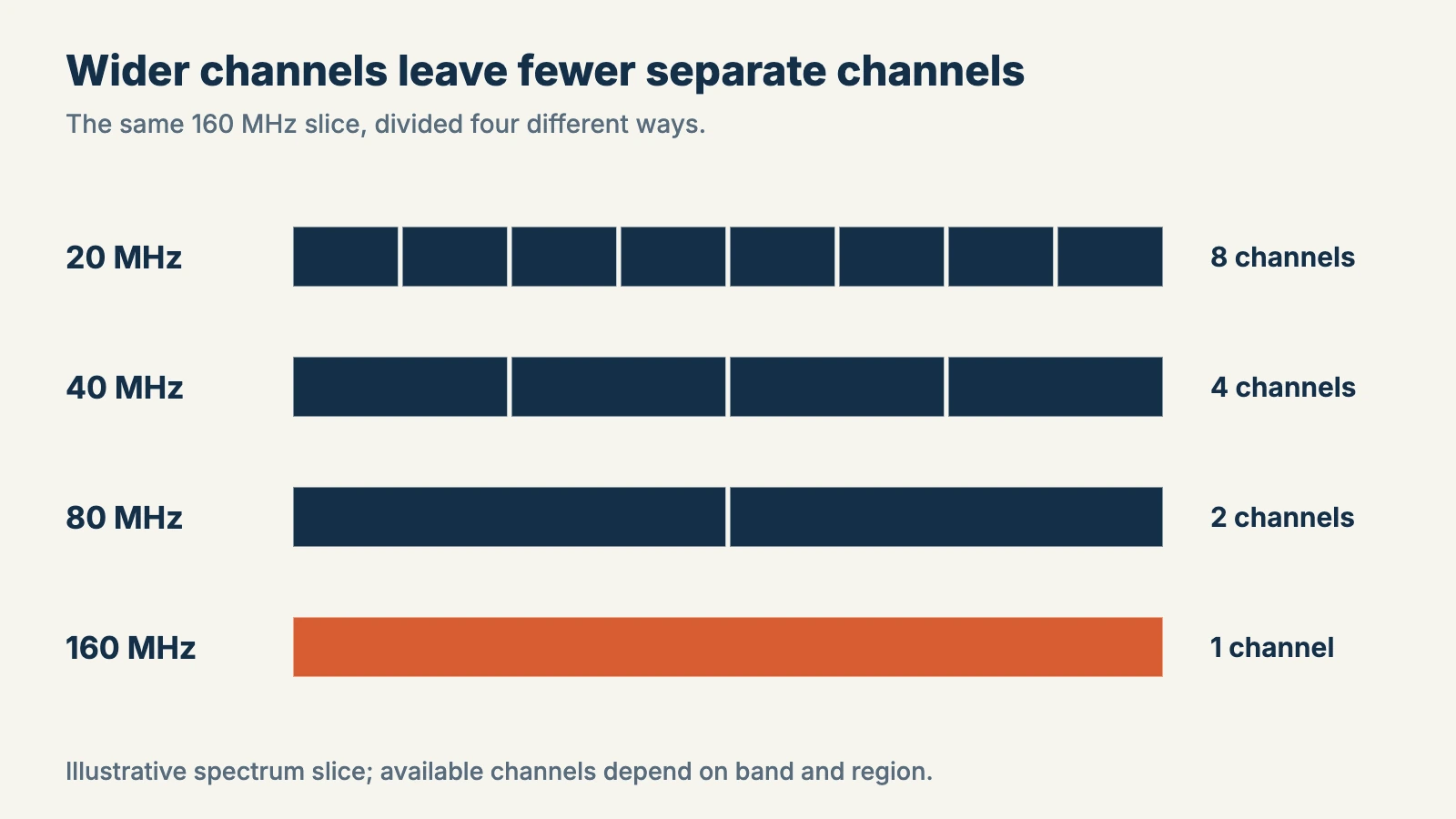
Ubiquiti's guidance for maximum speed is to set the 5 GHz radio to 80 MHz, the 6 GHz radio to 160 or 320 MHz and leave 2.4 GHz at 20 MHz. It also says UniFi's default settings favor reliable connectivity over speed, and that you should revert to them if clients see high latency or disconnections. In a single-access-point home, that advice is easy to follow. In an office with many access points on 5 GHz, narrower widths such as 20 or 40 MHz can leave more channels to separate them. Test with your own clients before you commit.
Client devices matter as well. Ubiquiti points out that not every client can use 80 or 160 MHz, and a client uses at most the widest width it supports, which may be narrower than the access point's setting.
How do walls affect each band?
Every wall, floor and partition reduces the signal, and higher frequencies generally lose more through the same material. NIST research shows the actual loss depends on frequency, thickness, composition, moisture and reinforcement, which is why a single dB-per-wall figure is misleading.
| Material | Typical effect |
|---|---|
| Drywall | Usually low |
| Glass | Low to high, depending on coatings and framing |
| Brick and concrete | High to very high, driven by thickness, moisture and reinforcement |
| Metal | Very high, often close to blocking |
The practical rule: 2.4 GHz usually gets through the most and 6 GHz the least, and the difference matters most when you plan the fringe of a coverage cell. These are tendencies, not measurements: thickness, reinforcement, coatings, openings and reflections all change the result. Our glass office guide and dead-zone guide cover how to survey and place access points.
How do devices choose a band?
In most networks the client makes the final choice, influenced by your configuration. A single SSID (the network name; see our SSID guide) can broadcast on several bands and the client decides which one to join, although band steering and other policies can nudge it. That is why Ubiquiti suggests leaving 5 GHz enabled when you add 6 GHz: it helps devices find and move to the new band, and clients can roam between 5 and 6 GHz. Some clients prefer 6 GHz even when its signal is weaker, so confirm that nearby access points also broadcast 6 GHz.
Wi-Fi 7 adds Multi-Link Operation, which lets capable devices use more than one link, and in some modes more than one band at the same time. What you get depends on the access point, the client and the MLO mode. Our MLO guide explains what it does and does not change. It does not make an old device use a new band.
For guest and IoT networks, the simplest design is a separate SSID mapped to its own VLAN with firewall rules. The name alone does not isolate anything, and a separate SSID does not create extra airtime. Our guest Wi-Fi guide covers it.
Which band for which job?
| Device or job | Band to expect |
|---|---|
| Printers, scanners, sensors, older equipment | 2.4 GHz |
| Everyday laptops, phones and tablets | 5 GHz |
| Wi-Fi 6E or Wi-Fi 7 laptops and phones near an access point | 6 GHz |
| Heavy use, such as a conference room | Survey first; the answer is often better-placed access points on 5 and 6 GHz, not more power |
| Guests | A separate SSID, usually 5 GHz and 2.4 GHz |
What are the most common mistakes?
- Wide channels on every access point. Using 160 or 320 MHz everywhere leaves few channels to reuse.
- Turning off 2.4 GHz without checking. Printers and sensors may stop working.
- Assuming 6 GHz covers like 5 GHz. It reaches less far. Survey before you decide on access point count.
- One SSID with a legacy device and 6 GHz. A device without WPA3 can fail to connect. A separate SSID without 6 GHz avoids the problem.
How do you check a band change before and after?
- Look at which band and channel each client is actually using, in your controller or the client's operating system.
- Confirm the access point has a 6 GHz radio and that the client has a current driver and operating system that support it.
- Test at the real desk, not next to the access point.
- Compare a local transfer (for example to a NAS) with an internet speed test. They measure different parts of the network, as our router, switch and access point guide explains.
- Change one radio setting at a time and write down the old value so you can roll back.
- If devices drop off after a change, our Wi-Fi keeps disconnecting guide lists the usual causes.
Menu paths differ by platform and software version, so follow your vendor's current documentation.
Illustrative starting settings
These are a starting approach, not measured optimum settings.
| Radio | Starting approach | Why |
|---|---|---|
| 2.4 GHz | 20 MHz, channels 1, 6 and 11 | Ubiquiti's guidance, and the band has room for only three non-overlapping channels |
| 5 GHz | Survey channel contention, then choose 80 MHz or narrower | Wider channels leave fewer to reuse across many access points |
| 6 GHz | Pick a width based on which clients support 160 or 320 MHz and how many access points must reuse channels | More room than 5 GHz, so wide channels are more practical |
If you separate guests or IoT devices and a printer or casting device stops being discovered, the isolation is usually blocking discovery traffic between networks. Allow only the specific access that device needs. Our guest Wi-Fi guide shows the pattern.
What should you do next?
List the devices on your network and note which bands each supports. Check whether your access points have a 6 GHz radio, confirm WPA3 on the main SSID if you plan to use 6 GHz, and set the 2.4 GHz radio to 20 MHz. If coverage is weak, survey first: check placement, interference and client signal before adding access points or changing power. For a placement review, our office Wi-Fi guide walks through the checks, and the Wi-Fi 7 access point guide compares hardware, including which models are dual-band. Our team also offers UniFi network design and installation for offices that want a site survey and managed Wi-Fi.
Related resources
- Why office Wi-Fi underperforms — common causes of slow or unreliable office Wi-Fi.
- Wi-Fi 6 vs Wi-Fi 7 for business — what each generation adds for an office.
- Wi-Fi 7 Multi-Link Operation explained — how a device can use several bands at once.
- Access point density in glass offices — placement when glass and open plans change coverage.
- Business Wi-Fi dead zone solutions — how to find and fix weak-coverage areas.
- Guest Wi-Fi for a small business — separate guest and IoT networks.
- Router vs switch vs access point — how the access point fits into the wired network.
Sources
- Aruba, Wi-Fi 6E features and benefits — arubanetworking.hpe.com
- Ubiquiti, Getting Started with 6 GHz — help.ui.com
- Ubiquiti, Maximizing Wireless Speeds — help.ui.com
- Wi-Fi Alliance, Wi-Fi (MAC/PHY) technologies — wi-fi.org
- NIST, Electromagnetic Signal Attenuation in Construction Materials — nist.gov
- Aruba, Security modes — arubanetworking.hpe.com
- eCFR, 47 CFR 15.247 — ecfr.gov
- European Commission, Implementing Decision (EU) 2021/1067 — eur-lex.europa.eu
Technical details were checked against these sources on October 30, 2026. Vendor guidance, our recommendations and measured results are different things: nothing here is a measurement from a specific site.
Frequently Asked Questions
Related Articles
More from Network Infrastructure

What We Tell Every New Client About Their WiFi Before We Touch a Single Device
Before any access point gets ordered, we go through the same conversation. Here's what 40+ office network installs in South Florida taught us to check first.
12 min read
WiFi 8 Release Date for Business: Buy WiFi 7 Now, or Wait?
WiFi 8 ratifies around 2028 — and no managed SMB APs exist yet. Here's why WiFi 7 is the right buy today, and what infrastructure to fix before the AP matters.
13 min read

WiFi 7 Multi-Link Operation (MLO) Explained: What It Does, What It Doesn't, and Whether Your Office Can Use It
MLO is WiFi 7's most important — and most misunderstood — feature. This guide explains how it actually works, the difference between eMLSR and STR, which devices support it, and how to deploy it in UniFi.
17 min read