

How Many UniFi Access Points, Switch Ports, and Cameras Do You Need? Our Sizing Rules
Sizing rules from 200+ UniFi installs: access points per square foot, switch port math, camera density, and NVR thresholds — plus a free configurator.

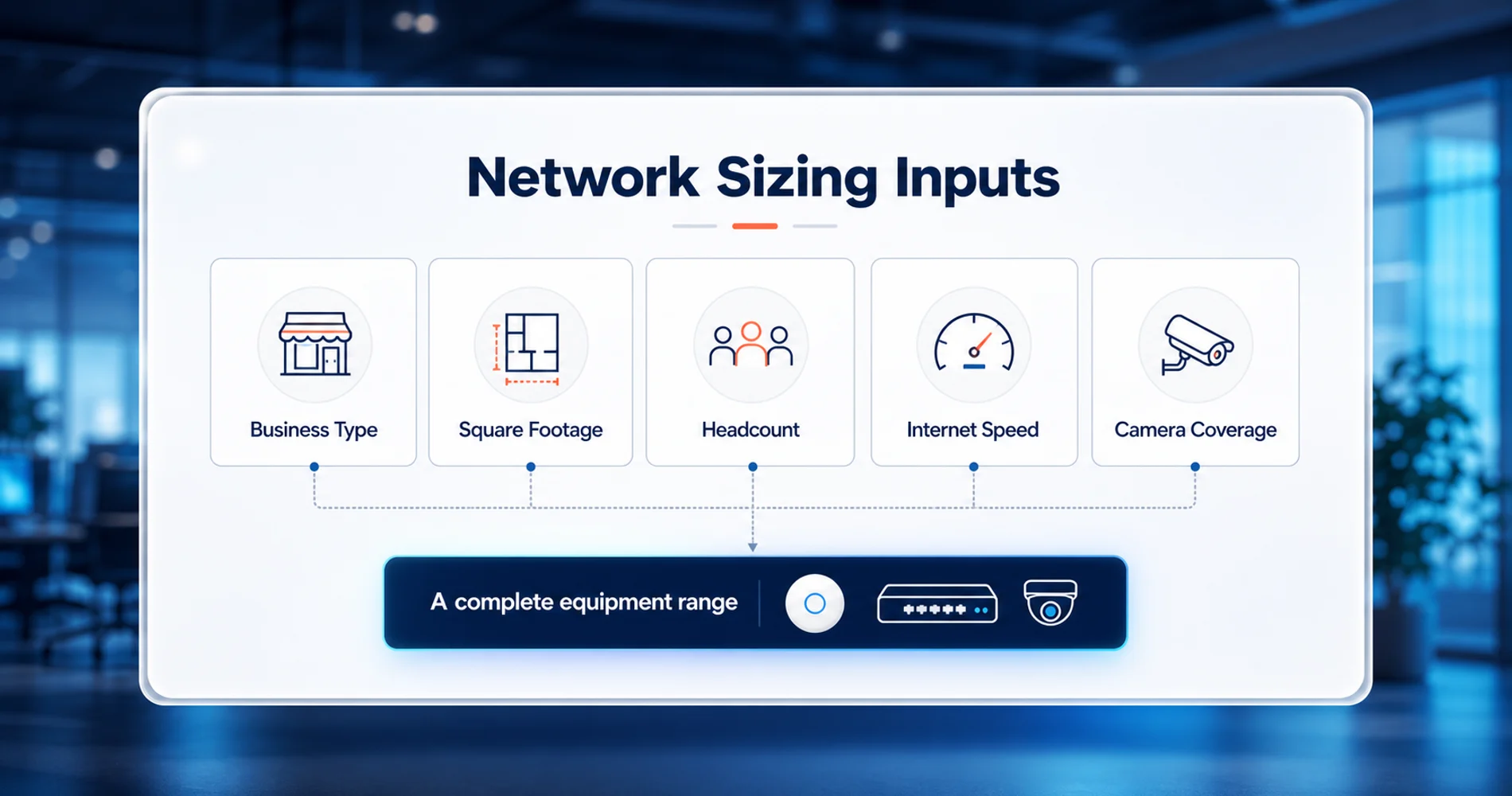
Sizing a UniFi network comes down to five inputs: business type, square footage, headcount, internet speed, and camera coverage. This guide publishes the field-calibrated rules that turn those inputs into a complete equipment list — the same rules that power our free network configurator, built from 200+ UniFi installations across South Florida.
These numbers are starting points, not final designs. Building construction, existing cabling, and growth plans all move them, and above 16 cameras we recommend a professional site survey over any calculator — including ours.
The Short Version: A Sizing Cheat Sheet
A complete UniFi business network runs $700 to $8,000+ in hardware, scaling with square footage, headcount, and camera coverage.
Every cell below is a range, because every project starts from a different building, internet plan, and budget:
| Space | Access Points | Switch | Gateway | Cameras (standard coverage) | Typical Total |
|---|---|---|---|---|---|
| Home office, under 1,500 sq ft | 1 | Flex 2.5G or Lite 8 PoE | Cloud Gateway Max / Dream Router 7 | 2–4 | $700–1,400 |
| Small office, 1,500–3,000 sq ft | 1–2 | Pro Max 16 PoE | UDM Pro (UCG Max if no cameras) | 4–6 | $1,500–2,800 |
| Mid-size, 3,000–6,000 sq ft | 2–4 | Pro Max 16 or 24 PoE | UDM Pro / UDM Pro Max | 6–12 | $2,500–4,500 |
| Large, 6,000–12,000+ sq ft | 4–8 | Pro Max 24 or 48 PoE | UDM Pro Max / Dream Machine Beast | 12–24 (survey at 16+) | $4,500–8,000+ |
Two notes on the totals. They are one-time hardware costs: UniFi carries zero recurring license fees, while equivalent Cisco Meraki deployments add $200–400 per device annually and Aruba Central runs comparable per-device subscriptions. And they cover equipment only — budget another $300–500 for a UPS, cable runs, and mounting hardware on a typical small-office install.
Affiliate Disclosure: This article contains affiliate links. If you make a purchase through these links, we may earn a small commission at no extra cost to you. As an Amazon Associate, iFeelTech earns from qualifying purchases.
The Five Core Inputs of Network Sizing
Network requirements are determined by business type, square footage, headcount, internet speed, and security camera density.
These five metrics dictate the complete hardware bill of materials:
- Coverage area sets your access point count.
- Headcount and business type determine your wired switch port requirements.
- Internet speed establishes the minimum gateway throughput and decides whether access points need multi-gig uplinks.
- Camera density sets the PoE budget and where recordings are stored.
Business type matters as much as size: a 2,000 sq ft dental office and a 2,000 sq ft law office need different networks, because exam rooms run wired workstations and imaging equipment while modern law offices operate almost entirely on laptops. The same five questions drive every section below.
How Many UniFi Access Points Do You Need?
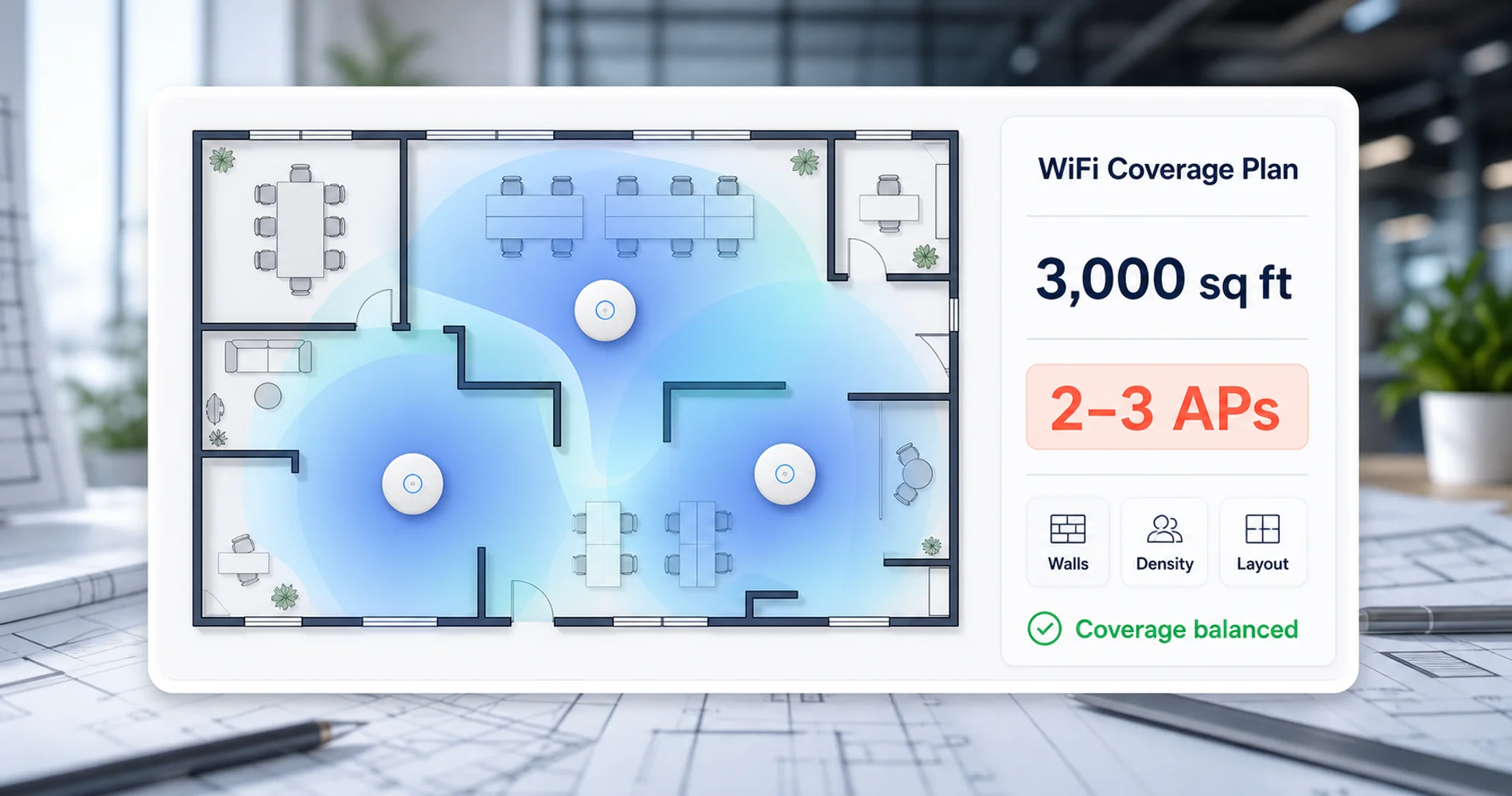
Plan one UniFi access point per 1,500 square feet for standard commercial spaces, or one per 1,000 square feet for dense layouts.
At that baseline, a 3,000 sq ft office needs 2–3 access points and a 10,000 sq ft space needs 6–8. Building type changes signal propagation more than any spec sheet suggests, so we adjust the baseline by environment:
| Environment | Plan one AP per | Why |
|---|---|---|
| Professional office | 1,500–2,000 sq ft | Walls, cubicles, and meeting rooms absorb signal |
| Retail store | ~1,800 sq ft | High ceilings and display fixtures |
| Medical / dental | 1,000–1,500 sq ft | Dense exam-room layouts need more coverage points |
| Restaurant / hospitality | ~1,500 sq ft | Peak-hour user density needs capacity, not just coverage |
| Warehouse | 2,000–2,500 sq ft | Open spans, but scanners need reliable coverage everywhere |
| Residential / home office | 2,500–3,000 sq ft | Fewer interior walls, less interference |
Two adjustments the square-footage rule misses:
Client density. A U7-series access point comfortably serves 40–60 active clients. Count roughly three devices per person (laptop, phone, tablet): a 25-person all-hands in one conference room saturates a single AP even when coverage looks adequate on paper. High-density rooms get a dedicated AP regardless of square footage.
Floor plan shape. An L-shaped or long, narrow suite needs more APs than its square footage suggests, because WiFi radiates in circles, not floor plans. This is the problem UniFi's Design Center solves — covered below.
Model selection: the U7 Pro ($189) is the default in nearly every business install we do. The U7 Pro Max ($279) covers high-density areas; the U7 Pro XG ($199) and U7 Pro XGS ($299) add 10G uplinks for multi-gig internet plans, where 1 Gbps AP uplinks would bottleneck the connection. Warehouses get the U7 Pro XG or the U7 Outdoor for open spans. Our WiFi 7 access point guide covers model selection in full.
Switch Port and PoE Capacity Calculation
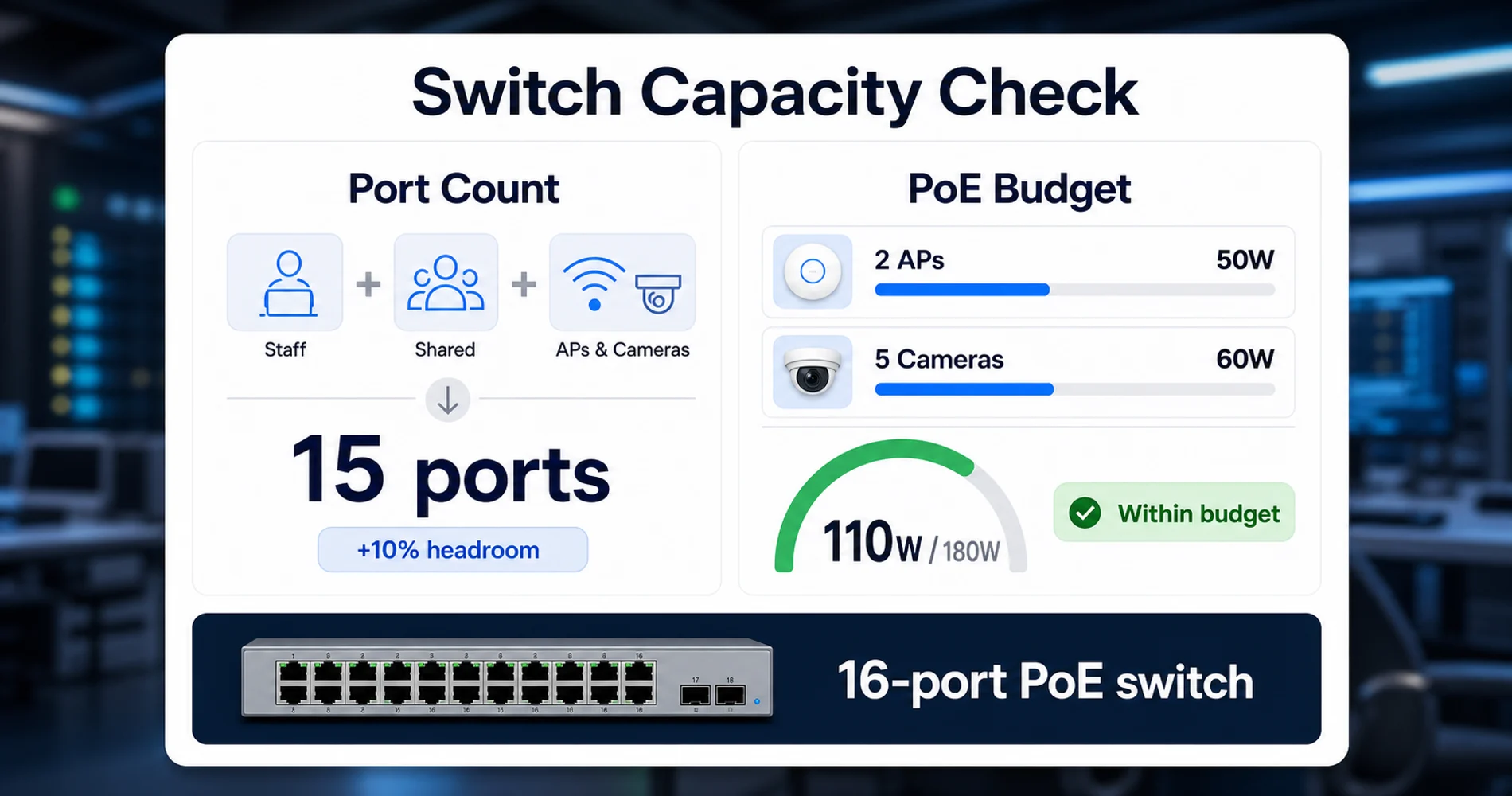
Calculate required switch ports by multiplying headcount by your wired ratio, adding shared devices, and including one port per PoE device.
Wired ports = (headcount × wired ratio) + shared devices + every AP and camera.
The wired ratio is the fraction of staff who still need a cable, and it varies sharply by business type. From our install base:
- Professional office: ~25%. Most modern offices are laptop-and-WiFi-first; a few desktops and docks remain.
- Medical / dental: ~40%. Exam-room workstations, imaging equipment, and operatory devices stay wired.
- Retail and warehouse: ~20%. POS terminals, back-office PCs, shipping stations.
- Restaurant: ~10%. POS and not much else.
Shared devices — printers, NAS, VoIP base stations, conference room displays — add roughly one device per 15 people, plus one. Every access point and every camera then takes a PoE port of its own. Add 10% headroom to the total: that covers organic growth without inflating small offices into 48-port switches, and a planned expansion should be sized explicitly rather than absorbed into padding.
PoE budget is a separate calculation from port count. Allocate ~25W per WiFi 7 access point and ~12W per camera, and keep total draw under 80% of the switch's PoE rating. A Pro Max 16's 180W handles a typical small office (2 APs + 5 cameras ≈ 110W) comfortably; ten APs and a dozen cameras need the Pro Max 24's 400W or better.
The resulting ladder, with current pricing:
| Switch | Ports | PoE Budget | Price | When |
|---|---|---|---|---|
| Pro Max 16 PoE | 4× 2.5G + 12× 1G | 180W | $399 | Small offices, 1–3 APs |
| Pro Max 24 PoE | 8× 2.5G + 16× 1G | 400W | $799 | The multi-AP WiFi 7 baseline |
| Pro HD 24 PoE | 22× 2.5G + 2× 10G | 600W | $999 | When every port needs multi-gig |
| Pro Max 48 PoE | 16× 2.5G + 32× 1G | 720W | $1,299 | High-density, 25+ ports |
| Pro XG 8 PoE | 8× 10G | 155W | $499 | 10G-uplink APs, servers at the edge |
The 2.5G port trap
The Pro Max line mixes port speeds: only 4 multi-gig ports on the Pro Max 16, only 8 on the Pro Max 24. On a 1 Gbps internet plan this doesn't matter. On a 2.5 or 10 Gbps plan with five or more WiFi 7 APs, you'll run out of multi-gig ports before you run out of ports — that's when the all-2.5G Pro HD 24 earns its price. Count your multi-gig devices, not just your devices.
Every PoE device is also a cable run, and the cable outlasts the electronics. Specify Cat6A for new drops: current 10G-uplink access points like the U7 Pro XG already exceed what Cat5e delivers at distance, and WiFi 8 (IEEE 802.11bn, expected to be finalized around 2028) will push uplink requirements further. Cabling installed once at Cat6A spec carries two or three generations of access points without being touched.
Model-by-model detail — including noise levels, which matter if the switch lives near desks — is in our UniFi switch guide.
Which UniFi Gateway Is Best for Business?
Select a rack-mounted UniFi gateway that matches your internet plan's IDS/IPS speed and includes internal drive bays for camera recording.
The hard constraint is inspection throughput: UniFi gateways inspect traffic for threats, and inspection has a speed limit. A gateway with 2.3 Gbps IDS/IPS on a 5 Gbps fiber plan either bottlenecks the connection or forces the security features off.
The standard practice for business installs is a rack-mounted gateway with drive bays, because the gateway doubles as the camera recorder. A Dream Machine Pro at $379 replaces a separate $299+ NVR purchase for camera counts up to eight, which changes the value comparison against compact gateways entirely.
The ladder, with the official 4K camera recording capacities:
| Gateway | Price | Users | IDS/IPS | 4K Cameras | Best For |
|---|---|---|---|---|---|
| Cloud Gateway Max | $199 ($279 w/ NVMe) | ~50 | 2.3 Gbps | 5 (NVMe model) | Small networks, no rack |
| Cloud Gateway Fiber | $279 | ~75 | 5 Gbps | 5 | Multi-gig internet, compact |
| Dream Machine Pro | $379 | ~150 | 3.5 Gbps | 8 (24 HD) | The small-business workhorse |
| Dream Machine Pro Max | $599 | ~300 | 5 Gbps | 15 (50 HD) | Camera-heavy sites, dual-drive RAID |
| Dream Machine Beast | $1,499 | ~750 | 25 Gbps | 40 | 10G internet, flagship consolidation |
| Enterprise Fortress Gateway | $1,999 | 750+ | 12.5 Gbps | — (pair with NVR) | SSL inspection, high availability |
How your inputs move you along it: no cameras and under ~15 users, the Cloud Gateway Max is the value pick. Add cameras in a business setting and the UDM Pro becomes the baseline. Past eight 4K cameras — or with 150+ users, or RAID-protected recordings as a requirement — the Pro Max takes over. The Beast and EFG serve multi-gig WANs and enterprise scale, territory where a design conversation replaces this article.
High Availability: Shadow Mode Failover
UniFi gateways support automatic hardware failover (Shadow Mode) by pairing two identical units — available on the UDM Pro, UDM SE, UDM Pro Max, Dream Machine Beast, and EFG.
The shadow unit mirrors the primary's configuration and connection state in real time and takes over automatically if the primary fails. The cost of high availability is exactly one more gateway, which is why it has become a standard line item for medical offices, hospitality POS environments, and any operation where the network going down stops revenue. If business continuity is a requirement, size the gateway tier once and buy it twice.
The full comparison, including the capacity table this article draws from, is in our UniFi gateway comparison guide.
How Many UniFi Security Cameras Do You Need?
Install one security camera per 1,000 square feet for entry points, two for standard coverage, and three for comprehensive loss prevention.
The bands, calibrated against real deployments:
- ~1 camera per 1,000 sq ft — entry points only: doors, loading areas, registers. Minimum of 2.
- ~2 cameras per 1,000 sq ft — standard coverage: entries plus interior common areas. Minimum of 4.
- ~3 cameras per 1,000 sq ft — comprehensive: the standard for retail loss prevention and medical compliance. Minimum of 8.
A 3,000 sq ft office with standard coverage plans for ~6 cameras; a 5,000 sq ft retail store at the same level plans for ~10. For model selection — turrets vs. domes vs. bullets by environment — see our UniFi Protect camera system guide.
Camera count then determines where recordings live. The recorder ladder, by official 4K camera capacity: Cloud Gateway Max/Fiber 5 → UNVR Instant 6 → UDM Pro 8 → UDM Pro Max 15 → UNVR 18 → UNVR G2 30 → Dream Machine Beast 40 → UNVR G2 Pro 50.
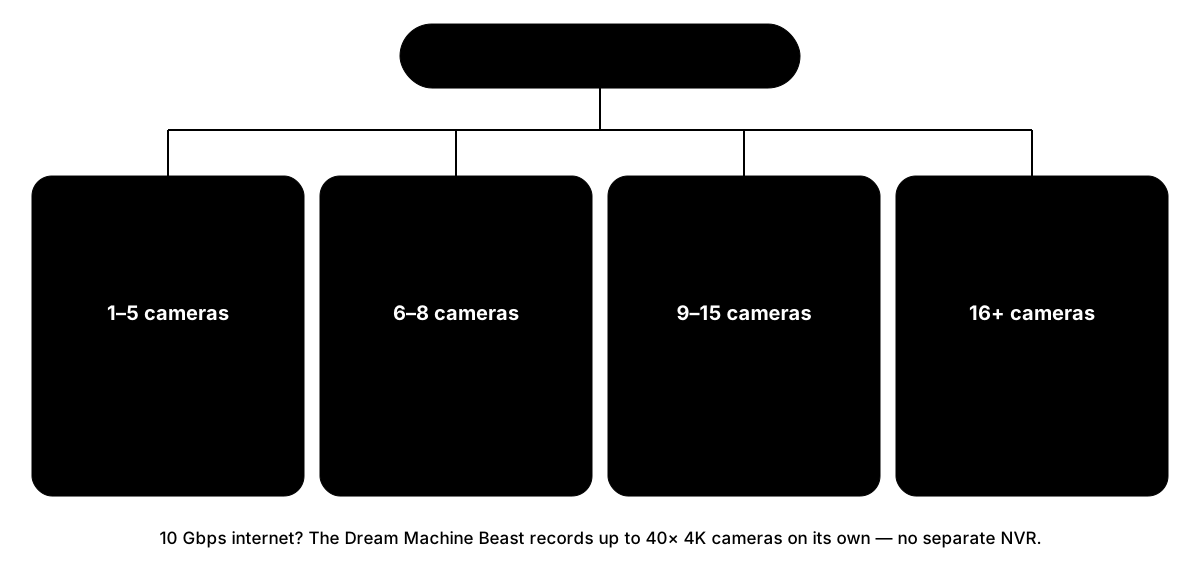
For most small businesses, the gateway's own drive bays cover recording — the point of the rack-mounted standard above. A dedicated NVR enters at higher counts (over 15 4K cameras), longer retention targets, or when surveillance storage should be separate from the network gateway. The UDM Pro Max capacity planning guide covers that decision in depth, including the drive write-throughput reasons behind the official limits.
Storage math: a typical 6–8 camera deployment needs 4–8TB for 30-day retention, plus a 30–50% buffer for motion spikes and the 2–3 cameras most deployments add after going live. Thirty days suits most businesses; regulated industries often need 90+. Two non-negotiables: surveillance-rated drives only (WD Purple, Seagate SkyHawk, or UniFi's own — desktop drives fail in 12–18 months under continuous recording), and every UniFi gateway and NVR ships diskless. Budget the drives up front — without them, the system has nowhere to record. Full retention math is in our Protect storage planning guide.
At 16+ cameras, stop calculating
Our configurator caps its own authority here: above 16 cameras, it tells you to get a professional site survey, and so will we. At that scale, placement, cable paths, drive write throughput, and retention policy interact in ways no five-question form can see. A survey costs a fraction of re-running conduit because a calculator guessed wrong.
Three Worked Examples, Math Shown
These three representative projects show the sizing rules applied end to end, at June 2026 pricing.
A 2,500 sq ft professional office, 15 people, 1 Gbps internet, standard cameras
- APs: 2,500 ÷ 2,000 (office band) = 2× U7 Pro — $378
- Cameras: 2.5 × 2 per 1,000 sq ft = 5 cameras, G6 Turret — $995
- Ports: 15 × 0.25 = 4 wired + 2 shared + 7 PoE (2 APs + 5 cams) = 13; with 10% headroom, 15 → Pro Max 16 PoE — $399 (PoE check: ~110W of 180W ✓)
- Gateway: 5 cameras ≤ 8 → UDM Pro, recording on its own drive bay — $379
- Storage: 1× 8TB surveillance drive in the gateway, ~30 days — $200
Total: ~$2,350. What moves it: cameras pushing past 8 (Pro Max gateway, +$220), a 2.5 Gbps internet upgrade (multi-gig APs and switch ports), or G6 Pro cameras at entrances (+$280 per camera). A realistic band for this office is $2,350–3,200.
A 5,000 sq ft retail store, 12 staff, 1 Gbps internet, standard cameras
- APs: 5,000 ÷ 1,800 (retail band) = 3× U7 Pro — $567
- Cameras: 5 × 2 = 10 cameras, G6 Bullet for visible deterrence — $1,990
- Ports: 12 × 0.2 = 3 wired + 2 shared + 13 PoE = 18; with headroom, 20 → Pro Max 24 PoE — $799
- Gateway: 10 cameras > 8 → UDM Pro Max, dual-bay RAID — $599
- Storage: 2× 8TB in the gateway bays, mirrored — $400
Total: ~$4,350. What moves it: dropping to entry-only coverage (5 cameras puts the UDM Pro back in play and steps the switch down a tier — roughly $1,800 back), or POS-heavy layouts pushing wired counts up a switch tier.
A 12,000 sq ft warehouse with offices, 20 staff, 1 Gbps internet, entry-level cameras
- APs: 12,000 ÷ 2,000 = 6× U7 Pro XG for the long spans — $1,194
- Cameras: 12 × 1 = 12 cameras, G6 Bullet for docks and exterior — $2,388
- Ports: 20 × 0.2 = 4 wired + 3 shared + 18 PoE = 25; with headroom, 28 → Pro Max 48 PoE — $1,299
- Gateway: 12 cameras ≤ 15 → UDM Pro Max — $599
- Storage: 2× 8TB RAID in the gateway — $400
Total: ~$5,900. The switch line deserves attention: 25 actual ports sits at the 24-port boundary, and the headroom rule tips it to a 48-port. This is exactly where we verify the wired count before buying — if two of those shipping-station drops turn out to be WiFi scanner docks, a Pro Max 24 saves $500. Boundary cases are why these are starting points, not final designs.
All three landed on different gateway-switch-AP combinations, and every line item had a documented reason. That is what the configurator does with your numbers — same rules, your inputs.
Our Configurator vs. the UniFi Design Center
The UniFi Design Center maps access point placement on your floor plan; our configurator produces the complete priced equipment list.
Used together, the two cover much of what a paid design consultation would:
The Design Center answers "where." Upload your floor plan, mark wall materials, and it simulates RF coverage — heat maps, dead zones, AP placement. It is the right tool for the floor-plan-shape problem from the WiFi section, and we use it on dead zone remediation projects regularly.
Our configurator answers "what and how much." Gateway, switching, cameras, recorder, drives — a complete bill of materials with live pricing, sized by the rules in this article. The Design Center doesn't price your switch or tell you the UDM Pro's drive bay covers your eight cameras; that's the half we built.
UniFi Design Center Feature: WiFi Coverage
The recommended workflow: configurator first for the equipment list and budget, then the Design Center with your actual floor plan to validate AP and camera placement before anything goes in a cart.
What No Calculator Can See
Building construction, existing cabling, internet handoff, and growth plans move equipment counts in ways no five-question form can measure.
The specific blind spots:
- Building construction. Concrete block and metal-studded walls (most of South Florida's commercial stock) attenuate signal far more than drywall. This alone can move AP count 50%.
- Existing infrastructure. Cat5e runs that test fine, a serviceable patch panel, conduit already in the right places — reuse changes both budget and design. So does discovering the "network closet" is a shelf above a water heater.
- Your internet handoff. Fiber ONT vs. coax modem vs. fixed wireless changes the gateway's WAN requirements, and sometimes the gateway itself.
- Growth plans. Hiring 10 people next year is cheap to accommodate now and annoying to retrofit. A calculator only knows today's headcount.
- Compliance. HIPAA-adjacent camera placement rules, PCI segmentation for payment systems, insurance-mandated retention periods — requirements that shape design, not just sizing.
For a single office on one floor with friendly construction, the configurator plus the Design Center gets you a confident DIY purchase list. Multi-floor buildings, 16+ cameras, compliance requirements, or anything on that list that sounds familiar — that's where a site survey pays for itself. We design and install UniFi networks across South Florida, and the first conversation is free either way.
The rules in this article will get you within one product tier of the right answer; the last tier is where local knowledge lives. That's the same threshold we coded into our own tool.
Related Resources
- UniFi Network Configurator — The free tool that runs every rule in this article against your inputs.
- UniFi Buyer's Guide — Which product to pick in each category once you know your counts.
- UniFi Network Design Guide — A real 2,500 sq ft installation that shows these rules applied end to end.
- Best UniFi WiFi 7 Access Points — AP model selection by office size and uplink.
- Best UniFi Switches — Switch model depth, including PoE budgets and noise levels.
- UniFi Gateway Comparison — The full gateway capacity table this article draws from.
- UDM Pro Max Capacity Planning — When the gateway-as-NVR approach ends and a standalone NVR begins.
- UniFi Protect Storage Planning — Retention math, RAID, and drive selection in full.
Frequently Asked Questions
Related Articles
More from Network Infrastructure
Centralized vs Distributed Network Architecture: When to Use More Cables or More Switches
Engineering guide to centralized (home-run) vs distributed (zone) network architecture. Includes 2026 pricing, Wi-Fi 7 backhaul requirements, comparison matrix, and TCO analysis.
15 min read
Dental Office Network Requirements: Dentrix, Eaglesoft & Open Dental
Eaglesoft, Dentrix and Open Dental server requirements for 2026, plus the imaging, VLAN and cabling design a dental practice network needs.
19 min read

VLANs Without the Jargon: What They Are, What to Separate, and Why It Matters
A plain-language guide to VLANs for small business owners. Understand what network segments you already need — guest WiFi, IoT cameras, VoIP phones — and what belongs in each one.
10 min read