

SSID Meaning: What It Is and Why Your Network Name Is a Security Decision
SSID stands for Service Set Identifier—your Wi-Fi network name. Learn what it means, why hiding it is a myth, and how to configure SSIDs properly for business security.

Every time you open your phone's Wi-Fi settings, you see a list of names—"OfficeNet," "Starbucks WiFi," "NETGEAR-5G." Those names are SSIDs. Most people pick one, type a password, and never think about it again.
But if you manage a business network, that name carries more weight. It reveals what hardware you're running, how your network is segmented, and whether you've implemented basic security practices.
Over the past two decades configuring business networks, I've noticed a pattern: SSID configuration is rarely planned strategically—most organizations use the defaults and never revisit them.
Affiliate Disclosure: This article contains affiliate links. If you make a purchase through these links, we may earn a small commission at no extra cost to you. As an Amazon Associate, iFeelTech earns from qualifying purchases.
What Does SSID Mean?
SSID stands for Service Set Identifier, which is the technical name for the network ID broadcast by a Wi-Fi router to announce its presence.
Defined by the IEEE 802.11 standard, the SSID allows devices to distinguish your network from others nearby. It is a case-sensitive label up to 32 characters long and serves purely as identification, not security. Here's what matters from a technical standpoint:
| Property | Detail |
|---|---|
| Full Name | Service Set Identifier |
| Maximum Length | 32 characters |
| Case Sensitive | Yes — "OfficeWiFi" and "officewifi" are different networks |
| Character Set | Letters, numbers, and most special characters |
| Defined By | IEEE 802.11 wireless standard |
| Broadcast | Enabled by default on all consumer and business routers |
Your SSID is not a password. It's not an IP address. It's purely an identification label that reveals information to anyone within range—much like a name tag at a conference.
What Your Default SSID Tells an Attacker
Most routers ship with default SSIDs like NETGEAR-2G, Linksys_Setup, or ATT-WIFI-GP3R. These names immediately reveal:
- The hardware brand and often the model — which tells an attacker which known vulnerabilities to try
- That you haven't changed default settings — which means the admin password is probably still
admin/password - The frequency band — "2G" and "5G" suffixes reveal band configuration
Leaving the default SSID is the networking equivalent of leaving the factory sticker on your front door lock. It's not a vulnerability by itself, but it's a signal that says "this network hasn't been hardened."
How to Change Your SSID
On most routers and access points, the SSID is configured under Settings → Wireless → Basic Settings (or similar). For UniFi networks, this is configured in the UniFi Network Controller under Settings → WiFi → Create New Network. After changing the SSID, your devices will need to forget the old network and reconnect using the new name.
Does Hiding an SSID Improve Security?
No, hiding an SSID does not improve security and can actively degrade network performance and battery life.
This is a common misconception. Hiding your SSID does not make your network more secure—and it creates several problems.
How SSID Hiding Actually Works
When you disable SSID broadcasting, your network does not become invisible to hackers; it simply stops announcing its name in beacon frames. To connect, your client devices (phones, laptops) must constantly transmit "probe requests" looking for the hidden network, effectively shouting your SSID name wherever you go. This behavior allows attackers to easily intercept the SSID via packet sniffing tools like Wireshark, while simultaneously draining your devices' batteries and delaying roaming handoffs.
Specifically:
- Your network name is broadcast anyway — just by your clients instead of your access point
- Any wireless scanner (Kismet, Wireshark, even free phone apps) instantly reveals hidden networks
- Your devices leak the SSID name at every coffee shop, airport, and hotel they visit
- Client devices waste battery and airtime probing for hidden networks
- Roaming between access points degrades because clients can't seamlessly discover the next AP
Hidden SSIDs Hurt More Than They Help
Hiding your SSID creates a false sense of security while degrading performance. Apple, Microsoft, and the Wi-Fi Alliance all recommend against it. Focus on strong authentication (WPA3) and network segmentation instead.
What Actually Secures a Wi-Fi Network
Security comes from authentication and encryption, not visibility:
- WPA3-Personal uses Simultaneous Authentication of Equals (SAE), which resists offline dictionary attacks—unlike WPA2's 4-way handshake
- WPA3-Enterprise ties authentication to individual user credentials via RADIUS
- Network segmentation (VLANs) ensures that even authenticated devices only reach the resources they need
The SSID should be visible, clearly named, and backed by strong security—not hidden.
The 3-Network Strategy: How Smart SSIDs Work
The single biggest mistake I see on business networks isn't a weak password—it's a single SSID for everything. When your employees, guests, security cameras, and smart thermostats all share one network, a compromised IoT sensor has a direct path to your file server.
Here's the standard topology I deploy for small and mid-size businesses:
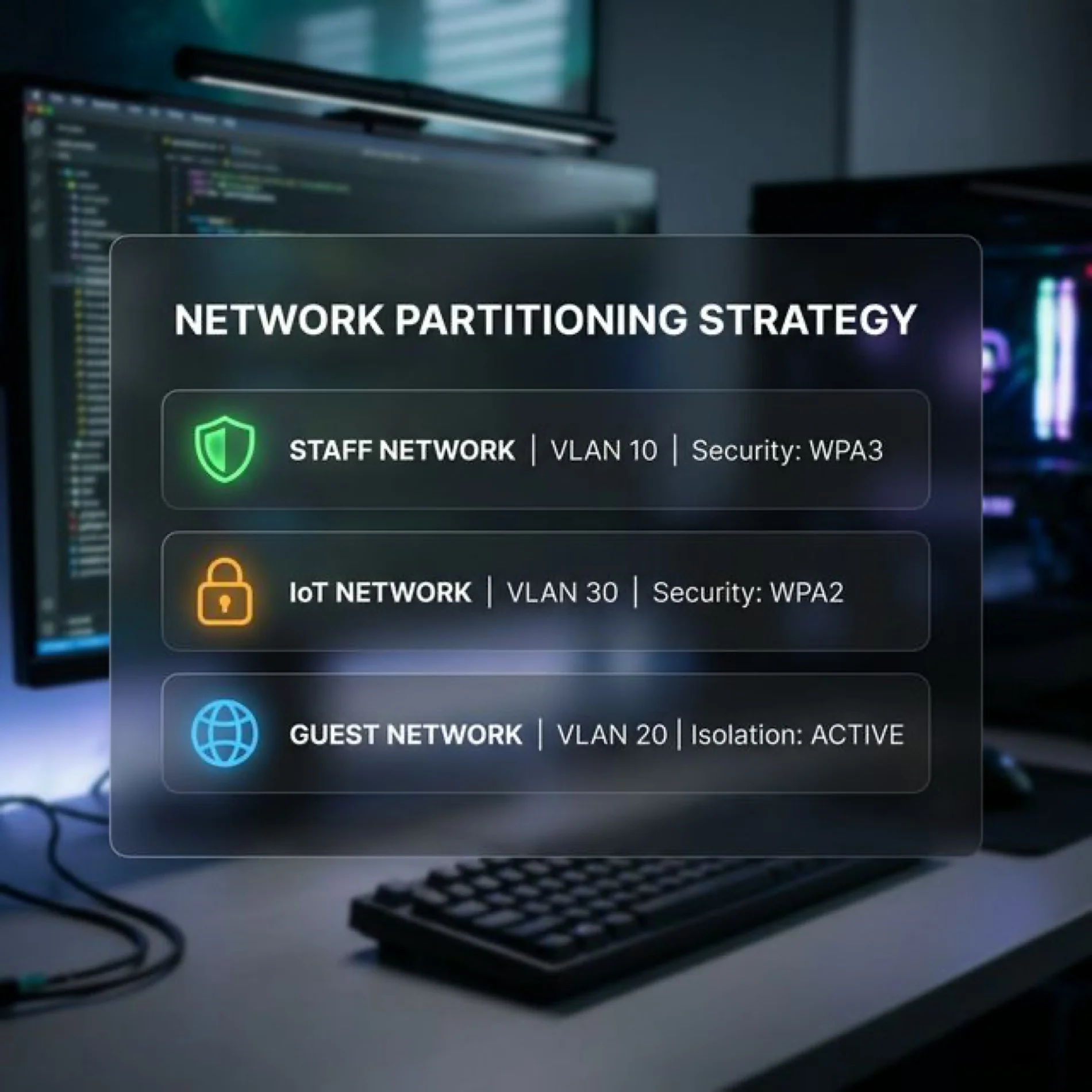
Network A: Staff (Trusted Devices)
| Setting | Value |
|---|---|
| SSID Name | CompanyName-Staff |
| Security | WPA3-Personal or WPA3-Enterprise |
| VLAN | 10 |
| Access | Servers, printers, internal apps |
| Bands | 5 GHz and 6 GHz (for speed) |
This network is for company-owned laptops, phones, and tablets. If your team is larger than about 10 people, consider WPA3-Enterprise with individual credentials so you can revoke access when someone leaves without changing the password for everyone.
Network B: IoT Devices (Isolated)
| Setting | Value |
|---|---|
| SSID Name | CompanyName-IoT |
| Security | WPA2/WPA3 |
| VLAN | 30 |
| Access | Internet only — blocked from all other VLANs |
| Bands | 2.4 GHz (sensors) or 5 GHz (cameras) |
Smart displays, environmental sensors, security cameras, printers with cloud features—these devices have notoriously weak firmware security. They need internet access, but they should never be able to reach your internal servers. The dedicated VLAN with firewall rules ensures a compromised IoT device can't pivot to your business data.
Most IoT sensors only support 2.4 GHz, but high-bandwidth devices like 4K security cameras often use 5 GHz. Keep them off 6 GHz to preserve that band for staff devices.
How Should I Configure a Guest Network SSID?
Guest SSIDs should be configured as open networks with a captive portal and isolated on a dedicated VLAN (e.g., VLAN 20) to prevent access to internal resources.
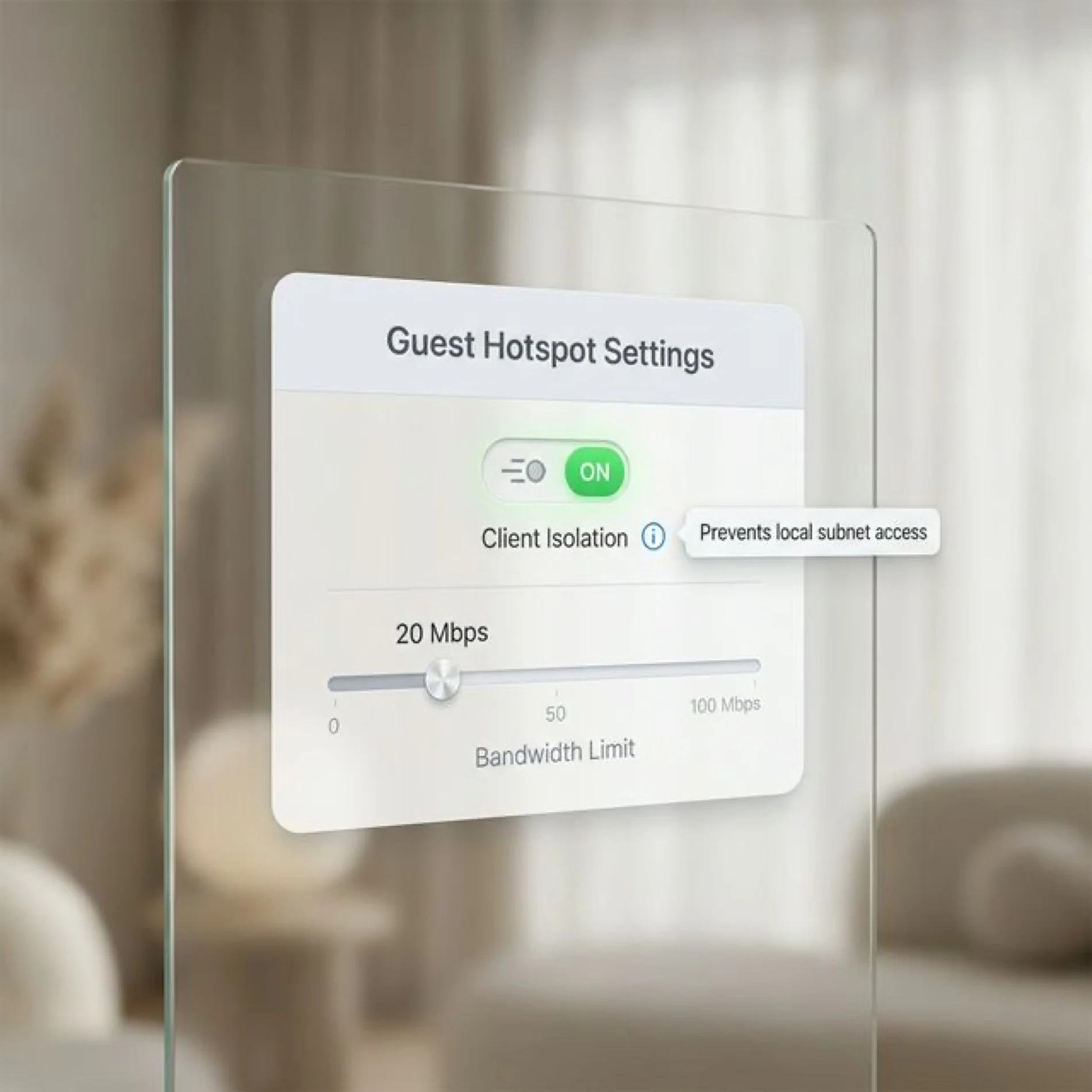
| Setting | Value |
|---|---|
| SSID Name | CompanyName-Guest |
| Security | Open with captive portal, or voucher-based |
| VLAN | 20 |
| Access | Internet only, client isolation enabled |
| Bandwidth | Rate-limited (e.g., 20 Mbps down / 10 Mbps up) |
Isolating guest traffic is the most critical step. Enable Client Isolation (sometimes called "Guest Policy") to ensure guests cannot communicate with each other or your staff devices. This prevents a guest from accessing your printer, casting to your TV, or scanning your staff subnets—common attack vectors in shared networks.
Limit bandwidth (e.g., 20 Mbps down) to prevent a single user from saturating your ISP connection. For guest onboarding, many businesses now use QR code authentication—guests scan a code posted at reception instead of typing a password. This is faster than a captive portal and works well with open networks plus VLAN isolation.
Why 3 Networks and Not More?
Every SSID your access point broadcasts consumes airtime via management frames. UniFi APs support up to 4-8 SSIDs per band depending on the model, but each additional SSID degrades overall Wi-Fi performance. Three is the sweet spot for most businesses—enough segmentation without sacrificing throughput.
Wi-Fi 7 Note: Devices using Multi-Link Operation (MLO) can connect to multiple bands (2.4/5/6 GHz) simultaneously, making the "separate SSID per band" strategy even more obsolete. Use a single multi-band SSID for staff networks.
This entire strategy requires hardware that supports VLANs and multiple SSIDs. Consumer routers from your ISP typically can't do this. Business-grade access points like the UniFi U7 Pro ($189) handle it natively, and a gateway like the UniFi Dream Machine SE (~$499) routes traffic between VLANs at gigabit speeds with firewall rules.
SSID Configuration Best Practices
Once you have the right hardware, these settings determine whether your Wi-Fi performs reliably—or fights itself.
Band Steering
Modern access points broadcast on 2.4 GHz, 5 GHz, and 6 GHz simultaneously. Band steering encourages capable devices to connect to the faster 5 GHz or 6 GHz bands, leaving 2.4 GHz for IoT devices that need range over speed. Keep this enabled.
Fast Roaming (802.11r)
When someone walks from the conference room to their desk, their device needs to hop from one access point to another. Fast roaming makes this handoff seamless—critical for VoIP calls and video conferences. Enable it on your staff SSID.
Exception: Some older IoT devices and printers don't support 802.11r and may disconnect. This is another reason to keep IoT on a separate SSID with fast roaming disabled.
Channel Width
Wider channels mean faster speeds—but also more interference:
| Band | Recommended Width | Why |
|---|---|---|
| 2.4 GHz | 20 MHz | Only 3 non-overlapping channels (1, 6, 11). Wider channels cause co-channel interference. |
| 5 GHz | 40-80 MHz | Good balance of speed and available channels. Go 80 MHz in low-density environments. |
| 6 GHz | 80-160 MHz | Wide open spectrum with minimal interference. Use the widest width your clients support. |
Minimum RSSI and Roaming
Sticky clients are devices that cling to a distant access point instead of roaming to a closer one. Set a minimum RSSI threshold (e.g., -75 dBm) so the AP disconnects weak clients, prompting them to reconnect to a stronger signal.
UniFi's Roaming Assistant (Network 10+) uses BSS transition management frames for a gentler approach that works better with modern devices.
If you're implementing these configurations across multiple office locations, consider reading our guide on multi-location business networking and cloud-managed networks.
Beyond Shared Passwords: PPSK and Identity Enterprise
A single Wi-Fi password shared across 50 employees is a security liability. When someone leaves, you change the password—and reconfigure every device in the building. There are better approaches.
Private Pre-Shared Keys (PPSK)
PPSK lets everyone connect to the same SSID but with a unique password per user or device group. Each password maps to a specific VLAN, so the network segment a device lands on is determined by which key it uses.
| Feature | Detail |
|---|---|
| How it works | Multiple passwords on one SSID, each tied to a VLAN |
| Best for | Small businesses (under 50 users), IoT segmentation |
| Encryption | WPA2 (WPA3 and 6 GHz not currently supported) |
| Setup | UniFi Network Controller → WiFi → Advanced → PPSK |
Trade-off: PPSK is WPA2-only as of early 2026, so it doesn't benefit from WPA3's stronger handshake. This also means you cannot use PPSK on the 6 GHz band, which requires WPA3. For IoT networks and small teams running on 2.4/5 GHz, this is acceptable. For environments requiring WPA3 compliance or 6 GHz support, look at RADIUS.
RADIUS / Identity Enterprise
For larger organizations or those needing WPA3-Enterprise, RADIUS authentication ties Wi-Fi access to individual identity—typically Active Directory or Microsoft Entra ID.
UniFi's Identity Enterprise platform takes this further with one-click Wi-Fi provisioning, VPN access, and even physical door access—all tied to a single user identity. When an employee leaves, you disable one account and they lose access to everything.
If you're managing shared Wi-Fi passwords with a sticky note or spreadsheet, a password manager like 1Password Business is a pragmatic first step. It won't replace RADIUS-based authentication for the long term, but it solves the immediate "password on the whiteboard" problem while you plan the migration.
Putting It All Together
Your SSID configuration is a foundational element of your wireless security architecture. Here's the implementation checklist:
- Change the default SSID to something that doesn't reveal your hardware brand
- Keep it visible — use WPA3 and strong passwords for actual security
- Create separate SSIDs for staff, IoT, and guests with VLAN isolation
- Configure band steering and fast roaming for performance
- Move beyond shared passwords with PPSK or RADIUS when you're ready
If your current router doesn't support VLANs, multiple SSIDs, or WPA3, upgrading to business-grade hardware is the next step. The investment typically pays for itself in reduced security incidents and improved management efficiency. Start with an access point like the UniFi U7 Pro and a gateway that supports VLANs like the Dream Machine SE.
For more on the networking fundamentals behind this, read our guides on WAN vs LAN for business networks and how to detect and fix Double NAT—both common follow-up issues when upgrading from consumer to business-grade gear.
Frequently Asked Questions
What does SSID stand for?
SSID stands for Service Set Identifier. It's defined by the IEEE 802.11 wireless networking standard as the name that identifies a specific Wi-Fi network. You see it in your device's Wi-Fi settings as the network name.
Is my SSID the same as my Wi-Fi password?
No. Your SSID is your network's name—it identifies which network you're connecting to. Your Wi-Fi password (technically called a Pre-Shared Key or PSK) is the credential that authenticates your connection. You need both to connect: the SSID to find the network and the password to be allowed on it.
Should I hide my SSID for security?
No. Hiding your SSID provides no meaningful security and can cause connectivity issues. Your devices still broadcast the SSID name via probe requests, and any basic wireless scanner can detect hidden networks. Use WPA3 encryption and strong passwords instead—those actually protect your traffic.
How many SSIDs should a business have?
Most businesses should have three: one for trusted staff devices, one for IoT devices (cameras, sensors, printers), and one for guest access. Each should be on a separate VLAN. Avoid going above four or five SSIDs per access point, as each additional SSID adds management frame overhead and reduces available airtime.
Can I use the same SSID name on multiple access points?
Yes—and you should. When all access points in your office broadcast the same SSID, devices roam seamlessly between them without disconnecting. This is standard practice in any multi-AP deployment. The access points coordinate handoffs using protocols like 802.11r (fast roaming).
What's the difference between SSID and BSSID?
The SSID is the human-readable network name (e.g., "OfficeNet"). The BSSID (Basic Service Set Identifier) is the MAC address of a specific access point's radio. Multiple access points can share the same SSID but each has a unique BSSID. This is how your device knows which physical AP it's connected to.
For example: Three APs in your office all broadcast the SSID "CompanyName-Staff", but each has a different BSSID (the AP's MAC address). Your laptop sees one SSID but can choose between three BSSIDs based on signal strength.
Related Articles
More from Network Infrastructure
How Often Should You Replace Your Router? The Security Signs We Look For on Every Job
Forget the 'every 3–5 years' rule. Here's the field checklist we run on a client's router before replacing it — plus what 4 years of fleet data says about how long networking gear actually lasts.
12 min read

What We Tell Every New Client About Their WiFi Before We Touch a Single Device
Before any access point gets ordered, we go through the same conversation. Here's what 40+ office network installs in South Florida taught us to check first.
12 min read
What the FCC Router Ban Means for Your Business Network (And What to Do About It)
The FCC banned new equipment authorizations for foreign-made routers on March 23, 2026. Learn how this affects your business and what to do next.
12 min read