

Planning a 30-Person Office Network: A Complete Project Guide (Under $5,000)
How we plan a 30-person office network installation — real BOM, VLAN design, timeline, and honest budget breakdown. A practitioner's project guide for medium-office IT.

We have a 30-person office network installation scheduled for late May. The client is a professional services firm — legal, specifically — that recently moved into a new space and inherited someone else's network. Three Netgear consumer switches daisy-chained together. A mesh router from 2021. No VLANs. Guest and internal traffic on the same SSID.
Before we touch anything on-site, we build the plan. That document — the equipment list, the logical design, the VLAN structure, the timeline, and the honest answer to "how much is this going to cost us?" — is what this article is.
The hardware we chose is mid-tier by design. This client has a budget, the building already has Cat6 drops, and the goal is a network that performs well now without needing a hardware swap in two years. That's a different problem than "pick the best gear." It's "pick the right gear."
If you're planning a similar project, use this as your starting point. If you're evaluating whether to hire someone or do it yourself, use it as your benchmark. The equipment is UniFi because that's what we install. The process translates regardless of platform.
If you're new to UniFi, our UniFi buyer's guide is worth reading first. For a completed smaller installation, we documented the whole process for a 7-person office case study.
TL;DR — What This Build Delivers
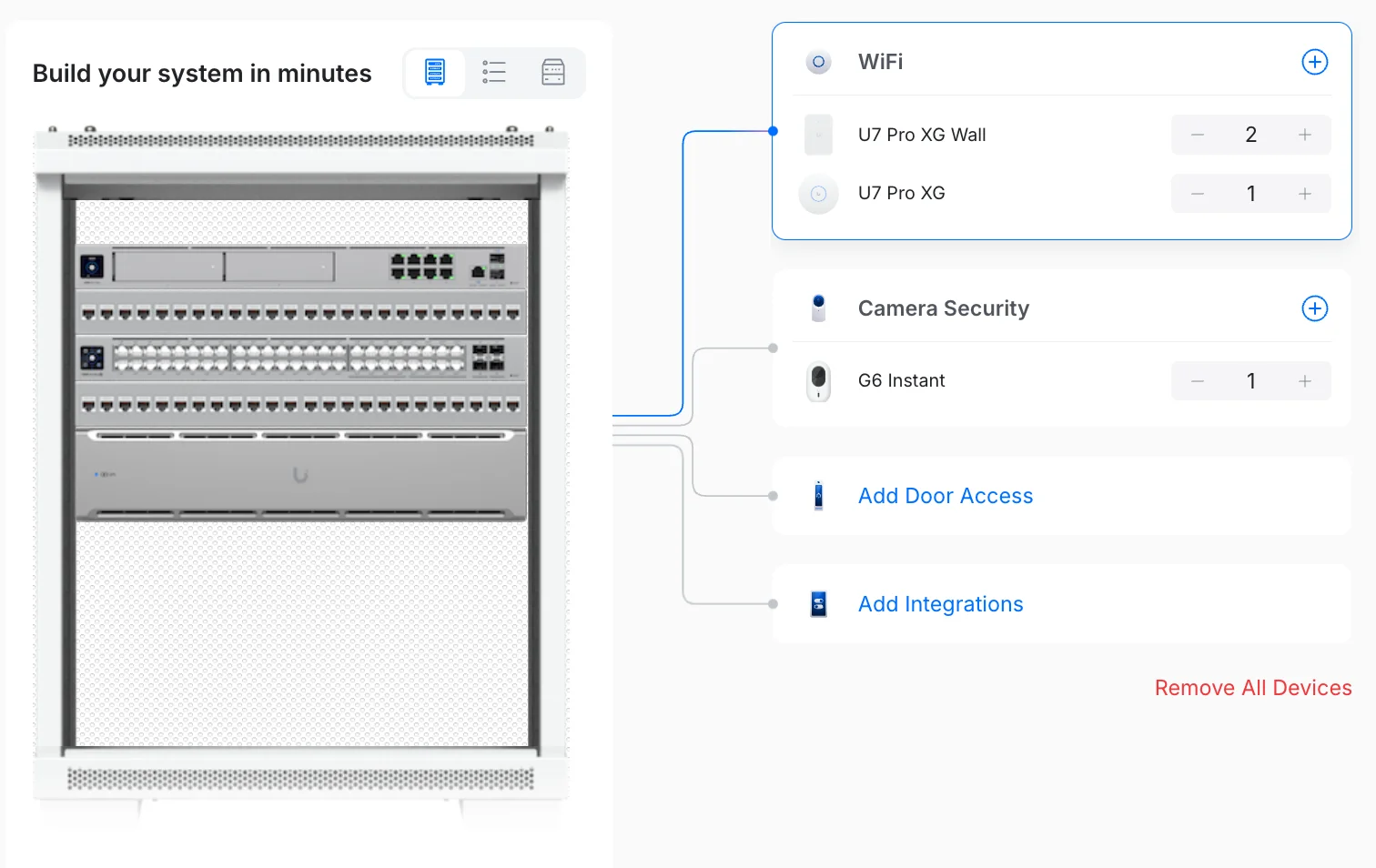
- Hardware: UDM Pro Max + Switch Pro Max 48 PoE + 3× WiFi 7 APs + 1 reception camera
- Hardware total: ~$3,293 (April 2026 Ubiquiti Store pricing)
- Project total with labor: ~$4,800
- Coverage: 4,000 sq ft, 30 users, 5 isolated VLANs via 802.1Q tagging
- ISP: AT&T 1Gbps symmetric fiber — fully routed with IPS/IDS enabled at the gateway
- Critical assumption: 32 functional Cat6 drops already in walls. New cabling adds $150–$200 per drop.
Affiliate Disclosure: This article contains affiliate links. If you make a purchase through these links, we may earn a small commission at no extra cost to you. As an Amazon Associate, iFeelTech earns from qualifying purchases.
Requirements for a 30-Person Office Network
A 30-user office network requires robust coverage for a 4,000-square-foot floorplate with 32 existing Cat6 drops and a 1Gbps fiber connection.
Defining physical and technical constraints before hardware selection prevents budget overruns. This baseline assumes all 32 existing Cat6 runs are functional. If your physical infrastructure requires new cabling, expect to add $150 to $200 per new drop.
Project Parameters
- Occupancy: 30 users, professional services (legal firm)
- Floorplate: Single floor, ~4,000 sq ft
- Zones: Conference Room, Open Workspace, two private Offices, Storage/Copy Room, IT/Utility Room, Reception, Break Nook
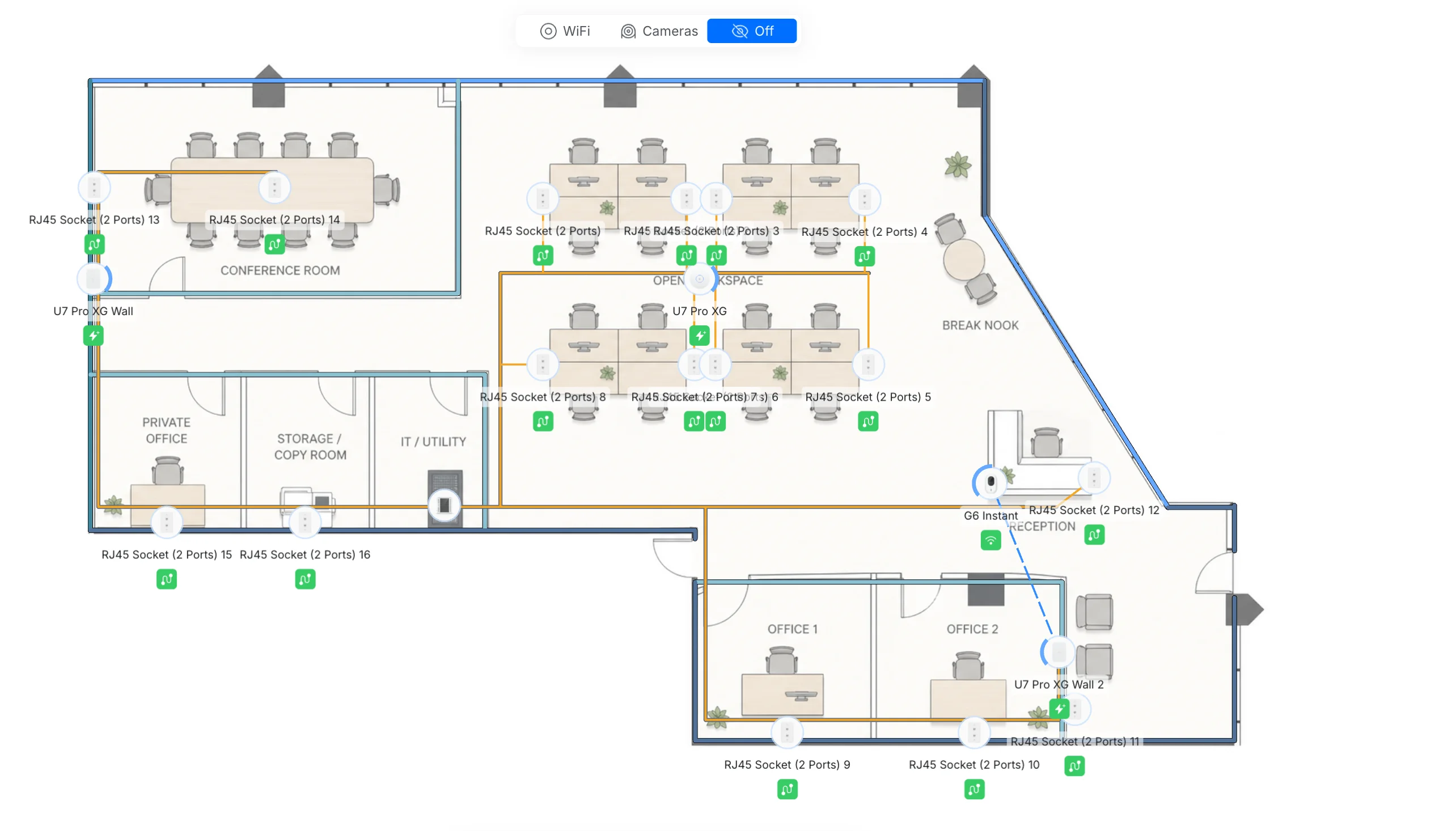
- Existing cabling: 16 RJ45 wall socket locations, 2 ports each — 32 total drops, unevenly distributed. Cat6 throughout. No refresh in budget.
- ISP: AT&T 1Gbps symmetric fiber
- On-premise server: Windows file server staying in place
- Rack: 12U, IT/Utility Room
- No structured cabling budget: This plan assumes all 32 drops are functional. If they're not, this is a different project with a different number.
Need an infrastructure check first?
Ensure your existing drops are viable before ordering hardware. Request a site assessment from our Miami team.
The scope matters because every decision downstream flows from it. 30 users on one floor with existing Cat6 is a very different project than 30 users on three floors with no drops. At 4,000 sq ft with mixed open-plan and private offices, three access points is the right AP count — not two, not four. At 32 existing drops, a 48-port switch gives us room to terminate everything plus headroom for the server, gateway, UPS management, and future additions without reshuffling cables.
This plan changes if your building needs new cabling. New drops at $150–$200 per run installed can easily add $1,500–$3,000 to the project. Know that before you look at any equipment list.
For small business network setup resources covering the foundational concepts, that guide is a good primer before you get into the hardware specifics here.
Bill of Materials for a 30-User UniFi Network
This $3,313 hardware budget covers a UniFi Dream Machine Pro Max, Switch Pro Max 48 PoE, and three WiFi 7 access points as of April 2026.
We specifically selected mid-tier enterprise hardware to ensure the infrastructure supports future growth without requiring hardware replacement when the firm expands.
Pricing Note
All Ubiquiti hardware is priced from the Ubiquiti Store. Prices shift; the totals here reflect current list price. Amazon-sourced items (patch panels, cabling) fluctuate seasonally.
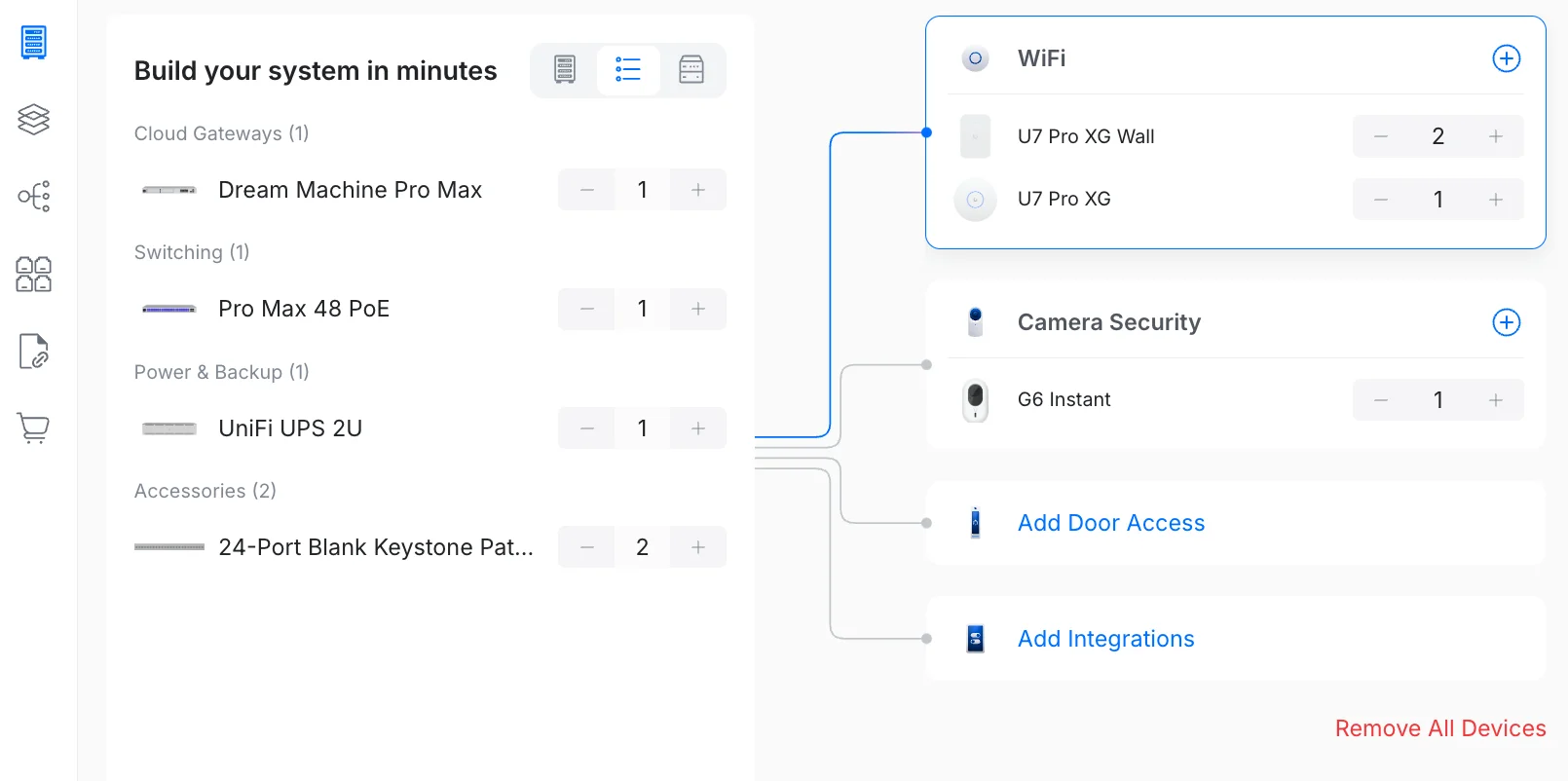
| Qty | Model | Category | Unit Price | Total |
|---|---|---|---|---|
| 1 | UniFi Dream Machine Pro Max | Gateway | $599 | $599 |
| 1 | UniFi Switch Pro Max 48 PoE | Core Switch | $1,299 | $1,299 |
| 2 | UniFi U7 Pro XG Wall | WiFi (wall-mount) | $279 | $558 |
| 1 | UniFi U7 Pro XG | WiFi (ceiling) | $199 | $199 |
| 1 | UniFi G6 Instant | Security Camera | $179 | $179 |
| 2 | 24-Port Blank Keystone Patch Panel | Accessories | ~$50 | ~$100 |
| 1 | UniFi UPS 2U | Power Backup | $279 | $279 |
| 1 | trueCABLE Cat6A Bulk (patch runs) | Cabling | ~$80 | ~$80 |
| — | Professional Installation (est.) | Labor | — | ~$1,500 |
| HARDWARE TOTAL | ~$3,293 | |||
| PROJECT TOTAL | ~$4,793 |
On the hardware selection — specifically the mid-tier philosophy:
The Dream Machine Pro Max at $599 handles the AT&T 1Gbps circuit with IPS/IDS enabled at full throughput — we're not bottlenecked at the gateway. It runs 200+ UniFi devices and 2,000+ clients, which is significant overkill for 30 users, but that headroom is why the hardware doesn't need replacing when this firm adds a second office or upgrades their ISP circuit. See our full UniFi switch comparison if you're evaluating the gateway options more broadly.
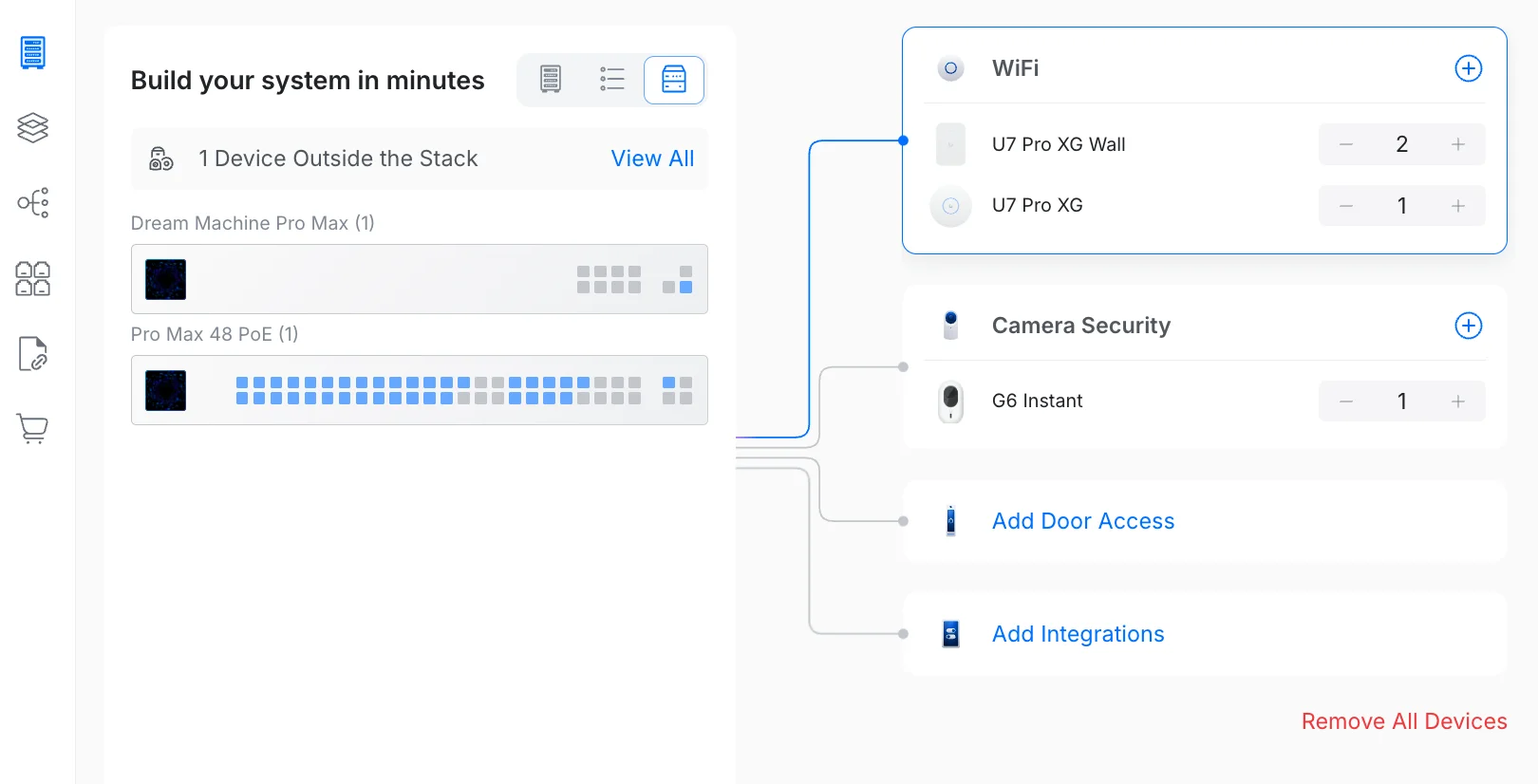
The Switch Pro Max 48 PoE at $1,299 is the most expensive line item and the most important one. At 48 ports with 10G SFP+ uplinks and 2.5G PoE++ on every port, it terminates all 32 existing drops, powers all three APs via 802.3bt PoE++, and connects to the gateway via 10G SFP+ uplink. The Pro 24 would work today — but 24 ports plus a 30-user firm growing at all means you're back ordering hardware in 18 months.
PoE Budget Breakdown
The Switch Pro Max 48 PoE provides a 720W total PoE budget. Actual draw for this installation:
- 2× U7 Pro XG Wall (802.3at PoE+): ~22.5W typical each = 45W
- 1× U7 Pro XG (802.3at PoE+): ~23.5W typical = 24W
- G6 Instant camera: WiFi-connected — 0W PoE draw from switch
- Total PoE draw at typical load: ~69W (~90W maximum)
- Available headroom: ~651W — enough for 10+ additional PoE devices
At roughly 10% PoE utilization, the switch never approaches its power ceiling. That margin accommodates future VoIP phones, cameras, or additional APs without a hardware change. See our PoE guide for full budget calculation methodology.
The U7 Pro XG Wall at $279 each is the right AP for the Conference Room and the Office 1/2 zone. Wall-mount form factor means no ceiling penetrations in a leased space — a consideration that matters for this client. True WiFi 7 with 6 GHz, 10G uplink. At $279 vs. $199 for the ceiling U7 Pro XG, the premium is for the wall-mount housing, not meaningfully different RF specs at this scale. Our UniFi WiFi 7 AP guide has coverage math for different floorplates if you're sizing differently.
The U7 Pro XG at $199 goes center-ceiling in the Open Workspace. Most surface area, best position for ceiling mounting, highest concurrent client density. At $199 it's the most cost-effective AP in this BOM per square foot covered.
Introducing the UniFi XG Access Point Line
The G6 Instant at $179 covers Reception. It's WiFi-connected (not PoE), 4K, with AI motion detection. For a single reception camera, this is the right call — avoids running a new PoE drop to the reception area ceiling. It's on its own isolated VLAN and has no visibility into internal traffic.
For the UPS, the UniFi UPS 2U is rack-mounted and integrates with UniFi OS for graceful shutdown — the gateway and switch both support it. See our best UPS for UniFi rack guide for alternative options if you need a longer runtime window.
For cabling, we use trueCABLE Cat6A for patch runs from the panel to the switch. Short runs, so the bulk order is modest. Our ethernet cable guide covers Cat6 vs. Cat6A vs. Cat8 for readers who want to understand why we spec Cat6A on new runs.
How to Structure VLANs for a 30-Person Office
Network traffic is divided into five isolated VLANs: Production, Staff WiFi, Guest WiFi, IoT/Printers, and Security Cameras.
Isolating traffic prevents network-wide failures and limits the blast radius of a compromised device. Traffic isolation is enforced via 802.1Q VLAN tagging at the switch level — all five segments are managed from the UniFi dashboard with no additional licensing. This is the document we build before the switch is racked, because VLAN structure determines port profiles, firewall rules, and patch panel labeling.
VLAN Structure for this project:
| VLAN | Name | Devices | Internet | Reaches LAN? |
|---|---|---|---|---|
| 10 | Production | Wired workstations, Windows file server | Yes | Full access |
| 20 | Staff WiFi | Employee laptops, phones | Yes | VLAN 10 only |
| 30 | Guest WiFi | Client devices, visitor phones | Yes | No LAN access |
| 40 | IoT/Printers | Printers, smart TV in Conference Room | Yes | VLAN 10 (print only) |
| 50 | Cameras | G6 Instant at Reception | No | No LAN access |
A flat 30-user network leaves a compromised laptop with a direct path to the Windows file server. VLAN 20 (Staff WiFi) routes to VLAN 10 (Production) for file server access. Guest (VLAN 30) and IoT (VLAN 40) have no LAN routing — all inter-VLAN traffic is dropped by default at the firewall. When a device gets compromised, the blast radius is one VLAN.
The Conference Room TV lives on VLAN 40 (IoT) not VLAN 20 (Staff WiFi). It streams, it casts, and it doesn't need to talk to workstations. Printers are on the same VLAN — staff can print via a firewall rule that permits VLAN 20 → VLAN 40 on the relevant port. Everything else is blocked by default. How many printer ports you actually need depends on your team's printing habits and document workflows — a law firm like this one typically runs one device per 3–4 employees.
For a detailed walkthrough of the guest VLAN configuration in UniFi, our guest WiFi VLAN setup guide covers the step-by-step configuration. If you want more depth on the full logical design methodology, the UniFi network blueprint for business is the companion reference.
A note on the camera isolation: The G6 Instant at Reception is on VLAN 50 with no route to any internal network. It phones home to UniFi Protect running on the Dream Machine Pro Max's built-in NVR, which handles that traffic within the gateway itself — no VLAN hop required. This is standard practice. Cameras don't need to talk to workstations, ever.
For South Florida businesses evaluating ISP and contractor options alongside the network design, our Miami office network planning guide covers what's specific to this market — particularly on AT&T Business Fiber circuit sizing and local structured cabling vendors.
Real-World Throughput on a 1Gbps Office Network
With a 1Gbps fiber circuit distributed across 30 active users on WiFi 7, individual device throughput peaks at 400–600 Mbps during standard operating hours.
The WiFi 7 APs have an aggregate theoretical ceiling of 10.8 Gbps — a number that only matters at the radio level. What matters for a 30-user office is simpler: the AT&T 1Gbps circuit is the ceiling for all internet-bound traffic combined, not per device. During peak usage, 30 concurrent devices share that pipe. Expected real-world performance:
- WiFi 7 clients on 6 GHz (iPhone 16, current-gen laptops): 400–600 Mbps per device
- WiFi 6/6E devices on 5 GHz: 150–300 Mbps per device
- Legacy 802.11ac devices on 2.4/5 GHz: 50–150 Mbps per device
- Wired workstations on VLAN 10 (Production): Up to 2.5 Gbps per port — ISP speed only applies to internet-bound traffic
The distinction between LAN speed and WAN speed matters for this client. File transfers between workstations and the Windows file server run at switch speed (2.5 Gbps per port), entirely unaffected by the 1Gbps ISP circuit. Document retrieval, large file copies, and local backup operations are all LAN-speed — not ISP-speed.
Why UniFi Over Aruba Instant On or TP-Link Omada?
An equivalent TP-Link Omada build costs approximately 15–20% less than this UniFi deployment. The premium is justified by three capabilities the alternatives lack at this price point: an integrated camera NVR, Layer 3 inter-VLAN routing, and one-click Site Magic VPN for future branch office connectivity.
| Feature | UniFi (this build) | Aruba Instant On | TP-Link Omada |
|---|---|---|---|
| Estimated hardware cost | ~$3,313 | ~$2,700–$2,900 | ~$2,400–$2,700 |
| Management platform | UniFi OS (local + cloud, free) | Cloud-only app | Omada SDN (local + cloud, free) |
| Layer 3 routing / inter-VLAN | Yes (Switch Pro Max 48) | No (Layer 2 only) | Partial (select models) |
| Built-in NVR for cameras | Yes (UDM Pro Max) | No | No |
| 10G SFP+ switch uplinks | Yes | No | Select models only |
| Site-to-site VPN | Site Magic (1-click SD-WAN) | Manual IPsec only | Manual IPsec only |
| IPS/IDS throughput | 5 Gbps | Not available | Not available |
| Support channel | Community + UI forums | TAC email | Community + forums |
The Omada build is the right call for a budget-constrained office that doesn't need camera integration and will stay at one location indefinitely. For this client — a legal firm with a Windows file server, a reception camera, a 1Gbps circuit with full IPS enabled, and probable future expansion — the integrated Protect NVR, Layer 3 switching, and Site Magic justify the $600–$900 premium over Omada. Aruba Instant On offers better formal SMB support, but its Layer 2-only switching is a hard ceiling for the five-VLAN design this network requires.
30-Person Office Network Installation Timeline
A complete installation at this scope runs three phases over two to three weeks: site assessment, equipment staging, and a full installation day.
Week 1 — Site Assessment
Before anything gets ordered, we're on-site. The goals: walk every drop location, test continuity on all 32 jacks with a cable tester, identify the IT/Utility Room power and cooling situation, document what's currently connected to the daisy-chained Netgear switches (including any undocumented devices), and confirm the 12U rack has physical clearance.
The undocumented device problem is real. In almost every SMB installation we walk into, there are 2–4 devices connected to the network that the client doesn't know are there — an old DVR, a forgotten network printer, a Raspberry Pi someone set up for a project. Those need to be found and accounted for before the switch config is written, not after.
Week 2 — Equipment Order and Staging
Hardware orders placed after site assessment, not before. We've had too many projects where a dropped item creates a two-week delay mid-installation. Staging happens at our shop: unbox everything, test power-on and firmware baseline on the gateway and switch, label patch cables, and prepare the rack layout diagram.
Installation Day — Full Day, One Site
A single-floor 30-person office at this scope is a full-day job:
- Morning (3–4 hours): 12U rack build — gateway, switch, patch panels, UPS. Cable management. Verify continuity on all 32 drops and terminate to patch panels. Label everything. Connect gateway to ISP hand-off and configure WAN.
- Midday (2–3 hours): Switch configuration — VLAN structure, port profiles, PoE profiles, LLDP. AP mounting and cable runs (ceiling drop for U7 Pro XG, wall-plate for U7 Pro XG Wall ×2). Camera mounting and WiFi onboarding.
- Afternoon (2–3 hours): Device migration — move 30 workstations from old network to new VLAN assignments. This is where buffer time lives. Not every device migrates cleanly. Printers get reconfigured. The conference room TV needs its own SSID confirmed. The file server gets a static IP reservation and DNS entry in UniFi.
- End of day: Handoff documentation — network diagram, VLAN table, SSID/password sheet, admin credentials, and contact info for ongoing support.
The Things That Always Go Wrong
Every installation has surprises. The drops that fail continuity testing (budget 2–3 bad drops per 30-drop install). The device that won't migrate cleanly. The conference room TV that needs a factory reset before it will accept a new network. Build 2 hours of buffer into any installation timeline at this scope — not because the installer is slow, but because real environments aren't lab environments.
What This Budget Covers — and What It Doesn't
The hardware total at current pricing is approximately $3,293. Professional installation labor for a single-day project at this scope runs $1,200–$1,500 for a South Florida IT firm at our rate. Project total: ~$4,500–$4,793. That's under $5,000 — but there are real constraints.
The Structured Cabling Reality
This budget assumes 32 functional Cat6 drops are already in the walls. If your building needs new drops — or if the site assessment finds that 8 of your 32 drops fail continuity — add $150–$200 per new drop installed. Ten new drops adds $1,500–$2,000 to the project. That's not unusual in an older South Florida commercial building. Know your cabling situation before you finalize a budget.
What the $5,000 doesn't cover:
- Structured cabling runs — new drops at $150–$200 each installed
- Per-room UPS — the UPS 2U protects the core rack equipment (gateway, switch, patch panels). It does not protect workstations or conference room displays. A workstation-level power event is an inconvenience; a switch/gateway power event takes the whole office offline. The rack UPS is non-negotiable; per-desk UPS is optional.
- Cloud-hosted UniFi — this plan uses the controller built into the Dream Machine Pro Max (local hosting). Cloud Key or hosted UniFi adds $0–$59/month depending on tier. Not needed for a single-site office, but worth knowing about.
- Managed services / ongoing monitoring — post-installation monitoring, patching, and incident response isn't in this project cost. For an office with a Windows file server and 30 users handling legal documents, a managed services agreement is worth considering. That's a separate conversation.
A note on the Windows file server: The existing server is staying in place — that's the right call for this project's scope and timeline. One upgrade worth planning for the next budget cycle: the new 2.5GbE LAN infrastructure this network provides makes a Synology DS925+ a logical next step. The DS925+ connects via dual 2.5GbE (link-aggregated to 5Gbps combined) to the Switch Pro Max, giving the firm centralized file sharing with RAID 5/6 redundancy and nightly cloud backup via Active Backup for Business — replacing a standalone Windows file server with something smaller, quieter, and more reliable. That's a Phase 2 conversation, not a Day 1 requirement.
The Enterprise XG question:
We spec'd the Switch Pro Max 48 PoE at $1,299. The Enterprise XG 48 runs considerably more. At 30 users on a 1Gbps AT&T fiber circuit, the difference in real-world performance is negligible. The Pro Max 48 PoE has the 10G uplinks to the gateway, the PoE budget for all three APs and the camera, and Layer 3 routing if you ever need it. Spending $600–$800 more on the Enterprise XG for this project does not improve the network's performance for this client. That money is better allocated to a structured cabling contingency or a second year of professional monitoring.
For those looking at 2.5GbE optimization at different price points, our budget 2.5Gbps UniFi network guide shows where the spend-vs-performance curve makes sense.
When to DIY vs. When to Call Someone
At 30 users, the honest answer is: split the work.
The physical installation — racking equipment, mounting APs, running patch cables from panel to switch — is within reach for someone comfortable with networking. If you've built a home lab, you can mount a switch in a rack. The tools required are a cable tester, a punch-down tool, a label maker, and about five hours.
The configuration is different. A 30-user office with five VLANs, firewall rules, three SSIDs, printer policy routing, a Windows file server with a static IP, and 30 devices moving off an old network — that's where a misconfigured switch or firewall rule takes the whole office offline, not just one person's workstation.
Where Professional Help Has Clear ROI
The VLAN design, switch configuration, firewall rules, AP radio settings, and device migration are the high-risk steps. Professional configuration and documentation at this scope typically costs $800–$1,500. The documentation deliverable alone — a network diagram, VLAN table, and labeled rack — is worth the cost the first time you need to troubleshoot something at 6 PM or onboard a new IT contractor.
iFeelTech's goal isn't to make every 30-person office a managed services client. If you have someone in-house who's confident with UniFi, buy the hardware through the BOM above and have them handle configuration. If you don't — or if the stakes are high enough that a day of downtime is unacceptable — that's when you call someone.
For South Florida businesses, we can handle the full project or the configuration-and-documentation piece only. Contact us here if you want a site assessment before you commit to a BOM.
Related Resources
- UniFi Small Office Setup: 7-Person Case Study — The completed installation at smaller scale. Same hardware family, different scope.
- UniFi Network Blueprint for Business — The logical design methodology in more depth — VLAN design, firewall rules, and naming conventions.
- Best UniFi Switches: Pro Max vs. Enterprise XG — Full comparison of the Pro Max line vs. Enterprise XG if you're evaluating the switch options.
- UniFi WiFi 7 Access Points: Business Guide — AP sizing, coverage calculations, and which model fits which office type.
- Guest WiFi VLAN Setup in UniFi — Step-by-step VLAN configuration for the guest network segment.
- Best UPS for UniFi Rack — UPS sizing and runtime calculations for rack deployments.
- Dental Office Network Requirements — The same planning sequence applied to a clinical buildout, including vendor server specs and operatory drops.
- Miami Office Network Planning Guide — ISP-specific and contractor guidance for South Florida installations.
- Small Business Network Setup Guide — Foundational reference for readers earlier in their research.
Frequently Asked Questions
Related Articles
More from Network Infrastructure

VLANs Without the Jargon: What They Are, What to Separate, and Why It Matters
A plain-language guide to VLANs for small business owners. Understand what network segments you already need — guest WiFi, IoT cameras, VoIP phones — and what belongs in each one.
11 min read
Dental Office Network Requirements: Dentrix, Eaglesoft & Open Dental
Eaglesoft, Dentrix and Open Dental server requirements for 2026, plus the imaging, VLAN and cabling design a dental practice network needs.
19 min read
Dual WAN for Business: Why One Internet Connection Isn't Enough
Why a single ISP is a single point of failure, how to verify real route diversity, and which dual-WAN gateway and backup connection fit a rack network or a simple branch office.
19 min read