

How to Set Up Automatic Updates on Every Device (Windows, Mac, iPhone, Android, Router)
Enable and verify automatic updates on Windows, macOS, iPhone, Android, routers, and NAS devices — a complete cross-platform guide for small businesses.


Every month, Microsoft, Apple, and Google ship security fixes for vulnerabilities that are already public — and several times a year, for flaws attackers were exploiting before the patch existed. June 2026 was a typical month: Microsoft's Patch Tuesday alone covered 200 vulnerabilities, including six zero-days, and Google's Android bulletin patched 124 flaws the same week, one under active exploitation. The specific numbers change every month; the pattern doesn't.
The window between the day a vulnerability becomes public and the day the patch lands on your devices is when your exposure is highest — and that window is something you control. Closing it takes about fifteen minutes of configuration across your devices, and most of those fifteen minutes aren't about clicking a toggle. They're about understanding why Windows can say "You're up to date" while holding three weeks of uninstalled patches, why your iPhone's automatic updates setting doesn't touch the apps on it, and why your router has never once updated its firmware on its own.
Before you start:
- Time required: ~15 minutes for personal devices; add 2–3 minutes per additional machine
- Access required: Administrator account on each computer; router admin password for the firmware section
- Applies to: Windows 11 (25H2), Windows 10 (ESU), macOS Tahoe 26, iOS/iPadOS 26, Android 15/16, common SMB routers and NAS devices, current as of June 2026
Automatic Update Settings: Quick Reference
Every setting in this guide, in one table. The sections below cover the traps each row doesn't show.
| Device | Where to set it | Recommended setting |
|---|---|---|
| Windows 11 | Settings → Windows Update → Advanced options | Auto-updates on (default); set Active hours to real usage; never leave paused |
| Windows 10 | Settings → Update & Security → Windows Update | Same as Windows 11, plus verified ESU enrollment (coverage ends Oct 13, 2026 for consumers) |
| macOS | System Settings → General → Software Update → ⓘ | All four switches on: download, macOS updates, App Store apps, Security Responses |
| iPhone / iPad | Settings → General → Software Update → Automatic Updates | Both download and install on — plus Settings → Apps → App Store → App Updates |
| Android (OS) | Samsung: Settings → Software update · Pixel: Settings → System → Software updates | Auto download over Wi-Fi on; security patch level no older than 2 months |
| Android (apps) | Play Store → profile icon → Settings → Network preferences | Auto-update apps: Over Wi-Fi only |
| Router | Admin interface → Firmware/System; UniFi: Settings → System → Updates | Auto-update on where available; otherwise quarterly manual check |
| NAS (Synology) | Control Panel → Update & Restore → DSM Update → Update Settings | Important (security) updates: automatic. Major DSM versions: manual, scheduled |
What Is Patch Tuesday and Why Does It Matter?
Patch Tuesday is Microsoft's monthly security release, shipping fixes for known vulnerabilities on the second Tuesday of each month. Critical zero-days don't wait for the calendar — when a flaw is being exploited in the wild, Microsoft, Apple, and Google all ship out-of-band patches within days.
Why automatic updates are the control that matters:
- Patches are reverse-engineered within days. When a fix ships, attackers analyze it to find the hole it closed, then scan the internet for machines that haven't applied it.
- Small businesses are usually opportunistic targets. Most SMB compromises start with an unpatched machine answering an automated scan, not with anyone targeting the business specifically.
- Exploits get chained with social engineering. Threats like the ClickFix attacks we've covered pair user manipulation with known-but-unpatched flaws.
- Updates are the layer under everything else. EDR and antivirus work far better when they're not compensating for a six-week-old missing patch.
The rest of this guide closes the patch window on every device you own — and shows you how to verify it's actually closed.
How to Configure Windows 11 Automatic Updates
Windows 11 downloads patches automatically, but most security updates only apply after a restart — and a misconfigured restart window can quietly prevent patches from ever installing. Everything lives in Settings → Windows Update. Four settings matter; the first is the most commonly misconfigured update setting we encounter on client machines.
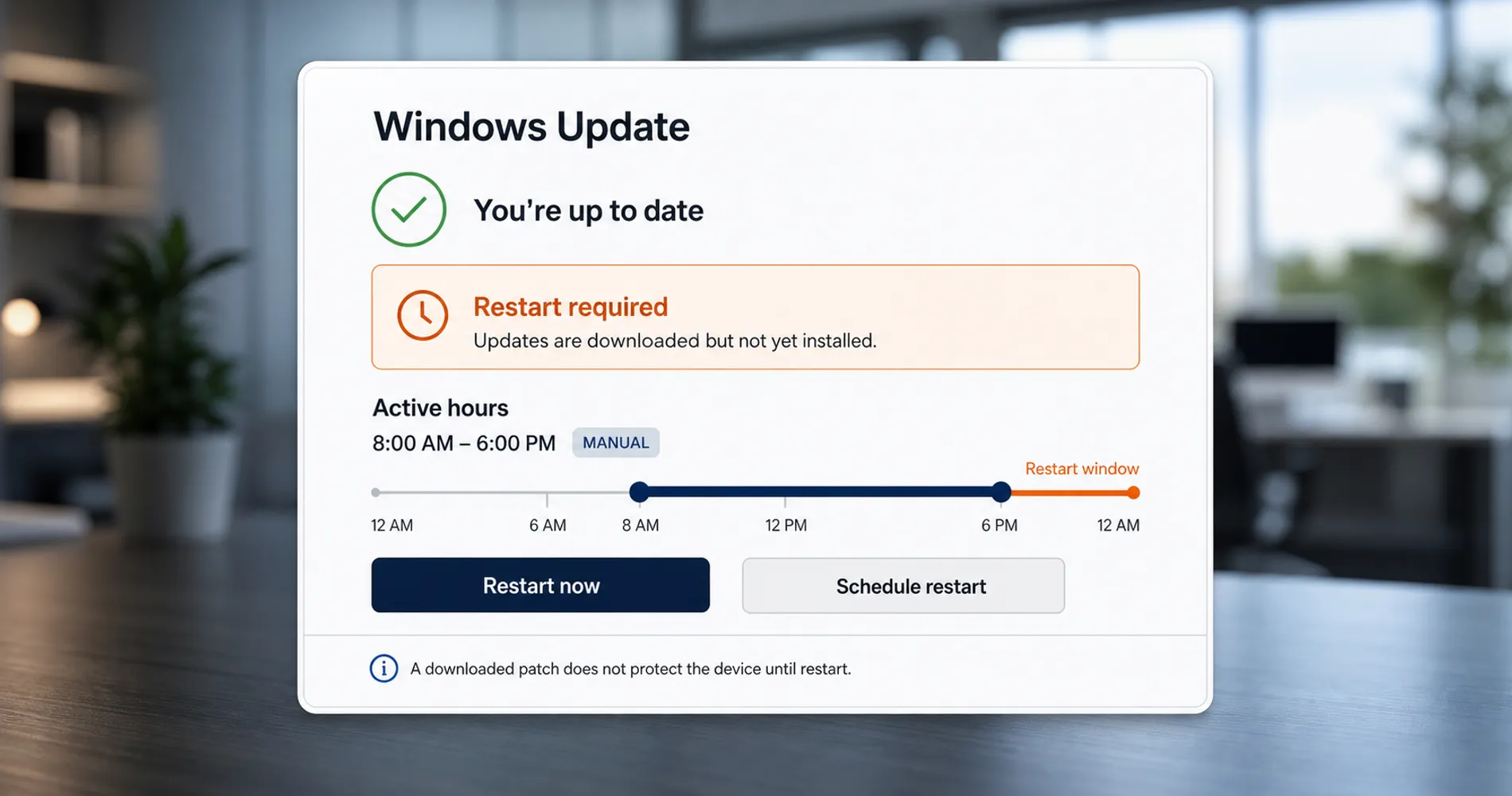
1. Set Active hours to match reality. Active hours tells Windows when not to restart. A pattern we see regularly: active hours match the employee's work schedule, so Windows schedules restarts overnight — but the computer is shut down overnight, so the restart never fires and patches queue indefinitely.
- Open Settings → Windows Update → Advanced options → Active hours.
- Change the dropdown from "Automatically" to Manually and set your actual working hours (up to an 18-hour range).
- Ensure the machine is powered on during some off-hours — leave it on one night a week, or restart when prompted instead of deferring.
'Up to Date' Doesn't Mean Patched
We've walked into offices where every Windows 11 machine reported “You're up to date” and several were three-plus weeks behind on installed security patches. The patches were downloaded, staged, and waiting for a restart window that never arrived because the machines were powered off every night. If your team shuts computers down at the end of the day, your “automatic” updates only complete when someone manually restarts. There's a related wrinkle here: on most Windows PCs, Shut Down and Restart are not the same operation — Fast Startup is enabled by default and keeps the kernel alive across shutdowns, so patches marked “requires restart” won't apply on Shut Down.
How To Change Your Windows 11 Update Active Hours | Micro Center Tech Support
2. Check for a forgotten pause. The Windows Update page has a pause button — one week at a time, up to five weeks. We regularly find machines that were paused during a busy week months earlier and never resumed. If the screen says "Updates paused," resume now.
3. Leave optional updates alone. Under Advanced options, driver and non-security updates don't install automatically — that's fine; security patches are already in the automatic channel. Leave "Get the latest updates as soon as they're available" off on business machines; let early adopters find the feature bugs.
4. Verify right now. The 60-second confirmation:
- Settings → Windows Update → Check for updates; install anything that appears.
- Restart if the screen shows a pending restart — this is the step people skip.
- Open Update history and confirm the most recent month's cumulative update shows "Successfully installed."
Domain-joined or Intune-enrolled machines may show greyed-out settings — update policy is centrally managed, which is by design. Our Windows 11 Pro vs. Enterprise guide covers how centralized update rings work.
How to Get Security Updates on Windows 10 in 2026
Windows 10 support ended in October 2025; the Extended Security Updates (ESU) program is now the only patch source, and consumer coverage ends October 13, 2026. The settings are secondary to the calendar:
- Consumer ESU ends October 13, 2026, regardless of when you enrolled. The enrollment link appears directly on the Settings → Update & Security → Windows Update screen if your machine isn't enrolled.
- Commercial ESU is an annual subscription, not a one-time purchase: $61 per device for year one, doubling each consecutive year ($122, then $244), for a maximum of three years ending October 2028.
- The mechanics mirror Windows 11: automatic download, restart required, and the same active-hours restart trap under Change active hours.
- A quick health check: open View update history — if the most recent updates are more than two months old, ESU enrollment is likely broken or missing and worth addressing right away.
Configure it knowing what it is: a bridge, not a destination. After your ESU coverage ends, a perfectly configured Windows 10 machine receives nothing. Our Windows 10 end-of-support migration guide covers upgrade paths, including hardware that doesn't meet Windows 11 requirements.
How to Enable Automatic Updates on macOS
macOS splits update control across two places: System Settings covers the OS, while App Store apps have a separate auto-update setting. Both need to be on.
OS updates — open System Settings → General → Software Update, click the ⓘ next to "Automatic Updates," and enable:
- Download new updates when available
- Install macOS updates — the one most often off by default
- Install application updates from the App Store — covers App Store apps, including Microsoft 365 if installed from the App Store
- Install Security Responses and system files — Apple's fastest channel for urgent fixes; keep this one on
Three macOS-specific notes:
- Recheck even if you configured this before. Some macOS point updates (26.4 among them) have silently re-enabled automatic installation for users who had it off — Apple treats auto-update as the default state, which is the right default for business machines anyway.
- Restarts still matter. macOS prompts rather than forces, but an update waiting on a restart isn't protecting anything. When the badge appears on System Settings, take the five minutes.
- Non-App Store apps update themselves. Chrome, Zoom, Slack, and most line-of-business tools have their own updaters — the App Store toggle doesn't cover them.
Managed Macs enrolled via Apple Business Manager and MDM may show greyed-out toggles; update policy is set centrally, which is expected. See our Apple Business Manager guide for how that works.
How to Enable Automatic App and OS Updates on iPhone
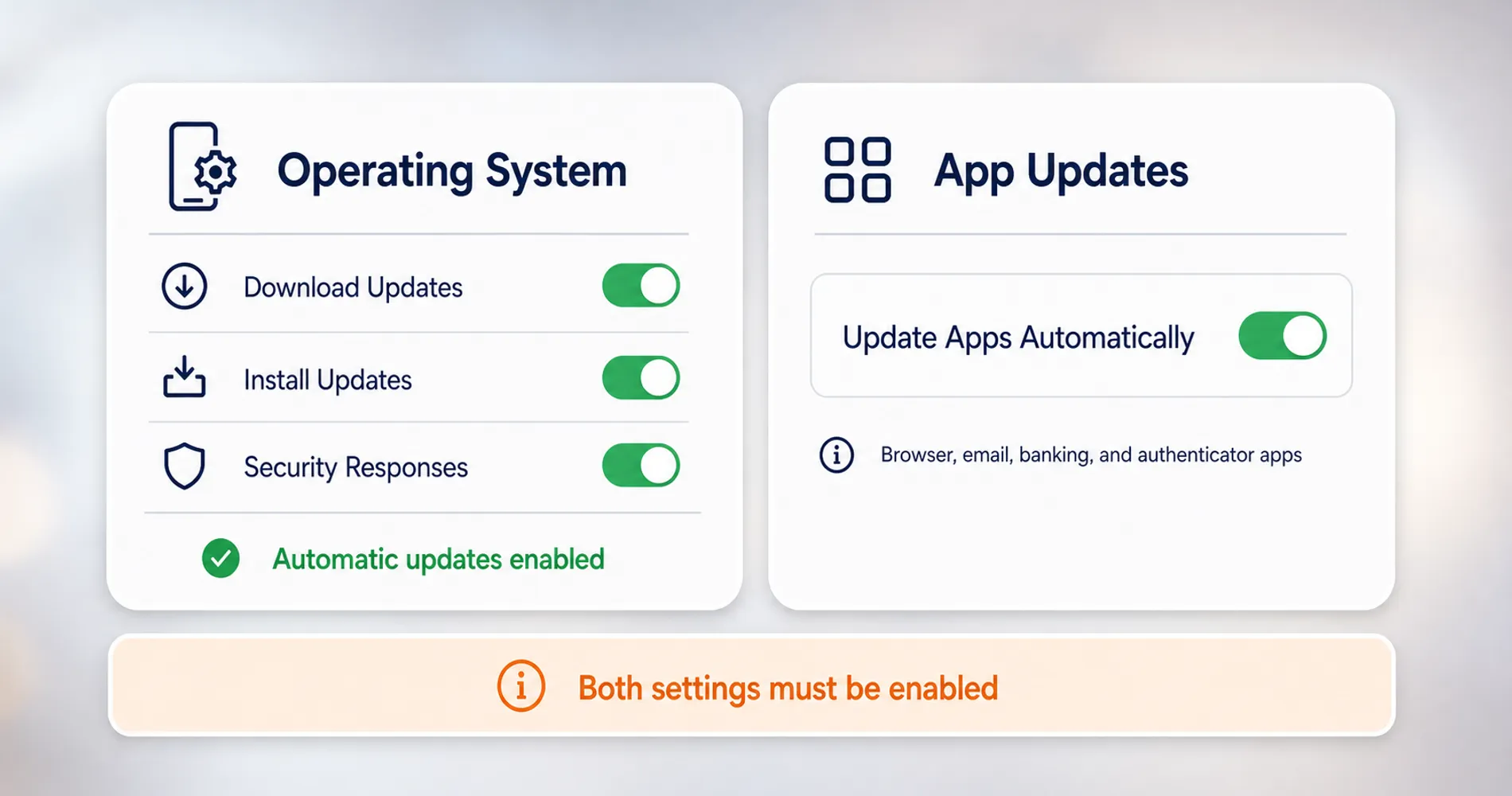
Apple separates iOS system updates from App Store app updates. Both must be enabled separately in Settings to keep the device secure.
OS updates (iOS/iPadOS 26):
- Open Settings → General → Software Update → Automatic Updates.
- Turn on the toggles under both Automatically Download and Automatically Install for iOS updates.
- Leave Security Responses & System Files on — this channel ships Apple's emergency fixes between full updates.
App updates — the toggle most people miss:
- Open Settings → Apps → App Store (on older iOS versions, App Store sits directly in the main Settings list).
- Under Automatic Downloads, turn on App Updates.
The Two-Settings Rule on iPhone
iOS automatic updates cover the operating system only. Without the separate App Updates toggle, the apps handling your most sensitive data — browser, email, banking, authenticator — only update when someone opens the App Store and updates them by hand. Both settings need to be on.
Know the overnight behavior: iPhones install OS updates only when the phone is locked, charging, and on Wi-Fi. A phone that never charges overnight near Wi-Fi can have every toggle on and still lag weeks behind. If an employee's phone is persistently out of date, charging habits are usually why.
How to Set Up Automatic Updates on Android
Android OS updates flow through each phone manufacturer, not Google, so patch speed varies dramatically by brand — but app updates come from the Play Store on every device. Configure both:
System updates by manufacturer:
- Samsung Galaxy: Settings → Software update; enable Auto download over Wi-Fi. Major One UI versions roll out heavily staggered by model and region — a current-gen flagship and a two-year-old mid-range phone can sit months apart on the same update.
- Google Pixel: Settings → System → Software updates. Pixels stage security patches automatically near release day; they just need the restart.
- Other brands: usually Settings → System → System update or under "About phone."
App updates (all Android devices):
- Open the Play Store and tap your profile icon.
- Go to Settings → Network preferences → Auto-update apps.
- Select Over Wi-Fi only (or any network if data isn't a concern).
The honest caveat: Pixels get patches monthly, Samsung's recent Galaxys are reliably fast, and budget or older devices from other manufacturers can run 2–4 months behind — or have aged out of updates entirely. Google's monthly Android bulletins routinely include flaws already under active exploitation; how fast each fix reaches a given phone depends entirely on whose name is on the box. The check costs nothing: Settings → About phone → Android security update — if that date is more than two months old after checking for updates, the manufacturer is the bottleneck, not the settings. For businesses with employees using personal Android phones for work email and files, that patch level is part of your security posture and you can't see it — that's the gap a BYOD policy or MDM tool exists to close.
How to Update Router and Network Hardware Firmware
Routers, switches, and access points run firmware with vulnerabilities, and most consumer network hardware never updates itself. Nothing on your laptop patches your router — Windows Update, EDR, and app stores all stop at the device. The three setups we see in small businesses:
Consumer routers (TP-Link, ASUS, Netgear):
- Log into the admin interface (the address on the label, typically 192.168.0.1 or 192.168.1.1).
- Find Firmware Update, usually under Advanced or System.
- Enable the auto-update or scheduled-update toggle if the model has one.
- No toggle? Set a quarterly 15-minute calendar reminder: check the firmware version against the manufacturer's support page and apply what's there.
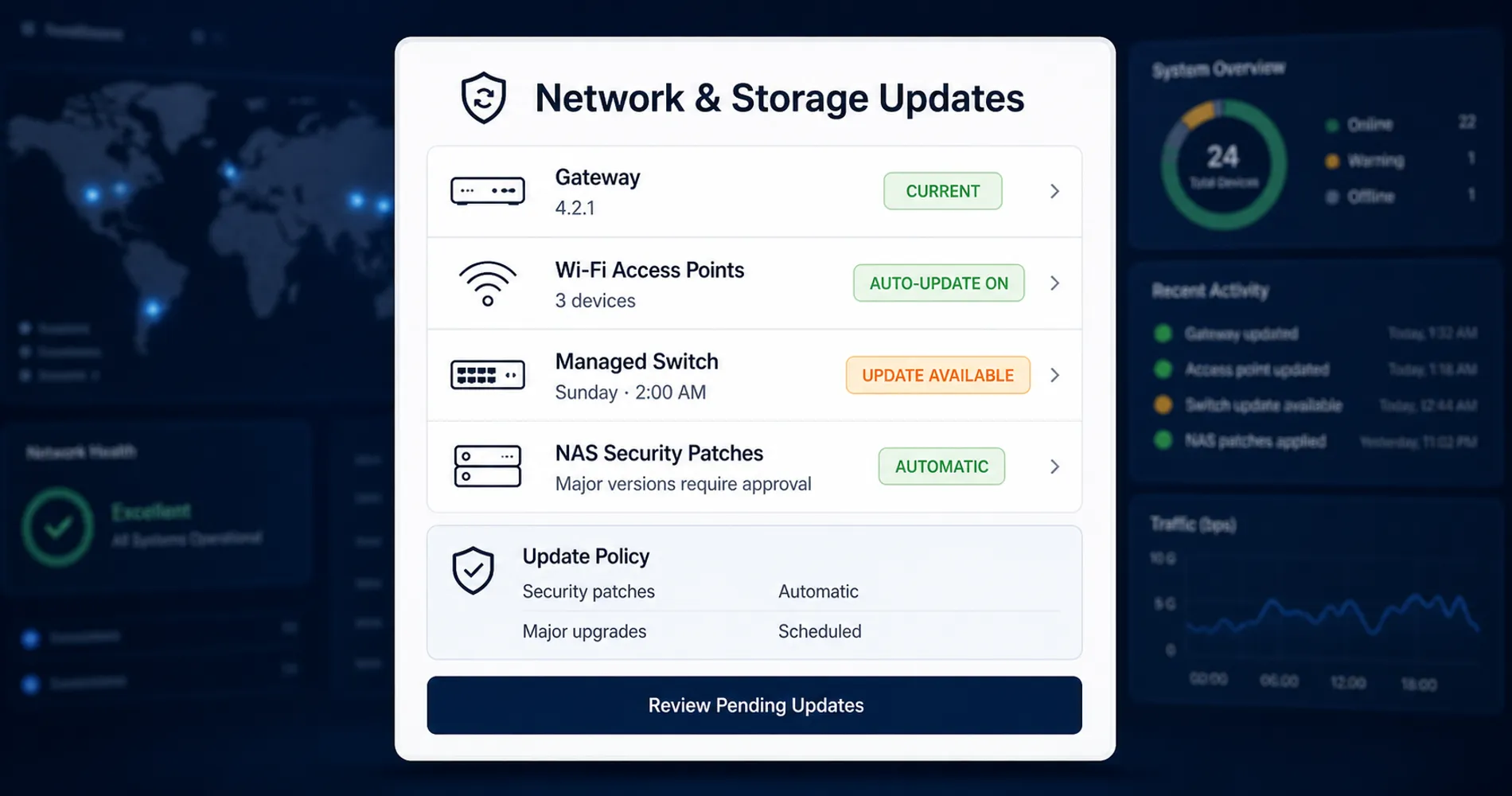
UniFi: Ubiquiti handles this better than the consumer brands. In the UniFi Network application, Settings → System → Updates schedules auto-updates for both the application and connected devices — set it to the official release channel (never Early Access for production) in a weekend window. As of 2026 there's also a centralized Update Manager in Site Manager at unifi.ui.com showing pending updates across every console you manage. This is a real architectural advantage: firmware status across gateways, switches, APs, and cameras in one view, which no consumer-grade mix can match. If you're consolidating mixed gear, our UniFi gateway comparison covers which consoles fit a small office.
ISP-provided routers and modems: patched remotely by the ISP on their schedule. You can't control it or verify it — one more argument for running your own firewall or gateway behind ISP equipment.
Keep a device inventory. You cannot update what you don't know you own. Every business running more than a handful of network devices needs a simple inventory — a spreadsheet works — logging each device's make, model, location, firmware version, and end-of-life status. Include the gear that never gets counted: managed switches, access points, security cameras, the UPS in the rack, the smart TV in the conference room. Each is networked software that won't patch itself unless told to. We maintain exactly this across 538 UniFi devices we've operated for four years — and that fleet data holds a relevant lesson: of the five incidents we logged in four years, one site-wide AP problem was ultimately resolved by a firmware update, and the most reliable fix for device adoption failures is updating core gateway and switch firmware before adding new hardware. Firmware discipline isn't just security — it's uptime.
End-of-Life Firmware Is a Replacement Trigger, Not a Settings Problem
Every router model eventually stops receiving firmware — typically 3–5 years after release for consumer gear. Once a model is end-of-life, no setting matters: vulnerabilities found after that date remain unpatched permanently. If your router's last available firmware is dated more than 18 months ago, check the manufacturer's support page for an EOL notice. A business running its network through an EOL router has an internet-facing device it can no longer patch — at that point, replacement is the fix, not configuration.
How to Set Up NAS Automatic Updates (Synology and QNAP)
NAS devices should install security patches automatically but stage major OS versions manually, because a major version jump can break installed packages. The configuration:
Synology (DSM 7.3):
- Open Control Panel → Update & Restore → DSM Update → Update Settings.
- Set important (security) updates to install automatically; leave major DSM versions for a planned window with a verified backup.
- Check Package Center's own update settings — DSM updates and package updates are separate, and security-relevant packages deserve auto-update too.
Two DSM 7.3 behaviors worth knowing: important auto-updates can be postponed by up to 28 days, and on 2025-and-newer models Synology removed the "just notify me" option entirely — important security updates install themselves.
QNAP: Control Panel → System → Firmware Update, with a comparable auto-update option for security fixes. Same policy: automatic for security patches, manual and scheduled for major firmware versions.
For the broader context on running a NAS in a business — including backup roles where update discipline really matters — see our Synology NAS business guide.
How to Verify Update Status Across Your Whole Office
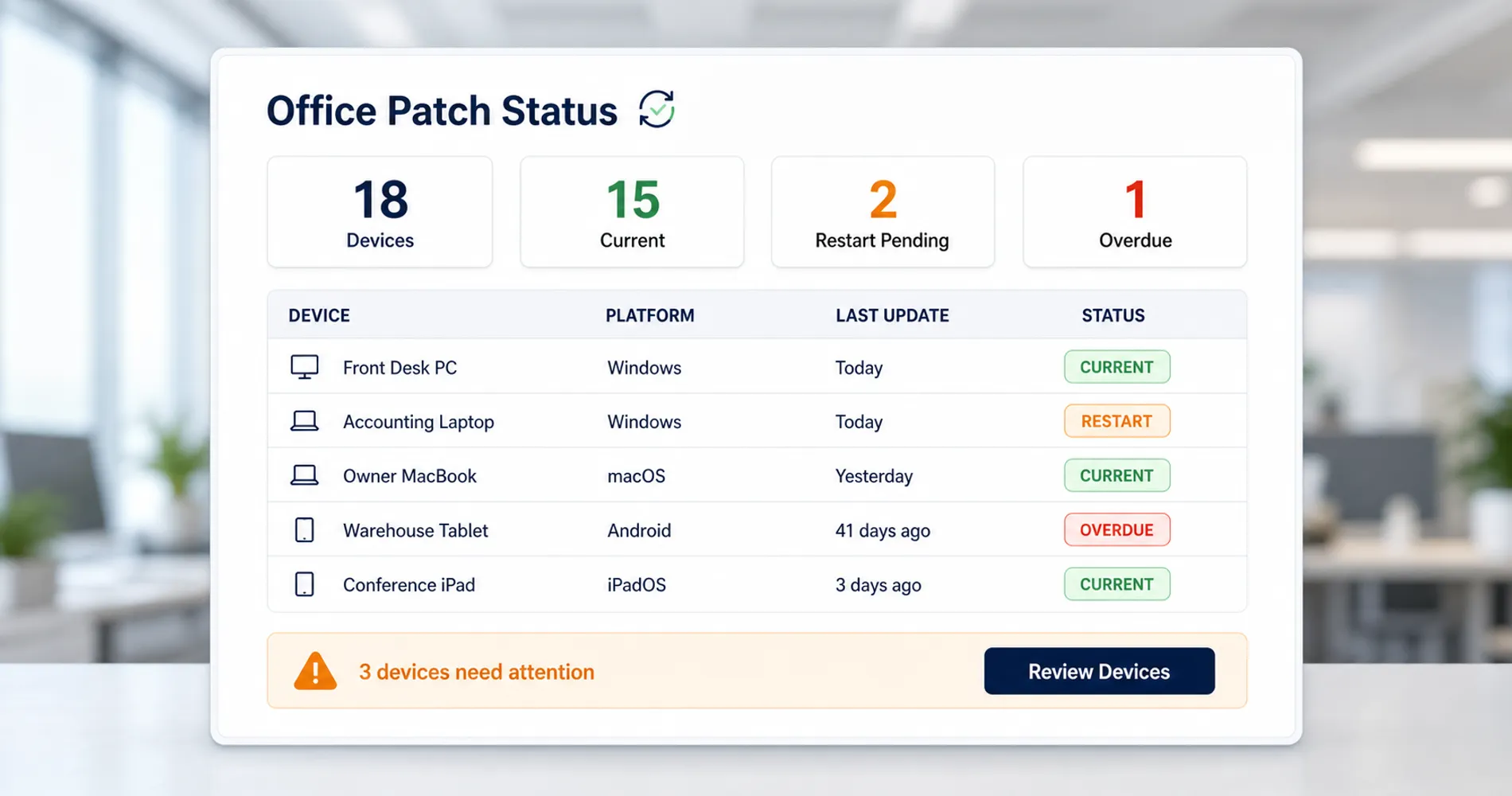
A 15-minute verification walk confirms whether the patch window is actually closed on every machine — no audit software required below ten devices.
The per-machine spot check (Windows, ~30 seconds each):
- Settings → Windows Update — no "Updates paused" banner, no pending restart.
- Update history — current month's cumulative update listed as successfully installed.
The three questions that surface hidden problems (especially for remote employees):
- Does your computer ever ask to restart for updates — and do you let it?
- Do you shut your computer down every night?
- What version is your phone on, and when did it last update?
The answers reliably expose the active-hours trap, the never-restarted laptop, and the BYOD phone running a year-old OS.
When to Move to Centralized Patch Management
Past roughly ten devices, manual verification fails — not because the walk takes too long, but because the failure mode is silent: the machine that misses three months of patches is precisely the one nobody checked. The fix is a dashboard instead of a walk:
- Windows fleets: Action1's free tier covers up to 200 endpoints — free permanently, no feature limits — and shows patch status across every machine, including remote ones, with no server to maintain. We've run it across client fleets for over a year; the visibility alone justifies the 20-minute setup.
- Apple and mobile fleets: Apple Business Manager plus an MDM tool enforces update policy on Macs, iPhones, and iPads; Microsoft Intune does the same for Windows and Android. That's the step from "verify" to "enforce" — worth it from ten devices onward, earlier in regulated industries.
- Network hardware: UniFi's Update Manager (covered above) is the equivalent dashboard for gateways, switches, and APs.
This walk pairs naturally with a broader review — our mid-year security audit checklist slots patch verification into a complete posture check.
What to Do When an Automatic Update Breaks Something
A problematic Windows update can be uninstalled individually without affecting the rest of the system, and updates can be paused deliberately during critical business periods. Update conflicts are rare — almost always a Windows update clashing with a specific driver or line-of-business application — and they are not a reason to disable automatic updates. Know the recovery moves in advance:
- Roll back the specific update: Settings → Windows Update → Update history → Uninstall updates — remove the problem update without touching anything else. Windows will try to reinstall it, so pause updates for a week or two while the vendor fixes the conflict.
- Pause deliberately, not indefinitely: during a genuinely critical window — closing week, tax deadline, payroll migration — pausing for a week is a defensible call. Make it deliberate: a calendar entry for when the pause ends, and one person who owns turning it back on.
- Keep a current backup — it changes the math entirely. With one, a bad update costs hours; without one, any system change is a gamble. If your business doesn't have automatic backup running, start with the 3-2-1 backup rule and our cloud backup comparison.
For perspective on the trade-off: across our client base, update conflicts have caused a handful of minor disruptions over the years, while unpatched vulnerabilities remain one of the most common root causes in the breach timelines we've documented. For almost every small business, the risk of staying unpatched outweighs the risk of an update conflict.
The Fifteen-Minute Payoff
Run the list: Windows Update with active hours that match reality, ESU verified on any remaining Windows 10 machines, all four macOS switches, both iPhone toggles, Play Store auto-updates, the router firmware toggle (or quarterly reminder), and security-patch auto-updates on the NAS. The next time a major Patch Tuesday makes the news, you'll already know the answer to "are we covered?" — the patches applied themselves.
If you'd rather have a professional verify it across the whole office — including the network gear most internal checks miss — we do exactly this kind of review as part of our cybersecurity services for businesses across South Florida.
Related Resources
- Action1 Review: Is the 200-Endpoint Free Tier Still Viable? — Centralized patch visibility across every Windows machine, free up to 200 endpoints.
- Windows 10 End of Support: Your Migration Guide — What to do with Windows 10 machines before consumer ESU ends in October 2026.
- We Ran 538 Ubiquiti Devices for 4 Years — The fleet data behind our firmware-first network maintenance approach.
- Mid-Year Security Audit Checklist for Small Business — The broader posture review that patch verification belongs to.
- EDR vs. Antivirus for Small Business — The endpoint protection layer that sits on top of update hygiene.
- The 3-2-1 Backup Rule — The backup habit that makes update problems a minor inconvenience instead of a crisis.
- Cybersecurity Services — Security assessments for South Florida businesses, including device and patch posture review.
Frequently Asked Questions
Related Articles
More from Cybersecurity
Vendor Risk Assessment for Small Businesses: A Practical 2026 Framework
Inventory, classify, and review your SaaS vendors with a two-axis risk matrix, worked example, and copyable 12-question questionnaire.
19 min read
Protecting Company Files: Why Policy Comes Before Software
Small businesses cannot make company files impossible to copy, but they can reduce risk with policy, permissions, managed devices, DLP, logging, and disciplined offboarding.
18 min read
Secure Boot Certificate Updates: How to Verify and Update Your Windows PCs
Secure Boot certificate expiration began in June 2026. Verify the full certificate and boot-manager update, review errors, and deploy safely to a Windows fleet.
4 min read