

"I Already Rebooted": Why Windows Shutdown Isn't a Real Restart
Windows Fast Startup means 'Shut Down' doesn't fully reset your PC. Here's what IT pros see when they check, why it matters for updates and troubleshooting, and how to fix it in two minutes.

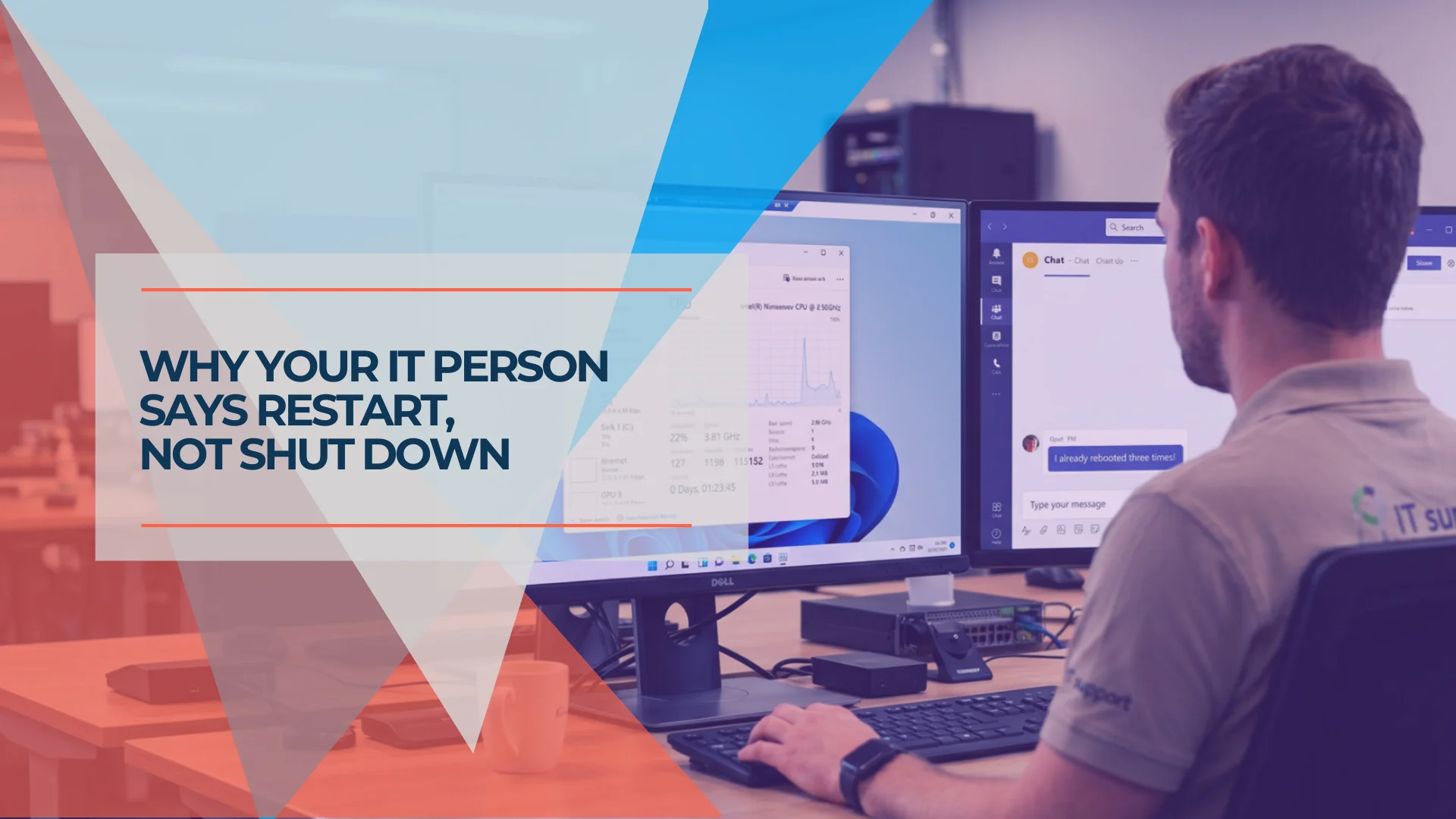
One of the more common support scenarios we run into: a user reports a recurring problem — printer not connecting, an update stuck, an application behaving strangely. They confirm they've already rebooted. We remote in, open Task Manager, and check the Performance tab. The machine has been running continuously for two or three weeks.
The user clicked “Shut Down” — probably more than once. But on Windows 10 and 11, Shut Down doesn't do what most people expect. A feature called Fast Startup, enabled by default on virtually every Windows machine shipped in the last decade, saves the Windows kernel to disk during shutdown and restores it on the next power-on. The uptime counter doesn't reset. Pending updates that require a restart don't apply. Problems that existed before shutdown persist after it.
We've seen this across dozens of South Florida businesses — front desk machines, accounting workstations, back-office PCs that get shut down nightly but haven't had a genuine restart in weeks. Here's what Fast Startup actually does, how to verify uptime in under a minute, and how to disable it permanently.
Why Does Windows Shutdown Not Actually Restart the PC?
Windows Fast Startup saves the active kernel and drivers to disk instead of clearing them. This prevents a true system reset on Shut Down.
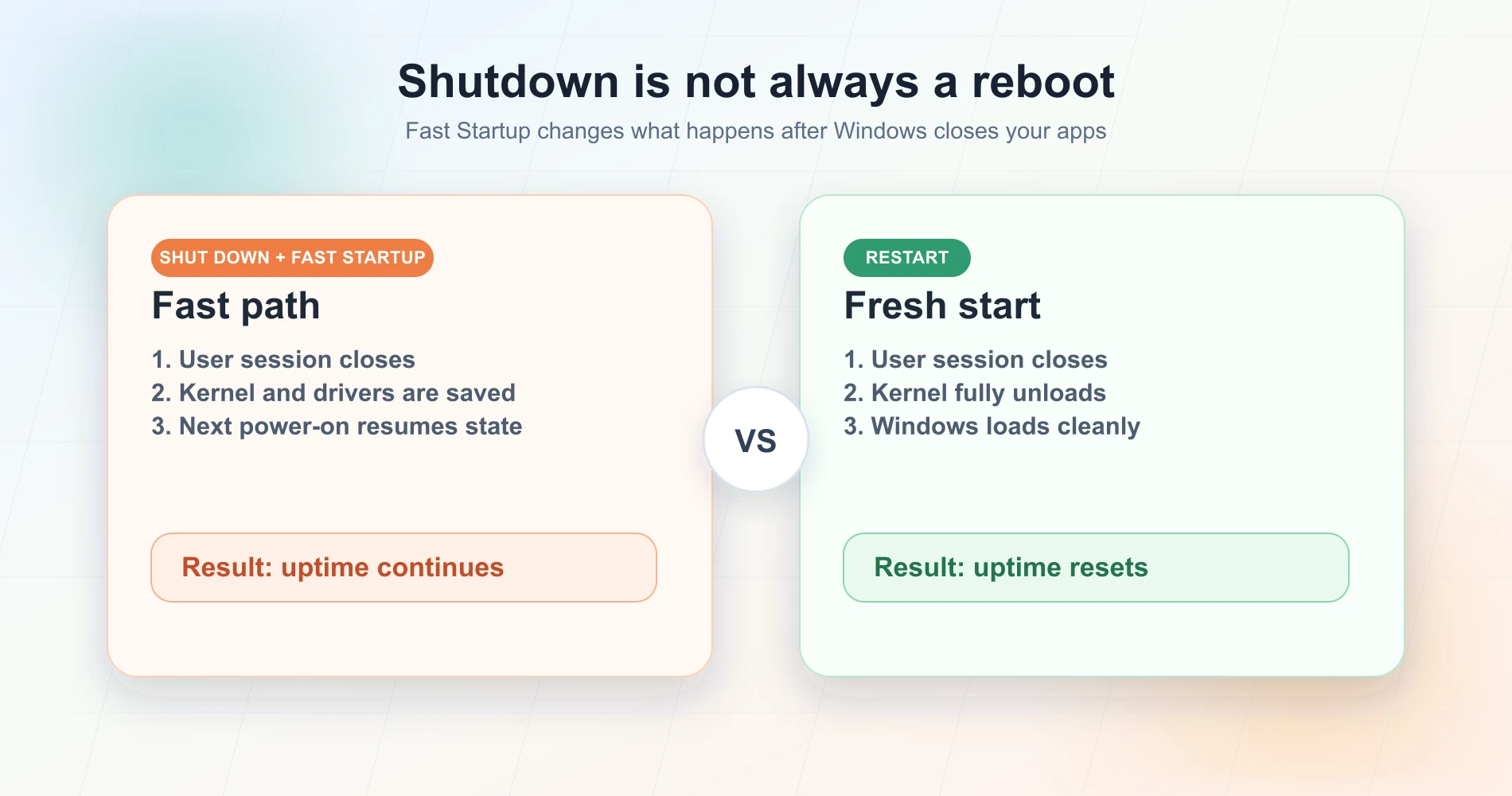
When you click Shut Down, Windows closes your applications and logs off your user session normally. What happens next is the key difference: instead of clearing the kernel from memory, Windows writes the kernel state and all loaded device drivers into a hibernation file on your drive (hiberfil.sys). On the next power-on, Windows restores this saved state rather than initializing from scratch. From the operating system's perspective, the computer resumed from where it left off — it did not restart.
Because the kernel never unloads, driver errors that existed before shutdown persist afterward. Memory-related issues that accumulate over time continue to build. Security patches that require a kernel-level file swap don't complete, even if Windows Update shows them as installed.
Security Updates That Require a Restart Won't Apply on Shutdown
Windows Update flags many patches as “requires restart” because they replace kernel-level components that can't be swapped while the OS is running. With Fast Startup enabled, Shut Down does not satisfy this requirement. A current example: the Windows 11 Secure Boot KEK (Key Exchange Key) certificate update — rolled out broadly in early 2026 ahead of June certificate expirations — explicitly requires a genuine reboot to complete. Machines that are only being shut down nightly may show this update as pending indefinitely. Our guide to automatic updates on every device covers the full picture of why patches sometimes don't install even when updates appear current.
The feature has been enabled by default since Windows 8 and is labeled “Turn on fast startup (recommended)” in the Control Panel. Most users reasonably leave a setting marked “recommended” alone, which is why the behavior tends to go unnoticed until something stops working.
Windows Power States Compared
The table below summarizes how each Windows power option handles the kernel, uptime counter, and pending updates.
| Power Option | Kernel State | Uptime Counter | Pending Updates Apply |
|---|---|---|---|
| Shut Down (Fast Startup on) | Saved to disk | Continues | No |
| Shut Down (Fast Startup off) | Cleared | Resets | Yes |
| Restart | Cleared | Resets | Yes |
| Sleep | Saved in RAM | Continues | No |
| Hibernate | Saved to disk | Continues | No |
Only Restart and Shut Down with Fast Startup disabled perform a true kernel reset.
How to Check Real Windows Uptime
You can verify true system uptime using Task Manager, Command Prompt, or PowerShell. Task Manager provides the fastest visual confirmation.
When you need to confirm whether a machine has actually restarted, the check takes about 10 seconds. Three ways to do it:
Task Manager (Visual, No Commands Required)
Press Ctrl + Shift + Esc to open Task Manager, click the Performance tab, then select CPU. The Up time field in the lower section shows exactly how long the machine has been running since its last genuine restart, in the format DD:HH:MM:SS.
A reading of 14:06:22:11, for example, means the machine has been running for 14 days and 6 hours — regardless of how many times someone clicked Shut Down during that period.
Command Prompt (Shows Exact Last Boot Date and Time)
Open Command Prompt and run:
systeminfo | find "System Boot Time"
This returns the precise date and time of the last boot — more useful than just a duration when you need to know whether the restart happened before or after a specific event (an update, a config change, a reported problem).
PowerShell (Best for Remote and Scripted Checks)
(Get-Date) - (Get-CimInstance Win32_OperatingSystem).LastBootUpTime
This outputs a clean time-since-reboot in days, hours, minutes, and seconds. More practically, IT professionals can run this against remote machines without asking the user to do anything:
Invoke-Command -ComputerName PCNAME -ScriptBlock {
  (Get-Date) - (Get-CimInstance Win32_OperatingSystem).LastBootUpTime
}
Replace PCNAME with the machine name. If you're managing a domain, this works across the network silently — no user interaction required.
What Counts as a Real Reboot
Only Restart (not Shut Down) guarantees a full kernel reload when Fast Startup is enabled. Sleep and Hibernate also don't reset the uptime counter — they're designed not to. The only options that clear state and reset uptime are Restart, or Shut Down after Fast Startup has been disabled. If you're asking a user to reboot for troubleshooting purposes, tell them specifically: Start → Power → Restart. Not Shut Down.
How to Disable Fast Startup in Windows 11 and 10
Turn off Fast Startup via Control Panel Power Options for individual PCs, or through Group Policy for managed environments.
Manual: Control Panel
The setting is in Control Panel rather than the newer Settings app, which is where most people look first.
- Open Control Panel — search for it in the Start menu if needed
- Go to Hardware and Sound → Power Options
- Click Choose what the power buttons do in the left sidebar
- Click Change settings that are currently unavailable — this step is required or the checkbox below will be greyed out and uneditable
- Under Shutdown settings, uncheck Turn on fast startup (recommended)
- Click Save changes
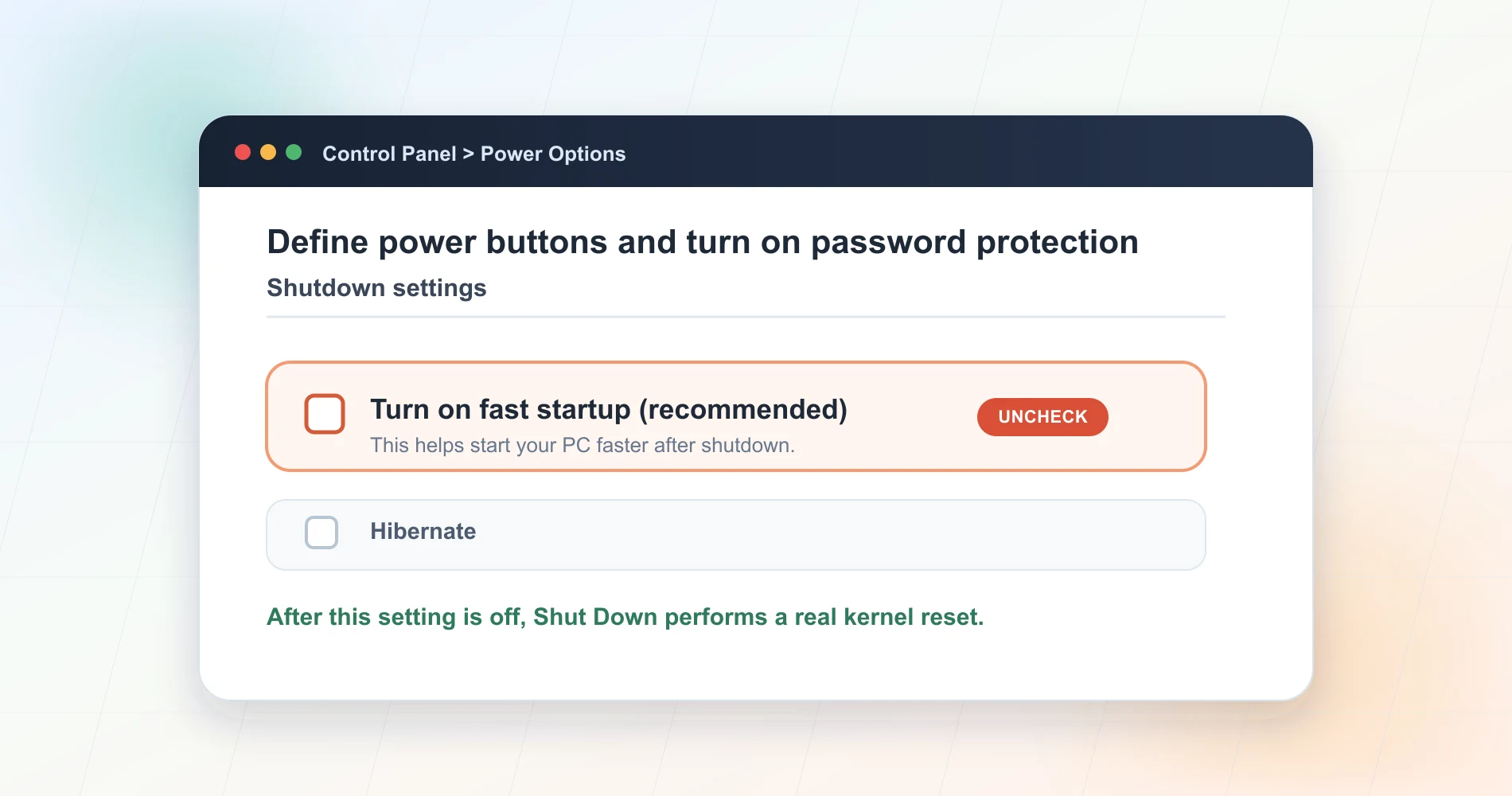
From this point on, Shut Down and Restart behave identically at the kernel level. Both perform a full reset.
Group Policy: For IT Admins Managing Multiple Machines
If you're managing a Windows domain, push this setting via GPO rather than touching each machine individually. For environments managing larger fleets, Action1's free patch management tier covers up to 200 endpoints at no cost and provides a dashboard that surfaces machines with pending restarts, making it straightforward to confirm Fast Startup is off across the fleet.
Navigate to:
Computer Configuration → Administrative Templates → System → Shutdown
Open the Require use of fast startup policy. The naming is counterintuitive — to disable Fast Startup across your domain, set this policy to Disabled. Setting it to Enabled enforces Fast Startup; setting it to Disabled turns it off on all machines the GPO applies to.
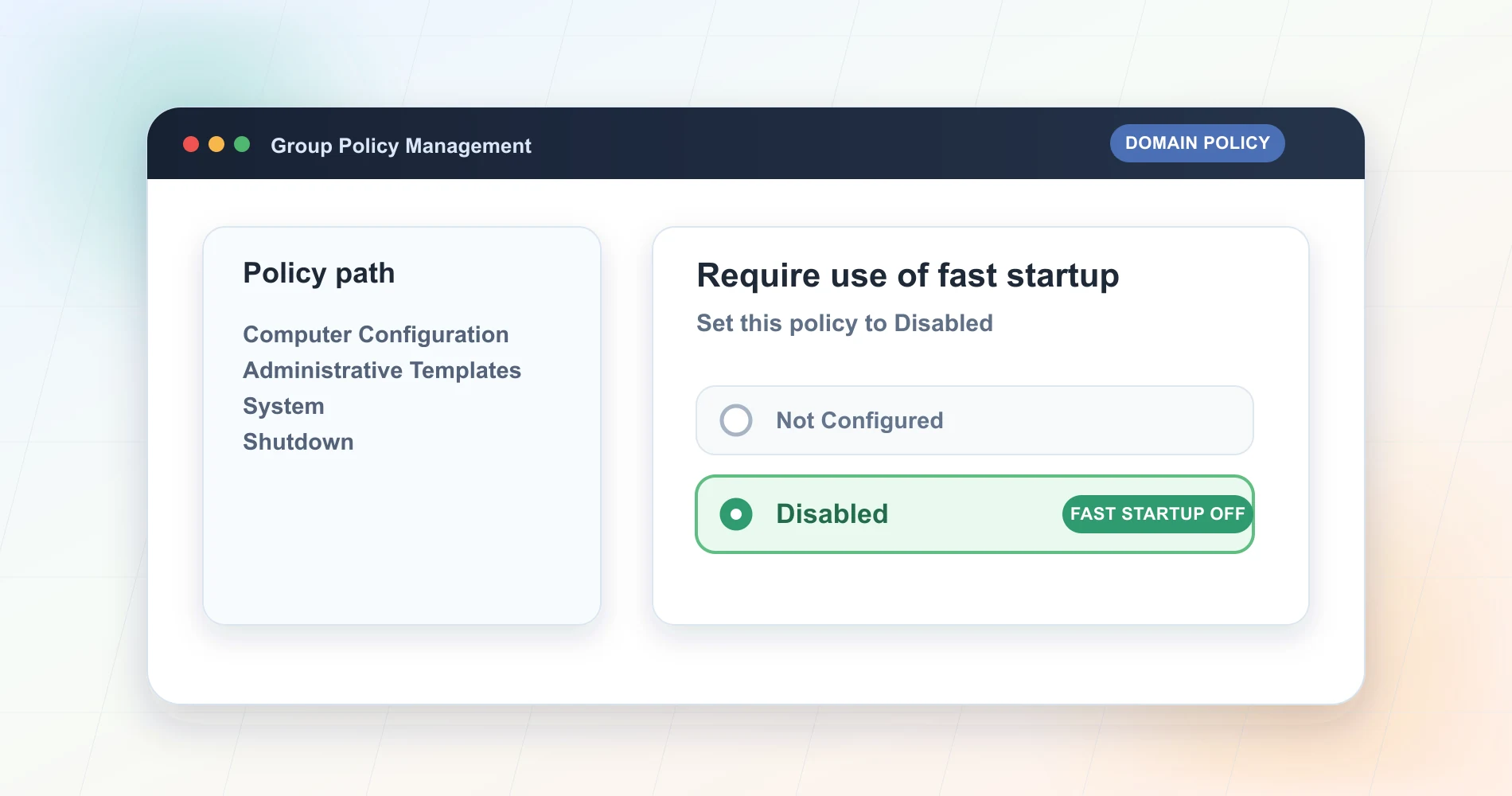
Apply to the OU containing your workstations and let Group Policy propagate. No reboot required for the policy to take effect — though you'll want machines to actually restart once so the kernel clears properly.
Intune / MDM Alternative
For environments using Microsoft Intune rather than on-premises Group Policy, the equivalent setting is available in the Settings Catalog under System → Power. Search for "fast startup" in the Settings Catalog to find the equivalent control. The behavior is identical.
Does Restart Bypass Fast Startup?
Yes. The Restart command forces a complete kernel reload and clears system state, bypassing Fast Startup entirely.
Even if Fast Startup remains enabled on a machine, selecting Restart rather than Shut Down guarantees a full kernel reset. Sleep, Hibernate, and Shut Down with Fast Startup on all preserve the kernel state — Restart does not. For troubleshooting, Restart is the only operation that consistently clears the OS to a known state.
Once Fast Startup is disabled, Shut Down and Restart behave identically at the kernel level. The distinction between them only matters for how long the machine stays powered off.
The boot time tradeoff is modest. On modern NVMe hardware, Fast Startup saves only a few seconds on cold boot — a meaningful difference when the feature was designed for spinning hard drives, but largely negligible today. On older SATA SSDs or hard drives the gap is more noticeable, though still a reasonable tradeoff for consistent update behavior and reliable troubleshooting.
For small businesses we support in South Florida, disabling Fast Startup via GPO is a standard part of our managed environment setup, alongside automatic update configuration. The feature doesn't announce itself when problems occur — users see a setting labeled "recommended," leave it enabled, and assume Shut Down means what it says. Disabling it removes that ambiguity.
We manage Windows environments for small and mid-sized businesses across Miami and South Florida. For more on Windows in business settings, see our Windows 11 IT Pro assessment, our automatic updates guide, and our Secure Boot certificate advisory for organizations managing Windows fleets.
Frequently Asked Questions
Related Articles
More from Business Software
What You Actually Get on a New Windows 11 Laptop: A 30-Workday Test
A 30-workday test of a new Windows 11 Pro laptop, plus what to install, what to skip, and the setup changes that matter for business use.
14 min read

Action1 Review 2026: Is the 200-Endpoint Free Tier Still Viable?
A 12-month field test of Action1's free patch management platform covering the 200-endpoint tier, expanded Linux support, real-world deployment metrics, and paid pricing breakdown for SMBs.
14 min read
Microsoft 365 or Google Workspace: Fix the Setup or Switch?
Before leaving Microsoft 365 or Google Workspace, find out whether you have a setup problem or a platform problem, what to fix first, and when to switch.
21 min read