

Apple Business Manager for Small Business: Complete 2026 Guide
Apple Business Manager is now Apple Business. See how zero-touch Mac deployment, Jamf Now integration, and Managed Apple Accounts work for small business fleets in 2026.


Affiliate Disclosure: This article contains affiliate links. If you make a purchase through these links, we may earn a small commission at no extra cost to you. As an Amazon Associate, iFeelTech earns from qualifying purchases.
What Is Apple Business Manager?
Apple Business Manager was folded into Apple Business in April 2026, but it still does the same job: a free portal that proves ownership of your organization's Apple devices and enables zero-touch deployment. Apple announced the consolidation on March 24, 2026, and the unified platform—merging Apple Business Manager, Apple Business Essentials, and Apple Business Connect—launched on April 14, 2026, in more than 200 countries. The enrollment and app-licensing mechanics this guide describes work the same way; only the name and packaging changed.
April 2026 Update: ABM Is Now Apple Business
Apple Business Manager is now part of Apple Business, Apple's free, unified platform for device management, business email, and customer-facing tools. The portal still lives at business.apple.com, and most IT admins still say "ABM" out of habit when they mean the device-enrollment layer. Existing Apple Business Manager and Apple Business Essentials accounts migrated automatically—no re-enrollment required.
One substantive change: Apple Business now includes basic device management built in, at no cost—something the original ABM never offered on its own. For a handful of Macs with simple policies, that native layer alone may be enough. It doesn't yet match the compliance reporting, audit trails, or granular configuration profiles that a dedicated MDM provides, which is why most businesses past a few employees still pair Apple Business with a tool like Jamf Now.
Introduction to Apple Business Manager
Apple Business (Native) vs. Apple Business + Jamf Now
Apple Business Essentials no longer exists as a separate paid tier, so the real decision for small businesses today is whether Apple Business's free native management is enough, or whether to add a dedicated MDM on top. Here's the distinction:
| Feature | Apple Business (Native, Free) | Apple Business + Jamf Now |
|---|---|---|
| Cost | Free | Free + $4/device/month (first 3 devices free) |
| Device enrollment (ADE) | Yes | Yes |
| App and license management (VPP) | Yes | Yes |
| Configuration depth | Basic settings and restrictions | Granular, template-based policies |
| Compliance reporting and audit trails | Limited | Detailed, exportable |
| Best For | A handful of Macs, simple policies, no dedicated IT | Teams that need policy enforcement, reporting, or third-party app automation |
Bottom Line: If you're managing fewer than five Macs with straightforward needs, Apple Business's native tools may cover you for free. Once you need compliance evidence, granular app deployment, or hands-off scaling, Jamf Now remains the better-documented path for small business IT.
ABM vs. MDM: What's the Difference?
Think of it this way:
- The ABM layer of Apple Business = Ledger: Proves you own the device, stores serial numbers, licenses apps
- MDM (Jamf Now) = Remote Control: Pushes settings, installs apps, enforces policies
Pairing both still gets you the most reporting and automation. Apple Business tells a new Mac "You belong to Acme Consulting," and Jamf Now tells it "Install Slack, enable FileVault, connect to the VPN."
Core Capabilities for Small Businesses
Apple Business Manager delivers three core features that eliminate manual device setup and enable remote fleet management.
1. Automated Device Enrollment (Zero-Touch Deployment)
When you purchase Macs from Apple or an authorized reseller, each serial number automatically appears in your ABM portal. You assign devices to Jamf Now before they ship. When an employee powers on the Mac, it checks Apple's servers, sees it's enrolled in ABM, and automatically connects to Jamf Now for configuration.
Business Benefit: Ship a Mac directly from Apple to a remote employee's home. When they turn it on, Setup Assistant skips consumer features (personal Apple ID prompts), installs required security software, and lands them at a configured desktop. No IT involvement required.
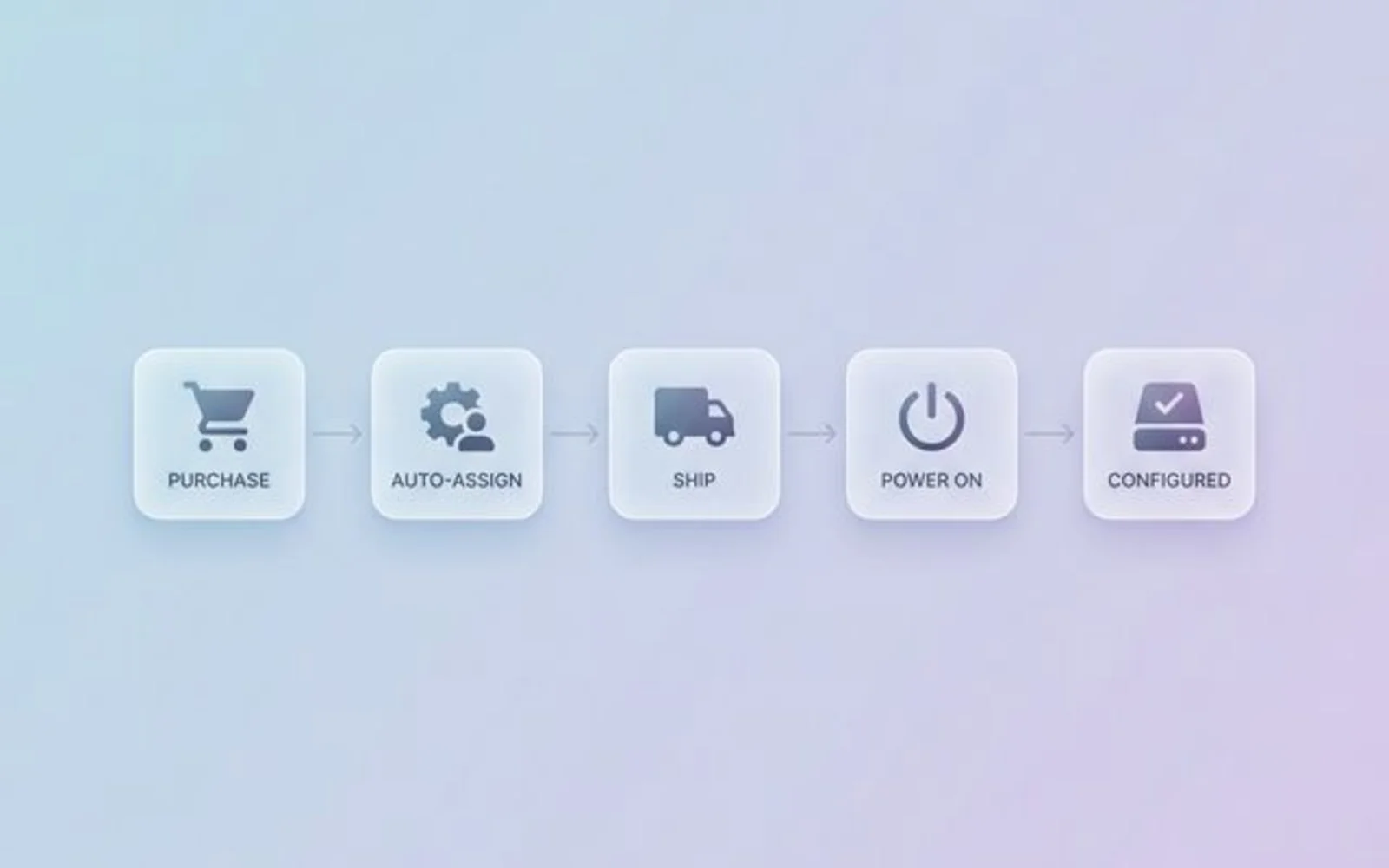
Critical Setup Note: You must provide your Apple Customer Number to resellers (like CDW, Insight, or Apple.com Business) during purchase to automate serial number sync. Without this link, devices won't appear in ABM automatically, and you'll need to add them manually using Apple Configurator.
2. Volume Purchasing (App License Ownership)
ABM's Volume Purchase Program allows you to buy app licenses in bulk—even for free apps—where the business retains ownership. Licenses assign wirelessly to devices or users through your MDM. When an employee leaves, you revoke the license and reassign it to their replacement.
Business Benefit: No "exit interview license archaeology" where you're tracking which subscriptions tied to personal Apple IDs. For seasonal businesses (accounting firms during tax season, retail during holidays), you pay only for active seats and redeploy licenses as headcount fluctuates.
3. Managed Apple Accounts (Business Data Separation)
Managed Apple Accounts are organization-owned Apple IDs created through ABM, separate from employees' personal iCloud accounts. They integrate with Google Workspace or Microsoft 365 (Entra ID) through federation.
Business Benefit: Work documents in iCloud Drive, corporate contacts, and calendars remain completely separate from personal photos, music, and family sharing. When employees leave, you retain business data without touching personal information.
Critical App Store Note: If you configure ABM to block personal Apple IDs on corporate devices (available since September 2025), employees will also lose App Store access unless signed in with a Managed Apple Account. This prevents unapproved software installation but requires planning—you'll need to pre-approve and push all necessary apps through your MDM instead of relying on self-service downloads.
Traditional Setup vs. ABM-Enabled Setup
| Scenario | Traditional (No ABM) | With ABM + Jamf Now |
|---|---|---|
| New hire receives Mac | Ships to office, IT manually configures, then ships to employee | Ships directly to employee's home |
| Setup time | 2-4 hours (IT hands-on) | 15 minutes (employee self-service) |
| Employee departure | Manually revoke licenses, manual recovery required | Remote lock, revoke licenses, reassign to replacement |
| App installation | Employee searches App Store or IT sends installer links | Apps auto-install during first boot |
| Security policy enforcement | Relies on employee cooperation | Enforced automatically, non-negotiable |
| Lost device | Hope FileVault was enabled | Activation Lock prevents unauthorized use |
What's New in macOS 26 and iOS 26? (2025-2026 Updates)
Apple's September 2025 releases—macOS 26 (Tahoe), iOS 26, and iPadOS 26—introduced major device management enhancements that integrate with ABM. These address real operational pain points for scaling businesses.
2026 Update
All features in this section require devices running macOS 26, iOS 26, or iPadOS 26 (released September 15, 2025). Organizations still on macOS 15 will not have access to these capabilities.
How Does Platform SSO Work in macOS 26?
macOS 26 integrates Platform Single Sign-On (SSO) into the Setup Assistant, allowing users to sign in with corporate credentials (like Microsoft Entra ID or Okta) to create their local Mac account immediately.
Instead of the "triple login" workflow of previous versions—once for enrollment, once for local account creation, once for corporate SSO—employees now sign in once during the initial boot. The Mac automatically:
- Enrolls in Jamf Now (MDM)
- Creates the local user account
- Syncs the password with the corporate identity provider
Business Benefit: Your employee signs in with employee@acmeconsulting.com and they're done. Their Mac is enrolled, their local account exists, and future logins use the same corporate credentials. This is especially powerful when combined with "auto advance" in Jamf Now—the Mac silently completes registration and arrives at the login window ready for work without user interaction.
Supported Identity Providers: Microsoft 365 (Entra ID), Google Workspace, Okta, and other SAML 2.0/OAuth 2.0 IdPs.
Can I Switch MDMs Without Wiping Devices in macOS 26?
Yes. macOS 26 and iOS 26 introduce "MDM Migration," allowing admins to move devices between MDM servers (e.g., from Apple Business Essentials to Jamf Now) without a factory reset.
Here's how it works:
- In ABM, select devices and assign them to the new MDM server
- Set a migration deadline (e.g., "Complete by March 15")
- End-users receive automated notifications to re-enroll
- Upon re-enrollment, the new MDM takes over management, including Activation Lock and FileVault keys
- User data is preserved—no backup/restore required
Business Benefit: This solves a major pain point for growing businesses transitioning from entry-level tools (like Apple Business Essentials) to enterprise MDM solutions (like Jamf Now). Previously, this required scheduling device wipes across distributed teams and risked data loss. Now you can migrate during business hours without productivity loss.
Critical Warning: User data is designed to be preserved during the re-enrollment handoff. However, IT best practices still dictate a backup before migration, particularly for devices originally enrolled via Automated Device Enrollment (ADE), as supervision identity changes can be complex.
Important Note: While device data is preserved, VPP (Volume Purchase Program) app licenses must be reassigned in the new MDM to ensure apps remain active and continue receiving updates.
Eligibility: Devices must be enrolled through Automated Device Enrollment (ADE). Manually enrolled devices become eligible after a 30-day provisional period.
What Is Tap to Login in macOS 26?
Tap to Login enables contactless Mac authentication using passes stored in Apple Wallet on an iPhone or Apple Watch. This feature is powered by Authenticated Guest Mode, designed for shift workers or shared kiosks where data is wiped after every session. It is not intended for dedicated employee devices where files need to be saved locally.
If your organization uses employee badge systems through Wallet (common in healthcare, education, corporate campuses), those same badges can unlock shared Macs.
Business Benefit: For shared workstations—hotel desks in co-working spaces, hospital check-in stations, retail POS terminals—employees tap their iPhone or Watch to log in, eliminating password fatigue on devices used by multiple people. This creates a natural audit trail of who accessed which device when.
Hardware Requirements: Requires a supported external NFC reader connected to the Mac running macOS 26. Macs do not yet have built-in NFC readers for this feature. Employees need an iPhone (iOS 26+) or Apple Watch (watchOS 11+) with their badge stored in Apple Wallet.
Can I Block Personal Apple IDs on Corporate Devices?
Yes. As of September 2025, ABM administrators can prevent users from signing into organization-owned devices with personal Apple Accounts entirely.
This control applies to:
- iCloud sign-in
- App Store with personal ID
- Messages, FaceTime with personal accounts
- Any Apple service that accepts consumer Apple IDs
Business Benefit: You can enforce a policy where corporate Macs only accept Managed Apple Accounts from your organization. This ensures all business data flows through managed, auditable accounts you retain control over when employees leave.
Important Caveat: Blocking personal Apple IDs also blocks personal App Store access. Employees can't download their own apps. You'll need to pre-approve and push all necessary software through Jamf Now's app catalog instead. For teams accustomed to self-service software installation, this requires a workflow change.
Can I Manage Apple Intelligence Features?
Yes. Starting February 2025, MDM solutions support granular controls to restrict specific Apple Intelligence features on ABM-enrolled devices. Note that while Jamf Pro offers native toggles, Jamf Now users may need to upload a Custom Configuration Profile to restrict specific features like:
- Writing Tools (proofreading, rewriting, summarization)
- Image Playground and Genmoji
- Mail Summary
- ChatGPT integration sign-ins
Business Benefit: You can tailor AI feature availability to your company's risk tolerance. A law firm might disable all Apple Intelligence features on devices handling client data. A marketing agency might allow Image Playground but block external ChatGPT integration. You make the policy decision rather than leaving it to individual employees.
Hardware Note: These controls only apply to Macs with Apple Silicon (M1 or later), as Intel-based Macs do not support Apple Intelligence features.
Configuration: Set restrictions through your MDM (Jamf Now) under device configuration profiles. These controls apply only to supervised devices enrolled through ABM.
What Is Safari Declarative Management?
macOS 26 introduces declarative configurations for Safari, allowing IT to manage bookmarks, set a default homepage, and control extensions through the MDM.
Business Benefit: When an employee's Mac finishes setup, Safari opens to your company intranet (not Apple's generic start page), with bookmarks for your project management system, CRM, and knowledge base pre-configured. You can also restrict which Safari extensions are allowed, preventing security risks from unvetted browser add-ons.
Use Case: For small businesses where "finding the right link" is a legitimate onboarding challenge, this eliminates friction and gets new hires productive faster.
How Does ABM Work With Jamf Now?
The integration between Apple Business Manager and Jamf Now relies on a secure token system and a clear division of responsibilities.
The Server Token: Linking ABM and Jamf Now
When setting up Jamf Now, you download an MDM server token from your ABM portal. This token is a cryptographic certificate proving Jamf Now is authorized to manage your organization's devices.
After uploading the token to Jamf Now's admin portal:
- ABM knows: "Devices belonging to Acme Consulting should be managed by Jamf Now"
- Jamf Now knows: "We're authorized to receive device enrollments from Acme Consulting"
Token Expiration: Server tokens expire annually and must be renewed. Both ABM and Jamf Now send reminder notifications 30-60 days before expiration. Add this to your annual IT maintenance calendar.
The Complete Device Lifecycle
1. Purchase
Buy a Mac from Apple.com or an authorized reseller. Provide your Apple Customer Number during checkout so the reseller's system associates the serial number with your ABM organization ID automatically.
2. Auto-Assign
Within 24 hours, the device appears in your ABM portal under "Devices." ABM assigns it to your Jamf Now MDM server based on default assignment rules you configured during setup.
3. Ship Direct
The Mac ships from the warehouse to your employee's address. ABM and Jamf Now are already waiting for it.
4. First Boot
Employee powers on the Mac and connects to WiFi. During Setup Assistant, the Mac contacts Apple's activation servers and asks, "Who owns me?"
5. Enrollment Redirect
Apple's servers respond: "You belong to Acme Consulting, and you should enroll with Jamf Now." The Mac automatically contacts Jamf Now.
6. Configuration
Jamf Now pushes enrollment profile, security policies, app installations, and settings. The employee sees progress bars for "Installing Apps" and "Applying Configuration."
7. Ready to Work
Setup Assistant completes. Employee signs in with corporate credentials (configured by Jamf Now), arriving at a fully configured desktop.
How Much Does Jamf Now Cost?
Jamf Now operates on straightforward pricing: $4 per device per month, with the first three devices free. There's no minimum commitment. You add or remove devices as team size changes.
Pricing Examples:
- 10-person team (10 Macs): $28/month ($4 × 7 paid devices)
- 25-person team (25 Macs): $88/month ($4 × 22 paid devices)
- 3-person startup (3 Macs): $0/month (under the free tier)
The "first three free" tier is useful for micro-businesses testing device management before committing financially.
Try Jamf Now FreeHow Do I Set Up Apple Business Manager and Jamf Now?
Implementation follows a specific sequence. Here's the complete process from enrollment to first managed device.
Step 1: Enroll in Apple Business Manager
Navigate to business.apple.com and click "Sign Up." The portal is now branded Apple Business, but the enrollment flow and requirements below are unchanged from the original ABM process.
Requirements:
- D-U-N-S Number: Unique identifier for your business issued by Dun & Bradstreet (standard for corporate credit).
- Legal Business Information: Official business name, address, contact details.
- Work Email and Phone: Apple verifies identity through your business email domain and phone number.
Timeline: Apple business verification typically takes 1-3 business days. You'll receive an email when your ABM account is approved.
Administrator Account Note: Use a real human name and work email, not a generic role like admin@company.com. Apple requires individual accountability for ABM access.
Step 2: Connect Jamf Now to ABM
Sign up for Jamf Now and complete initial setup. During the wizard, connect your MDM to ABM:
In Apple Business Manager:
- Navigate to Settings → Device Management Settings
- Click Add MDM Server
- Name it "Jamf Now"
- Download Jamf Now's public key (from their setup wizard)
- Upload the public key to ABM
- Download the server token from ABM
In Jamf Now:
- Upload the server token from ABM
- Connection establishes within seconds
From this point forward, devices purchased through your ABM-linked reseller automatically appear in ABM and assign to Jamf Now.
Step 3: Configure Default Device Assignment
In ABM, go to Settings → Device Management Settings → Default Device Assignment.
Set default MDM server to "Jamf Now." This ensures new devices route to Jamf Now automatically without manual assignment for each serial number.
Step 4: Link Reseller Accounts (Critical for Auto-Enrollment)
You must provide your Apple Customer Number to authorized resellers to enable automatic serial number sync.
How to find your Apple Customer Number:
- In ABM, go to Settings → Account
- Copy your "Customer Number" (format:
CUST-XXXXXXX)
Provide this number when purchasing from:
- Apple.com (Business portal)
- CDW, Insight, SHI, Connection, or other Apple Authorized Resellers
Without this link, devices won't appear in ABM automatically, requiring manual addition via Apple Configurator.
Step 5: Add Existing Devices (If Needed)
If you have Macs deployed before implementing ABM, manually add them using Apple Configurator on an iPhone.
Requirements:
- Mac must run macOS 12.0.1 or later
- Mac must have Apple silicon or T2 Security Chip
- iPhone with Apple Configurator app (free from App Store)
Process:
- Install Apple Configurator on iPhone
- Sign in to your ABM organization
- Hold iPhone near the Mac
- Tap "Add Device"—proximity detection identifies the Mac
This is useful for small businesses transitioning to ABM with 5-10 existing Macs who don't want to wait for natural replacement cycles.
Step 6: Test With a Single Device
Before rolling out fleet-wide, test the workflow:
- Purchase one Mac through your ABM-linked reseller
- Verify it appears in ABM within 24 hours
- Confirm assignment to Jamf Now
- Power on the Mac and complete Setup Assistant
- Validate that apps, policies, and configurations apply correctly
This identifies configuration issues (wrong WiFi credentials, failed app installs) before shipping 20 Macs to remote employees.
Why Does ABM Matter in 2026?
The ABM layer of Apple Business turns every Mac you purchase into a corporate asset from the moment it powers on. For small businesses managing distributed teams and tighter security requirements, that distinction between "consumer device" and "corporate asset" is operationally critical. Jamf Now provides ongoing configuration and control. Together:
- Jamf Now manages the settings: Pushes apps, enforces security policies, configures WiFi
- ABM establishes chain of custody: Proves ownership, enables zero-touch enrollment, ensures Activation Lock protection
The 2025-2026 feature updates in macOS 26—Platform SSO in Setup Assistant, MDM Migration without wipe, Tap to Login, Apple Intelligence controls, Safari management—address real operational pain points:
- Onboarding remote employees without IT bottlenecks (Platform SSO)
- Managing shared workstations efficiently (Authenticated Guest Mode with Tap to Login)
- Switching MDM providers as you scale (device migration)
- Governing AI features to meet compliance (Apple Intelligence controls)
- Reducing onboarding friction (Safari management)
The new OS-level separation of personal and work data—via Managed Device Attestation and the ability to block personal Apple Accounts entirely—significantly mitigates the BYOD privacy paradox. Employees retain personal device privacy, while businesses maintain full control over corporate data and compliance. Because Managed Device Attestation proves a device is genuine before allowing login, security is both stricter and seamless.
For small businesses managing Mac fleets in 2026, the ABM layer of Apple Business is the most effective way to ensure devices are ready to work instantly and remain secure if lost or stolen—whether you run it alone or pair it with Jamf Now.
Next Steps
- Review our Apple Business Manager workflows guide for advanced deployment scenarios
- Check out the Apple M4 office setup guide for modern Mac deployment best practices
- See the MacBook Air M4 review for hardware recommendations
- Read our new employee IT onboarding security checklist to integrate ABM into your workflow
Related Articles
More from IT Guides

Managed IT Services Pricing: Per-User Costs and What to Budget in 2026
Budget $125 to $250 per user for managed IT using our South Florida estimates. Compare pricing models, exclusions, setup costs and quotes in this 2026 guide.
12 min read
Small Office IT Checklist: Your Annual 12-Stop Walk-Through
A small office IT checklist with 12 stops, from UPS battery and power strips to Wi-Fi and backups. Rate each one and print your own fix list.
14 min read

Where Should Your Business Files Actually Live?
A NAS, Google Drive, and Proton Drive solve three different problems. Which one your files belong in depends on four questions — here they are.
14 min read