Server for Small Business: Do You Actually Need One?
Most small businesses asking about servers don't need one — or need a NAS instead. A practical framework for deciding between cloud-only, NAS, and dedicated server.

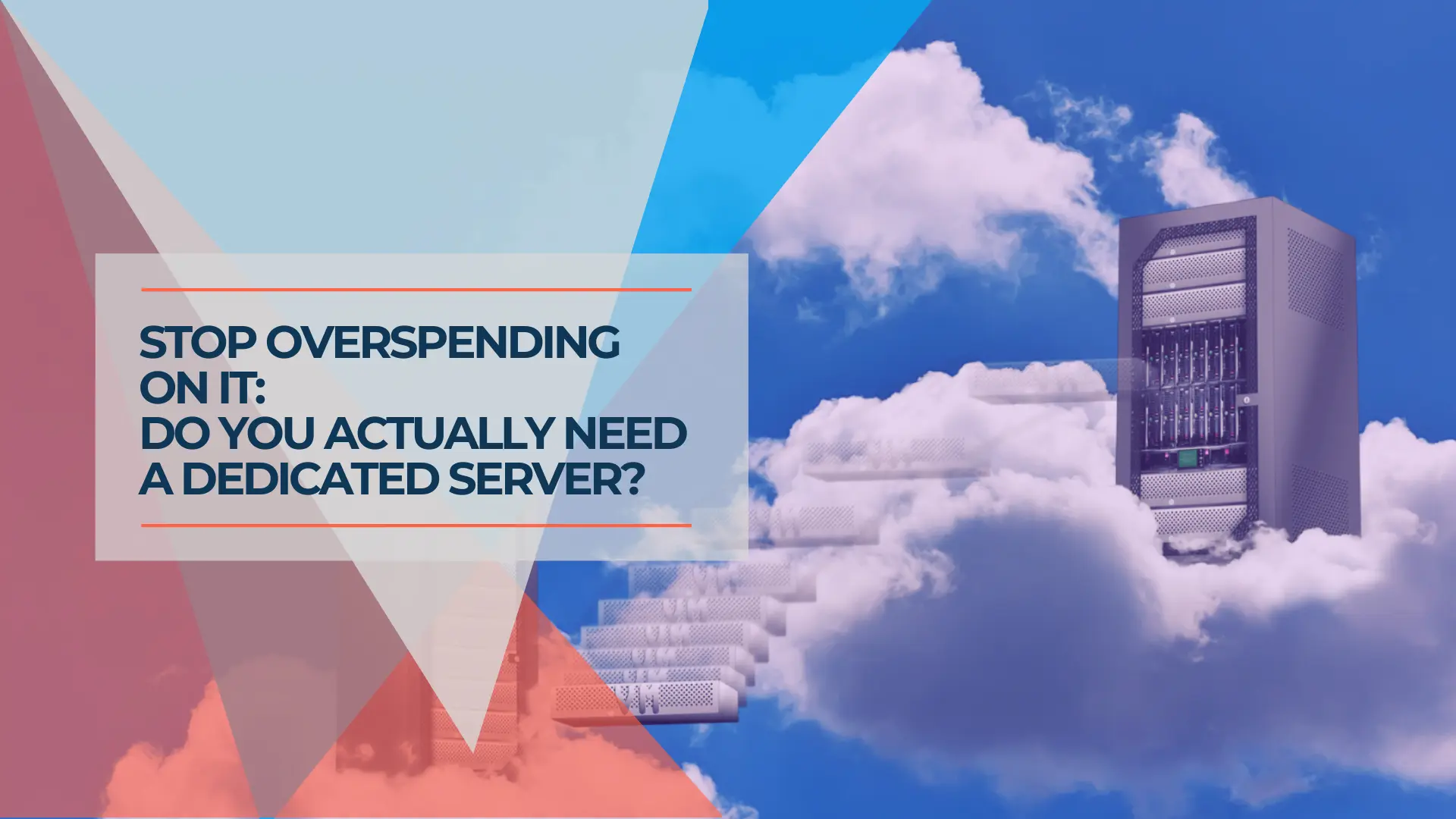
Most small business owners who call us asking about servers don't actually need one.
"Server" has become a catch-all term for "the IT thing that stores files and runs stuff," and whether you need one depends entirely on which problem you're trying to solve. We've been called in to "set up a server" for a 12-person law firm and ended up configuring Microsoft 365 and a $600 NAS. We've been called to "move everything to the cloud" for a 25-person distribution company and installed a rackmount server instead. The right answer almost never matches the question that was asked.
This guide walks through three tiers — cloud-only, NAS, and dedicated server — and gives you a clear framework for which one your business actually needs.
What Is a Small Business Server? (Cloud vs. NAS vs. Dedicated)
A small business server is centralized IT infrastructure used to store files, run software, and manage a network. In practice, that infrastructure falls into one of three tiers:
- Cloud services (Microsoft 365, Google Workspace) — Handle email, file sharing, video meetings, and collaboration with zero hardware. Everything runs in a remote data center, and you pay per user per month.
- Network attached storage (NAS) — A dedicated device on your office network that stores files locally. Modern NAS devices handle backup, remote access, and lightweight applications. Think of it as a smart hard drive that everyone in the office can access simultaneously.
- Dedicated server — A full computer running Windows Server or Linux. It hosts line-of-business applications, manages user accounts and security policies via Active Directory, and runs database workloads. It costs three to five times more than a NAS and requires significantly more maintenance.
Most small businesses land in the first two tiers. The rest of this article helps you figure out which one.
| Factor | Cloud Services | NAS (Hybrid) | Dedicated Server |
|---|---|---|---|
| Upfront Cost | $0 | $600–$1,800 | $3,949–$6,200+ |
| Maintenance Burden | Minimal (vendor-managed) | Low (firmware updates, drive monitoring) | High (patching, AD management, hardware) |
| Setup Time | Hours | 1–2 days | 3–5 days (with configuration and migration) |

Can a Small Business Run on Cloud Services Alone?
Yes. Businesses whose day-to-day work is primarily document editing, email, and video conferencing can operate entirely on cloud services without any local hardware — regardless of team size.
Microsoft 365 Business Standard costs $12.50/user/month and covers email (Exchange), file sharing (SharePoint and OneDrive), video conferencing (Teams), and the full Office suite. For a 15-person firm, that's $187.50/month — $2,250/year — with 1TB of storage per user, enterprise-grade security, compliance tools, and 99.9% uptime. Google Workspace Business Starter offers a comparable package at $7/user/month (billed annually).
Microsoft has announced that M365 Business Standard increases to $14/user/month on July 1, 2026. Even at the new price, $2,520/year for 15 users is less than any hardware alternative for teams doing standard office work.
The ceiling for cloud-only is higher than most people expect. If nobody on your team needs large local files, specialized on-premise software, or sub-second file access over a local network, cloud services cover the job.
Two operational details worth noting. First, cloud-only means your business depends entirely on your internet connection. If your ISP goes down, your team loses access to email, files, and collaboration tools. For offices where that risk is unacceptable, a secondary WAN connection (such as a 5G failover router) adds $50–100/month but keeps the business running during an outage. Second, cloud platforms do not back themselves up — Microsoft's shared responsibility model means your data is your responsibility. You'll need to pair this setup with a dedicated cloud backup service, but that's a $100–200/year add-on, not a server.
Cloud-Only Works If All Three Apply
Your team works primarily with documents, email, and standard office applications. Nobody regularly works with files larger than 500MB or needs sub-second local access to shared data. You don't run industry-specific software that requires a local server. If all three are true, you don't need a server or a NAS. The right investment is a proper Microsoft 365 or Google Workspace configuration paired with cloud backup.
When Should a Small Business Use a NAS Drive?
A NAS (Network Attached Storage) is the right choice for businesses that handle large media files, need fast local disaster recovery, run surveillance cameras, or have outgrown the economics of cloud-only storage. It bridges the gap between cloud services and a full server — local file storage at network speed, automated backup, and remote access — without Windows Server licensing or the maintenance overhead of a dedicated machine.
Signs your business needs a NAS:
- Large file workflows. Architecture firms, video production studios, engineering offices, and design agencies routinely handle files from 500MB to 10GB+. A NAS connected to your office network delivers those files at local network speed — a 2GB Revit model that takes minutes to download from SharePoint opens in seconds from a NAS over a standard gigabit connection.
- Fast local backup and restore. When a server dies on a Monday morning, restoring 2TB of data from the cloud can take days. A local NAS restores the same data in hours.
- Ransomware protection through immutable snapshots. Modern NAS devices like Synology support immutable snapshots — point-in-time copies of your data that cannot be altered or encrypted by malware. If ransomware encrypts files on the shared drive, the NAS rolls back to a clean snapshot in minutes. This also matters for cyber liability insurance: most carriers in 2026 require businesses to maintain immutable or offline backups as a condition of coverage.
- Surveillance storage. Camera systems generate 1–2TB/month at scale. Storing that volume in the cloud becomes expensive quickly; local NAS storage handles the same workload at a fraction of the ongoing cost.
- Compliance or data sovereignty. Some industries and contracts require data to stay on-premise. A NAS provides local storage with encryption and access controls that satisfy most compliance frameworks.
- Storage costs past the cloud break-even. Above 10TB of active data, cloud storage fees add up. A NAS with 32TB of raw storage costs $1,200–$1,800 as a one-time purchase; equivalent cloud storage runs $300–500/month indefinitely.
The Synology DS925+ (about $640 diskless) is the 4-bay model we recommend most often for small business teams. Populated with four 8TB drives in RAID 5, it delivers roughly 24TB of usable storage for about $1,400 total. For offices already running UniFi networking, the UNAS Pro 4 ($499) integrates directly into the ecosystem with dual 10G SFP+ ports.
For a detailed hardware breakdown, see our 2026 comparison of the Best NAS for Small Business. And for businesses deciding between Synology Drive and SharePoint for file collaboration, the practical answer is often both: SharePoint for documents and lightweight collaboration, Synology for large project files and local backup.
What Businesses Require a Dedicated On-Premise Server?
Dedicated servers are necessary for companies running legacy Windows-dependent software, managing 30 or more local workstations via Active Directory, or operating under strict data compliance mandates. The criteria are narrower than most people expect — if none of the following apply, a NAS or cloud setup covers your needs.
You need a dedicated server if:
- You run line-of-business software that requires Windows Server. ERP systems, certain POS platforms, legal practice management tools (Tabs3, PracticeMaster), and industry-specific applications in healthcare, manufacturing, and construction often require a Windows Server environment. These applications won't run on a NAS or in the cloud — or their cloud versions lack features your workflow depends on.
- You manage 30+ Windows workstations. Active Directory with Group Policy lets you manage user accounts, enforce security policies, deploy software updates, and control access permissions across the network from one place. Below 30 workstations, Microsoft 365 with Entra ID (formerly Azure AD) handles most of this without on-premise hardware.
- You have a database workload needing dedicated resources. SQL Server, PostgreSQL, or another database engine serving a multi-user application performs better on dedicated hardware with guaranteed CPU and RAM.
- A regulatory or contractual requirement mandates on-premise infrastructure. Some HIPAA, CMMC, and financial services compliance frameworks require data and processing to remain on hardware you physically control. Cyber liability insurance carriers increasingly require MFA, immutable backups, and documented recovery testing as conditions of coverage — requirements that are easier to meet with controlled on-premise infrastructure.
- You're running local AI inference workloads. Businesses processing sensitive documents through private LLMs or running GPU-accelerated analytics benefit from a dedicated server with an NVIDIA GPU. A fully configured Dell PowerEdge T360 with an NVIDIA A2 provides entry-level local AI inference capability. For most businesses, however, Microsoft 365 Copilot and cloud-based AI tools are sufficient and require zero hardware.
One misconception we encounter regularly: "I want to avoid monthly cloud fees." The math rarely supports buying hardware purely to eliminate a subscription. A fully configured Dell PowerEdge T360 (about $3,949) plus Windows Server 2025 Standard ($1,176) plus Client Access Licenses (about $45/user) plus a UPS, power costs, and IT management adds up to over $21,000 over three years — roughly double the cost of a cloud-only setup for a 15-person team. Buying hardware to avoid a subscription only makes financial sense when a genuine workload demands it.
For businesses that do need a server, our Best Small Business Servers guide covers current hardware with deployment notes, and our Server Setup Guide walks through the full process. Need help calculating exact hardware requirements? Request an IT consulting assessment.
How Much Does Each Option Cost Over Three Years?
Over three years, a cloud-only setup for 15 users costs roughly $11,000, a NAS hybrid costs roughly $8,600, and a fully configured dedicated server exceeds $21,000. The most common cost mistake is comparing "buy hardware once" against "pay monthly forever" without accounting for licensing, power, and IT management.
Here's the math for a single scenario: a 15-person professional services firm needing shared file storage, backup, and standard business applications.
| Cost Element | Cloud-Only (M365) | NAS + Cloud (Hybrid) | Dedicated Server |
|---|---|---|---|
| Hardware | $0 | $1,400 (DS925+ + 4× 8TB drives) | $3,949 (fully configured Dell T360) |
| OS & Licensing | $0 (included in M365) | $0 (Synology DSM included) | $1,851 (Win Server 2025 + 15 CALs) |
| M365 Subscription (3 yr) | $6,750 (Business Standard, 15 users) | $3,240 (Business Basic, 15 users) | $6,750 (Business Standard, 15 users) |
| Cloud Backup (3 yr) | $600 ($200/yr) | $1,008 (Synology C2, $28/mo) | $600 ($200/yr) |
| Power (3 yr) | $0 | $108 ($3/mo) | $600 ($17/mo) |
| UPS | $0 | $180 | $300 |
| IT Management (3 yr) | $3,600 ($100/mo) | $2,700 ($75/mo) | $7,200 ($200/mo) |
| 3-Year Total | $10,950 | $8,636 | $21,250 |
| Monthly Equivalent | $304/mo | $240/mo | $590/mo |
IT management costs reflect what we see across our South Florida client base: cloud-only environments need occasional configuration and user management; NAS environments need light monitoring and updates; server environments require regular patching, Active Directory management, and hardware maintenance. The server tier includes M365 Business Standard because even with a local server for file sharing and applications, you still need M365 for email, Teams, and Office apps.
For standard office workloads — documents, email, collaboration — cloud-only wins on cost and simplicity. When the work involves large files, local backup, or storage-heavy operations, the NAS hybrid pays for itself quickly. A dedicated server is justified when application requirements demand it, not to avoid a monthly bill.
For a deeper breakdown using a 10-person scenario with line-item detail, see the TCO comparison in our server guide. Regardless of which tier you choose, our disaster recovery guide covers what your backup plan needs to look like.
Decision Checklist
Answer these questions honestly. They'll point you to the right tier in under 60 seconds.
Cloud-only — if you answer "yes" to all three:
- Does your team work primarily with documents, spreadsheets, and presentations (not large media, CAD, or design files)?
- Can your business tolerate cloud-speed file access — no one needs sub-second access to large shared files over a local network?
- Are you running zero software that requires a local server to function?
If yes to all three → cloud-only is your answer. Configure Microsoft 365 or Google Workspace properly, add a cloud backup service, and move on.
NAS — if you answer "yes" to any of these:
- Do your employees regularly access shared files larger than 500MB?
- Do you need local backup that can restore terabytes of data in hours, not days?
- Are you storing more than 5TB of active data that you access regularly?
- Do you run a camera surveillance system that needs local recording?
If yes to any → a NAS paired with cloud services is your answer. See our Best NAS for Small Business roundup for current hardware.
Dedicated server — if you answer "yes" to any of these:
- Does your business run software that specifically requires Windows Server to operate?
- Do you manage 30+ Windows workstations that need Active Directory and Group Policy?
- Do you have a compliance or contractual requirement mandating on-premise data processing?
- Do you run a database or local AI workload that needs dedicated CPU, RAM, or GPU?
If yes to any → you need a dedicated server. See our Best Small Business Servers guide.
The Most Common Answer for Our Clients
For most 10–35 person offices in South Florida without specialized server-dependent software, a NAS paired with Microsoft 365 Business Standard is the right answer. The NAS handles local file storage, backup, and ransomware-resilient snapshots at a fraction of server cost, while M365 covers email, collaboration, and AI-powered productivity tools. This is the configuration we deploy most often — and the one that generates the fewest support calls after setup.
What to Do Next
If you landed on cloud-only: Your most important next step is backup. Microsoft 365 does not back itself up — you need a separate service. Our Best Cloud Backup for Small Business guide covers the options with pricing. For cloud storage specifically, see our Best Cloud Storage for Small Business comparison.
If you landed on NAS: Start with hardware selection. Our Best NAS for Small Business roundup compares the Synology DS925+, UGREEN DXP4800 Plus, and UniFi UNAS Pro models with pricing and use-case guidance for the current market.
If you landed on dedicated server: Confirm your hardware requirements and budget. Our Best Small Business Servers guide covers current Dell PowerEdge and HP ProLiant models with real deployment notes and a detailed 3-year TCO breakdown. For the setup process itself, our Server Setup Guide walks through everything from hardware selection to first login.
Related Resources
- Best NAS for Small Business — Head-to-head comparison of Synology, UGREEN, and UniFi NAS hardware for the current market.
- Best Small Business Servers — On-premise vs cloud vs hybrid with a detailed 3-year TCO analysis.
- Small Business Server Setup Guide — Complete walkthrough from hardware selection to Windows Server configuration.
- The Monday Morning Their Server Died — What happens when the server decision goes wrong, and what proper preparation looks like.
- Best Cloud Backup for Small Business — Cloud backup comparison with pricing, regardless of which infrastructure tier you choose.
- Synology Snapshots Explained — How immutable snapshots protect against ransomware and accidental deletion.
- Synology Drive vs SharePoint — When local file storage beats cloud collaboration, and when it doesn't.
- Small Business Disaster Recovery Guide — Building a recovery plan that actually works when you need it.
- Local AI Server Guide — When a local AI server makes sense and how to build one.
Frequently Asked Questions
Related Articles
More from IT Guides
Where Should Your Business Files Actually Live?
A NAS, Google Drive, and Proton Drive solve three different problems. Which one your files belong in depends on four questions — here they are.
14 min read

The IT Stack We Deployed for a 10-Person Accounting Firm
A real-world breakdown of the complete IT infrastructure we deployed for a 10-person accounting firm — network hardware, password management, identity platform, backup, and endpoint protection. Pricing last checked July 2026.
22 min read
Synology Drive vs SharePoint: Choosing the Right File Platform for Your Business
A balanced comparison of Synology Drive and Microsoft SharePoint for small business file storage. Learn where each platform excels and when a hybrid approach makes the most sense.
8 min read