Small Business Server Setup Guide for 2026
Plan a small business server in 2026: compare NAS, cloud and on-prem options, size hardware, estimate costs, and follow a secure deployment checklist.

Affiliate Disclosure: This article contains affiliate links. If you make a purchase through these links, we may earn a small commission at no extra cost to you. As an Amazon Associate, iFeelTech earns from qualifying purchases.
Introduction
Before investing in server hardware, confirm a dedicated server is the right fit. Our decision guide covers when a NAS or cloud-only setup is the better option. If you've already made that call, this guide walks through hardware selection, Windows Server 2025 licensing, network design, and a deployment checklist for building a hybrid small-business infrastructure.
August 2026 Update
Hardware specifications, pricing, and OS recommendations in this guide were verified in August 2026. Covers Windows Server 2025 (released November 2024), current Dell PowerEdge T160/T360 and HPE ProLiant DL320 Gen11 hardware, and hybrid infrastructure strategies.
Key Takeaways
| Topic | Summary |
|---|---|
| 2026 Infrastructure | Hybrid approach: local server + cloud backup/email |
| Recommended Hardware | Dell T160/T360 or HPE DL320 Gen11 for most SMBs |
| Operating System | Windows Server 2025 Essentials (≤25 users, OEM-only, no CALs) |
| Network | 1GbE adequate for many workloads; size up to 2.5/10GbE based on throughput needs |
| Maintenance | Regular updates, tested backups, performance monitoring |
| Alternative | NAS devices (Synology) for file sharing and lightweight directory/VM needs |
Server Types at a Glance
Before choosing hardware, understand which server role you need:
| Server Type | Purpose | Example Use Case |
|---|---|---|
| File Server | Store and share files across your network | Team document collaboration |
| Application Server | Host business software (ERP, CRM) | QuickBooks Server, custom apps |
| Database Server | Store and query business data | Customer databases, inventory |
| Virtualization Host | Run multiple virtual servers | Consolidating multiple workloads |
Popular Server Brands
Two of the most popular server brands for small businesses are Hewlett Packard Enterprise (HPE) and Dell. Here's what each offers:
HPE Servers
HPE (Hewlett Packard Enterprise — a separate company from HP Inc. since 2015) offers a range of servers designed for small to medium businesses. The ProLiant DL320 Gen11 is a compelling choice for 2026:
Key Specifications:
- Processor: Single Intel Xeon Scalable (4th/5th Gen), up to 60 cores
- Memory: 16 DDR5 DIMM slots, up to 2TB. Speed depends on DIMM population: 5600 MT/s at one DIMM per channel, dropping to 4400 MT/s at two DIMMs per channel. Maximum capacity and maximum speed are not achievable simultaneously.
- Storage: Up to 10 SFF SAS/SATA/NVMe drive bays
- Form Factor: 1U rack-mount (ideal for server rooms)
- Management: HPE iLO 6 for remote management
- Price Range: Configured systems start around $6,000; better-equipped configurations exceed $10,000 (HPE storefront)
HPE servers include Integrated Lights-Out (iLO) for remote server management, reducing the need for physical access. This is particularly useful for businesses without a dedicated IT team.
Dell Servers
Dell's PowerEdge tower servers are excellent choices for small businesses that don't have dedicated server rooms. The current-generation T160 and T360 offer modern features at accessible price points:
Dell PowerEdge T160 (Entry-Level):
- Processor: Intel Xeon E-2400 or Xeon 6300 series, up to 8 cores
- Memory: 4 DDR5 ECC UDIMM slots, up to 128GB at up to 4400 MT/s
- Storage: Up to 3 x 3.5" LFF drives plus 2 x 2.5" NVMe drives (up to 63TB in mixed configurations). NVMe drives do not support S160 software RAID or hardware RAID; use BOSS-N1 (mirrored M.2) for a separate boot volume.
- Form Factor: Compact 3U Mini-Tower, office-friendly acoustics
- Networking: 2 x 1GbE onboard (2.5GbE or 10GbE requires add-in PCIe NIC)
- Management: iDRAC9 for remote management
- Pricing example: The Dell US storefront lists a Pentium/32GB/1TB base configuration at $4,699 and a Xeon 6315P/32GB/2×2TB/3-yr ProSupport/Windows Server Essentials configuration at $9,199 (Dell T160 storefront). Custom configurations vary.
- Best For: File sharing, print services, light applications
Dell PowerEdge T360 (Mid-Range):
- Processor: Intel Xeon E-2400 or Xeon 6300 series
- Memory: 4 DDR5 ECC UDIMM slots, up to 128GB at up to 4400 MT/s
- Storage: Up to 8 x 3.5" LFF bays (up to 128TB SAS/SATA), or 6 x 3.5" SAS/SATA + 2 x 2.5" NVMe (up to 111TB). As with the T160, NVMe drives do not support S160 or hardware RAID.
- GPU Support: Optional NVIDIA A2 (16GB GDDR6, power-limited to 40–60W in this chassis). Dell notes that GPU configurations increase fan speed and are not recommended for acoustically sensitive office spaces.
- Networking: Dual 1GbE LOM (10GbE available via PCIe)
- Pricing example: The Dell US storefront lists a Pentium/32GB/2TB/1-yr Basic Support base at $5,499 and a Xeon 6315P/32GB/3×2TB/3-yr ProSupport/Windows Server Essentials configuration at $13,699 (Dell T360 storefront). Custom configurations vary.
- Best For: Virtualization, databases, entry-level local AI inference
Local AI Inference on the T360
The optional NVIDIA A2 GPU enables on-premises AI inference—useful for running small quantized models (e.g., Llama 3 8B at 4-bit quantization, or Mistral 7B) for internal chatbots, document classification, or code assistance without sending data to public clouds. The A2's 16GB VRAM cannot run larger models like Llama 3 70B. Plan for specific model sizes, quantization levels, context lengths, and expected concurrent users before committing to this configuration.
Dell's OpenManage systems management portfolio provides simplified server management with automated updates and proactive maintenance.
From Our Deployments
In a recent T360 deployment for a Miami-area accounting firm (~20 users), we initially spec'd 32GB of RAM — adequate on paper for a file server with QuickBooks Enterprise. During acceptance testing, we found that running both the QuickBooks database and a Veeam backup agent simultaneously pushed memory utilization above 85% during nightly backup windows. We upgraded to 64GB before go-live. The lesson: size for your peak concurrent workload (including backup jobs), not just your primary application's minimum requirements. (Details anonymized from a real client engagement.)
2026 Server Recommendations
Size your server based on workload—applications, concurrent users, data volume, and growth—not employee count alone. A five-person video studio may need more storage and throughput than a 40-person professional-services office.
| Workload Profile | Recommended Server | Dell/HPE Storefront Starting Price |
|---|---|---|
| File sharing, print, light apps (≤25 users) | Dell T160 or Synology NAS | NAS: $500–$1,500 / T160: from $4,699 |
| Business apps, databases, virtualization | Dell T360 or HPE DL320 Gen11 | T360: from $5,499 / DL320: from ~$6,000 |
| Multi-VM, heavier workloads, rack environment | HPE DL320 Gen11 | ~$6,000–$10,000+ |
Prices from Dell and HPE US storefronts, checked August 2026. These are base configurations; production-ready builds with Xeon processors, additional drives, multi-year support, and Windows Server licensing cost significantly more. Discounts, tax, and reseller pricing vary.
Alternative for file-sharing and lightweight needs: A Synology NAS handles file sharing and backups, and supported models can also run a Samba-based directory service as a domain controller or host virtual machines through VMM. These capabilities have limitations compared to a native Windows Server deployment, but a NAS is more capable than a pure file-storage appliance.
Dell PowerEdge Server Portfolio Overview
Setting Up a Server
The following seven-stage planning and deployment checklist covers the major decisions and validation points. This is not a command-by-command installation tutorial — for that level of detail, or for deployments involving Active Directory, SQL Server, or remote access, engage a qualified IT professional.
Step 1: Choose Your Server Role
Identify the primary role your server will fill: file server, application server, database server, virtualization host, or a combination. Most small businesses should use a hosted email service (Microsoft 365, Google Workspace) rather than self-hosting mail, which introduces significant security, availability, and deliverability complexity. Your role choice dictates the hardware and software requirements for every step that follows.
Step 2: Select and Size Your Hardware
Match hardware to your workload requirements: processor cores and speed for your applications, enough RAM for concurrent users and services, storage capacity with room for growth, and network throughput for your file sizes and user count. Check your application vendors' hardware requirements — many line-of-business applications publish minimum and recommended server specifications.
Step 2a: Plan Your Storage and RAID Layout
Storage design is one of the most consequential decisions in a server build, and RAID configuration is not something to leave at defaults.
Key principles:
- RAID is not a backup. RAID protects against individual drive failures, but it does not protect against ransomware, accidental deletion, corruption, fire, or theft. You still need a separate backup strategy.
- Separate boot and data storage where practical. On Dell PowerEdge servers, the BOSS-N1 module provides a mirrored pair of M.2 NVMe SSDs dedicated to the OS, keeping your front-bay drives available entirely for data.
- NVMe RAID limitation: On the T160 and T360, NVMe drives in the front bays do not support S160 software RAID or hardware RAID. If you use NVMe data drives, they run as individual volumes or require OS-level software RAID (Storage Spaces, mdadm). Plan your drive layout accordingly.
Common RAID choices:
| Layout | Minimum Drives | Fault Tolerance | Trade-off |
|---|---|---|---|
| RAID 1 | 2 | 1 drive | Simple, commonly used for boot volumes or small data sets. 50% usable capacity. |
| RAID 10 | 4 | 1 per mirror pair | Favors performance and faster rebuilds. 50% usable capacity. |
| RAID 6 | 4 | 2 drives | Favors usable capacity and dual-drive fault tolerance. Slower writes and longer rebuild times. |
The right layout depends on your available drive bays, workload characteristics (read-heavy vs. write-heavy), recovery time objectives, and controller support. If you are unsure, consult with your hardware vendor or IT provider before committing.
Step 3: Choose Your Server Operating System
The server operating system (OS) manages your hardware and software resources. For 2026, the primary choices are:
Windows Server 2025 (Released November 2024):
- Essentials Edition: For small businesses with up to 25 users or 50 devices. No Client Access Licenses (CALs) required. Material restrictions: OEM-only, limited to one CPU socket, up to 10 cores, 128GB RAM, and one VM when the physical host is used solely as the Hyper-V hypervisor. Remote Desktop Services (RDS) and Rights Management Services (RMS) are not licensed. Essentials is sold through participating OEM hardware partners, so pricing varies by server configuration and vendor.
- Standard Edition: For organizations exceeding 25 users or needing broader virtualization. Provides two virtual OSEs per fully licensed physical server. Requires CALs per user or device. 16-core MSRP is $1,176 before CALs.
Linux Distributions:
- Ubuntu Server 26.04 LTS (Resolute Raccoon): Released April 2026, this is the current LTS with standard security maintenance through 2031 and extended coverage to 2036 with Ubuntu Pro. Ubuntu 24.04 LTS remains a reasonable option when application certification requires it (free standard maintenance through 2029; to 2034 with Ubuntu Pro).
- Rocky Linux 10: Released June 2025 with general support through 2030 and security support through 2035. Recommended for new RHEL-compatible builds. Rocky Linux 9 remains supported but should be reserved for environments where software certification requires it.
Windows Server 2025 Key Features
- Azure Arc Integration: Simplified hybrid cloud management
- Hotpatching: Security updates that skip most reboots, available for Standard and Datacenter editions via Azure Arc (not Essentials). Quarterly baseline cumulative updates still require reboots—expect roughly four planned reboots per year.
- Enhanced Hyper-V: Up to 240TB memory and 2,048 virtual processors per VM
- SMB over QUIC: Secure file sharing without VPN
- Credential Guard: Enabled by default on qualifying domain-joined systems that meet hardware requirements and were not previously configured to disable it. Does not apply to domain controllers.
Step 4: Install Your Server Operating System
Before installing an OS, configure RAID, UEFI/BIOS settings, TPM, and Secure Boot through the system setup or management controller.
For Dell PowerEdge servers, use the Lifecycle Controller to streamline deployment:
- Power on and press F10 at boot to enter the Lifecycle Controller
- Select "OS Deployment" → choose your OS (Windows Server 2025 or Ubuntu)
- Lifecycle Controller injects hardware drivers during installation
You still need an OS installation source: a USB drive, DVD, PXE boot server, or an ISO image mounted through iDRAC virtual media. The Lifecycle Controller assists the process but does not eliminate the need for installation media.
For HPE ProLiant, use Intelligent Provisioning (F10 at boot) for a similar guided deployment experience.
Step 5: Configure Your Server
After installing the OS, you'll need to configure it based on its purpose. This might involve setting up user accounts, configuring network settings, installing necessary applications, and setting up security measures.
Step 6: Test Your Server
Before going live, test your server to ensure it's functioning correctly. This might involve checking network connectivity, testing server applications, and ensuring the server can handle its intended load.
Step 7: Establish a Maintenance Schedule
Define a recurring schedule for patching, backup verification, performance review, and security audits before the server enters production. See the maintenance section below for specific tasks.
Before You Begin
- Document requirements first: List your applications, user/device counts, data volume, expected growth, remote-access needs, and recovery objectives (RPO/RTO) before selecting hardware or licensing.
- Budget beyond hardware: Factor in drives, UPS, cabling, switch, NIC upgrades, OS and CAL licensing, backup software/storage, multi-year warranty, and professional deployment labor.
- Secure from day one: Change all default credentials (iDRAC, iLO, BIOS), enable Secure Boot and TPM, configure the firewall before connecting the server to the network, and deploy EDR before users access the system.
Setting Up a Network
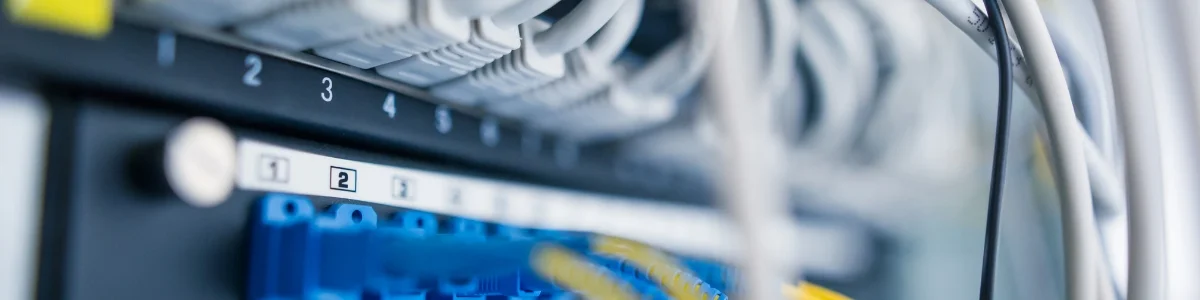
Your server needs a properly designed network to serve clients reliably. This section covers speed selection, gateway and switch choices, and hybrid cloud integration. For professional network cabling and installation, we can help.
2026 Network Requirements
Choose your network speed based on measured workload—file sizes, concurrent users, and required throughput—not the calendar year or employee count alone:
| Network Speed | Typical Workloads |
|---|---|
| 1 Gigabit (1GbE) | AD authentication, print services, accounting software, office documents, email—adequate for many standard office workloads |
| 2.5 Gigabit (2.5GbE) | Heavier file sharing, mixed document/media workflows, 10+ concurrent users transferring large files |
| 10 Gigabit (10GbE) | Video editing, large database operations, VM storage traffic, backup-to-NAS at scale |
Ethernet is a throughput rate, not a monthly quota. Even 1GbE at sustained line rate represents roughly 324TB over 30 days. The right speed depends on your peak concurrent demand, not a theoretical monthly cap.
Recommended Reading:
- 2.5 Gigabit Ethernet Upgrade Guide – When 2.5GbE makes sense
- Best Ethernet Cable Guide – Cat6 vs Cat6a selection
Network Setup Steps
- Choose Your Gateway: Select a business-grade gateway/firewall with adequate WAN throughput, IDS/IPS capability, VPN support, and room to grow. See our UniFi gateway comparison and UniFi buyer's guide for specific models and sizing criteria, or evaluate alternatives from Fortinet, SonicWall, or pfSense based on your environment.
- Use Managed Switches: A managed switch enables VLAN segmentation to separate server traffic from guest WiFi and general workstation traffic. A VLAN alone is not a security boundary — you also need inter-VLAN firewall rules or ACLs on your gateway to control which VLANs can communicate.
- Connect Your Server: Use Cat6 or Cat6a cabling for 2.5GbE or 10GbE connectivity.
- Plan Active Directory (if needed): If centralized Windows identity is required, plan Active Directory Domain Services with static addressing, DNS, time synchronization, backup, and recovery. Not every Windows Server deployment needs to be a domain controller.
Network Port Reality Check
Most entry-level servers (like the Dell T160) ship with 1 Gigabit LAN ports by default. To achieve 2.5GbE or 10GbE speeds, you need an optional PCIe Network Interface Card (NIC). Generic adapters may start around $50–$150 for 2.5GbE or $150–$400 for 10GbE, while Dell/HPE-validated NICs can cost more. Confirm OS support, drivers, slot compatibility, optics or transceivers, and warranty implications before purchasing.
Hybrid Cloud Integration
Most small businesses in 2026 benefit from a hybrid approach:
- On-Premises: File server for fast local access, business applications
- Cloud: Microsoft 365 for email/collaboration, Azure/AWS for off-site backup
- Backup Strategy: Local + cloud backup (3-2-1 rule: 3 copies, 2 media types, 1 off-site)
Recommended Hybrid Setup
Example: 15-user office with Dell T160, Windows Server 2025 Essentials
- Dell T160 with Windows Server 2025 Essentials for file sharing and AD
- Microsoft 365 Business Basic ($7/user/month annual commitment) for email and Teams
- Azure Backup for automated off-site protection
- UniFi network for reliable connectivity
Worked monthly estimate:
- M365 Business Basic: 15 users × $7 = $105/month
- Azure Backup: charges depend on protected-instance size and consumed backup storage, with additional variables for redundancy (LRS vs. GRS) and retention. Use the Azure Pricing Calculator with your specific data size, daily change rate, and retention policy to get an accurate estimate. See Azure Backup pricing details.
- Total: $105/month + Azure Backup (excluding IT support, electricity, and hardware amortization)
M365 pricing as of August 2026 (Microsoft 365 pricing).
Maintaining Your Server
A server requires ongoing attention to stay secure and reliable. These are the core maintenance tasks and common troubleshooting approaches:
Regular Maintenance Tasks
- Monitor Server Performance: Track CPU, memory, disk space, and network utilization. Set alerts for thresholds (e.g., disk > 85% full, memory > 90%) so you catch problems before they cause outages.
- Patch Promptly: Apply OS and application security updates on a consistent schedule. For Windows Server 2025 Standard/Datacenter, Arc-enabled Hotpatching reduces reboot frequency to roughly four times per year.
- Test Backups Regularly: Run scheduled backups and periodically verify them with a restore test. A backup that has never been restored is an assumption, not a safety net.
- Review Access and Security: Audit user accounts, group memberships, firewall rules, and endpoint security configuration at least quarterly. Remove stale accounts and unused permissions.
Troubleshooting Common Server Issues
Even with regular maintenance, you may encounter server issues. Here's how to troubleshoot some common problems:
- Server is Slow or Unresponsive: This could be due to high CPU usage, insufficient memory, or network issues. Check your server's performance metrics to identify the problem.
- Server is Down: This could be due to a hardware failure, network issue, or software crash. Check your server logs for any error messages that could indicate the cause of the problem.
- Security Breach: Act quickly if you suspect a security breach. Isolate the affected system, identify the source of the breach, and take steps to prevent further damage.
2026 Security Essentials
Cyber insurance underwriting questionnaires commonly ask about these controls. Requirements vary by carrier and policy, but implementing them strengthens both your security posture and your insurability:
- Phishing-resistant MFA for remote and privileged access: Require MFA for RDP, VPN, and all administrative logins wherever supported. Windows console, service accounts, and legacy-protocol authentication require a more nuanced identity design—not all server login paths support MFA equally.
- Immutable or offline backups: Use backup solutions that prevent ransomware from encrypting your backup copies (e.g., Synology Immutable Snapshots, Veeam with hardened repository). CISA recommends offline or immutable backups with regular recovery testing.
- Endpoint detection (EDR/XDR): Deploy beyond basic antivirus on both endpoints and servers.
- Regular patching: Windows Server 2025 Hotpatching via Azure Arc (Standard/Datacenter editions) reduces reboots to approximately four per year. Quarterly baseline updates still require reboots.
Important: Centralizing resources on a server can improve control, but it also concentrates risk. A poorly secured domain controller or file server increases blast radius. Tie these benefits to least privilege, network segmentation, EDR, logging, tested backups, and documented recovery procedures.

Acceptance Testing and Operational Handoff
A properly deployed server needs validation before it enters production. Rushing past this stage leads to preventable outages and data loss.
Validation Checklist
Before signing off on a server deployment, verify each of the following:
- RAID health: Confirm all drives are online and the array is in a healthy state. Verify that RAID alerts (email or SNMP) are configured and tested.
- Backup and restore: Run a full backup cycle and test a restore of at least one critical file set or VM. A backup should not be considered dependable until a restore test succeeds.
- Failover: If running Hyper-V or clustered services, simulate a failure and confirm recovery.
- Permissions audit: Verify NTFS permissions, share access, and group policy application match your documented design. Test with a standard (non-admin) user account.
- EDR and security software: Confirm endpoint detection is installed, reporting, and receiving definition updates.
- Patching: Verify Windows Update or your patch management tool is configured and has completed at least one successful cycle.
- UPS shutdown: Test the UPS-triggered graceful shutdown sequence. Confirm the server shuts down cleanly and restarts without intervention.
- iDRAC/iLO remote access: Verify remote management is accessible, firmware is current, and default credentials have been changed.
- Documentation: Record the RAID layout, IP assignments, admin accounts, service accounts, backup schedule, recovery contacts, and warranty expiration in a location accessible to authorized staff.
When to Hire a Professional
Domain controller deployment, line-of-business application configuration, and any internet-facing services involve complexity and risk that should not be treated as beginner exercises. If your deployment includes Active Directory, complex Group Policy, SQL Server, or remote-access publishing, engage an experienced IT professional or managed service provider.
Conclusion
A small business server deployment is a significant investment in both hardware and operational discipline. The right configuration depends on your specific applications, data volume, user count, and growth trajectory—not on generic employee-count brackets or calendar-year trends.
2026 Action Plan
- Define your workload: Identify applications, vendor requirements, data size, remote-access needs, and compliance obligations before choosing hardware.
- Choose your architecture: File sharing and basic services? A Synology NAS may suffice. Full server capabilities? Dell T160/T360 or HPE DL320 Gen11.
- Choose your OS: Windows Server 2025 Essentials (≤25 users, OEM-only, no CALs) covers most small businesses. Standard for broader virtualization or larger teams.
- Size your network: 1GbE is adequate for many office workloads. Size up to 2.5GbE or 10GbE based on measured throughput needs.
- Plan for hybrid: Combine local server with Microsoft 365 and cloud backup for resilience.
- Test before go-live: Run through the validation checklist above. An untested deployment is an unfinished deployment.
- Know when to call a professional: Domain controllers, line-of-business apps, and security configurations benefit from experienced hands. Contact us for a consultation.
Server setup is complex enough that getting it right the first time saves real money over fixing mistakes later. At iFeeltech, we've been deploying and managing small business servers in Miami for over 15 years. Whether you need guidance on hardware selection, a full deployment, or ongoing managed IT support, we're here to help.
Frequently Asked Questions
Do I really need a server in 2026, or can I go cloud-only?
It depends on your needs. Many small businesses can operate with just Microsoft 365 and cloud storage. However, a local server provides faster file access, lower ongoing costs for heavy data users, and more control over your data. A hybrid approach (local server + cloud backup) is often the best balance.
What's the difference between Windows Server 2025 Essentials and Standard?
Essentials supports up to 25 users or 50 devices with no CALs required, but is OEM-only (pricing varies by vendor), limited to one CPU socket (up to 10 cores), 128GB RAM, and includes rights for one VM when the physical host runs only as the Hyper-V hypervisor. RDS and RMS are not licensed. Standard (16-core MSRP: $1,176 before CALs) supports larger environments, provides two virtual OSEs per fully licensed server, and requires per-user or per-device CALs. Microsoft licensing guidance
Should I buy a tower or rack server for my small business?
Tower servers (like Dell T160/T360) are designed for small offices without dedicated server rooms — they're compact and don't require special mounting. Standard configurations run quietly, though GPU-equipped T360 builds produce noticeably more fan noise (see the Dell GPU specification note above). Rack servers (like HPE DL320 Gen11) are better suited for a server closet or plans to expand.
How much RAM does a small business server need?
For basic file sharing with 5-15 users: 16-32GB. For running business applications or light virtualization: 32-64GB. Modern DDR5 servers support upgrades, so you can start smaller and expand as needed.
Can I use a NAS instead of a full server?
Yes, for many workloads. A Synology or QNAP NAS is simpler to manage and cheaper than a full server for file sharing and backups. Supported Synology models can also run a Samba-based directory service as a domain controller and host virtual machines through VMM. However, these have limitations compared to a native Windows Server deployment—they don't run Windows-native applications directly, and NAS-based AD and virtualization are not direct substitutes for every scenario. A full server is the better choice for complex AD environments, line-of-business Windows applications, or heavy virtualization workloads.
How much does a small business server cost in 2026?
| Solution | Storefront Starting Price | OS License |
|---|---|---|
| Synology NAS (file/backup) | $500–$1,500 | Included (DiskStation Manager) |
| Dell T160 (base) | From $4,699 | Windows Essentials: OEM, priced by vendor |
| Dell T160 (Xeon + Essentials + 3yr ProSupport) | $9,199 | Bundled in configuration |
| Dell T360 (base) | From $5,499 | Windows Standard 16-core: $1,176 MSRP + CALs |
| Dell T360 (Xeon + Essentials + 3yr ProSupport) | $13,699 | Bundled in configuration |
| HPE DL320 Gen11 (rack) | From ~$6,000 | Varies by edition |
Prices from Dell and HPE US storefronts, checked August 2026. Production-ready builds with Xeon processors, additional drives, multi-year support, and Windows Server licensing cost significantly more than base configurations. Discounts, tax, and reseller pricing vary. Dell T160 · Dell T360 · HPE DL320 · Microsoft pricing
Related Resources
- Do You Need a Server? – Server vs. NAS vs. cloud decision guide
- Best Small Business Servers – Current server hardware picks
- IT Server Room Setup Guide – Physical server room planning
- HPE ProLiant DL320 Gen11 Review – HPE server deep dive
- UniFi Gateway Comparison – All current UniFi gateway models
- UniFi Buyer's Guide – Complete UniFi ecosystem planning
- 2.5 Gigabit Ethernet Upgrade – Network speed recommendations
- Best Ethernet Cable Guide – Cable selection for 2026
- Synology NAS Review – NAS alternative to full servers
- Disaster Recovery Story – What happens when a server fails
- Network Cabling Services – Professional installation
- Cybersecurity Services – Server and endpoint security
- Cloud Services – Cloud server alternatives
- Managed IT Services – Full IT support
Related Articles
More from Business Hardware
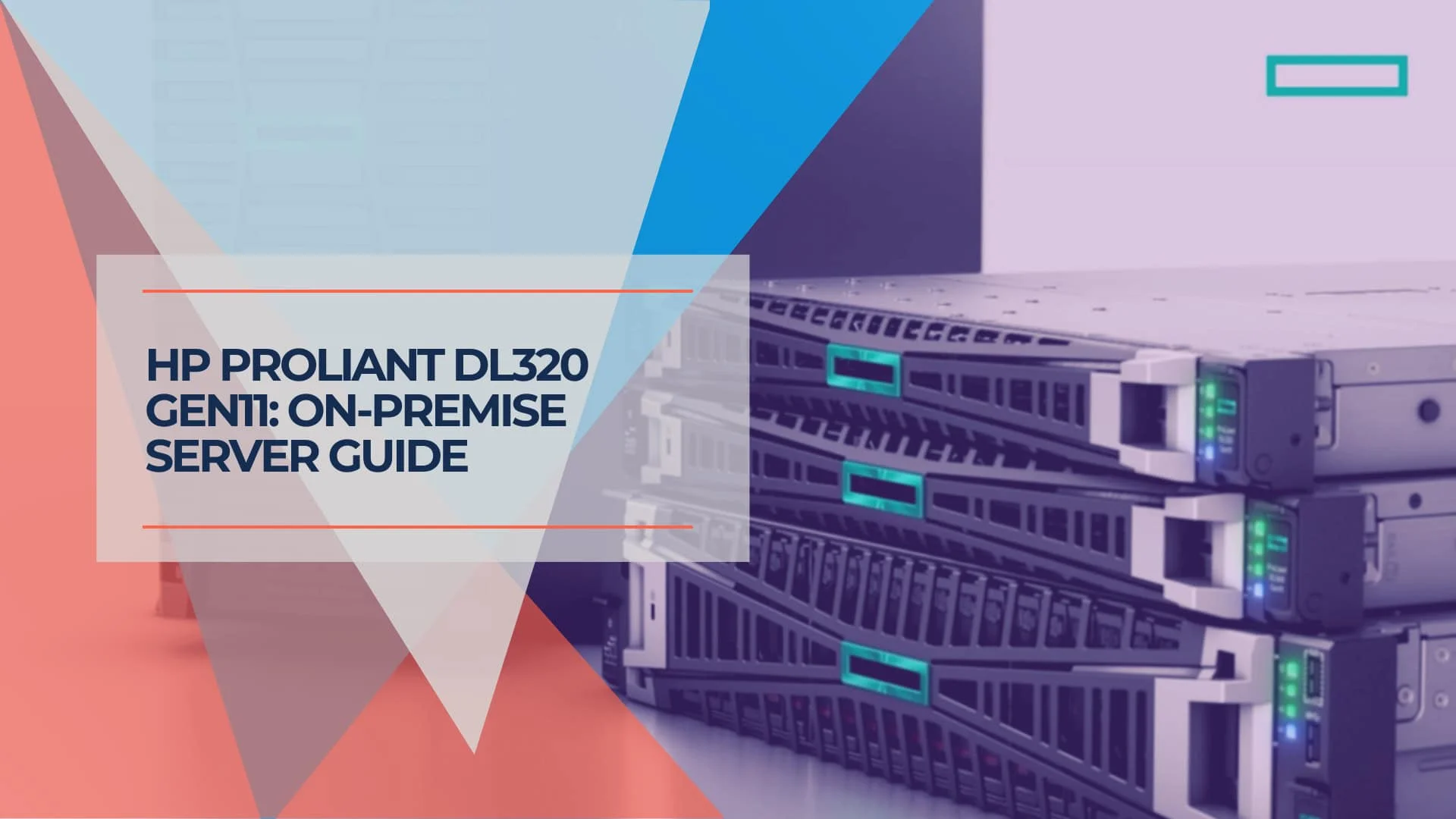
HP ProLiant DL320 Gen11 Business Server Review: Real-World Deployment for Engineering Firms
Complete HP ProLiant DL320 Gen11 review based on real deployment experience. Windows Server 2025 compatibility, fan noise solution, iLO 6 configuration, cost analysis, and comparison with Dell PowerEdge.
10 min read
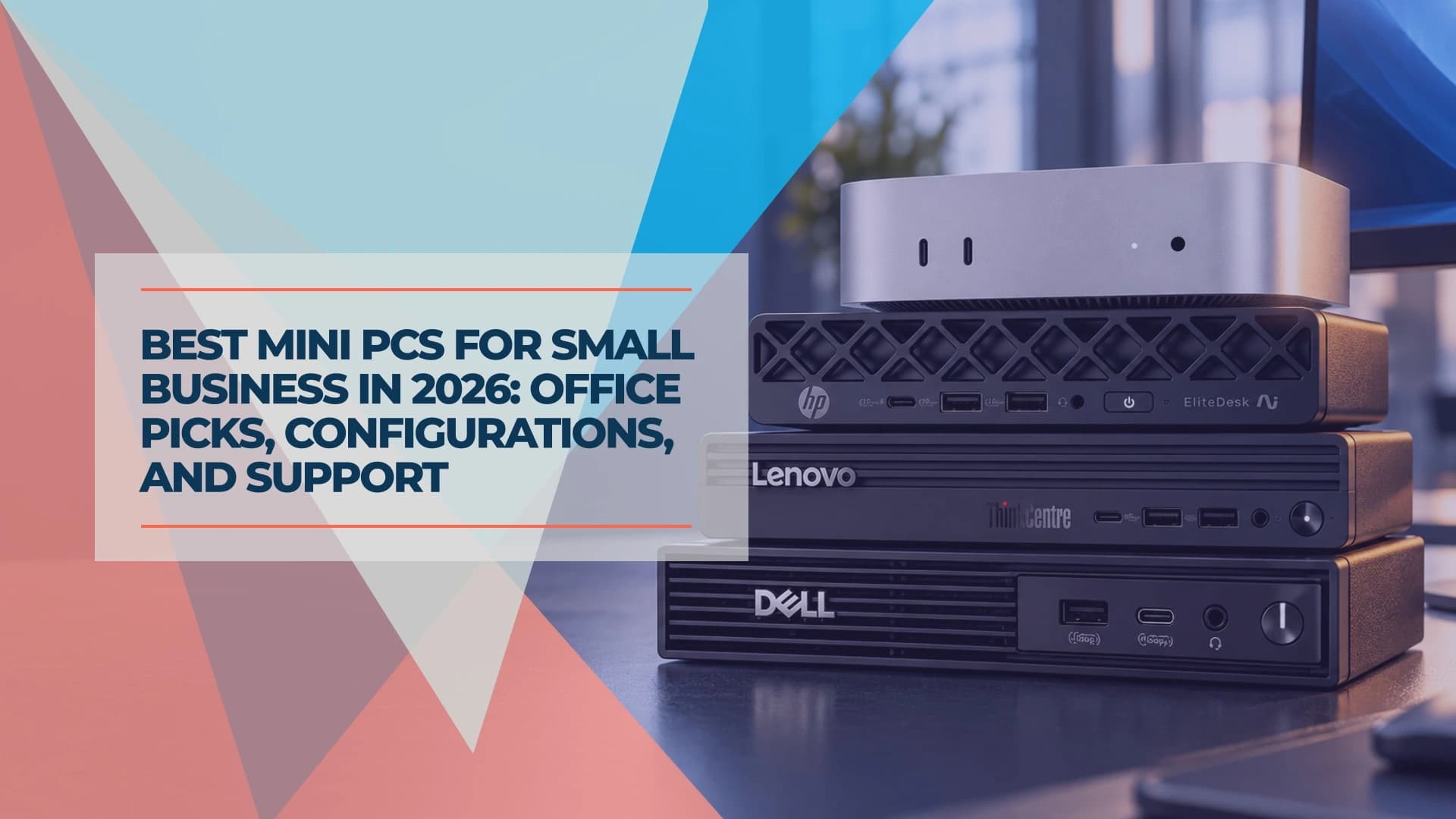
Best Mini PCs for Small Business in 2026
Compare business mini PCs from Dell, Lenovo, HP, Apple and ASUS: dated prices, ports, upgrades and support, plus a pilot checklist before you buy.
16 min read
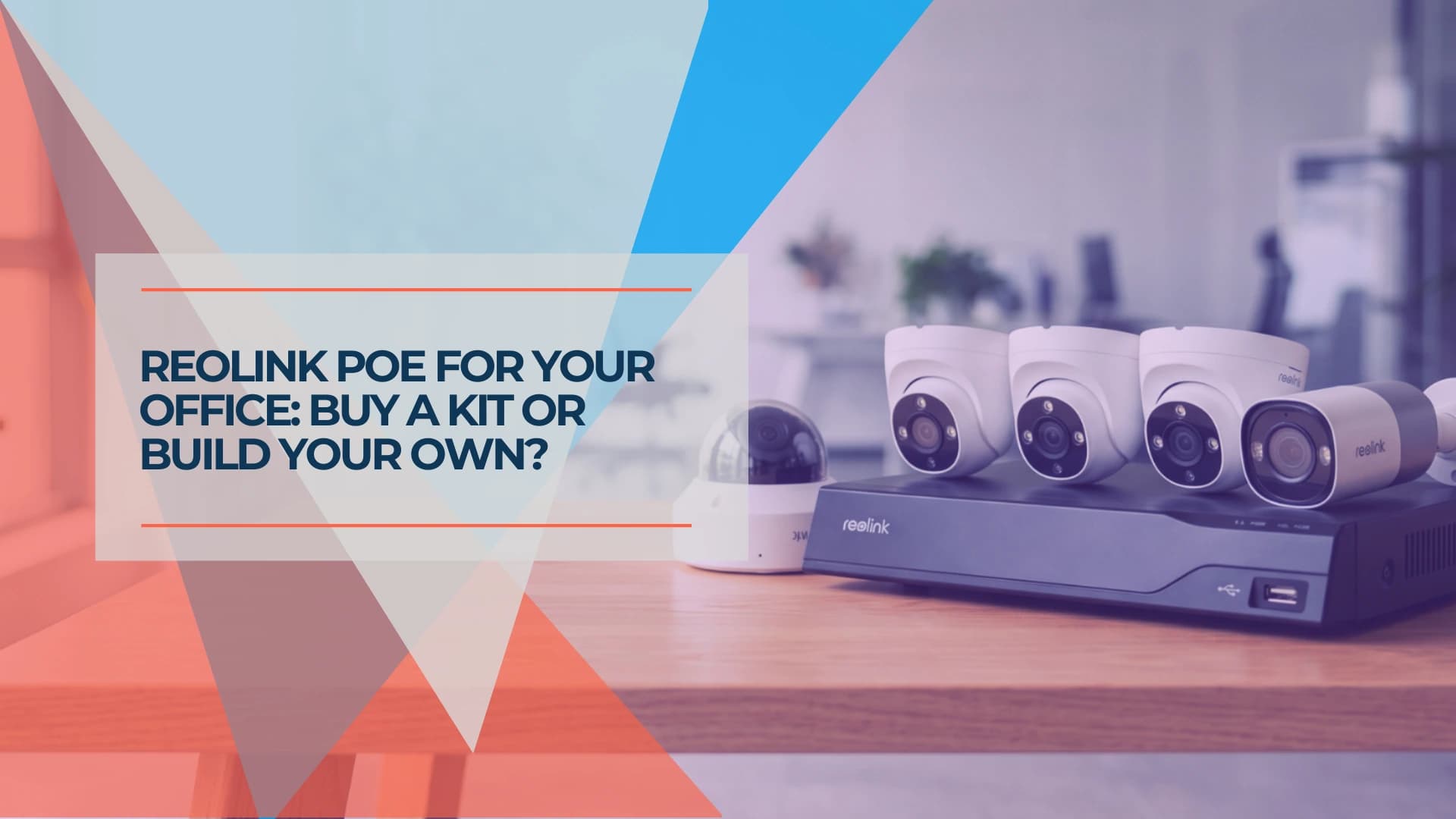
Reolink PoE Kit vs. Separate Cameras: Small-Office Buying Guide
Compare a Reolink Professional kit with separate cameras and an NVR for a small office: matched prices, PoE limits, storage and install costs to budget for.
19 min read