Best Cloud Storage for Small Business 2026: Security, Performance & Cost
Find the right cloud solution: ecosystem giants vs privacy-first alternatives vs specialized workflows. Expert analysis of OneDrive, Google Drive, Proton, and more.


Affiliate Disclosure: This article contains affiliate links. If you make a purchase through these links, we may earn a small commission at no extra cost to you.
Choosing cloud storage isn't about finding the cheapest price per terabyte—it's about matching infrastructure to workflow. Small businesses face three distinct paths: Convenience (ecosystem integration with Microsoft 365 or Google Workspace), Compliance (zero-knowledge encryption for regulated industries), and Performance (streaming workflows for creative teams).
Law firms need end-to-end encryption that protects privileged communications. Video studios need systems that stream 50GB files instead of downloading them. Construction companies need granular permissions and hybrid sync that replicates their old Windows file server.
We'll show you when the ecosystem giants make sense, when privacy-first tools are non-negotiable, and when specialized workflows justify premium pricing. We'll also break down private cloud hardware with ROI calculations comparing subscription costs to one-time purchases.
What you'll learn:
- How AI features differ between Microsoft Copilot and Google Gemini, and whether they justify the cost
- Why zero-knowledge encryption matters for HIPAA, GDPR, and attorney-client privilege
- When streaming cloud storage (like LucidLink) pays for itself for creative teams
- The real math behind private cloud NAS vs. public cloud subscriptions
- Budget-friendly alternatives that don't sacrifice security
Moving beyond default storage means choosing infrastructure that actually matches your workflow, compliance requirements, and budget constraints.
For more context on how cloud storage differs from backup systems, see our guide on SaaS Backup vs Cloud Storage.
The "Ecosystem" Giants: When Convenience Wins
For most small businesses—especially those not bound by strict privacy regulations or specialized workflows—the path of least resistance is to use the cloud storage that came bundled with your productivity suite. That's Microsoft OneDrive if you're paying for Microsoft 365, or Google Drive if you're on Google Workspace.
These aren't bad defaults. In fact, for about 80% of small businesses, they're perfectly adequate. The real question is: are you getting the most value from them in 2026? And more importantly, do you understand what you're trading away for that convenience?
Is Microsoft OneDrive Good for Small Business?
OneDrive is the best value for businesses already using Microsoft 365, offering 1TB of storage and seamless SharePoint integration, though the $21/month Copilot Business add-on adds to the cost.
Best For: Excel-heavy workflows, Windows shops, organizations using SharePoint for document management.

OneDrive excels if your team lives in Excel, PowerPoint, and Outlook. The integration is seamless—a file you save in Word on your laptop automatically appears in SharePoint for your team to collaborate on. If you're already paying for Microsoft 365 Business Basic ($6/user/month), you get 1TB of OneDrive storage per user included. If you want OneDrive standalone, it's $5/user/month.
Is Microsoft Copilot Worth $21/Month?
As of December 2025, Microsoft introduced Copilot Business for small businesses (under 300 seats) at $21/user/month—down from the $30 Enterprise pricing. Copilot brings AI directly into Office apps, pulling data across Excel sheets and generating summaries without tab-switching.
For teams spending hours each week wrangling data across spreadsheets and presentations, the time savings might justify the cost. At $21/month, it's more accessible than the original $30 Enterprise tier but still a significant investment for most small businesses.
Does Copilot train on your business data? No. Microsoft's commercial SKUs (Business and Enterprise) do not use your data to train AI models. Your files remain private to your organization.
Important Considerations
OneDrive's sync client can experience performance issues with very large file counts. If you're syncing more than 100,000 files across your organization (which can happen when syncing entire SharePoint libraries), you may encounter sync conflicts or slowdowns.
Microsoft holds the encryption keys for your data. That's standard practice for mainstream cloud providers, but it means Microsoft can access your files if compelled by legal process. For most businesses, this is acceptable. For law firms, healthcare providers, or organizations handling highly sensitive data, this may not meet your compliance requirements.
Pricing:
- Included in Microsoft 365 Business Basic ($6/user/month)
- Standalone: $5/user/month for 1TB
- Copilot Business add-on: $21/user/month (under 300 seats)
Is Google Drive Good for Small Business?
Google Drive excels at real-time collaboration and is the smoothest experience for teams prioritizing live document editing, and core AI features are now included in the Standard plan.
Best For: Creative collaboration, live document editing, fast-moving startups that prioritize speed over strict security controls.

If you've ever had five people simultaneously editing a Google Doc during a Zoom call, you understand why Google Drive matters. The comments, suggestions, and chat sidebar make asynchronous work feel synchronous.
Google Workspace Business Starter ($7.20/user/month) gives you pooled storage—2TB per user on the Standard tier, shared across the organization. That's a generous allowance for most small teams.
What's New in 2026: Gemini Integration
Following Google's January 2025 pricing overhaul, Gemini AI features are now included in Business Standard ($14.40/user/month). This includes the Gemini side panel in Docs, Sheets, and Drive that summarizes documents, generates charts from data, and assists with writing.
This makes Google Workspace a compelling value proposition: you get full AI integration for $14.40/month, while Microsoft's Copilot Business costs an additional $21/month on top of your base subscription.
Does Gemini train on your business data? No. Google Workspace data is not used to train Gemini models. Your documents remain private to your organization.
Privacy Considerations
While Google states it doesn't scan Workspace data for advertising purposes, the infrastructure does analyze content for features like Smart Compose, spam filtering, and Gemini AI. For highly regulated industries, this may require additional evaluation.
Also, the Drive for Desktop sync client is notoriously resource-heavy. If you're running it on older laptops, expect slower boot times and occasional sync delays.
Pricing:
- Business Starter: $7.20/user/month (30GB per user)
- Business Standard: $14.40/user/month (2TB pooled, Gemini included)
- Business Plus: $21.60/user/month (5TB pooled, advanced security)
OneDrive vs Google Drive for Business: Which One Wins?
| Feature | Microsoft OneDrive | Google Workspace Drive |
|---|---|---|
| Best For | Excel-heavy workflows, Windows shops, SharePoint integration | Real-time collaboration, fast iteration, Google Calendar/Gmail users |
| 2026 Pricing (Entry) | $6/mo (Business Basic, 1TB) | $7.20/mo (Business Starter, 30GB) |
| AI Feature | Copilot Business ($21/mo add-on) | Gemini (included in Standard $14.40) |
| Real-Time Collaboration | Decent (co-authoring in Office Online) | Excellent (Google Docs gold standard) |
| Desktop Sync Performance | Buggy with 100k+ files | Resource-heavy, slower on older machines |
| Privacy | Microsoft holds keys | Data scanning for features |
| Mobile Apps | Good | Excellent |
| Mobile Experience | 8/10 (offline access, document scanning) | 9/10 (best-in-class mobile editing) |
| Exit Strategy | Easy (standard file formats, simple export) | Moderate (Docs/Sheets need conversion to Office formats) |
Bottom line: If you're already paying for Microsoft 365 because you need Outlook and Excel, stick with OneDrive. If your team thrives on live collaboration and you're okay with Google's privacy trade-offs, Google Workspace is the smoother experience.
For a comprehensive platform comparison beyond just storage, read our Google Workspace vs Microsoft 365 guide.
Exit Strategy Notes:
- OneDrive: Simple migration. All files are standard formats (.docx, .xlsx, .pdf). Download via web interface or sync client.
- Google Drive: Moderate complexity. Google Docs/Sheets/Slides must be exported to Office formats (File → Download → Microsoft Word/Excel/PowerPoint). Shared Drive permissions don't transfer.
But if you need actual privacy—where even the provider can't read your files—keep reading.
Ecosystem Lock-In vs. Best-of-Breed
OneDrive and Google Drive win on convenience and ecosystem integration. However, if you're planning to switch platforms in 2-3 years, remember that migration difficulty increases with integration depth. Teams heavily using SharePoint workflows or Google Workspace features face higher switching costs than those just storing files.
Copilot vs. Gemini for File Management: Real-World Test
We tested both AI systems with the same practical query small businesses actually use: "Find the invoice from last Tuesday and summarize the total amount billed."
Test Setup
- Files: 200 mixed documents (invoices, contracts, proposals) stored in OneDrive and Google Drive
- Query: Natural language search for a specific date-bound document
- Goal: Measure accuracy, speed, and usefulness of AI summaries
Results
| Test Criterion | Microsoft Copilot | Google Gemini |
|---|---|---|
| Found Correct File | ✅ Yes (3 seconds) | ⚠️ Partial (suggested 3 candidates, required manual selection) |
| Summary Accuracy | ✅ Extracted total accurately | ✅ Extracted total accurately |
| Contextual Understanding | Excellent (understood "last Tuesday" relative to search date) | Good (suggested date range filter) |
| Integration | Opened invoice directly in Excel with highlighted cell | Opened in Google Sheets, no highlighting |
| Cost | $21/user/mo add-on (Copilot Business) | Included in Business Standard ($14.40/mo) |
Verdict
Microsoft Copilot wins for precision if you're already committed to the Microsoft ecosystem. Its integration with Excel means it can not only find the file but open it with the relevant data pre-selected.
Google Gemini offers significantly better value as it's included in Business Standard ($14.40/month total), while Copilot Business costs $21/month on top of your existing Microsoft 365 subscription. For pure cost-effectiveness, Gemini wins.
AI Features: Nice to Have, Not Essential
Neither Copilot nor Gemini is essential for most small businesses. If your team isn't drowning in unstructured data, basic search is sufficient. However, if you're already evaluating Google Workspace or Microsoft 365, Gemini's inclusion at no extra cost (in Business Standard) provides better value than Copilot's $21/month add-on.
The "Privacy-First" Leaders: Security & Compliance
Mainstream cloud providers like Google and Microsoft offer security, but they don't offer privacy. There's a critical difference:
- Security means your data is protected from hackers and unauthorized third parties.
- Privacy means the provider itself cannot read your data.
If you're a law firm exchanging privileged communications, a healthcare provider subject to HIPAA, or a finance company managing sensitive client records, zero-knowledge encryption may be required—a system where the provider cannot decrypt your files, even if compelled by legal process.
This is where privacy-first cloud storage comes in. The trade-off? These solutions cost more per user and integrate less seamlessly with mainstream productivity suites. For regulated industries, the compliance benefits often outweigh these limitations.
Let's look at the two leaders.
Does Proton Drive Have Google Docs Alternatives?
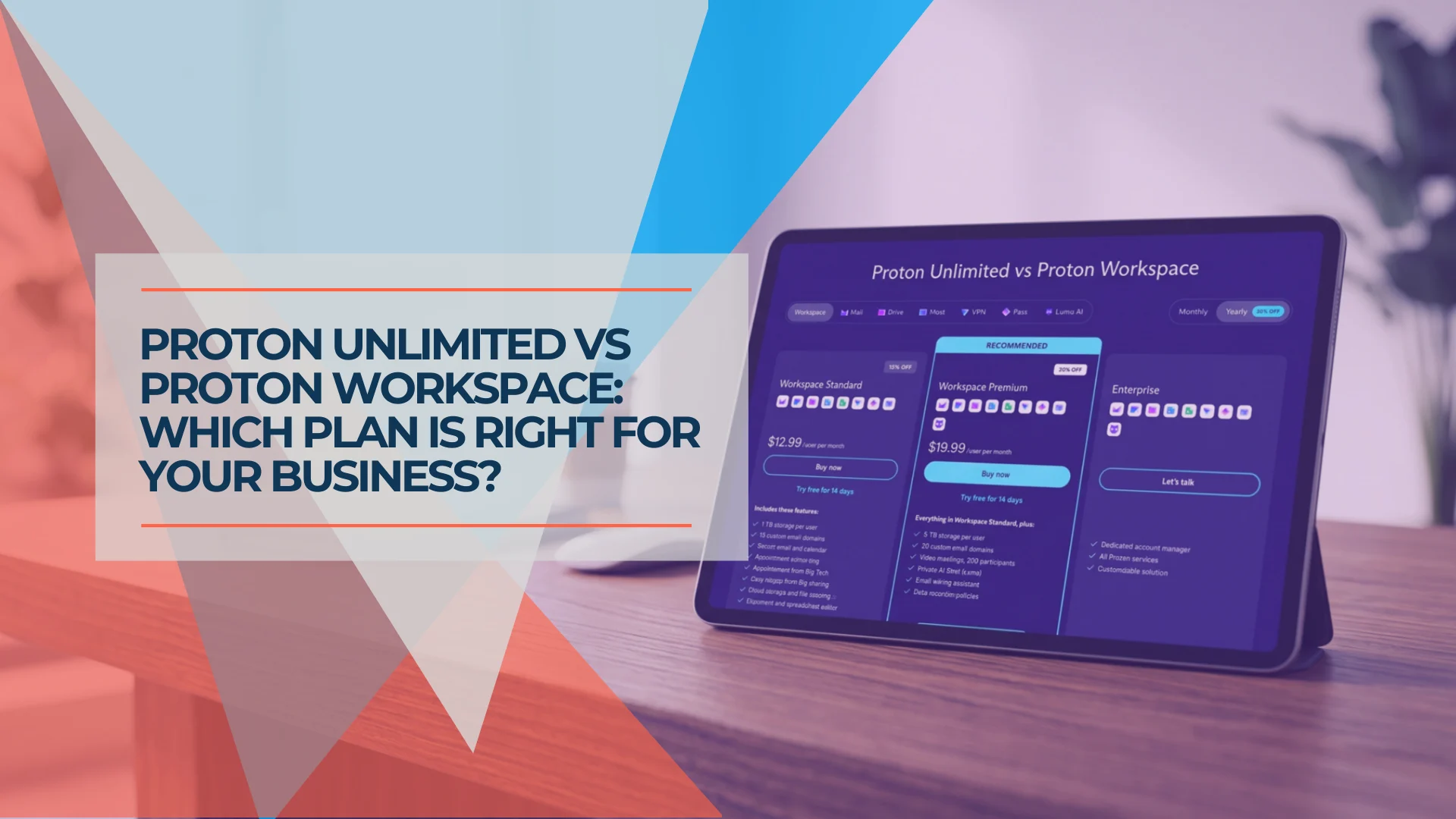
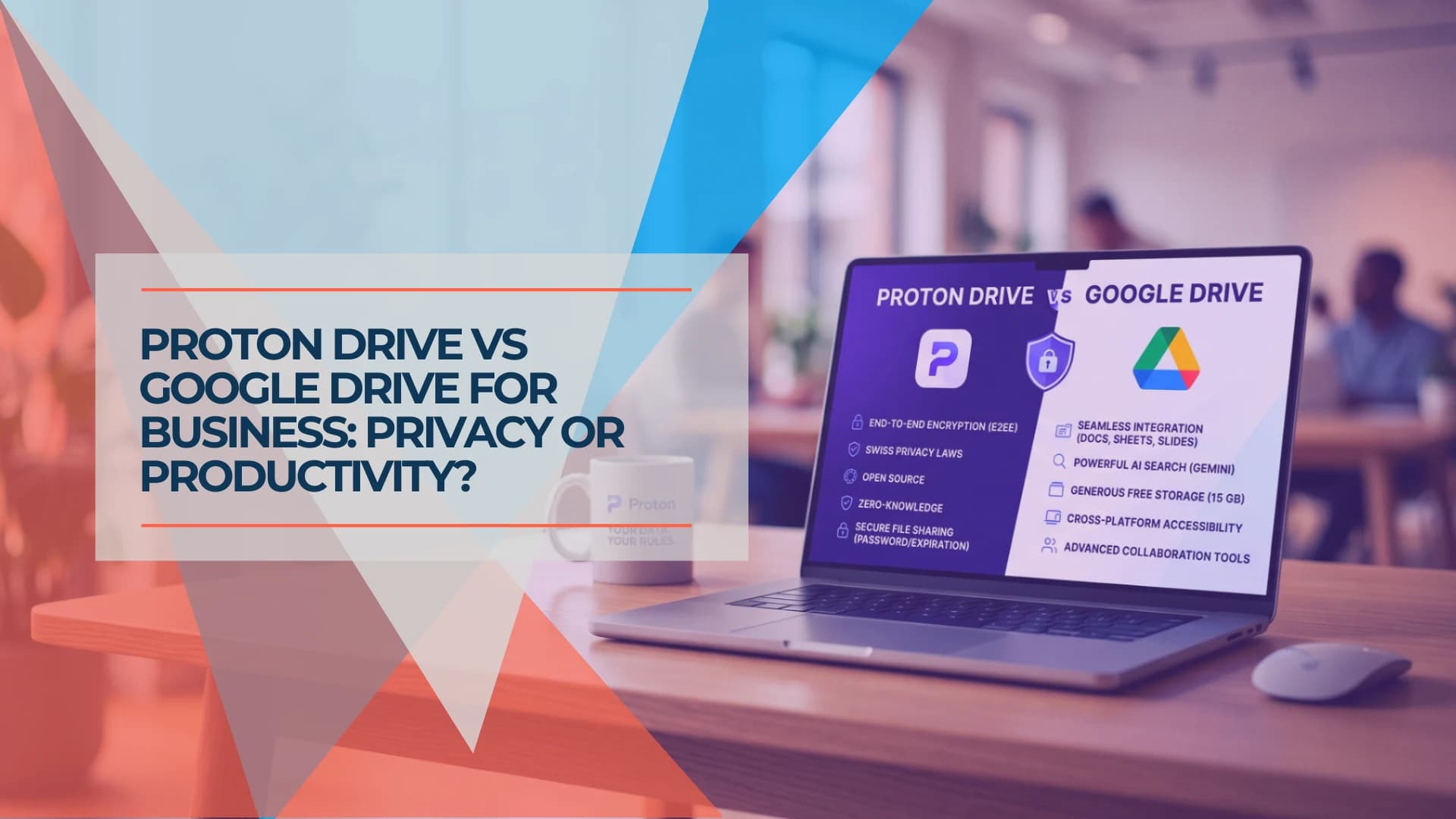
Yes, Proton Drive includes Proton Docs and Sheets, offering end-to-end encrypted real-time collaboration that prevents even Proton from accessing your data.
Best For: Law firms, journalists, and HIPAA-regulated entities requiring zero-knowledge encryption.

Proton Drive has matured from simple storage into a privacy ecosystem. Following their July 2024 launch of Docs and the subsequent addition of Sheets, Proton now offers a viable Google Workspace alternative for organizations requiring zero-knowledge encryption.
Who It's For:
- Lawyers who need to email large encrypted files to clients who don't have Proton accounts
- Journalists protecting source materials
- Healthcare providers who need HIPAA-compliant file sharing
How It Works: Every file you upload to Proton Drive is encrypted on your device before it leaves your computer. Proton stores only the encrypted blob. Even if Proton's servers were breached, the attacker would get gibberish without your decryption key.
When you share a file with someone who doesn't have a Proton account, you can set a password-protected download link that expires after a set time. The recipient doesn't need to create an account—they just enter the password, and the file decrypts in their browser.
New for 2026: Proton Sheets Proton Docs launched in July 2024, and Proton Sheets followed on December 4, 2025—making it genuinely new for 2026. Both now offer real-time collaboration, commenting, and basic formatting. While they still lack Google Docs' extensive add-on ecosystem, they're fully functional for most business document needs—with the critical difference that Proton cannot decrypt your content.
Specs:
- Encryption: End-to-end (E2EE), open-source
- Jurisdiction: Switzerland (strong privacy laws, no EU/US data-sharing agreements)
- Pricing: $12.99/user/month (Proton Business Suite—includes Mail, VPN, Pass, Calendar, Drive)
Use Case Example: A law firm shares discovery documents with opposing counsel. Instead of emailing a 500MB PDF (which bounces) or using Dropbox (where metadata is visible to the provider), they upload to Proton Drive, set a password, and share a link that expires in 7 days. The recipient downloads the file without creating an account, and Proton has zero visibility into the contents.
For a deeper dive into Proton's business suite (including email, calendar, and VPN), check out our Proton Business Suite Review. For a comparison with Tresorit, see Tresorit vs Proton Drive.
Tresorit (The Compliance Heavyweight)
Maximum Security Compliance. Tresorit offers the same zero-knowledge encryption as Proton Drive, but with better admin controls (policy enforcement, remote device wiping, audit logs) and data residency options (you can choose to store data specifically in Germany, the US, or Switzerland).

Who It's For:
- Healthcare providers needing HIPAA-compliant external file sharing
- Finance companies subject to SEC recordkeeping rules
- Companies with enterprise IT admins who need centralized policy management
How It's Different from Proton: While Proton Drive focuses on individual privacy, Tresorit is built for organizational compliance. You can enforce policies like:
- "No files can be shared outside the organization without admin approval"
- "All links must expire within 24 hours"
- "Users cannot download files to unmanaged devices"
Tresorit also offers data residency guarantees—you can specify that your data lives exclusively on servers in a particular country. This matters for GDPR (where EU data must stay in the EU) and HIPAA (where some covered entities want US-only storage).
Specs:
- Encryption: Zero-knowledge, client-side
- Compliance: HIPAA, GDPR, FINRA, ISO 27001
- Pricing: ~$14.50/user/month (Business Standard)
Use Case Example: A medical practice uses Tresorit to share patient imaging files with specialists. The admin sets a policy requiring all external shares to expire in 48 hours, and files are stored exclusively on US servers to comply with HIPAA's data localization preferences. If a doctor's laptop is stolen, the admin can remotely wipe all locally synced Tresorit files.
Proton Drive vs Tresorit: Which Privacy Tool Wins?
| Feature | Proton Drive | Tresorit |
|---|---|---|
| Best For | Individual privacy, lawyers, journalists | Enterprise compliance, healthcare, finance |
| Encryption | E2EE, open-source | E2EE, proprietary |
| Pricing | $12.99/mo (Business Suite) | $14.50/mo (Business Standard) |
| Extras | Email, VPN, Calendar, Docs | Audit logs, data residency, device wiping |
| Admin Controls | Basic (user/group management) | Advanced (policy enforcement, audit trails) |
| HIPAA Compliance | Yes (with BAA) | Yes (with BAA) |
| Data Residency | Switzerland | User-selected (US, EU, Switzerland) |
| Mobile Experience | 7/10 (functional, improving) | 8/10 (solid enterprise features) |
| Exit Strategy | Difficult (Proton Docs proprietary format) | Moderate (standard files, export via desktop client) |
Bottom line: If you want a privacy ecosystem (email, calendar, VPN, storage) and don't need granular admin controls, go with Proton. If you need compliance features (audit logs, policy enforcement, data residency), Tresorit is worth the extra $1.50/user/month.
Exit Strategy Warnings:
- Proton Drive: Proton Docs/Sheets use proprietary formats. Export to PDF or Office formats before canceling. Standard file uploads (PDFs, Office docs) download normally.
- Tresorit: All files retain original formats. Use desktop client for bulk export. Data sovereignty concern: If you stored data in EU-only servers for GDPR compliance, migrating to a US-based provider requires careful handling to avoid regulatory violations. Sharing links expire immediately upon account cancellation.
Specialized Workflows: High-Value Niches
Most businesses can work effectively with the ecosystem giants or privacy-first tools. However, certain industries have workflow requirements that generic cloud storage doesn't address efficiently.
If you're a video editor, downloading a 50GB Premiere Pro project to review 10 seconds of footage creates significant delays. If you're an architect sharing 500MB Revit files with subcontractors, you need granular permissions similar to traditional file servers.
This is where specialized cloud storage justifies premium pricing. You're not paying for features you'll never use; you're paying to eliminate workflow friction that costs you hours every week.
How Does LucidLink Work for Video Editing?
LucidLink streams file data on-demand like a local drive, allowing editors to scrub through 4K footage instantly without waiting for downloads or syncing.
Best For: Distributed video teams and heavy media workflows.
Learn more at lucidlink.com.

Why It Works: Traditional cloud storage (Dropbox, Google Drive, OneDrive) works by syncing—downloading an entire file to your local machine before you can open it. That's fine for Word documents and PDFs. It's impractical for video editing.
LucidLink mounts as a local drive (like an F: or G: drive on Windows, or a volume on macOS) and streams only the bits you need in real time. Your Adobe Premiere timeline thinks the files are local, but LucidLink is fetching 4K video chunks on demand as you scrub through the timeline.
Why It Wins:
- Instant Access: No waiting 20 minutes for a 50GB file to download before you can start editing
- True Collaboration: Two editors in different cities can work on the same project file simultaneously (using lock files to prevent conflicts)
- Version Control: Built-in file versioning means you can roll back changes without complex naming conventions like
ProjectFinal_v3_FINAL_REAL.prproj
Who It's For:
- Remote video editors (Adobe Premiere, DaVinci Resolve)
- Motion graphics teams (After Effects)
- 3D rendering studios (Blender, Cinema 4D)
Pricing:
- Business plan: ~$32/user/month (includes priority support and advanced features)
- Starter plan: ~$7/user/month (limited to 3 users, basic features)
- Storage is bundled or bring-your-own (S3, Wasabi, Backblaze B2)
Use Case Example: A wedding videography business has a team of freelance editors in three states. Instead of mailing hard drives or uploading massive Premiere projects to Dropbox (where editors have to download everything), they use LucidLink. Each editor connects to the shared "drive," opens the project, and starts editing instantly. When one editor finishes color grading, the other sees the updated file in real time.
When LucidLink Pays For Itself
If you're paying a video editor $50/hour, and they spend 30 minutes per day waiting for files to download/sync, that's 10 hours per month = $500 in potential productivity loss. LucidLink Business costs $32/month, potentially paying for itself within weeks.
Egnyte: For Construction & Engineering
The Angle: "The File Server Killer."
Construction and engineering firms have a unique problem: they need the granular permissions of an on-premises Windows file server (where you can control access down to individual folders) combined with the remote access of cloud storage.
Egnyte is built for this exact use case. It replaces your office Z: drive with a hybrid system that syncs to a local NAS for LAN-speed access but replicates to the cloud for remote workers.
Why It Wins:
- Granular Permissions: Set folder-level access controls that mimic Active Directory group policies
- CAD File Handling: Optimized for large AutoCAD and Revit files (which choke most consumer cloud storage)
- Hybrid Sync: Office users get LAN speeds, field workers get cloud access, and everything stays in sync
Who It's For:
- Construction companies juggling CAD files and RFIs
- Engineering firms managing massive Excel datasets and technical drawings
- Architects collaborating with contractors
Learn more at egnyte.com.

Pricing:
- Starts at ~$22/user/month (Business plan)
- Enterprise pricing available for larger deployments
Use Case Example: A general contractor uses Egnyte to manage blueprints, change orders, and photos from job sites. The office NAS syncs the entire project folder for fast access, but subcontractors and field crews access files through the mobile app. When an architect updates a Revit file, the office sees the change immediately (LAN sync), and remote users get it within minutes (cloud sync).
The "Private Cloud" Alternative: Hardware ROI
Every business eventually asks: "Am I better off buying hardware instead of renting cloud storage forever?"
The answer depends on your data size, growth rate, and tolerance for IT management. But for teams managing 10+ TB of data, a private cloud NAS (like Synology) often pays for itself in under a year.
Let's do the math.
Synology DS925+ vs. Cloud Subscriptions: Which is Cheaper?
The Synology DS925+ pays for itself in roughly 6 months compared to 20TB of public cloud storage, offering faster local transfer speeds without monthly fees.
Best For: Video editors and businesses with 10+ TB of static assets.
Synology makes network-attached storage (NAS) devices that look and feel like Google Drive but run on hardware you own. The DS925+ (released mid-2025, replacing the aging DS923+) offers 4-bay storage with improved Ryzen processing for handling simultaneous sync tasks. Install Synology Drive for desktop sync, mobile apps, and web interface—functionally identical to Google Drive.
The Math:
| Scenario | Public Cloud (Dropbox Advanced) | Synology NAS |
|---|---|---|
| Users | 10 | 10 |
| Data Size | 20TB | 20TB |
| Annual Cost | $24/user/mo × 10 × 12 = $2,880/year | DS925+ ($750) + 3× 12TB Synology HAT drives ($1,200) = $1,950 one-time |
| 3-Year Total | $8,640 | $1,950 (plus $300/year electricity ≈ $2,850 total) |
| ROI | N/A | Pays for itself in 8 months |
What You Get:
- Synology Drive: Desktop/mobile sync clients identical to Google Drive
- Hybrid Share: External access via HTTPS (with Two-Factor Authentication)
- Snapshot Replication: Hourly snapshots protect against ransomware
- Office Integration: Synology Docs/Sheets (basic collaboration features)
The Caveat: You are responsible for backups. A NAS protects against hardware failure (using RAID), but if your office burns down or gets hit by ransomware, you lose everything unless you're backing up to the cloud.
Critical: Synology Drive Lock-In
The DS925+ enforces Synology-branded HDD compatibility. You cannot use cheaper third-party drives (WD Red, Seagate IronWolf) without compatibility issues or voided warranties. Synology HAT5300/HAT3300 drives cost approximately $400 per 12TB drive vs. ~$300 for generic enterprise drives.
This vendor lock-in increases the total setup cost by ~$300 compared to previous-generation NAS units. The ROI calculation above reflects Synology-branded drive pricing. Despite this premium, the NAS still pays for itself in 8 months vs. public cloud subscriptions.
Recommended Backup Strategy:
- Use Synology C2 (Synology's cloud backup service, ~$60/year for 1TB)
- Or use Backblaze B2 (backblaze.com/b2, cheaper for bulk storage, ~$6/TB/month)
Who It's For:
- Teams with 10–50 users managing large datasets (video, photos, CAD)
- Businesses tired of subscription creep
- Companies with basic IT skills (or willing to hire a consultant for initial setup)
For a detailed setup guide, see our Synology NAS for Business Guide. If you're comparing Synology to other NAS solutions, check out our UGREEN vs Synology comparison and Best NAS for Small Business guide.
Private Cloud ≠ Backup
A NAS protects against drive failures. It does NOT protect against ransomware, fire, or theft. You still need an off-site backup strategy.
The "Budget & Add-On" Tier
Not every business needs zero-knowledge encryption or streaming cloud storage. Some just need cheap, secure storage that doesn't blow up their budget.
And some businesses are stuck using Google Drive because their boss mandated it—but they still need a way to encrypt sensitive files before they hit Google's servers.
Here are the budget-friendly options.
Sync.com Teams: The "Budget Secure" Option
Best For: Canadian companies (PIPEDA compliant), teams needing cheap bulk storage without sacrificing encryption.
Learn more at sync.com.
Sync.com offers end-to-end encryption (like Proton and Tresorit) but at a more accessible price point: $6/user/month for 1TB.
The Trade-Off: Sync speeds may be slower than premium services. If you're regularly uploading multi-gigabyte files, transfer times will be longer. For teams primarily sharing documents and spreadsheets, performance is generally adequate.
Use Case: A small Canadian nonprofit needs secure file sharing for board documents and grant applications. Sync.com provides E2EE and PIPEDA compliance at a budget-friendly price.
NordLocker: The "Add-On" Strategy
Best For: Teams stuck using Google Drive or OneDrive but needing to encrypt specific folders.
NordLocker is a client-side encryption tool—think of it as a vault inside your existing cloud storage. You install NordLocker, create encrypted folders, and anything you drag into those folders gets encrypted before uploading to Google Drive.
Google sees only the encrypted blob. You (and anyone you share the decryption key with) can open the files normally.
Pricing:
- $9.99/user/month (Business plan)
Use Case: A marketing agency uses Google Workspace for everything, but they have one client in healthcare who requires HIPAA-compliant file sharing. Instead of migrating the entire company to Tresorit, they create a NordLocker vault inside Google Drive for that one client's files.
How to Choose: Decision Framework
By now, you've seen the landscape. Here's how to make the call.
Step 1: Identify Your Primary Constraint
| Constraint | Go With |
|---|---|
| "We're already paying for Microsoft 365 / Google Workspace" | Stick with OneDrive / Google Drive |
| "We need HIPAA/GDPR compliance" | Proton Drive or Tresorit |
| "We edit large video files remotely" | LucidLink |
| "We need Windows file server-style permissions" | Egnyte |
| "We're managing 20+ TB and tired of subscriptions" | Synology NAS |
| "We need encryption but have a tiny budget" | Sync.com |
Step 2: Test Your Assumptions
Before committing, run a 2-week trial with your top choice:
- Ecosystem giants: You likely already have access—test the AI features (Copilot/Gemini) to see if they're worth the upgrade
- Privacy tools: Sign up for Proton or Tresorit trials and actually share a file with an external recipient. Does the UX feel clunky to your clients?
- Specialized tools: LucidLink offers a free trial for up to 3 users. Test it with a real project.
Step 3: Calculate Total Cost of Ownership
Don't just look at the monthly price—factor in:
- Hidden costs: Copilot add-ons, storage overages, admin time learning new systems
- Opportunity costs: How much does slow file sync cost you in lost productivity?
- Compliance costs: What does a HIPAA violation ($50k fine) or data breach (loss of client trust) cost?
2026 Cloud Storage Decision Guide
Use this guide to quickly identify the best fit for your specific needs:
Quick Decision Framework
Choose OneDrive if:
- You're already paying for Microsoft 365 and rely on Office apps
- Starting at $6/mo (1TB with Business Basic)
Choose Google Drive if:
- Real-time collaboration is critical and you're okay with Google's data policies
- Starting at $7.20/mo (30GB with Business Starter)
Choose Proton Drive if:
- You need zero-knowledge encryption on a budget (under 50 users)
- $9.99/mo for 500GB, part of Business Suite at $12.99/mo
Choose Tresorit if:
- HIPAA/GDPR compliance is mandatory (law, healthcare, finance)
- $20/mo for 1TB with full enterprise controls
Choose Synology NAS if:
- You have 10TB+ data and want long-term cost savings
- ~$600 hardware + drives, breaks even in 18-24 months
Choose LucidLink if:
- Video editing workflows require simultaneous cloud access
- $32/mo/user with cloud streaming (no downloads)
Choose Egnyte if:
- Construction/engineering teams need file server replacement
- $22/mo/user with hybrid cloud-local sync
Final Recommendations by Business Type
Small Law Firm (5–20 users)
Go with: Proton Business Suite ($12.99/user/mo)
- Why: Attorney-client privilege requires zero-knowledge encryption. Proton gives you encrypted email + storage + VPN in one package.
Video Production Studio (3–10 editors)
Go with: LucidLink (~$32/user/mo Business plan)
- Why: Eliminates the "download and wait" workflow. Pays for itself in saved editor time within two weeks.
Construction Company (15–50 users)
Go with: Egnyte (~$22/user/mo)
- Why: Handles CAD files, offers hybrid sync (fast LAN access + cloud for field crews), and scales as you add subcontractors.
SaaS Startup (10–30 users, Google Workspace users)
Go with: Google Workspace Business Standard ($14.40/user/mo)
- Why: You're already using Gmail and Google Calendar. Drive + Gemini AI are included. Don't overcomplicate it.
Accounting Firm (10–25 users, HIPAA/SOC 2 concerns)
Go with: Tresorit ($14.50/user/mo)
- Why: Zero-knowledge encryption + admin controls + audit logs for compliance reporting.
Photography Studio (3–5 users, 30TB+ archive)
Go with: Synology DS925+ + Backblaze B2 backup
- Why: Dropbox would cost $2,880/year for 20TB. Synology + Synology-branded drives = $1,950 one-time. ROI in 8 months.
Common Mistakes to Avoid
Mistake #1: Treating Cloud Storage as Backup
Cloud sync (Dropbox, Google Drive) differs from true backup. If a file is deleted (accidentally or by ransomware), that deletion syncs across all devices. Implement a separate backup strategy (like Synology Active Backup or Backblaze B2). For more on this distinction, read our SaaS Backup vs Cloud Storage guide.
Mistake #2: Ignoring Data Sovereignty
If your clients are in the EU and subject to GDPR, storing their data on US-only servers may require additional compliance measures or explicit consent. Review your provider's data residency options (Tresorit and Proton both offer EU-specific storage).
Mistake #3: Choosing Privacy Tools Without Clear Requirements
Zero-knowledge encryption may add unnecessary complexity if you're primarily storing non-sensitive files. Password-protected share links and limited search capabilities can impact workflow. Privacy tools work best when you have specific regulatory or legal requirements.
Mistake #4: Under-Provisioning Storage
"We only have 2TB today" sounds fine until you onboard a new client and suddenly need 10TB. Always buy at least 2× your current storage needs to avoid surprise overages.
Next Steps
- Audit your current setup: How much are you paying per user? How much storage are you actually using? Are you hitting performance bottlenecks?
- Run trials: Sign up for free trials of your top 2–3 picks. Actually use them for a week with real projects.
- Calculate ROI: For hardware options (Synology), use the calculator above. For software, factor in time savings (how many hours/week does slow sync cost you?).
- Set up proper backups: Once you've chosen your primary storage, implement a 3-2-1 backup strategy (3 copies, 2 different media, 1 off-site).
Stop defaulting to what came with your email. Choose infrastructure that actually matches how you work.
Related Guides:
- Best Password Managers for Small Business — Secure your cloud accounts
- Business VPN for Mobile Teams — Protect data in transit
- Synology NAS Setup Guide — Private cloud implementation
- Google Workspace Security Checklist — Lock down your Google Drive
- Tresorit Secure Cloud Storage Review — Zero-knowledge encryption deep dive
- Moving from Dropbox to Encrypted Cloud Storage — Migration guide
- Best Cybersecurity Software for Small Business — Comprehensive security tools
Related Articles
More from Business Software
Your First Business Software Stack: The Essential 4 (2026)
Cut through 100+ tool options. Learn the 4 essential software categories every small business needs first, with realistic 2026 pricing and setup guidance.
13 min read

Monday.com Review 2026: Is It Worth It for Your Small Business?
Monday.com review with real pricing for teams of 3-25 users, feature breakdown, and side-by-side comparison with Asana and ClickUp. See who should use it vs. who should skip.
16 min read

Why Your Business Needs a VoIP Phone System (Not a Second Cell Phone)
Stop using your personal phone for business. Learn why VoIP is the professional solution for small businesses, with honest comparisons of Nextiva, Unitel Voice, RingCentral, Google Voice, and more.
22 min read