

Windows Server 2016 End of Support: Four Options for Small Offices
Windows Server 2016 reaches end of life on January 12, 2027. Compare ESU, a direct upgrade to 2025, migration, and retirement, then plan your next step.

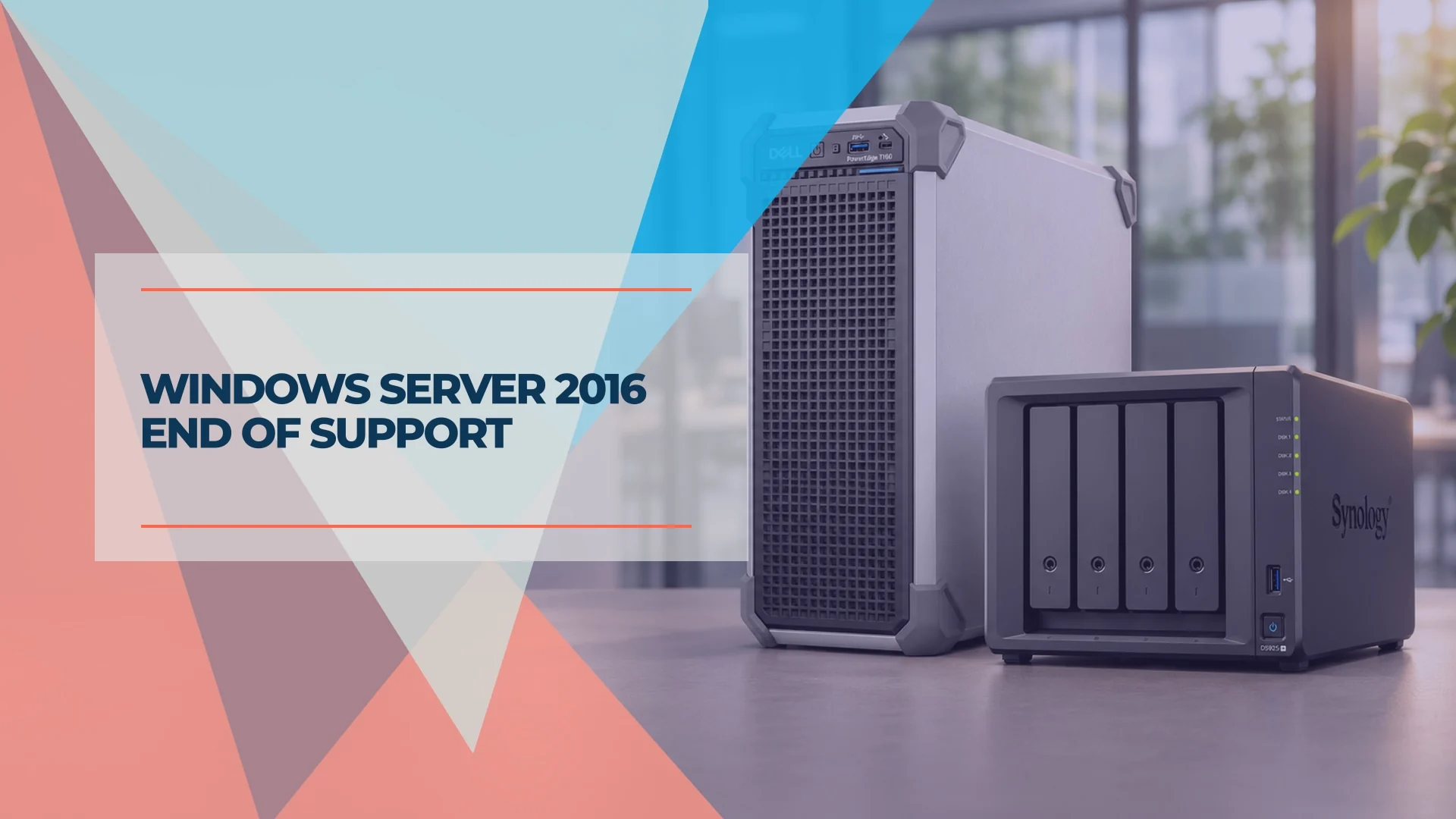
Windows Server 2016 reaches end of support on January 12, 2027. The deadline itself does not shut down your server. Regular operating-system security updates end, and eligible servers can continue receiving selected security fixes through Extended Security Updates (ESU). Microsoft's end-of-support announcement
If you have one server in a small office, start by listing the jobs it does. A shared drive can move to a NAS or cloud storage. A server that signs everyone in or runs a practice-management database needs a different plan.
Support dates, licensing terms and Microsoft list prices checked November 7, 2026.
Your four options at a glance
Windows Server 2016 end of support
Choose by the job your server does
Keep 2016 with ESU
Your application needs more time
Confirm the edition, license and Azure Arc eligibility. Set a date to move the application.
Upgrade in place
The existing server is a good fit
Check that the hardware, roles and application support the target version. Test the restore first.
Migrate to a new server or VM
You still need Windows Server
Build separately when hardware needs replacing, the server is a domain controller, or the app needs a fresh install.
Retire the server
Its jobs can move elsewhere
Move files to cloud storage or a NAS. Plan identity, device management and backups separately.
Affiliate Disclosure: This article contains affiliate links. If you make a purchase through these links, we may earn a small commission at no extra cost to you. As an Amazon Associate, iFeelTech earns from qualifying purchases.
What changes when Windows Server 2016 support ends on January 12, 2027?
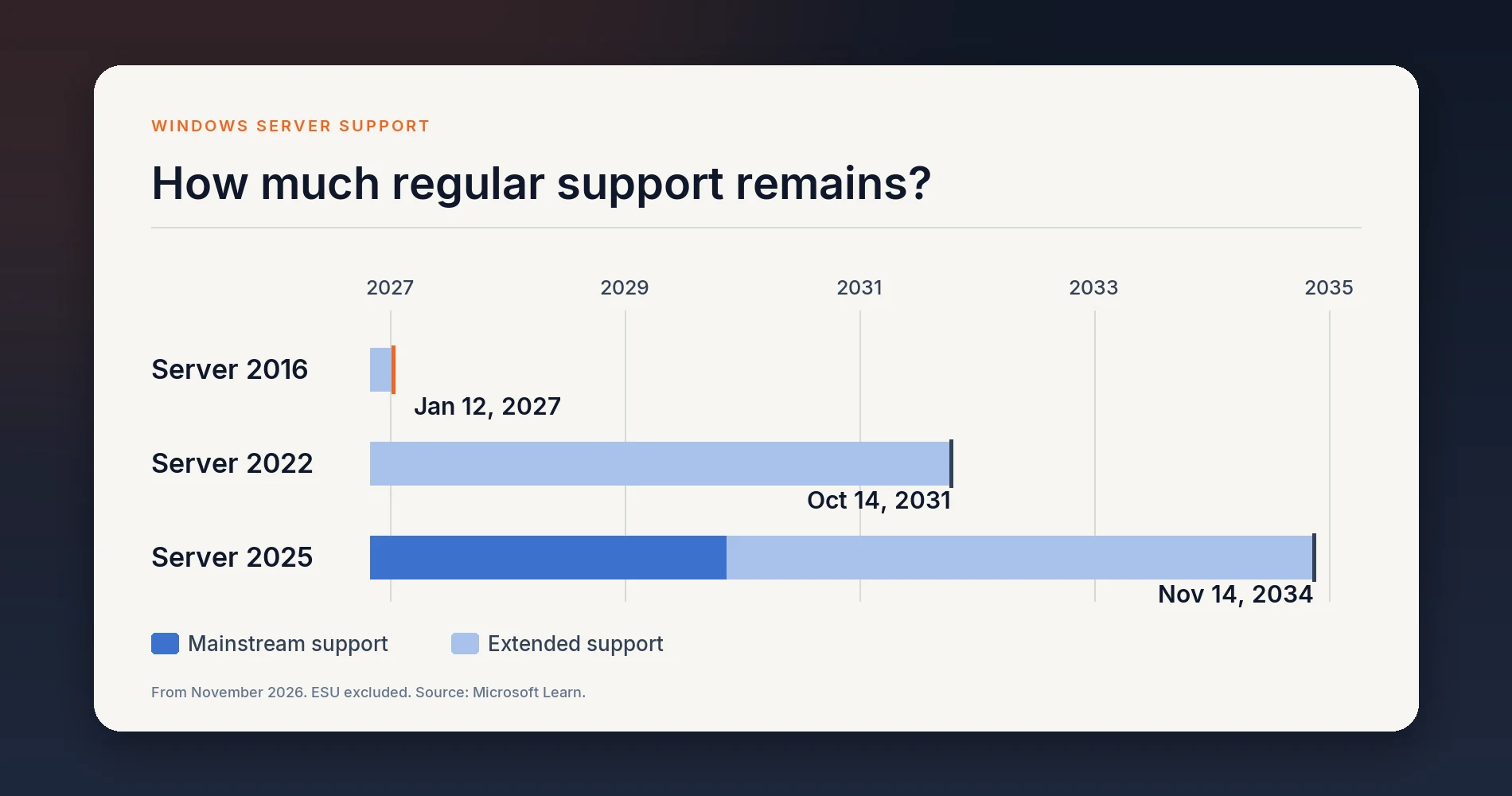
Microsoft's mainstream support for Windows Server 2016 ended in January 2022. Extended support includes security updates. Once it ends, ordinary support and regular Windows Server 2016 security updates end, apart from eligible ESU coverage. Microsoft uses January 12 as the deadline in its Windows Server release information and billing guidance.
Check the software on the server separately. SQL Server 2016 reached end of extended support on July 14, 2026 and has its own ESU program. Microsoft 365 Apps on Windows Server 2016 went out of support on October 14, 2025, with a separate security-update window through October 10, 2028. Ask your vendor for the exact application and database versions it supports, along with any backup and security agents you plan to keep.
Find out what your server does before you choose
Ask your IT provider for the Windows Server edition, the hardware or VM details and a list of roles and applications. Server Manager shows installed roles, and the OS Name line in systeminfo helps identify the edition. Add dependencies staff can see, such as mapped drives, Remote Desktop and apps they launch each morning.
| What to check | What it means for the move |
|---|---|
| Shared folders and permissions | Keep Windows file shares if an application needs SMB or a mapped drive. For ordinary team documents, pilot a cloud share or NAS with the people who use it. |
| Active Directory and Group Policy | A domain controller may handle PC sign-in, group policies, service accounts and DNS. Plan a replacement domain controller or a separate identity and device migration. |
| Applications, databases and scheduled jobs | Ask the vendor to confirm the target OS and database versions, how it moves the data, and how you transfer its license. |
| DNS, DHCP and printing | Check which devices depend on the current settings. Keep Active Directory clients pointed at DNS that resolves the domain, and plan where DHCP scopes, reservations and print queues will live. |
| Remote access and backups | Check how staff connect and where backups land. Test those workflows on the destination before switching off the old server. |
Check for Windows Server 2016 Essentials. Microsoft confirms that Essentials cannot get ESU. Support for Remote Web Access and its remotewebaccess.com integration also ends January 12. If you use those features or Essentials client backups, plan and test replacements before the deadline. Microsoft's Essentials end-of-support notice
A single machine can have several destinations. For example, move shared documents to Microsoft 365 while the accounting database moves to a supported Windows Server VM.
Path A. Keep Windows Server 2016 with Extended Security Updates
Under Microsoft's ESU requirements, an eligible server gets up to three additional years of Critical and Important security updates, into 2030. Use it when a dependency will take longer to move. Ordinary product support and nonsecurity fixes are outside the program, and your applications keep their own support dates.
- Eligibility. Microsoft's Azure Arc program lists Windows Server 2016 Standard and Datacenter. Paid ESU requires qualifying Software Assurance, SPLA licensing or a Server Subscription. An OEM license on its own does not qualify.
- Enrollment. Connect the machine to Azure Arc using Connected Machine agent 1.62 or later. Create and link its ESU license in Azure, then confirm your update tool can deliver the patches. Enrollment is keyless and patch deployment still needs to be configured.
- Billing. Azure Arc billing starts January 13, 2027. Microsoft back-bills late enrollment to January 12. Charges can continue for up to five calendar days after deactivation or deletion.
- Core count. Microsoft specifies at least 16 cores per machine for physical-core ESU licensing or eight virtual cores per VM for virtual-core licensing. Even an eight-core physical server needs a quote based on at least 16 cores.
What does ESU cost? Ask your licensing partner for a monthly quote by edition, billable cores and any Azure discounts, including any back-billing. Microsoft's ESU documentation does not list a per-core rate for Windows Server 2016. Microsoft lists coverage on Azure destinations, including Azure VMs, and specifically documents ESU at no extra charge for eligible Azure Local VMs and Azure VMware Solution machines. Verify the terms and hosting cost for your workload before moving it or creating a paid Arc license.
If you expect to miss the deadline, confirm and provision eligible coverage before January 12. Set an owner and a migration date. If the server is ineligible, ask your IT provider for an interim plan to limit access, apply the last available updates and keep a tested backup while you complete the move.
Path B. Upgrade Windows Server 2016 directly to 2025
Yes, an eligible nonclustered Windows Server 2016 machine can go straight to Windows Server 2025 using installation media. Microsoft's matrix also lists direct upgrades from 2016 to 2019 or 2022. The in-place upgrade is designed to retain settings, roles and data. Check the edition, language and installation type first, since you cannot change languages or switch between Server Core and Desktop Experience during the upgrade. For clusters, the rolling upgrade path advances one version at a time. Microsoft's upgrade matrix
Before committing to an in-place upgrade, confirm that the hardware vendor supports the target OS, firmware and storage drivers and that the application vendor supports upgrading the OS underneath the existing installation. Check each installed role, review any license entitlements for the new release, and schedule downtime with a rollback deadline. Take a full backup of the OS, applications and data, including any VMs, and test a restore before changing the live server. Microsoft's in-place upgrade prerequisites · Small-business restore testing guide
For a domain controller, use Microsoft's recommended side-by-side migration in Path C. For a standalone file or application server, compare the target versions by vendor support and the date you expect to retire the server.
- Windows Server 2025 has mainstream support through November 13, 2029 and extended support through November 14, 2034.
- Windows Server 2022 moved to extended support in October 2026 and gets security updates through October 14, 2031. Consider it when your application vendor supports 2022 and has yet to certify 2025.
- Windows Server 2019 is also a direct upgrade option, with extended support through January 9, 2029. Check how soon you would need to migrate again.
Path C. Migrate to a new Windows Server or VM
Build the replacement in parallel when the old hardware is due for replacement (our hardware refresh planning guide covers budgeting for that), the app vendor requires a fresh install, or several roles need to move on different dates. A supported VM can work if the host or provider meets the application's requirements for licensing, performance and recovery. Our server setup guide walks through sizing, storage layout and configuration for a new build.
For Active Directory, have your IT provider check domain and forest functional levels, replication and DNS before promoting the new domain controller. Windows Server 2025 requires a Windows Server 2016 or newer functional level for this deployment. Move any operations master roles (FSMO) the old controller holds and verify that clients and applications use the new services before demoting the old controller. Check for extra roles on the old server, such as a certificate authority, that need their own migration plan. Microsoft's domain controller migration guidance
For file shares and applications, test access from a normal staff account, check any hardcoded drive paths, and have someone complete a real application task on the replacement. Microsoft's Storage Migration Service can inventory and move Windows file shares and their security configuration. Agree which copy is authoritative after cutover and how new files or database writes will be handled if you roll back.
What to budget for Windows Server 2025
| Item | What to put in the quote |
|---|---|
| Standard | US$1,176 suggested MSRP for 16 core licenses. When licensing physical cores, cover all cores with a minimum of eight per processor and 16 per server. A fully licensed host can run two Windows Server VMs, with an extra physical instance allowed if it only hosts and manages the VMs. |
| Datacenter | US$6,771 suggested MSRP for 16 core licenses. Full physical-core licensing allows unlimited Windows Server VMs on that host. |
| Essentials | OEM only. For up to 25 users and 50 devices, on a single-socket server with up to 10 cores and one VM. Ask the OEM for a quote. |
| Client access licenses (CALs) | For conventional Standard and Datacenter licensing, check applicable user or device CALs and any CAL equivalents. Older CALs do not cover a newer server version. If staff use Remote Desktop Services, budget for applicable RDS CALs as well. |
| Hardware, hosting and labor | Quote the server or VM, application and database licenses, migration work, downtime, backups and ongoing support. Compare those with any cloud subscriptions or months of ESU you would need. |
Microsoft's figures are U.S. reference prices. A 12-person office choosing Standard for a single eight-core server would still start with the 16-core license, then price user or device access, the server itself and the migration. Ask your reseller to quote the full configuration. If your IT provider is reusing hardware or building a VM and you buy the license separately, Amazon sells the Windows Server 2025 Standard 16-core OEM license directly. An OEM license does not include Software Assurance, so ask your provider whether OEM or volume licensing suits your office. Microsoft pricing · Windows Server 2025 licensing guidance
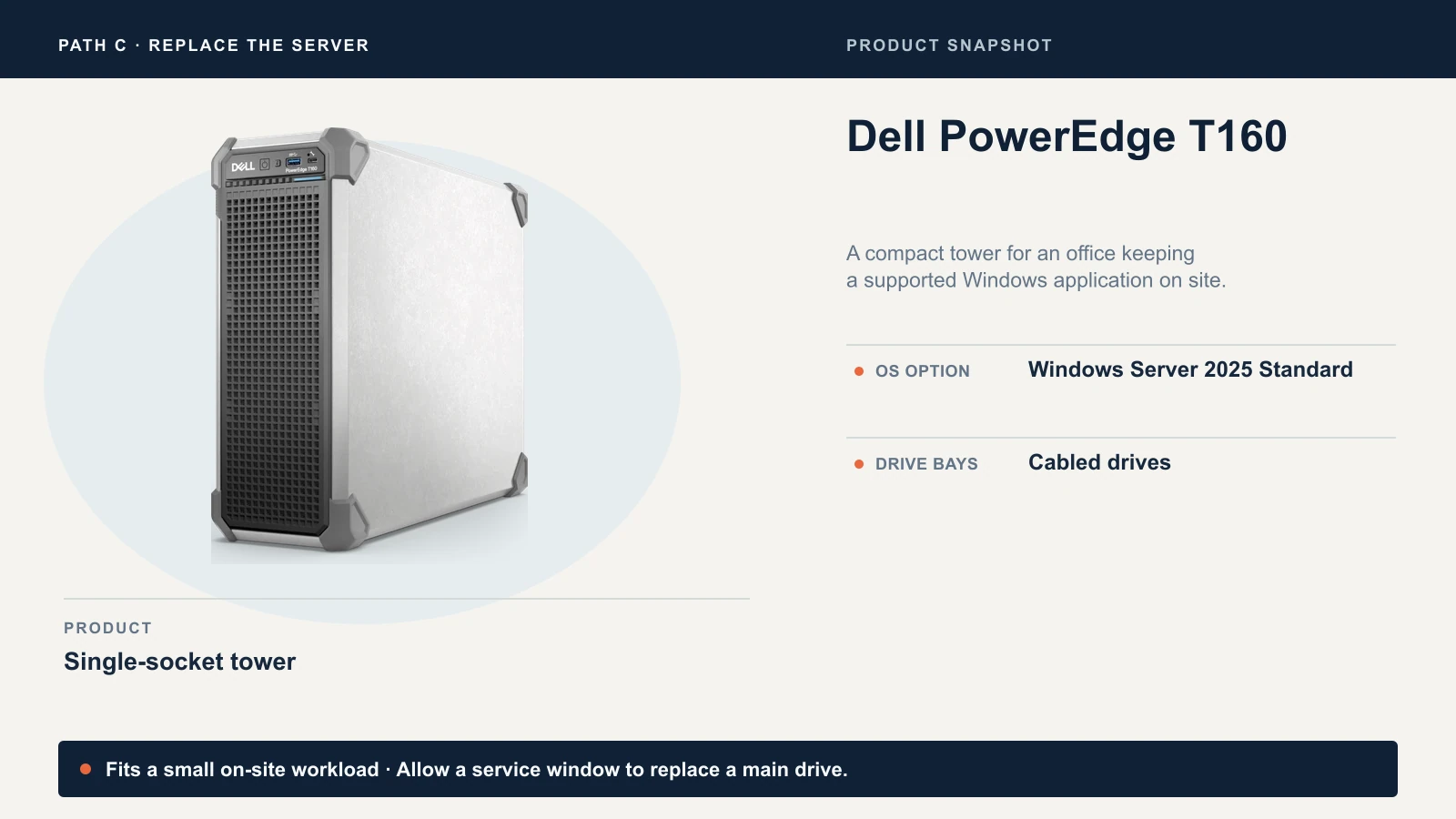
For a small office keeping a Windows application on site, one example is Windows Server 2025 Standard on a Dell PowerEdge T160. Dell lists Windows Server 2025 Standard as a configuration option for this single-socket tower, so the license can come with the server. Its main drive bays use cabled drives, so factor in a service window for drive replacement. Size CPU, memory, storage and warranty around the workload.
See our small-business server guide for other configurations.
Path D. Retire the server and move its jobs elsewhere
For team documents, look at SharePoint libraries in Microsoft 365 or shared drives in Google Workspace. Microsoft 365 keeps those files available, but it is not a separate backup; see does Microsoft 365 need backup? before you retire the server's backup jobs. Pilot one department's files first. Verify permissions, links, file names, sync behavior and offline access. For Windows file shares moving to SharePoint, Microsoft's Migration Manager can scan the source and map permissions.
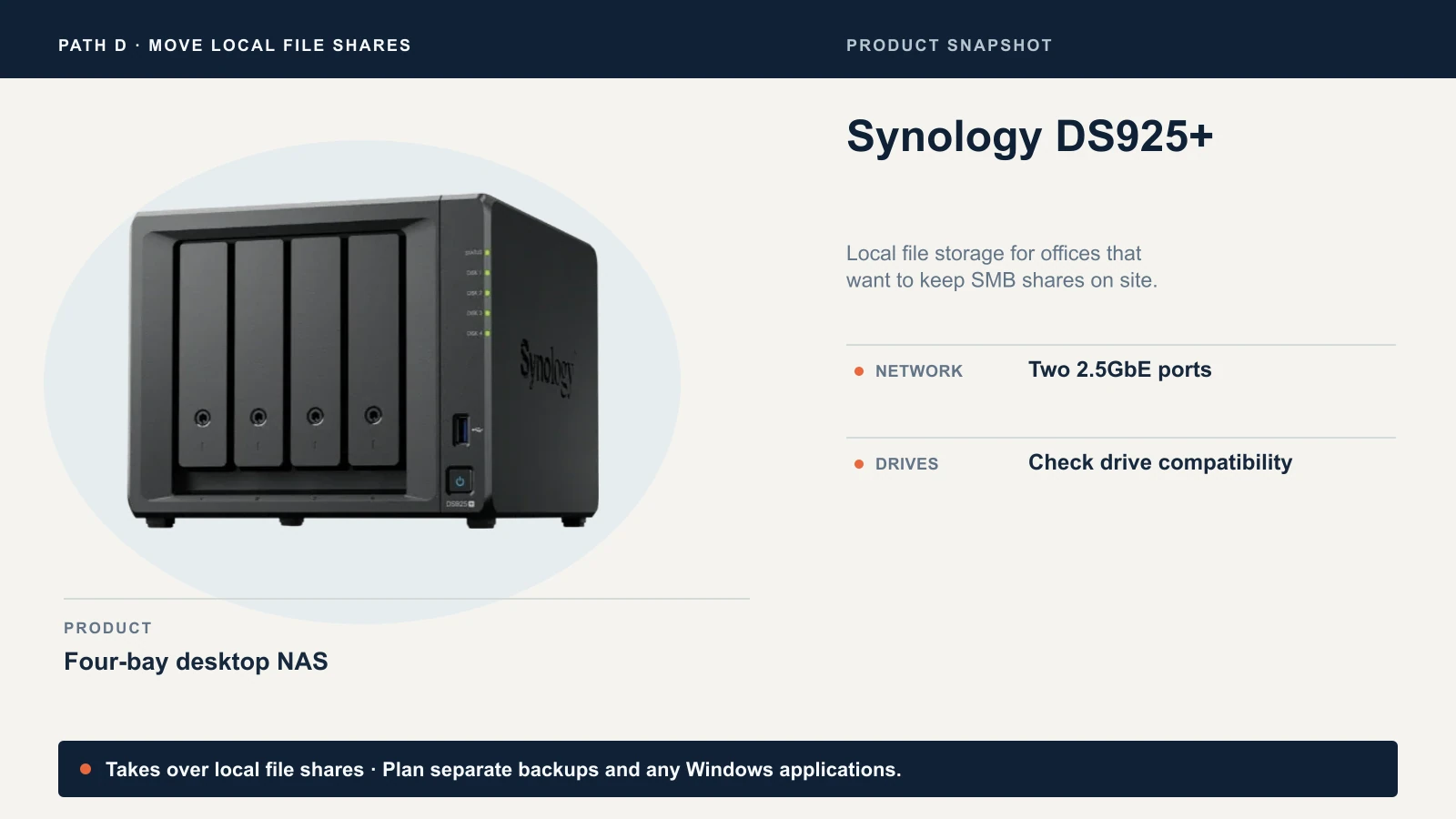
If local SMB file shares are still useful, a four-bay NAS such as the Synology DS925+ can take over that job. It has two 2.5GbE ports. Verify drive compatibility and plan a separate backup and restore process, for example with Synology Active Backup for Business. Our NAS guide for small business compares other models. Keep a supported Windows environment for applications that still require it.
Plan PC sign-in and management separately from files. Microsoft Entra join works on supported Windows editions, including Pro, with a device management plan for policies and updates. Google's managed sign-in to Windows requires Google Credential Provider for Windows and its own setup. Pilot with one PC and verify user profiles, printers, Wi-Fi and any app or service that still depends on the old domain.
Our guide to deciding whether you still need a server covers file storage, identity and applications in more detail.
What to do before the January deadline
Windows Server 2016 migration checklist
Inventory, test, then cut over
- 1
1
Inventory
Record the edition, roles, applications and dependencies.
- 2
2
Choose a path
Confirm vendor support, get a quote and book a cutover window.
- 3
3
Rehearse
Test the restore and pilot the jobs that will move.
- 4
4
Cut over
Switch by January 12 if ready. If the move will slip, provision eligible ESU ahead of the deadline.
- 5
5
Verify
Get staff sign-off and confirm backups before retiring the old server.
Before you approve the work, ask your provider to put these four answers in writing. If you are comparing outside quotes, our managed IT pricing guide explains how this kind of project is usually priced.
- What moves where? List the destination for each server role, application and scheduled job.
- What are we paying for? Itemize hardware or hosting, licensing and CALs, migration, downtime and ongoing support.
- What triggers rollback? Name who makes the call, how long recovery takes and what happens to data written after cutover.
- What must work before we retire 2016? Test a normal user sign-in, a shared file, a real application task and a backup restore. Document who signs off and when the old server can be removed.
Use the IT handover checklist to record the new setup, including who owns renewals and restore tests.
Which path fits your office?
Most small offices land on one of four patterns. These are starting points for the conversation with your IT provider, not fixed rules.
- The server only holds shared files and signs people in. Path D usually fits: files to Microsoft 365, Google Workspace or a NAS, with PC sign-in and management planned as a separate step.
- The server runs an application the vendor supports on Windows Server 2025. Path C fits well: build the new server or VM alongside the old one and let the vendor move the data.
- The server is healthy, recent hardware with one job and no domain controller role. Path B is the shortest route, after a tested backup and a confirmed rollback plan.
- An application cannot move before January and the server qualifies for ESU. Path A gives you time, month by month, while you schedule B, C or D.
A single server can follow more than one path. The goal is a supported home for every job on your inventory list before the old machine is switched off.
Related Resources
- Server for Small Business: Do You Actually Need One? — Whether cloud services, a NAS or a dedicated server fits your office.
- Best Small Business Servers — On-premise, cloud and hybrid options with three-year cost comparisons.
- Small Business Server Setup Guide — What a fresh Windows Server build involves, step by step.
- How to Run a Backup Restore Test — The test to run before any upgrade or migration.
- The Monday Morning Their Server Died — A small office's recovery from an unplanned server failure.
- Small-Business IT Handover Checklist — The documentation the new setup should leave behind.
Frequently Asked Questions
Related Articles
More from IT Guides

Server for Small Business: Do You Actually Need One?
Most small businesses asking about servers don't need one — or need a NAS instead. A practical framework for deciding between cloud-only, NAS, and dedicated server.
11 min read
Windows 10 Still Running? Here's What to Do Now (2026)
The Windows 10 deadline passed in October 2025. If you're still running it, here's what ESU costs, what it covers, and when to upgrade or replace instead.
13 min read

If the Owner Is Out: A One-Page IT Plan for a Small Business
Give a trusted colleague access to business email and shared passwords, document the handoff on one page, and test it every 90 days.
12 min read