

How to Run a Backup Restore Test for a Small Business
A practical backup restore test procedure for small businesses — with measured restore times, a quarterly checklist, and a real audit failure story.

Is your backup actually recoverable? The backup at a 22-person South Florida firm had run every night for two years. Every morning, the status email said the same thing: completed successfully. Then, during a routine IT audit, we asked to see a restore. The job that had reported success roughly seven hundred times could not bring back a single usable file.
That kind of failure is preventable. This guide covers the quarterly restore test we run for clients: what to test, how long real restores take, and how to do it without disrupting a working office.
Quick Start: The 90-Minute Quarterly Restore Test
If you already have a working backup and want the procedure now, here is the short version:
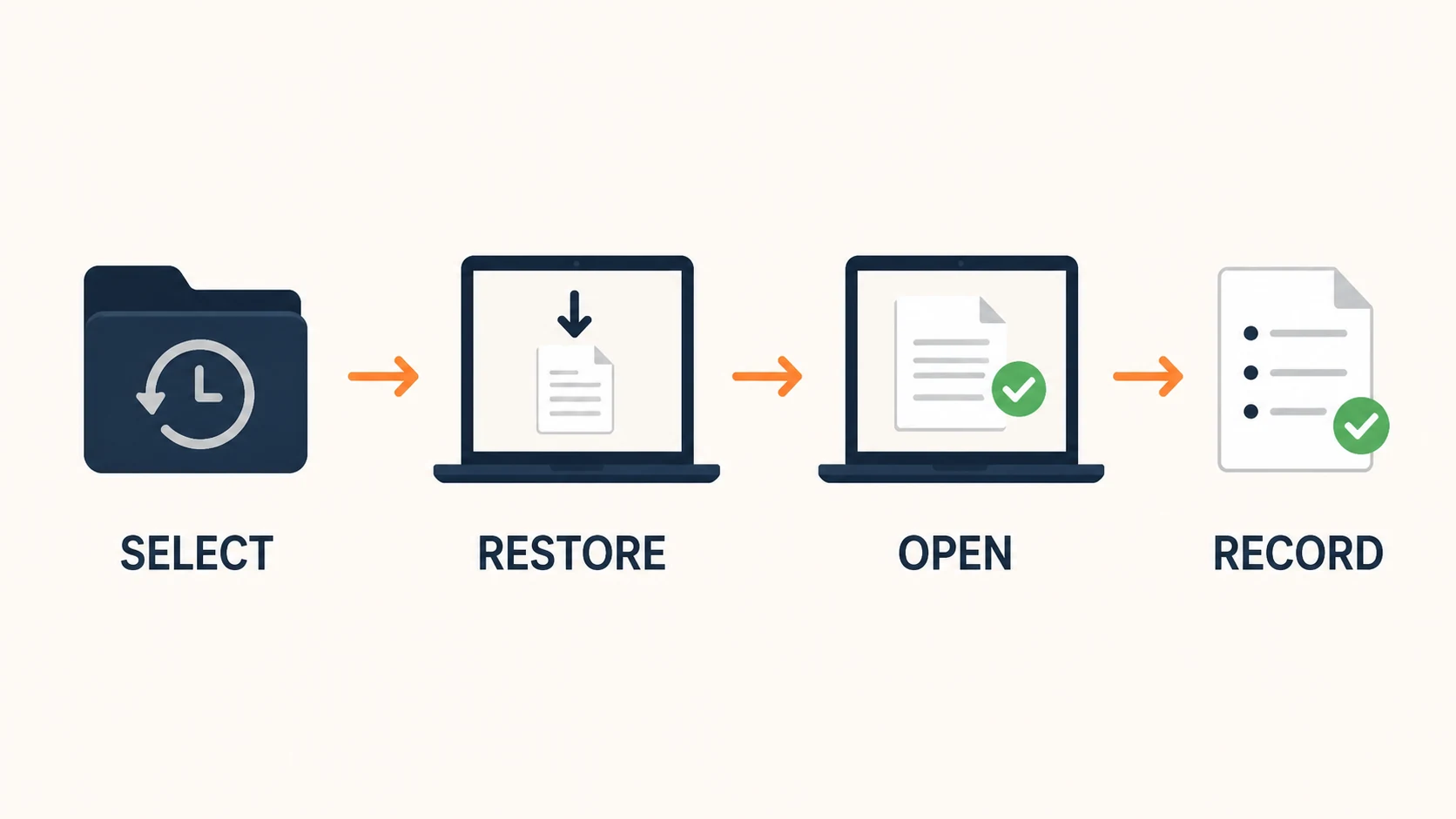
- Restore one recent file and one folder from a restore point at least 30 days old to an isolated target (spare VM or sandbox folder)
- Open each restored file in its native application — confirm it loads correctly
- If you use Microsoft 365 backup, restore a small set of mailbox items or SharePoint files separately
- Record the time each restore took and whether each item passed or failed
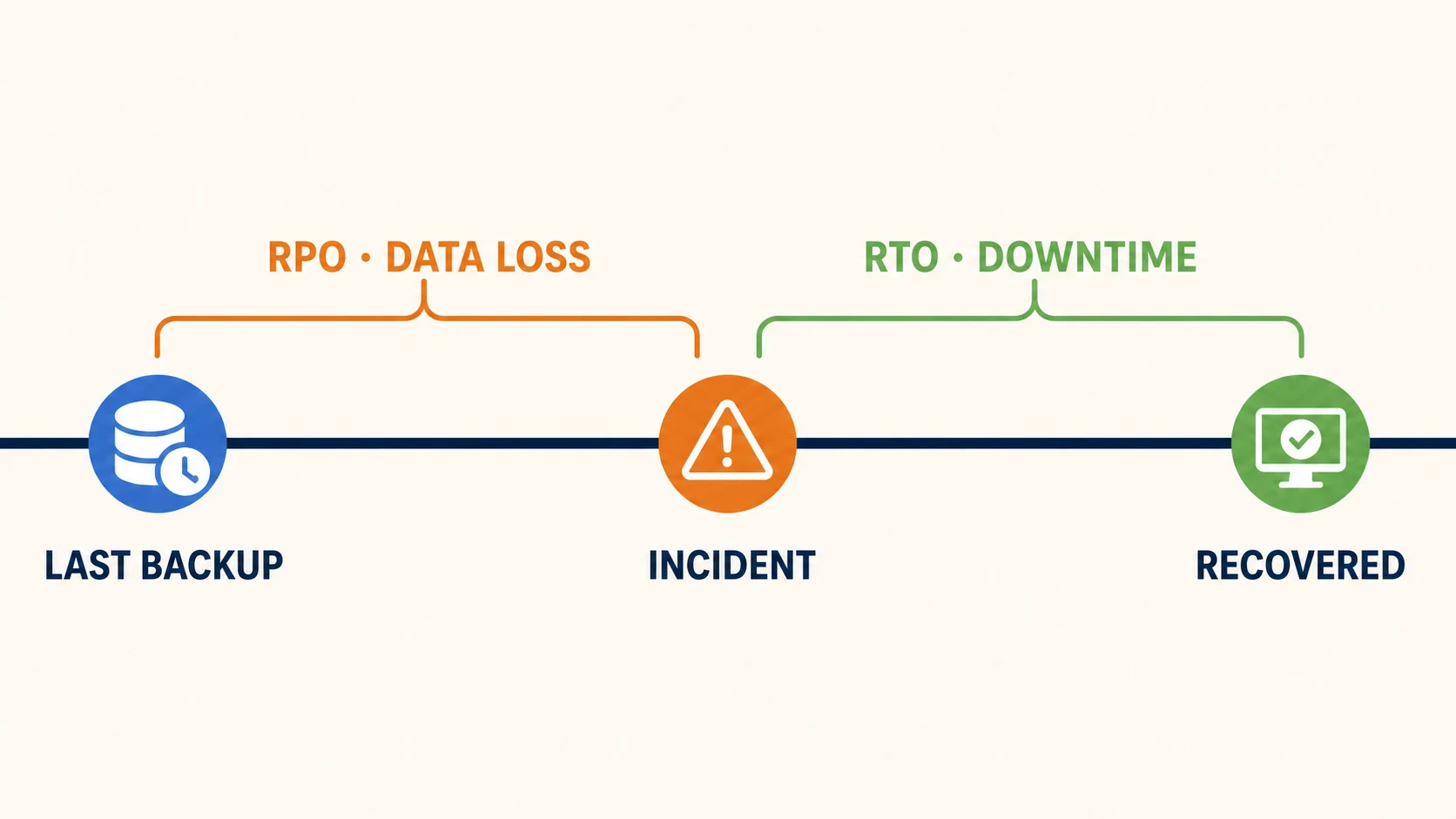
- Compare backup age against your RPO; note restore time as a data point toward your RTO (a sampled test measures one component of recovery, not the full RTO)
- Log the results with a date, tester name, and next scheduled test
The rest of this article covers the full procedure, what to do when a test fails, measured restore times from our environments, and the background on why untested backups are the most common gap we find.
Affiliate Disclosure: This article contains affiliate links. If you make a purchase through these links, we may earn a small commission at no extra cost to you. As an Amazon Associate, iFeelTech earns from qualifying purchases.
Prefer to watch? This eight-minute video walks through the 90-minute restore test step by step. The written procedure follows below.
Backup Says "Success"? Run This 90-Minute Restore Test
The Quarterly Restore Test: A 90-Minute Procedure
This is the procedure we run for clients. It is designed for a single person with admin credentials, a spare machine or VM, and about 90 minutes. The time budget breaks down roughly as follows: 10 minutes for preflight and sample selection, 30–40 minutes for file and folder restores, 20–30 minutes for SaaS restore (if applicable), and 10–15 minutes for logging and scheduling.
Before you start
Confirm you have:
- Admin credentials for each backup product being tested
- Encryption keys or private-key passphrases (if your backup uses client-side encryption)
- A restore target with enough free space — spare workstation, VM, or sandbox folder on the NAS
- Permission to handle any sensitive data that may appear in restored files (PHI, financial records, client data)
- Your documented RTO and RPO, so you can judge whether the restore meets your own targets
Step 1: Choose the sample set
Include at least:
- One file changed within the past week (tests current backup integrity)
- One folder restored from a restore point at least 30 days old (tests retention — a file merely created 30 days ago but restored from today's backup does not test whether 30-day-old restore points are intact)
- One file from a department or user whose backup has not been checked recently (tests scope coverage)
- A small, representative set of M365 mailbox items or SharePoint/OneDrive files, if applicable (Microsoft advises limiting test restores to no more than twice monthly per protection unit)
Step 2: Restore to an isolated target
Use a spare workstation, a virtual machine, or a sandbox folder on the NAS. Never restore over production data during a test. The goal is to verify the backup, not to risk overwriting current files.
Step 3: Verify contents
Open every restored file in the application that created it. A Word document that opens in Word. A QuickBooks company file that opens in QuickBooks and passes Verify Data. An Outlook PST that imports correctly. A file that exists but cannot open is not a successful restore.
For database-aware backups (SQL, Exchange), run a basic consistency check — a SELECT query, a database integrity check, or a mailbox item count — to confirm the data is usable, not just present.
Step 4: Time it and compare against your targets
Record how long each restore operation took, from initiation to verified completion. Compare the results against your documented targets:
- Backup age vs. RPO. Is the newest available restore point within the amount of data loss your business can tolerate?
- Restore time vs. documented test target. For a sampled file-and-folder restore, compare against the restore-time target for that workload. For a full-system exercise (Test 3, typically annual), compare the complete service-recovery time — including dependencies, application validation, and user access — against the business RTO. A sampled file restore measures one component of recovery; it does not prove the full RTO on its own.
If either number exceeds your target, the test has revealed a gap to address — before a real incident does.
Step 5: Log it
Record the results in a restore test log. The log serves your own planning, your insurance underwriter, and the next time someone asks "are we covered?"
Restore test log template
| Field | Example |
|---|---|
| Date | 2026-08-25 |
| Tested by | [Name] |
| Backup product | IDrive Business / Synology Active Backup |
| Restore scope | Single file, folder (30-day-old restore point), M365 mailbox |
| Source | Cloud (IDrive) / Local NAS |
| Target | Test VM / sandbox folder |
| RTO target | 4 hours |
| RPO target | 24 hours |
| Backup age (newest restore point) | 14 hours |
| File 1 result | Pass — restored, opened in Word, contents verified |
| File 2 result | Pass — restored from 30-day-old restore point, opened in Excel, contents verified |
| M365 result | Pass — mailbox restored to recovery folder, 3 sample emails verified with attachments |
| Total restore time | 22 minutes |
| Pass/fail | Pass — sampled items restored within test targets; newest restore point met RPO. Full-system RTO not tested this exercise. |
| Issues found | None / [describe] |
| Remediation | N/A / [action taken, owner, deadline, retest date] |
| Next scheduled test | 2026-11-25 |
A dated restore test log can support cyber-insurance underwriting and audit evidence — many insurers now ask for documented proof of tested restores, not just proof that backups exist. The log does not guarantee favorable premium or claim outcomes, but it puts you in a stronger position during underwriting and any post-incident review.
Step 6: Clean up test data
After logging results, remove the restored test data using your approved data-handling process — typically by destroying the test VM or encrypted test volume, or deleting the recovery data according to your retention procedure. Restored data may contain sensitive records (client files, financial data, PHI) that should not persist outside production systems.
What a Real Restore Test Covers
A restore test is not one test — it is four, each proving a different layer of recoverability. In the small-business environments we audit, testing often stops at a single-file restore.
Test 1: Single-file restore. Restore one specific file from the most recent backup to a non-production location. Open it in the application that created it and verify the contents. Pass: file opens, content matches expectations, restore completed within your documented target for this workload. Fail: file is corrupt, missing, or the restore point does not exist.
Test 2: Folder or point-in-time restore. Restore an entire folder from a restore point at least 30 days old to an isolated location. Verify that the folder structure is intact, files are present and openable, and the restore-point date matches the one you requested. Pass: file count matches a recorded baseline from the selected restore point, sample files open correctly, timestamps and folder structure are intact. Fail: files are missing, folder structure is incomplete, or the restore point is from a different date than requested. This tests retention policy accuracy and catches silent exclusions.
Test 3: Full system or image restore. Restore a complete system image to a spare machine, a virtual machine, or a sandbox environment. Boot it. Verify that the operating system starts, applications load, and data is accessible. Pass: OS boots, key applications start, a representative business transaction (open a document, query a database, confirm a login) succeeds, and the full recovery — including application validation and dependency checks — completes within your RTO. Fail: OS does not boot, applications crash, or data is inaccessible. Run this annually or semi-annually. In our experience this takes 2–4 hours depending on image size and restore method, but your time will vary.
Test 4: SaaS restore (Microsoft 365, Google Workspace). A conventional file-server backup job typically does not automatically protect cloud-hosted Microsoft 365 or Google Workspace data. If you use a Microsoft 365 backup or Google Workspace backup, test it separately. Restore a small, representative set of mailbox items to a recovery folder, or selected SharePoint/OneDrive files to a safe destination, depending on what your backup product supports. Microsoft's first-party M365 Backup restores Exchange items to the current mailbox only (in-place or recovery folder) and Microsoft advises limiting test restores to no more than twice monthly per protection unit; third-party tools may offer more flexibility. Pass (mailbox): sample emails, attachments, and folder structure are intact; a sample email opens with its attachment. Pass (SharePoint/OneDrive): selected files are present, openable, versioning is intact, and permissions match expectations. Fail: restore errors, missing items, corruption, or permissions that don't match the source.
Recommended Cadence
| Test | What it proves | Recommended cadence | Time required |
|---|---|---|---|
| Single-file restore | Basic backup integrity | Quarterly | 5–10 minutes |
| Folder/point-in-time restore | Retention accuracy, no silent exclusions | Quarterly | 15–30 minutes |
| Full system/image restore | Complete recoverability | Annually | 2–4 hours |
| SaaS restore (M365/Google) | Cloud data protection | Quarterly | 15–30 minutes |
These cadences are what we recommend for most small businesses. NIST SP 800-53 (CP-9) deliberately leaves test frequency as organization-defined — your cadence should reflect your recovery time objective (RTO), regulatory requirements, how frequently your environment changes, and what your cyber insurer expects. Also consider trigger-based testing after major events: backup product changes, server migrations, credential rotations, or retention policy updates.
When the Test Fails
A failed restore test is the test working as intended. The serious risk is discovering the same failure during an actual incident.
If a restore fails during testing, follow this sequence:
- Do not delete or modify the existing backup chain. The broken chain may contain partially recoverable data. Leave it intact until you have confirmed a good restore point exists elsewhere. Do not create a new full backup on top of the potentially recoverable chain until vendor analysis is complete.
- Try an earlier restore point. If the most recent point fails, try points from one week, two weeks, and 30 days ago. If one succeeds, you have narrowed the window when the problem entered the chain.
- Check the job scope. Compare the backup job's current file selection against what you expected it to cover. Silent exclusions — paths that changed, permissions that blocked access — are a common cause of partial failures, though better backup products may flag these as warnings.
- Verify credentials. Database-aware backups (SQL, Exchange) can fail when service account credentials change. Check the backup application's credential store against the current database configuration.
- Contact the backup vendor with logs. Provide the error output from the failed restore. Vendor support can distinguish between repository corruption (may require a new full backup) and a recoverable configuration error.
- Run a fresh full backup to a confirmed-healthy target. Once the root cause is identified and fixed, initiate a new full backup — preferably to a separate, verified target rather than overwriting the existing repository. Assign an owner and a retest date to confirm the fix holds.
A failed test that leads to a configuration fix is a success. A failed test that leads to a product change is also a success. The risk is in never testing at all.
How Long Restores Actually Take
Restore speed depends heavily on two factors most people overlook: the number and size distribution of files, and the restore method. These are first-hand observations from restores we conducted across client environments — your numbers will differ based on your connection, backup product, and data characteristics.
In granular file-level restores using IDrive Business, document-heavy environments (thousands of files under 1 MB each) restored at roughly 10–20 minutes per gigabyte. The per-file processing overhead — API calls, metadata checks, write operations for each individual file — dominates when handling many small files over an internet connection.
In a timed disaster recovery simulation using IDrive's desktop client over a business internet connection (~500 Mbps nominal), we restored a complete 200 GB file server in approximately four hours — roughly 1.2 minutes per GB, or about 111 Mbps effective throughput. The difference between that rate and the 10–20 min/GB granular rate reflects the difference between restoring thousands of individual small files versus streaming a bulk restore where bandwidth is the primary constraint.
| Restore type | Observed range (our tests) | Key variable |
|---|---|---|
| Granular file restore (many small files, cloud) | 10–20 min/GB | Per-file overhead dominates |
| Bulk image restore (cloud, ~500 Mbps nominal) | ~1–2 min/GB (~111 Mbps effective) | Bandwidth dominates |
| Local NAS image restore (Gigabit LAN) | ~15–30 sec/GB | LAN speed and disk I/O dominate |
These are data-restoration times only. Full service recovery — including dependency checks, application configuration, validation, and user access restoration — adds additional time that depends on your environment. Your RTO should account for the full recovery process, not just the data transfer. These figures are field observations rather than a controlled benchmark and should not be used to predict performance for another environment.
For datasets over 500 GB where internet restore would take days, IDrive Express ships a physical drive with your data — IDrive's FAQ estimates 2–5 business days for preparation and shipping, with courier delays possible.
Measure Your Own Recovery Time
Many owners we speak with estimate recovery would take "a few hours" but have never measured it. Run a timed test once and you have a number you can plan around — including whether that number is acceptable for your business or whether you need a faster recovery path.
Why Backups Fail Silently
A backup job's success status confirms the job completed. Depending on the product and configuration, it may also confirm checksums, application consistency, or other integrity measures. What it does not establish is end-to-end recoverability — whether the data can be used to restore a working system within your recovery window.
The failure modes that produce extended periods of green status over unrecoverable data are specific and worth knowing, because each one points to what the restore test is designed to catch:
- Repository corruption. The backup software writes successfully, but the repository structure degrades over hundreds of incremental cycles without re-verifying older blocks.
- Silent exclusions. A folder path changes, an employee moves a shared drive, or a permission change blocks access to a subdirectory. Depending on the product, this may be flagged as a warning, downgraded in scope, or missed entirely.
- Credential drift. A service account password or API token changes. The job continues for file-level backup but stops capturing the application-aware portion.
- Retention policy pruning. The backup retains the last 30 days as configured, but a corruption that entered the data 45 days ago is now present in every available restore point.
- VSS snapshot failures. On Windows, Volume Shadow Copy errors can cause the backup to capture files in an inconsistent state — particularly databases and mail stores — while still reporting file-level success.
We encountered the repository corruption scenario during an onboarding audit of a 22-person professional services firm in Miami. Their file server had run nightly backups to a NAS for roughly two years. The monitoring dashboard showed no errors. When we attempted a restore of a specific client folder, the incremental chain had degraded to the point where no usable restore point remained within the retention window. The backup had been writing data every night; the repository had silently become unrecoverable. The incident did not establish a product defect — the backup software was not configured to perform automated integrity verification, and nobody had run a manual restore test. Client-identifying details have been withheld; the cause was determined from the backup application's restore errors and repository analysis.
The same audit found no backup for the firm's Microsoft 365 environment. Their email, SharePoint files, and OneDrive data relied solely on Microsoft's native retention windows — default 14 days for Exchange deleted items (configurable up to 30 days), 93 days across OneDrive/SharePoint recycle-bin stages — with no separately configured backup. Microsoft now offers a first-party Microsoft 365 Backup service ($0.15/GB/month list price, billed on protected content including retained deleted/versioned data), and third-party options have existed for years, but this firm had neither.
Where Restore Testing Fits: 3-2-1-1-0
Most IT professionals know the 3-2-1 backup rule: three copies of your data, on two different media types, with one copy offsite. A widely promoted extension — particularly associated with Veeam's guidance — adds two more digits:
- 1 copy immutable or air-gapped
- 0 errors verified by integrity checks and restore testing
The "0" is this article's subject. Automated integrity verification — Veeam's SureBackup (which can boot a workload and test applications) and Synology Hyper Backup integrity checking (which verifies index and data consistency) — is valuable, but verifying that data is intact is not the same as proving that an application boots, users can authenticate, dependencies work, and the RTO can be met. A manual restore test covers what automated checks cannot. For most small businesses, a quarterly manual test is the realistic starting point. For a full implementation guide on the 3-2-1-1-0 framework, see our 3-2-1 backup rule article.
An Important Layer of Ransomware Resilience: Immutable Backups
According to CISA's ransomware guide, many ransomware variants attempt to find and subsequently delete or encrypt accessible backups to make restoration impossible unless the ransom is paid. An immutable backup — a copy that cannot be altered or deleted during its retention window — addresses this risk. For a deeper look at how modern ransomware combines backup targeting with data exfiltration, see our double-extortion ransomware article.
In S3-compatible storage, compliance mode prevents deletion even by root or administrator accounts during the retention period. Governance mode allows users with specific bypass permissions to override the lock — useful for operational flexibility and still valuable when bypass permissions are tightly separated from day-to-day admin accounts, but less protective if an attacker gains a highly privileged identity.
Two implementations exist at small-business scale:
-
NAS immutable snapshots. Synology's WriteOnce shared folders and immutable snapshots (DSM 7.2+) are available on specific supported models — generally Plus-series units from the 20-series onward (DS220+, DS920+, DS1520+, etc.), but not every model in those generations. WriteOnce protects shared-folder files from modification; immutable snapshots protect Btrfs snapshots from deletion. Both must be explicitly enabled. QNAP offers WORM functionality on supported QuTS hero models — check hardware and OS compatibility. See our Synology Snapshots guide for a full walkthrough.
-
Cloud storage with object lock. IDrive e2 (S3-compatible object storage, separate from the standard IDrive Business backup client), Backblaze B2 (the object storage product, not Backblaze Computer Backup), and Wasabi support compliance-mode object lock. Using this for backup immutability typically requires a backup application that integrates with S3-compatible storage (Veeam, for example, supports both B2 and e2 with immutability).
Both layers — local immutable snapshots and offsite cloud object lock — should have separate failure domains, independently managed credentials, and correctly sized retention windows. An immutable snapshot on the same NAS that stores your production data is a useful layer but not a complete backup by itself.
Making It Stick
Put it on the calendar. A recurring quarterly entry with a named owner — a specific person, not "IT." The specific dates matter less than the cadence; pick a quiet week in each quarter and protect it.
Pair it with a yearly walk. The quarterly restore test covers the backup itself. Once a year, our small office IT checklist also looks at the physical side: the age of the backup drives, the UPS that protects them, and whether you can name the date of the last successful backup.
The insurance connection. Cyber-insurance questionnaires have evolved from "do you have backups?" to "how often do you test restores?" Several current applications, including Beazley's cyber insurance form, explicitly ask about restore-test frequency. A quarterly restore test log and documented immutability controls are better evidence than a checkbox — though the specific impact on premiums and claims varies by insurer and policy.
When to get help. If running quarterly restore tests is not realistic for your team — because nobody has admin credentials to the backup system, because there is no spare machine to restore to, or because the person who set up the backup left — that is a reasonable reason to engage an IT partner. A restore test is a well-scoped, low-risk first engagement that lets you evaluate a partner's technical competence on a concrete task before committing to a broader relationship.
If the reason nobody has tested a restore is that the provider who set the backup up is on their way out, our small-business IT handover checklist puts the restore test into the wider handover sequence, alongside domain, tenant and billing ownership. For a broader look at how backup and recovery fit into a complete disaster recovery strategy, see our small business disaster recovery guide. For businesses evaluating or changing their backup product based on test results, our best cloud backup for small business comparison covers the options.
Related Resources
- The 3-2-1 Backup Rule: A Practical Guide — The foundation this article builds on, including 3-2-1-1-0 and how to implement each layer.
- The Monday Morning Their Server Died — What a real server failure costs when there is no tested recovery path.
- IDrive Business Review — The backup product we used for the timed restore data in this article.
- Does Microsoft 365 Back Up Your Data? — Why a conventional file-server backup does not cover M365, and the options for protecting cloud data.
- Best Cloud Backup for Small Business — If your restore test reveals a product problem, here are the alternatives.
Frequently Asked Questions
Related Articles
More from IT Guides

The Monday Morning Their Server Died (And What Happened Next)
When a server fails with no tested backup, recovery takes 3–5 days and costs $20,000–30,000. Here's the full timeline, what it cost, and how to prevent it.
15 min read

The 3-2-1 Backup Rule: Why It Still Works and How to Implement It in 2026
The 3-2-1 backup rule is a proven data protection framework. Learn what it means, why it still works against ransomware and disasters, and how to implement it step-by-step with specific tools and a real cost example for your small business.
13 min read

Small Business Disaster Recovery: Building IT Resilience That Actually Works
A practical disaster recovery guide for small businesses. Learn the 3-2-1-1-0 backup rule, understand RTO/RPO, and build a recovery plan that protects against ransomware, outages, and data loss.
15 min read