

Turn On Two-Step Sign-In for Everyone: A One-Week Rollout for Microsoft 365 and Google Workspace
Turn on MFA for all staff in Microsoft 365 or Google Workspace without lockouts: secure admins first, message the team, let people enroll, then flip the switch.


To require two-step sign-in (also called multifactor authentication, or MFA) for every employee in Microsoft 365 or Google Workspace, secure the administrator accounts first, tell staff what will change and when, give them a day to set up an app, then turn on one setting: security defaults in Microsoft 365, or 2-Step Verification enforcement in Google Workspace. The setting itself is a few clicks. The week around it is what prevents lockouts in an office of 3 to 25 people.
The method matters too. CISA ranks phishing-resistant methods such as security keys at the top, authenticator apps next, and text-message codes last.
Affiliate Disclosure: This article contains affiliate links. If you make a purchase through these links, we may earn a small commission at no extra cost to you. As an Amazon Associate, iFeelTech earns from qualifying purchases.
The rollout at a glance
Five working days: administrators, a message to staff, setup, the switch, and a sweep for anyone the switch missed.
| Day | What happens | In Microsoft 365 | In Google Workspace |
|---|---|---|---|
| 1 | Administrators first | Two admins, each with a second step and a backup route | Same; Google is phasing in required 2SV for admins |
| 2 | Tell the team | Send the message | Send the message, then allow enrollment |
| 3 | Set up | Staff install Microsoft Authenticator | Staff enroll and save backup codes |
| 4 | The switch | Turn on security defaults | Set Enforcement to On |
| 5 | Sweep | Find anyone not yet registered | Read the enrollment report |
Jump to: which Microsoft route suits you · which second step · the staff message · lockouts · shared mailboxes and scanners · backup codes
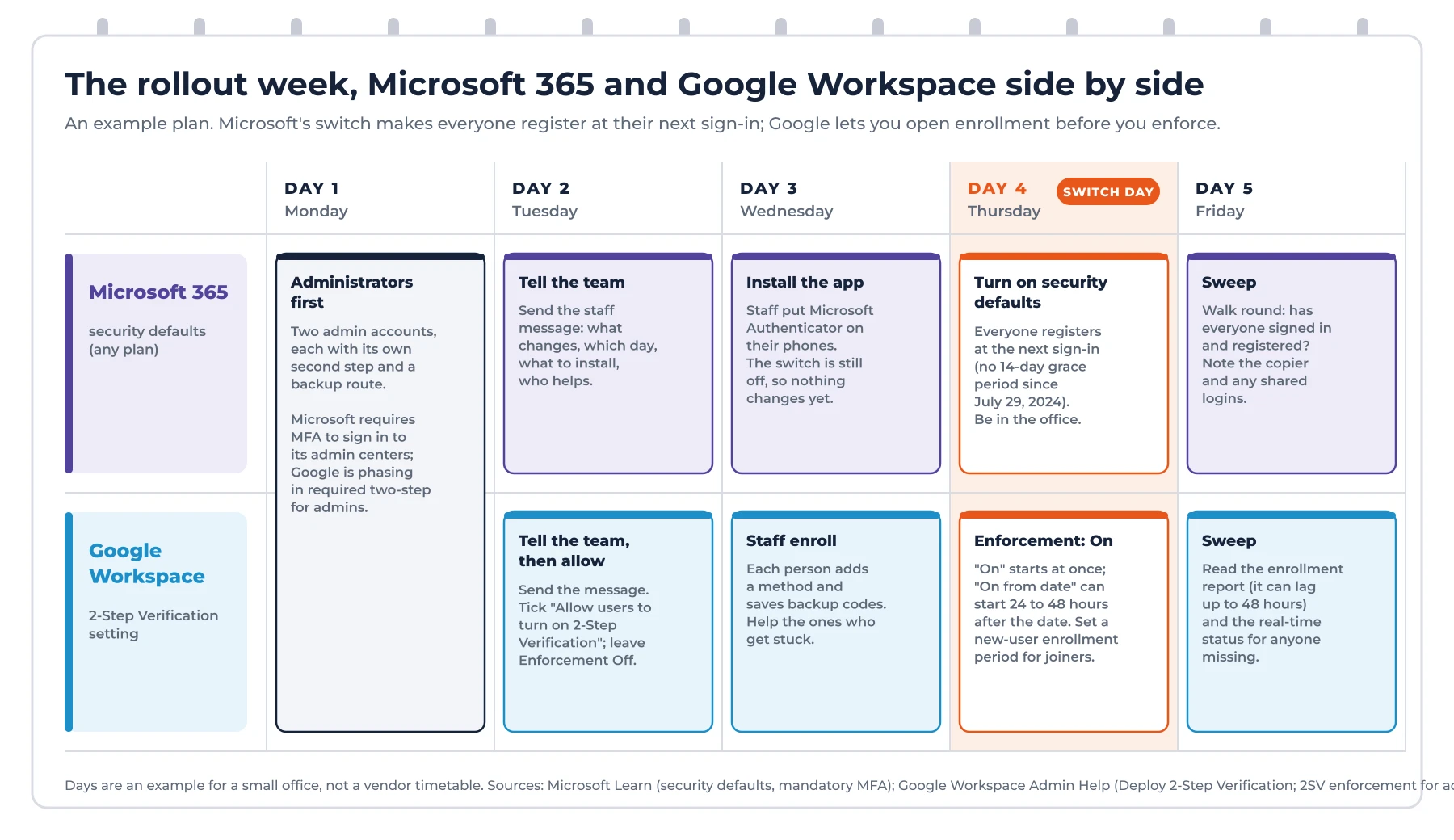
The two suites differ in one way that shapes the whole week. Since July 29, 2024, Microsoft's security defaults no longer give users a 14-day grace period, so people register the next time they sign in after the switch. Google lets you allow enrollment first and enforce later. That is why the Microsoft switch lands on a day when someone can help at every desk, and why the Google lane has an open enrollment day before it.
The order matters more than the dates. The message goes out two days before the switch: long enough to install an app, soon enough that people still remember it. Day 5 is for whoever the switch missed, such as someone on leave, a laptop nobody opened on switch day, or an old mail app that stopped syncing. If half the office is out on switch day, move the switch.
The example office used in this article
This example is illustrative, not a client case. A nine-person insurance agency runs Microsoft 365 on a plan without Conditional Access. The owner and the office manager are both administrators. Six staff have smartphones; a part-time assistant does not use one at work. A copier scans to email, and an info@ shared mailbox receives quotes. The sections below follow this office through the week; a Google Workspace office would follow the same days in the other lane of the calendar.
Why do administrators go first?
Administrator accounts can reset everyone else's password and second step, so they get the strongest protection before staff change anything.
Whoever holds an administrator account can switch two-step sign-in off for everyone, add a mail-forwarding rule or create new accounts, which is why these accounts are protected first.
Both suites are moving this way already: Microsoft requires MFA to sign in to its admin portals, including the Microsoft 365 admin center (from February 2025, with no opt-out), and Google is phasing in required 2-Step Verification for administrators, with about 90 days' notice for super administrators and 60 for others. Doing this step first puts it on your schedule rather than theirs.
Day 1 comes down to three things:
- Two administrators, not one. Microsoft recommends two or more emergency access accounts: cloud-only, with the Global Administrator role, and a passkey (FIDO2) as the recommended sign-in method. In a small office the practical minimum is a second administrator the owner can reach on a bad day, signed in with a different phone or key from the first (setting up two administrators).
- A second step on each. The strongest available method belongs here (see the ladder).
- A backup route for each. In Google Workspace, printed backup codes or a second key. In Microsoft 365, a second registered method and the other administrator, who can reset the first one's methods.
In the example agency, the owner and the office manager register Microsoft Authenticator on their own phones, so neither depends on the other's device, and each can reset the other. The registrar login for the domain gets the same care, because whoever controls the domain controls where email goes (how to check who owns your domain).
Which route fits your Microsoft 365 plan?
Security defaults suit plans without Conditional Access; Conditional Access suits plans with Entra ID P1; per-user MFA is Microsoft's last option.
Microsoft offers three ways to require a second step, and they do not mix. Choosing one before switch day avoids finding the switch greyed out because another method is already in place.
| Route | Fits when | What to know |
|---|---|---|
| Security defaults | Any plan, including those without Conditional Access, when one switch for everyone is enough. | Free and all or nothing: no exceptions and no staged start. Registration uses Microsoft Authenticator. Blocks legacy sign-in methods. Tenants created on or after October 22, 2019 may already have it on. |
| Conditional Access | Your plan includes Microsoft Entra ID P1 or P2, as Microsoft 365 Business Premium does, and you want to start with one group or exclude an emergency account. | Microsoft's templates include "Require MFA for all users" and "Block legacy authentication". Cannot run alongside security defaults. |
| Per-user MFA | Only when neither of the above can be used. | Microsoft labels it legacy and not recommended. Do not combine it with Conditional Access. |
Three points to settle before you change anything:
- Look first. In the Microsoft Entra admin center, open Entra ID, then Overview, then Properties, and see whether security defaults already say Enabled. On a newer tenant they may, and then switch day is about registration rather than a switch.
- Any Conditional Access policy blocks security defaults, even one set to Off or Report-only. If a previous provider created policies, decide which route you are keeping first.
- Leftover per-user states. If the per-user MFA page shows people as Enabled or Enforced, they come from the older method. Microsoft says to turn legacy per-user MFA off before using security defaults or Conditional Access.
Plan contents change, so confirm what your subscription includes in the admin center rather than assuming. The example agency's plan has no Conditional Access, so it uses security defaults.
Turn on security defaults in Microsoft 365
Turn on security defaults in the Microsoft Entra admin center on switch day; staff then register Microsoft Authenticator when they next sign in.
Because there is no grace period, the timing is the decision. Turn the switch on in a quiet hour, with the owner or office manager in the office, after the staff message has gone out.
- Sign in to the Microsoft Entra admin center with an administrator account. The person who created the tenant is a Global Administrator by default; Microsoft's pages also name the Security Administrator and Conditional Access Administrator roles.
- Go to Entra ID > Overview > Properties > Manage security defaults.
- Set Security defaults to Enabled and select Save.
What changes for staff, in Microsoft's own description:
- Everyone registers with Microsoft Authenticator notifications. After that, codes from the app also work, and Microsoft says other apps that generate standard time-based (OATH TOTP) codes can be used too.
- A number to type. Authenticator push notifications always use number matching: the sign-in screen shows a number and the person types it into the app. (Signing in to Teams or Outlook on the same phone shows Approve and Deny instead.) Users cannot turn number matching off.
- Administrators are asked at every sign-in; other users whenever Microsoft judges it necessary, for example on a new device.
- Legacy sign-in is blocked. Older apps and devices that send a plain username and password stop working; see the exceptions below.
Microsoft also says administrators should revoke existing sign-in tokens when they turn security defaults on (the Revoke-MgUserSignInSession command in Microsoft Graph PowerShell), so that everyone already signed in must sign in again and register. Asking everyone to sign out of every app and device is only a partial substitute; an IT provider can run the command for you.
In the example agency, the assistant without a work smartphone cannot register Authenticator, so the owner sets aside an inexpensive work smartphone for the front desk before switch day. Moving to a plan with Conditional Access later would open other options.
Enforce 2-Step Verification in Google Workspace
Allow 2-Step Verification first, let staff enroll, then set Enforcement to On for the organizational unit or group.
Google separates "allowed" from "enforced", which is what makes a calm rollout possible. A person who has not enrolled and is moved into an enforced organizational unit cannot sign in, so the order is allow, enroll, then enforce. You need to be signed in as a super administrator.
- In the Google Admin console, go to Menu > Security > Authentication > 2-Step verification.
- Select the organizational unit or group. Group settings override the organizational unit, except that a policy set on a child organizational unit always takes precedence.
- Tick Allow users to turn on 2-Step Verification, leave Enforcement at Off, and save. This is Day 2.
- On switch day, return and set Enforcement. On starts immediately. On from date can start 24 to 48 hours after the chosen date, so use On when the timing matters.
- Set a New user enrollment period: a window from 1 day to 6 months in which new people can sign in with only a password while they enroll. A short window suits an office that hires rarely; a longer one suits new people who start remotely and need time to receive a key.
- Choose Methods: Any; Any except verification codes via text, phone call; or Only security key. Google warns that people who verify by text or call are locked out once enforcement starts if you exclude those methods, so move them to an app or key first.
To see who has enrolled, open Menu > Reporting > User Reports > Security. Google notes the report can lag by up to 48 hours; for one person, their security settings page in the Admin console shows the current status. Google's deployment guide covers the remaining options.
Which second step should staff use?
Use an authenticator app for most staff, a key or passkey for administrators where the suite allows it, and text codes only as a last resort.
The ladder below follows CISA's ranking. Aim each account as high as it can reasonably go, and keep the top rung for the accounts that can reset everyone else's.
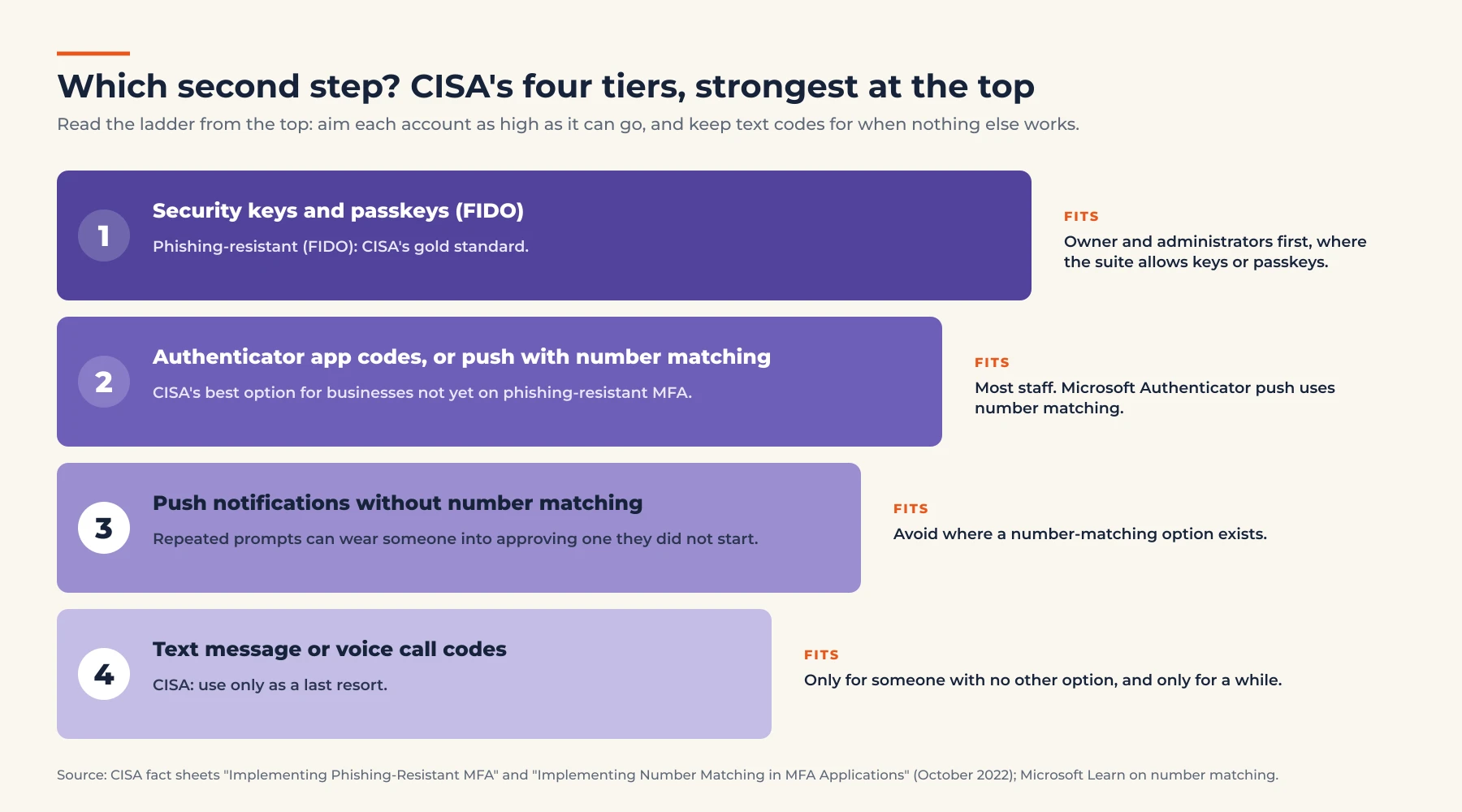
CISA calls phishing-resistant MFA the gold standard and says FIDO/WebAuthn is the only widely available form of it. For small and medium businesses not yet using it, CISA names authenticator app codes and push notifications with number matching as the best options, and says text and voice codes should be used only as a last resort. The FIDO Alliance describes passkeys as FIDO credentials, so a passkey sits on the top rung alongside a physical key. The security habits article explains why text codes as the only second step are being retired.
What the suites allow differs. Google lets staff choose a Google prompt, a passkey or security key, an authenticator app, text or voice codes, or backup codes, within the methods you permit. Microsoft's security defaults register everyone with Microsoft Authenticator; Microsoft recommends passkeys for emergency access accounts, and which other methods staff can register depends on the authentication methods your tenant allows, so confirm that in the Entra admin center before promising keys to anyone.
What do you send your team?
Send a short message on Day 2 saying what changes, which day, what to install, who helps, and never to approve a prompt they did not start.
A clear message turns the switch into a scheduled event rather than a surprise, gives people time to install an app on their own phone, and gives them one rule that protects them later. Adjust the template below to your suite and dates.
Template: message to staff
Subject: Two-step sign-in for work accounts starts Thursday
From Thursday morning, signing in to your work email will need a second step: usually a number you type into an app on your phone. It protects your account if your password is ever stolen.
Before Thursday: install Microsoft Authenticator from your phone's app store (for Google, follow the "Turn on 2-Step Verification" prompt when it appears and save your backup codes).
On Thursday: I will be in the office from 9:00 to help. If you do not have a smartphone for work, tell me before then and we will set up another way for you to sign in.
One rule from now on: if your phone asks you to approve a sign-in you did not start, deny it and tell me straight away. It means someone else has your password.
The phishing response guide covers what to do after a prompt nobody started.
What if someone is locked out?
Plan for three lockout causes: a lost or new phone, a person who never enrolled, and a method the policy no longer allows.
With the fixes written down before switch day, a locked-out colleague can be helped straight away.
| What happened | Likely cause | Fix | Who |
|---|---|---|---|
| New or lost phone | The app was on the old phone | Sign in with a backup code (Google) or a second registered method, then register the new phone. With neither, an administrator resets the person's sign-in methods so they can register again. | The person, or an admin |
| Google: cannot sign in after enforcement | They never enrolled before enforcement started | Add them to a group where 2-Step Verification is allowed but not enforced (and make sure no child organizational unit they sit in enforces it), let them enroll, then move them back. Google does not recommend this as standard practice, so keep it brief. | Super admin |
| Google: codes stopped arriving by text | Methods set to exclude text and call codes | Help them set up an app or security key; text codes are no longer allowed for them. | Admin |
| Microsoft: an app or device stopped signing in | It uses a legacy sign-in method that security defaults block | Update the app, or move the device to a supported method (see the exceptions below). | Admin |
| An administrator is locked out | Lost phone or key | The second administrator signs in and resets the first one's methods. This is why Day 1 has two. | The other admin |
For people leaving the business, the same administrator tools remove their methods along with their access (offboarding checklist).
What about shared mailboxes, scanners and service accounts?
Anything that signs in on its own, or that nobody signs in to directly, needs its own route; list these before Day 4.
Two-step sign-in is built for a person at a screen, so these items need a separate decision on Day 1:
- Shared mailboxes. In Microsoft 365, creating a shared mailbox also creates an account with a system-generated password nobody knows, and Microsoft documents how to block sign-in for that account. Staff open the mailbox from their own account, which already has two-step. The example agency's info@ mailbox stays that way.
- Copiers and scanners that send email. In Microsoft 365 these often depend on an older sign-in method; the scan-to-email guide lists what to change.
- Service accounts. In Google Workspace, service accounts do not need 2-Step Verification, but the administrator account they act for does.
- People without a work smartphone. See the second-step section and the passkeys guide.
Where should backup codes and recovery details live?
Keep recovery details where a second trusted person can reach them, but not in the same place as the password they protect.
A recovery route turns a lost phone into a short delay. In Google Workspace that is usually a backup code: each set has 10 codes of 8 digits, each usable once, and generating a new set cancels the old one. Each person should save theirs on Day 3. In Microsoft 365, plan the fallback as a second registered method or an administrator reset, and write down which applies to whom.
- Staff recovery details: in each person's entry in the team password manager, such as 1Password Business, so they can reach them from another device. The password manager rollout guide covers setting that up.
- Administrator recovery: kept somewhere physical, such as the office safe (printed codes or a spare key). If the administrator password and its recovery codes sit in the same vault, one stolen vault login gives both.
- A short coverage list: one line per important account, with its method, who holds the recovery route, and the date that route was last tested.
| Account (example agency) | Second step | Recovery held by | Last tested |
|---|---|---|---|
| Owner (admin) | Authenticator on own phone | Office manager can reset methods | Day 5 |
| Office manager (admin) | Authenticator on own phone | Owner can reset methods | Day 5 |
| Domain registrar | Strongest method the registrar offers | Recovery codes in the office safe | Day 5 |
| Staff accounts | Authenticator app | An administrator reset | Day 5 |
Keep two-step in place after the rollout
New hires, phone upgrades and departures are where two-step quietly lapses; a quarterly review and a joiner routine keep it in place.
New people are the first place it slips. In Google Workspace, the new-user enrollment period gives them a short window; in Microsoft 365 with security defaults, they register at their first sign-in, so plan that for their first morning (new employee onboarding checklist). Phone upgrades come next: ask staff to move their authenticator to the new phone before wiping the old one.
Once a quarter, compare the enrollment report or the registered-methods list with your staff list, update the coverage list, and test one administrator's recovery route. The review catches any account that slipped through.
Related Resources
- Roll Out a Team Password Manager Without Lockouts — Where staff recovery details can live.
- Passkeys for Small Business: A Practical Implementation Guide — The top rung of the ladder, for staff and administrators.
- Seven Security Habits Your Business Can Retire — Why text codes as the only second step are on the list.
- Microsoft 365 Scan to Email: What Changes in December 2026 — Copiers and scanners after legacy sign-in is blocked.
- New Employee IT Onboarding Checklist — Two-step enrollment as part of a new hire's first day.
- Employee Offboarding Checklist — Removing access and sign-in methods when someone leaves.
Frequently Asked Questions
Related Articles
More from Cybersecurity

Who Should Not Switch to Proton Workspace (and What to Do Instead)
Considering Proton Workspace? Check shared inboxes, Office files, Teams, sign-in and compliance before leaving Microsoft 365 or Google Workspace.
10 min read

Seven Security Habits Your Business Can Retire (and What to Do Instead)
Password rotation, complexity rules, security questions, SMS-only codes and public Wi-Fi bans: what NIST, Microsoft, Google, CISA and the FTC now advise.
17 min read

Leaving GoDaddy and Microsoft 365 for Proton: A Privacy-Driven Switch
What leaving GoDaddy-hosted Microsoft 365 for Proton involves: a five-person studio's case, privacy limits, SPF and cancellation checks, and who should stay.
12 min read