

Seven Security Habits Your Business Can Retire (and What to Do Instead)
Password rotation, complexity rules, security questions, SMS-only codes and public Wi-Fi bans: what NIST, Microsoft, Google, CISA and the FTC now advise.


Seven security habits that were standard advice for years are no longer what current guidance recommends, starting with changing passwords on a schedule, symbol-and-capital rules, and a text message as the only second sign-in step. NIST's password guidance, Microsoft and Google now point to simpler replacements: long unique passwords from a manager, a stronger second step, and a change when there is a reason rather than on a calendar. Retiring these habits does not lower the bar; each section below says where the old rule still applies.
At a glance
| Habit | What current guidance says | Keep it when | Do this instead |
|---|---|---|---|
| Changing passwords every 60 or 90 days | NIST: do not require periodic changes; force one after evidence of compromise | A card-payment assessor, contract or insurer requires it | Turn off expiry; change after a phishing click, lost device or departure |
| Symbol, capital and number rules | NIST: no composition rules; length and a blocklist instead | A system you cannot change enforces them | Long generated passwords from a manager |
| Security questions and hints | NIST: do not prompt for them; no hints visible before sign-in | A bank or vendor insists | Treat each answer as a second password and store it in the vault |
| A text message as the only second step | CISA: SMS beats no MFA but is a last resort; NIST lists it as restricted | A service offers nothing else | An authenticator app for staff; passkeys or security keys for email and admins |
| "Never use public Wi-Fi" | FTC: usually safe thanks to encryption; NSA (defense teleworkers): prefer a hotspot | The work is unusually sensitive or a contract sets the rule | Phone hotspot for banking and admin consoles |
| A shared password sheet | CISA: use a password manager; businesses should provide one | No case for live passwords | A business-owned vault with two owners |
| "The padlock means the site is safe" | FTC: scammers encrypt fake sites too | Only as a minimum, never as proof | Bookmarks for logins and payments; read the address |
Not sure which of these still apply to your office? The check below builds your own short change list, easiest first, with a link to each section.
Two-minute check
Which habits does your office still have?
Answer for how things work today. Your list below shows only the changes that apply to you, easiest first. Nothing you click is saved or sent.
Do staff passwords expire on a schedule, such as every 60 or 90 days?
Look in the Microsoft 365 admin center or the Google Admin console.
Is there no written rule for changing a password after a phishing click, a lost device or a departure?
This is the rule that replaces scheduled changes.
Do the owner or administrator accounts still use text-message codes as their second step?
Check email admins, the domain registrar, banking and the password manager.
Do people invent their own passwords to meet symbol, capital and number rules?
For example "Spring2026!" with the number changed each quarter.
Do shared logins live in a spreadsheet, a chat message or a note?
Include the Wi-Fi, router, printer and supplier portal passwords.
Are security-question answers true facts that someone could look up, or known only to one person?
Banks, utilities and government portals often still ask for them.
Do staff open the bank, payroll or tax portal from links in emails?
The padlock shows the connection is encrypted, not who runs the site.
Is "never use public Wi-Fi" the only rule for working away from the office?
Think of client sites, airports and coffee shops.
Your change list appears here as you answer.
Affiliate Disclosure: This article contains affiliate links. If you make a purchase through these links, we may earn a small commission at no extra cost to you. As an Amazon Associate, iFeelTech earns from qualifying purchases.
Where "current guidance" comes from
Four sources shape the newer advice, and each speaks to a different reader with different weight.
- NIST SP 800-63B-4 is the U.S. digital identity guideline, published in final form on July 31, 2025. It is written for federal agencies and the services they use, not as law for a private business. When this article says "NIST says", it means the words in that document.
- Microsoft and Google admin documentation sets the defaults a small office actually lives with in Microsoft 365 and Google Workspace, and on passwords it points the same way as NIST.
- CISA (the U.S. Cybersecurity and Infrastructure Security Agency) and the FTC publish guidance for businesses and the public.
- Hacklore.org, a statement launched in November 2025 by security leaders including former CISA officials, lists several of these habits as outdated advice for the public. It is a practitioners' opinion rather than a standard. Its other items, such as QR codes and public USB charging, are outside this article's scope.
None of this is sudden: the UK's National Cyber Security Centre advised against forced password expiry in 2016.
What NIST SP 800-63B-4 says about passwords
In NIST's terms, a "verifier" is the system that checks a password, and a "subscriber" is the person signing in.
- Length: at least 15 characters for a password used on its own; at least 8 when it is one part of multi-factor sign-in. Systems should accept at least 64.
- No composition rules: verifiers "SHALL NOT impose other composition rules", such as a required symbol or capital.
- No scheduled changes: verifiers "SHALL NOT require subscribers to change passwords periodically", but must force a change when there is evidence of compromise.
- A blocklist instead: new passwords are compared against a list of commonly used, expected or compromised passwords.
- Managers welcome: password managers and autofill must be allowed, and pasting should be.
- No hints or security questions: no hint visible before sign-in, and no prompting for security questions.
The example office used in this article
As an example, take a nine-person accounting office on Microsoft 365. Passwords expire every 90 days and must contain a capital, a number and a symbol. Everyone gets their sign-in code by text message. A spreadsheet called "Logins" holds the bank portal, the tax software, the domain registrar and the Wi-Fi password, plus the answers to the bank's security questions. Each habit below ends with what changes for this office.
Password rotation: changing passwords every 60 or 90 days
Why it no longer helps. A forced change every quarter does not make a password stronger; it pushes people toward a pattern they can remember after the next change. Microsoft's password policy recommendations say that length, special-character and password-change requirements "result in normalization of passwords", which makes them easier to guess.
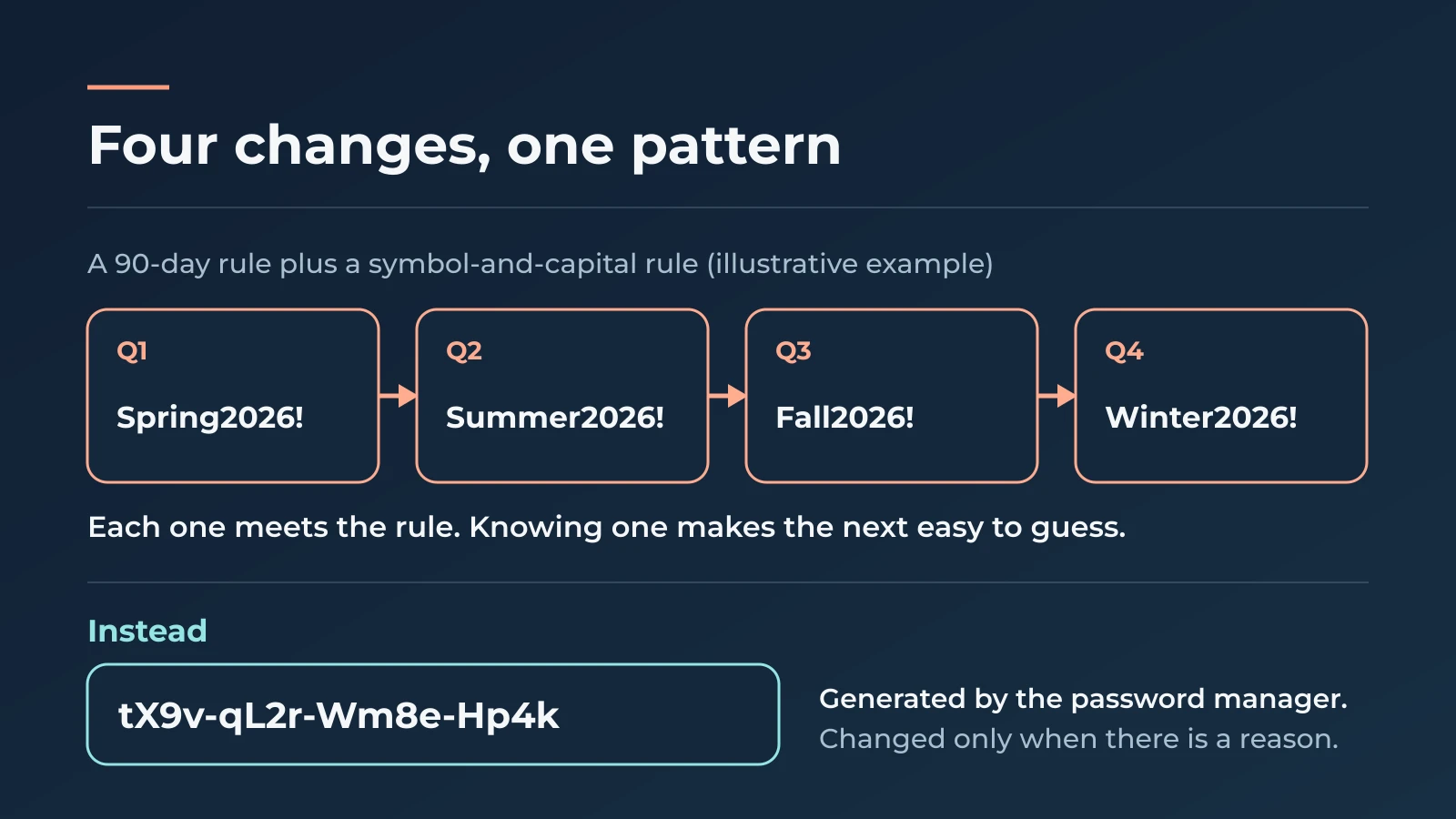
What current guidance says. NIST rules out periodic changes and requires one after evidence of compromise. Microsoft discourages expiration policies for cloud-only accounts and recommends that passwords never expire. Google turns expiry off by default "because research has shown little positive impact on security".
When to keep it. Two situations keep a scheduled change on the table:
- Card payments. If your business takes card payments and falls under the card industry's security standard (PCI DSS), requirement 8.3.9 can apply to accounts that rely on a password alone: a change at least every 90 days, or ongoing automated analysis of each account's risk. The PCI Security Standards Council's FAQ says the requirement does not apply where multi-factor authentication is used, so adding the second step is the simpler fix.
- Contracts and insurance. A customer contract or an insurance application may name an interval. Google keeps an expiry option for compliance reasons, and the FAQ below covers how to answer.
Do this instead. Turn off scheduled expiry for staff accounts, and change a password at once when there is a reason: a phishing click, a lost or stolen device, a password seen in a breach notice, or someone leaving. The phishing-click response guide and the offboarding checklist cover those two moments.
| Platform | Where the setting lives | Set it to |
|---|---|---|
| Microsoft 365 | Admin center: Settings, Org Settings, Security and Privacy tab, Password expiration policy | Tick "Set passwords to never expire (recommended)" |
| Google Workspace | Admin console: Menu, Security, Authentication, Password management | Leave expiry off |
Microsoft's setting covers cloud-only accounts. If your staff sign in with accounts that come from a Windows server in your office, the policy is set there, so ask whoever manages that server.
In the example office: the administrator ticks the "never expire" box, which ends the quarterly round of "Spring2026!" passwords.
Password complexity requirements: symbol, capital and number rules
Why it no longer helps. A rule demanding one capital, one number and one symbol produces passwords like "Accounting1!", which satisfy the rule and are among the first guesses an attacker tries. Length does far more of the work, and a list of known-bad passwords stops the obvious choices.
What current guidance says. NIST drops composition rules in favor of length and a blocklist (see the box above). Microsoft recommends a minimum of 14 characters. CISA asks for at least 16, and still lists a random mix of character types, or a passphrase of five to seven random words, as ways to make one. A generated password satisfies every version.
Minimum length
Three sources, three floors
Each figure is the minimum that source names. None of them asks for symbols or capitals.
CISA
For a strong password
16
NIST, password alone
Single-factor sign-in
15
Microsoft recommends
Its own guidance for admins
14
NIST, with a second step
Password inside multi-factor sign-in
8
Microsoft 365 requires
Fixed for cloud accounts
8
A 20-character password from a manager clears every line, and nobody has to type or remember it.
What you can and cannot change. In Microsoft 365, accounts created in the cloud follow a fixed policy: at least 8 characters and three of four character types, which an administrator cannot change, plus Microsoft's global list of banned passwords. Google Workspace lets an administrator set a minimum length between 8 and 100 characters. Either way, the practical answer is the same: when a password manager generates every password, 20 random characters cost staff nothing and meet any rule a system still enforces.
Do this instead. In Google Workspace, raise the minimum length to 14 or more. In Microsoft 365, leave the built-in rule alone and make the manager the standard. The password manager rollout guide covers setting one up without lockouts.
In the example office: the Microsoft 365 rule stays as Microsoft sets it, and the password manager generates 20-character passwords, so nobody invents one by hand.
Security questions and password hints
Why it no longer helps. A mother's maiden name, a first car or a high school can be found on social media or in public records, and it cannot be changed once it leaks. A hint shown on the sign-in page helps whoever is trying the password, not only its owner.
What current guidance says. NIST says systems must not prompt people to set security questions when they choose a password, and must not let them store a hint that anyone can see before signing in.
When to keep it. Some banks, utilities and government portals still require security questions. That is their choice, and you cannot opt out.
Do this instead. Where a service offers recovery codes or a second sign-in method, use those for account recovery. Where it insists on questions, treat each answer as another password: a random answer, saved in the business vault next to the login, so the person covering for you can find it. "What was your first pet's name?" can be answered "violet-harbor-oven", as long as the vault remembers it.
In the example office: the bank's security answers move from the spreadsheet into the vault, next to the bank login.
SMS two-factor authentication as the only second step
Why it matters. Two-step sign-in means a stolen password is no longer enough on its own, so the method behind that second step matters. A code sent by text can be typed into a fake sign-in page, and the phone number itself can be moved to an attacker's SIM card.
What current guidance says. CISA and NIST agree on the direction:
- CISA's Secure Our World page says "Any MFA is better than no MFA". Its 2022 fact sheet on phishing-resistant MFA says text and voice codes are vulnerable to phishing, SIM swaps and weaknesses in the phone network, and should be used only as a last resort. It names app codes, or push prompts with number matching, as the best options for small and medium-size businesses that cannot yet adopt phishing-resistant sign-in, and calls FIDO/WebAuthn (the standard behind passkeys and security keys) the only widely available phishing-resistant method.
- NIST lists codes sent over the phone network as "restricted": an organization may use them, but must offer an alternative that is not restricted, tell users about the risk, and keep a migration plan in case they stop being acceptable. Restricted is not banned.
- NIST also explains why the method matters: codes a person types by hand, whether from a text message or an app, "SHALL NOT be considered phishing-resistant", while passkeys and security keys (WebAuthn) bind the sign-in to the real site's name, so a look-alike page gets nothing it can reuse.
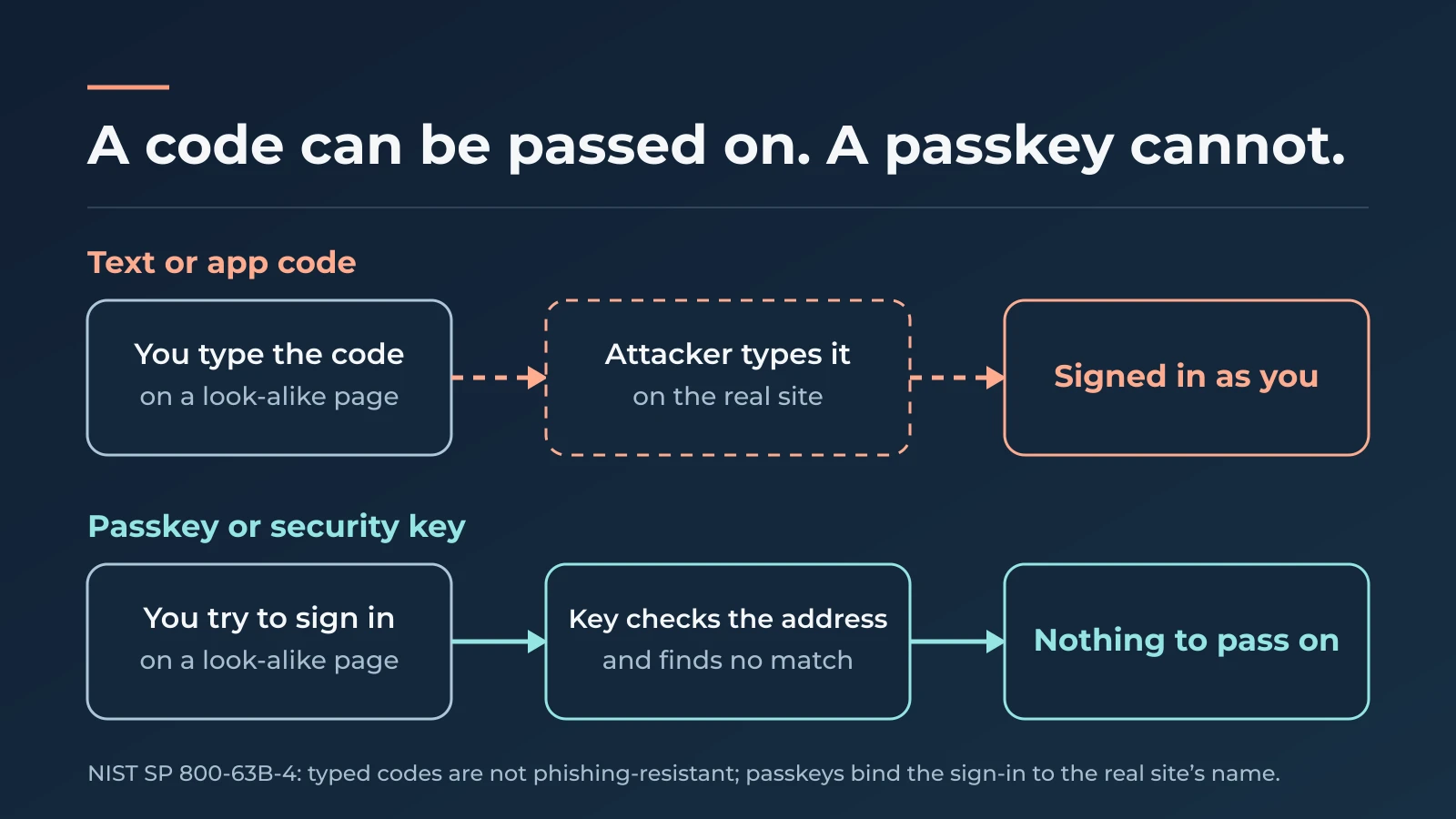
Microsoft makes the same point from the product side and recommends passkeys, security keys, Windows Hello for Business and certificates as its phishing-resistant options. That gives a simple ladder:
Second sign-in step
From weakest to strongest
Each step up removes a way the code can be stolen or approved by mistake.
Text or voice code
A service that offers nothing else. Better than no second step.
Authenticator app code
The everyday standard for staff accounts.
Push with number matching
Same level, less typing. A plain "Approve?" prompt is open to repeated-prompt attacks.
Passkey or security key
Email, administrator, finance and password manager accounts.
Move the accounts that can reset others or move money to step 4 first; everyone else to step 2 or 3.
When to keep it. A bank or supplier portal that offers only text codes should keep them.
Do this instead. Start with the most important accounts. CISA suggests beginning with services that already support phishing-resistant sign-in and names hosted email as a good place to start. A practical order for a small office is the owner and administrator accounts, then anyone who approves payments, then everyone else on an authenticator app. In Google Workspace, an administrator can enforce 2-Step Verification and limit which methods each group may use. In Microsoft 365, security defaults require everyone to register for multifactor authentication at no extra cost, while per-group rules, such as requiring passkeys for administrators, need Conditional Access, which requires at least a Microsoft Entra ID P1 license (included in Microsoft 365 Business Premium). The passkeys implementation guide walks through the setup. A staff member who does not want a work app on a personal phone can use a security key instead.
In the example office: the owner and the office manager, the two administrators, register passkeys on their laptops plus a spare security key each. On a Business Standard plan with security defaults, that is a habit the two of them keep rather than a rule the system enforces; Business Premium would let them enforce it. The other seven move from texts to the authenticator app. The bank portal stays on text codes because that is all it offers.
Is public Wi-Fi safe? Retiring "never use public Wi-Fi"
Why it matters. A blanket ban is hard to follow for anyone who works from a client site, an airport or a coffee shop. The useful question is what kind of work is happening on the connection.
What current guidance says. Two U.S. government sources take different positions, and each is reasonable for its audience:
- The FTC's consumer guidance says that "because of the widespread use of encryption, connecting through a public Wi-Fi network is usually safe", and recommends encrypted sites, two-factor sign-in and updated software.
- The NSA's 2021 guidance, written for teleworkers on national security and defense-industry systems, recommends a mobile hotspot with strong authentication and encryption instead, and a VPN when public Wi-Fi cannot be avoided.
When to keep it. Defense contractors, and anyone under a similar contract, should follow the stricter rule their contract or agency sets. For everyone else, the stricter habit still fits the few tasks where a mistake is expensive.
Do this instead. Keep ordinary work (email, documents, video calls) on public Wi-Fi when the device is updated and the accounts use two-step sign-in. Move banking, payroll and admin consoles to the phone's hotspot. Confirm the network name with staff before joining, since a familiar name on the list says nothing about who runs it. For staff who travel often, a company VPN is one option; the mobile teams VPN guide explains when one helps.
In the example office: the partner who visits clients keeps email on the client's guest Wi-Fi and opens the bank portal only over her phone's hotspot.
A shared password sheet
Why it no longer helps. A spreadsheet, a chat message or a note in a drawer has no owner, no history and no way to remove one person's access. When someone leaves, they still know every password in it, and nobody can say which ones they saw.
What current guidance says. CISA's password guidance asks for long, unique passwords, says a good password manager creates, stores and fills them automatically, and encourages businesses to provide one for staff.
Do this instead. A list of which accounts exist and who owns them is useful; a list of the passwords themselves is the habit to retire. Move the sheet into a business-owned vault with at least two owners and shared vaults arranged by role, then delete the sheet and its copies. Business vaults such as 1Password Business, Bitwarden or Proton Pass are built for this, and the comparison of business password managers covers cost and the differences between them. If the vault itself feels like a single point of failure, its recovery setup and the two owners address that; the rollout guide covers both. The true cost of shared password spreadsheets explains the problem in more depth.
In the example office: the "Logins" sheet becomes three shared vaults (Finance, Operations, Office), with the owner and office manager as vault owners. The bank, tax software and registrar passwords are changed as they move, because everyone who opened the sheet knew them. The Wi-Fi password moves to the Office vault.
"The padlock means the site is safe"
Why it matters. For years, staff were taught to look for the padlock before entering a password or card number. The padlock still means something, just not what the habit claims.
What current guidance says. The FTC notes that scammers "create fake websites and encrypt them". The lock means the connection is encrypted, so others on the network cannot read it. It says nothing about whether the site belongs to your bank or to someone imitating it.
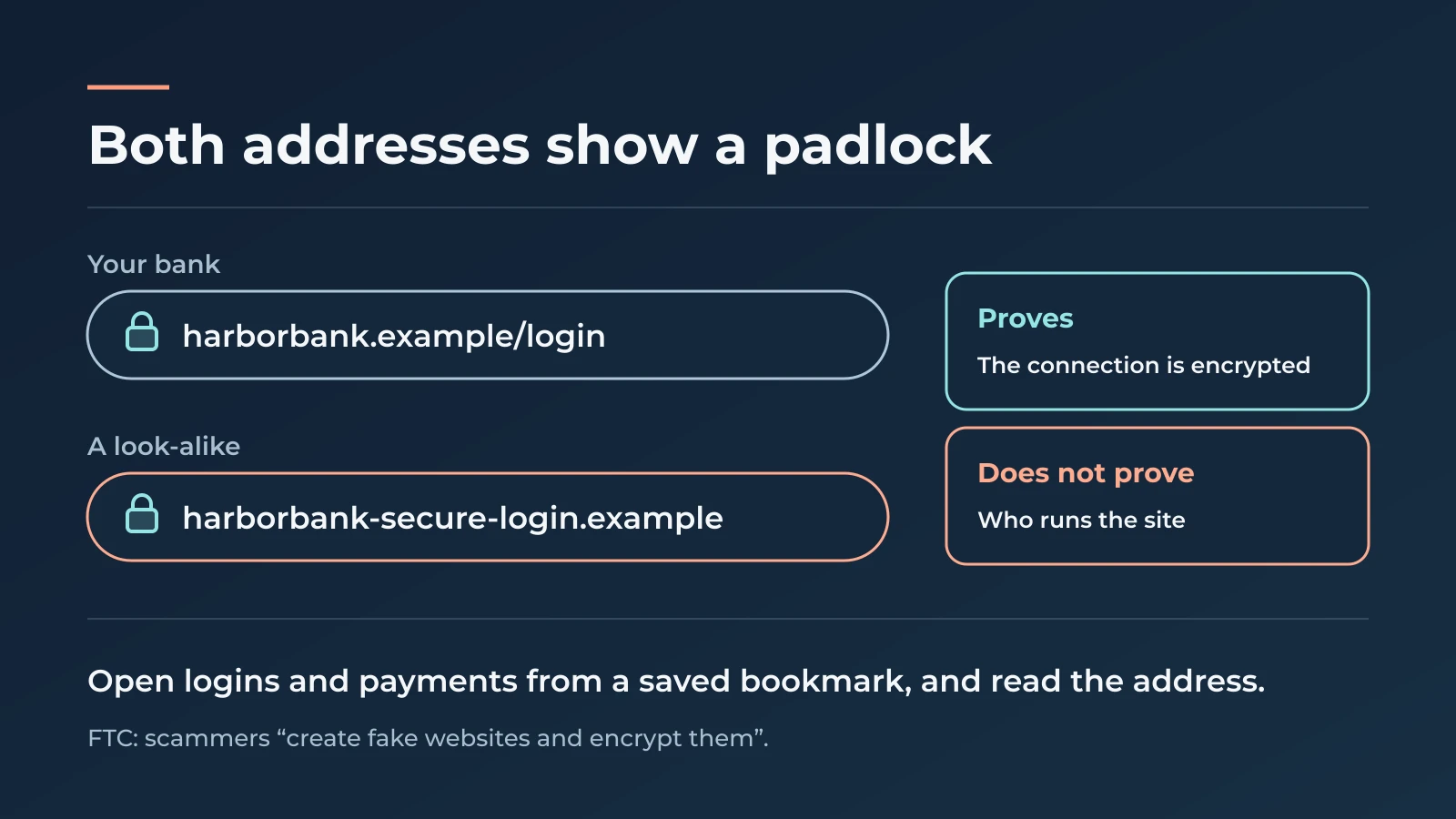
When to keep it. A login or payment page without the padlock is a reason to stop; the padlock alone never proves a site is honest.
Do this instead. Reach login and payment pages from a saved bookmark or by typing the address, not from a link in an email, and read the address before signing in. A password manager that fills by saved web address gives a second signal: if it does not offer to fill on a page that looks like your bank, look at the address again. The visual guide to spotting phishing emails shows examples of look-alike addresses.
In the example office: the bank, payroll and tax portals become shared bookmarks, and staff open them from there.
What not to retire
Four habits stay exactly where they are:
- Updates on computers, phones, routers and printers, installed promptly.
- Backups proven by restoring a file, not only by a green tick.
- Two-step sign-in on every account that offers it, with the strongest method each service supports.
- Access reviews when people leave, so their accounts, devices and shared passwords are dealt with on the day.
Each of the seven changes replaces a rule people work around with a tool or setting that does the work for them. These four are already that kind of habit.
A short change list for this week
This week, in order of effort
Five changes for a small office
For Microsoft 365 or Google Workspace. The first two take minutes; the last is a short project.
- 1
1
Turn off expiry
In the admin console (paths in the password rotation table), unless a contract or assessor requires it for specific accounts.
- 2
2
Write the compromise rule
A password changes at once after a phishing click, a lost device, a breach notice or a departure.
- 3
3
Upgrade the admins
Owner and administrator accounts move off text codes to a passkey or security key, with a spare enrolled.
- 4
4
Length, not complexity
Google Workspace: a 14-character minimum. Microsoft 365: a password manager generating every password.
- 5
5
Retire the sheet
Move it into a business vault with two owners, change the important passwords as they move, then delete it.
The example office
Before and after
Nine people on Microsoft 365. One admin setting changed; one tool replaced three habits.
Seven old habits
Passwords
Expire every 90 days and need a capital, a number and a symbol.
Second step
A text-message code for everyone.
Shared logins
A spreadsheet called "Logins", including the bank's security answers.
Bank portal
Opened from links and on any Wi-Fi.
Settings and tools do the work
Passwords
Never expire; generated by the manager; changed at once after any sign of compromise.
Second step
Passkeys and spare keys for the two admins; the authenticator app for the other seven; text codes only where the bank offers nothing else.
Shared logins
Three shared vaults with two owners; the sheet deleted and its important passwords changed.
Bank portal
Opened from a shared bookmark, and over a phone hotspot away from the office.
Related Resources
- Roll Out a Team Password Manager Without Lockouts — Set up shared vaults, owners and recovery before staff move in.
- Passkeys for Small Business: A Practical Implementation Guide — Move administrator and email accounts to phishing-resistant sign-in.
- The True Cost of Employees Sharing Passwords in Spreadsheets — Why the shared sheet is the habit to retire first.
- Your Employee Just Clicked a Phishing Link — The first hour, including which passwords to change.
- Employee Offboarding Checklist — Cut off access, including shared passwords, when someone leaves.
- Small Business IT Policy Templates — A password and authentication policy aligned with current NIST guidance.
Frequently Asked Questions
Related Articles
More from Cybersecurity
Roll Out a Team Password Manager Without Lockouts
Roll out a small-business password manager safely. Choose the right plan, test recovery, migrate shared vaults and remove access when employees leave.
13 min read
Are Free VPN Extensions Safe for Small Businesses? A July 2026 Check
Recent VPN incidents showed how extensions can expose passwords, AI conversations, and browser traffic. Learn how to audit extensions, build an allowlist, and protect your company.
11 min read
Bitdefender GravityZone Review (2026): An IT Provider's Take for Small Business
We deploy GravityZone for clients — this review covers the real console experience, tier selection, pricing traps, and whether it fits a business without a security team.
15 min read