

Microsoft 365 Scan to Email: What Changes in December 2026
Microsoft 365 turns off SMTP Basic authentication by default in December 2026. Check how your scanner signs in, fix failed scans, and pick a route that fits.

At the end of December 2026, Microsoft plans to turn off Basic authentication for SMTP AUTH by default in existing Exchange Online organizations. If your printer or scanner signs in to smtp.office365.com with a mailbox username and password, its scan-to-email jobs can stop sending at that point. Devices that already use OAuth, an Exchange Online relay connector or Direct Send are outside the scope of this change.
Nothing changes before then, and an administrator can still switch Basic authentication back on afterwards, so there is time to check each device and test a replacement on one of them first. If scans still arrive, start by checking how the device signs in. If scan to email has already stopped, go to troubleshooting a failed scan.
Affiliate Disclosure: This article contains affiliate links. If you make a purchase through these links, we may earn a small commission at no extra cost to you. As an Amazon Associate, iFeelTech earns from qualifying purchases.
What changes in December 2026
| When | What Microsoft plans |
|---|---|
| End of December 2026 | Basic authentication for SMTP AUTH is off by default in existing tenants. Admins can re-enable it if needed. |
| Tenants created after December 2026 | Basic authentication is unavailable by default. OAuth is the supported sign-in method for SMTP AUTH. |
| Second half of 2027 | Microsoft plans to announce the final removal date. |
This schedule comes from Microsoft's updated SMTP AUTH deprecation timeline, published January 27, 2026. It replaces the September 2025 and March–April 2026 dates in the original Exchange announcement. As of November 10, 2026, Microsoft has not named a specific December day or a permanent removal date.
Check whether your scanner uses Basic authentication
- Open the printer's email settings. In its web admin page, look for the SMTP server, port and authentication method. A stored mailbox password or app password used to sign in to
smtp.office365.com, or the legacy endpointsmtp-legacy.office365.com, is Basic authentication. OAuth may be labelled OAuth 2.0 or Modern Authentication. A hostname or port alone cannot tell you how a device signs in. - Check what the printer connects to. A
*.mail.protection.outlook.comaddress on port 25 can be either a connector or Direct Send, so ask your admin to check the route. If the device sends to an internal relay server, check how that relay sends on to Microsoft 365; it may still use a mailbox password. - Confirm with the Exchange report. In the Exchange admin center, go to Reports → Mail flow → SMTP AUTH clients and check the Authentication Protocol column for Basic Auth or Modern Auth. The report shows seven days by default; you can search up to 90 days and export a CSV. It lists recorded submissions by sender address, so match those addresses to real devices and apps, and send a test from equipment that is used only occasionally.
Include accounting software, backup alerts and any other system that sends through the same mailbox. The report and the device settings answer different questions: the report shows the authentication Exchange saw, and the device settings show which system needs to change. Microsoft describes the report on its SMTP AUTH clients report page and notes that blocking Basic authentication also blocks app passwords.
Device inventory to share with IT
| Device or app | Server and port | Sign-in method and account | Recipients | Replacement and test result |
|---|---|---|---|---|
| Example, reception copier | smtp.office365.com:587 | Basic, scanner@contoso.com | Staff only | Confirm OAuth support with vendor |
The same inventory helps beyond scanners: when you change email providers or tighten DNS, every service that sends as your domain needs a line, as described in our guide to setting up business email on your own domain.
Why Microsoft 365 scan to email stops working
Send a one-page, non-sensitive test scan to an internal mailbox. Note the sender, recipient, time and the exact error from the printer's job log. Those details show how far the message got.
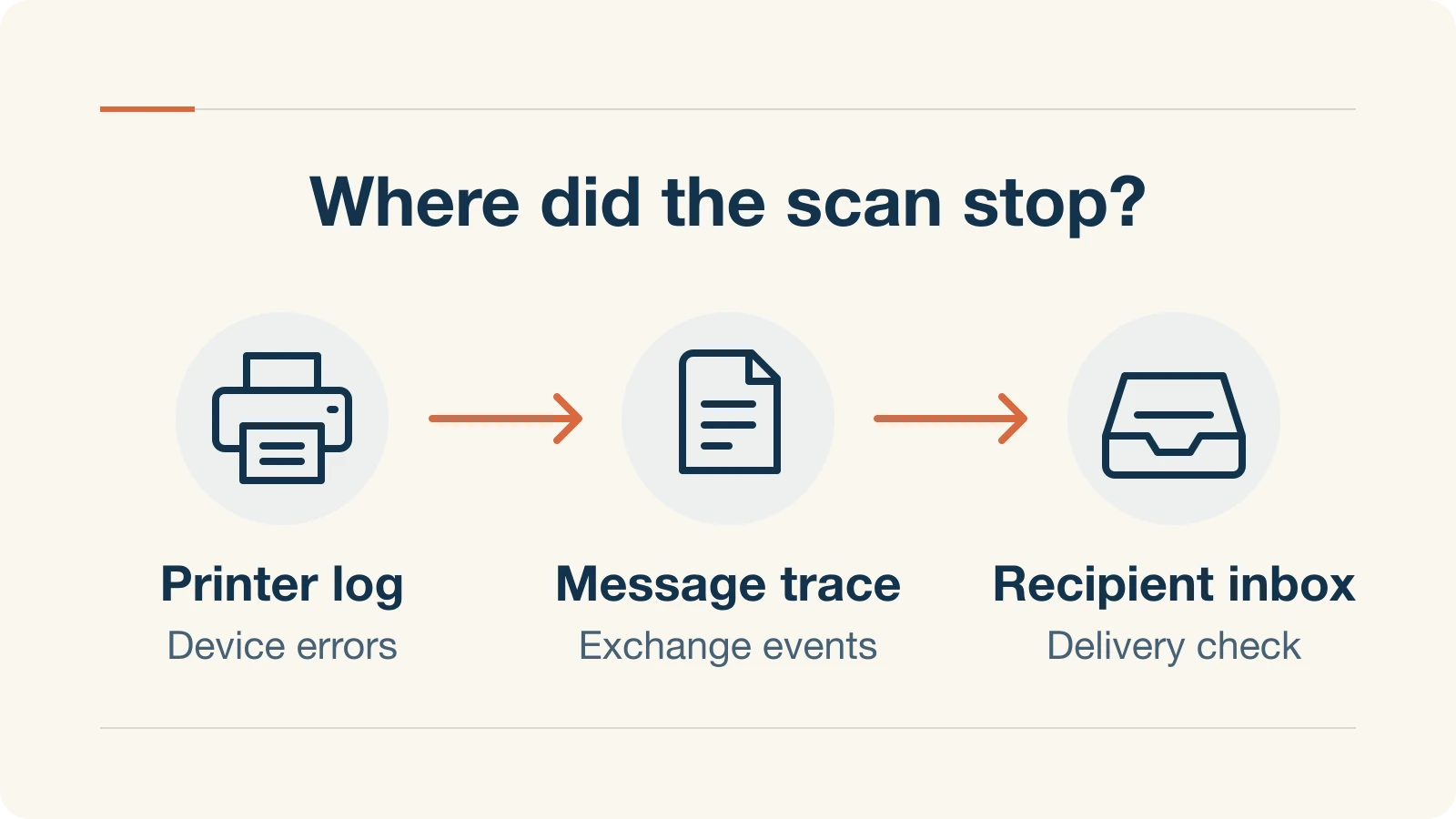
- Connection timeout or TLS error. Check the configured hostname, whether the printer's network can reach the port, and whether the device supports the required TLS version. An internet provider or firewall can block outbound port 25. For Microsoft 365 client submission, use port 587 with STARTTLS and TLS 1.2 or 1.3. Microsoft's client submission settings do not use port 465.
- Sign-in error such as
535 5.7.3or5.7.57. Check which authentication method the printer uses, whether Authenticated SMTP is enabled for the mailbox, and whether a policy blocks the sign-in. For5.7.60, compare the configured From address with the sign-in address; a different sender needs Send As permission. Microsoft documented550 5.7.30for the permanent removal of Basic authentication, and its December announcement gives no specific error code. - The printer reports success, but the scan is missing. In the Exchange admin center, open Mail flow → Message trace and search by sender, recipient and time. Check the delivery or filtering result, then the Junk Email folder or quarantine. If scans to outside addresses land in junk, the domain's authentication records are a good place to start; our guide to business email going to spam walks through that check. If small scans arrive and larger ones fail, check the message size limit for your route; the limit covers the whole email, including the encoded attachment.
Microsoft's printer and scanner troubleshooting guide covers these errors in more depth, alongside its pages on message trace and Exchange Online message size limits.
Choose a scan-to-email setup that fits
Start with the recipients. If staff only need the file, a network folder can take email out of the workflow. If the printer emails clients, it needs a route that supports external delivery. The table identifies each route; Microsoft's setup guide and option comparison has the full configuration steps.
| Route | Who can receive it | Settings and requirements |
|---|---|---|
| SMTP AUTH with OAuth | Internal and external | smtp.office365.com, port 587 recommended (25 also supported), STARTTLS with TLS 1.2 or 1.3. Requires Microsoft 365 SMTP OAuth support on the device, a licensed Exchange Online mailbox, and SMTP AUTH enabled for that mailbox. |
| Exchange Online SMTP relay | Internal and external | Your Microsoft 365 MX endpoint, port 25, and STARTTLS with TLS 1.2 or 1.3 in Microsoft's setup instructions. An Exchange inbound connector identifies the sender by a TLS certificate or a dedicated static public IP. Use a From address in an accepted domain. No licensed sender mailbox required. |
| High Volume Email (HVE) | Internal only | smtp.hve.mx.microsoft, port 587 with TLS. Requires a dedicated HVE account and Microsoft 365 pay-as-you-go billing connected to an Azure subscription. Standard Microsoft 365 Worldwide tenants only. No mailbox license for the HVE account. |
| Direct Send | Internal only | Your Microsoft 365 MX endpoint, port 25, and a From address in an accepted domain. Uses no sign-in. Microsoft recommends it for advanced admins managing legacy devices. Check whether your organization blocks it and whether the sender domain meets Microsoft's SPF, DKIM and DMARC guidance. |
| Scan to a network folder | Staff with access to the folder | Use a supported network-folder profile and an account with access limited to the destination folder. |
When the device emails people outside the company. Use OAuth if your model supports it and tenant policy allows SMTP AUTH. Otherwise, check whether the site can use a relay connector: confirm that outbound port 25 is open from that site and note its actual public IP address. For an IP-based connector, Microsoft instructs admins to authorize the sending IP in the domain's SPF record; our SPF, DKIM and DMARC explainer shows how to add it to the existing record without creating a second one. If the device lacks OAuth and port 25 is blocked, ask IT or the vendor about a managed SMTP gateway or outbound email service the device supports.
When the device only emails staff. HVE uses a separate endpoint and can use Basic authentication where tenant policy permits it; with Entra security defaults, it requires OAuth. Microsoft has said it will support Basic authentication for HVE until September 2028 and recommends OAuth where possible. HVE allows up to 50 recipients per message and a 10 MB limit on the whole message, including the encoded attachment, so test a long multipage scan before committing. Microsoft lists HVE pricing at US$0.000042 per delivered recipient, or US$42 per million, with distribution list recipients counted after expansion. Direct Send also delivers only internally. Microsoft says it needs SPF, DKIM and DMARC configured correctly for the sending domain, which our DMARC guide for small businesses covers; also check whether your tenant uses Microsoft's newer Direct Send controls.
When staff only need the file. Many office scanners and multifunction printers can save scans straight to a shared folder. Brother, for example, documents a Scan to Network profile for its ADS-4900W document scanner, which takes Exchange out of the path entirely.
When a hosted app emails customers. Ask the vendor about Microsoft 365 OAuth, Microsoft Graph sendMail or another supported outbound email service. Microsoft excludes third-party hosted apps from the Exchange Online relay connector route. Its setup guide still lists Azure Communication Services Email, but Microsoft's Azure Communication Services retirement guide schedules that service to retire on September 30, 2028 and recommends moving existing workloads off it.
What to ask the copier vendor
Send the make, model, firmware version and current SMTP server, and ask specifically about OAuth for Microsoft 365 scan to email. A useful vendor guide names the device family, the minimum firmware and the sign-in steps. HP's FutureSmart OAuth instructions, for example, cover HP Enterprise and Managed printers running FutureSmart 5.7 or newer and use a Microsoft sign-in code generated on the printer.
Our copier currently sends scans through Microsoft 365 using a mailbox password. Does this exact model and firmware support Microsoft 365 OAuth for scan to email? Please send the setup guide and tell us whether it requires a firmware update, administrator consent or a service visit. Is the work covered by our service agreement? If OAuth is unavailable, which relay or scan-to-folder modes does this model support?
If a device is due for replacement anyway, confirm Microsoft 365 OAuth support for the exact model before you buy. Our business printer guide and office scanner comparison cover the other features to weigh.
SMTP AUTH settings and migration checks for admins
The Authenticated SMTP setting controls the protocol used by both Basic authentication and OAuth. The mailbox setting overrides the organization setting, and Microsoft recommends enabling the protocol only for the mailboxes that need it. Exchange authentication policies can block Basic authentication, and Microsoft documents that Entra security defaults disable SMTP AUTH, so check which policy applies before choosing a route. Both settings are described on Microsoft's SMTP AUTH settings page.
- Organization setting. In the Exchange admin center, go to Settings → Mail flow and find Turn off SMTP AUTH protocol for your organization.
- Mailbox setting. In the Microsoft 365 admin center, go to Users → Active users, select the user, and open Mail → Manage email apps → Authenticated SMTP.
Keep Authenticated SMTP enabled for a mailbox that still sends via OAuth. If you moved a device off SMTP AUTH entirely, check whether other devices and apps use the same mailbox before turning the protocol off there. For client submission, give the scanner its own licensed mailbox rather than an employee's account. Any Microsoft 365 business plan that includes an Exchange Online mailbox covers this, and our Microsoft 365 plan and pricing guide compares them. A device tied to a person's account stops sending when that account is disabled, which is one more item for the former employee access checklist.
Migration checklist
Move one scanner first
- 1
Inventory
Record the current setup
Save the server, port, sign-in type and sender address in your inventory. Keep passwords out of it.
- 2
Pilot
Pilot the replacement
Change one printer or app, then send a short test and a representative multipage scan.
- 3
Delivery
Verify delivery
Confirm receipt in a staff inbox and, if needed, at an external test address.
- 4
Rollout
Move the rest
Record the test result and repeat for the other devices using that route.
- 5
Cleanup
Retire old credentials
Remove obsolete passwords after checking whether another device or app still uses them.
For an OAuth pilot, check that the new submission appears as Modern Auth in the SMTP AUTH clients report. If the move interrupts scanning, a supported scan-to-folder workflow keeps files reaching staff while IT finishes the change.
Related Resources
- How to Set Up Business Email With Your Own Domain: the order of work when you change providers, including services that send as your domain.
- SPF, DKIM and DMARC Explained for Small Business: the DNS records behind a relay connector or Direct Send.
- Why Your Business Emails Are Going to Spam: what to check if scans start arriving in junk after a change.
- ScanSnap iX1600 vs iX2500 vs Brother ADS-4900W: scan destinations and network options for office document scanners.
- Best Business Printers 2026: security, scanning and running costs for the next multifunction printer.
Frequently Asked Questions
Related Articles
More from IT Guides

How to Set Up Business Email With Your Own Domain
Set up business email on your own domain with Google Workspace, Microsoft 365 or Proton: the order of work, the DNS records each asks for, and a cutover plan.
13 min read

Synology Drive vs SharePoint: Choosing the Right File Platform for Your Business
A balanced comparison of Synology Drive and Microsoft SharePoint for small business file storage. Learn where each platform excels and when a hybrid approach makes the most sense.
10 min read
Before You Buy New Technology: A Small-Business Readiness Checklist
Before buying software, security tools, or Microsoft 365, use this checklist to organize data, access, backups, ownership, costs, and rollout.
8 min read