
How to Spot a Phishing Email: A Visual Guide (2026)
Learn to identify phishing emails in seconds with this visual guide. Spot red flags, avoid common scams, and protect your business from the 3.4 billion phishing attacks sent daily.

Affiliate Disclosure: This article contains affiliate links. If you make a purchase through these links, we may earn a small commission at no extra cost to you. As an Amazon Associate, iFeelTech earns from qualifying purchases.
What Is a Phishing Email?
A phishing email is a fraudulent message designed to steal sensitive data by mimicking a legitimate organization.
Phishing accounts for nearly 90% of successful data breaches.
Daily volume exceeds 3.4 billion phishing emails, with 82.6% now utilizing AI to craft convincing narratives (KnowBe4 2025 Report). Unlike traditional scams laden with typos, modern phishing uses Large Language Models (LLMs) to generate flawless, context-aware messages. The average cost of a data breach in the U.S. reached a record $10.22 million in 2025 (IBM Cost of a Data Breach Report 2025), and 68% of data breaches involve the human element—not sophisticated hacking, just convincing emails. With 80% of phishing sites using HTTPS to appear legitimate, traditional "trust your gut" advice no longer works.
This guide covers the visual indicators necessary to identify these sophisticated attacks in 2026. You'll learn to recognize red flags, master the "hover test" for suspicious links, understand common scenarios, and know exactly what to do if you spot—or accidentally click—a phishing email.
Whether you're protecting a small business, managing IT for your organization, or simply safeguarding personal accounts, this visual guide provides the skills to identify and resist modern phishing attacks.
Why AI Phishing Is Surging: The Economics
AI has collapsed the cost of sophisticated attacks. Threat actors now purchase AI-driven phishing kits on dark web marketplaces for as little as $25–$500—tools that automate personalization at scale using data from breach databases and social media. This democratization means APT-level spear phishing, once reserved for nation-state actors, is now accessible to low-skill criminals. The result: more attacks, higher personalization, and no spelling errors to tip you off.
Phishing, Spear Phishing, and Whaling: Key Differences
| Attack Type | Target | Personalization Level | Common Lure |
|---|---|---|---|
| Phishing | Mass audience (thousands) | Generic—no personalization | "Your account is suspended"; fake login pages |
| Spear Phishing | Specific individuals or organizations | High—uses victim's name, role, recent activity | Impersonates a known vendor, colleague, or executive |
| Whaling | C-suite executives (CEO, CFO, VPs) | Very high—references real projects, business relationships | Fake wire transfer requests; legal threat notifications; board communication |
All three use the same visual red flags covered in this guide. The higher the personalization, the more convincing the attack—but the same verification habits defeat all three.
The Anatomy of a Phishing Email
Phishing emails contain manipulated sender addresses, generic greetings, and malicious links designed to force urgent action.
Visual Breakdown: Suspicious vs. Legitimate
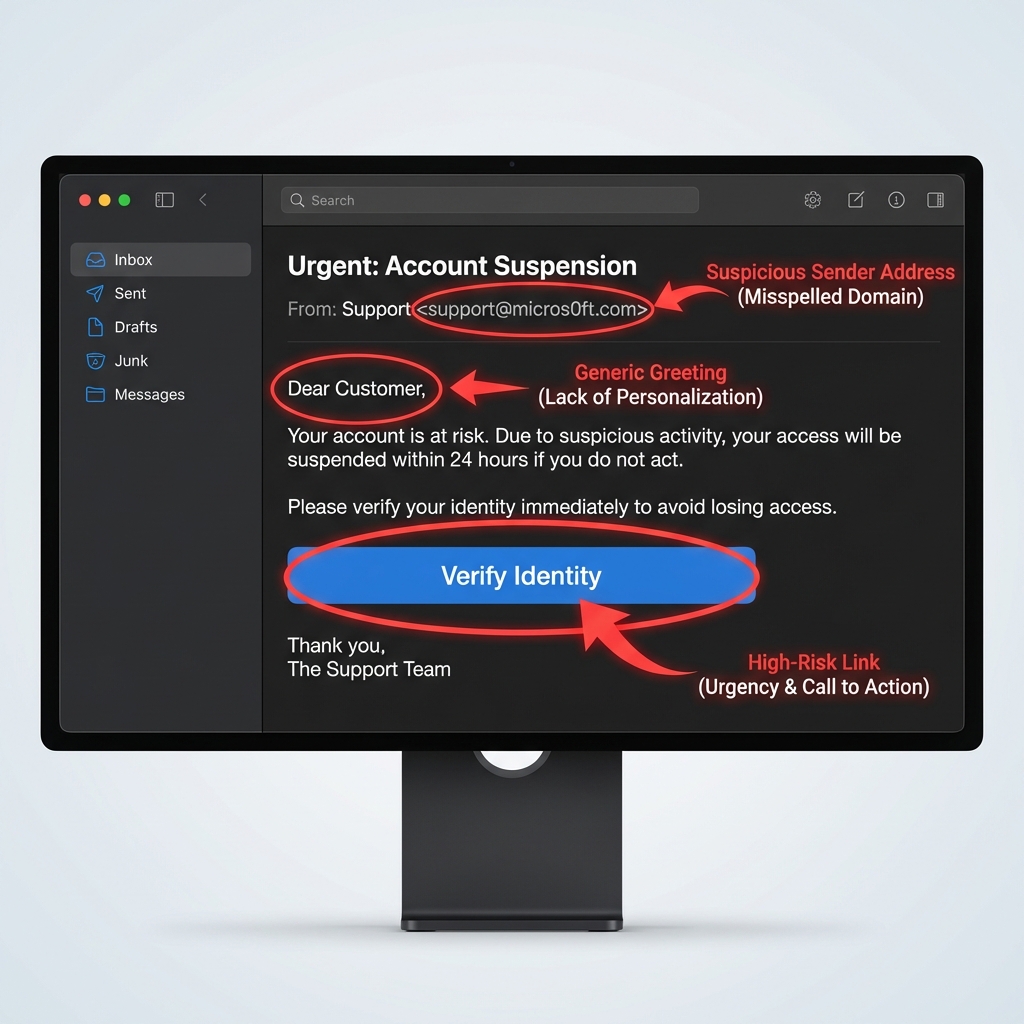
A phishing email typically contains several red flags working together to create urgency and manipulate you into acting without thinking. Here's what to examine:
| Email Component | Legitimate Email | Phishing Email |
|---|---|---|
| Sender Address | support@microsoft.com | support@micros0ft.com (zero instead of 'o') |
| Greeting | "Hi Sarah," (your actual name) | "Dear Customer" or "Dear User" |
| Tone | Professional, calm | Urgent, threatening, creates panic |
| Grammar | Clean, error-free | Typos, awkward phrasing, translation errors |
| Links | Hover shows matching domain | Hover reveals unfamiliar or mismatched URL |
| Request | Reasonable, expected | Asks for passwords, SSN, payment info |
| Branding | High-quality logos, proper formatting | Blurry logos, inconsistent fonts/colors |
| Sender Verification | Known contact, verified badge | [External] tag, first-time sender warning |
Common Phishing Email Structures
1. The Urgent Account Problem
- Subject: "Action Required: Your Account Will Be Suspended"
- Body: Claims account issue, demands immediate login
- CTA: "Verify Your Account Now" linking to fake login page
2. The Fake Invoice/Payment Request
- Subject: "Invoice #47382 - Payment Overdue"
- Body: Unexpected invoice or shipping notification
- CTA: "View Invoice" or download attachment (often malware)
3. The IT Department Impersonation
- Subject: "Mandatory: Update Your Password"
- Body: Claims policy change, expired credentials
- CTA: "Reset Password Here" to credential harvesting site
4. The Too-Good-To-Be-True Offer
- Subject: "You've Won!" or "Congratulations!"
- Body: Prize, refund, or lottery winnings
- CTA: "Claim Your Prize" requiring personal information
Key Insight: The Multi-Red-Flag Rule
Trust Multiple Red Flags, Not Just One
A single red flag might be a false alarm—legitimate emails sometimes come from unfamiliar addresses or use generic greetings. But when you spot 2-3 red flags together (generic greeting + urgent tone + suspicious link), you're almost certainly looking at a phishing attempt.
What Are the Common Signs of a Phishing Email?
The most reliable signs of phishing are sender address mismatches, generic greetings, and mismatched URLs revealed by hovering.
1. Urgent or Threatening Language
Phishing emails create false urgency to bypass critical thinking.
Common phrases:
- "Act now or your account will be suspended!"
- "Immediate action required"
- "You have 24 hours to respond"
- "Failure to comply will result in..."
- "Your account has been compromised"
Why it works: Urgency triggers panic, making you act before you think.
Legitimate companies give you time and never threaten account closure via email for routine matters.
2. Generic Greetings
If you're a customer or employee, companies know your name.
| Red Flag | Safe Alternative |
|---|---|
| "Dear Customer" | "Hi Sarah," |
| "Dear User" | "Hello John Smith," |
| "Valued Client" | "Dear Dr. Martinez," |
| "To Whom It May Concern" | Uses your actual account name |
Exception: Marketing emails sometimes use "Hello!" or "Hi there!"—but they won't ask for sensitive information.
3. Sender Address Mismatches
A sender address mismatch occurs when the "From" name claims to be a legitimate organization (e.g., Microsoft Support) but the underlying email address uses a public domain (Gmail) or a lookalike domain (micros0ft.com).
Attackers use "typosquatting" to mimic trusted brands. Always expand the sender details in your email client. If an email claims to be from your internal IT team but displays an [External] tag or a non-company domain, it is malicious.
Examples of suspicious sender addresses:
support@micros0ft.com(zero instead of 'o')security@microsoft-alert.com(wrong domain)paypal-support@gmail.com(legitimate company using Gmail)notice@rnicrosoft.com(rn looks like m)
How to verify:
- Click the sender's name to reveal the full email address
- Look for subtle misspellings or extra characters
- Verify the domain matches the company's official domain
External Sender Warnings
Modern email clients (Microsoft 365, Gmail) now tag emails from outside your organization with [External] badges. If an email claims to be from your IT department but has an [External] tag, it's phishing.
4. Spelling and Grammar Errors
Professional companies proofread their emails. Phishing emails often contain:
- Awkward phrasing from poor translation
- Random capitalization ("Dear ValueD Customer")
- Typos and grammatical mistakes
- Deliberate errors to evade spam filters
Note: Some phishing emails deliberately include errors to filter out cautious users, leaving only the most vulnerable targets.
5. Suspicious Requests for Sensitive Information
Legitimate companies NEVER ask via email for:
- Passwords or PINs
- Social Security Numbers
- Credit card details or CVV codes
- Account verification credentials
- Multi-factor authentication codes
If an email requests any of these, it's phishing—no exceptions.
6. Mismatched or Suspicious Links
How to perform the hover test:
- Desktop: Hover your cursor over the link (don't click)
- Mobile: Long-press the link to preview the URL
- Check if the displayed text matches the actual URL
Red flags:
- Displayed text: "microsoft.com" → Actual link: "micros0ft-login.com"
- Shortened URLs (bit.ly, tinyurl) hiding the destination
- URLs with random strings: "secure-login-74hd92.com"
- HTTP instead of HTTPS (for login pages)
Important: 80% of phishing sites now use HTTPS, so a padlock icon doesn't guarantee safety.
7. Unexpected Attachments
Phishing emails often include malicious attachments disguised as:
- Invoices (PDF, Excel)
- Shipping notices
- Voicemail notifications
- Security alerts
High-risk file types:
.exe(executable programs).zipor.rar(compressed files that may contain malware).html(increasingly used to evade email filters).docmor.xlsm(Office files with macros)
Rule: If you weren't expecting an attachment, verify through another channel (phone call, separate email) before opening.
8. QR Codes (Quishing)
QR code phishing—"quishing"—increased 25% in 2025/2026 because image-based attacks bypass text filters.
How it works: Attackers embed malicious QR codes in emails claiming to be MFA reset requests, invoice payments, or package delivery notifications. Users scan the code with their phone, which opens a phishing site.
Warning signs:
- Unexpected QR codes in emails from "IT" or "HR"
- QR codes requesting urgent account verification
- Codes in shipping notifications you didn't expect
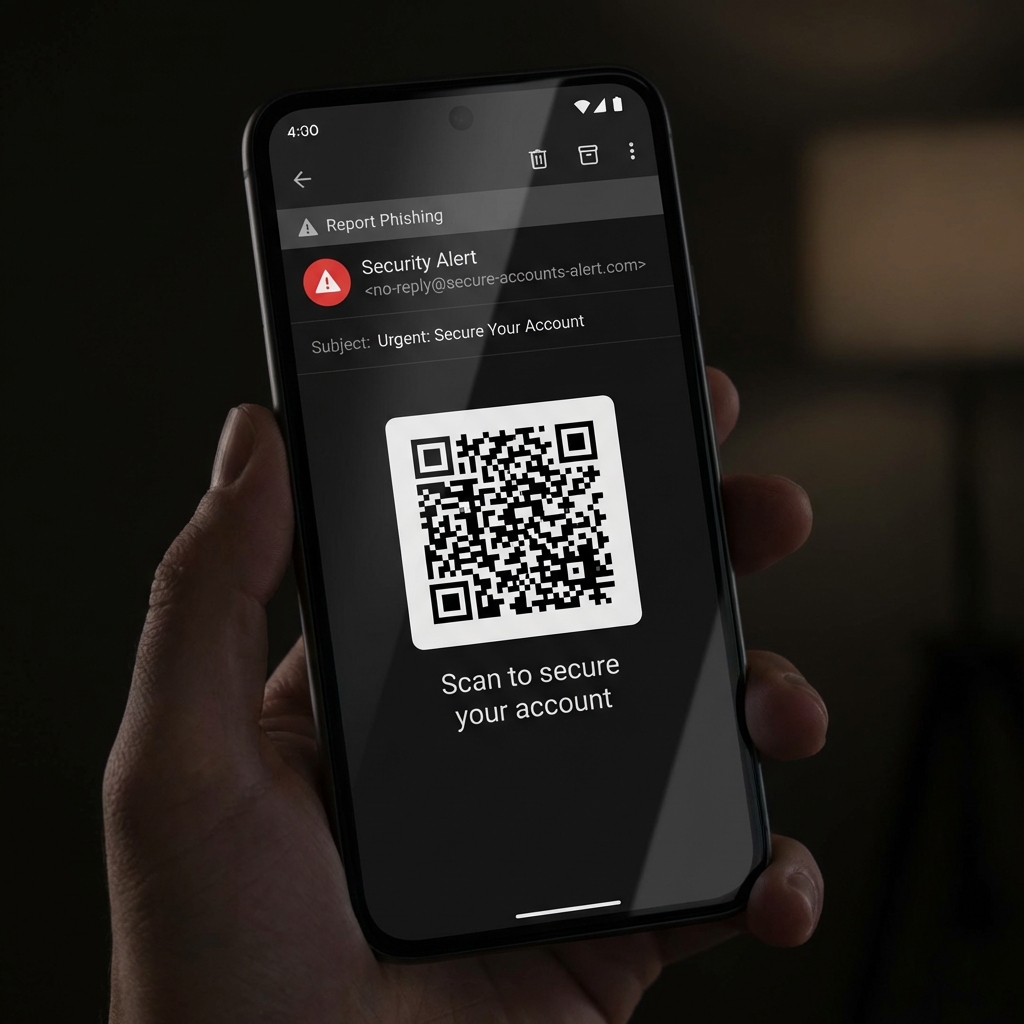
Protection: Only scan QR codes from trusted sources. Before opening the URL your phone displays, verify the domain matches the legitimate service.
9. Too-Good-To-Be-True Offers
If an offer seems unrealistic, it probably is.
Common lures:
- "You've won a $5,000 Amazon gift card!"
- "Congratulations! You're entitled to a tax refund of $8,472"
- "Claim your inheritance of $2.4 million"
- "Free iPhone 16 Pro—just pay shipping!"
Remember: You can't win a contest you didn't enter.
10. Mismatched Branding and Logos
Phishing emails often have visual inconsistencies:
- Low-resolution or blurry logos
- Incorrect brand colors or fonts
- Poorly formatted email templates
- Generic signatures (no contact information)
Compare to legitimate emails from the same company in your inbox.
11. Unusual Timing or Context
Phishing emails often arrive:
- After business hours (to delay verification)
- During holidays (when IT staff may be unavailable)
- Shortly after public breaches (exploiting fear)
- Out of the blue (no prior interaction with the sender)
Ask yourself: Does this email make sense given my relationship with this company?
How Do I Check a Link Without Clicking?
Check a link safely by hovering your cursor over it on a desktop or long-pressing it on a mobile device to reveal the true destination URL.
Desktop: How to Check Links Before Clicking
Step-by-step hover test:
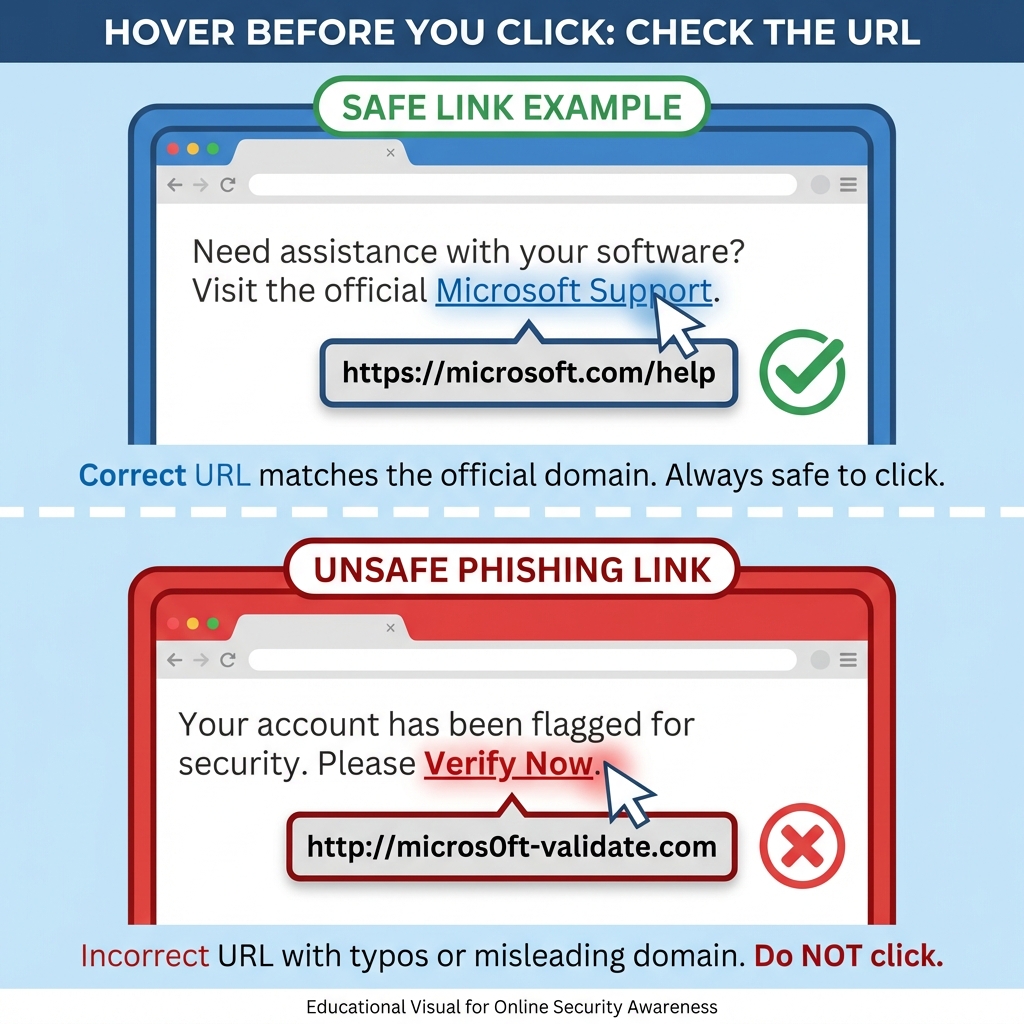
- Hover the cursor over the link for 1-2 seconds
- The true URL will appear in the bottom-left corner of the browser
- Verify the domain matches the official service exactly (e.g.,
paypal.com, notpaypal-support.com)
Important: 80% of phishing sites use HTTPS, so a padlock icon does not guarantee safety.
What to look for:
- Do the domains match? (
microsoft.comshould link tomicrosoft.com) - Are there extra subdomains? (
login.microsoft.com.phishing-site.com) - Is the top-level domain correct? (
.comvs.covs.net) - Does the URL contain random characters or numbers?
Example of a phishing link:
- Displayed text: "Click here to reset your password on PayPal.com"
- Actual URL (on hover):
http://paypa1-security-check.ru/login
Red flags: Different domain, HTTP (not HTTPS), unusual top-level domain (.ru), number "1" instead of letter "l".
Mobile: Long-Press Link Preview
Mobile devices make the hover test slightly different:
- Long-press (tap and hold) the link in the email
- A preview menu will appear showing the full URL
- Read the URL carefully before selecting "Open"
iOS Mail & Gmail:
- Long-press shows a preview card with the full link
- You can copy the link to inspect it further
Android Gmail:
- Long-press reveals options including "Copy link address"
- Paste into Notes to examine the URL safely
Mobile-specific risks:
- Smaller screens make subtle domain differences harder to spot
- Mobile email clients don't always show full sender addresses
- Cognitive load is higher on mobile—users checking email while distracted are more likely to tap without thinking
- QR code phishing specifically targets mobile devices (you cannot hover a QR code)
Mobile Safety Tip: Before inspecting a suspicious link on mobile, turn off Wi-Fi and cellular data to prevent accidental loading if you mistap. This prevents malware from communicating even if the link opens.
What Makes a Link Suspicious?
| Legitimate Link | Phishing Link |
|---|---|
https://www.paypal.com/signin | http://paypa1.com-security.tk/signin |
https://microsoft.com/account | https://micros0ft-login.com/verify |
https://amazon.com/orders | https://amazon.security-check.xyz |
https://accounts.google.com | https://accounts-google.com-verify.pw |
Key differences:
- Missing or extra hyphens
- Numbers replacing letters (0 for O, 1 for l)
- Unusual top-level domains (.tk, .pw, .xyz instead of .com)
- Extra subdomains (
real-domain.com.fake-site.com)
Pro Tip: Type It Yourself
For critical accounts (banking, email, work systems), never click email links. Instead, type the URL directly into your browser or use a bookmarked link. This eliminates phishing risk entirely.
Common Phishing Scenarios
Attackers use fake invoice requests, password reset alerts, and IT department impersonations to bypass critical thinking.
Different Types of Phishing Attacks Explained
| Attack Type | Common Lure | Top Red Flags | Safe Verification |
|---|---|---|---|
| Password Reset | "Your password has expired—reset in 24 hours or lose access" | Unsolicited email; fake login page link; artificial deadline | Go directly to the service website and log in normally; if your password works, the email was fake |
| Package Delivery | "Your package needs customs clearance—pay a fee to release it" | Sender domain mismatch (e.g., @dhl-delivery.net); unexpected fee or detail request | Track directly on the shipper's official website using the tracking number |
| Account Suspension | "Your account will be suspended in 24 hours—verify immediately" | Vague suspension reason; urgent deadline; click-to-verify link | Log in directly to the account dashboard by typing the URL yourself; check internal notifications |
| Invoice / BEC | Overdue invoice or wire transfer from a familiar-looking vendor | Unfamiliar payment method (wire, Bitcoin, gift cards); no PO number; sender domain mismatch | Call the vendor at a known number from your records—not the contact in the email |
| HR / Payroll | "Update your direct deposit or W-2 information immediately" | Requests SSN or banking info via email; external sender claiming to be internal HR | Contact HR directly in person or through the internal HR portal |
| IT Impersonation | "Install this critical security patch" or "Reset your credentials now" | External sender; requests your password; download link via email | Contact IT through the official helpdesk ticket system; IT never needs your password |
| Smishing (SMS) | "Your bank account is locked—verify here" or "Package held—confirm details" | Shortened or unverifiable URLs; urgent language; unsolicited sender | Navigate directly to the company's official app or website; call using the number on their official site |
| Calendar Phishing | Unsolicited invite: "URGENT: Mandatory Account Review—Click to Join" | External/unknown sender; urgency in event title; suspicious link in description | Decline and delete; check sender's full email address; enable calendar spam filtering |
Note on Business Email Compromise (BEC): 64% of businesses faced BEC attacks targeting accounting departments in 2024. Attackers research your vendors and impersonate them with professional-looking invoices sent at the right moment in the billing cycle.
Smishing in Practice
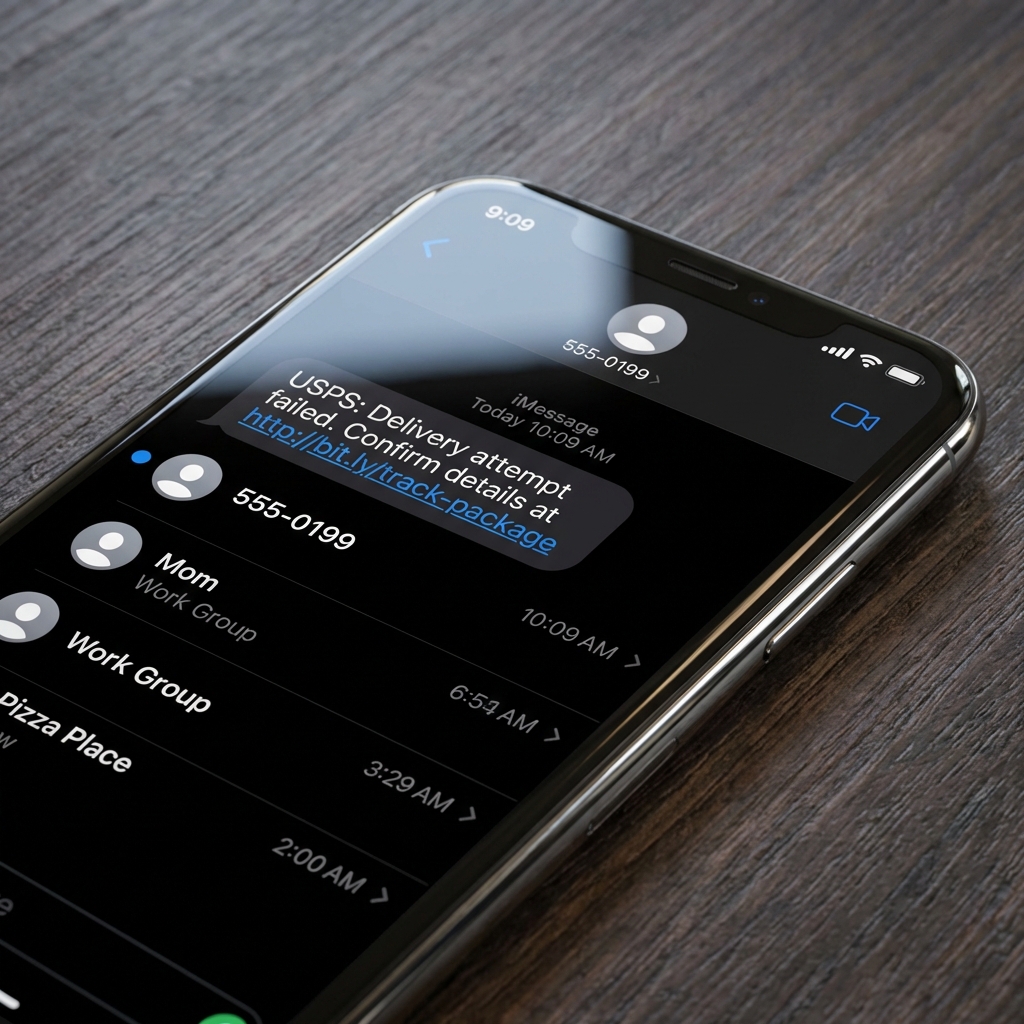
Voice phishing increased 442% in 2025 as AI-cloned voices enabled large-scale hybrid attacks. With 70% of mobile attacks now SMS-based, attackers bypass email filters entirely—reaching users when their attention is divided.
From the Field: Mobile Cognitive Load
In client security assessments, the highest phishing click rates consistently appear on mobile devices—not because mobile users are less tech-savvy, but because they're distracted. Checking email during a commute, between meetings, or while multitasking reduces the cognitive bandwidth needed to spot subtle red flags like a mismatched domain or generic greeting. It's not a screen-size problem; it's a context problem. If an email warrants action, address it from a desktop where you can inspect links properly.
Calendar Phishing in Practice
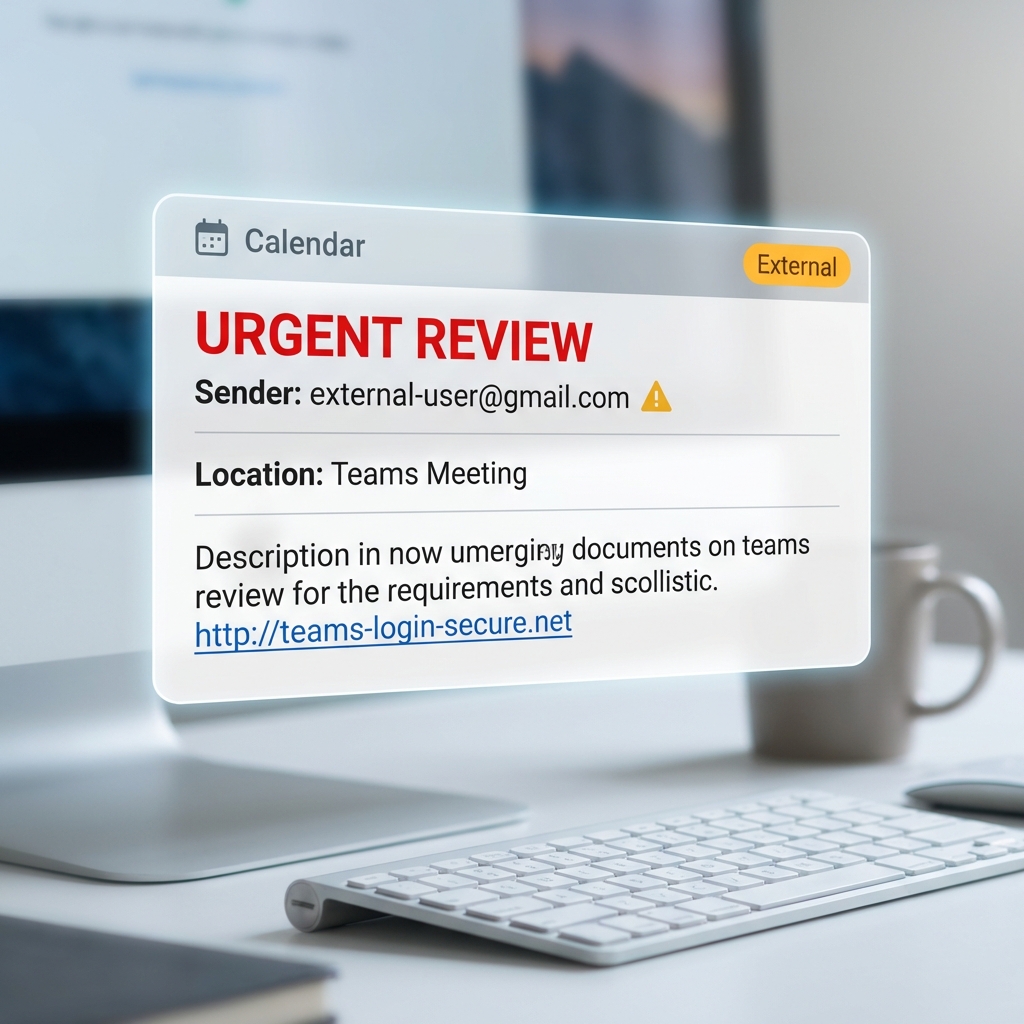
Attackers send calendar invites (Google Calendar, Outlook) that bypass email filters and auto-add to your calendar, appearing as legitimate meetings. In Google Calendar settings, change "Automatically add invitations" to No to prevent unsolicited events from appearing.
What Should I Do If I Spot a Phishing Email?
If you identify a phishing email, do not click any links, report the message to your IT department, and delete it immediately.
Step 1: Don't Click Anything
This includes:
- Links in the email
- Attachments
- "Unsubscribe" buttons (on a suspected phishing email; legitimate marketing emails require unsubscribe links, but clicking on a phishing email confirms your address is active)
- Reply button
Even interacting with a phishing email can confirm your address is valid, leading to more attacks.
Step 2: Report the Phishing Email
Reporting helps protect others and trains email filters to catch similar attacks.
How to report in major email clients:
| Email Provider | Reporting Method |
|---|---|
| Microsoft 365 / Outlook | Click "Report Message" → "Phishing" in the toolbar |
| Gmail | Click three dots (⋮) → "Report phishing" |
| Apple Mail | Forward to abuse@icloud.com or report to your IT |
| Yahoo Mail | Select email → More → "Report phishing" |
If using a corporate email system:
- Use your company's phishing report button (if available)
- Forward to your IT security team or SOC
- Include full email headers for investigation
Government reporting:
- Federal Trade Commission (FTC): Forward phishing emails to
reportphishing@apwg.org - Anti-Phishing Working Group: Report at
https://apwg.org/reportphishing/ - CISA: Report cybersecurity incidents at
https://us-cert.cisa.gov/report
Step 3: Delete the Email
After reporting:
- Delete the email from your inbox
- Delete it from your Trash/Deleted Items folder
- This prevents accidental clicks later
Don't save phishing emails "for reference"—the risk isn't worth it.
Step 4: Alert Your Team (If Applicable)
If the phishing email targeted your organization:
- Notify your IT or security team immediately
- Share a screenshot (without clicking links) if other employees received it
- Send a company-wide alert if the attack is widespread
Why this matters:
- 57% of organizations face phishing attempts weekly or daily
- One employee clicking can compromise the entire network
- Early warnings reduce dwell time (how long attackers have access)
Phishing Report Rates = Security Indicator
Only 20% of untrained employees report phishing emails. Organizations with security awareness training see 6x higher report rates and 86% fewer successful phishing incidents. Reporting doesn't just protect you—it protects everyone.
What Should I Do If I Click a Phishing Link?
If you click a phishing link, immediately disconnect the device from the internet (Wi-Fi and Ethernet) to prevent malware communication, then reset your credentials from a separate, clean device.
Immediate Actions (First 15 Minutes)
1. Disconnect from the network
- Turn off Wi-Fi or unplug ethernet cable
- This prevents malware from spreading or communicating with attackers
2. Don't close the browser/email
- Keep the phishing page open so IT can document the URL
- Take a screenshot if possible
3. Notify your IT department immediately
- Call (don't email—your account may be compromised)
- Provide details: when you clicked, what you saw, what information you entered
If You Entered Credentials (Password, Username)
1. Reset your password from a different device
- Use your phone on cellular data (not the same Wi-Fi network)
- Go directly to the official website—don't use email links
- Use a strong, unique password you haven't used before
2. Enable Multi-Factor Authentication (MFA)
- Adds a second verification layer even if attackers have your password
- Use authenticator apps (Microsoft Authenticator, Google Authenticator) over SMS when possible
3. Check for unauthorized access
- Review recent login activity (most services show this in security settings)
- Check sent items for emails you didn't send
- Look for changed settings (forwarding rules, recovery email)
4. Alert linked accounts
- If you used the same password elsewhere, change those too
- Use a password manager to track and secure all accounts
If You Downloaded or Opened an Attachment
1. Run a full antivirus/anti-malware scan
- Use Windows Defender, Malwarebytes, or your corporate endpoint protection
- Scan even if no immediate symptoms—malware often runs silently
2. Monitor for signs of infection
- Unusual pop-ups or browser redirects
- Slow performance or high CPU/disk usage
- New programs or browser extensions you didn't install
- Ransom notes or file encryption
3. Consider professional remediation
- If you're on a work device, let IT handle it
- For personal devices, consider professional malware removal if DIY scans don't clear it
- Review our breach prevention guide for recovery procedures
If You Provided Financial Information
1. Contact your bank or credit card company IMMEDIATELY
- Report fraudulent charges
- Request a card replacement with new number
- Consider a temporary freeze on your account
2. Monitor your accounts closely
- Check transactions daily for 30-60 days
- Set up fraud alerts with your bank
- Review credit reports for unauthorized accounts
3. File a report
- FTC Identity Theft Report:
https://identitytheft.gov - IC3 (Internet Crime Complaint Center):
https://ic3.gov - Local law enforcement if financial loss occurred
4. Consider a credit freeze
- Contact Equifax, Experian, and TransUnion
- Prevents attackers from opening new accounts in your name
If You Provided Personal Information (SSN, DOB, etc.)
1. Place a fraud alert
- Contact one of the three credit bureaus
- Alerts creditors to verify your identity before opening new accounts
2. Monitor for identity theft
- Watch for unfamiliar accounts or credit inquiries
- Check tax records (IRS impersonation for tax fraud is common)
3. File an identity theft report
- FTC:
https://identitytheft.gov - Provides legal documentation and recovery plan
Follow-Up Actions (First 48 Hours)
- Document everything: Screenshots, timestamps, what information was compromised
- Report to your organization's security team: Helps them identify if it's part of a larger campaign
- Review security settings on all major accounts
- Educate yourself: Learn from the incident—what red flags did you miss?
Response Time Matters
Rapid response is critical. Automated malware and credential theft scripts operate in minutes, making immediate network isolation your best first defense. The longer an attacker maintains access, the greater the potential damage. If you work in a regulated industry (healthcare, finance), your organization may have breach notification requirements—contact your compliance team immediately.
If you suspect a corporate network has been compromised, don't attempt to self-remediate. iFeelTech provides emergency incident response to contain breaches, isolate affected endpoints, and restore operations for small and mid-sized businesses—typically within hours of engagement.
Phishing Protection Best Practices
Prevent phishing by enforcing multi-factor authentication, updating systems regularly, and providing continuous employee security training.
1. Enable Multi-Factor Authentication (MFA) Everywhere
What it is: Requires a second verification step (code from your phone, biometric scan) in addition to your password.
Why it matters:
- Even if attackers steal your password, they cannot access your account without the second factor
- 80% of phishing attacks aim to steal credentials—MFA prevents unauthorized access
Where to enable MFA:
- Email accounts (Microsoft 365, Gmail)
- Banking and financial services
- Productivity platforms (Google Workspace, Slack, Microsoft Teams)
- Social media accounts
- Password managers
- Any service that offers it
Warning: If a colleague's Teams or Slack account is compromised, attackers can send phishing links from inside your organization. Always verify unusual requests even from internal chat, especially file shares or urgent requests for credentials.
Best practices:
- Use authenticator apps (more secure than SMS)
- Store backup codes in a safe location
- Consider hardware security keys (YubiKey, Titan) for high-value accounts
2. Keep Software and Systems Updated
Why updates matter:
- Security patches fix vulnerabilities that phishing attacks exploit
- Outdated browsers and email clients miss modern phishing detection features
What to update regularly:
- Operating system (Windows, macOS, Linux)
- Web browsers (Chrome, Edge, Firefox, Safari)
- Email clients (Outlook, Thunderbird)
- Security software (antivirus, anti-malware)
- Business applications (Office 365, collaboration tools)
Enable automatic updates where possible to eliminate manual tracking.
3. Use Email Filters and Security Software
Modern email security features:
- Phishing filters: Pre-screen emails before they reach your inbox (built into Microsoft 365, Gmail)
- External sender warnings: Tag emails from outside your organization
- Link scanning: Automatically check URLs for known phishing sites
- Attachment sandboxing: Test attachments in isolated environments before delivery
Additional protection layers:
- DNS-level filtering: Services like Cisco Umbrella block phishing domains before emails even arrive
- Endpoint protection: Malwarebytes, Microsoft Defender, Bitdefender Business Security catch malware if attachments are opened
- Email authentication (SPF, DKIM, DMARC): Verify sender legitimacy at the server level (see our DMARC guide, or the SPF, DKIM and DMARC explainer for what these records do and do not stop)
4. Verify Requests Through Alternate Channels
The "Call Before You Click" Rule:
If an email requests sensitive actions (password reset, wire transfer, account changes), verify through a different communication channel before proceeding.
Examples:
- Email asks for a wire transfer → Call the vendor using a known phone number
- HR requests banking update → Visit HR in person or call their direct line
- IT asks for password → Contact IT helpdesk through official ticket system
Why this works:
- Attackers control email, not your phone or in-person conversations
- Verification takes 2 minutes but can prevent a $10.22M breach
5. Educate Your Team Regularly
Training effectiveness:
- Only 20% global benchmark for phishing report rates (untrained users — Hoxhunt 2025 Report)
- 6x improvement possible with behavior-based training (Hoxhunt 2025 Report)
- 86% reduction in phishing incidents with proper training (KnowBe4, Proofpoint training studies) What effective training includes:
- Simulated phishing tests: Safe, controlled phishing emails to test awareness
- Real-world examples: Show actual phishing emails circulating in your industry
- Quarterly refreshers: Threat landscape evolves—training must keep up
- Positive reinforcement: Reward employees who report phishing (not just those who click)
Topics to cover:
- The 10 red flags from this guide
- How to perform the hover test
- Reporting procedures specific to your organization
- What to do if they click (remove stigma so employees report incidents)
Tools for security awareness training:
- KnowBe4
- Proofpoint Security Awareness
- Hoxhunt (behavior-focused)
- CISA's free phishing training resources
6. Use Passkeys Where Available
What are passkeys?
- Modern authentication method that replaces passwords with cryptographic keys
- Phishing-resistant because there's no password to steal
- Tied to specific domains—can't be tricked into using them on fake sites
Passkeys and AiTM attacks: Standard MFA blocks roughly 80% of credential theft, but Adversary-in-the-Middle (AiTM) proxy attacks sidestep it entirely. An AiTM attack sits between your browser and the legitimate site, relaying your session in real time and capturing the session cookie after MFA is approved—meaning your one-time code is useless as protection. FIDO2 passkeys and hardware security keys are cryptographically bound to the legitimate domain and cannot be relayed or replayed by a proxy, making them the only authentication method that defeats AiTM by design.
Where passkeys are supported (2026):
- Google accounts
- Microsoft accounts
- Apple ID
- PayPal
- GitHub, Shopify, and growing list of services
Learn more: Read our Passkeys for Small Business guide.
7. Maintain Strong Password Hygiene
Best practices:
- Use unique passwords for every account (prevents credential stuffing attacks)
- Use a password manager to generate and store complex passwords (see our Best Business Password Managers guide)
- Minimum 12+ characters with mix of letters, numbers, symbols
- Avoid personal information (names, birthdates, pet names)
Why password managers help with phishing:
- Autofill only works on legitimate domains—won't fill credentials on phishing sites
- Warns you if filling credentials on an unfamiliar site
Recommended password managers for business:
A password manager prevents autofill on fake domains—one of the most underrated phishing defenses available. We deploy 1Password Business across client networks specifically for its built-in phishing detection and domain-matched autofill protection.
- 1Password Business — Industry-leading security with built-in phishing detection
- Proton Pass Business — Privacy-focused with end-to-end encryption
See our complete password manager comparison for detailed reviews.
8. Monitor Accounts for Suspicious Activity
Regular checks:
- Review login history weekly (most services show recent access)
- Check sent items for emails you didn't send
- Look for unauthorized changes (forwarding rules, recovery email, phone number)
- Monitor financial accounts for unfamiliar transactions
Set up alerts:
- Login notifications from new devices
- Large or unusual transactions
- Password change confirmations
- Failed login attempts
9. Deepfake and Vishing Hybrid Attacks
Voice phishing increased 442% in 2025 as AI-cloned voices enabled large-scale impersonation. By 2026, sophisticated attackers routinely combine email phishing with AI-generated voice calls to bypass MFA—a technique that can succeed even with trained, security-aware employees.
How the hybrid attack works:
- The target receives a phishing email claiming an urgent account issue (suspicious login, wire transfer approval, password expiry)
- Minutes later, a caller using an AI-cloned voice—convincingly mimicking IT support, a bank representative, or a known executive—references the email to establish legitimacy
- The caller asks the target to read back their MFA code "to verify identity"
- With the one-time code, the attacker completes authentication and takes over the account
This technique has been observed in attacks by ransomware groups including BlackBasta and Cactus, targeting corporate environments where an IT helpdesk call feels routine.
A novel variant exploits the OAuth 2.0 device authorization flow in Microsoft Entra and Okta environments. The caller instructs victims to approve an authentication prompt on their device—granting the attacker persistent token-based access without ever capturing a password.
How to defend against hybrid attacks:
- Never provide MFA codes to an inbound caller—legitimate services never ask for them
- Hang up and call back using the verified number from the company's official website (not caller ID)
- Use phishing-resistant authentication (FIDO2 passkeys, hardware security keys) for critical accounts—these cannot be replayed by voice
- Train employees to recognize that a convincing follow-up call is how the attack completes, not how it is verified
10. Enable Browser-Based AI Phishing Defenses
By 2026, modern browsers include built-in AI-powered phishing detection:
How to enable:
- Chrome: Settings → Privacy and Security → Enable "Enhanced Protection"
- Edge: Settings → Privacy → Enable "Microsoft Defender SmartScreen"
- Safari: Settings → General → Enable "Fraudulent Website Warning"
- Firefox: Settings → Privacy & Security → Enable "Block dangerous and deceptive content"
These AI systems analyze page structure, domain reputation, and visual elements to detect phishing in real-time.
Frequently Asked Questions
Can phishing emails have perfect spelling and grammar?
Yes. Modern phishing—especially AI-generated attacks—can have flawless formatting and professional writing. In 2026, over 82% of malicious emails use AI to craft convincing messages (KnowBe4 2025). Don't rely on spelling errors alone; check sender addresses, links, and context.
What if I got a phishing email that knew my name and other personal details?
This is called "spear phishing"—targeted attacks using information from data breaches, social media, or corporate directories. Attackers research victims to make emails more convincing. Even if an email has personal details, verify through alternate channels before acting.
Can I get infected just by opening a phishing email (without clicking)?
Generally, no. Modern email clients (Gmail, Outlook) disable automatic execution of scripts and images. However, opening an email can confirm your address is active (through tracking pixels). The real risk comes from clicking links or opening attachments.
How do I know if my company email is being spoofed?
If you receive reports of phishing emails claiming to be from your domain:
- Check your company's DMARC settings (email authentication)
- Work with your IT team to verify sender reputation
- Implement SPF, DKIM, and DMARC to prevent domain spoofing
Should I click "Unsubscribe" on suspicious emails?
No. Clicking "Unsubscribe" on phishing emails confirms your address is active, leading to more attacks. Instead, report as phishing and delete. Only unsubscribe from emails you know are legitimate.
What should I do if I keep getting phishing emails?
Short-term fixes:
- Report aggressively to train your email filter
- Create rules to auto-delete emails with common phishing keywords
- Use a spam filter or email security service
Long-term prevention:
- Check if your email was exposed in a data breach (https://haveibeenpwned.com)
- Avoid posting your email publicly online
- Use email aliases for online services (many password managers offer this feature)
Conclusion
Phishing is the single most common cyberattack vector, responsible for 80-95% of successful breaches. But it's also one of the most preventable—if you know what to look for.
Key takeaways from this guide:
- Recognize the 11 red flags: Urgent language, generic greetings, sender mismatches, suspicious links, unexpected attachments, QR codes, and unusual timing are your primary warning signs.
- Master the hover test: Always check where a link actually goes before clicking, both on desktop and mobile.
- Verify through alternate channels: When in doubt, call the company or person using a known contact method—not the one in the email.
- Enable multi-factor authentication everywhere: This single step blocks 80% of credential theft attacks.
- Report phishing emails: Your reports train filters and protect others in your organization.
If you clicked a phishing link:
- Disconnect from the network immediately
- Change your password from a different device
- Contact your IT team or bank depending on what was compromised
- Monitor accounts closely for 30-60 days
For a complete step-by-step incident response guide, see our Employee Clicked Phishing Link: 6 Steps to Take in the Next Hour.
For long-term protection:
- Keep software updated
- Use a password manager to avoid credential reuse
- Implement DMARC email authentication for your domain
- Conduct regular security assessments
- Train your team regularly—security awareness is your best defense
The phishing threat landscape will continue to evolve. AI-generated attacks, deepfake impersonations, and QR code phishing are already here. But by staying vigilant and applying the visual indicators in this guide, you can spot and avoid even the most sophisticated attempts.
Stay skeptical. Verify everything. And when in doubt—don't click.
Need expert guidance on email security, endpoint protection, or security awareness training for your organization? iFeelTech specializes in cybersecurity consulting for small and mid-sized businesses. Contact us to discuss how we can help protect your team from phishing and other cyber threats.
Related Articles
More from Cybersecurity
Cybersecurity for SMBs: Understanding Risk & NIST CSF 2.0
Small businesses are primary targets for AI-driven cyber threats. Learn how NIST CSF 2.0's six functions help protect against phishing, ransomware, and data breaches in 2026.
9 min read
Vendor Risk Assessment for Small Businesses: A Practical 2026 Framework
Inventory, classify, and review your SaaS vendors with a two-axis risk matrix, worked example, and copyable 12-question questionnaire.
19 min read
Are Free VPN Extensions Safe for Small Businesses? A July 2026 Check
Recent VPN incidents showed how extensions can expose passwords, AI conversations, and browser traffic. Learn how to audit extensions, build an allowlist, and protect your company.
11 min read