

Small Office IT Checklist: Your Annual 12-Stop Walk-Through
A small office IT checklist with 12 stops, from UPS battery and power strips to Wi-Fi and backups. Rate each one and print your own fix list.

Office technology ages in places nobody looks: a battery under a desk, a closet that runs hot, a power strip plugged into another power strip. This small office IT checklist covers twelve of those places in one walk through the building, and the tool below turns the walk into a list you can rate, print and act on.
The checklist tool needs no account and no software to install. A phone, a pad of sticky notes and a cheap thermometer are enough for most stops. A few checks, such as firmware versions, guest-network settings and a backup restore, need administrator access to the router or backup system, so have your IT contact or installer nearby for those.
Each stop gives you something concrete to look at, a sourced number to compare it against, and a way to rate what you find. The first pass produces observations and follow-up tasks rather than finished fixes, and the thermometer needs a day. At the end you have a short list: what to fix soon, what to plan for, and what to find out.
How to use this page
Open the walk-through below and start at stop 1. Pick a stop, look at the real thing, and rate it Looks fine, Plan for it, Fix soon or Not sure. Each rating moves you to the next stop, and My list collects your results so you can print or copy them. Ratings stay in your browser and nothing is sent anywhere.
The 12-stop small office IT checklist
The stops run in walking order, from the network closet to reception:
- Closet heat and airflow
- Router and gateway support
- UPS battery
- Power strips and chains
- Cables: labels and bends
- Wi-Fi at the weakest desk
- Mystery devices
- Backup drive or NAS
- Spare parts box
- Age and warranty list
- Guest Wi-Fi
- The "if I'm away" sheet
Interactive walk-through
Walk your office in 12 stops
Closet heat and airflow
Network closet
- Is the equipment in a closed space with no vents or fans, or behind a door that stays shut all day?
- Are the vents blocked by boxes, cables or stacked equipment?
- Leave a cheap thermometer at the equipment's air intake for a day and note the highest reading.
The sections below explain each group of stops, with the numbers behind the ratings. Read them before the walk or alongside it.
What the four ratings mean
The ratings are built for action, not scoring. Every stop has its own definition of each rating, shown in the tool. In general:
| Rating | What it means | When to act |
|---|---|---|
| Looks fine | The thing meets the reference number or condition, and you can say how you know. | Write the date and move on. |
| Plan for it | Working today, but aging, untested or close to a limit. | Put a date on it. A first restore test belongs this month. Replacements can go in next year's budget. |
| Fix soon | Outside a safe or supported range right now. | Same day for anything hot, scorched or damaged. Otherwise this week or this month, before anything else on the list. |
| Not sure | You cannot tell from looking. | Treat finding out as the task. |
"Not sure" is a legitimate answer. A UPS with no date on it or a router nobody can log in to is a finding.
Stops 1 to 3: The network closet
The closet holds the equipment the rest of the office depends on, which is why three of the twelve stops are here: the space itself, the router or gateway, and the battery backup.
Stop 1: Heat and airflow
The cheapest instrument in this walk-through is a thermometer. Put one on the shelf next to the router, switch and battery backup, leave it for a day, and write down the highest reading.
ASHRAE's recommended server-inlet range for data-center equipment is 64.4°F to 80.6°F (18°C to 27°C). It is a recommended range measured where air enters the equipment, not a safety limit for every device, and your router and switch have their own operating-temperature ratings on the maker's spec sheet. As a working target for a network closet it is a sensible one, so put the thermometer at the equipment's air intake. In South Florida, where cooling loads are high for much of the year, a closet without its own air path is the first place to check.
The signs that need no thermometer: a closed space with no vents or fans, equipment stacked directly on top of each other, vents blocked by boxes, and gear that feels hot to the touch near its exhaust. A cabinet with working ventilation is not a problem in itself, so let the reading decide. For a closet that needs more than a propped door, our server room and closet setup guide covers ventilation and cooling.
Heat also sets the lifespan of the next stop.
Stop 3 · UPS battery
Every 8°C (15°F) of heat cuts battery life in half
Expected life of a lead-acid UPS battery that lasts four years at 25°C (77°F), by the temperature it runs at.
25°C (77°F)
Top of the optimum range for a lead-acid battery
4 years
33°C (91°F)
One 8°C step hotter
2 years
41°C (106°F)
Two steps hotter, same rule applied
1 year
Source: Schneider Electric (APC) FAQ FA158934, which gives a four-year battery at 25°C lasting about two years at 33°C. The 41°C row applies the same halving rule.
Stop 2: Router and gateway support
Age alone is not the signal. In our fleet reliability report, 4 of 538 UniFi devices were replaced over 48 months, a cumulative rate of 0.74% (about 0.19% a year). That fleet is mixed, and about 71% of it is cameras and door readers, so it is not a router-only figure. Three of the four losses came from the environment, not from age, which is the same lesson as stop 1.
What decides the rating is support status:
- Find the model name on the label.
- On the manufacturer's support page, check that the model still receives firmware updates.
- Log in to the admin page and note the firmware version and the date of the last update.
- Repeat the support check for the switch and access points, and note the modem or fiber terminal your internet provider supplied.
If the maker has ended support, replacement is the plan, because a router that is out of support never receives fixes for newly found flaws. If nobody can log in to the device, that is a Fix soon on its own: recover access before you need it in an outage.
Stop 3: UPS battery
A UPS (uninterruptible power supply) does two jobs: it keeps the router, switch and storage running through a short outage, and it gives them time to shut down cleanly in a long one. Both jobs depend on the battery inside.
Schneider Electric's APC FAQ says most of its UPS batteries last three to five years, and recommends replacing before the five-year mark. The optimum temperature for a lead-acid battery is 68 to 77°F (20 to 25°C), and every 8°C (15°F) above that cuts the battery's life in half. The four-year example in the chart above comes from that same page. If the battery or unit needs replacing, our APC vs CyberPower comparison covers two common 1500VA towers and how to match the replacement cartridge.
Three things to check:
- The date. Look for a date sticker on the battery, and for an install date on the unit's display or in its management app. If it cannot be dated, rate the stop Not sure, run the built-in self-test, and plan a replacement if you cannot establish an age.
- The warnings. Learn which alarm you are hearing, because beeping alone is not always a fault. On APC Back-UPS units, Schneider Electric describes four beeps every 30 seconds with the amber on-battery light as normal operation during an outage, and continuous beeping for a minute every five hours with the red replace-battery light as a battery that needs replacing. A replace-battery light or a failed self-test is a Fix soon. If the unit shows its load and estimated runtime on the display or in its app, write both down.
- The chemistry. The three-to-five-year range applies to lead-acid (VRLA) batteries, the most common type in small-office units. Lithium units follow the manufacturer's own schedule, and our UPS guide for UniFi setups explains why a lithium battery still needs maintenance and testing.
Stops 4 to 6: The open office
Where people work is where cables, power and Wi-Fi get tested every day.
Stop 4: Power strips and chains
Trace each power strip back to its source. If it plugs into another strip or an extension cord, you have found your first item for the Fix soon list.
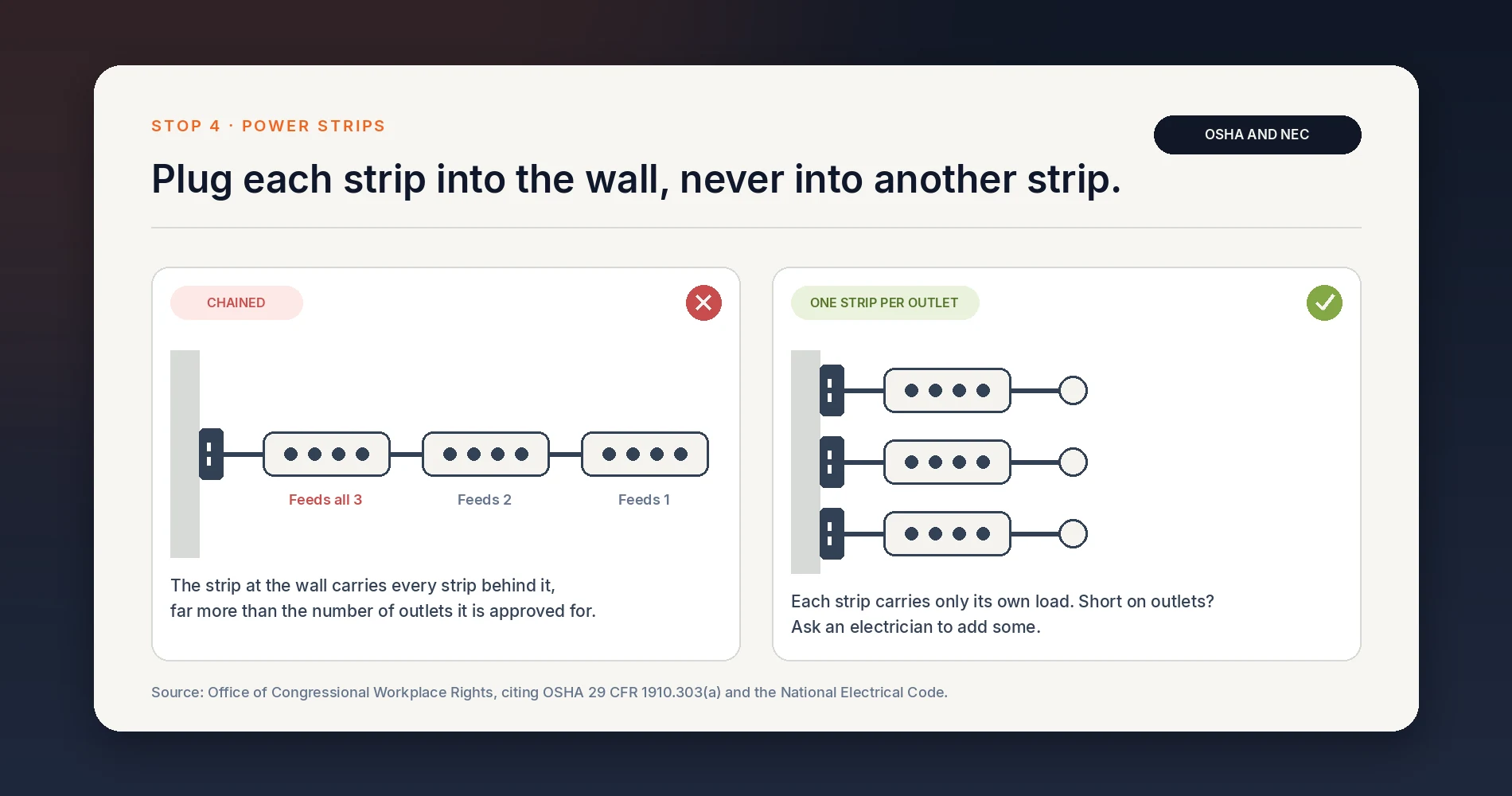
The Office of Congressional Workplace Rights states that interconnecting power strips violates OSHA regulations and the National Electrical Code. The reason is load: interconnected strips can be overloaded, which can lead to failure and fire, and longer cord runs add resistance and heat. The OSHA rule it cites, 29 CFR 1910.303(b)(2), requires listed equipment to be used according to the manufacturer's instructions in its listing.
The alternatives are the ones the same source lists: a single strip with a cord long enough to reach the outlet, desks moved closer to existing outlets, or additional outlets installed by an electrician. More outlets are the fix. More strips are the problem.
Two more checks while you are at the desk:
- The protection light. On the Eaton Tripp Lite surge protectors covered by its owner's manual, the protected light means the surge suppression components are intact. If it is not lit, the manual says some of those components are not working and the unit should be replaced.
- Heat and damage. A strip that is hot, scorched or smells burnt should be unplugged and taken out of use the same day.
- The UPS outlets. Check the UPS manual before plugging a strip into it. Tripp Lite's owner's manual, for example, voids the UPS warranty if a surge protector is connected to the UPS output receptacles.
Stop 5: Cables, labels and bends
Look under the desks and behind the monitors for three things: cables squeezed under a door or a desk leg, sharp kinks, and runs pulled tight between the wall and a device.
The twisted-pair cabling standard (ANSI/TIA-568) sets a minimum bend radius of four times the cable's outside diameter. A typical Cat6 cable is roughly a quarter inch across, so the bend radius should be at least about an inch, which means a loop about two inches across. Patch cords, shielded cables and Cat6A can have different requirements, so check the manufacturer's datasheet if you are unsure. A kinked or crushed cable belongs on the Fix soon list, and any cable with visible damage should be replaced.
Labels matter as much as bends. ANSI/TIA-606 is the standard for labeling and cabling records, and its core idea is one scheme used at both ends. In practice: "A-12" on the patch panel port and "A-12" on the wall plate. If the labels do not exist, rate the stop Plan for it and label each cable as you touch it during the year. For the install-side rules, see our network cabling checklist.
Stop 6: Wi-Fi at the weakest desk
Go to the desk people complain about most, and measure there. A Wi-Fi analyzer app on a phone or laptop reports signal strength in dBm. The scale runs negative, and closer to zero is stronger, so -60 dBm is a better signal than -70 dBm.
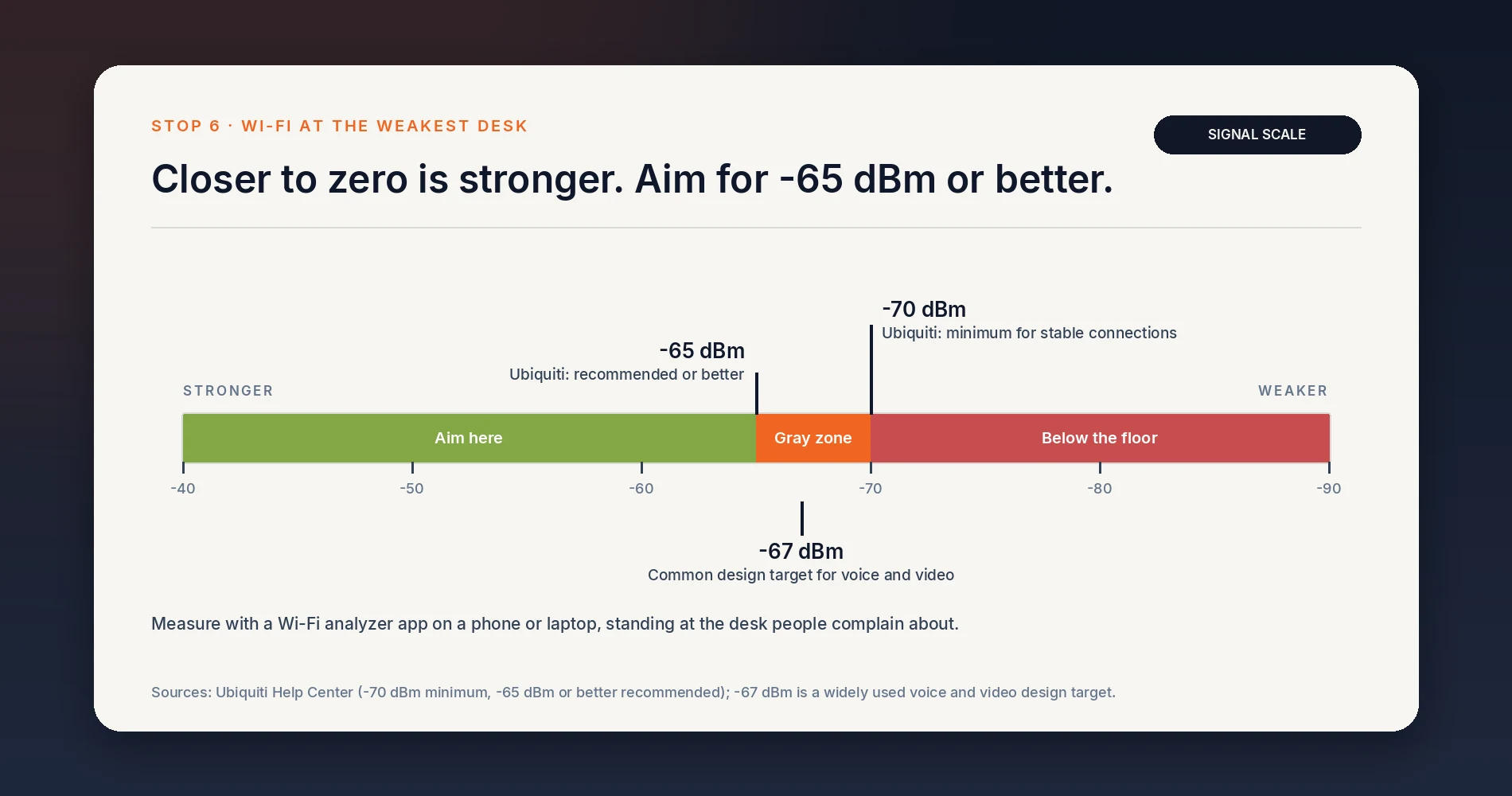
Ubiquiti's guidance is a minimum of -70 dBm at each client, with -65 dBm or better recommended. A design target of -67 dBm is widely used for voice and video. If the desk reads -65 or stronger and a video call there behaves like a call beside the access point, rate it Looks fine. Between -66 and -70 is the gray zone, and weaker than -70 is below the floor.
A weak desk and a slow internet plan are different problems. A faster plan does not strengthen a signal. The usual fix is moving an access point or adding one, and our guides on why office Wi-Fi underperforms and access point density in glass offices cover how to decide which.
Stops 7 to 10: The back rooms
The print room, the storage room and the supply closet hold the equipment people stop thinking about.
Stop 7: Mystery devices
List every box with a blinking light that you cannot name. For each one, answer three questions: what is it, who bought it, and what stops working if it is unplugged?
Put a sticky note on anything unknown. Do not unplug it to find out. A device nobody can name is a device nobody is responsible for updating or replacing, and if it connects to your network, finding out what it does goes to the top of the list.
Stop 8: The backup drive or NAS
Check the obvious first: the device is on, its status light is normal, and you know the date of the last successful backup. Then restore one real file to a different location from the original and open it. A job that reports "completed" shows that the job ran, not that you can restore. If that file went missing today, the age of the last good backup is how much work you would redo, so ask whether that is acceptable.
CISA's small-business guidance gives the 3-2-1 rule: three copies of important files, on two types of storage (a hard drive and the cloud, for example), with one copy off-site. It also says to test that you can restore data fully and partially, and roll back at least seven days. Our 3-2-1 backup guide and restore testing guide cover how to set up and test each.
Then check how old the drives are. Backblaze's 2021 analysis of more than 200,000 drives found a failure rate below 2% for the first three and a half years, climbing quickly through year six, with about 65% of drives still running at six years. These are data-center drives, and the study does not set a replacement deadline, so treat the numbers as a planning guide. A drive past three and a half years goes on the Plan for it list for a closer look, and a drive that reports warnings matters more than its age.
Stop 9: The spare parts box
A dead cable or power adapter is a quick swap when the replacement is on the shelf, and a wait for delivery when it is not. The box needs only the basics:
- One spare Ethernet patch cable.
- A spare power adapter for the router and switch, if they use external adapters. Match the voltage and connector printed on the original.
- A spare charger or two and a roll of labels.
Put it all in one labeled box that everyone knows how to find.
Stop 10: The age and warranty list
For each major device (router, switch, access points, NAS, UPS, laptops), write down the year you bought it, where the receipt or order confirmation lives, and whether the warranty is still active. Warranty terms vary by manufacturer and by product line, so record each one rather than assuming.
The list answers the question every budget meeting asks: what is going to need replacing, and when? It also turns the other stops into dates. Our hardware refresh planning guide shows how to turn the list into a staged plan.
Stops 11 and 12: The front of the office
The last two stops are about visitors and absence.
Stop 11: Guest Wi-Fi
Check whether a separate guest network exists, when its password was last changed, and how many people have it. Then confirm that the guest network is actually kept apart from the office network. A separate network name and a recently changed password do not prove isolation. Ubiquiti's guest Wi-Fi guidance recommends enabling network isolation, and client device isolation on top of it. Check the setting in the router, then test from a phone on the guest network: it should not be able to reach office computers, printers or the router's admin page. Our guest Wi-Fi setup guide covers the steps on common business routers.
Stop 12: The "if I'm away" sheet
The final stop is a single page of paper. It lists the internet provider with its account number and support phone, who installed the network, and where the router and Wi-Fi details are kept. Note where the credentials live (a password manager, a sealed envelope), not the credentials themselves.
Add your domain registrar and email provider. If the one person who knows them is unavailable, renewals and password resets can stall. Then tell a second person where the sheet is, and confirm that someone besides you has, or knows how to get, administrator access to the router and key accounts. Our IT handover checklist goes further for owners who want a full handover document.
After the walk: turning the list into a plan
The tool sorts what you found into three buckets. Treat them differently:
| Bucket | What goes in it | Suggested timing |
|---|---|---|
| Fix soon | Anything outside a safe or supported range today: chained or overheating strips, a failed UPS self-test, a backup that is not running, has no off-site copy or failed a restore. | Same day for heat or damage. Otherwise this week or this month, in the order listed. |
| Plan for it | Aging or untested items: a four-year-old battery, a restore that was never tested, drives past three and a half years, unlabeled cables. | Put a date on each. A first restore test belongs this month, and replacements get a budget line within 12 months. |
| Find out | Every "Not sure": the UPS date, the closet temperature, the router login. | One week. The task is the answer. |
Print the list or copy it into your notes. Beside each item, write who owns it and the date it should be done, and check it again once it is fixed instead of waiting for next year. The yearly walk sits alongside routine updates and backup monitoring, so put the next one on the calendar and compare the two lists. The items that move from Fix soon to Looks fine show what the first walk accomplished.
When a second pair of eyes helps
Most of the twelve stops need only patience and a phone. Three are easier with a second opinion: judging a closet that stays hot, measuring Wi-Fi coverage across a whole floor, and running a real restore test on a backup system. If your list comes back heavy, iFeelTech works with small offices across South Florida on managed IT and network cabling, and we are glad to walk through it with you.
Related Resources
- Server Room and Closet Setup Guide — Ventilation, power and cooling for the space where stops 1 to 3 live.
- How Often Should You Replace Your Router? — The support-status checklist behind stop 2.
- Backup Restore Testing for Small Businesses — How to run the restore test from stop 8.
- Why Office Wi-Fi Underperforms — What to do when stop 6 comes back weak.
- Network Cabling Checklist — Cable standards for stop 5, from install to labeling.
- Small Business IT Handover Checklist — The longer version of the stop 12 sheet.
- Managed IT Services — Ongoing support for small offices in South Florida.
Frequently Asked Questions
Related Articles
More from IT Guides

Managed IT Services Pricing: Per-User Costs and What to Budget in 2026
Budget $125 to $250 per user for managed IT using our South Florida estimates. Compare pricing models, exclusions, setup costs and quotes in this 2026 guide.
12 min read

The Tech Stack Teardown: Audit Your Business Software for Cost and Security (2026)
Most 'simplify your stack' advice tells you what to buy. This is the opposite — a 4-lens software audit that cuts cost and attack surface in one pass, with a free worksheet.
19 min read

The IT Stack We Deployed for a 10-Person Accounting Firm
A real-world breakdown of the complete IT infrastructure we deployed for a 10-person accounting firm — network hardware, password management, identity platform, backup, and endpoint protection. Pricing last checked July 2026.
22 min read