

KVM Switch for Mac and Windows: A Practical Desk Setup Guide
Share one desk between a Mac and a Windows PC. Compare a monitor KVM, a dual-display KVM and a USB switch, with wiring examples and desk cost estimates.

A KVM switch lets a Mac and a Windows PC share one keyboard, mouse and monitor setup, but only when each computer can already produce the video that desk needs. The switch moves signals; it does not create them. Start with what each machine can output, then choose the simplest way to switch it.
Check these two things first
How many independent external screens can each computer drive on its own, and which free port carries each computer's USB data to the switch? A KVM adds neither. Check your displays and ports before you read any pick below as a fit for your desk.
Quick Verdict
Pick the arrangement first, then the product. New single-screen desk: Dell UltraSharp U2725QE, a 4K Thunderbolt hub monitor with a built-in KVM. Two screens you already own, each computer driving two on its own with a free USB port: StarTech P2DD46A2-KVM-SWITCH. Good monitors with spare inputs: a USB switch, with each monitor's input changed by hand. For two computers, the ATEN US5324 fits best on its documented ports and cables; the StarTech HBS304A24A suits three or four computers or an Amazon.com purchase. No switch adds native display support, and none of the external ones charge a laptop.
Affiliate Disclosure: This article contains affiliate links. If you make a purchase through these links, we may earn a small commission at no extra cost to you. As an Amazon Associate, iFeelTech earns from qualifying purchases.
How we chose these products
Every pick follows manufacturer manuals and datasheets, Apple's published display limits and seller checks on Amazon.com dated October 10, 2026. Switching speed, sleep and wake behavior and window layout vary with the computers, monitors and cables involved, so the setup checklist lists what to check on your own desk during the return window.
KVM switch types for a Mac and Windows desk
Three arrangements cover most Mac-and-Windows desks, and they differ in how many actions you take per switch and what moves with you.
| Arrangement | Example | Per switch | Switches video | Charges laptop | Best when |
|---|---|---|---|---|---|
| Monitor with a built-in KVM | Dell U2725QE | Pick the input in the monitor menu, or configure Auto KVM | Yes, one screen | Mac on Thunderbolt: up to 140W on a supporting host | You are buying a new screen anyway |
| External dual-display KVM | StarTech P2DD46A2 | Press a button or hotkey | Yes, both screens | No | Two screens you own, each host driving two |
| USB-only switch, manual inputs | ATEN US5324 or StarTech HBS304A24A | Press the switch, then change each monitor's input | No | No | Good screens with spare inputs |
If you already own one good monitor, the USB-only row is the direct route: run each computer to a separate input, share the keyboard, mouse and webcam through the switch, and select the input on the monitor. It has fewer video components to troubleshoot than a KVM, at the cost of one extra press. An external single-display KVM also exists for one owned screen. We have not researched a specific model for this guide, so match its video input type, resolution and refresh rate to your monitor before you buy one.
Check your Mac and Windows display outputs
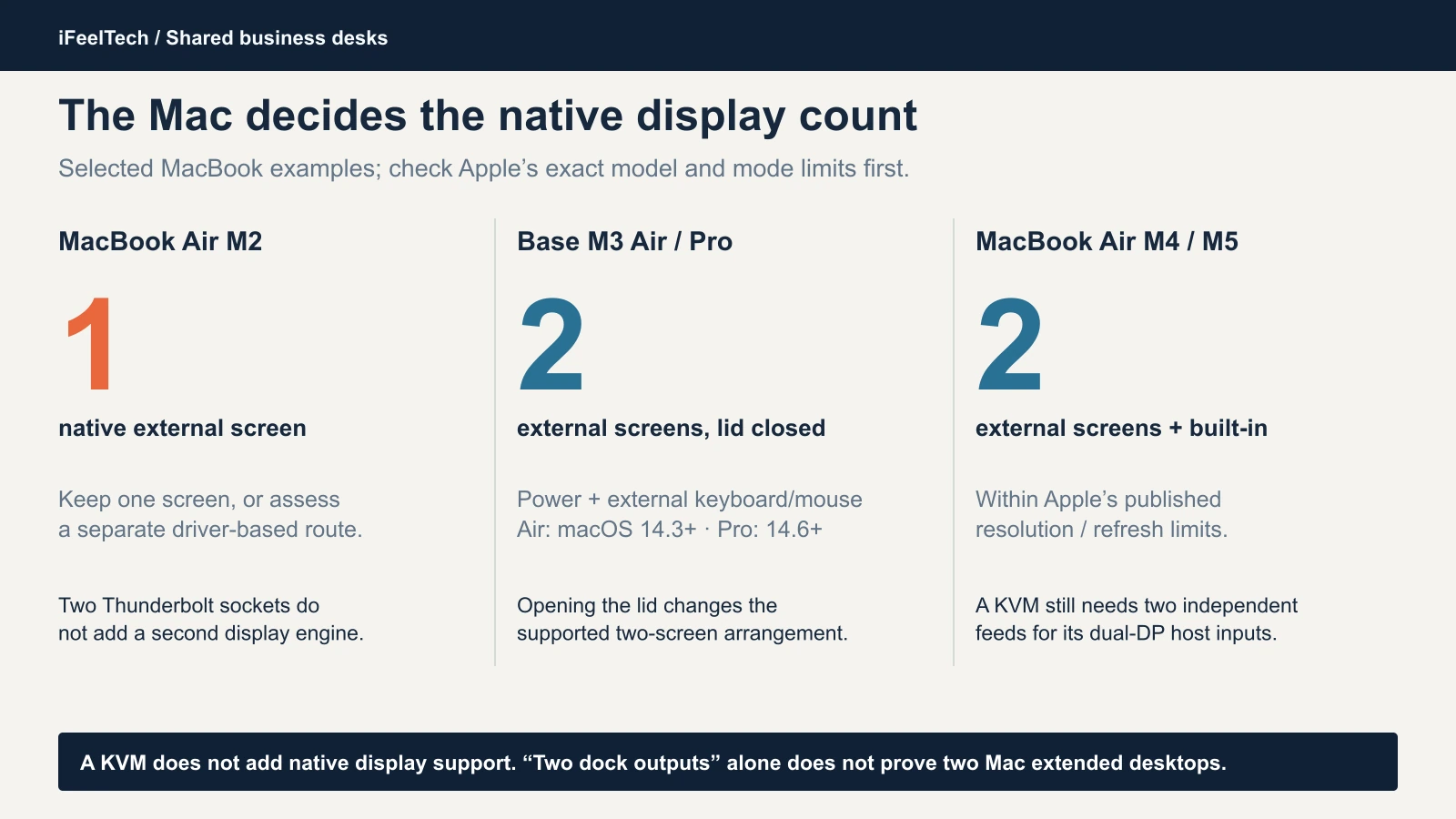
Your Mac's chip decides how many external screens you can switch.
Write down six things before you buy anything:
- Exact Mac model and chip. "M-series" is not specific enough.
- Lid state. Some Macs support a second screen only with the lid closed.
- macOS version. Apple ties some dual-display modes to a minimum release.
- Windows video outputs. Verify that the Windows computer and its dock can drive both displays at once at your resolution and refresh rate. Count supported display streams, not physical sockets.
- Each monitor's connectors, resolution and refresh rate.
- Free ports. Note which port on each computer will carry USB data to the switch, and whether the computer charges over USB-C.
Apple's pages set the Mac limits. The MacBook Air with M2 lists one external display. The base M3 MacBook Air and MacBook Pro support two with the lid closed, power, external input devices and macOS Sonoma 14.3 or later on the Air (14.6 on the Pro). The MacBook Air with M4 or M5 supports two external displays alongside the built-in screen within Apple's resolution and refresh limits. These are named examples, not a complete Mac list, so look up your exact model. If you are still choosing a Mac, our MacBook buying guide compares external display support across the current lineup.
Windows and macOS treat docks differently. On a supported Windows system, DisplayPort MST can carry two independent extended displays over one connection. macOS does not extend displays over MST (Plugable explains the difference) and needs a different arrangement. Our dock guide explains how to check the laptop and dock display path.
One screen: a monitor with a built-in KVM switch
A monitor with a built-in KVM is the least complicated one-screen desk, because the screen and the USB switch are one device with one manual.
Dell UltraSharp U2725QE: the premium one-screen choice
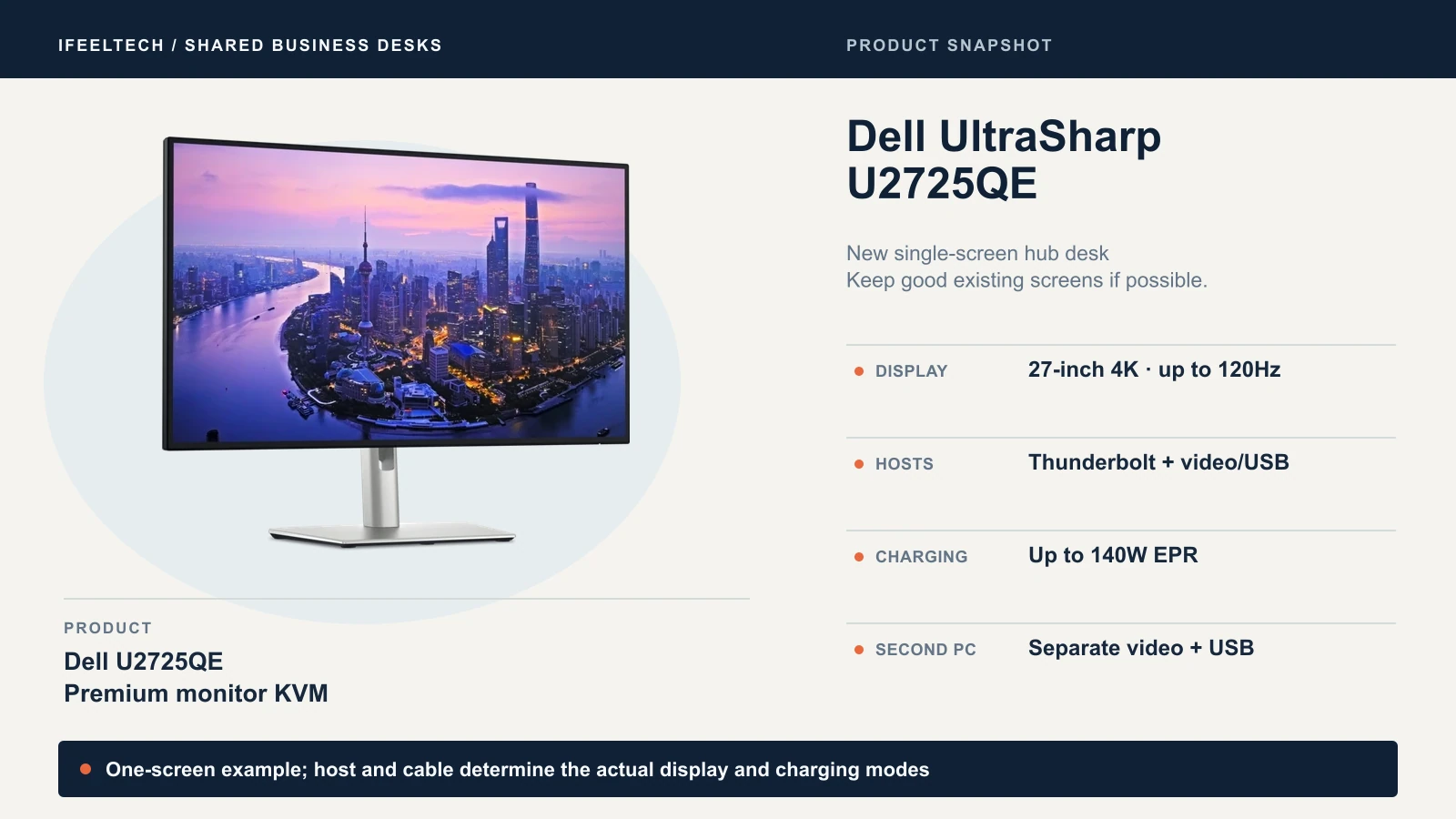
The U2725QE is a 27-inch 3840 x 2160 monitor with refresh rates up to 120Hz. It has a Thunderbolt 4 upstream port that can supply up to 140W to a supporting host, a separate data-only USB-C upstream port and 2.5GbE. Dell's box contents list a 1.8 m DisplayPort cable, a 1 m USB-C to USB-A cable and a 1 m Thunderbolt 4 cable, though Dell notes some items may be optional, so confirm on your unit.
Best for a buyer who needs a new monitor anyway and wants a single-cable Mac with a Windows PC on the side. For the display itself, see our Dell business monitor guide and the Mac mini monitor guide. Less suitable if your current screens are good, or the host or cable cannot deliver the mode you want. If your current screens are good, a USB switch ($39.95 to $108 in our checks) is the lower-cost route.
Dell says the 140W figure needs a supporting host and the in-box Thunderbolt 4 passive cable, so treat it as a ceiling, not a promise for every laptop. Dell's general KVM page also says the monitor's downstream USB ports do not support sharing a webcam and do not support Bluetooth keyboards or mice, though a wireless USB receiver works. That page is not specific to the U2725QE, so check your model's manual.
Check the Dell U2725QE listing
How to wire the U2725QE for a Mac and a Windows PC
Each computer needs both video and USB data connectivity to the monitor. Thunderbolt carries both through one cable. HDMI or DisplayPort carries video only, so that computer also needs a USB upstream cable.
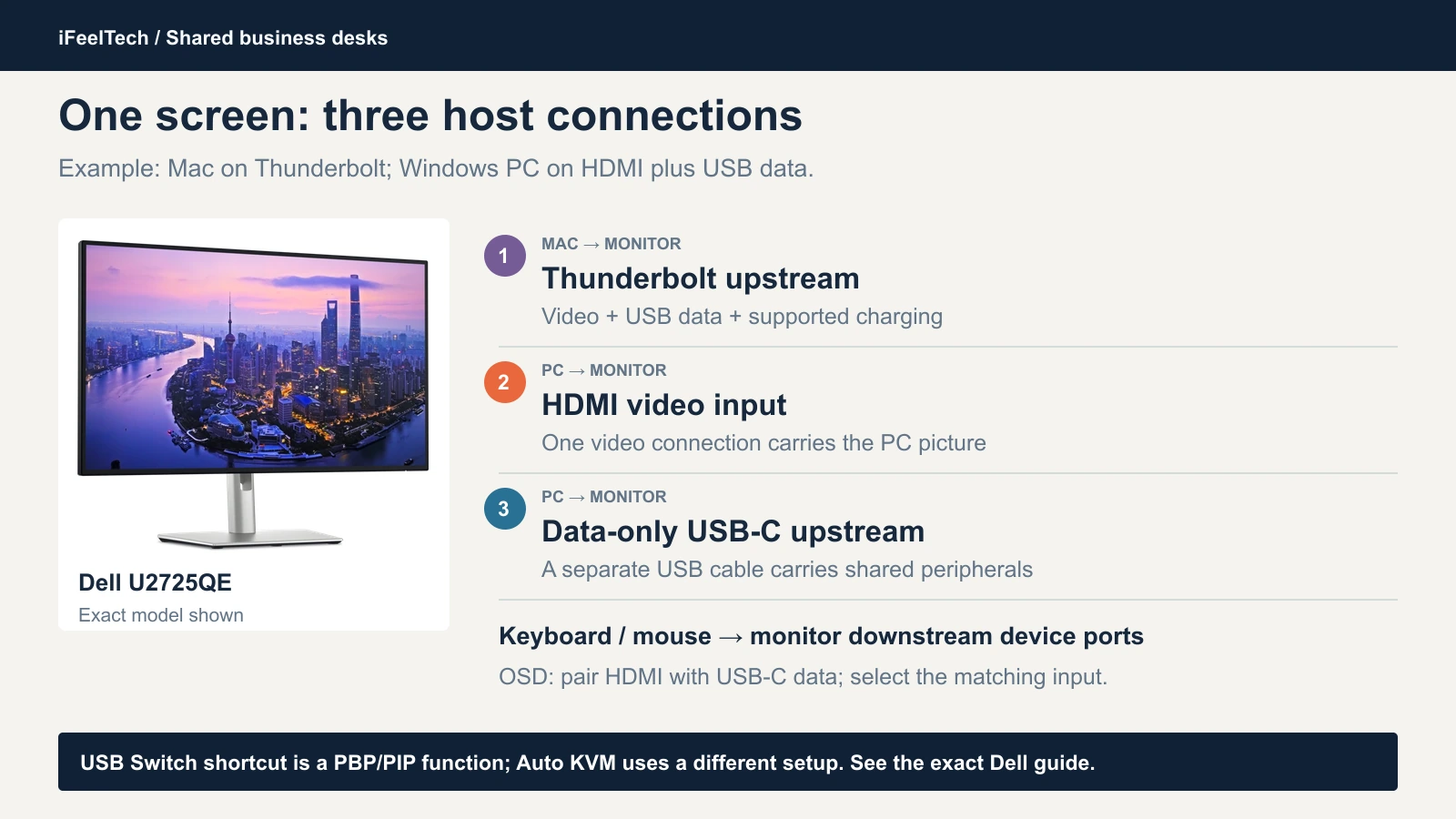
For a Mac with Thunderbolt video and a Windows desktop with HDMI and a USB-A port:
- Mac: one Thunderbolt cable to the monitor's Thunderbolt upstream port. It carries video, USB data and compatible charging.
- Windows PC video: an HDMI cable to the monitor's HDMI input. If the PC has DisplayPort, the DisplayPort cable in the box does the same job.
- Windows PC data: a USB-A to USB-C cable from the PC to the monitor's separate data-only USB-C upstream port.
- Keyboard and mouse: into the monitor's downstream USB ports.
- Pair the ports. In the monitor's USB menu, associate the HDMI input with the USB-C upstream, so the shared devices follow the computer on screen. A Thunderbolt connection needs no extra setting.
If the PC's USB cable is missing or unpaired, the PC shows its picture but receives no keyboard or mouse input. Dell's manual keeps two functions apart. The USB Switch shortcut works only in picture-by-picture or picture-in-picture mode. Auto KVM is set up with PBP off, Auto Select on and the USB ports paired to the video inputs. We found no switching time in Dell's guide. Follow the manual for your model.
Two laptops: a laptop with a Thunderbolt or USB-C DisplayPort port can use the Thunderbolt upstream, but only one computer can occupy it. The second laptop needs video on HDMI or DisplayPort and its USB data on the data-only USB-C upstream. A laptop with a single USB-C port and no video socket needs a dock or adapter that provides a video output and a USB data connection together.
Dell UltraSharp U2726DER: the native-QHD alternative
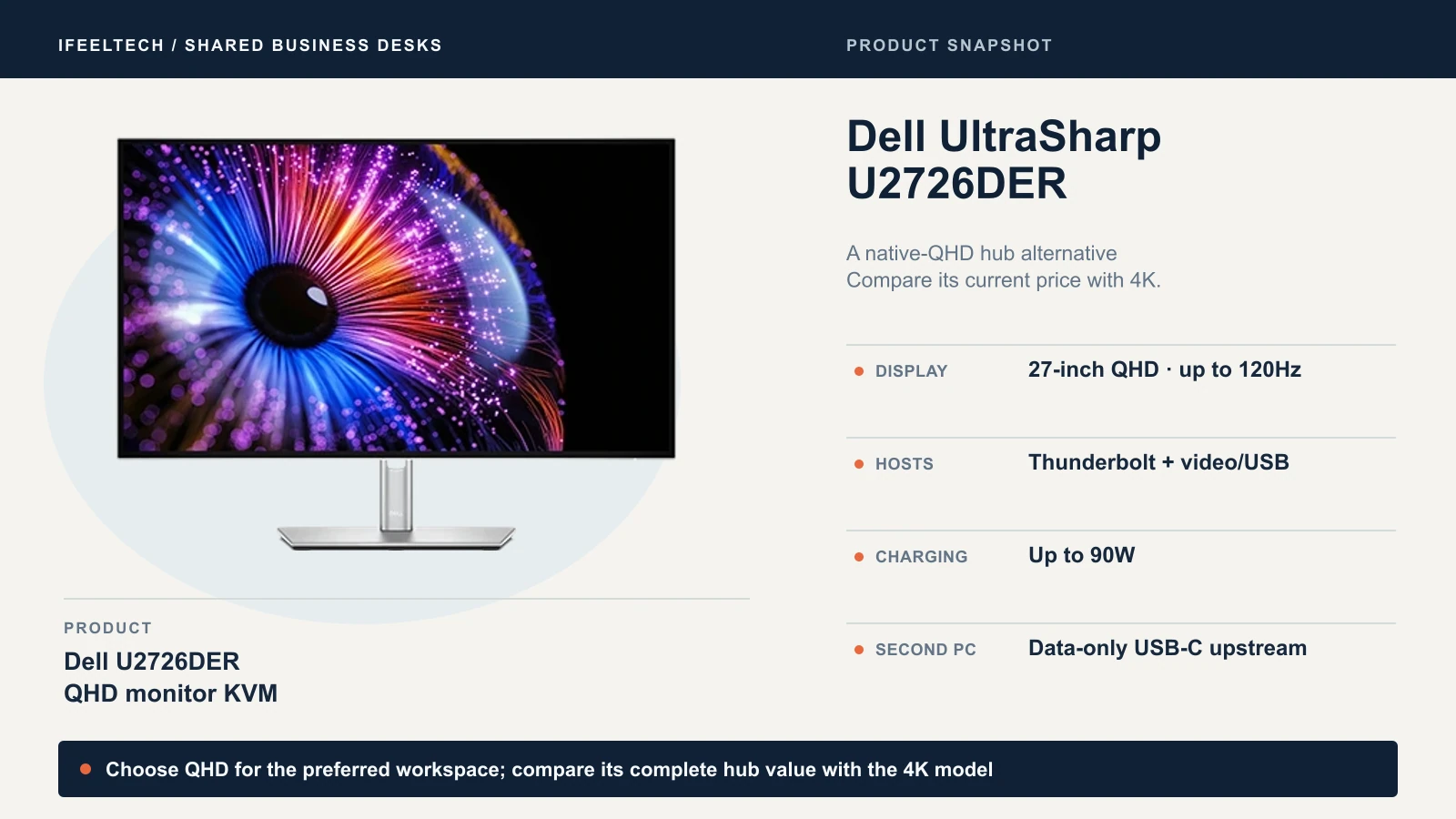
The U2726DER is the QHD sibling: 27 inches at 2560 x 1440, up to 120Hz, a Thunderbolt 4 upstream port up to 90W, a data-only USB-C upstream and the same KVM structure. Dell's box contents list a DisplayPort cable, a USB-C to USB-A cable and a Thunderbolt cable, though included cables vary by country. In Dell's June 2026 (Rev. A00) guide, the USB pairing and Auto KVM steps are on printed pages 65 to 67. Use that guide, not the U2724DE's.
Best for buyers who prefer native QHD, or for whom 4K text scaling does not matter. On October 10, 2026, Amazon.com listed it at $599.99 against $649.99 for the U2725QE, a $50 difference that may not justify the lower resolution.
Check the Dell U2726DER listing
If you own two good screens, an external KVM can keep them.
Two screens: an external dual-monitor KVM switch
An external KVM drives two screens only when each computer already outputs two independent video feeds, because the switch passes video through and does not generate any.
StarTech P2DD46A2-KVM-SWITCH: the dual-DisplayPort choice
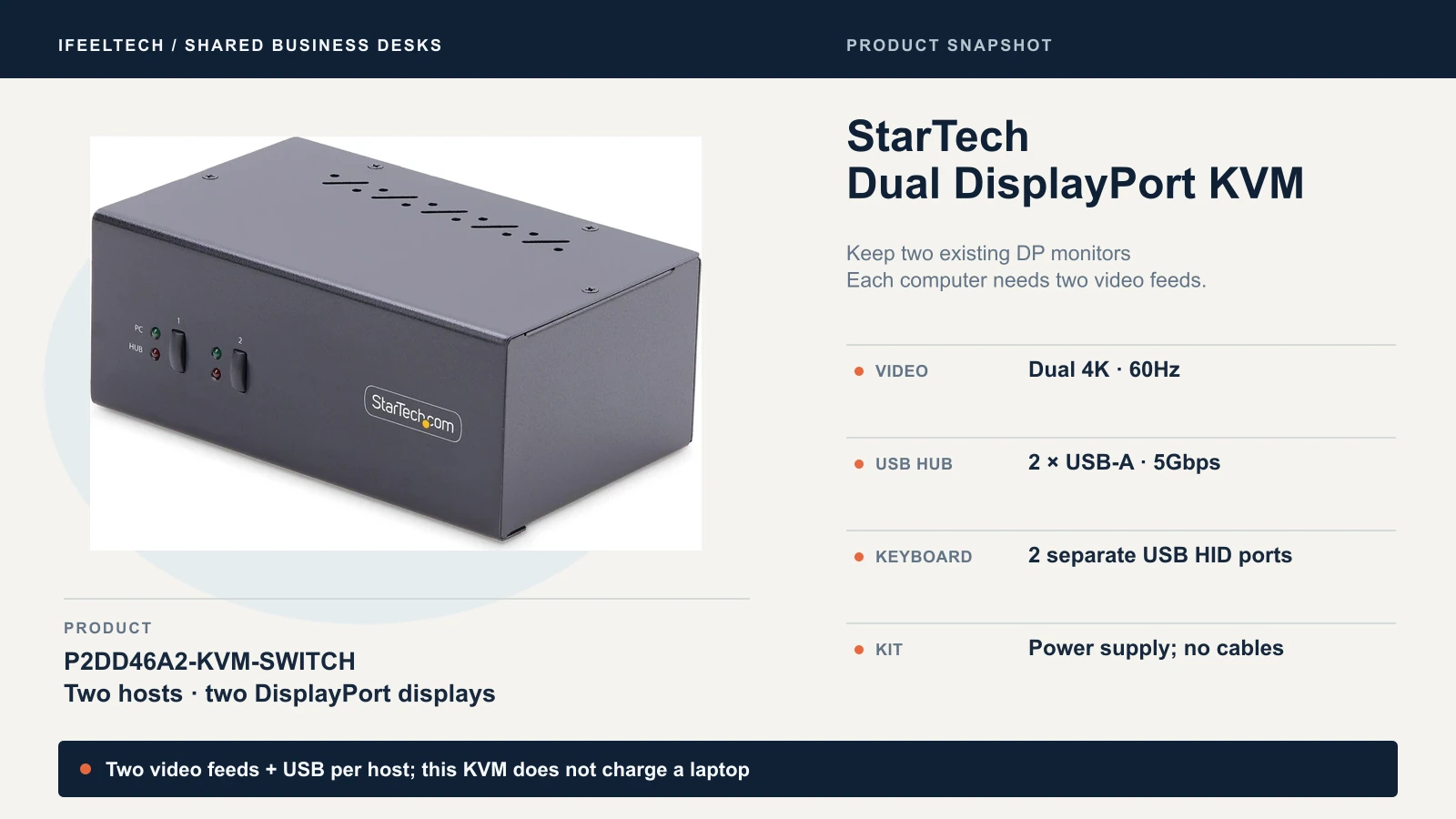
StarTech's datasheet documents two computers sharing two DisplayPort 1.2 displays at up to 3840 x 2160 and 60Hz. The switch has two USB 5Gbps hub ports for peripherals, two separate USB 2.0 ports for the keyboard and mouse, push-button and hotkey selection, a two-year warranty and a power adapter. It includes no host cables. StarTech also supplies a Windows layout utility for saving window positions, which is a Windows tool and not a guarantee for a Mac.
StarTech documents dual 4K at 60Hz. It is not suited to 4K at 120Hz. The datasheet says other resolutions and refresh rates may be supported, so for 120Hz at a lower resolution such as QHD, get StarTech's confirmation for your exact mode before you order. Also, each host needs two native video feeds, not one feed split in two.
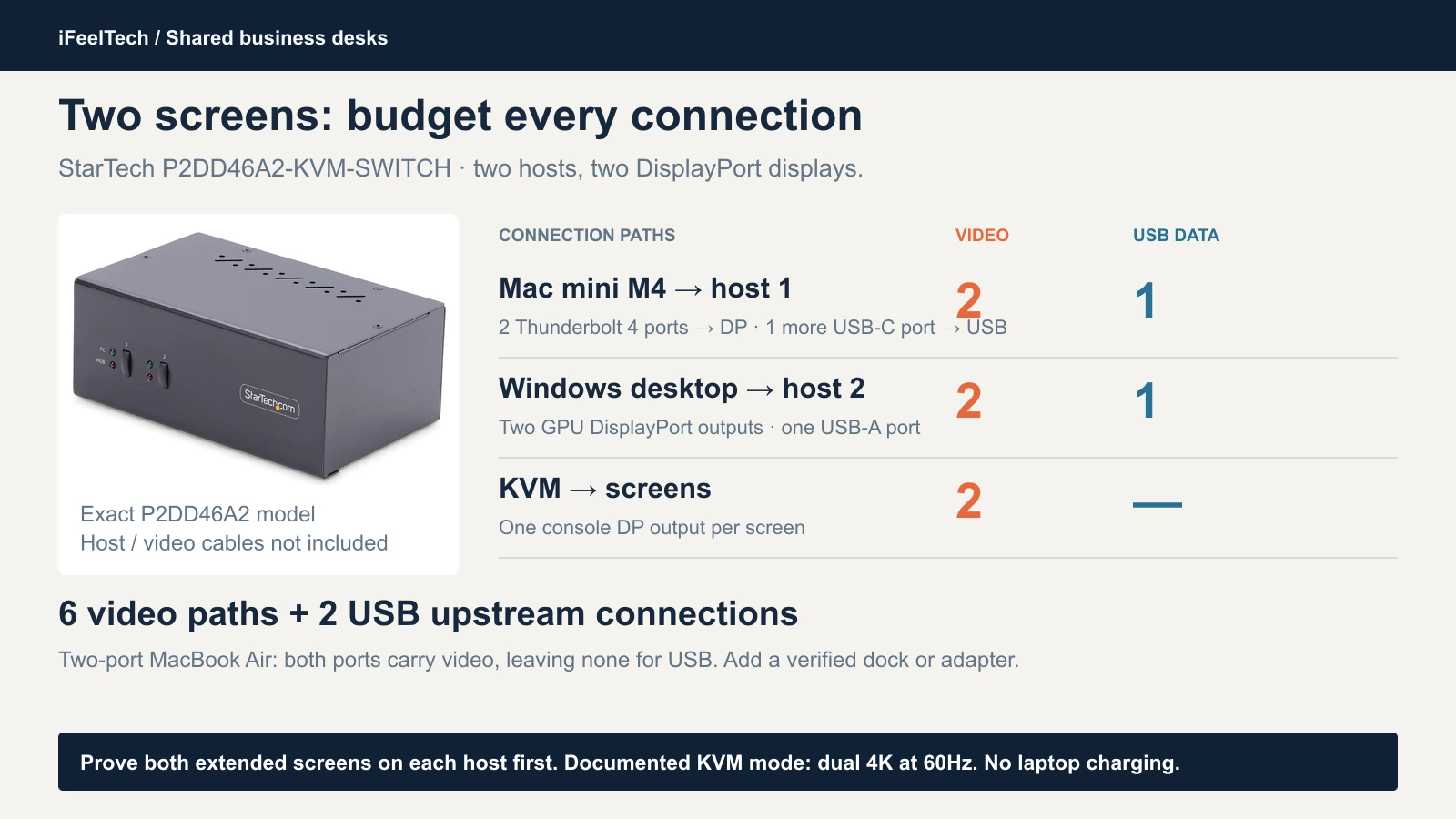
Here is one complete configuration, for a Mac mini M4 and a Windows desktop:
- Mac mini M4, host 1: two USB-C to DisplayPort video cables from two of its Thunderbolt 4 ports to the host 1 inputs, and a USB-C to USB-B data cable from a third port to the host 1 USB upstream. Apple's Mac mini specifications list three Thunderbolt 4 ports on the back and two USB-C ports on the front.
- Windows desktop, host 2: its two graphics-card DisplayPort outputs to the host 2 inputs, and a USB-A to USB-B cable to the host 2 USB upstream.
- Screens: two DisplayPort cables from the switch's console outputs to the monitors.
That is six video paths and two USB data connections. Adapters can replace plain cables, but direction matters: a passive DisplayPort-to-HDMI adapter does not turn an HDMI computer output into a DisplayPort input. This is a planning example, not a certified adapter pairing, so confirm both screens work directly on each computer before the switch goes in.
Two-port MacBooks need a different USB connection
Apple's M3 MacBook Air specifications list two Thunderbolt / USB 4 ports plus MagSafe 3 for charging. On a MacBook Air with two USB-C ports, two simple USB-C to DisplayPort cables use both ports and leave none for the KVM's USB upstream connection, so the shared keyboard and mouse cannot reach that Mac through the switch. You need a compatible adapter or dock that provides display outputs and USB data together, or another verified arrangement that preserves both independent displays. Apple notes that a supported hub can carry up to two displays over one Thunderbolt port, but we have not verified a specific dock for this switch, and macOS does not extend displays over MST. Confirm the pairing with the dock maker for your exact Mac. A USB-only switch removes the switch from the video path, but still needs a USB data connection. If both Mac ports are occupied by display cables, you still need a compatible adapter or dock that provides video and USB data together.
Best for two owned DisplayPort screens, with both computers driving two independent displays and each having a free port for USB. Less suitable if your Mac supports one native external screen, your monitors are HDMI-only and you have no verified conversion plan, or you need 4K at 120Hz or guaranteed layout memory.
Check the StarTech P2DD46A2 listing
A comparison worth knowing: the ATEN CS1942DP. ATEN's current CS1942DP manual documents the same dual-DisplayPort idea at the 4K/60Hz class, with four DisplayPort cables and two USB cables in the kit. It recommends keeping the run from source to monitor within 3 m, 1.5 m on each side of the switch. We do not link to a purchase, because the only offer we found came from a marketplace seller whose authorization and US warranty we could not confirm. Buy it from an ATEN-listed retailer if you go this way.
Keep your monitors: use a USB switch
A USB switch moves keyboard, mouse, webcam and other USB devices between computers and leaves the video alone.
Run each computer's video straight to a spare input on each screen. Press the switch for the USB devices, then change each monitor to the matching input. That is two kinds of action per switch, not one, but it takes the switch out of the video path.
ATEN US5324: the two-computer fit
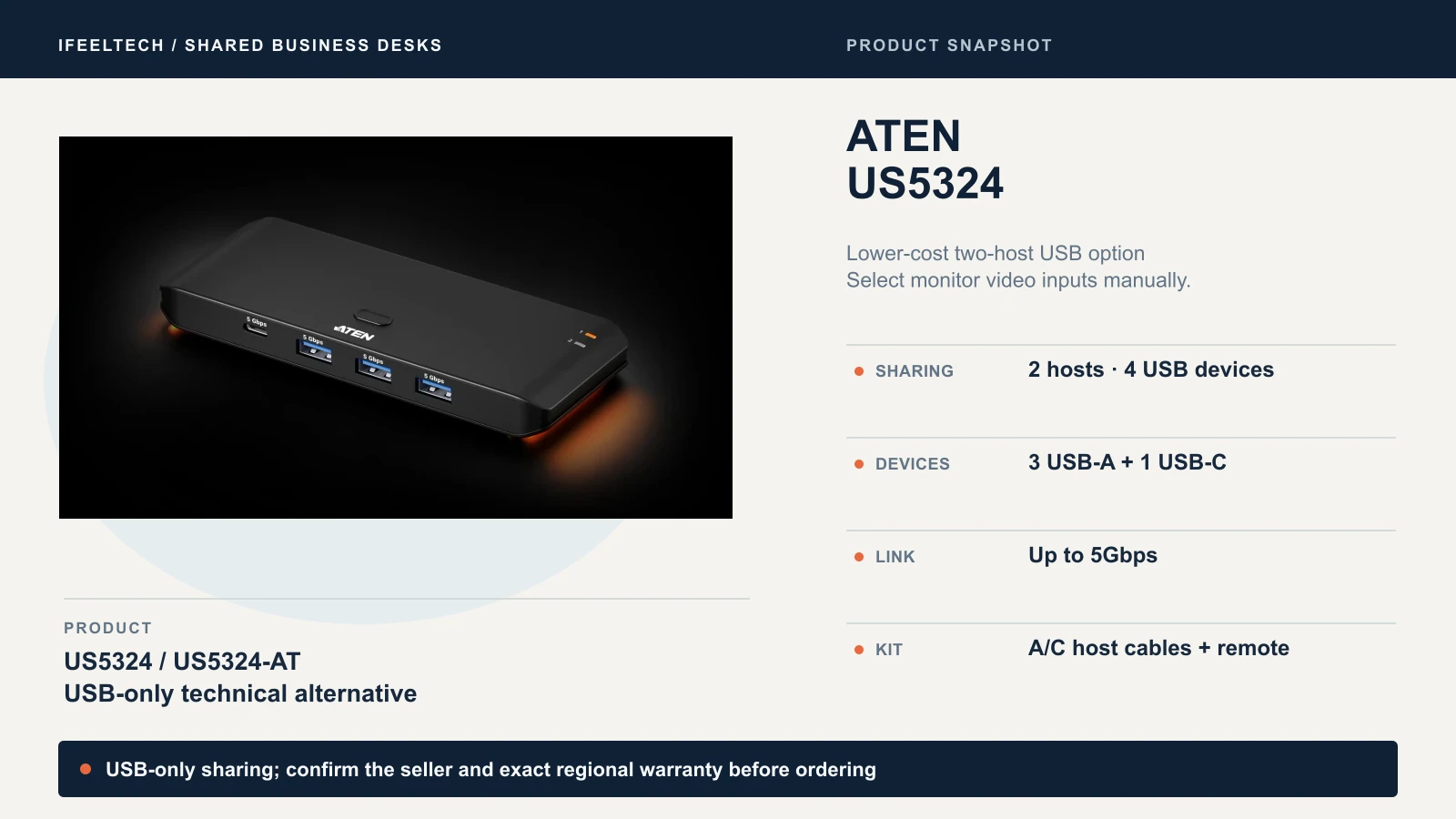
For a Mac and a Windows PC, the US5324 fits best on its documented features. ATEN's US product page lists two computer connections, three USB-A and one USB-C device ports, up to 5Gbps, a built-in button and a remote, and plug-and-play on Windows, macOS and Linux. The kit has one USB-C to USB-A cable and one USB-C to USB-C cable, 1.5 m each, so a USB-A Windows PC and a USB-C Mac connect without buying cables. The USB-C power input is optional. It is a switch, not a charger.
The documented features fit this arrangement. ATEN's US where-to-buy page lists B&H Photo Video among its US e-commerce retailers, and you can buy the US5324 directly from B&H. Amazon.com showed $39.95 on October 10 from a seller named ATEN Technology, and we could not confirm that the manufacturer owns that account. Confirm the warranty that applies to the unit you buy.
StarTech HBS304A24A: for three or four computers
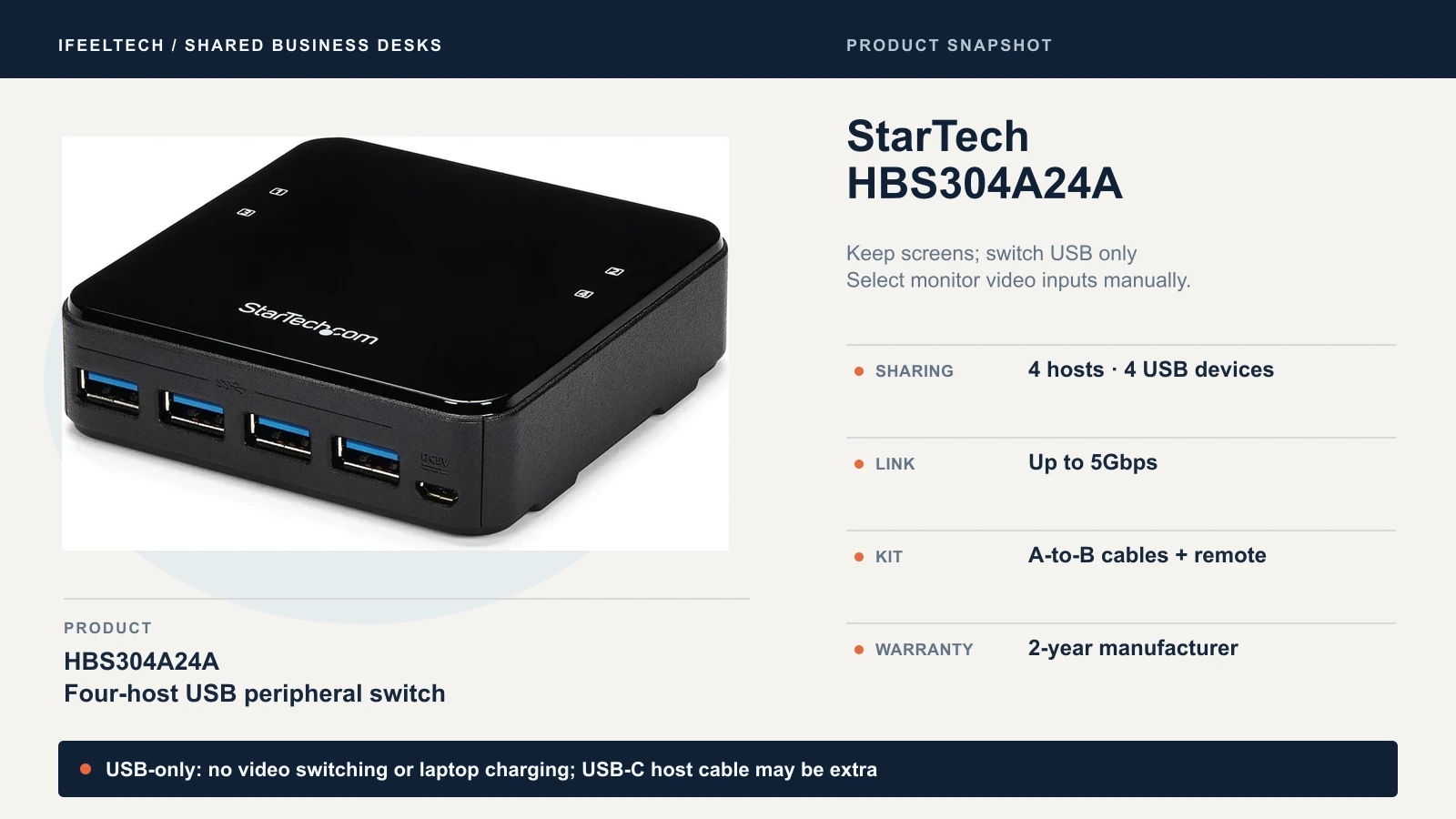
The HBS304A24A shares four USB 5Gbps devices among up to four computers, with a wired remote selector. The kit has four USB-A to USB-B cables, two 1.2 m and two 1.8 m, plus a 1.8 m remote. StarTech documents a two-year warranty. It is USB-powered, with an optional 5V/2A port for higher-power devices or when fewer hosts are connected. A USB-C-only Mac needs a 5Gbps USB-C to USB-B data cable, since the kit's cables are A to B.
Best for sharing peripherals among three or four computers, or for buyers who want an Amazon.com-sold unit from an established business accessory maker. For two computers, it costs $108 against $39.95 for ATEN's switch, and two of its four host ports go unused. Neither switch carries video.
Check the StarTech HBS304A24A listing
Two rules apply to either switch:
- Bluetooth pairing is separate. A switch does not move a paired keyboard. A shared USB receiver can move.
- Do not switch mid-call or mid-write. A webcam can disconnect and reconnect, and switching away from a drive that is writing can interrupt the transfer.
Compare the complete desk cost
Count the whole desk, not the switch alone.
Switch and monitor prices are Amazon.com observations from October 10, 2026, before tax, and change. Cable costs are our planning estimates, not quotes: we assume $8 to $25 per cable depending on type. Count only what you lack. Monitors, chargers, keyboards and mice you own cost $0 here. The two USB-switch rows assume one owned monitor with a spare input for each computer, and no video cables on hand, so each computer needs one new video cable. A second monitor adds two more video cables, about $16 to $30. The USB host cables supplied in the ATEN kit are not priced. The HBS304A24A rows add the USB-C to USB-B cable that a USB-C Mac needs.
| Desk | Hardware (observed) | Estimated cables | Estimated total |
|---|---|---|---|
| Dell U2725QE, Mac on Thunderbolt, Windows desktop with DisplayPort | $649.99 | $0 (Dell's in-box DisplayPort, USB-C to USB-A and Thunderbolt cables, per its guide) | About $650 |
| Same desk, Windows PC with HDMI only | $649.99 | One HDMI cable, $8 to $15 | About $658 to $665 |
| Dell U2726DER, same two computers | $599.99 | $0 to $15 | About $600 to $615 |
| StarTech P2DD46A2, Mac mini M4 and Windows desktop, two owned DisplayPort screens | $387.99 | Four video cables and two console cables, plus two USB cables: about $80 to $135 | About $465 to $525 |
| Same desk with a two-port MacBook Air | $387.99 | As above, plus a dock or adapter that provides display outputs and USB data | Not priced: no verified pairing |
| ATEN US5324, one owned monitor | $39.95 | Two video cables, one per computer, to spare monitor inputs: $16 to $30 | About $55 to $70 |
| StarTech HBS304A24A, one owned monitor, USB-C Mac | $108.00 | USB-C to USB-B cable $10 to $15, plus two video cables $16 to $30 | About $134 to $153 |
Check the setup during the return window
Layout retention and wake from sleep depend on your exact computers and cables, so treat the first week as acceptance testing. These are reader steps that we have not performed on these products. Test both computers directly before the switch, then through it:
- Confirm each computer alone. Both screens, or the one screen, work with the cables you plan to use.
- Switch five times in each direction. Check that both screens return and the keyboard and mouse respond every time.
- Cold boot and sleep with each computer. Include the lid state your Mac setup requires.
- Check window layout. Note whether windows move after a switch, on the Mac and on Windows.
- Run a call. Test the webcam, headset and any USB receiver through the switch.
- Run the real workload for an hour if a laptop charges through a monitor, and watch the battery.
If something fails
- Approve new accessories on a Mac laptop. On Apple silicon laptops, macOS can ask you to approve a new USB or Thunderbolt accessory. For lid-closed use, Apple says to allow the external display, mouse and keyboard first. See Apple's accessory guidance.
- Keyboard emulation is not display memory. StarTech's USB emulation addresses keyboard and mouse compatibility. It does not establish that screens stay recognized or windows stay put.
- Shared USB has one budget. A 5Gbps rating is a ceiling shared by everything on the switch. A webcam, storage and a headset together can need more bandwidth or power than the switch passes. StarTech documents an optional 5V power port on the HBS304A24A.
- Check each upstream cable. Confirm its connector (A, B or C), its speed and that it carries data, not only charging.
If a step still fails after you check the vendor's manual and firmware, return the switch inside the window. If you share a work PC and a personal Mac, confirm your employer's peripheral policy allows it. TAA compliance on a desktop KVM is a procurement label, not a secure-KVM isolation certification; hardware that must keep two networks separated is a different product class, not covered here.
For hybrid desks across several staff, business computer specs and our managed IT services cover standardizing the machines before you standardize the switch.
Sources
Specifications and limits come from these manufacturer documents, reviewed on October 10, 2026. Apple's pages are linked where they are used above.
- Dell: U2725QE guide, U2726DER guide and KVM setup for Dell monitors
- StarTech: P2DD46A2 datasheet and HBS304A24A datasheet
- ATEN: US5324 datasheet and CS1942DP manual
Product photography is from Dell, StarTech.com and ATEN. Prices, sellers and firmware change, so recheck the listing on the day you order.
Related Resources
- Dual-Monitor Docks for Business Laptops — Native versus DisplayLink display paths and Mac-safe dock outputs.
- Dell 4K Dual Monitor Setup for Business — Choose the monitors before you choose how to switch them.
- Best Monitors for Mac Mini M4 — Thunderbolt hubs and display rules on macOS.
- Which MacBook Should You Buy? — External display support across the Neo, Air and Pro.
- Building a Modern Apple Office — Mac hardware, displays and networking for small business offices.
- Business Computer Specs Guide — Fleet standards for office computers.
- Managed IT Services — Deployment and support for office hardware across South Florida.
Frequently Asked Questions
Related Articles
More from Business Hardware
RAID 0 vs 1 vs 5 vs 6 vs 10: Which Fits Your Business NAS?
What each RAID level does, how many drives can fail, how much space you keep, and why RAID is not a backup. Covers SHR, rebuilds and drive failures.
10 min read
Reolink vs Lorex for a Small Office: Choosing a PoE Camera System
Compare current Reolink and Lorex PoE camera systems for an office: recording, app workflow, storage, compatibility and business purchasing checks.
12 min read
APC vs CyberPower UPS for a Small Office: How to Choose
APC or CyberPower for your office? Compare suitable UPS models by load, battery-backed outlets, runtime, replacement batteries and monitoring.
9 min read