
RAID 0 vs 1 vs 5 vs 6 vs 10: Which Fits Your Business NAS?
What each RAID level does, how many drives can fail, how much space you keep, and why RAID is not a backup. Covers SHR, rebuilds and drive failures.

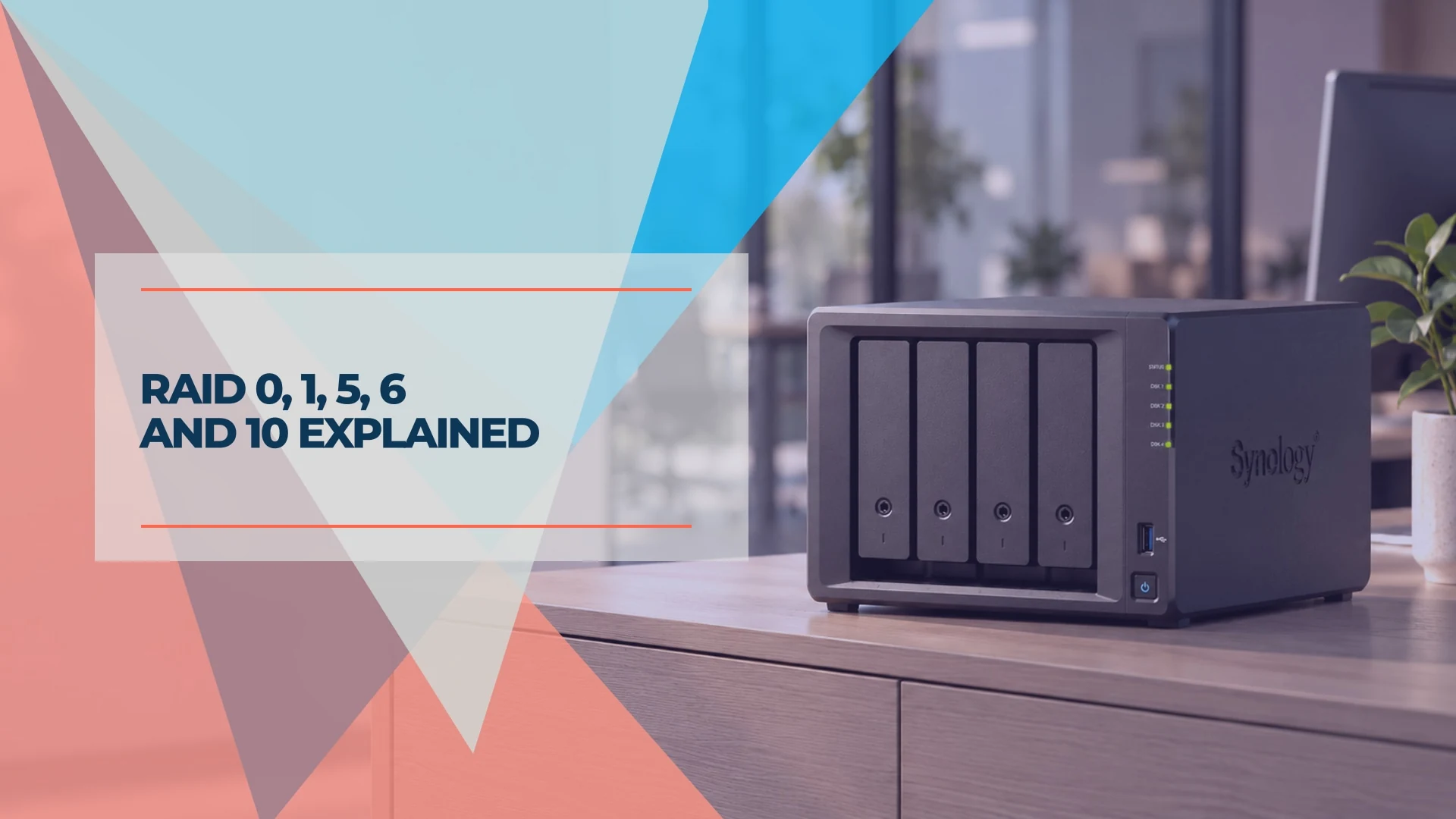
For a business NAS, common choices are RAID 5 or RAID 6 for shared file storage, RAID 10 for busy workloads, and RAID 0 only for data that can be recreated. The level you pick decides how many drives can fail, how much of your capacity you keep and how fast the pool is. RAID combines several drives into one array so that, with a redundant level, a failed drive does not take your files with it. RAID 0 is the exception.
An important distinction: RAID protects against a failed drive, not against a mistake, ransomware or a fire. This guide explains each level with the numbers from Synology's and Ubiquiti's own documentation, then covers rebuilds, hot spares and why you still need a backup. Vendors use different words, so for clarity: an array or RAID group is the set of drives working together, a storage pool can contain one or more groups, and a volume is where the file system lives.
The short version
- RAID 0: fast and full-size, but one failed drive loses all data on the array. Suited to scratch space that can be recreated.
- RAID 1: a mirror. Two drives hold identical data and one can fail.
- RAID 5: one drive's worth of parity. Survives one failed drive, keeps most of the space.
- RAID 6: two drives' worth of parity. Survives two failed drives.
- RAID 10: mirrored pairs striped together. Half the space, strong performance.
- Backups: no RAID level replaces a separate backup.
What does each RAID level do?
Two ideas build every level. Striping spreads data across drives for speed and capacity. Redundancy stores extra information (a mirror copy or parity) so a failed drive's data can be rebuilt. Each level mixes the two differently.
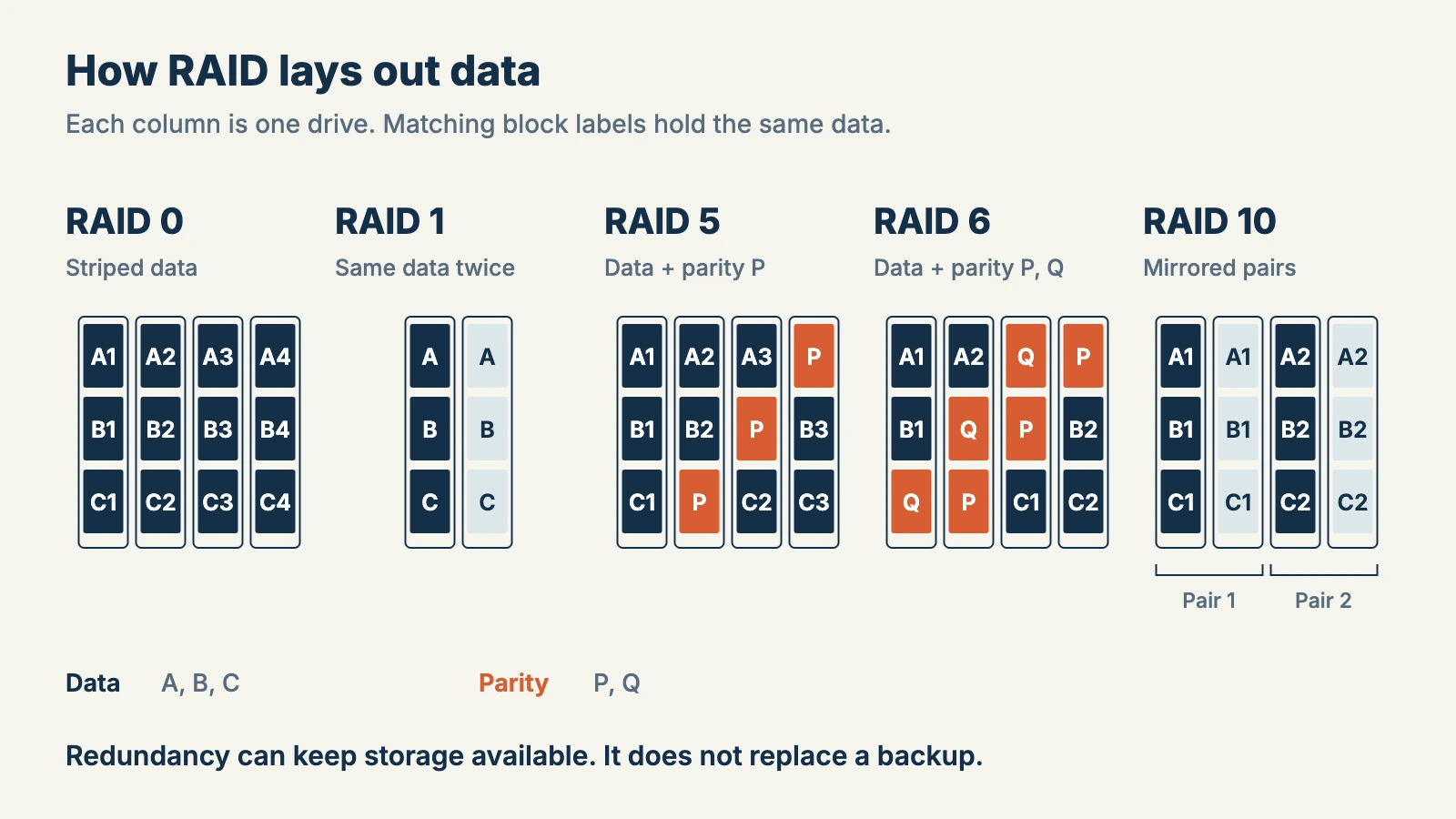
| RAID level | Minimum drives | Drive failures it survives | Usable space (equal drives) |
|---|---|---|---|
| RAID 0 | 2 | None | All drives |
| RAID 1 | 2 | 1 (with 2 drives) | One drive |
| RAID 5 | 3 | 1 | (N − 1) drives |
| RAID 6 | 4 | 2 | (N − 2) drives |
| RAID 10 | 4, an even number | Any 1; more only if no mirrored pair loses both drives | Half the drives |
These figures come from Synology's RAID type documentation, and Ubiquiti publishes comparable protection levels for UniFi in its UniFi RAID help article. The mapping depends on the model: UniFi NVRs and UNAS devices label RAID 5 as Basic Protection, RAID 6 as Advanced Protection and RAID 10 as Better Performance, smaller UNAS models offer fewer options, and ENAS uses RAID-Z levels. In the table, N is the number of drives. With four 8 TB drives, RAID 5 leaves 24 TB, RAID 6 and RAID 10 leave 16 TB, and RAID 0 leaves 32 TB. Your NAS screen may show a smaller number because it reports binary units and reserves some space for the system and file system. See our NAS drive guide for why.
What is RAID 0, and when is it safe?
RAID 0 stripes data across two or more drives with no redundancy. It is fast and uses all the space, but a single drive failure loses all data on the array. Synology suggests it for non-critical data that needs high performance and capacity, such as temporary video editing scratch disks. If losing the volume would interrupt the business, a redundant level is the more suitable choice.
What is RAID 1?
RAID 1 writes identical data to every drive in the set. It is most often built with two drives, and the data stays available as long as one drive works. You pay for it in capacity: two 8 TB drives give 8 TB. It suits a two-bay NAS or a small volume where fault tolerance matters more than space.
What is RAID 5, and how does parity work?
RAID 5 stripes data across the drives and adds one parity block per stripe, spread across all of them. If one drive fails, the NAS rebuilds its data from the parity and the remaining data blocks. You lose one drive's worth of space to parity, so more drives mean a better ratio.
The trade-off is that the array has no spare protection while it is degraded. A second failure before the rebuild finishes makes the volume unavailable, and you would normally restore from backup. Synology also says read and write performance is severely affected while a RAID 5 array runs degraded, although the real impact varies with workload and hardware. Synology's guidance is that RAID 5 is a good balance of capacity and protection with no more than seven drives, and it recommends RAID 6 beyond that. Treat that as vendor guidance, not a universal threshold.
What is RAID 6, and is it worth the extra drive?
RAID 6 stores two parity blocks per stripe, so it survives two failed drives at once. The extra parity can reduce write performance compared with RAID 5, depending on the workload, the CPU or controller and caching, and you give up a second drive's worth of space. Synology describes it as ideal for large arrays where a second failure is more likely, and Ubiquiti points to RAID 6 as the choice for critical or sensitive data.
With four 8 TB drives in a four-bay NAS, the choice is usually RAID 5 for 24 TB of space or RAID 6 for 16 TB and a margin of safety during rebuilds. Decide on usable capacity, how long a restore would take and how much downtime the business can tolerate.
What is RAID 10?
RAID 10 mirrors drives in pairs, then stripes data across the pairs. It gives strong read and write performance. It is guaranteed to survive any one failed drive, and it can survive more only if both drives in the same mirrored pair do not fail. Only half the raw capacity is usable. Synology positions it for demanding workloads such as databases and virtual machines, where random writes matter. For a shared office folder, RAID 5 or RAID 6 is often enough, because the network, the drives and the applications often limit speed before the RAID level does.
What is Synology Hybrid RAID (SHR)?
SHR is Synology's automated RAID management. It combines drives of different sizes while wasting less space than classic RAID, though not every byte is usable and the benefit depends on the mix of drives. A single-drive SHR pool has no fault tolerance. SHR-1 needs at least two drives to survive one drive failure (at two drives it behaves like a mirror), and SHR-2 needs at least four to survive two (Synology's SHR documentation). Synology recommends SHR-1 for most small arrays on models without RAID group support, and it is the beginner-friendly default. SHR only exists on Synology, and UniFi requires all drives in a RAID group to be the same size. Our Synology vs UGREEN NAS comparison covers how the platforms differ. Our Synology and UniFi comparisons cover the differences.
What happens during a rebuild?
When a drive fails in a redundant level (not RAID 0), the pool keeps running for as long as it stays within that level's remaining tolerance. You replace the drive, and the NAS reads the surviving drives to rebuild the missing data onto the new one. The rebuild is the period with reduced fault tolerance, because the array has less protection left and every remaining drive is working hard.
What helps in practice:
- Act on the first warning. UniFi Drive marks a pool "At Risk" when a drive is faulty. Check the console to see which bay and what the diagnosis is, confirm your backup, and then follow the replacement steps. Do not pull a drive based only on a general warning. Set up drive-failure notifications on any NAS so they reach a person.
- Check the backup first. Confirm it is current and restorable before you touch the array. Our restore-testing guide shows how.
- Use a hot spare where it is offered. UniFi describes a hot spare as a standby drive that starts the rebuild automatically when a drive fails, on the models that offer it. Synology lets you configure hot spares on SHR, RAID 1, RAID 5, RAID 6 and RAID 10. A hot spare shortens the gap but does not add another parity level or replace a backup.
- Run data scrubbing. On Synology, scheduled scrubbing on Btrfs SHR (three or more drives), RAID 5 and RAID 6 pools checks data consistency and can repair inconsistencies, provided the data checksum option is enabled on the shared folder (Synology's scrubbing requirements).
- Use drives your NAS vendor supports. UGREEN does not recommend SMR drives for RAID because rewrites and rebuilds can be slower and less predictable, and Ubiquiti specifies CMR drives for its 3.5-inch HDD storage.
- Plan for hours to days. Ubiquiti's best-case example is about 11 to 12 hours for an 8 TB drive at up to 200 MB/s, but it warns that real-world speeds are typically 1/4 to 1/10 of that, and the system stays slower while it works. Use your NAS's progress estimate rather than a fixed promise.
What should you do when a drive fails?
- Confirm you have a current backup that you can restore.
- Identify the failed drive by bay and serial number, so you replace the right one.
- Check that the replacement is compatible and at least the same capacity, and whether your NAS supports hot-swapping.
- Follow your vendor's repair workflow, and do not reinitialize or recreate a degraded pool.
- Wait for the array to return to a healthy state before replacing another drive.
Can you change RAID levels or add drives later?
Not always. Existing RAID levels often cannot be converted in place, and adding bays does not guarantee that every layout can expand. For example, Ubiquiti allows a UNAS Pro to convert between Basic and Advanced Protection only within certain drive counts. Check your model's migration rules before you commit. A UPS sized for the office and a tested restore time are also part of the plan, because a power cut during a rebuild adds risk that a UPS reduces.
Why is RAID not a backup?
RAID redundancy helps storage stay available through certain drive failures. It does not preserve an earlier version of a deleted or encrypted file. A separate, protected backup gives you something to restore when the current files or the whole NAS are unavailable. Several common causes of data loss are not hardware failures at all:
- An employee deletes a folder or overwrites a file. The change applies to the array's current data, and RAID keeps no earlier version.
- Ransomware encrypts the shared folders from a connected computer, so the files in the array are changed.
- File system corruption or a bad firmware update. Some systems with checksums can detect and correct some corruption, but that is not the same as keeping an earlier version.
- A failed controller or NAS unit. The array may become unavailable without the disks being destroyed.
- Theft, fire or water in the room where the NAS sits, which can take the whole system.
CISA's ransomware guidance tells organizations to keep offline, encrypted backups and to test restores, because many ransomware variants try to find and delete or encrypt backups they can reach. A NAS volume that other computers can write to is reachable. Keep the backup isolated from the accounts and network paths that can write to the NAS, and use immutable copies where your backup product offers them. A second writable NAS is not automatically safe.
Snapshots help with the first two. They let you roll a folder back to an earlier moment. But local snapshots share the NAS's storage failure domain, so they are lost if the pool is lost; replicated or offsite snapshots can survive that. Read our Synology snapshots guide for what they cover. The fix is the 3-2-1 backup rule: three copies of your data (the live data counts as one), on two kinds of media, with one copy offsite. If you worry about stolen data as well as lost data, double-extortion ransomware explains why backups alone are not the whole answer.
Which RAID level should you choose?
Capacity is one input. Also weigh how long a restore would take and how much downtime the business can tolerate.
| Your situation | A sensible choice |
|---|---|
| Two-bay NAS, important files | RAID 1, or SHR-1 on Synology |
| Four-bay NAS, shared office files | RAID 5 or SHR-1 for space, RAID 6 or SHR-2 for extra safety |
| Four or more bays, space is not tight | RAID 6 or SHR-2 |
| Databases or virtual machines, performance first | RAID 10 |
| Scratch space you can recreate | RAID 0 |
Synology's own guidance for models without RAID groups suggests SHR-1 for two to four drives and SHR-2 once you reach eight. Check your model's supported types before you plan.
What should you do next?
Write down your NAS model, number of bays and which RAID level the pool uses today, and how long a restore from backup would take. Confirm that alerts reach a person, that a hot spare or a spare drive is on the shelf, and that a backup exists off the NAS and has been restored at least once. If you are choosing hardware, the NAS buying guide is the starting point, and the 8-bay NAS guide covers larger arrays. For help with NAS setup, backup and monitoring, see our managed IT services.
Related resources
- How to choose NAS drives — CMR vs SMR, capacity and drive compatibility.
- Synology snapshots explained — what snapshots cover and where they stop.
- The 3-2-1 backup rule — the copy, media and offsite structure behind a backup plan.
- Backup restore testing — how to confirm a backup can be restored.
- UniFi NAS guide — UniFi NAS models and their protection options.
- Double extortion ransomware — why backups alone do not cover stolen data.
Sources
- Synology, What RAID type is best for my storage — kb.synology.com
- Synology, What is Synology Hybrid RAID (SHR)? — kb.synology.com
- Synology, Data Scrubbing — kb.synology.com
- Ubiquiti, Storage Protection and Data Redundancy in UniFi (RAID) — help.ui.com
- Ubiquiti, Expanding RAID Storage Size — help.ui.com
- Ubiquiti, UniFi Storage Requirements and Compatibility — help.ui.com
- CISA, #StopRansomware Guide — cisa.gov
Technical details were checked against these sources on October 30, 2026. Capacity figures assume equal drives and ignore system and file system overhead.
Frequently Asked Questions
Related Articles
More from Business Hardware
Best NAS for Small Business 2026: Synology, UGREEN & UniFi Compared
Compare the top NAS systems for small business in 2026. Synology DS925+, UGREEN NASync DXP4800 Plus, and UniFi UNAS Pro reviewed with specs, pricing, and practical trade-offs.
21 min read
Synology Snapshots Explained: Complete 2026 Guide with Immutable Protection
Learn how Synology Snapshots protect NAS data. Learn how to enable Immutable Snapshots (WORM), configure DSM 7.2+ features, and implement immutable defense strategies with Btrfs file systems.
16 min read
Best 8-Bay NAS for Small Business in 2026: UGREEN vs Synology vs UniFi
Compare UGREEN DXP8800 Plus, Synology DS1825+ and UniFi UNAS Pro 8 by usable capacity, 10GbE, backup software, expansion and complete cost.
19 min read