

Dell 4K Dual Monitor Setup for Business Under $2,000
Dell S2725QC vs S2725QS: Complete dual 4K monitor setup guide for small businesses. Compare USB-C vs traditional connectivity with pricing and configurations.

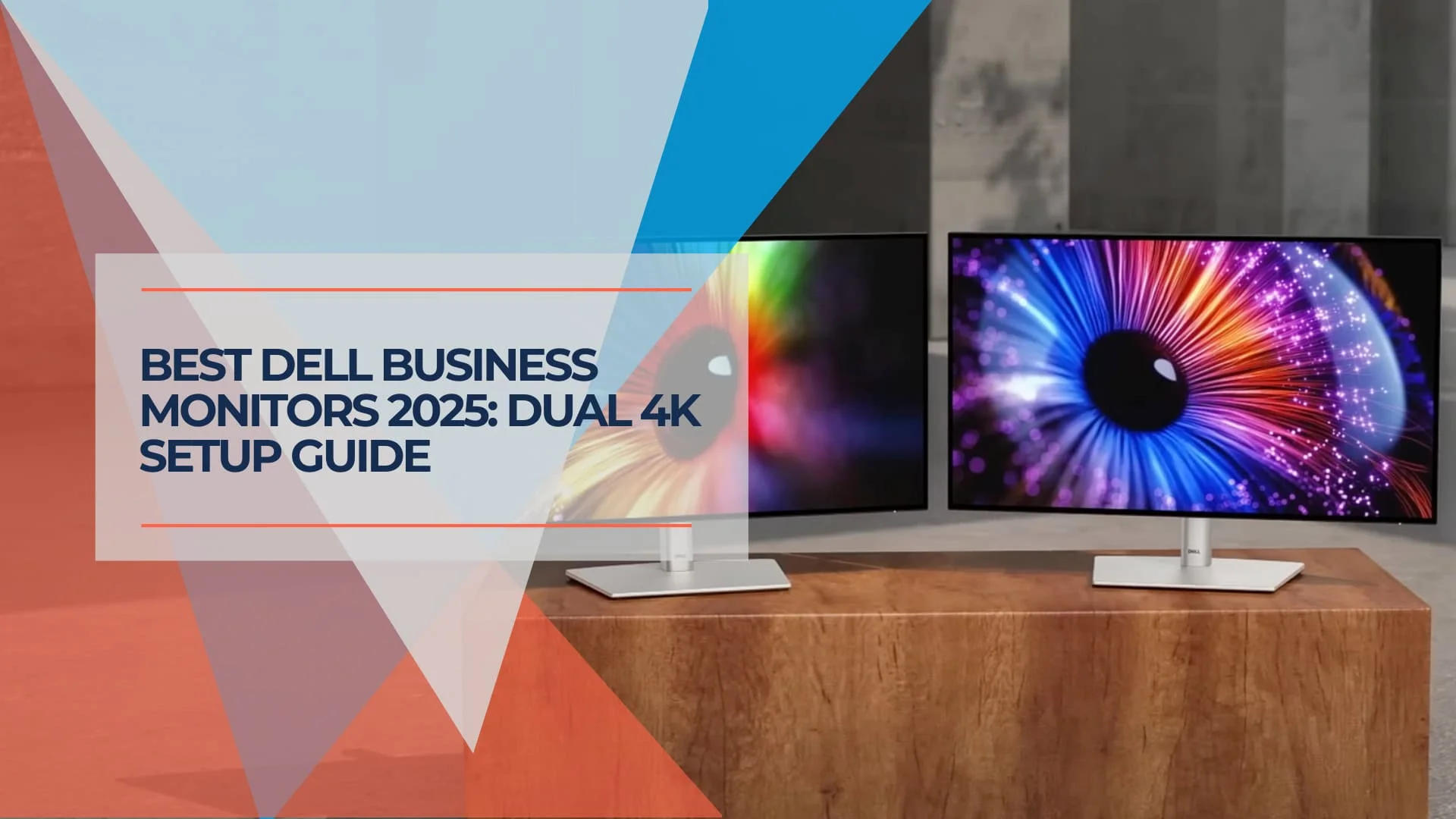
Dell's 2025 S-series refresh brings 120Hz 4K panels to the budget category. The S2725QC and S2725QS enable sub-$2,000 dual setups for businesses seeking professional displays without UltraSharp pricing.
Note: The S-series is Dell's Home/Studio line, not the business-focused UltraSharp (U) or Professional (P) series. However, they offer excellent value for cost-conscious business deployments.
Key Takeaway
Dell's S2725QC and S2725QS monitors deliver professional dual 4K setups starting under $2,000, giving small businesses professional-grade displays at a price they can budget for.
Quick Setup Comparison
Three configurations cover most business needs, ranging from budget desktop pairings to single-cable USB-C laptop setups.
| Configuration | Total Cost | Best For | Key Advantage |
|---|---|---|---|
| Dell USB-C Setup | $2,200-$2,800 | Modern laptops | Single-cable connection |
| Dell Traditional Setup | $1,900-$2,600 | Desktop workstations | Maximum value |
| Dell Mixed Setup | $2,200-$2,800 | Connectivity flexibility | Different device compatibility |
Alternative Monitor Options
Alternative Monitor Options:
- Budget Alternative: Dell S2721QS ($199-249) – 60Hz version for basic productivity
- Pro Alternative: Dell P2725QE (~$520) – 90W power delivery for XPS 15/Precision/MacBook Pro 16" users; TechRadar's pick for most business buyers
- Premium Upgrade: Dell UltraSharp U2725QE ($650-900 depending on retailer/bundle) – Thunderbolt 4 hub with up to 140W laptop charging, IPS Black panel, DisplayHDR 600; RTINGS rates it the top Dell monitor overall
- Creative/High-End: Dell UltraSharp U3226Q ($2,599) – 32" QD-OLED, shipped February 2026, aimed at color-critical creative work rather than general office use
Important Notes:
- Both S2725QC and S2725QS feature identical IPS panels with 120Hz refresh rates
- The S-series does not support daisy-chaining—use a USB-C dock for dual monitor setups
- Pricing as of July 2026; retailers frequently run sales below list price, so confirm current pricing before ordering
Why Dell for Business Dual Monitor Setups
Dell's advantage for business buyers comes down to warranty coverage, support access, and long-term parts availability. When a monitor fails in a critical business environment, these factors prove invaluable.
Dual monitor setups improve productivity for knowledge workers by reducing window switching and enabling reference documents alongside active work. For professional services, real estate offices, and accounting firms, dual 4K monitors can substantially improve daily workflows.
Dell UltraSharp 27 Monitors: 5-Star Eye Comfort
Dell S2725QC vs S2725QS: Choosing Your Setup
Both monitors share identical 4K 120Hz IPS panels; the only meaningful difference is connectivity. Each also carries 99% sRGB color accuracy and Dell's ComfortView Plus blue-light reduction.
Dell S2725QC (USB-C Model) – $349.99
Best for: Modern laptops, clean desk setups, future-proofing
The S2725QC includes USB-C connectivity with 65W power delivery, allowing a single cable to handle video, data, and laptop charging. This creates remarkably clean desk setups, particularly valuable in client-facing environments or smaller offices where aesthetic matters.
Key Features:
- USB-C upstream with 65W power delivery
- Built-in USB hub (USB-A and USB-C ports)
- 2x HDMI 2.1 ports for additional devices
- Ideal for MacBooks, Dell XPS, Surface laptops
- List price $349.99, though major retailers frequently discount it to $270-300
⚠️ Power Warning: The S2725QC provides 65W charging. If you use a Dell XPS 15, Precision, or MacBook Pro 16", consider the P2725QE (90W) or U2725QE (Thunderbolt) to prevent battery drain.
Dell S2725QS (Traditional Model) – $239.99 (Currently on sale)
Best for: Desktop computers, maximum value, traditional setups
The S2725QS offers excellent value with traditional connectivity that works with any computer. Dell lists it at $299.99 and regularly discounts it to around $239.99, delivering professional 4K performance at a price that makes dual setups accessible to almost any business budget.
Key Features:
- 2x HDMI 2.1 + DisplayPort 1.4
- Same display quality as the USB-C version
- Better value for desktop-centric offices
- Works with any computer or laptop
Complete Dell Dual Monitor Configurations
Configuration 1: Dell USB-C Business Setup ($2,200-$2,800)
Core Components
- 2x Dell S2725QC monitors – $699.98
- Dual monitor arm – $200-350
- USB-C docking station – $150-300
- USB-C cables and accessories – $50-100
This setup works well for environments with modern laptops where desk space is important and professional appearance matters. The USB-C connection provides connectivity through the monitors' built-in hubs.
Important: These monitors do not support daisy-chaining. For a dual monitor setup, use a USB-C dock (like the Dell WD19S or WD22TB4) or connect each monitor separately.
Perfect pairing option: Works excellently with the Mac mini M4 for a powerful, compact desktop solution.
Implementation Notes:
Ensure laptops support USB-C DisplayPort Alt Mode for video output. Most business laptops from 2020 onward include this feature. The monitors' USB-C connection provides power delivery up to 65W, which is sufficient for most business laptops but may not fully power high-performance gaming or workstation laptops that require more than 65W.
Configuration 2: Dell Traditional Desktop Setup ($1,900-$2,600)
Core Components
- 2x Dell S2725QS monitors – $479.98 (current sale pricing)
- Dell Inspiron 3030s Desktop – $699-899
- Dual monitor arm – $200-350
- Cables (HDMI + DisplayPort) – $30-50
This configuration delivers maximum value and performance for desktop-based workflows. The Intel i5-14400 processor in the Inspiron 3030s easily handles dual 4K displays while providing room for business applications, video calls, and light content creation.
| Specification | Dell Inspiron 3030s |
|---|---|
| Processor | Intel Core i5-14400 (10 cores, up to 4.7GHz) |
| Memory | 16GB DDR5 RAM standard |
| Storage | 512GB or 1TB NVMe SSD options |
| Graphics | Intel UHD 730 Graphics (supports dual 4K at 60Hz) |
| Design | Compact design fits under most desks |
Note: To utilize the full 120Hz refresh rate of these monitors, a desktop with a dedicated graphics card (like an NVIDIA RTX 3050 or 4060) is required.
Configuration 3: Dell Mixed Connectivity Setup ($2,200-$2,800)
Core Components
- 1x Dell S2725QC + 1x Dell S2725QS – $589.97
- Dual monitor arm – $200-350
- USB-C hub and traditional cables – $100-200
- Desktop or laptop – $700-1,200
This approach provides connectivity flexibility by combining both USB-C and traditional connections. Perfect for offices that use both laptops and desktops, or want the option to connect different types of devices to each monitor while maintaining identical display quality.
Technical Considerations for Business Environments
Network Infrastructure Impact
Dual 4K monitors have minimal impact on network bandwidth for typical business applications. Email, web browsing, document editing, and standard video calls consume the same bandwidth regardless of screen real estate. However, 4K video conferencing or screen sharing may benefit from Quality of Service (QoS) configuration on business networks.
For offices with UniFi networking systems, the built-in traffic analysis helps identify and prioritize business-critical applications across dual-monitor setups.
Display Management and Ergonomics
Proper monitor positioning becomes important with dual screens. Position monitors at arm's length (20-26 inches) with screens angled slightly inward. The top of each monitor should align with or sit slightly below eye level to reduce neck strain during extended work sessions.
Dell's included stands offer height, tilt, swivel, and pivot adjustments. Dual monitor arms can provide additional flexibility and help optimize desk space in business environments.
Power and Connectivity Planning
Traditional dual monitor setups require careful power planning—two monitors, plus desktop, plus accessories can quickly overwhelm standard office circuits. Consider dedicated circuits for heavy technology setups or UPS systems for critical workstations.
USB-C setups reduce complexity by consolidating power delivery through monitors, but require compatible laptops and appropriate docking solutions for full functionality.
Implementation Timeline and Best Practices
Week 1: Planning and Procurement
- Assess current desk configurations and power availability
- Verify laptop USB-C compatibility for USB-C setups
- Order equipment through Dell business channels for volume pricing
Week 2: Installation and Configuration
- Install monitor arms and position displays
- Configure display settings for optimal productivity
- Set up keyboard and mouse sharing between screens
- Test all connectivity and adjust positioning
Week 3: Optimization and Training
- Fine-tune display arrangement for specific workflows
- Train users on window management and productivity shortcuts
- Establish backup and troubleshooting procedures
Dell Business Advantages
Dell's business focus extends beyond individual products to complete support ecosystems. Business purchasing provides access to volume discounts, extended warranties, and dedicated support channels that matter when technology becomes critical to daily operations.
Their current generation approach means compatibility and part availability for years, reducing long-term support complexity. In our experience, Dell's business products simply require less intervention once properly configured.
Industry-Specific Setup Recommendations
Professional Services (Accounting, Legal, Consulting)
Dual 4K monitors excel for document review, client presentations, and detailed analysis work. The ability to display full-page documents at readable sizes while maintaining secondary screens for communication and reference materials transforms efficiency.
Recommended
Dell Traditional Setup with emphasis on ergonomic positioning for extended document review sessions.
Real Estate Offices
Agents benefit from displaying property listings, client communications, and market data simultaneously. The visual impact of 4K displays also enhances client presentations and virtual property tours.
Recommended
Dell USB-C Setup for flexibility between desktop work and mobile presentations.
Marketing and Creative Agencies
Color accuracy and screen real estate support design work, client approvals, and content creation workflows. The 99% sRGB coverage ensures consistent color representation across client deliverables.
Recommended
Dell Mixed Connectivity Setup allowing connection of different devices (design tablets, laptops, desktops) to different monitors as needed.
Monitor Comparison Guide
The S2725QC and S2725QS use the same panel; USB-C power delivery and a built-in hub are what set the QC apart.
| Feature | S2725QC (USB-C) | S2725QS (HDMI/DP) |
|---|---|---|
| Price | $349.99 | $279-329 |
| Connectivity | USB-C (65W PD) + 2x HDMI 2.1 | 2x HDMI 2.1 + DisplayPort 1.4 |
| Power Delivery | 65W USB-C to laptop | No power delivery |
| Best For | Laptops, organized single-cable setup | Desktops, traditional setups |
| USB Hub | Yes (USB-A + USB-C ports) | No built-in hub |
| Daisy Chain Support | No (Requires Dock) | No |
| Display Quality | Identical 4K 120Hz IPS panel | Identical 4K 120Hz IPS panel |
Compatibility & Technical Notes
Important Compatibility Information
- Mac Compatibility: Recent reviews confirm the S2725QC works well with M4 Mac Mini and MacBook models
- Previous flickering issues (with older S2722QC) appear resolved in 2025 models
- USB-C requirements: Laptop must support DisplayPort Alt Mode for video output
- Dual 4K support: Intel UHD 730 graphics supports dual 4K at 60Hz (dedicated GPU required for 120Hz)
- Daisy-Chaining: S-series does not support MST; use a USB-C dock or separate cables
- Professional installation: Available in Miami area through iFeelTech consultation
Budget Planning and ROI Analysis
Total Investment Analysis
- Budget Setup: $1,900 (Traditional desktop configuration with sale pricing)
- Standard Setup: $2,400 (USB-C laptop configuration)
- Mixed Setup: $2,600 (Combined connectivity options)
Productivity Return Calculation
Productivity improvements from dual monitor setups can help justify the investment for many businesses. The time savings from reduced window switching and improved workflow organization often become apparent within the first few months of use.
When evaluating any technology investment, consider both the direct costs and the potential time savings for your specific business workflows. Dual monitors tend to show the most benefit for work involving multiple applications, document comparison, or frequent reference to different information sources.
Frequently Asked Questions
Do these Dell monitors work well with Mac computers?
Yes, both models work excellently with Mac systems. Recent user reports confirm that the 2025 Dell models resolve previous compatibility concerns with Apple Silicon Macs. The Mac mini M4 pairs particularly well with either monitor choice.
Can I mix the USB-C and traditional models in a dual setup?
Absolutely. Both monitors use identical display panels, so mixing them provides connectivity flexibility without visual inconsistencies. Note that neither model supports daisy-chaining—you'll need a USB-C dock or separate cables for each monitor.
What about warranty and business support?
Dell provides standard limited warranties on both monitors, with business support options available through Dell's business channels for organizations requiring enhanced support.
Will my current computer support dual 4K displays?
Most business computers from 2019 onward can support dual 4K displays at 60Hz. For the full 120Hz, the connection method matters: via USB-C or DisplayPort 1.4, modern integrated graphics (Intel 12th Gen+, AMD Ryzen 6000+) support 4K 120Hz without a dedicated GPU. Via HDMI, you need HDMI 2.1 output — the Dell Inspiron 3030s with Intel UHD 730 has HDMI 2.0 which caps at 4K 60Hz, requiring a dedicated GPU (NVIDIA RTX 3050 or better) for 120Hz over that connection. For older systems, check your display outputs before purchasing.
How much desk space do I need for dual 27-inch monitors?
Plan for approximately 48-50 inches of width for side-by-side positioning, though monitor arms can reduce desk footprint significantly.
Can I upgrade to this setup gradually?
Yes, start with a single monitor and add the second when budget allows. Both models work excellently as single displays before expanding to dual setups.
Professional Installation and Support
For Miami-area businesses, professional installation ensures optimal configuration from day one. Proper positioning, cable management, and network integration make the difference between a setup that merely works and one that reliably supports daily productivity.
Consider professional installation for setups involving multiple workstations, complex connectivity requirements, or integration with existing business networks.
The Verdict on Dell's Dual 4K Setup
Dell's S2725QC and S2725QS remain practical choices for small businesses that want professional dual-screen capability without UltraSharp pricing. Both deliver the same 4K 120Hz panel and reliable performance; the decision comes down to connectivity.
Choose the USB-C S2725QC for laptop-based offices that want single-cable convenience, or the traditional S2725QS for desktop-centric setups on a tighter budget. Users who need 90W+ charging or a Thunderbolt hub should look at the P2725QE or U2725QE instead — both are proven, current-generation options as of mid-2026.
Consider starting with a single Dell 4K monitor to evaluate the difference, then expand to the complete dual-screen setup based on your experience and business needs.
Related Resources
- Best Monitors for Mac Mini M4 (2026) — Complete guide to the top monitors for Mac Mini M4, including Thunderbolt 4 picks, USB-C options, and budget alternatives.
Affiliate Disclosure: This article contains affiliate links. If you make a purchase through these links, we may earn a small commission at no extra cost to you. As an Amazon Associate, iFeelTech earns from qualifying purchases.
Related Articles
More from Business Hardware

Why RAM Prices Are Going Up in 2026 (and What It Means for Business Computers and Servers)
RAM and SSD prices are up sharply in 2026, and manufacturers are cutting specs too. What's actually happening to laptop, desktop, and server pricing and lead times for small businesses.
16 min read

Best Conference Room Equipment for Small Business
Logitech Rally Bar, Poly Studio X52, Jabra PanaCast 50, and Yealink MeetingBoard Pro reviewed for SMB rooms. Real specs, pricing, and room-fit guidance.
27 min read

Business Hardware Refresh Planning Guide for 2026
Updated March 2026: Business hardware refresh planning guide covering lifecycle assessment, budget forecasting, AI PC readiness, modular systems, and staged rollout strategies for small businesses.
16 min read