

Building a Modern Apple Office: A Complete Setup Guide for Small to Medium Businesses
Complete guide to building an Apple-centered office with M4 iMac, M5 MacBook Air/Pro, Mac Mini, UniFi Wi-Fi 7 networking, and professional conferencing. Real-world configurations, costs, and implementation strategies for SMBs.

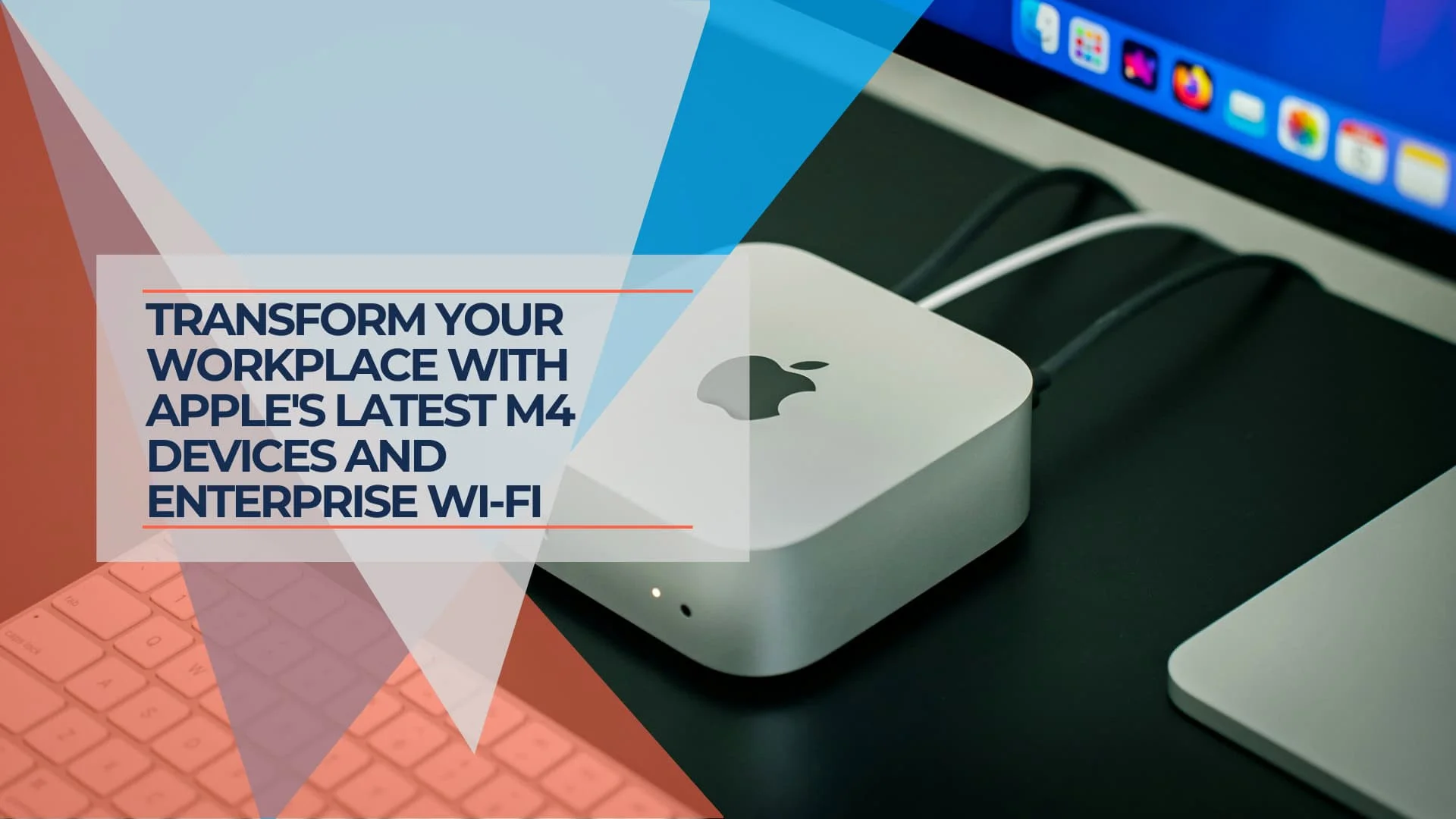
What is the Best Apple Office Setup for 2026?
A modern Apple office setup is built on M4 and M5 devices with 16GB unified memory, UniFi Wi-Fi 7 networking, and 4K commercial displays, costing approximately $2,000 per workstation.
Apple's move to a 16GB RAM baseline across the M4 and M5 generations ensures longevity for business apps without custom upgrades. This guide details the exact hardware list for a cohesive, low-maintenance environment.
Affiliate Disclosure: This article contains affiliate links. If you make a purchase through these links, we may earn a small commission at no extra cost to you. As an Amazon Associate, iFeelTech earns from qualifying purchases.
Key Takeaways: Quick Decision Guide
| Your Business Need | Best Apple Device | Network Foundation | Investment Range | Primary Benefit |
|---|---|---|---|---|
| Front desk/Reception | M4 iMac 24" | Single U7 Pro access point | $2,000-$2,500 | Professional appearance + simplicity |
| Mobile sales team | MacBook Air 13" | UDM Pro Max + 2-3 U7 Pro | $4,000-$6,000 | Portability + all-day battery |
| Creative professionals | MacBook Pro 16" + external displays | High-speed backbone | $6,000-$8,000 | Raw performance + screen real estate |
| Space-efficient office | Mac Mini + quality monitors | Centralized switching | $1,500-$2,500 | Flexibility + cost efficiency |
| Conference-heavy business | Any Mac + 75" display + Poly Studio | Priority: reliable Wi-Fi 7 | $8,000-$12,000 | Professional video presence |
| 15+ person office | Mixed configuration | UDM Pro Max + 4-6 access points | $25,000-$45,000 | Scalable ecosystem integration |
Current Apple Business Hardware: What's Available in 2026

Is the M4 iMac Good for Front Desk Use?
Yes, the 24-inch iMac M4 (starting at $1,299) works well as a reception computer because its all-in-one design reduces cable clutter while providing a 4.5K display and 1080p camera in a single unit.
For 2026, the base model now includes 16GB of RAM, making it powerful enough for multitasking between scheduling software, VoIP apps, and visitor management systems. The base $1,299 model includes 256GB storage, which is sufficient for most reception and administrative tasks. For users who need more storage, the 512GB configuration is available at a higher price point.
Note: The iMac remains on M4 as of March 2026—no M5 update has been announced. The M4 iMac continues to offer excellent value for reception and administrative roles.
Best for: Reception desks, executive assistants, kiosks, administrative roles.
Recommended Config: 10-core GPU, 16GB RAM, 256GB Storage for basic use; upgrade to 512GB for users managing larger file libraries.
Available in multiple colors, the iMac can complement various office design schemes while providing professional performance. The 24-inch iMac M4 with 16GB RAM starts at $1,299 for the 256GB model.
Which MacBook Air Configuration is Best for Business Use?
The 13-inch MacBook Air M5 with 16GB of RAM and 512GB of storage is the recommended baseline for mobile professionals and hybrid employees.
Released in March 2026, the MacBook Air M5 starts at $1,099 for the 13-inch model and $1,299 for the 15-inch version. By standardizing the base model with 512GB of storage and Wi-Fi 7, Apple has positioned the Air as a complete endpoint for sales and management teams. Battery life reaches up to 18 hours under typical usage. The M5 supports two external displays simultaneously with the built-in display, without requiring the laptop lid to be closed. This capability, introduced with the M4 generation, allows users to run three displays total (two external + laptop screen).
Best for: Mobile professionals, sales teams, frequent travelers.
Note: The M4 MacBook Air remains available at clearance pricing ($999-$1,299) while supplies last, offering excellent value for budget-conscious deployments. Apple also offers the MacBook Neo (from $699), though its 8GB RAM ceiling makes it better suited for light individual use than fleet deployment.
While the 15-inch model ($1,299) offers more screen real estate for financial workflows, the 13-inch variant is generally preferred for frequent travel. Sales teams and frequent travelers typically prefer the 13-inch model for its portability, while users who work with spreadsheets, presentations, or multiple applications simultaneously often benefit from the 15-inch screen.
For a detailed comparison of the current generation against previous models, see our MacBook Air M5 vs M4 Upgrade Guide.
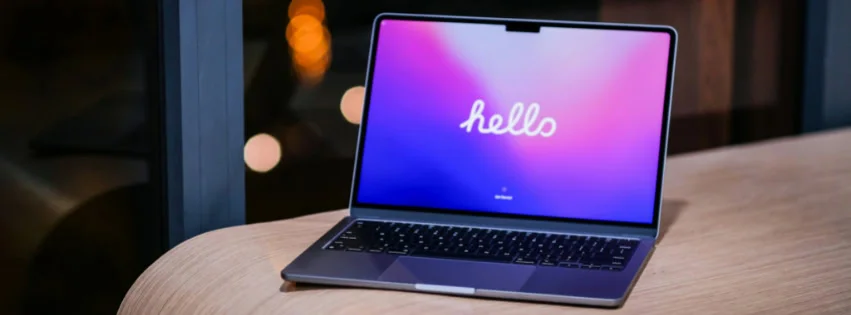
MacBook Pro M5/Pro/Max: Performance for Demanding Tasks
The MacBook Pro targets users with more intensive computing needs. Apple announced the M5 generation in March 2026, with the base 14-inch M5 model starting at $1,699 (now with 1TB base storage). M5 Pro and M5 Max models offer up to 18-core CPUs and 40-core GPUs for maximum performance. Video editing, software development, financial modeling, and CAD applications all benefit from the Pro's additional processing power and enhanced cooling system.
Best for: Creative professionals, developers, engineers, data analysts.
The Pro models also offer more port options (Thunderbolt 5 on M5 Pro/Max) and support for higher-resolution external displays, making them suitable for users who need extensive peripheral connections. Current pricing on the 14-inch M5 model and 16-inch M5 Pro configuration reflects Apple's positioning of these as professional-grade devices.
Does the Mac Mini M4 Offer Better Value Than a Business PC?
At $599, the base Mac Mini M4 with 16GB of unified memory and 256GB storage provides a lower total cost of ownership than comparable enterprise Windows desktops. For business use, the $799 configuration with 512GB storage is recommended for better longevity.
The M4 Mac Mini allows offices to reuse existing peripherals and monitors, keeping the per-seat upgrade cost low. Because of its 5×5-inch footprint, it can be mounted behind displays to clear desk space. Integration note: The base M4 chip supports a maximum of two displays. Workstations requiring three or more monitors must upgrade to the M4 Pro configuration.
Note: The Mac Mini remains on M4 as of March 2026—no M5 update has been announced. The M4 Mac Mini continues to offer excellent value for office deployments.
Best for: Budget-conscious offices, desk setups with existing monitors, digital signage.
Budgeting factor: Remember to budget for essential peripherals, as none are included:
- Quality mouse and keyboard: ~$150 (recommend Logitech MX Master 3S for Mac to avoid Bluetooth interference in dense offices)
- USB-C hub or Thunderbolt dock: $50-$300 (for users needing multiple peripherals or multi-monitor setups; consider CalDigit TS4 for professional deployments)
The M4 configuration with 16GB RAM and 512GB storage at $799 provides excellent value for most business applications.
Mac Mini + Monitor vs iMac: Total Cost Comparison
The Mac Mini appears budget-friendly at $599, but requires quality peripherals to match the iMac's integrated experience. Here's the complete cost breakdown:
| Component | Mac Mini Setup | M4 iMac 24" | Difference |
|---|---|---|---|
| Computer | Mac Mini M4 16GB/512GB: $799 | iMac M4 16GB/256GB: $1,299 | - |
| Display | Dell U2723QE 27" 4K: $550 | Built-in 24" 4.5K | - |
| Peripherals | Logitech MX Master 3S + MX Keys: $200 | Built-in keyboard/mouse | - |
| Total | $1,549 | $1,299 | -$250 |
Once you add a 27-inch 4K display and professional input devices, the Mac Mini setup costs approximately $250 more than the base iMac. However, the Mac Mini setup provides a larger display (27" vs 24"), more storage (512GB vs 256GB), and flexibility to upgrade components independently. The iMac offers a cleaner desk aesthetic and simpler deployment.
For IT buyers, the iMac makes more sense for reception and administrative roles where the 256GB storage is sufficient, while the Mac Mini works better for users who need specific monitor configurations, more storage, or plan to upgrade displays separately.
Running Windows Applications on Mac Hardware
Many businesses have legacy Windows applications—specialized accounting software, industry-specific ERP systems, or older line-of-business tools—that can't be replaced immediately. Mac hardware can accommodate these requirements through two primary approaches:
Parallels Desktop 21 for Mac ($100/year per user)
Parallels Desktop allows you to run Windows applications directly on Mac hardware without rebooting. This virtualization solution works well for:
- Occasional Windows application use (accounting software, specialized tools)
- Applications that don't require intensive graphics processing
- Users who primarily work in macOS but need periodic Windows access
Performance is generally excellent on M4 and M5 Macs, though resource-intensive applications may see some performance reduction compared to native Windows hardware.
Windows 365 Cloud PC ($31-$66 per user/month)
Microsoft's Windows 365 provides a full Windows desktop running in the cloud, accessible from any Mac through a browser or dedicated app. This approach works better for:
- Users who need consistent Windows performance across multiple devices
- Applications requiring specific Windows configurations or compliance requirements
- Businesses wanting to centralize Windows management and updates
- Remote workers who need Windows access from various locations
Recommendation: For businesses with 1-3 critical Windows applications used occasionally, Parallels Desktop offers better value. For organizations with extensive Windows requirements or compliance needs, Windows 365 provides enterprise-grade management and consistent performance.
Selecting the Right Monitor for Mac Mini Deployments
Since the Mac Mini doesn't include a display, choosing the right monitor is an important decision. Here are the recommended options for business use:
Dell UltraSharp U2723QE (27-inch 4K): $550-$650
The Dell U2723QE offers excellent color accuracy, USB-C connectivity with 90W power delivery, and a built-in KVM switch. It's a well-rounded choice for Mac Mini setups, providing professional-grade image quality at a lower price point than Apple's displays. The built-in USB hub helps reduce cable clutter. If a Windows PC will share the same desk, see our guide to sharing a keyboard, mouse and monitor between a Mac and a Windows PC.
Apple Studio Display (27-inch 5K): $1,599
For businesses that prioritize aesthetics and seamless integration, the Apple Studio Display matches the Mac Mini's design language. The 5K resolution provides exceptional clarity for detailed work, and the built-in camera and speakers eliminate the need for separate peripherals. At nearly three times the cost of the Dell, this option is typically chosen for executive offices or client-facing areas where aesthetics are a priority.
Budget Option - BenQ PD2725U (27-inch 4K): $450-$550
For cost-conscious deployments, the BenQ PD2725U delivers solid 4K performance with good color accuracy and ergonomic adjustability. While it lacks USB-C connectivity and requires a separate cable for data, it provides solid value for standard office work.
For most businesses, the Dell U2723QE offers a strong balance of features, quality, and cost when paired with the Mac Mini. For a full comparison of 5K, 4K, and budget monitors tested with the Mac Mini M4 — including Thunderbolt 4 hub monitors, daisy-chaining options, and USB-C picks — see our Best Monitors for Mac Mini M4 guide.
Configuring a UniFi Network for an Apple Environment
A standard 15-person Apple office requires a UniFi Dream Machine Pro Max gateway and three U7 Pro access points to fully support Wi-Fi 7.
Because the 2026 Mac lineup (including the M4 Mac Mini and M5 MacBooks) standardizes on Wi-Fi 7, infrastructure should match device capabilities to take full advantage of their networking features. Professional networking infrastructure forms the foundation of any modern office. Consumer routers and access points often struggle with business demands like multiple simultaneous video calls, large file transfers, and numerous connected devices.
For a comprehensive overview of UniFi networking options, see our complete UniFi business network guide and UniFi gateway comparison.
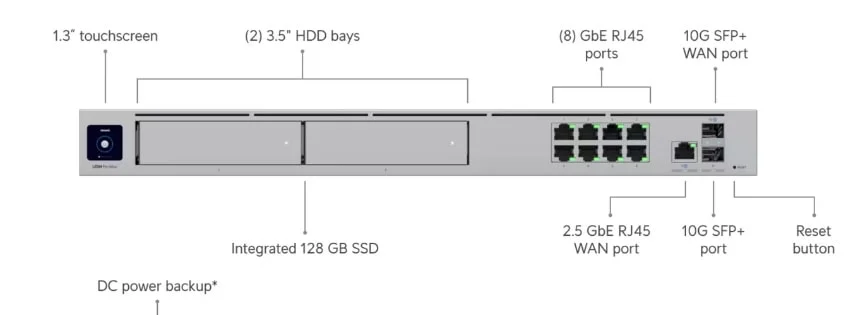
The UniFi Dream Machine Pro Max
The UDM Pro Max ($599) manages local routing with 5 Gbps threat detection throughput. It supports up to 200 UniFi devices and 2,000 client connections, making it suitable for small to medium businesses planning for growth.
Key features include:
- Built-in firewall with threat detection
- Integrated video surveillance management
- Centralized network monitoring and control
- Automatic failover capabilities with a secondary unit
For businesses looking to upgrade their existing network infrastructure, the UniFi Dream Machine Pro Max provides a comprehensive solution that scales with organizational growth.

Which UniFi Access Point Do You Need for Apple Offices?
The UniFi U7 Pro ($189) is a recommended choice for Apple offices, as it is the most affordable access point to fully support the Wi-Fi 7 (6GHz) capabilities built into all M4 and M5 Macs.
The U6 series (Wi-Fi 6) models are not recommended for new deployments focused on Wi-Fi 7 capabilities. The U7 Pro supports the 6GHz band, which Apple devices prioritize for congestion-free video calling. Pairing U7 Pro access points with the 6GHz band prevents the network congestion that typically degrades VoIP and video conferencing. For more details on Wi-Fi 7 capabilities, see our UniFi Wi-Fi 7 access points guide.
Coverage: One U7 Pro per 1,500 sq ft.
Requirement: Requires a PoE+ switch (e.g., UniFi Pro Max switch) and 2.5GbE cabling (Cat6 or better) to see full speed benefits.
The U7 Pro access point brings Wi-Fi 7 technology to business environments with support for over 300 concurrent connections per unit.
Conference Room Technology: Making Video Calls Professional
Remote work and hybrid arrangements have made video conferencing essential for most businesses. Many conference rooms still rely on laptop webcams and speakers, which can limit the quality of remote participant experiences. Dedicated conference room equipment ensures all participants—both in-room and remote—can communicate effectively.
Selecting Conference Room Displays for Mac Environments
The Samsung QN90F (2025 Model) is a recommended consumer display for conference rooms, offering high brightness and anti-glare for daytime meetings.
While the 2026 QN90H was just announced at CES, the QN90F is available now and integrates seamlessly with AirPlay. Avoid the older QN90D (2024 model). For a professional aesthetic, the Samsung QB Series commercial displays ($2,000+) are rated for 16/7 operation and focus on business functionality without consumer smart TV features.
Samsung Neo QLED QN90F (75-inch): $2,500-$3,500
This 2025 consumer display works well for conference rooms, offering 4K resolution and bright, clear images suitable for presentations.
Samsung QB75R Commercial Display: $2,000-$2,500
Designed specifically for business environments, this display includes features like 24/7 operation ratings, commercial warranty terms, and integration with video conferencing platforms like Cisco WebEx. This commercial series offers enterprise-grade reliability.
Samsung The Frame: $3,000-$4,000
For client-facing conference rooms where aesthetics matter, The Frame displays artwork when not in use, maintaining a professional appearance between meetings. The 75-inch Frame model combines functionality with sophisticated design.

Audio and Video: Poly Studio Solutions
The Poly Studio 4K videobar combines camera, microphone, and speaker functions in a single unit.
Key features include:
- 4K video resolution for clear image quality
- Automatic speaker tracking and framing
- Noise cancellation for cleaner audio
- Compatibility with major video platforms (Teams, Zoom, WebEx)
Installation requires only a single USB connection to a computer, simplifying setup and reducing cable management complexity. The Poly Studio 4K system provides professional-grade conferencing capabilities without complex installation requirements.
Workstation Configurations for Different Roles
Effective office design matches technology to actual work patterns. Rather than standardizing on a single device type, tailoring workstation configurations to specific roles optimizes both cost and productivity. Here are proven configurations for common business roles:
Executive and Administrative Roles
M4 iMac Configuration:
- 24-inch display with built-in camera for video calls
- Wireless keyboard and mouse for clean desk appearance
- 16GB RAM, 512GB storage typically sufficient
- Total cost: approximately $1,700
This setup works well for users who primarily work with email, documents, presentations, and web-based applications.
Mobile Professionals and Sales Teams
MacBook Air M5 Configuration:
- 13-inch for maximum portability or 15-inch for larger screen
- 16GB RAM standard, 512GB base storage (M5)
- External monitor for office use
- Thunderbolt dock for desk setup (optional but recommended for multi-monitor configurations)
- Total cost: $1,100-$1,700 depending on screen size, accessories, and dock
Sales teams particularly benefit from the long battery life and quick wake-from-sleep features. For users who work from both office and remote locations, a Thunderbolt dock at the office desk allows single-cable connection to monitors, peripherals, and power.
Creative and Technical Staff
MacBook Pro M5 or Mac Mini M4 + External Displays:
- MacBook Pro M5 for users who need portable power
- Mac Mini M4 + large displays for stationary workstations
- 24GB or 32GB RAM for intensive applications
- Total cost: $1,700-$4,000 depending on configuration
Users working with video, graphics, software development, or data analysis typically need additional processing power.
Implementation Strategy: A Practical Approach
Rolling out new technology requires planning to minimize disruption while ensuring successful adoption. A phased approach allows your team to adapt gradually while maintaining business continuity.
Phase 1: Infrastructure (Weeks 1-2)
Start with the networking infrastructure, as it affects all other systems. Professional cable installation, switch placement, and access point mounting create the foundation for everything else.
Consider hiring certified installers for networking components. While UniFi systems are designed for easier management than traditional enterprise equipment, proper initial setup prevents ongoing issues. For more guidance, see our business hardware refresh planning guide.
Phase 2: Core Systems (Weeks 3-4)
Deploy conference room technology and key workstations next. This allows employees to begin experiencing the benefits while the full rollout continues.
Configure central management systems during this phase, including user accounts, security policies, and backup procedures.
Phase 3: Workstation Rollout (Weeks 5-6)
Replace employee workstations in groups, providing training and support as needed. Apple's Migration Assistant simplifies moving data from existing systems, but plan time for employees to adjust to any workflow changes.
Start with early adopters or tech-savvy employees who can become internal champions. Their positive experiences help address resistance from users concerned about switching platforms. Schedule brief one-on-one sessions for employees who need additional support with macOS basics—keyboard shortcuts, Finder navigation, and application equivalents (e.g., Preview instead of Adobe Reader for PDFs). Most users adapt within 2-3 days of regular use.
How Should We Backup an All-Mac Office?
Data protection is critical for business continuity. An effective backup strategy combines local and cloud redundancy to protect against both hardware failures and catastrophic events.
Recommended Backup Architecture
Local Backup: Synology DS923+ NAS ($550-$650)
Deploy a Synology NAS running Time Machine for local redundancy. The DS923+ offers:
- Automatic Time Machine backups for all Mac devices
- 4-bay configuration supporting up to 72TB storage
- RAID protection against drive failures
- Fast local restore speeds (critical for quick recovery)
Offsite Backup: Backblaze B2 Cloud Storage ($5/TB/month)
Pair local backups with cloud storage for disaster recovery protection. Backblaze B2 provides:
- Automated offsite replication from Synology
- Protection against fire, theft, or facility damage
- Compliance with data retention requirements
- Cost-effective pricing for business use
Implementation: Configure Synology Hyper Backup to automatically sync to Backblaze B2 nightly. This 3-2-1 strategy (3 copies, 2 different media, 1 offsite) ensures business data remains protected under all scenarios.
Budget: Plan approximately $1,200 initial investment (NAS + drives) plus $50-150/month for cloud storage depending on data volume.
Cost Analysis: Understanding the Investment
Understanding the complete cost structure helps with budgeting and ROI planning. Here's a detailed breakdown of a typical 15-person office deployment.
Sample 15-Person Office Configuration
Infrastructure Costs
| Component | Cost |
|---|---|
| UniFi Dream Machine Pro Max | $599 |
| Network switches and cabling | $2,500 |
| U7 Pro access points (3 units) | $567 |
| Installation and configuration | $2,000 |
| Infrastructure Total | $5,666 |
Workstation Costs
| Component | Cost |
|---|---|
| M4 iMacs (4 units @ $1,299) | $5,196 |
| MacBook Air M5 (7 units @ $1,199 avg) | $8,393 |
| MacBook Pro M5 (3 units @ $1,699) | $5,097 |
| Mac Mini M4 512GB (1 unit @ $799) | $799 |
| Workstation Total | $19,485 |
Conference Room Costs
| Component | Cost |
|---|---|
| 75-inch Samsung display | $3,000 |
| Poly Studio videobar | $1,200 |
| Installation and integration | $800 |
| Conference Room Total | $5,000 |
Management & Software (Annual)
| Component | Cost |
|---|---|
| MDM Solution (Mosyle - 15 devices) | $900/year |
| Apple Business Manager | Free |
| UniFi Network Controller | Free (included) |
| Annual Management Total | $900 |
Total Investment: $30,151 + $900/year MDM
This complete 15-person office setup includes enterprise-grade networking, mixed Apple workstations optimized for different roles, professional conference room, and device management infrastructure.
Understanding Hardware Lifecycle Costs
Business hardware is typically amortized over a 36-month refresh cycle. Using this standard depreciation schedule:
- MacBook Air M5 ($1,099): $30.53 per month
- MacBook Pro M5 ($1,699): $47.19 per month
- Mac Mini M4 512GB ($799): $22.19 per month
- iMac M4 ($1,299): $36.08 per month
For a 15-person office with the mixed configuration detailed above ($19,485 in workstations), the monthly hardware cost is approximately $541 over 36 months. When combined with MDM ($75/month) and network infrastructure amortization ($157/month), the total monthly technology cost is approximately $773—or $51.53 per employee per month.
This per-employee cost provides CFOs with a clearer picture of ongoing technology investment compared to upfront capital expenditure figures.
Return on Investment Considerations
Technology improvements typically generate returns through:
- Reduced time spent on technical issues
- Improved meeting efficiency and client experiences
- Lower IT support requirements
- Enhanced employee productivity and satisfaction
Quantifying these benefits varies by organization, but many businesses report noticeable improvements in daily operations within the first quarter after implementation.
Ongoing Management and Support
Apple devices generally require less ongoing maintenance than mixed environments, but proper management practices ensure continued smooth operation. The right combination of Apple Business Manager and MDM software streamlines device administration while maintaining security.
Apple Business Manager
Apple Business Manager provides centralized device management, automated software updates, and security policy enforcement. The platform allows IT administrators to configure devices before deployment and maintain consistent settings across the organization.
For detailed setup instructions, see our Apple Business Manager workflow guide.
Mobile Device Management (MDM): Which Solution for SMBs?
While Apple Business Manager handles device enrollment, you need a dedicated MDM platform to manage ongoing security policies, app deployment, and compliance. For small to medium businesses, two solutions stand out:
Mosyle (Recommended for Most SMBs): $4-$6 per device/month
Mosyle offers the most cost-effective MDM solution specifically designed for Apple devices. It provides:
- Automated security compliance (FileVault encryption, firewall rules)
- Zero-touch deployment for new devices
- App distribution and license management
- Remote lock and wipe capabilities
- Excellent support for businesses without dedicated IT staff
Best for: Businesses with 5-50 Apple devices that need comprehensive management without complexity.
Kandji: $8-$12 per device/month
Kandji provides more advanced automation and compliance features, making it ideal for businesses with stricter security requirements or regulated industries. Key advantages include:
- Pre-built compliance templates (SOC 2, HIPAA, etc.)
- Automated patch management
- Advanced threat detection
- Custom automation workflows
Best for: Growing businesses (50+ devices) or those in healthcare, finance, or other regulated industries.
Implementation Note: Both platforms integrate directly with Apple Business Manager and can be deployed within a few hours. Budget approximately $500-$1,500 annually for a 15-person office, depending on which platform you choose.
Zero-Touch Deployment with macOS Sequoia
The M5 MacBook Air and M4 devices ship with macOS Sequoia (or later), which integrates with Apple Business Manager for Automated Device Enrollment. This capability allows IT administrators to ship devices directly to remote employees without pre-configuration.
Zero-Touch Workflow:
- Purchase devices through Apple Business Manager or authorized reseller
- Devices automatically enroll in your MDM (Mosyle or Kandji) on first boot
- MDM applies security policies, installs required applications, and configures network settings
- Employee receives device, powers on, and signs in with company credentials
- All business software and configurations deploy automatically
This eliminates the traditional IT unboxing and imaging process, reducing deployment time from 2-3 hours per device to approximately 15 minutes of employee self-service setup. For distributed teams, this capability significantly reduces logistics costs and deployment complexity.
UniFi Network Management
UniFi systems use a single management interface for the entire network. Regular firmware updates, usage monitoring, and capacity planning help maintain optimal performance as the business grows.
Support Resources
Apple offers business support options, including AppleCare+ for enterprise customers. UniFi provides extensive documentation and community resources, plus professional support options for complex deployments.
Planning for Future Growth
Technology investments should accommodate business growth and changing requirements. Building scalability into your initial deployment reduces the need for disruptive overhauls as your organization expands.
Scalability Considerations
- Additional access points for expanded coverage areas
- Network capacity planning for increased device counts
- Storage and backup capacity as data volumes grow
- Integration with new software platforms and services
Technology Evolution
Wi-Fi 7 features like Multi-Link Operation will activate through firmware updates. Apple continues developing new capabilities for existing M4 devices through macOS updates. Planning for these improvements helps maximize investment value over time.
Leasing vs. Buying: Apple Financial Services for Business
Cash flow considerations often determine whether businesses can implement new technology. Apple offers financing options specifically designed for business customers, allowing you to spread costs over time while maintaining predictable monthly expenses.
Apple Financial Services: Business Leasing Options
Apple Financial Services provides flexible leasing programs that can significantly reduce upfront costs:
24-Month Lease:
- Lower monthly payments
- Option to upgrade to newer models at lease end
- Includes AppleCare+ coverage
- Example: 15-device deployment (~$20,600 in hardware) = approximately $900/month
36-Month Lease:
- Lowest monthly payments
- Better for businesses planning long-term use
- Purchase option at end of term
- Example: Same 15-device deployment = approximately $625/month
Tax Advantages
Leasing can provide tax benefits depending on your business structure:
- Monthly lease payments are typically fully deductible as operating expenses
- Avoids large capital expenditures that require depreciation schedules
- Consult with your accountant to determine the best approach for your situation
When to Buy vs. Lease
Buy outright if:
- You have available capital and want to own assets
- You plan to use devices for 4+ years
- You prefer simplicity over monthly obligations
Lease if:
- You want to preserve cash for other business needs
- You prefer predictable monthly expenses
- You value the ability to upgrade to newer technology regularly
- You're a startup or growing business managing cash flow carefully
For most SMBs, a 36-month lease through Apple Financial Services provides a balanced approach to affordability and flexibility, especially when combined with an MDM solution for ongoing management.
Making the Decision: Is This Approach Right for Your Business?
An Apple-centered office setup works particularly well for businesses that:
- Value consistent user experiences across devices
- Need reliable video conferencing and presentation capabilities
- Want to reduce IT complexity and support requirements
- Serve clients where professional appearance matters
- Plan to grow and need scalable technology infrastructure
Organizations with specialized software requirements, strict budget constraints, or existing investments in other platforms may need different approaches.
The key is matching technology choices to actual business needs rather than pursuing the latest features or lowest initial costs. When properly implemented, integrated systems like this Apple-UniFi combination often provide better long-term value than piecemeal solutions, even with higher upfront investments.
For businesses ready to move forward, starting with a pilot implementation in a conference room or small department allows testing the approach before full deployment. This measured strategy reduces risk while demonstrating real-world benefits to decision-makers and employees alike.
Related Articles
More from Business Hardware

Best Laptop for Accountants and QuickBooks Users in 2026: An IT Pro's Buying Guide
IT practitioner guide to the four best laptops for accountants and QuickBooks users in 2026, with scenario-based picks, specs, and real pricing.
22 min read
ARM vs. x86: Which Processor is Best for Business Laptops?
Comprehensive comparison of ARM and x86 processor architectures for business laptops. Battery life, performance, software compatibility, and real-world use cases to help you choose the right laptop.
12 min read

Best Premium Business Laptops 2026: Executive Picks for Performance & Build Quality
Five premium business laptops worth the investment in 2026. Expert-tested picks for executives, creatives, and power users — from the $1,099 MacBook Air M5 to the $2,359 Dell XPS 16.
18 min read