

Dual-Monitor Docks for Business Laptops: Dell, HP and Lenovo
Choose a dual-monitor dock for your exact Dell, HP or Lenovo business laptop. Check supported displays, charging, firmware and warranty before you buy.


For a native dual-monitor setup, the laptop, the dock and the display connections all have to support the configuration you want. The laptop sets how many screens it can drive. The dock decides which ports and cables get you there, and how well charging, Ethernet and firmware management work. DisplayLink is a separate, software-based route for laptops whose native display support falls short.
So the buying order is: check the laptop and monitors, confirm the laptop maker's supported dock, then price the whole desk (dock, cables, charger) against a direct connection. For Dell, HP and ThinkPad fleets, that usually ends at the maker's own Thunderbolt 4 dock. For Macs and mixed desks, the answer is more conditional.
Quick Verdict
Match the dock to the laptop maker, then verify the exact laptop. Dell fleet: Dell Pro Thunderbolt 4 Dock WD25TB4 ($254.99 advertised on Dell's US page before tax, October 9, 2026). HP fleet: HP Thunderbolt 4 Ultra 180W G6 Dock. ThinkPad fleet: ThinkPad Thunderbolt 4 Smart Dock Gen 2 7500 (40BE0135US), Lenovo's current-generation successor to the 40B00135US. Mac or mixed desk: Kensington SD5700T, only after confirming the exact Mac-and-dock configuration, because Apple's chip limit alone is not enough. If your laptop already drives both monitors directly and that meets your daily needs, you may not need a dock at all.
Affiliate Disclosure: This article contains affiliate links. If you make a purchase through these links, we may earn a small commission at no extra cost to you. As an Amazon Associate, iFeelTech earns from qualifying purchases.
Why these four docks
We install and support docking stations in business deployments, and these four are the ones we would shortlist for Dell, HP, Lenovo and mixed-Mac desks. Specs come from each manufacturer's current product and support pages, checked October 9, 2026. Laptop and monitor limits still decide what any dock can do, so the steps below show how to check yours before you order.
The shortlist at a glance
Every figure here is a vendor-published maximum on a capable host, so your laptop's own limits override it. Not sure what your laptop can do? Check your laptop and monitors first, then come back to this table.
| Dock | Best fit | Displays (vendor claim) | Mac | Warranty |
|---|---|---|---|---|
| Dell Pro Thunderbolt 4 Dock WD25TB4 | Dell fleet | Up to four external; dual 4K at 60 Hz on Thunderbolt hosts | macOS listed; Dell notes limitations | 3-year limited hardware, Advanced Exchange |
| HP Thunderbolt 4 Ultra 180W G6 Dock (9X481UT) | HP commercial fleet | Up to four external, or three plus the laptop screen | macOS listed; two-display recipe for M4-family MacBook Pro; no HP Ethernet or audio drivers | 3-year limited |
| ThinkPad Thunderbolt 4 Smart Dock Gen 2 7500 (40BE0135US) | ThinkPad fleet | One 8K at 60 Hz, two 4K at 144 Hz or four 4K at 60 Hz | macOS Sonoma and Sequoia listed | 3-year |
| Kensington SD5700T (K35175NA) | Mac and mixed-desk option | Dual 4K at 60 Hz, or single 8K at 30 Hz | macOS 11+, chip-dependent | 3-year limited |
Check your laptop and monitors
Specs only help once you know what you are matching against. Write down seven things for the desk:
- Exact laptop model and chip or CPU. "Dell Pro 14" is not enough. The processor generation changes display limits.
- Operating system and build. Windows 11 on Intel behaves differently from Windows on Snapdragon, and macOS differs again.
- The laptop's port, by protocol. A USB-C connector can be plain USB, DisplayPort Alt Mode, USB4 or Thunderbolt. Look for the lightning-bolt mark, or check the spec sheet.
- Both monitors: model, resolution, refresh rate and the connectors they have.
- The wattage of the laptop's own charger. It is printed on the adapter.
- Whether IT allows extra display drivers. This decides whether DisplayLink is an option.
- What you already own. Cables, a USB-C monitor and a working charger all count against the dock's price.
Native display paths versus DisplayLink
Video leaves the laptop by one of two paths. They are alternatives, not upgrades of each other.
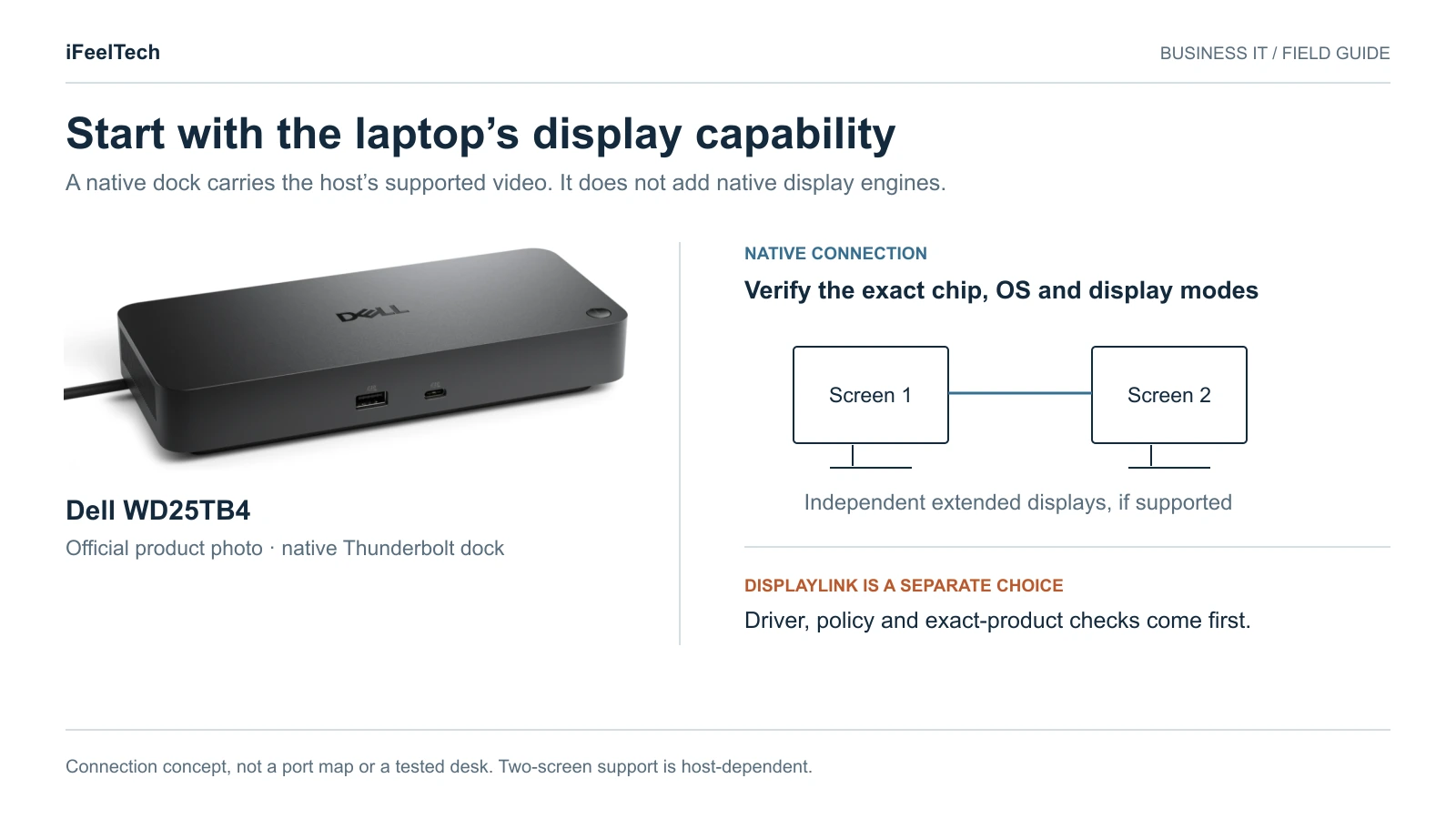
The native path is what Thunderbolt 4 and USB4 docks use. The laptop's own graphics creates the display signals, and the dock splits them into HDMI, DisplayPort and USB-C outputs. The laptop sets the ceiling. If it can drive two external screens, a good dock delivers two. If it can drive one, no Thunderbolt dock adds a second.
The DisplayLink path is a separate method. The laptop renders the picture, software compresses it, and a chip in the dock sends it over plain USB. It can add screens beyond a laptop's native limit, but it needs a driver. On a Mac, DisplayLink's support pages say macOS requires the Screen Recording permission because DisplayLink Manager needs access to screen pixels to send the image over USB. DisplayLink says those pixels are not sent back to DisplayLink or Synaptics. Your security team may still want to approve that setting.
Three details decide whether the native path gives you two usable screens:
- Port protocol, not connector shape. HP lists its dock's minimum host requirement as USB-C with Power Delivery and DisplayPort Alt Mode, or a Thunderbolt 4 port. Kensington says the SD5700T supports a single external display from a USB-C-only laptop.
- Bandwidth and compression. Dell's WD25TB4 guide lists dual 4K at 60 Hz on a Thunderbolt laptop using combinations of its DisplayPort, HDMI and USB-C outputs. Its higher modes, such as 6K at 60 Hz, rely on Display Stream Compression (DSC), and Dell notes that a monitor connected to the dock's Thunderbolt port must be DSC-capable or the resolution may be downgraded.
- How the dock presents the screens. Some dock outputs share a single multi-stream (MST) link. Windows can split those into separate screens. macOS does not support MST for extended desktops, so on a Mac the ports you pick matter. Dell's Apple-host guidance and HP's technical white paper both tell Mac users to put one monitor on a dock video port and the other on the dock's Thunderbolt port. How to connect two monitors has the details.
Mac limits come from Apple, by chip. Apple's published pages list one external display for the MacBook Air with M2, two external displays with the lid closed for the base M3, and two external displays for the MacBook Air with M4 or M5. The M3 dual-display mode needs macOS Sonoma 14.3 or later on the Air (14.6 on the Pro), an external keyboard and mouse or trackpad, and power. Apple's M3 page also warns that if a screen on a hub or dock will only mirror, you should connect it directly to the Mac. A dock does not raise these limits.
If your laptop cannot drive two screens natively, you have three outcomes: keep one external screen, move to a laptop whose chip supports two, or pilot a DisplayLink dock with IT's permission. This guide focuses on native Thunderbolt docks, so we don't name a DisplayLink model. If you pilot one, confirm the vendor lists your exact OS, and expect the driver and permission steps above.
Choose the fleet standard before the accessories
Once the host is clear, standardize on the laptop maker's own dock:
- Dell laptops pair with a Dell dock listed for that model.
- HP laptops pair with an HP dock on HP's notebook compatibility list.
- ThinkPads pair with Lenovo's dock, checked against Lenovo's option compatibility matrix.
The reason is operational. An OEM dock can simplify firmware deployment and support escalation, because the laptop and dock share a vendor's management tools: Dell Device Management Console, Poly Lens for HP, Lenovo Accessories Fleet Manager. Confirm each dock's warranty and service level separately from the laptop's, because common branding does not mean shared coverage.
Standardize one validated dock per laptop role, not one dock for every laptop. "One dock, all laptops" is common shorthand, including in our own business computer specs guide. It is right about stocking fewer models and wrong if it implies every laptop gets every feature. Think in three levels:
- Preferred fleet standard: the OEM dock for that laptop.
- Supported basic operation: other docks that charge and display correctly. HP says its docks are tested with most HP USB-C and Thunderbolt 4 systems and select Dell, Lenovo and Apple systems.
- Host-dependent management features: HP says power-button wake, Wake-on-LAN and MAC address pass-through work only on HP or HP-supported notebooks. Lenovo says MAC pass-through, Wake-on-LAN and the mirrored power button work on most ThinkPads and may not be available on other laptops. Dell says it provides MAC pass-through and power-button sync across brands, but gives non-Dell hosts up to 96W instead of 130W.
Support routing matters too. For the Dell docks in its Apple-host guidance, Dell says its support troubleshoots them with Dell computers and sends non-Dell issues to the computer maker. That guidance doesn't name the WD25TB4, so ask Dell before you plan a mixed desk. For hot desks shared by different laptops, test every laptop type on the candidate dock first. If one desk has to serve a Mac and a Windows computer at the same time, see our KVM switch guide for Mac and Windows desks.
This guide starts after the laptop is chosen. For that decision, see our ThinkPad vs Dell Pro vs HP EliteBook comparison and business laptop rankings.
The three OEM docks and the Mac and mixed-desk option
Dell Pro Thunderbolt 4 Dock WD25TB4
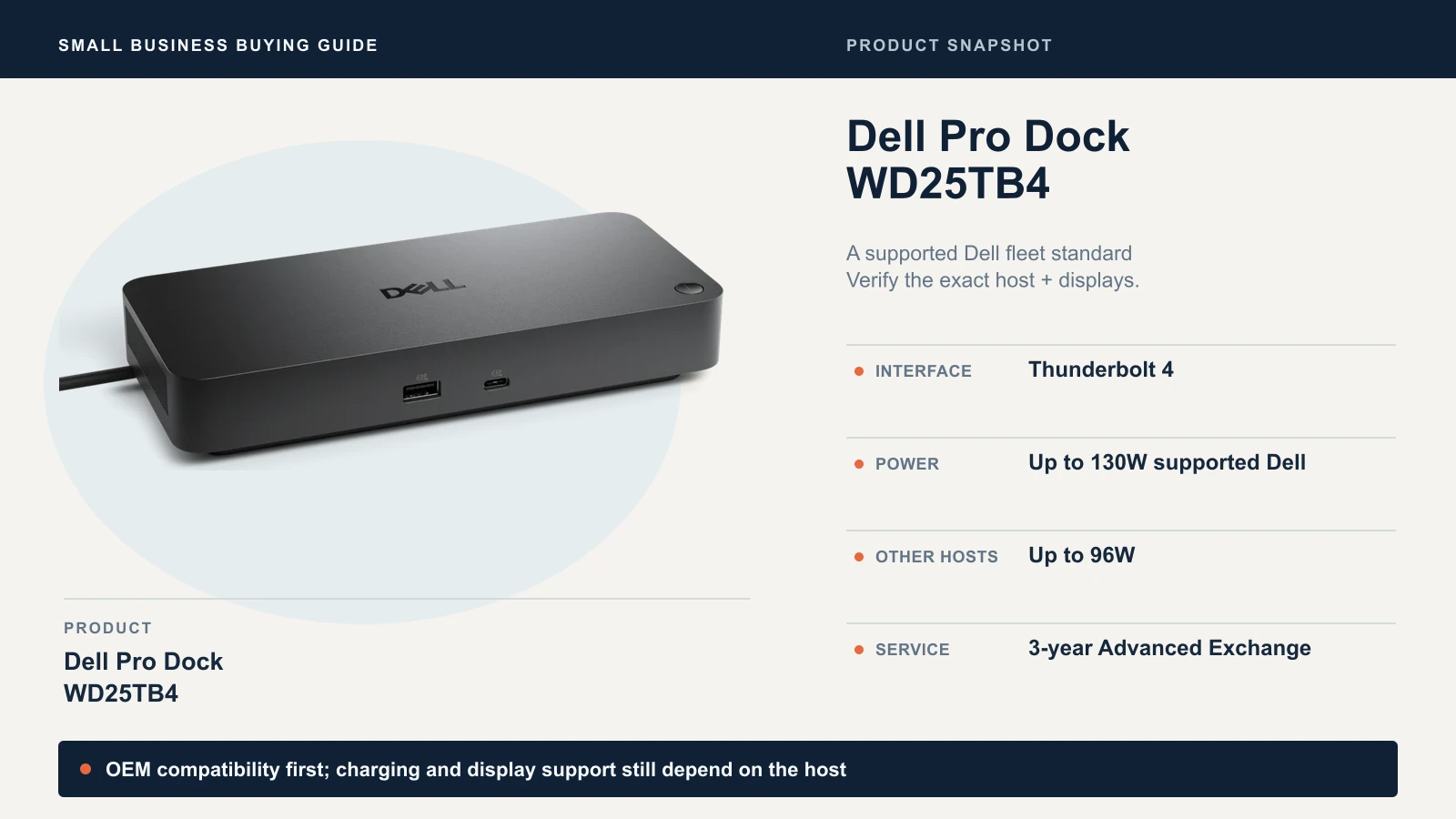
Dell's WD25TB4 is the best-documented dock on this list. Its product page shows a price, a three-year warranty with Advanced Exchange and a full port list, and its user guide publishes display tables by host type. It has two DisplayPort 1.4 outputs, HDMI 2.1, one USB-C port with DisplayPort 1.4, two downstream Thunderbolt 4 ports, one data-only USB-C 3.2 Gen 2 port, four USB-A ports and 2.5 Gigabit Ethernet. It charges supported Dell laptops at up to 130W and other hosts at up to 96W. Dell's US page advertised it at $254.99 on October 9, 2026, before applicable tax. Four- and five-year warranty terms are optional.
Check these before you order:
- Host-specific display rules. Dell's guide says Intel Core Ultra 200V laptops support a maximum of three simultaneous displays through the dock, and only with the laptop screen off. Laptops with Qualcomm processors max out at two displays, with dual 4K at 60 Hz as the ceiling.
- The model name. WD25TB4 is a different product from the USB-C WD25 and the SD25TB4 Smart Dock. Their power, display and management claims do not transfer. Confirm the exact suffix on the quote.
- Mac use. Dell says these docks are Thunderbolt certified for macOS but warns "users may experience some limitations with macOS."
Choose it if your laptops are Dell and the model sits on Dell's compatibility list. Consider another dock if a non-Dell laptop needs more than 96W, or needs management features that haven't been validated on that combination. If a Mac is the main host, run a pilot first.
Check Dell WD25TB4 on Amazon
HP Thunderbolt 4 Ultra 180W G6 Dock
HP's G6 dock is built for HP commercial notebooks. It has a Thunderbolt 4 host cable, two DisplayPort 1.4 outputs, HDMI 2.1, a downstream Thunderbolt 4 port, a rear USB-C port with DisplayPort 1.4, a front USB-C data port, five USB-A ports and 2.5 GbE. It ships with a 230W adapter and a three-year limited warranty that covers technical support, diagnostics and hardware replacement. HP also sells a three-year next-business-day Advanced Exchange Care Pack.
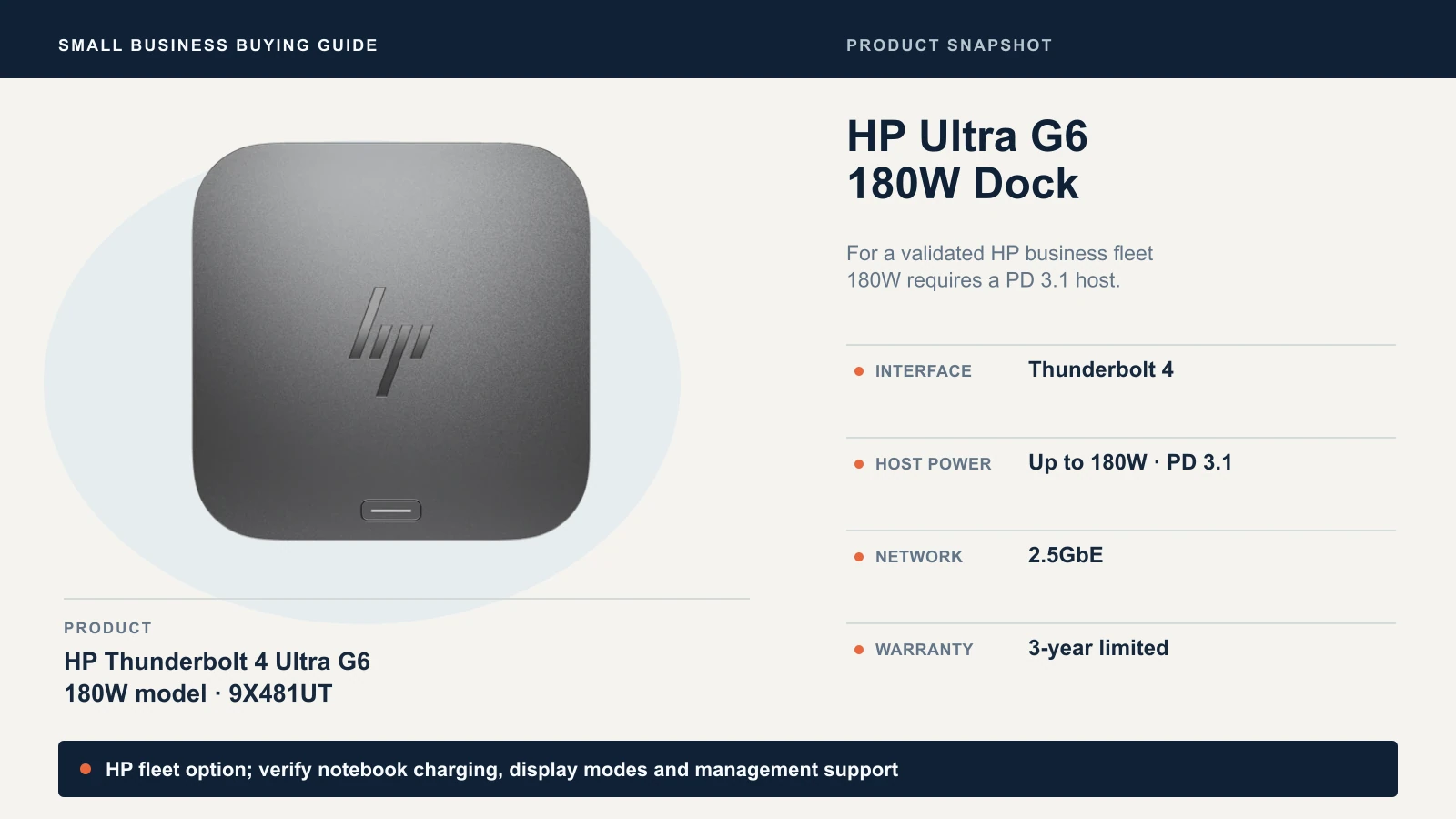
The model name is easy to misread. The 180W figure applies only to hosts that support the USB Power Delivery 3.1 Extended Power Range (EPR) profile. HP's white paper says the dock provides up to 180W to EPR hosts and up to 100W to non-EPR hosts, and a laptop may negotiate less than either. HP also states that video resolution depends on the notebook's maximum capability, and its display table shows four 4K displays at 60 Hz only on hosts that support DisplayPort 1.4 with DSC. Look your notebook up in HP's compatibility tool and read its charging and display matrix, not just the headline wattage.
HP's One-Click Installer for firmware requires Windows. HP also documents Linux updates through LVFS, ChromeOS updates, the dock's configuration web page and Poly Lens, so confirm which method IT will use. If Poly Lens manages the dock, HP says the other methods will not function.
On a Mac, HP's white paper lists macOS and describes up to two extended displays on M4, M4 Pro and M4 Max MacBook Pro models (one 4K at 60 Hz and one 2K at 60 Hz), with one screen on the dock's Thunderbolt 4 port. It also says MAC address pass-through is not supported on macOS, and the datasheet states HP provides no Ethernet or audio drivers for Macs. Neither statement proves those functions never work. Validate them on your configuration.
Choose it if your fleet is HP and the notebook is on HP's list. Consider another dock if non-HP laptops need the features HP limits to HP notebooks, or Macs need MAC pass-through or HP-supplied Ethernet and audio drivers.
Check HP G6 180W Dock on Amazon
ThinkPad Thunderbolt 4 Smart Dock Gen 2 7500 (40BE0135US)
Many guides still cite Lenovo's ThinkPad Universal Thunderbolt 4 Dock (40B00135US). Lenovo's US site now lists the Thunderbolt 4 Smart Dock Gen 2 7500 (40BE0135US), and B&H lists it as the replacement. For a new purchase, price the 7500.
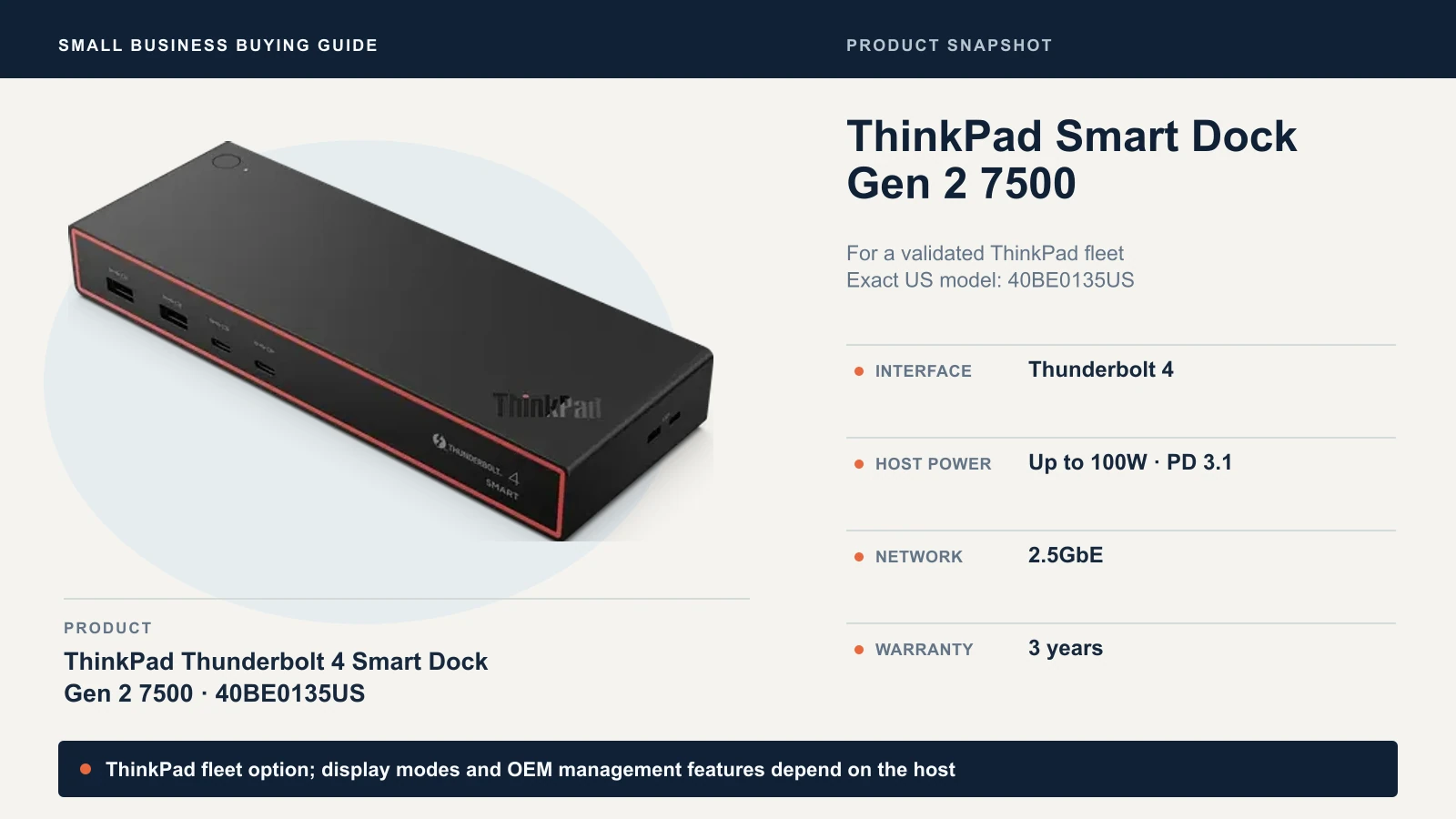
The 7500's datasheet lists two DisplayPort 1.4 outputs, HDMI 2.1, one full-function downstream Thunderbolt 4 port, four USB-A and two USB-C ports, and 2.5 Gbps Ethernet. Lenovo lists one 8K display at 60 Hz, two 4K displays at 144 Hz or four 4K displays at 60 Hz, depending on the PC and monitor. It delivers up to 100W through PD 3.1 from a supplied 135W adapter, has an integrated 1 m Thunderbolt 4 cable and a three-year warranty, and is managed through Lenovo Accessories Fleet Manager. Windows 10 and above and macOS Sequoia and Sonoma are listed.
The earlier 40B00135US lists Gigabit Ethernet, Windows only and up to four 4K displays at 60 Hz, so the 7500 adds 2.5 GbE, a macOS listing and higher refresh rates. We could not find a price on Lenovo's page for either model. The older dock remains worth considering if compatibility, price, availability and support meet your requirements, for example when you already run a validated installed base. A Thunderbolt 5 Smart Dock 7500 also exists for P-series mobile workstations, which an ordinary two-monitor desk does not need. Check Lenovo's option compatibility matrix for your exact ThinkPad.
Choose it if your laptops are ThinkPads and the exact model is in Lenovo's matrix with current firmware. Consider another dock if your fleet is mostly non-Lenovo and you need the host-dependent management features.
Check ThinkPad 7500 Dock on Amazon
Kensington SD5700T: the Mac and mixed-desk option
Kensington belongs here for one narrow job: a driverless Thunderbolt 4 dock for a Mac or mixed desk outside the Dell, HP and Lenovo defaults. It has four Thunderbolt 4 ports (one upstream, three downstream), 90W laptop charging, gigabit Ethernet and a three-year limited warranty. Its video outputs are the Thunderbolt 4 ports, which means it has no HDMI or DisplayPort sockets. HDMI and DisplayPort monitors need suitable USB-C cables or adapters. Kensington lists dual 4K at 60 Hz or a single 8K at 30 Hz, and macOS 11 or later.
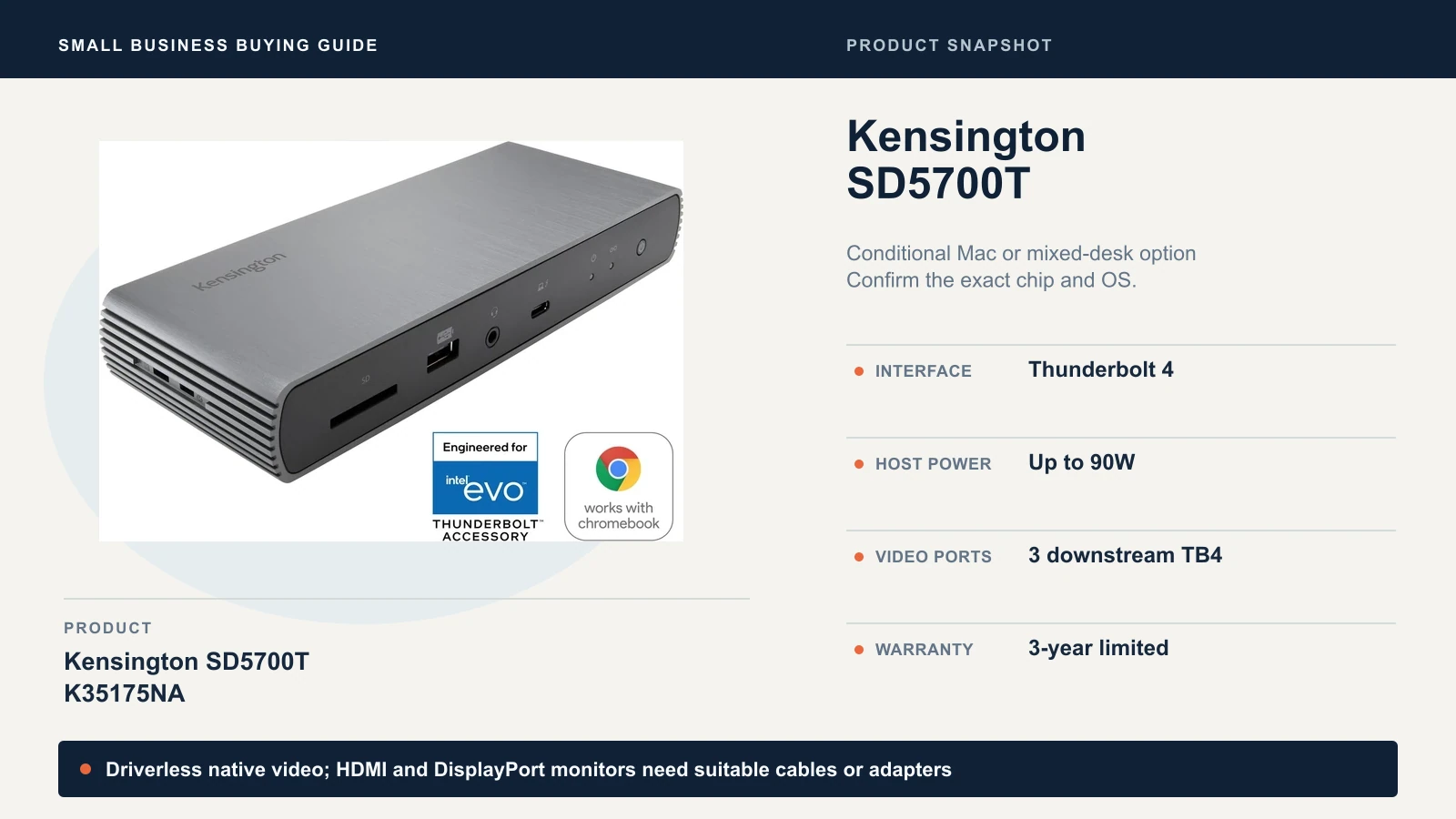
Kensington's Mac table is chip-specific. It lists dual 6K at 60 Hz for MacBooks with M1, M2 or M3 Pro or Max chips, and a single 4K at 60 Hz for base M1, M2 and M3 MacBooks. That table stops at the M3 generation. Apple's current pages show newer base chips supporting two displays, but Kensington's page does not say the dock matches those results. Keep it a conditional option until Kensington or a pilot confirms your exact chip and OS. DockWorks management software is Windows-only, and the page does not state the supplied power adapter's rating.
Choose it if the host is a Mac whose chip supports two screens, or a mixed desk where IT has no OEM dock to standardize on. Skip it if you run an OEM-managed Windows fleet, where the laptop maker's own dock is the better standard.
Check Kensington SD5700T on Amazon
How to connect two monitors
Knowing which dock to buy is half the job. This table shows which outputs to use. "Vendor-documented" means the manufacturer publishes the recipe. "Pilot required" means the maker publishes no recipe for that case, so confirm it on one desk first.
| Setup | Outputs to use | Cables | Status |
|---|---|---|---|
| Dell WD25TB4, Windows on a Thunderbolt laptop with HBR3 display support, dual 4K at 60 Hz | Two of DisplayPort, HDMI or the USB-C video port. A monitor on a Thunderbolt 4 port changes the result: Dell's non-DSC table lists one 5K and one QHD display at 60 Hz instead, unless the host and monitor support DSC. | DisplayPort or HDMI cables; USB-C cable or adapter for the USB-C video port | Vendor-documented; check Dell's table before using other combinations |
| HP G6, Windows on a DisplayPort 1.4 Thunderbolt laptop, dual 4K at 60 Hz | Any two non-Thunderbolt video ports (DisplayPort, HDMI or USB-C Alt Mode), per HP's white paper | DisplayPort or HDMI cables; USB-C cable or adapter if you use the USB-C Alt Mode port | Vendor-documented; top modes need a host with DSC |
| Lenovo 7500, Windows, two screens | Two of its two DisplayPort, one HDMI and one Thunderbolt 4 outputs; Lenovo's datasheet lists no port-by-port recipe | DisplayPort or HDMI cables; USB-C cable or adapter for the Thunderbolt 4 output | Pilot required |
| Kensington SD5700T, Windows or Mac, dual 4K at 60 Hz | Two of its downstream Thunderbolt 4 ports | USB-C-to-DisplayPort or HDMI cables or adapters, or USB-C and Thunderbolt monitors | Vendor-documented outputs; confirm what ships in the box |
| Dell on a Mac | Dell's guidance for the WD19TB, WD22TB4 and SD25TB4 (not the WD25TB4 by name): one monitor on a DisplayPort, HDMI or USB-C video port, the other on the dock's Thunderbolt port. Two monitors on video ports mirror. | USB-C cable or adapter for the Thunderbolt-port monitor | Not documented for WD25TB4; pilot required |
| HP G6 on a Mac | M4, M4 Pro or M4 Max MacBook Pro: one display on the dock's Thunderbolt 4 port, the other on a DisplayPort or HDMI port | USB-C cable or adapter for the Thunderbolt-port monitor | Vendor-documented for those chips |
| Lenovo 7500 on a Mac | macOS Sonoma and Sequoia are listed; Lenovo's datasheet gives no two-display recipe | Not stated | Pilot required |
| Kensington on a Mac | Two Thunderbolt 4 downstream ports on a chip Kensington lists for dual screens | USB-C cables or adapters | Vendor-documented for M1 to M3 Pro and Max |
Whether the laptop's own screen can stay on depends on the host. HP lists up to three external displays plus the notebook screen. Dell notes that Core Ultra 200V laptops need the screen off for three displays. Apple counts external displays separately from the built-in screen on M4 and M5 models.
Check compatible configuration and current price
Do this after the host checks above, not before. Each link goes to the manufacturer. Dell's page shows a price. The HP, Lenovo and Kensington pages we checked on October 9, 2026 did not show a purchase price we could read, so request a quote for the SKU your supplier will ship.
- Dell Pro Thunderbolt 4 Dock WD25TB4
- HP Thunderbolt 4 Ultra 180W G6 Dock (9X481UT), and HP's notebook compatibility tool
- ThinkPad Thunderbolt 4 Smart Dock Gen 2 7500 (40BE0135US), and Lenovo's option compatibility matrix
- Kensington SD5700T K35175NA support page and specifications
If a direct connection already meets your daily requirements, you may not need a dock. The next sections show how to decide.
Charging, Ethernet and daily reliability
A dock that shows two screens on day one can still fail the daily test.
| Dock | Supplied adapter | Maximum to the laptop (vendor) | Ethernet |
|---|---|---|---|
| Dell WD25TB4 | 180W | 130W supported Dell, 96W other hosts | 2.5 GbE |
| HP Thunderbolt 4 Ultra 180W G6 | 230W | Up to 180W on PD 3.1 EPR hosts; up to 100W on non-EPR hosts | 2.5 GbE |
| ThinkPad Smart Dock Gen 2 7500 | 135W | Up to 100W (PD 3.1) | 2.5 GbE |
| Kensington SD5700T | Not stated on its support page | 90W | Gigabit |
Separate the adapter rating from the delivery rating. The supplied adapter's wattage is its rated output capacity, and actual power draw varies. The right-hand column is the most the dock can pass to the laptop. Compare that figure to the charger that came with your laptop. If the laptop shipped with a 140W adapter and the dock delivers 96W or 100W, a heavy workload could draw down the battery even while docked. The original charger's rating is a screening clue, not proof of the laptop's continuous demand or its negotiated charging rate, which is why the one-hour load test below exists.
A 2.5 GbE port needs a matching network. The dock needs a compatible switch port and suitable cabling to establish a 2.5 Gbps link. Actual transfer speed also depends on the rest of the network and the device or service you access. Our 2.5 gigabit upgrade guide covers when it is worth it.
Firmware is part of the product. Record the dock's firmware version when you accept a desk, and test what causes tickets: cold boot, sleep and wake, unplug-and-replug, and a video call with webcam, headset and Ethernet running through the dock. The checklist below puts these in order.
When direct connections or a USB-C monitor are enough
A dock earns its place when it replaces several things at once: charging, Ethernet, a pile of USB devices and two video cables, all on one connector. If the desk only needs two screens and power, check whether the laptop already does that. Two common direct setups are one monitor on the laptop's HDMI port and the other on a USB-C DisplayPort port, or a USB-C monitor that carries video and charges the laptop while a second monitor connects over HDMI. Either needs no dock if the laptop supports two external screens. Our Dell dual 4K monitor setup guide covers the USB-C monitor route, and the Mac mini monitor guide covers daisy-chaining on macOS.
A compatible USB-C dock can be sufficient for two office monitors on Windows. Check the laptop's DisplayPort capability, the dock's display matrix, and your target resolution and refresh rate. Dell's USB-C WD25, for example, lists dual QHD at 60 Hz on a standard host and higher modes only with DSC, which is below the dual 4K at 60 Hz the Thunderbolt docks in this guide list. The SD5700T's single-display USB-C fallback limit is specific to that model.
Skip the dock only when the direct setup meets your daily requirements. If staff swap desks often, need wired Ethernet or plug in many peripherals, a dock can still be worth it.
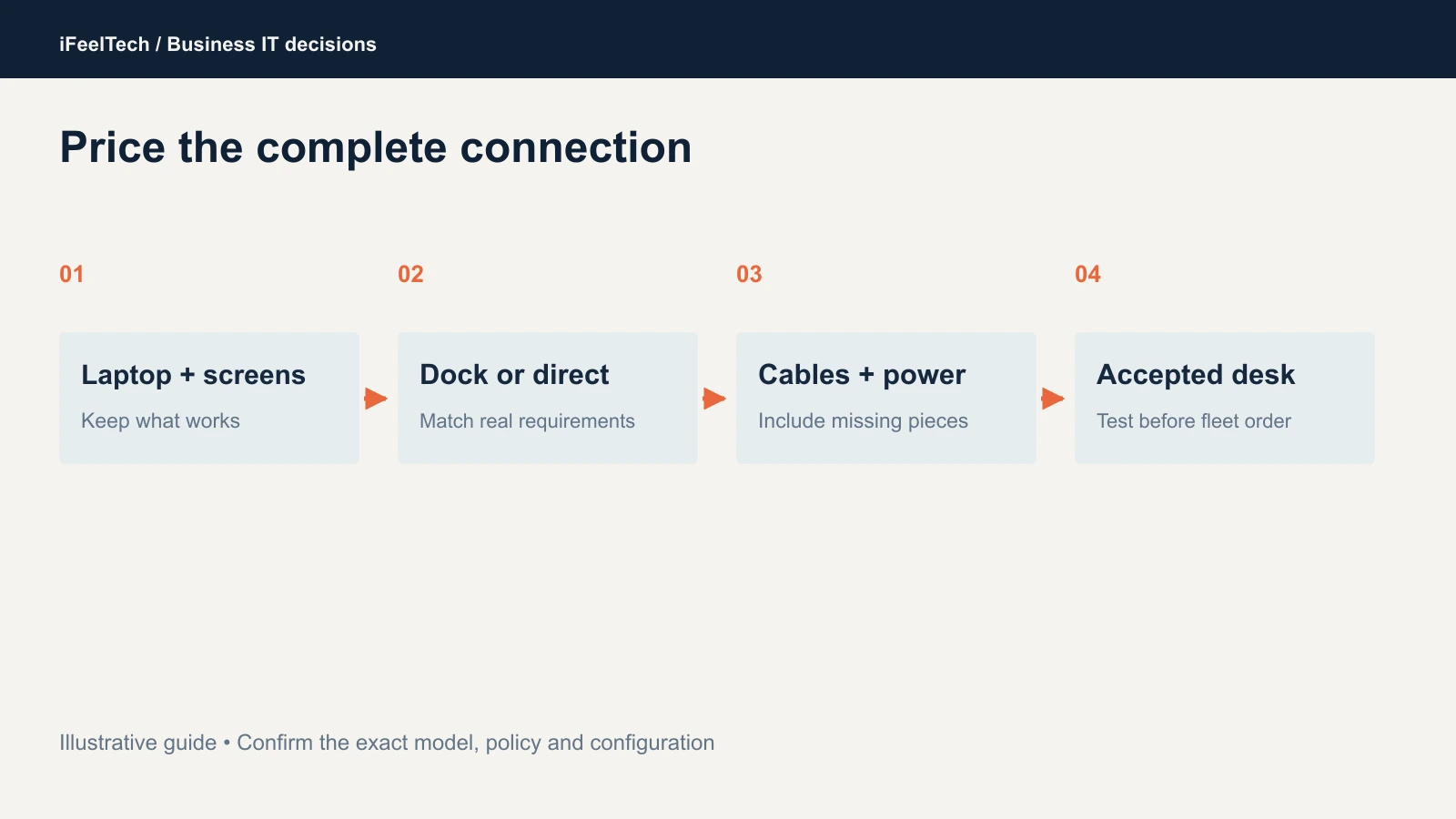
The cheapest dock is not always the cheapest desk. Here is an illustrative quote comparison. The Dell price is from Dell's US page (October 9, 2026, before tax); the other figures are example numbers to show the arithmetic, not market prices.
| Option | Dock | Adapters | Separate charger | Complete cost |
|---|---|---|---|---|
| WD25TB4, outputs match both monitors | $254.99 | $0 | $0 (dock charges the laptop) | $254.99 |
| Hypothetical low-priced dock needing two adapters and its own charger | $180 (example) | 2 × $35 = $70 (example) | $55 (example) | $305 (example) |
| Direct connection, laptop already supports two screens | $0 | Cables you lack | Laptop's own charger | Cable cost only |
Replace every figure with a dated quote from your supplier, and note the seller, condition and return deadline. Compare equivalent requirements, included accessories and service terms.
Acceptance checklist before a fleet order
Buy one dock and test it on one real desk inside the return window. Pass or fail lines 1 to 6, and record line 7:
- Two separate extended screens. In Windows Display settings or macOS System Settings, both monitors appear as individual displays at your target resolution and refresh rate. One merged or mirrored display is a fail.
- Charging that holds. Run a representative workload for an hour and watch the battery percentage. It should stay level or rise. If the laptop has a battery-charge limit or battery-health setting enabled, a level percentage may reflect that setting rather than the dock.
- Cold boot with the dock connected: both screens and the keyboard work.
- Ten sleep and wake cycles in the lid positions your intended dual-display configuration supports. A base M3 MacBook, for example, supports two external displays only with the lid closed.
- Unplug and replug the single cable. Both screens return without a restart.
- A video call with the webcam, headset and Ethernet running through the dock.
- Firmware and records. Write down the laptop model, OS build, dock firmware, monitor model, cable and port used, then the result.
Pass the first six, log the seventh, and standardize that laptop-and-dock pair. Fail one and check the vendor's current firmware and compatibility pages before you return the dock, and keep your existing connection until a pair passes.
When a line fails, start here:
| Symptom | Possible causes | First fix |
|---|---|---|
| Both screens mirror instead of extending, or merge into one | On a Mac, both monitors may be on dock video ports that share an MST link (Dell documents this for several of its docks) | Move one monitor to the dock's Thunderbolt port |
| Lower resolution or refresh rate than expected | Host DisplayPort version or DSC support; a monitor on the Thunderbolt port that isn't DSC-capable (Dell); a non-designated cable (HP warns third-party cables may not support 40 Gbps) | Check the vendor's display table for your host; use the supplied or designated Thunderbolt cable |
| Laptop reports slow or no charging | The dock's maximum for this host is below the laptop's charger rating; the cable, adapter or power negotiation may also limit it | Compare the dock's maximum to the laptop charger, then use the laptop's own charger if needed |
| Screens don't return after sleep | Dock firmware, host drivers or power settings; a cable or port problem | Record the firmware version, check the vendor's tool for updates, swap the cable, and retest |
Sources checked October 9, 2026
- Dell: WD25TB4 product page, WD25TB4 user's guide, display resolution table and Dell docks and Apple USB-C hosts
- HP: G6 dock datasheet (February 2025), G6 technical white paper and HP store page
- Lenovo: Smart Dock Gen 2 7500 datasheet, earlier 40B00135US datasheet and B&H listing of the 40BE0135US as its replacement
- Kensington: SD5700T specifications
- Apple: MacBook Air displays, MacBook Air M2 tech specs and dual displays on M3
- DisplayLink: macOS Screen Recording permission
- Thunderbolt 5: Intel technology brief and Plugable on mixing Thunderbolt 5 and 4
Prices, firmware and support terms change. Recheck them against the manufacturer page on the day you order.
Related Resources
- ThinkPad vs Dell Pro vs HP EliteBook — Choose the laptop platform before you choose its dock.
- Top 10 Business Laptops — Ranked laptops for business use, with the specs that drive dock compatibility.
- Business Computer Specs Guide — Minimum specs and fleet standards for office computers.
- Dell 4K Dual Monitor Setup for Business — USB-C and traditional monitor setups, with costs.
- Best Monitors for Mac Mini M4 — Daisy-chaining and Thunderbolt display rules on macOS.
- Managed IT Services — Deployment, standardization and support for office hardware across South Florida.
Frequently Asked Questions
Related Articles
More from Business Hardware

Business PC Buying Guide 2026: How to Avoid Bad Laptop and Desktop Purchases
Most business PC guides rank products. This one explains the procurement framework — Windows Pro, lifecycle planning, standardization, and the buying mistakes we see every month.
13 min read

The Best Time to Buy a Laptop in 2026: A Practical Buying Guide
Compare current laptop quotes, sale prices, support deadlines, and purchase versus lease costs before choosing when to buy in 2026.
5 min read

Best Laptop for Accountants and QuickBooks Users in 2026: An IT Pro's Buying Guide
IT practitioner guide to the four best laptops for accountants and QuickBooks users in 2026, with scenario-based picks, specs, and real pricing.
22 min read