

Wi-Fi 6 vs Wi-Fi 7 for Business: When to Keep or Upgrade
Should your office replace Wi-Fi 6? Compare 6E and 7, check clients, PoE and uplinks, and see when to keep, tune or upgrade.

For a new office deployment, Wi-Fi 7 is usually our starting point. An office with reliable Wi-Fi 6 does not need to replace it just because a newer standard exists. Before you spend anything, find out whether coverage, configuration, client devices, internet service or wired uplinks are limiting work. Price the whole deployment, not only the access points.
Affiliate Disclosure: This article contains affiliate links. If you make a purchase through these links, we may earn a small commission at no extra cost to you. As an Amazon Associate, iFeelTech earns from qualifying purchases.
The short answer: new install versus working network
| Your situation | Best next step | Why |
|---|---|---|
| New office, buying APs and pulling cable | Start with Wi-Fi 7 | The installation work is already planned; choose the AP, switch and power together. |
| Supported Wi-Fi 6 meets your needs | Keep it | Maintain the firmware and configuration; review it at your next lifecycle refresh. |
| Calls drop or Wi-Fi feels slow | Diagnose before buying | Test coverage, channels, wired uplinks and internet service to find the actual limit. |
| A measured need remains after diagnosis | Pilot Wi-Fi 7 | Test representative clients and rooms before replacing the fleet. |
Our new-install preference is a deployment rule, not a technical law. Extending an existing Wi-Fi 6 fleet with compatible access points (APs), or buying a discounted Wi-Fi 6 AP that meets a documented need, can be sensible. Our recommendations combine deployment and support experience with manufacturer documentation; a generation change alone does not promise a speed gain.
What is the difference between Wi-Fi 6, 6E and Wi-Fi 7?
Wi-Fi 6E is Wi-Fi 6 extended into the 6 GHz band, and Wi-Fi 7 is a newer standard with new capabilities.
| Feature | Wi-Fi 6 | Wi-Fi 6E | Wi-Fi 7 |
|---|---|---|---|
| Standard | 802.11ax | 802.11ax | 802.11be |
| Bands | 2.4 and 5 GHz | 2.4, 5 and 6 GHz | 2.4, 5 and 6 GHz on tri-band APs |
| Widest channel | 160 MHz | 160 MHz | 320 MHz, on 6 GHz only (optional feature) |
| What it adds | OFDMA, 1024-QAM, optional preamble puncturing | Wi-Fi 6 on the added 6 GHz band, often less crowded | Multi-Link Operation (MLO), multi-RU, required preamble puncturing, 4K-QAM (optional) |
| What the client needs | A Wi-Fi 6 radio | A 6E radio | A Wi-Fi 7 radio; feature support varies by device |
Not every Wi-Fi 7 AP is tri-band, so confirm the bands on the spec sheet. Treat headline rates as ceilings: the U7 Pro's 5.8 Gbps on 6 GHz is a physical-layer rate, not what a laptop will transfer. 6 GHz use depends on regional rules, and 320 MHz channels and 4K-QAM are optional, so the Wi-Fi 7 label alone does not promise them. Our 2.4, 5 and 6 GHz band guide explains what each band does and which devices can use it.
Fix the bottleneck before replacing access points
Changing the Wi-Fi generation alone does not reliably fix a problem that lives somewhere else. Before you replace anything, check:
- Coverage and building materials. Poor placement and wall attenuation do not disappear because the standard changed. Survey and test the problem area before choosing hardware.
- AP placement and channel plan. Extra APs on overlapping channels can make a network worse. Wider channels use spectrum your neighbors' APs need too.
- Roaming and interference. Clients that cling to a distant AP, neighboring networks and non-Wi-Fi sources all slow calls.
- Switch uplinks and PoE budget. A port that negotiated below its expected speed, or a switch out of PoE power, looks like a Wi-Fi problem.
- Internet service. Internet transfers cannot exceed your internet connection, while local network traffic is a separate case. Test from a wired device first.
Our guide to why office Wi-Fi underperforms walks through that diagnostic in order. Compressed into one picture, the decision looks like this:
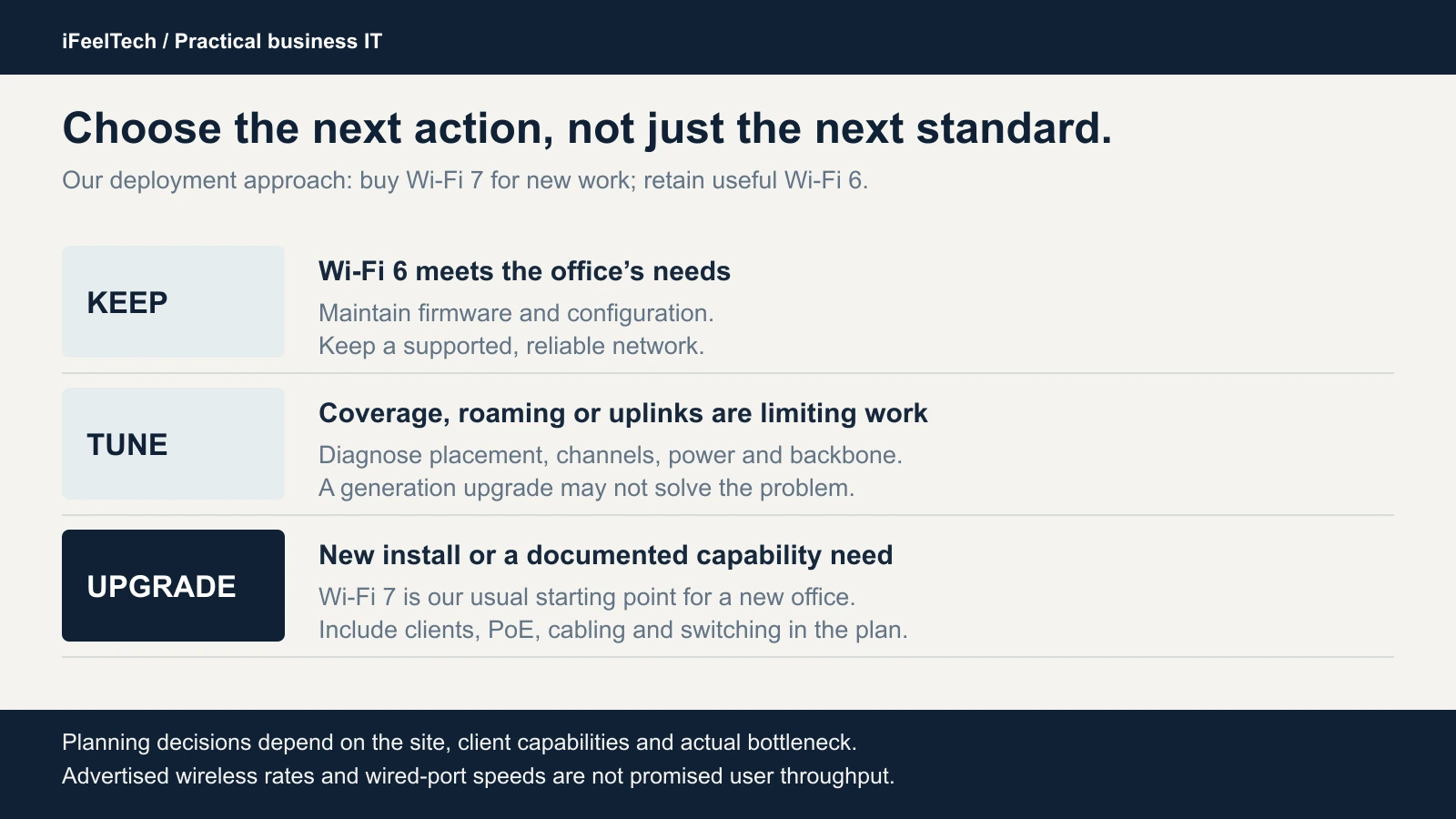
Our practical deployment approach: assess the site and client needs before upgrading.
A working Wi-Fi 6 office still has good reasons to upgrade. Look for a documented need rather than a calendar date:
- Congestion on 2.4 and 5 GHz that a 6 GHz band, with clients able to use it, would relieve.
- An AP fleet reaching the end of its vendor support or lifecycle.
- A switch or cabling replacement already in the budget, which cuts the extra labor.
- A client mix that has shifted enough to use Wi-Fi 7 features.
An office already running Wi-Fi 6E APs has a different case from a dual-band Wi-Fi 6 office. It already uses 6 GHz, so the added value is what Wi-Fi 7 brings on top, and only for clients that support it.
What Wi-Fi 7 can improve
Each Wi-Fi 7 improvement depends on the client on the other end.
- 6 GHz. It gives 6E and Wi-Fi 7 clients spectrum that is often less crowded, though not at every site. Cisco Meraki recommends surveying where needed so 6 GHz cell sizes match your 5 GHz design.
- Multi-Link Operation (MLO). Compatible APs and clients maintain multiple links, on different bands or even the same band. Depending on the client's supported mode, a device either switches between links or transmits over several at once, and the benefit depends on that mode and its firmware. Our MLO guide covers the modes.
- 4K-QAM. It raises the data rate by up to about 20% over 1024-QAM under comparable conditions, but it needs very high signal quality. It is unlikely to help a client with a weak signal.
- Wider channels and preamble puncturing. 320 MHz channels exist on 6 GHz, but wide channels consume spectrum and leave few channels to reuse. Use them where people need throughput, not everywhere. Preamble puncturing lets an AP skip an interfered slice of an 80 MHz or wider channel; Wi-Fi 6 made it optional and Wi-Fi 7 certification requires it.
Check the wired backbone and clients
Traffic between wireless clients and the wired network shares the AP’s Ethernet uplink, so we prioritize the router-to-switch-to-AP backbone. Multigig helps when traffic crossing that link exceeds 1 Gbps, because every client on the AP shares the uplink. Our 2.5 GbE guide explains when 2.5 GbE is enough. It is not required for the other Wi-Fi 7 benefits, and a 1 GbE uplink does not stop an AP from using 6 GHz.
The UniFi U7 Pro lists PoE+ at 21 W maximum, and the Omada EAP772 lists 802.3at at 25.4 W maximum. Neither needs PoE++. What matters is the switch's total PoE budget across every device on it, allowing for how the switch allocates power and for cable loss. Our Power over Ethernet guide shows how to total it. After installation, confirm each switch port negotiated the speed you planned.
Then look at what your people carry. Wi-Fi 7 features need compatible client radios. Apple says devices with Wi-Fi 6E or Wi-Fi 7 can join Wi-Fi 7 networks, but only specific models support all its features; check Apple's device list and regional 6 GHz availability.
On Windows, Wi-Fi 7 support starts with Windows 11 version 24H2, with a capable adapter and driver. Microsoft documents Wi-Fi 7 enterprise AP support on Windows 11 25H2, or 24H2 with KB5065789 or a later update, provided the laptop and certified driver support it. If your office uses 802.1X, test the exact client, driver, AP and authentication configuration before rollout. Run netsh wlan show drivers to check for 802.11be under supported radio types and the relevant WPA3 authentication modes; that check alone does not prove every Wi-Fi 7 feature works. For Android and other devices, check the exact model variant, wireless hardware, OS, firmware and supported bands rather than relying on a Wi-Fi 7 label.
Keep a compatible security and device plan
Plan WPA3 and protected management frames for authenticated Wi-Fi 7 networks, and verify your AP, controller and client requirements before enabling MLO. Open networks use the corresponding Enhanced Open requirements. Test the intended security settings with representative devices before rolling them out across the office.
Older Wi-Fi 5 and Wi-Fi 6 devices normally keep working on a Wi-Fi 7 AP's 2.4 and 5 GHz radios when your security settings support them. They gain no 6 GHz or Wi-Fi 7 capabilities, and a new AP does not automatically require new laptops. A 6 GHz network cannot use WPA2, so a WPA2-only device stays on the lower bands. You do not need to replace it today.
Keep older devices such as printers, scanners and sensors on a suitable 2.4 or 5 GHz network, and follow our guest Wi-Fi setup guide for visitor access. Put them in their own network with isolation where it makes sense, to apply suitable access rules without weakening your staff network's security settings. A separate SSID or VLAN controls access. It does not add radio capacity, because devices still share airtime, and VLAN boundaries need firewall rules to enforce them. Both the UniFi U7 Pro and the Omada EAP772 list client isolation, VLAN-related features and multiple SSIDs.
Current business AP examples and total cost
These four APs illustrate the decision and are not a ranking. For a ranked shortlist, see our best Wi-Fi 7 access points for small business. For the ecosystem choice, see UniFi vs Omada for business.
UniFi U6 Pro: the Wi-Fi 6 baseline
If your office runs working Wi-Fi 6, the U6 Pro shows what "working" looks like: 2.4 and 5 GHz, a 1 GbE uplink, PoE at 13 W maximum and a 4x4 radio on 5 GHz. It is a baseline to retain while it meets your needs. For a new install, we start with Wi-Fi 7.
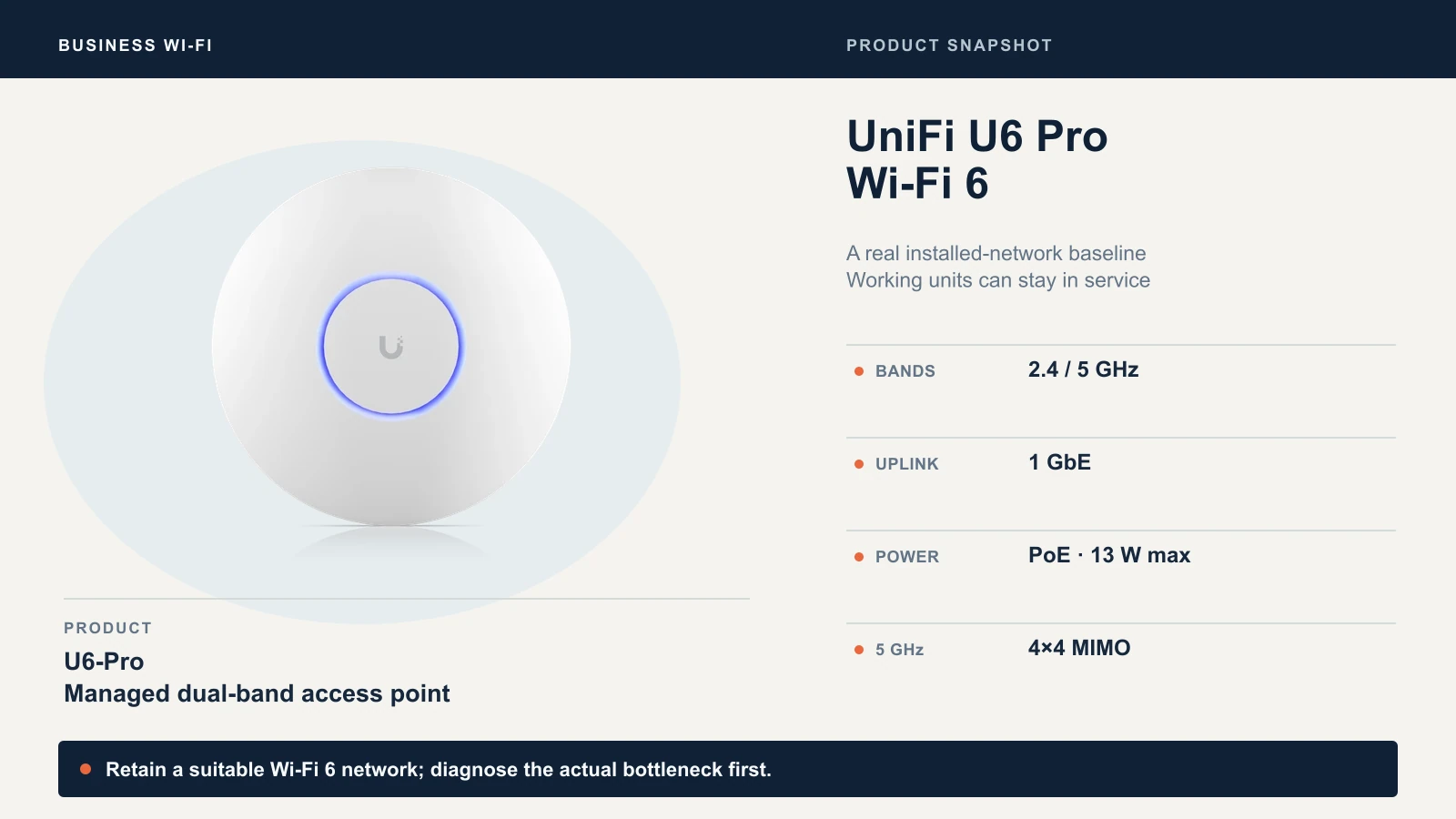
Specifications: UniFi U6 Pro.
UniFi U7 Pro: the mainstream Wi-Fi 7 option
The U7 Pro adds a 6 GHz radio to 2.4 and 5 GHz, a 2.5 GbE uplink and PoE+ at 21 W maximum. Newer is not higher in every line of the sheet. The U6 Pro's 5 GHz radio is 4x4 and rated at 4.8 Gbps on 160 MHz channels. The U7 Pro's 5 GHz radio is 2x2 and rated at 4.3 Gbps on up to 240 MHz channels. Those rates use different stream counts and channel widths, so they do not show which AP is faster for a given laptop. A 2x2 client gains no extra streams from a 4x4 AP, though the U6 Pro's extra radio streams can help some multi-client 5 GHz workloads. The U7 Pro's gains are the 6 GHz radio, the Wi-Fi 7 feature set and a multigig uplink, which matter when your clients and backbone can use them.
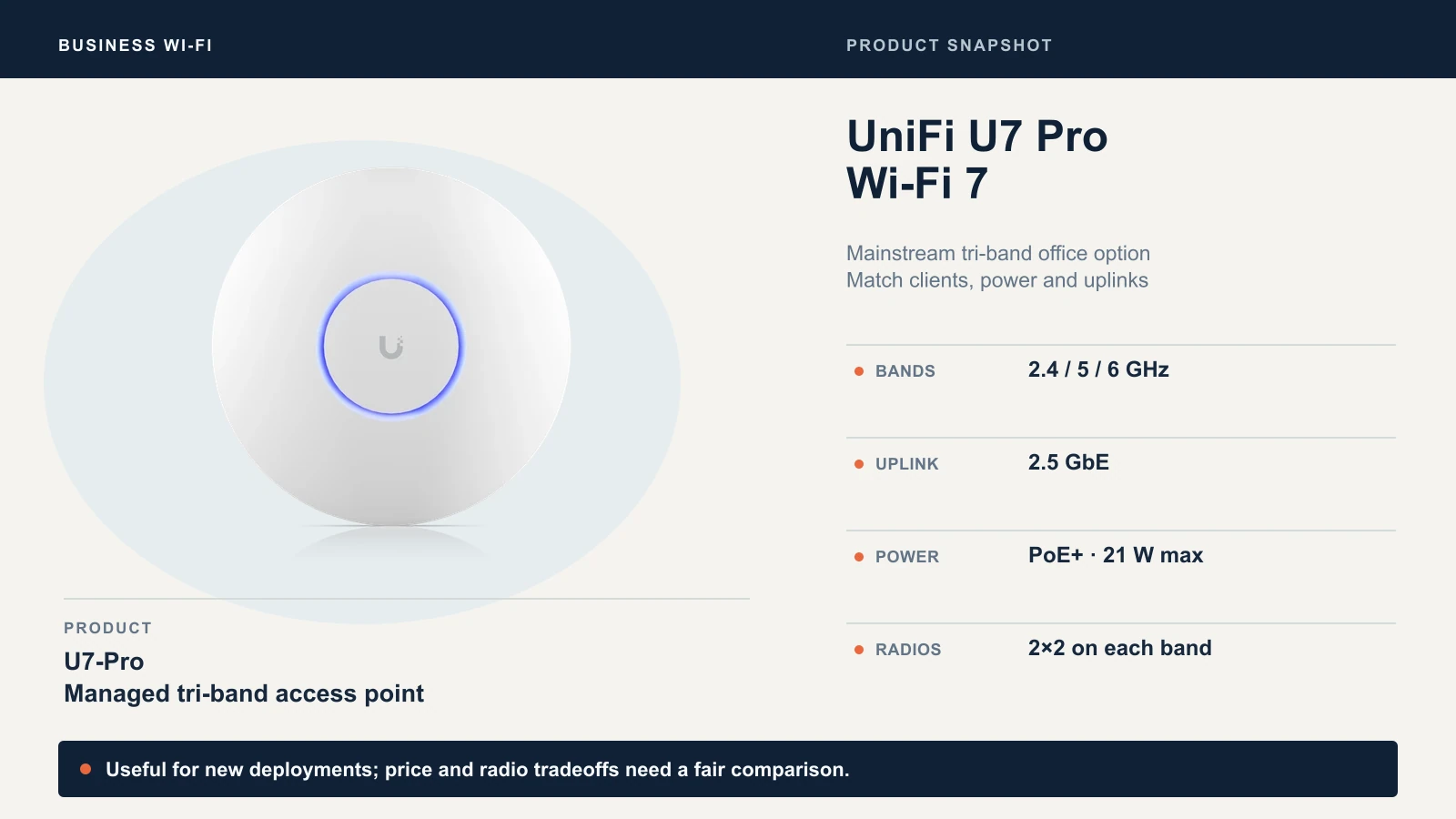
Check U7 Pro availability on Amazon
UniFi U7 Pro XG: more uplink headroom
The U7 Pro XG keeps the tri-band design and adds a 10 GbE uplink, with PoE+ at 22 W maximum. Ubiquiti lists 10/5/2.5/1 GbE support, so it does not require a 10 GbE switch. When quotes for the XG and U7 Pro are close, compare the exact variant, supplier, warranty and delivered price; the extra uplink headroom may be worthwhile. Confirm the negotiated speed during installation. Our UniFi Wi-Fi 7 access point guide compares the wider range.
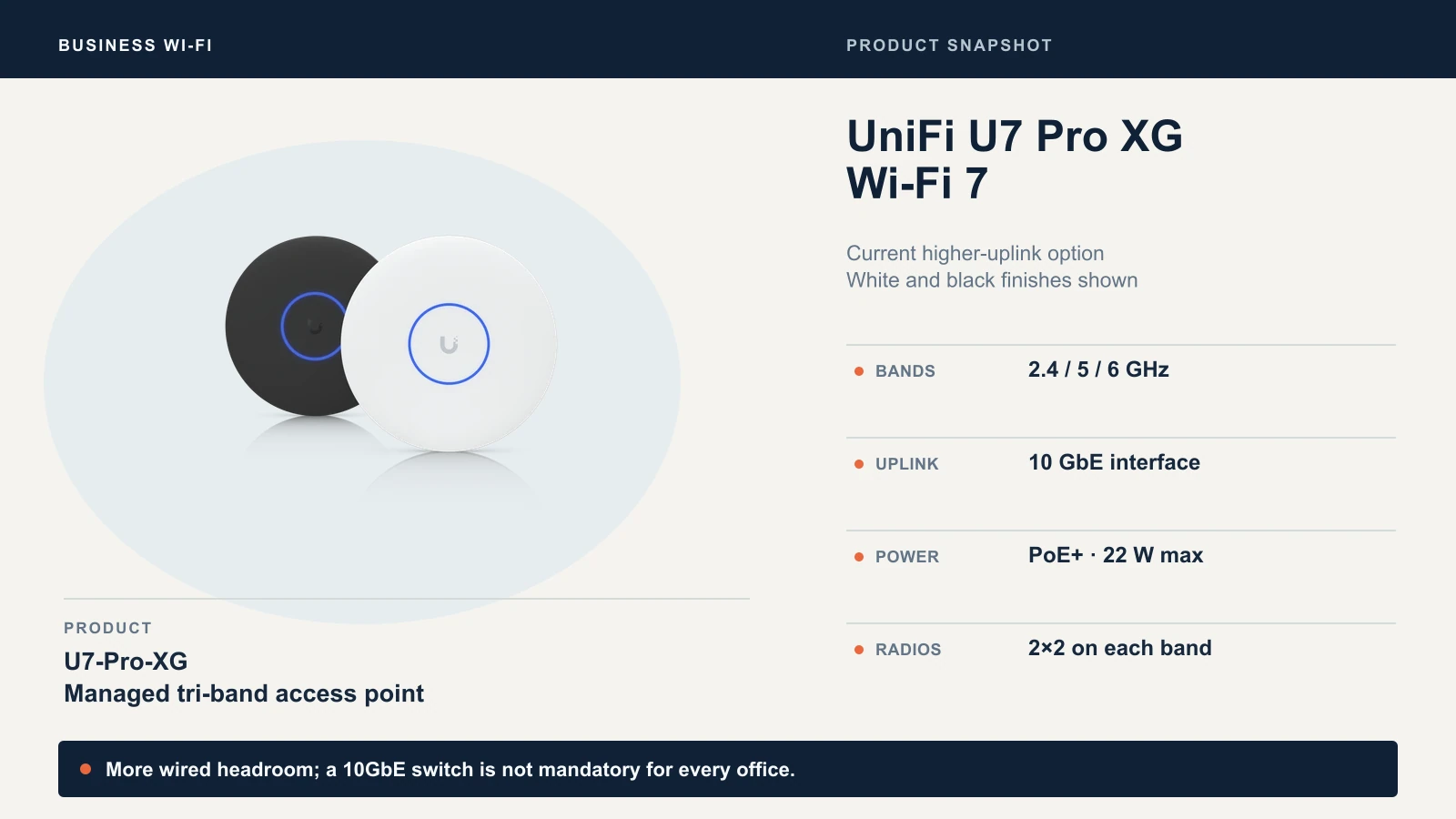
Specifications: UniFi U7 Pro XG.
Omada EAP772: the Omada option
The EAP772 is tri-band with a 2.5 GbE port and 802.3at PoE at 25.4 W maximum. Its DC adapter is not included. TP-Link lists MLO, 4K-QAM and 320 MHz channels, each requiring client support. Mesh, roaming, captive portal and cloud access require an Omada controller; our Omada Wi-Fi 7 setup guide covers a complete build. It fits an existing Omada network. For a fleet staying on Wi-Fi 6, TP-Link also offers the 2.5 GbE EAP670.
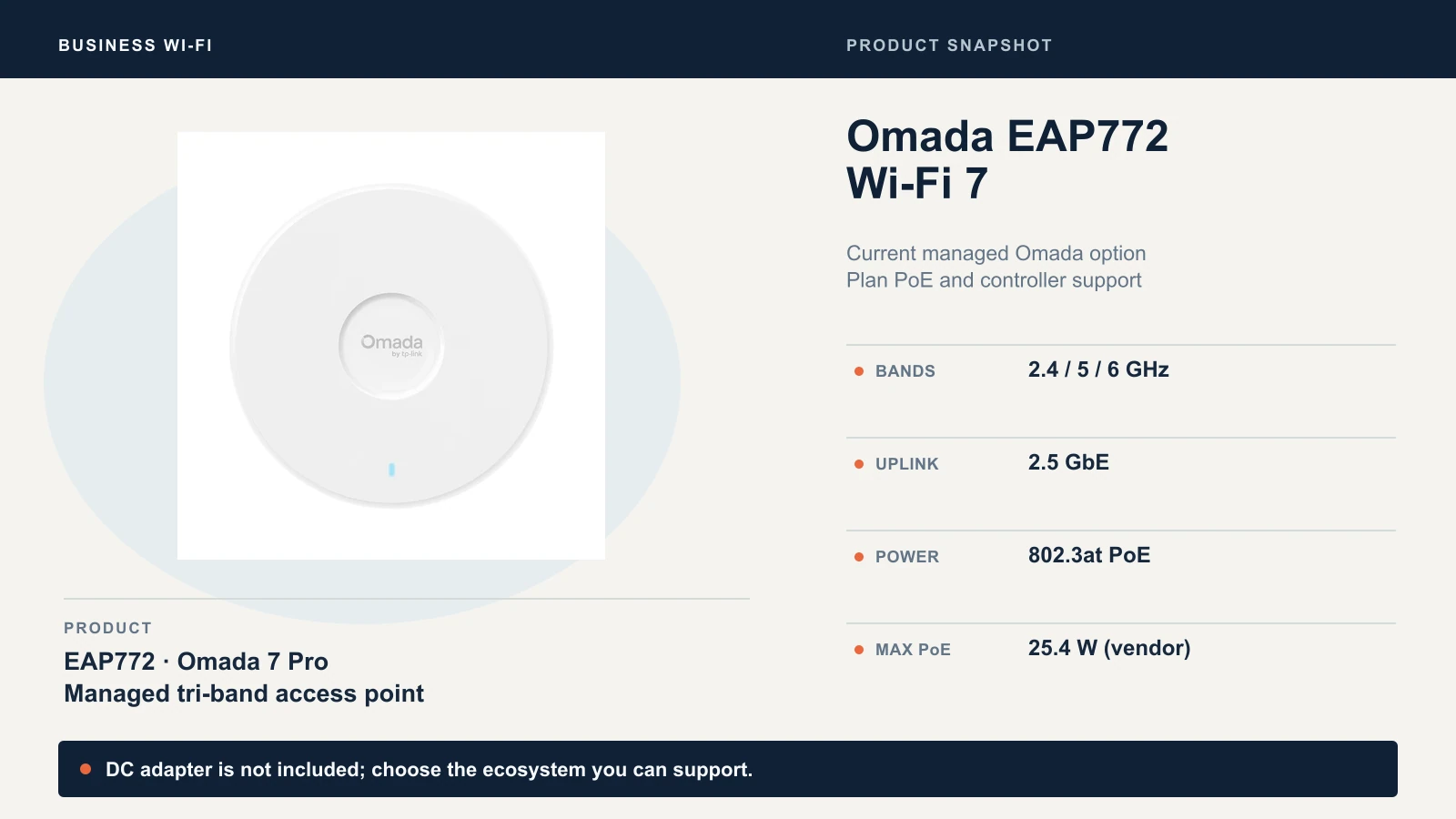
Check EAP772 availability on Amazon
What the full quote includes
Compare quotes against the same coverage goal and client mix. An AP's listed price is only one part of the decision:
| Cost item | What to check |
|---|---|
| APs and mounts | Exact model, quantity, mounting location, warranty and seller. |
| Switching and power | Port speed, PoE standard and total switch power budget across all devices. |
| Cabling | Whether existing runs were tested and can support the planned link speed, or new runs are needed. See our Cat6 vs Cat6A guide. |
| Controller and licensing | Hardware or hosted controller needs, management features and recurring fees, if any. |
| Installation and support | Survey, configuration, migration, acceptance testing and ongoing support. |
Ask each bidder how the coverage plan was made, which client devices it assumes, and what success will look like in your problem rooms. Confirm the SSID and VLAN plan for staff, guests and older devices, and make sure the quote states what commissioning and support include.
Three office scenarios
These examples are hypothetical; replace them with what you find in your own office.
A working office on a gigabit connection: keep and tune. Calls and cloud apps work, and the Wi-Fi 6 APs are supported. Update the firmware, record AP models and warranty dates, document the SSID and VLAN plan, and revisit at a lifecycle refresh or when a need appears.
A new office with multigig-ready cabling: Wi-Fi 7. You are pulling new cable to ceiling locations, specifying a PoE+ switch with multigig ports and buying every AP new. This is our standard case. Choose Wi-Fi 7, match each drop to its uplink, and survey 6 GHz coverage rather than assuming it matches 5 GHz.
Slow calls behind walls: diagnose coverage first. A conference room behind concrete or glass drops calls, while the AP in the hallway reads strong outside it. Swapping in a Wi-Fi 7 AP at the same spot does not reliably solve wall attenuation. Survey and test the room, check roaming and channels, and consider moving or adding an AP.
Before replacing a whole fleet, pilot it. Install one or two APs in a representative area and test with the laptops and meeting rooms your people actually use. Compare local file transfers separately from internet speed, and check calls and roaming under normal load. Set success criteria from the business problem you are trying to solve.
Our recommendation
Buy for new, keep what works, fix the backbone first
Keep working Wi-Fi 6; start new installations with Wi-Fi 7. Match the router-to-switch-to-AP backbone and configuration to the building, then upgrade an existing site when a documented need or planned refresh justifies it.
For model choices, start with our best Wi-Fi 7 access points for small business. If you want a second opinion on an existing network, or a like-for-like quote for a new office in Miami and South Florida, we design and install business Wi-Fi.
Sources
Specifications are manufacturer data, reviewed October 20, 2026.
- Wi-Fi 7 technical guidance: Cisco Meraki, HPE Aruba Networking and Cisco's WPA3 deployment guide — Generation features, MLO modes and WPA3 requirements.
- UniFi tech specs: U6 Pro, U7 Pro and U7 Pro XG — Bands, uplinks and power.
- Omada EAP772 specifications — Bands, port, PoE power and feature requirements.
- Client guidance: Apple and Microsoft's Windows 11 IT guidance — Which devices and Windows releases support Wi-Fi 7.
Product photographs come from the manufacturers. Confirm the current offer, seller and delivery to your address at checkout.
Related Resources
- Why Is Office WiFi Slow? — Diagnose coverage, interference and uplinks before replacing equipment.
- Best Wi-Fi 7 Access Points for Small Business — A ranked shortlist with switch, cabling and licensing costs.
- WiFi 7 Multi-Link Operation (MLO) Explained — How MLO modes work and which devices support them.
- UniFi vs TP-Link Omada WiFi 7 — Choose between the two business ecosystems.
Frequently Asked Questions
Related Articles
More from Network Infrastructure
Professional WiFi 7 Network Implementation: Complete Business Guide
Complete guide to professional WiFi 7 network implementation for businesses. Covers infrastructure planning, UniFi equipment selection, cost analysis, and implementation best practices.
16 min read

Cat6 vs Cat6A for an Office: What to Keep and What to Upgrade
Compare Cat6 and Cat6A for office cabling. Learn when to keep existing wiring, where 10GbE needs Cat6A, and how to plan reliable network upgrades.
12 min read
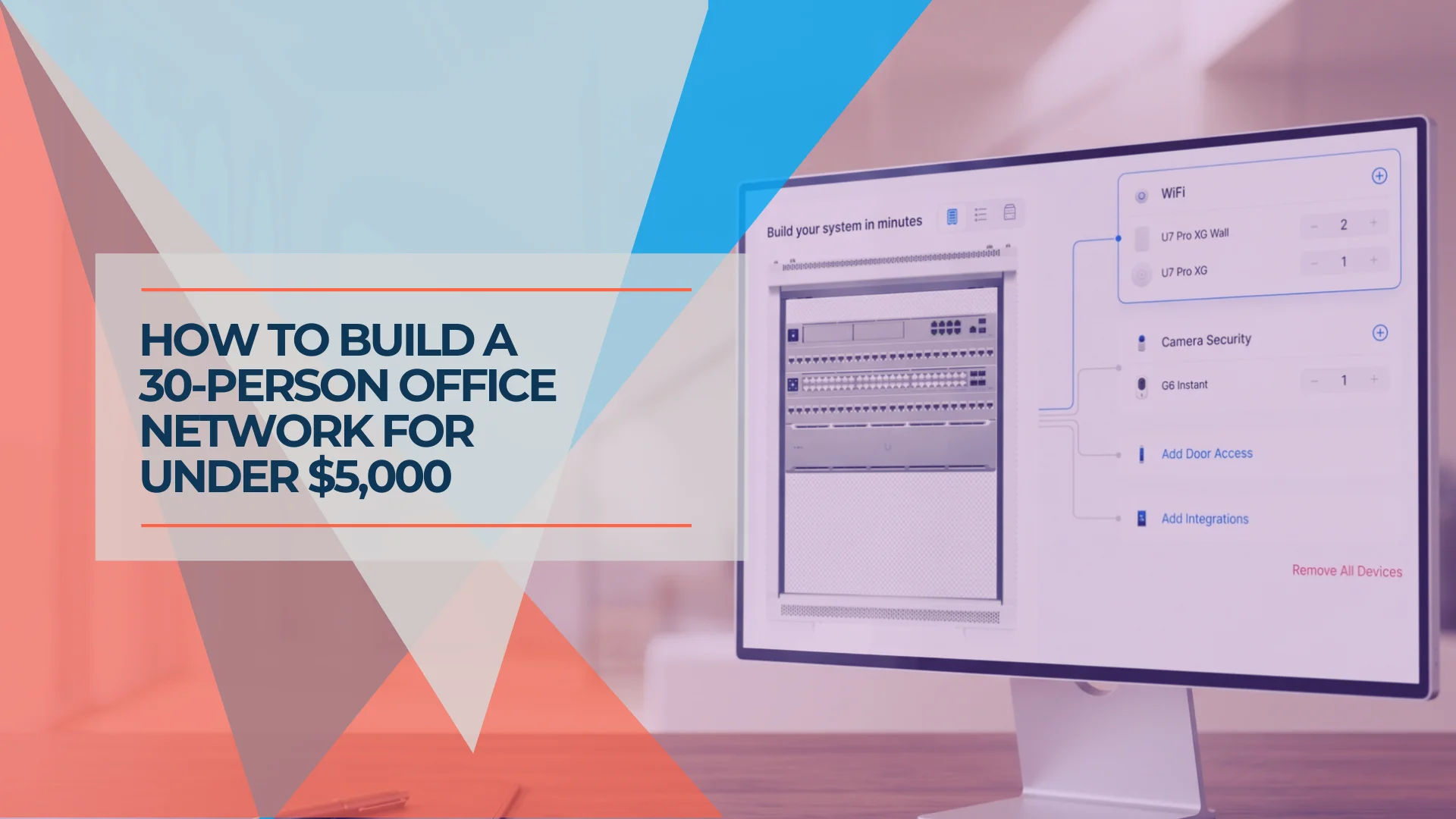
Planning a 30-Person Office Network: A Complete Project Guide (Under $5,000)
How we plan a 30-person office network installation — real BOM, VLAN design, timeline, and honest budget breakdown. A practitioner's project guide for medium-office IT.
16 min read