Where Should Your Business Files Actually Live?
A NAS, Google Drive, and Proton Drive solve three different problems. Which one your files belong in depends on four questions — here they are.

Affiliate Disclosure: This article contains affiliate links. If you make a purchase through these links, we may earn a small commission at no extra cost to you. As an Amazon Associate, iFeelTech earns from qualifying purchases.
The Short Answer
In our small-business client work, the practical answer is almost always two storage categories, not one. A NAS, a cloud drive like Google Drive or OneDrive, and an encrypted platform like Proton Drive or Tresorit each solve a different problem. The question is not which one is best — it is which combination fits your workflow, your team, and the sensitivity of what you store.
| NAS | Cloud Drive | Encrypted Cloud | |
|---|---|---|---|
| Best for | Large files, local speed, capacity | Collaboration, access anywhere | Regulated / confidential data |
| Typical cost | $650–800 hardware (diskless) + drives | $7–22/user/month | $8–19/user/month |
| Who maintains it | You (or your IT provider) | The provider | The provider |
| Can the provider read your files? | N/A — your hardware | Yes | No |
| Real-time co-authoring | No | Yes — broadest ecosystem | Yes — narrower ecosystem |
Every few weeks, a new client asks us some version of the same question: should we put our files on a NAS, move everything to the cloud, or use one of those encrypted storage platforms?
The usual advice picks a winner. NAS vendors say local storage is faster and cheaper. Cloud providers say the cloud is more accessible. Encrypted platforms say the others cannot be trusted with sensitive data. None of that helps answer the question a business owner is actually asking: where should my files go?
In our experience, the answer is rarely one of the three. It is usually two — and which two depends on four questions about your business.
What a NAS Is Actually For
A NAS — network-attached storage — is a dedicated box on your local network that stores files and serves them to every device in the office. Think of it as a private file server that you own outright.
Where it earns its keep:
- Speed on the local network. A NAS on a 2.5GbE connection delivers 250–280 MB/s sequential throughput; add a 10GbE card and that can reach 900+ MB/s with the right RAID layout and drives. On a 100 Mbps internet connection, transferring a 500 MB Photoshop file takes roughly 40 seconds before protocol overhead; a 2.5GbE NAS can deliver the same file in about two seconds. Actual opening time also depends on latency, caching, and workstation performance — but for teams working with large creative or engineering files, the speed gap between local NAS and cloud download is consistently substantial.
- Capacity without a recurring bill. A 4-bay NAS starts at roughly $650–800 diskless. Drives are a separate purchase — and prices have been volatile in 2026, with NAS-grade 8 TB drives running $350–400 each as of August due to supply pressure from AI datacenter buildouts. Even so, if raw storage capacity is what you need, the NAS math tends to win over time: a 10-person team on Google Workspace Standard pays $1,680/year for pooled storage, every year. The NAS is a one-time hardware cost plus electricity, backup target costs, and occasional drive replacements. (This is a capacity comparison, not a like-for-like — the cloud subscription also includes email, collaboration, and AI features that the NAS does not replace.)
- Your hardware, your rules. No terms-of-service changes, no provider scanning your files for policy compliance, no surprise storage-tier restructuring. The data sits in your office, and you decide who accesses it.
What people underestimate:
Someone owns this hardware. Someone patches the firmware, replaces a failed drive, monitors the RAID health, and — critically — maintains the offsite backup. A NAS without an offsite copy is not a storage strategy; it is a single-site system vulnerable to hardware failure, theft, fire, and ransomware. We see this constantly: a business buys a NAS, sets it up once, and never configures an offsite backup target. That is not a NAS problem. It is a planning gap.
Remote access is possible — Synology's QuickConnect, Tailscale, or a VPN can expose a NAS to off-site users — but every option adds setup complexity and latency that a cloud drive handles natively. If your team is mostly remote and files need to be reachable from hotel Wi-Fi and phone hotspots, a NAS should not be the primary file store.
For the full NAS comparison, see our Best NAS for Small Business 2026 guide — it covers the Synology DS925+, UGREEN DXP4800 Plus, and UniFi UNAS Pro 8 with current pricing and practical trade-offs.
What a Cloud Drive Is Actually For
Google Drive, Microsoft OneDrive, and SharePoint are the storage that comes with the productivity suite you already pay for. If your team is on Google Workspace ($7–$22/user/month) or Microsoft 365 ($7–$22/user/month as of the July 2026 pricing update), you already have cloud storage — the question is whether you are using it well.
Where it earns its keep:
- Real-time collaboration at scale. Two people editing a Google Doc or an Excel spreadsheet simultaneously, with changes visible in real time — plus tight integration with email, calendar, chat, and a deep library of file formats. Encrypted platforms like Proton Docs now offer real-time co-authoring without the provider reading file contents, but Google and Microsoft still deliver the broadest ecosystem: richer formatting, wider file-type support, deeper third-party integrations, and a more polished experience for external collaborators unfamiliar with the platform.
- Access from anywhere, on anything. No VPN, no port forwarding, no Tailscale tunnel. Open a browser and the file is there.
- Minimal maintenance. No firmware updates, no drive replacements, no RAID monitoring on your end. The provider handles availability, redundancy, and uptime. You still own user management, sharing policies, and access reviews.
- AI-powered features. Gemini is included in Google Workspace Standard and above. Microsoft 365 includes Copilot Chat (web-grounded), but searching across your organizational files, emails, and meetings requires a paid Microsoft 365 Copilot add-on license. Both can summarize documents, draft replies, and search by meaning — capabilities that work because the provider can read and index your data.
What the convenience costs you:
The provider holds the encryption keys. Google, Microsoft, and Dropbox all encrypt your files in transit and at rest, which protects against outside attackers. But the provider itself can technically access your data — to enable search, run AI features, scan for policy compliance, or respond to legal requests. For the vast majority of businesses, this is a reasonable trade-off and the collaboration benefits are genuine.
Standard cloud storage can also support regulated workloads — Google includes Drive, Docs, and Sheets under its HIPAA Business Associate Addendum, and Microsoft's BAA covers OneDrive and SharePoint — but only when the BAA is signed and the environment is properly configured with access controls, sharing restrictions, and audit logging. If your threat model or client contracts require that the provider itself be unable to decrypt your files, that is where zero-knowledge encrypted storage becomes necessary.
(If you are currently on Dropbox Business, the same logic applies. Dropbox is a cloud drive in this framework — solid sync and sharing, but the provider can read your files. If you are evaluating a move to encrypted storage, our Dropbox to Encrypted Cloud migration guide covers the practical steps.)
One detail worth getting right early in Microsoft 365: OneDrive is the employee's individual work area; SharePoint document libraries are the better home for team-owned operational files. Putting company records in an employee's OneDrive creates ownership and offboarding problems — when the account is deleted, the OneDrive is retained for only 30 days by default. Files that belong to the business should live in SharePoint, where they survive staff changes.
The other cost is cumulative. Cloud storage bills compound annually. A 10-person team on Google Workspace Standard pays $1,680/year. Over three years, that is $5,040 — and if you leave, exporting terabytes of data out of Google's ecosystem is a project in itself. Our Best Cloud Storage for Small Business guide breaks down the full economics, including when specialized tools like LucidLink or Egnyte earn their premium.
What Encrypted Cloud Storage Is Actually For
Zero-knowledge encrypted platforms — Proton Drive, Tresorit, and Sync.com are the established names — encrypt your files on your device before upload. The provider never holds the decryption keys. They cannot decrypt stored file contents, even under a court order. (They can still be compelled to disclose account metadata — timestamps, permissions, usernames, and IP addresses — so zero-knowledge does not mean zero-footprint.)
Where it earns its keep:
- Regulated and confidential data. If you operate under HIPAA, handle attorney-client privileged documents, manage financial records under a fiduciary duty, or have a contractual obligation to keep client data inaccessible to third parties, zero-knowledge architecture eliminates provider-access risk at the storage layer. It does not satisfy a regulatory framework on its own — HIPAA, for example, also requires a BAA, risk analysis, access controls, and workforce policies — but it closes the specific gap that standard cloud storage leaves open.
- Structural content protection. No employee of the storage provider can decrypt the content of what you store. Organizational administrators are a different matter: depending on the platform, plan, and privacy configuration, they may be able to access team members' files. Proton Workspace administrators can sign in to a user's account to view, download, share, or delete their Drive files. Configure these settings and your privacy policies deliberately before onboarding employees.
- Proton Drive starts at $7.99/user/month for Drive Professional with 1 TB per user. Proton Workspace Standard at $12.99/user/month bundles Drive with encrypted email, calendar, VPN, and a password manager — the economics often make the suite the better buy. Tresorit Business starts at $19/user/month (annual, minimum 3 users) with 2 TB per user and richer admin controls. For a detailed head-to-head, see our Tresorit vs Proton Drive comparison.
What the encryption changes downstream:
Every convenience feature that requires reading file contents works differently — or does not work at all.
- Search is limited to filenames and tags. You cannot search inside a document's text, because the server cannot read it. Some platforms are working on client-side search indexing, but the products covered here do not currently provide Google Drive-style server-side content search.
- Real-time co-authoring exists but is narrower. Proton Docs and Sheets support live cursors and simultaneous editing — including with external recipients via public links (no Proton account required). The editing experience is functional but covers fewer file formats and integrations than Google Docs or Office Online. Tresorit introduced encrypted DOCX editing inside its Engage data rooms, but changes are saved as separate versions rather than synced cursor-by-cursor — closer to review-and-approve than live co-authoring.
- Sharing with external recipients has improved. Proton now supports Viewer and Editor permissions on public links — recipients can view, download, edit documents, or upload files without creating an account. Tresorit supports password-protected links with expiration dates and download controls. Both work — but neither yet matches the polish of dropping a Google Drive link into a chat and having the recipient land in a full-featured editor with zero friction.
- Admin recovery requires advance setup. Both Proton and Tresorit offer organizational recovery mechanisms, but they must be configured before you need them. Proton Workspace administrators can sign in to a user's account to view, share, download, or delete files, and can reset member passwords using the organization key. Tresorit offers folder takeover and password reset on Business and Enterprise plans when Advanced Control is enabled. In both cases, the provider itself cannot decrypt stored file contents — but organizational administrators have meaningful access to team data. Configure recovery, offboarding, and access policies before placing business records in any encrypted workspace.
None of these are flaws. They are the direct consequences of the encryption model, and they are the reason the encryption is trustworthy. Treat each one as a trade you are deliberately choosing, not a defect to overlook.
For a deeper explanation of how zero-knowledge architecture works, see What Is a Zero-Knowledge Cloud?
The Four Questions That Decide It
Instead of comparing products, answer these four questions about your own business. They will point you toward the right combination before you ever look at a pricing page.
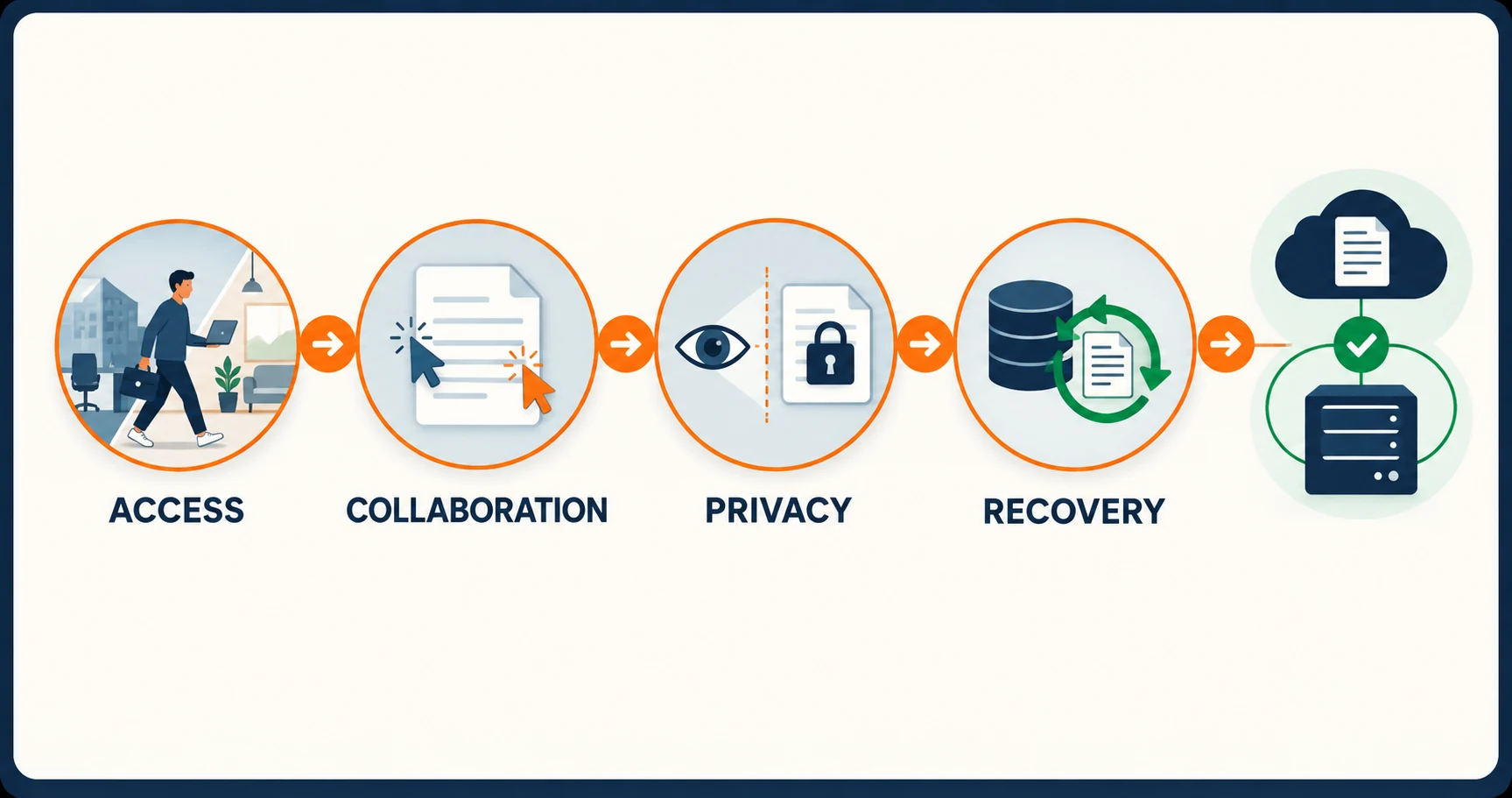
1. Who needs to open the file, and from where?
If your team works on-site and files rarely leave the building, a NAS delivers speed and capacity at a fraction of the recurring cloud cost. If your team is distributed, travels frequently, or collaborates with outside contractors, cloud storage is the practical default. If some files stay in-house and others travel, a hybrid arrangement is often the best fit.
2. Does anyone outside your company need to edit files with you at the same time?
Real-time co-authoring — two cursors in the same document, edits appearing live — is where standard cloud drives still have the strongest lead. Google Drive and OneDrive support the widest range of file formats, the deepest integrations, and the smoothest experience for external collaborators. A NAS cannot do it at all. Encrypted platforms like Proton Docs now support live co-authoring (including with external recipients via public links, no account required), but the ecosystem is narrower — fewer file types, fewer integrations, and a less familiar interface for most outside collaborators.
3. What happens if the storage provider can read your files?
For most businesses, the answer is: nothing consequential. The provider's access enables useful features — search, AI summaries, co-authoring — and the encryption in transit and at rest protects against outside threats. Standard cloud storage can even support regulated workloads when the right BAA and configuration are in place. If your threat model goes further — because client contracts require provider-inaccessible storage, because you want structural protection rather than policy-based protection, or because your risk analysis shows that provider access is an unacceptable exposure — encrypted cloud storage addresses it architecturally.
4. Who restores it when it is gone?
This is the question most often overlooked.
Sync is not backup. Not on Google Drive, not on OneDrive, not on a NAS, and not on Proton Drive. If someone deletes a file and nobody notices for 30 days, Google's trash auto-empties. (A Workspace admin can recover files for an additional 25 days after that, but the window is shorter than most people assume.) If ransomware encrypts your synced NAS folder, the sync client faithfully propagates the damage to every connected device. If you lose access to your Proton account without recovery configured, the encryption that protected your files now locks you out permanently.
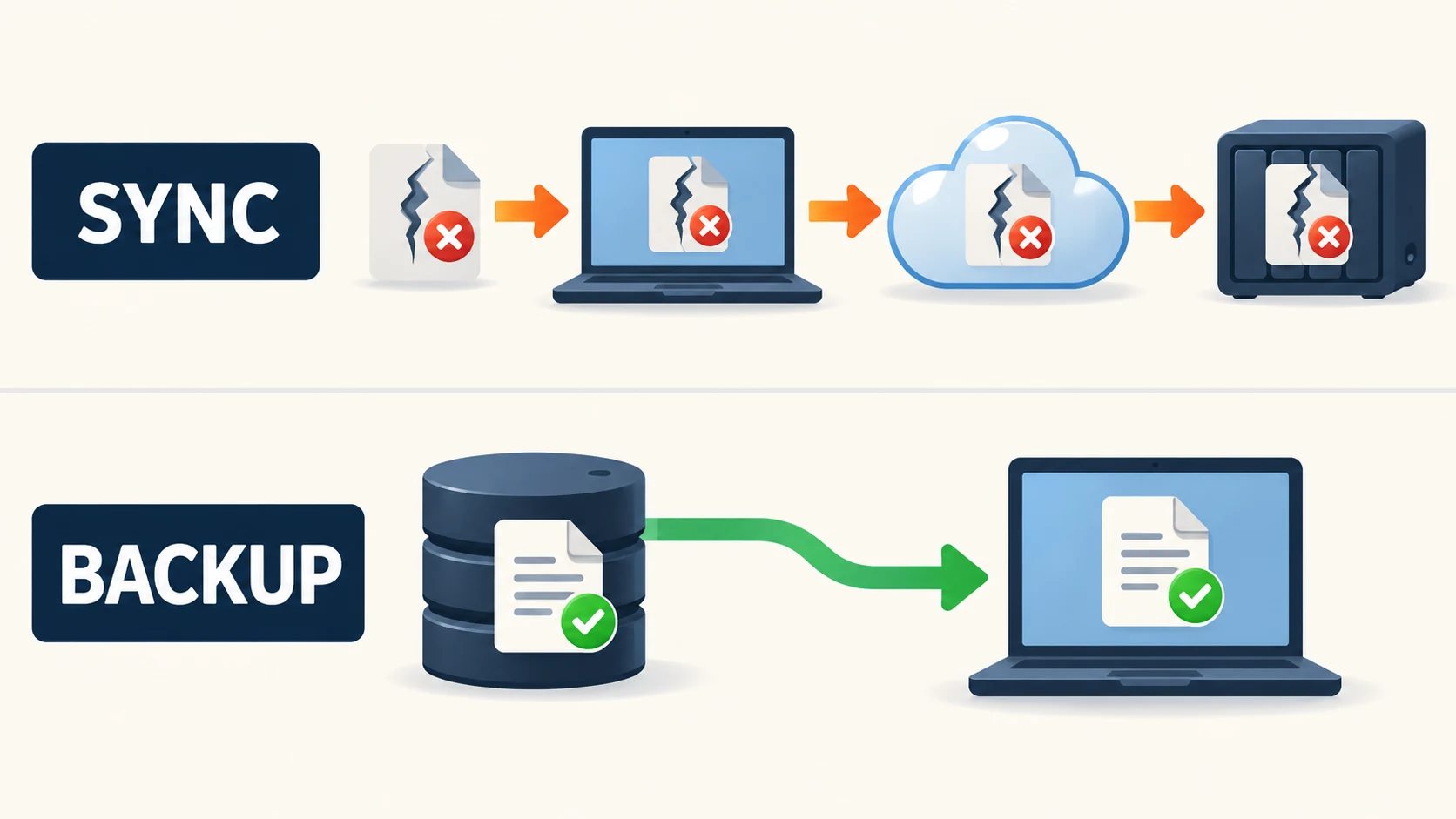
Every storage category needs its own answer to "who restores this, and from what?" A NAS needs an offsite backup — Synology Hyper Backup to iDrive or Backblaze B2, for example. Cloud platforms need a SaaS backup or an export cadence. Encrypted platforms need recovery keys stored securely and a backup that is separate from the platform itself.
For the full backup framework, see our 3-2-1 Backup Rule guide.
Three Worked Setups
These are illustrative configurations based on the kinds of businesses we work with in South Florida. None is a template to copy blindly — they are examples of how the four questions produce different answers for different teams.
A six-person design studio
Files: 4–8 TB of Photoshop, Illustrator, InDesign, and video project files. Final deliverables shared with clients.
Setup: A Synology DS925+ on the local network handles the heavy project files — designers pull assets at full LAN speed without waiting for cloud sync. Google Workspace Standard ($14/user/month) handles email, contracts, proposals, and real-time collaboration with clients on Docs and Sheets. The NAS runs nightly Hyper Backup to an offsite cloud target.
Why this combination: Question 1 answered "mostly on-site." Question 2 answered "yes, but only on proposals and contracts — not on design files." Questions 3 and 4 pointed to a NAS for creative assets and a cloud drive for the collaborative layer.
A twelve-person professional services firm
Files: Client engagement documents, internal SOPs, financial reports, HR records. Frequent collaboration with outside counsel and auditors.
Setup: Microsoft 365 Business Standard ($14/user/month) with OneDrive and SharePoint as the default for all operational documents, plus a Tresorit Business workspace ($19/user/month, used by 4 senior staff) for client-privileged files and documents shared with outside counsel under confidentiality. OneDrive handles the routine operational documents. Tresorit is reserved for the smaller subset governed by client confidentiality requirements or the firm's risk policy.
Why this combination: Question 2 answered "yes, constantly — with clients and outside partners." Question 3 answered "most files are fine, but privileged client documents need provider-inaccessible storage." Running everything through Tresorit would add workflow friction and provide less mature live collaboration than the Microsoft environment the firm already uses. Running all files through standard cloud would leave privileged documents readable by the provider.
A five-person therapy practice
Files: Session notes, billing records, insurance correspondence, and administrative documents — most containing protected health information. Clinical records of care live in the practice's EHR system, which remains the system of record for patient data.
Setup: Proton Workspace Standard ($12.99/user/month) handles email, calendar, and document storage with a signed BAA for HIPAA coverage. Internal documents live in Proton Drive. Email between Proton users is encrypted end-to-end; messages to non-Proton recipients (insurers, referring providers) use TLS in transit and zero-access encryption at rest — for full end-to-end encryption to outside recipients, the practice uses Proton's password-protected email feature according to a written communications policy. When collecting intake documents through Proton Drive, the practice uses password-protected links with expiration dates, disables the Editor permission to reshare, limits the folder to the minimum necessary information, and documents the workflow in its HIPAA risk analysis. For structured form data or identity-verified intake, a dedicated BAA-covered patient portal may be preferable.
Why this combination: Question 3 answered "privacy is central." The trade-offs of encrypted storage — narrower search, fewer integrations — are acceptable because the practice prioritized provider-inaccessible storage for administrative PHI. The practice chose Proton Workspace over standalone Drive because the encrypted email and password manager eliminated two separate subscriptions. The EHR handles the clinical workflows that a file-storage platform is not designed to replace.
Where to Go Next
This article chose a category. The deeper evaluations live in their own guides:
If your answer pointed to a NAS:
- Best NAS for Small Business 2026 — Synology DS925+, UGREEN DXP4800 Plus, and UniFi UNAS Pro 8 compared
- Synology Drive vs SharePoint — when a NAS and a cloud drive should work together, and how
- UniFi NAS vs Synology — if you are already running a UniFi network
If your answer pointed to a cloud drive:
- Best Cloud Storage for Small Business 2026 — OneDrive, Google Drive, and when to go beyond
- Google Workspace vs Microsoft 365 — the platform decision that determines your cloud drive
- Digital File Organization for Small Business — getting the structure right before adding more storage
If your answer pointed to encrypted cloud storage:
- Best Secure Cloud Storage for Business 2026 — Tresorit, Proton Drive, Egnyte, and Sync.com compared
- Tresorit vs Proton Drive — the head-to-head for the two leading zero-knowledge platforms
- What Is a Zero-Knowledge Cloud? — the concept explained for non-technical founders
Regardless of which category you chose:
- The 3-2-1 Backup Rule — because sync is not backup, in any category
- iFeelTech IT Support Services — if you would rather have someone else set it up, configure the access controls, and make sure the backup actually works
Prices checked September 8, 2026 and reflect annual billing rates unless noted. Promotions, taxes, and regional pricing may differ.
Frequently Asked Questions
Related Articles
More from IT Guides
Synology Drive vs SharePoint: Choosing the Right File Platform for Your Business
A balanced comparison of Synology Drive and Microsoft SharePoint for small business file storage. Learn where each platform excels and when a hybrid approach makes the most sense.
8 min read
Your Business Files Are Everywhere. Here's How to Get Them Under Control.
Build a usable company file system without buying more storage first. Follow a folder template, assign owners and move files safely in a small pilot.
11 min read

Where Small Businesses Waste Their IT Budget (And Where They're Underspending)
The real IT budget mistakes small businesses make: zombie SaaS subscriptions, redundant tools, skipped backup, and weak network infrastructure. Real numbers, real patterns.
12 min read