

Your Business Files Are Everywhere. Here's How to Get Them Under Control.
Build a usable company file system without buying more storage first. Follow a folder template, assign owners and move files safely in a small pilot.

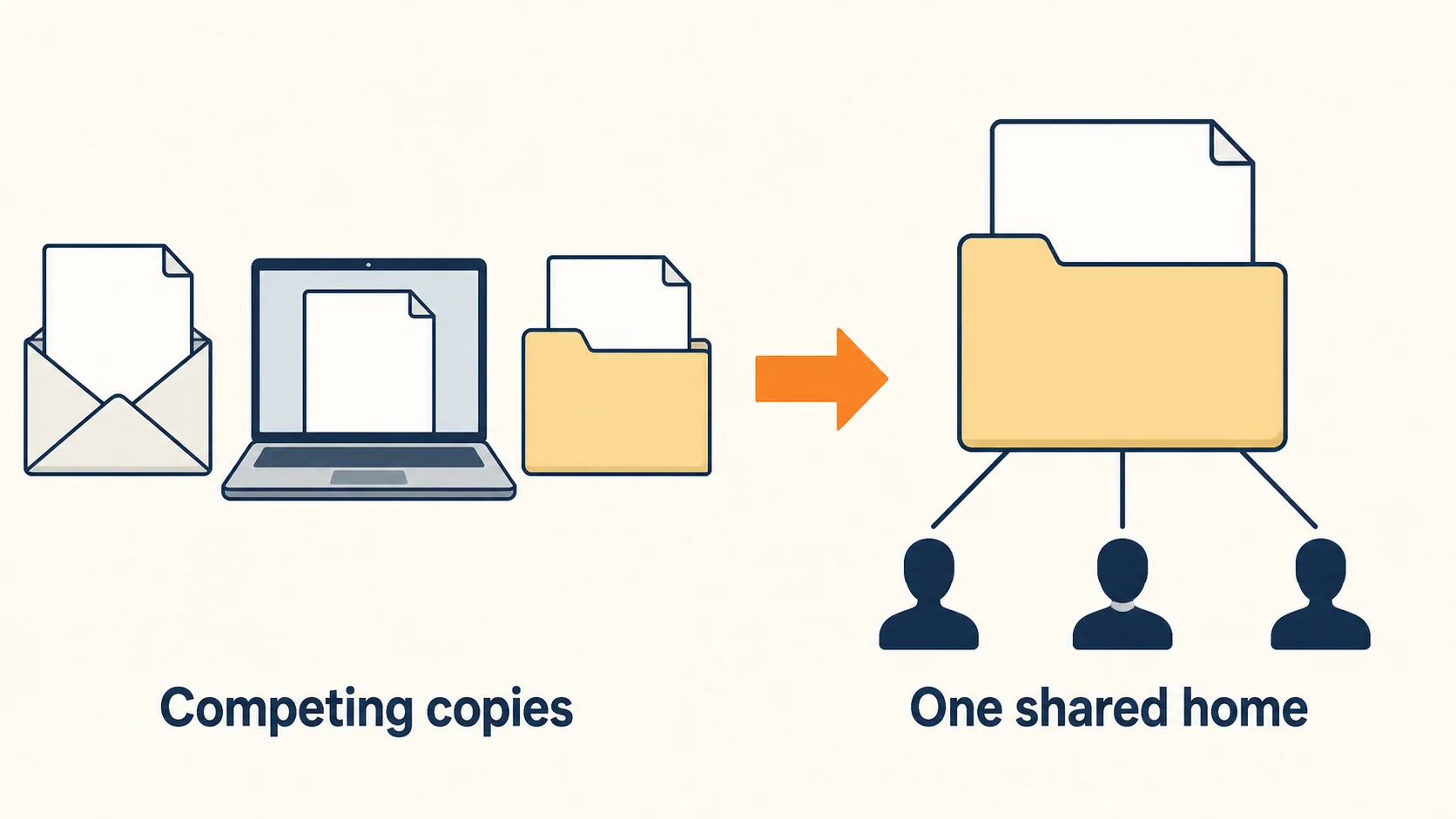
Three versions of the same proposal. One in a shared drive, one attached to an email thread, one on the account manager's desktop. Nobody is certain which one went to the client, and the person who would know is out until Thursday.
That is a file organization problem, and it is almost never a storage problem. In a 5-to-20-person business the question is which copy is authoritative and who controls access to it. Buying more space or a new platform first tends to produce a second disorganized location alongside the first.
What this guide produces
Four things you can use the same week: a folder template, an inventory of where files live and who owns them, a pilot migration checklist for one low-risk project, and a five-file test that tells you whether it worked. Everything here runs on Microsoft 365 or Google Workspace as you already have them. It assumes a plan that includes shared team storage — a Google shared drive or a SharePoint team site — and someone with admin access who can check sharing settings.
Affiliate Disclosure: This article contains affiliate links. If you make a purchase through these links, we may earn a small commission at no extra cost to you. As an Amazon Associate, iFeelTech earns from qualifying purchases.
Do not start by deleting or buying
Two early moves create many of the problems we are later asked to fix. Deleting duplicates before anyone knows which copy is authoritative, and signing up for a new platform before anyone knows what the current one is failing at.
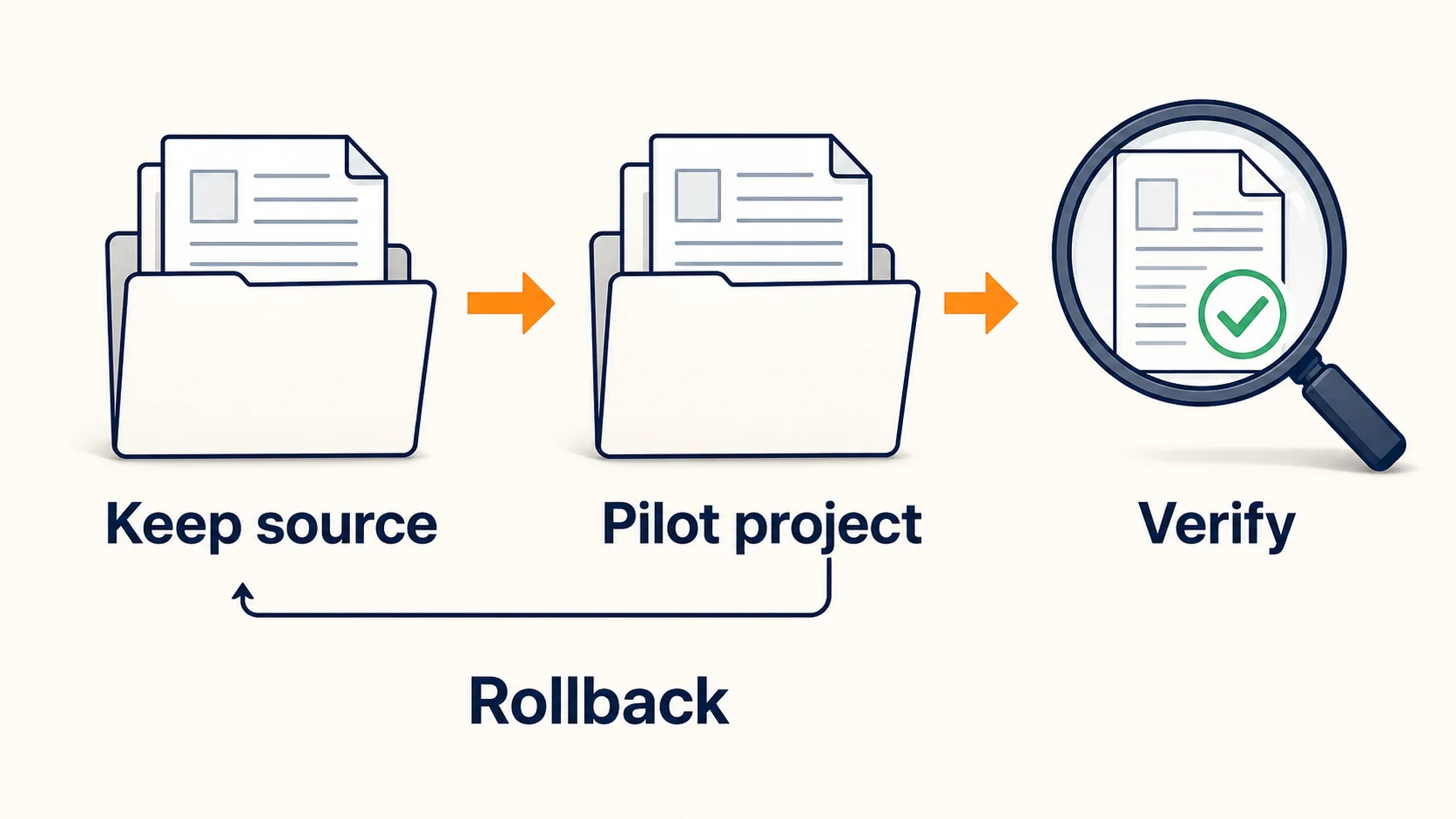
Start by writing down where files are. Personal drive folders, shared drives, email attachments, the office NAS, a departed employee's account, a client portal, and whatever sits on individual desktops. The inventory table further down is the format — fill in the Location and What lives there columns now, and let the rest of the guide fill in the others. Keep a recoverable source copy of everything you touch until the move is verified. Nothing gets deleted in this guide until a pilot has passed its acceptance test.
Pick one authoritative home per workflow
A company can reasonably run several platforms. Finance may live in an accounting system, design files on a NAS, and everything else in Microsoft 365 or Google Workspace. That is not the problem.
The rule that matters is narrower: each client, project or record type has exactly one designated home, and everyone can name it. Two platforms is a tooling decision. Two homes for the same client folder is what produced three versions of the proposal.
Write the designation down where people will see it — the top of the Operations folder is a reasonable place — in one line per workflow. "Client work: shared drive. Signed contracts: shared drive, Clients/[Client]/Contracts. Invoices: accounting system, not Drive."
Assign an owner before you create a folder
In the small businesses we support, a folder without a named owner starts drifting within a few months. Before the structure exists, name for each top-level area:
- Who maintains it — decides what belongs there and where new subfolders go.
- Who approves access — including external collaborators.
- What happens when they leave — the named person who takes it over.
This is where the platform's ownership model stops being a technical footnote. In Google Drive, files in My Drive are owned by the individual who created them; Google's documentation states that files in a shared drive are owned by the team rather than an individual, and that files someone added to a shared drive remain when an admin deletes their account.
Microsoft draws the same line between a SharePoint team site and an individual's OneDrive, but the mechanism differs: OneDrive is provisioned per person, and when the account is deleted the site enters a retention window before deletion — 30 days by default, configurable up to 3,650. That is a window for retrieval, not a permanent location. OneDrive sharing is perfectly usable for a draft or a one-off exchange; the point is that shared company work should not depend on one person's account continuing to exist.
A folder structure people can hold in their head
Five top-level folders cover most of the service businesses we work with. Copy this tree and adapt the names to your own vocabulary rather than ours.
Company/
├── Clients/
│   └── [ClientCode] - [Client Name]/
│       ├── Contracts/
│       ├── Deliverables/
│       ├── Working/
│       └── Invoices-Copies/
├── Operations/
│   ├── Templates/
│   ├── Processes/
│   └── Vendors/
├── Finance/          ← restricted
├── People/           ← restricted
└── Archive/
    └── [Year]/
As a house rule, start with no more than three or four levels, and add depth only when people can predict where a file belongs. This is a usability convention rather than a platform constraint — Google allows up to 100 levels of nested folders in a shared drive, and recommends spreading content across several shared drives rather than nesting deeply. Past three or four levels, people tend to stop navigating and start searching, at which point the extra structure is costing time rather than saving it.
A folder name is not a permission
Finance and People need restricted access applied at the platform level, not a subfolder that people are asked to stay out of. Inherited permissions are a common cause of the "why can everyone see payroll?" conversation, and folder naming does nothing to prevent it.
A restricted subfolder is possible on both platforms: Google has limited access folders and SharePoint supports unique permissions that break inheritance. Prefer a separate shared drive, SharePoint site or document library where practical, because a small number of separate containers is easier to govern and review than exceptions scattered through a tree. Two details are worth knowing before relying on a restricted subfolder: a limited access folder you apply yourself stays visible, greyed out, to everyone with access to the parent, and Microsoft recommends keeping a document library under 5,000 unique permission scopes for performance.
Grant that access to a group rather than to named individuals. Adding and removing one person from a group is a change someone can make correctly under pressure; editing folder permissions in five places is not.
Name files to answer the questions people ask
Someone searching for a file is asking three things: which client or project, what kind of document, and when. A name that answers all three works in every platform's search box:
ACME_Proposal_2026-08-14.pdf
The date in YYYY-MM-DD sorts correctly and removes the ambiguity of 08-09. The client code keeps the name short enough to read in a narrow column.
Two rules matter more than the pattern itself. Use the platform's version history rather than creating final, final-v2 and final-approved — those are how three versions of a proposal exist in the first place. And do not go back and rename stable historical records. Apply the convention to new files, leave the archive as it is, and accept a slightly inconsistent past.
Inventory what you have
One row per location. This is the second artifact, and it doubles as the input to every decision that follows.
| Location | What lives there | Owner | Who has access | Externally shared? | Backed up? | Decision |
|---|---|---|---|---|---|---|
| Shared drive: Client Work | Active client files | |||||
| Individual My Drive folders | ||||||
| Office NAS | ||||||
| Email attachments | ||||||
| Departed employee account | ||||||
| Client portal / external system |
The Decision column takes one of three values: keep as the authoritative home, migrate into the authoritative home, or archive. Write a provisional decision now — the pilot needs a destination to move into — and mark it final only after the pilot has passed the acceptance test below. A row can change on the evidence, which is the point of running a pilot rather than a migration.
Move one low-risk project first
Pick a completed project, or a client relationship that is stable and not mid-delivery. Avoid piloting on an account approaching renewal or a critical delivery.
The pilot checklist:
- Inventory links and integrations. Anything that points at the current location — a link in a proposal template, a shared link with a client, a form that saves attachments there, an automation.
- Copy or migrate using the platform's supported method. Not a drag between browser tabs, which is where permissions and version history tend to be lost. A move within one platform generally preserves more than a copy or a cross-platform transfer, which may reset ownership and timestamps and often does not carry version history across. Migration tools differ, so confirm the behaviour on the pilot rather than assuming it.
- Verify permissions afterwards. Check who can now reach the files, and check external sharing explicitly. Google documents this directly: when files move into a shared drive, permissions inherited from the old parent folder are not copied, so someone who had access through a folder can lose it, while permissions set on the file itself come along. Migration is also a common way for a link that was shared with one client to end up applying to a whole folder.
- Test opening, editing and searching. Open a document in its native application, make an edit, and search for it by name and by content.
- Agree a cutover and a rollback. A date after which the old location is read-only, and a stated way back if something is wrong.
- Leave the source in place until the acceptance test passes.
Not every link, permission and version survives every move. Platforms and migration methods behave differently, and a single project is a manageable place to find out which parts of yours carry across.
The five-file test
This is the acceptance test. It takes about twenty minutes and gives a practical read on whether the new structure works in the hands of someone who did not build it.
| # | Test | Pass condition | Result | Date |
|---|---|---|---|---|
| 1 | An authorized teammate finds five named documents unaided | All five found in under 2 minutes each | ||
| 2 | The same teammate opens and edits one of them | Opens in native app, edit saves | ||
| 3 | A test identity without access tries to reach a restricted folder | Access denied | ||
| 4 | An external collaborator link is checked | Scope is exactly what was intended | ||
| 5 | A deleted test file is recovered | Restored from Trash or the Recycle Bin inside the platform's recovery window |
Give the five documents to the tester by name, not by location. Finding a file from its name is what the structure is for. If someone has to ask where a file lives, the structure has not been adopted yet, and adding another folder will not change that.
Two notes on running it. Searching by filename works immediately, but searching inside document content depends on the platform reindexing the moved files, which can lag a migration by hours — run the content search again the next day before concluding that search is broken. And test five checks the recycle bin, not your backup: Google keeps trashed files for 30 days, and SharePoint Online spans 93 days across its site and site collection recycle bins. A restore from an independent backup is a separate exercise on its own schedule, and our restore testing guide covers it.
When the platform you have is not enough
Reach this section only after the pilot. For many businesses the outcome is that structured folders on the existing subscription solved the problem, and no purchase was warranted.
The requirements that genuinely justify a change:
- File size and application behavior. Large media files, or an application that expects a local network share rather than a sync client. This is the case for a NAS, and our NAS comparison covers where the line sits against a cloud platform.
- External collaboration. Regular work with clients or contractors who need controlled, revocable access.
- Ownership and admin control. The ability to reassign a folder when someone leaves, which is the shared-drive versus personal-folder distinction above.
- Retention and recovery. How far back you can go, and whether anyone has tested it.
If the pilot exposed a recovery gap rather than an organization gap, that is a different purchase. Version history and a recycle bin cover an overwrite and a recent deletion. Standard recovery windows do not reliably reach a deletion discovered six months later or the loss of the tenant itself, though a configured retention policy can extend how far back some of that goes. Our comparison of SaaS backup versus cloud storage covers the distinction. Where the workload fits, IDrive's Microsoft 365 and Google Workspace backup is the relevant product — it is sold per seat and is a different plan from IDrive's endpoint backup for laptops and servers, so check which one a quote covers before buying.
For platform selection itself, our cloud storage guide for small businesses starts from what you already own rather than from a lineup of alternatives.
The ranking of fixes
Ownership first, one designated home second, structure third, purchase last. In the businesses we onboard, the first two resolve the problem more often than a purchase does — and they cost nothing beyond an afternoon.
Keeping it from coming back
Four habits hold the structure in place.
A new-project template. Creating a client folder should copy a standard skeleton, not require a decision.
A named owner per top-level folder, reviewed when people change roles.
A short access review twice a year. Who has access to Finance and People, which external links are still live, and what should move to Archive.
A retention rule for the categories that have one. Archive is a place, not a policy — moving a file there does not decide how long it is kept or when it should go. Tax, employment, contractual and any regulated records in your industry carry their own retention obligations, and those vary by jurisdiction and record type. Ask your accountant, and where relevant your attorney, which categories have a defined period, then write those periods next to the folders they apply to. Nothing under a legal hold gets deleted on a schedule.
One paragraph in onboarding. Where client work lives, how files are named, and who to ask. New hires copy whatever they see in their first week, so this paragraph decides whether the structure survives.
Organizing files does not stop anyone from copying them — our guide on what employees can take with them covers where the real control limits are. What it does is make the authoritative copy obvious, which is the part of the problem that structure can solve.
Related Resources
- Best Cloud Storage for Small Business — Which platform to buy, starting from what you already pay for.
- Synology Drive vs SharePoint — Where a local NAS beats a cloud platform, and where it does not.
- SaaS Backup vs Cloud Storage — Why version history is not a backup, and what to do about it.
- How to Run a Backup Restore Test — How to verify recovery beyond the platform recycle bin.
- Stop Employees Taking Company Files — The control limits that folder structure cannot address.
- SharePoint Permissions Audit Before Copilot — Worth reading first if you are deploying Microsoft Copilot on this data.
Frequently Asked Questions
Related Articles
More from IT Guides

Where Should Your Business Files Actually Live?
A NAS, Google Drive, and Proton Drive solve three different problems. Which one your files belong in depends on four questions — here they are.
14 min read

Who Owns Your Business Domain Name? How to Check and Secure It
Check your domain's registrar, registrant and account access. Recover control from a former provider and protect website and email service during a transfer.
10 min read

Managed IT Services Pricing: Per-User Costs and What to Budget in 2026
Budget $125 to $250 per user for managed IT using our South Florida estimates. Compare pricing models, exclusions, setup costs and quotes in this 2026 guide.
12 min read