Moving from Dropbox to Encrypted Cloud Storage: Complete Migration Guide
Step-by-step guide to switching from Dropbox to zero-knowledge encrypted storage like Tresorit, pCloud, or Proton Drive. Includes migration planning, team training, and compliance documentation.

Dropbox remains one of the most reliable and user-friendly cloud storage platforms available. For most businesses, its fast sync, excellent collaboration tools, and broad integrations make it an excellent choice.
However, if your organization handles sensitive client data, operates in a regulated industry, or simply requires zero-knowledge encryption where even the storage provider cannot access your files, alternatives like Tresorit, pCloud, and Proton Drive offer a different security model.
This guide is for businesses that have determined they need zero-knowledge encryption. We'll walk you through evaluating your options, planning the migration, and training your team on new workflows.
The best zero-knowledge alternatives to Dropbox in 2026 are Tresorit for HIPAA compliance, pCloud for budget-friendly business storage, and Proton Workspace for a complete privacy ecosystem.
Affiliate Disclosure: This article contains affiliate links. If you make a purchase through these links, we may earn a small commission at no extra cost to you. As an Amazon Associate, iFeelTech earns from qualifying purchases.
Key Takeaways
| Aspect | What You Should Know |
|---|---|
| Who This Is For | Businesses with compliance needs (HIPAA, legal, financial) or organizational policies requiring zero-knowledge encryption |
| Core Difference | Zero-knowledge providers encrypt files on your device before upload—only you hold the decryption keys |
| Top Recommendation | Tresorit for regulated industries; Proton Workspace for teams replacing Google Workspace |
| Dropbox Strength | Remains excellent for sync speed, collaboration, and third-party integrations when zero-knowledge isn't required |
| Migration Time | Plan 1-3 days for data transfer plus 1 week for team adoption |
| Cost Impact | Comparable to Dropbox pricing, with different security trade-offs |
When Zero-Knowledge Encryption Makes Sense
Dropbox uses a standard encryption model where the company manages encryption keys on your behalf. This approach works well for most businesses and enables features like full-text search, file previews, and seamless third-party integrations.
However, some organizations specifically need zero-knowledge encryption, where files are encrypted on your device before upload and only you hold the keys. This is typically driven by:
Compliance Requirements
Industries That Often Require Zero-Knowledge
- Healthcare (HIPAA): Zero-knowledge encryption can simplify breach notification requirements
- Legal services: Client confidentiality with cryptographic guarantees
- Financial services: Protecting sensitive client financial data
- Government contractors: Meeting specific security frameworks
Neither approach is inherently better—the right choice depends on your specific regulatory requirements and organizational policy. The dedicated section below explains the technical difference in full.
Recent Dropbox Product Changes
Dropbox has consolidated some security features:
- Dropbox Vault (PIN-protected folders) was discontinued in March 2025
- Dropbox Passwords service ended in October 2025
These changes don't affect Dropbox's core security, but organizations that relied on these specific features may find alternatives better suited to their needs.
What Is the Difference Between Standard and Zero-Knowledge Encryption?
Standard encryption allows cloud providers to manage your keys, while zero-knowledge encryption secures files locally so only you hold the keys.
Zero-knowledge encryption means your files are encrypted on your device before they ever leave it.
How It Works
- You create or edit a file on your computer or phone
- The app encrypts the file locally using keys stored only on your device
- Encrypted data uploads to the cloud — completely unreadable without your keys
- The provider stores only encrypted data they cannot decrypt, even if legally compelled
- You download and decrypt on your authorized devices
The Password Recovery Trade-Off
With zero-knowledge encryption, if you lose both your password and your recovery key, your files cannot be recovered. The provider cannot help because they never had access to the keys.
Both Tresorit and Proton Drive provide recovery key options during setup. Store this key securely (a password manager works well).
Dropbox vs Zero-Knowledge Comparison
| Aspect | Dropbox | Zero-Knowledge Providers |
|---|---|---|
| Who holds encryption keys | Dropbox | Only you |
| Can provider access files | Yes (technically) | No (cryptographically secured against third-party access) |
| Government warrant compliance | Can comply if legally required | Encrypted data only; no readable content to provide |
| Password reset available | Yes | No (recovery key only) |
| Breach exposure risk | Files could be exposed | Only encrypted data exposed |
What Are the Best Zero-Knowledge Alternatives to Dropbox?
Tresorit is best for enterprise compliance, pCloud offers affordable basic encryption, and Proton Workspace provides a complete privacy-focused business suite.
Choosing the right provider depends on your regulatory requirements and feature needs:
- Tresorit ($19/user/month, annual): Best for healthcare, legal, and financial services. Offers signed HIPAA BAAs, granular permissions, and data residency options.
- pCloud Business ($7.99/user/month): Most cost-effective for teams needing client-side encryption without enterprise compliance tracking.
- Proton Workspace Standard ($12.99/user/month): Best for organizations replacing Google Workspace with a privacy-first alternative that includes email, document editing, video conferencing, VPN, and password manager in one plan.
Quick Comparison
| Feature | Tresorit | pCloud | Proton Workspace |
|---|---|---|---|
| Encryption | Zero-knowledge by default | Included (Business) | Zero-knowledge by default |
| Storage/User | 6TB (Business), 15TB (Business Pro) | 1TB (Business) | 1TB (Standard), 3TB (Premium) |
| Price (Annual) | $19-$24/user/mo | $7.99/user/mo | $12.99-$19.99/user/mo |
| Min Users | 3 | 3 | 1 |
| HIPAA BAA | ✅ Yes | ❌ No | ✅ Yes (contact sales) |
| Data Residency | Switzerland, EU, US, UK, Canada | Switzerland, Luxembourg | Switzerland |
| MS 365 Integration | ✅ Outlook, Teams | ❌ Limited | ❌ No |
| Best For | Regulated industries | Budget encryption | Privacy ecosystem |
Tresorit: Best for Compliance-Heavy Industries
Tresorit has built its reputation on enterprise-grade security since 2011. It is well-suited for:
- Healthcare organizations needing HIPAA compliance with signed BAAs
- Legal firms requiring detailed audit logs and permission controls
- Financial services with client confidentiality requirements
- Teams using Microsoft 365 wanting native Outlook and Teams integration
Tresorit's granular permissions let you specify exactly who can view, edit, download, or share each file—essential when managing sensitive client documents across multiple parties.
Pricing: Business at $19/user/month (billed annually, 3-user minimum) includes 6TB total encrypted storage and core compliance features. Business Pro at $24/user/month (annual, 5-user minimum) adds 15TB storage, dynamic watermarks, and advanced admin controls. Monthly billing is approximately 25% higher for both plans.
Tresorit Overview
For a deeper look, read our complete Tresorit review.
pCloud: Best Budget Option (With Caveats)
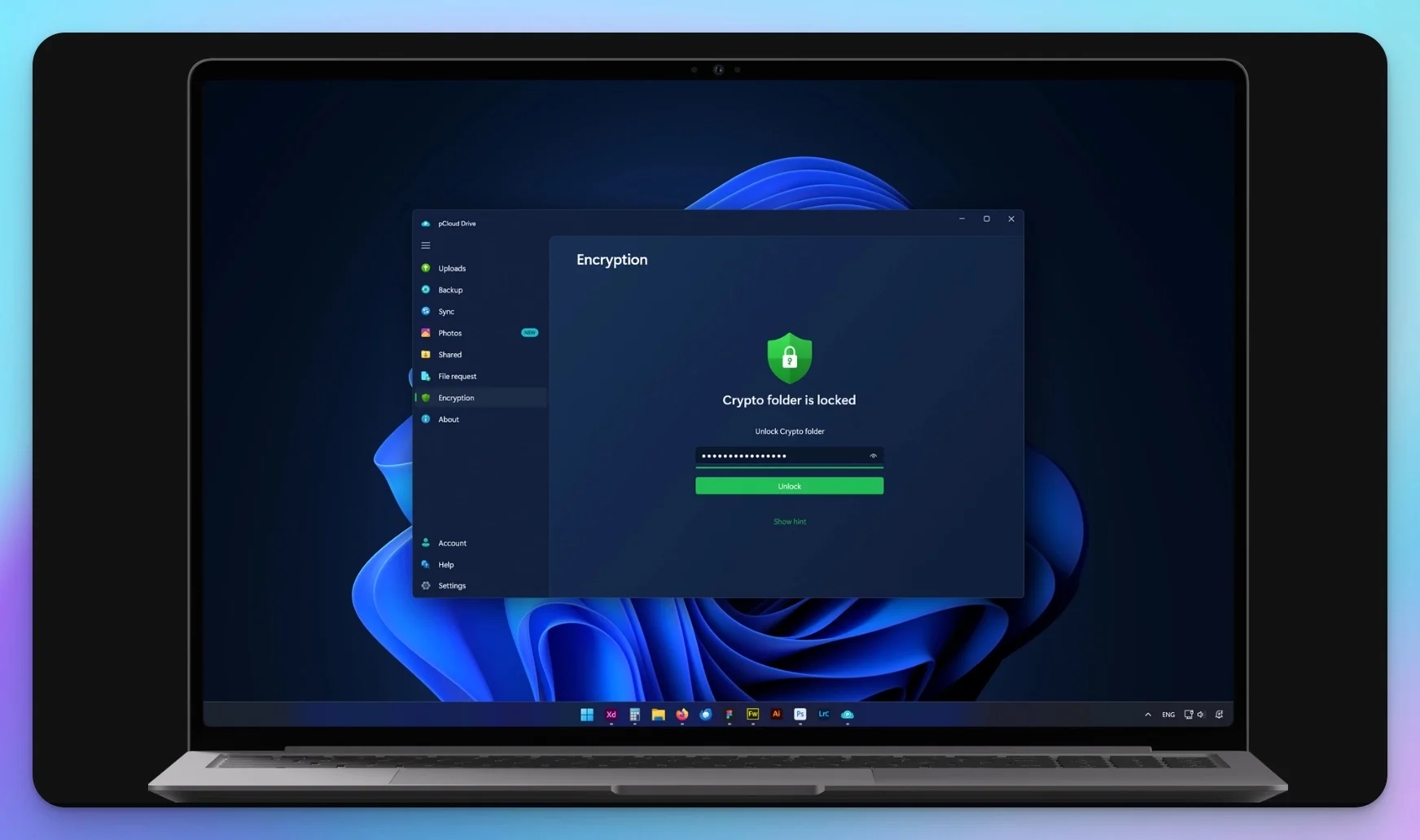
pCloud offers competitive pricing with zero-knowledge encryption (Crypto) included free in Business plans.
For individual plans, Crypto is a paid add-on, but Business users get client-side encryption at no extra cost.
Best for: Budget-conscious teams wanting full encryption without add-on fees.
Limitations: No HIPAA compliance, less robust permission controls than Tresorit.
Pricing: Business plan at $7.99/user/month includes Crypto.
Proton Workspace: Best Value for Privacy Ecosystem
Proton Workspace is a Microsoft 365 and Google Workspace alternative built on zero-knowledge encryption. Every component is encrypted by default, with no add-ons required.
The Workspace Standard plan at $12.99/user/month bundles:
- Encrypted email and calendar (Proton Mail)
- Cloud storage with online document and spreadsheet editing (Proton Docs and Sheets)
- Video conferencing for up to 100 participants (Proton Meet)
- VPN for network protection (10 connections per user)
- Password manager with team vaults (Proton Pass)
- Lumo AI assistant (limited prompts)
The Workspace Premium plan at $19.99/user/month adds 3TB storage per user, 250-participant video meetings, unlimited Lumo private AI chat, an AI-powered email writing assistant (Proton Scribe), and data retention policies.
Best for: Teams replacing Google Workspace or Microsoft 365 with a privacy-first alternative, and small businesses wanting email, storage, docs, video, VPN, and password management in one subscription.
Limitations: Fewer enterprise compliance features than Tresorit; HIPAA BAA requires contacting sales; Proton Meet is newer and lacks some advanced conferencing features.
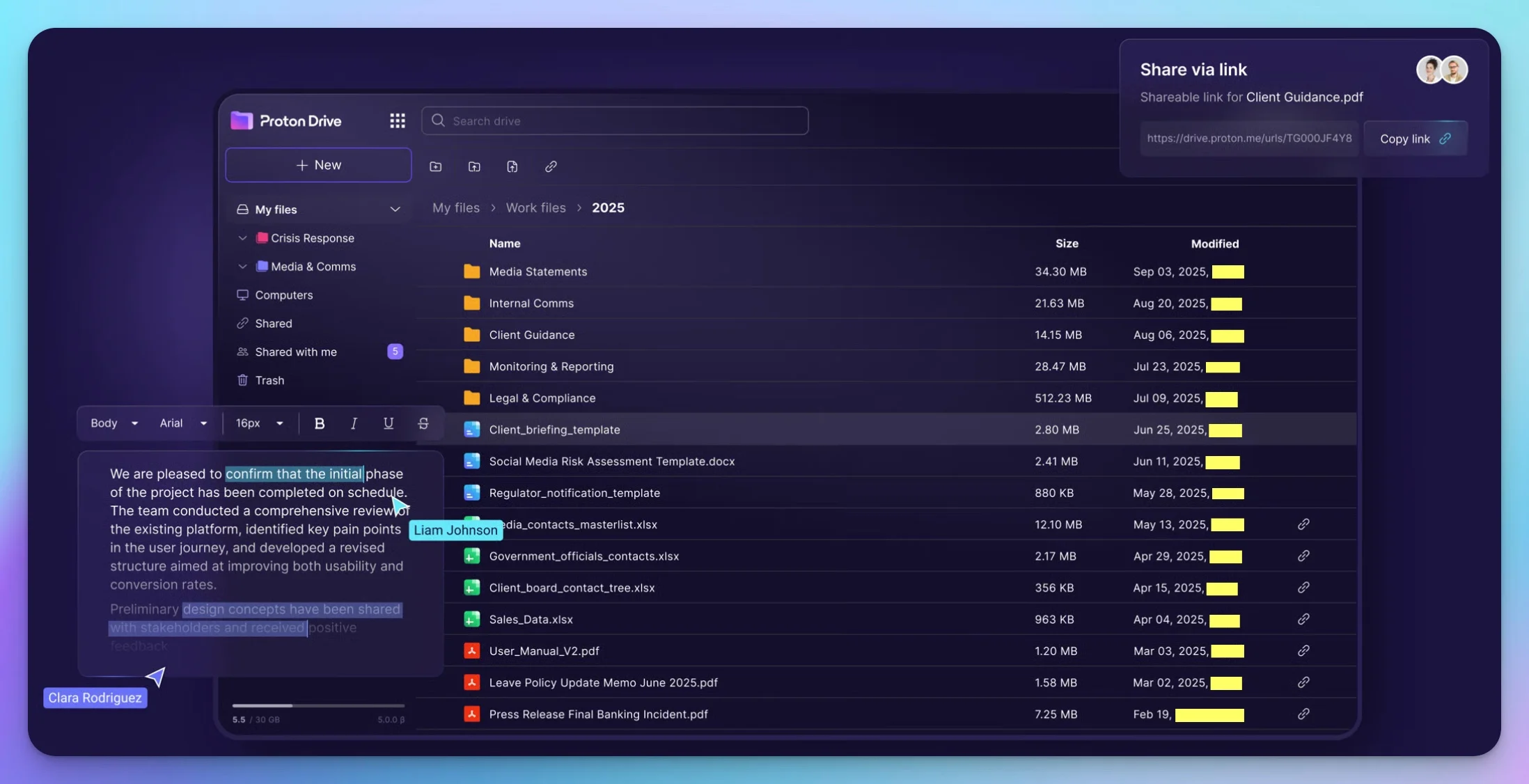
For ecosystem details, see our Proton Business Suite review.
Third-Party App Integrations: What Changes
Migrating to zero-knowledge storage means accepting reduced third-party app connectivity compared to Dropbox.
Dropbox has built one of the most extensive integration ecosystems in business software. Direct, API-level connections exist for Slack (file sharing in channels), Zapier (workflow automation across 8,000+ apps), Adobe Creative Cloud (linked assets and Premiere Pro project files), Canva (direct asset access), Zoom (recording storage), and dozens of CRM and project management tools.
Zero-knowledge providers cannot support the same depth of integrations. Because files are encrypted on your device, any cloud-to-app connection that requires the provider to read or process file content—such as Zapier parsing a spreadsheet or Slack generating a preview—is technically incompatible with the zero-knowledge model.
What you retain: Direct file links, secure sharing URLs, and any integration that only needs to deliver a download link (rather than read file content) will continue to work. Tresorit's Microsoft Outlook and Teams add-ins are purpose-built to handle encrypted attachments while preserving the zero-knowledge model.
Planning guidance: Before migrating, audit your current Dropbox connections under Settings → Connected Apps. For each integration, determine whether the workflow requires file content access (incompatible) or only file delivery (compatible). Teams relying heavily on Zapier automation or Adobe Creative Cloud linked libraries should account for workflow rebuilding time in their migration plan.
Planning Your Migration
Successful migration starts before you touch any files. A methodical approach reduces the risk of data loss and helps teams adapt smoothly.
Pre-Migration Checklist
Before You Start
1. Audit Your Current Dropbox
- List all top-level folders and their purposes
- Document current sharing permissions (who has access to what)
- Identify external collaborators who receive shared links
- Note any integrations (Slack, Zapier, etc.) that connect to Dropbox
2. Choose Your Migration Strategy
- Under 50GB: Manual download/upload (few hours)
- 50-500GB: Desktop sync method (1-2 days)
- 500GB+: Use Movebot or MultCloud for pCloud migrations; manual local download required for Tresorit (3-5 days)
3. Communicate With Your Team
- Announce migration timeline (give 2+ weeks notice)
- Explain why you're switching (security benefits)
- Schedule training session for new platform
4. Verify Compliance Requirements
- Confirm new provider meets your regulatory needs
- Request BAA if handling healthcare data
- Document data residency for GDPR compliance
Choosing Data Residency
If your business must comply with GDPR or industry regulations requiring data to stay in specific regions, configure this before uploading files:
- Tresorit: Choose from Switzerland, EU, US, UK, Germany, or Canada
- pCloud: Switzerland or Luxembourg (EU)
- Proton Drive: Switzerland only
How to Migrate Data from Dropbox to Tresorit
To migrate, create a Tresorit account, design your folder structure, download Dropbox data locally, install the desktop app, and upload your files.
Step 1: Create Your Tresorit Account
- Sign up at Tresorit Business and start the 14-day free trial
- Choose your plan tier (Business plan for most teams)
- Select your data residency region during setup
- Enable two-factor authentication immediately
Step 2: Design Your Folder Structure
Plan your tresor (secure folder) structure before uploading any files. Migration is a good opportunity to consolidate and clean up folder organization.
Example Tresor Structure
Company Files (tresor)
├── Client Projects
├── Internal Documents
├── HR & Legal
└── Finance

Team Shared (tresor)
├── Marketing Assets
├── Templates
└── Reference Materials
Step 3: Download Your Dropbox Data
- Log into Dropbox web interface and select all folders to migrate
- Click "Download" to get a ZIP file, then extract to a local folder
- For accounts over 100GB, sync locally via the Dropbox desktop app first
Step 4: Install Tresorit and Upload Files
- Download and install the Tresorit desktop app (Windows, macOS, or Linux)
- Sign in and create tresors matching your planned folder structure
- Drag your locally saved folders into the corresponding tresors
- Monitor sync progress in the Tresorit app until complete
Step 5: Verify and Recreate Sharing Links
- Confirm file counts match between Dropbox and Tresorit before deleting source data
- Spot-check critical documents by opening them on a second device
- Generate new Tresorit sharing links for each external collaborator with password protection and expiration dates set
- Notify collaborators with updated links; old Dropbox links will no longer work
Recreating Shared Folders and External Sharing
Permission management is where Tresorit shines compared to Dropbox's simpler model.
Permission Mapping
| Dropbox Permission | Tresorit Equivalent | Notes |
|---|---|---|
| Can view | Viewer | Cannot download or modify |
| Can edit | Editor | Can modify files, not permissions |
| Owner | Manager | Can modify and manage access |
| External link | Secure sharing link | Add password + expiration |
Setting Up External Collaboration
For partners and clients who need ongoing access:
- Create a dedicated tresor for external collaboration
- Invite collaborators by email — they can create free Tresorit accounts
- Use "Cooperative Links" if they shouldn't need accounts — allows view/edit in browser
- Enable "File Request" to receive files from people without sharing your folders
Security Best Practices for Sharing
- Set expiration dates on all external links (30 days maximum for sensitive files)
- Require passwords for confidential documents
- Use download limits for contracts and agreements
- Review access logs monthly to revoke stale permissions
Training Team on New Workflows
Teams that receive structured onboarding adapt to new platforms more quickly. Budget time for proper training.
Training Session Outline (30 Minutes)
Part 1: Why We Switched (5 min)
- Brief explanation of zero-knowledge encryption
- What it means for client confidentiality
Part 2: Daily Workflow (15 min)
- Installing desktop and mobile apps
- Syncing files and working offline
- Sharing files internally and externally
- Finding files and using search
Part 3: Security Practices (10 min)
- Creating strong passwords (use a password manager)
- Enabling two-factor authentication
- What to do if you forget your password (recovery key!)
- Reporting suspicious activity
Quick Reference Card
Create a one-page cheat sheet for common tasks:
| Task | How to Do It |
|---|---|
| Share file with colleague | Right-click → Share → Enter email |
| Share with external person | Right-click → Get link → Set password + expiration |
| Request file from client | Tresor menu → File request → Send link |
| Access from phone | Download Tresorit app → Sign in |
| Recover deleted file | Right-click folder → Show deleted items |
Mobile Access and Offline Use
Zero-knowledge mobile apps work differently from Dropbox's mobile experience, and teams need to know what to expect before day one.
Dropbox's mobile app provides seamless background sync—files appear in the app automatically as they're updated on any device. Tresorit's mobile app does not run automatic background sync. Instead, files are accessible on demand through the app, with one key option: you can manually mark specific tresors or individual files as offline (tap the three-dot menu → Add to offline). Marked files download and decrypt to your device for access without an internet connection.
Key differences to brief your team on:
| Feature | Dropbox Mobile | Tresorit Mobile |
|---|---|---|
| Background auto-sync | ✅ Yes | ❌ No (on-demand) |
| Offline access | ✅ Automatic (Favorites) | Manual selection required |
| Camera upload | ✅ Yes | ✅ Yes |
| Edits sync back automatically | ✅ Yes | Requires reconnecting |
For Proton Drive, the mobile experience is similar: files are accessible on demand, with manual offline marking available. pCloud's mobile app offers background sync with Crypto files accessible after PIN or biometric authentication.
Practical tip for teams: Employees who regularly work on job sites, flights, or areas with unreliable connectivity should identify which files they need offline and add them before leaving a network. Include this as a step in onboarding.
Compliance Documentation
For businesses in regulated industries, proper documentation is essential.
Tresorit Compliance Certifications
| Certification | Status | Relevance |
|---|---|---|
| ISO 27001:2022 | ✅ Certified | International security standard |
| GDPR | ✅ Compliant | European data protection |
| HIPAA | ✅ Compliant (with BAA) | US healthcare data |
| CCPA/CPRA | ✅ Compliant | California privacy law |
| SOC 2 | Supports client compliance | Service organization controls |
Obtaining a Business Associate Agreement (BAA)
For HIPAA compliance:
- Subscribe to Tresorit Business or Enterprise plan (3+ users)
- Contact Tresorit support requesting BAA
- Provide required business information
- Receive signed BAA for your records
Tresorit's zero-knowledge encryption provides an additional compliance benefit: even in a breach scenario, encrypted data that cannot be decrypted may not trigger breach notification requirements.
Audit Log Features
Tresorit provides detailed logs for compliance reporting:
- Who accessed which files and when
- Download and sharing activity
- Failed access attempts
- Administrative changes
Export these logs regularly for compliance documentation and security monitoring.
Employee Offboarding and Access Revocation
When an employee leaves, zero-knowledge encryption requires a deliberate offboarding process to prevent data loss.
Because encryption keys are tied to individual accounts, simply deleting a user without transferring their tresors would leave those files inaccessible. Tresorit's Admin Center provides the tools to handle this correctly:
- Before removing the user, go to Admin Center → Users and review which tresors they own
- Transfer tresor ownership to another team member or admin (Tresorit supports direct ownership transfer without decrypting files)
- Revoke device access under Advanced Control to immediately disconnect all authorized devices—including personal phones
- Suspend or remove the user from the subscription; their access to all tresors is immediately revoked
Admin best practice: Enable the Admin Center policy that disables individual tresor creation for all users, making your admin account the owner of every shared folder from creation. This eliminates the offboarding ownership gap entirely and simplifies access audits.
For HIPAA-regulated organizations, Tresorit's audit logs capture the exact timestamp of access revocation—useful for breach response documentation and compliance reporting.
Proton Workspace handles offboarding through its Admin Panel: admins can suspend accounts, transfer Drive files, and revoke access to shared folders in one workflow. pCloud Business allows admins to remove users and reassign their storage allocation from the Business Console.
For more on compliance requirements, see our small business security compliance guide.
3-Year Cost Comparison
The right choice depends on your team size and feature requirements. Use the interactive calculator below to compare the total cost of ownership (TCO) over three years, including your current Dropbox costs.
Cost Analysis
Best value for security: Proton Workspace Standard provides zero-knowledge encryption plus email, calendar, document editing, video conferencing, VPN, and password manager at $12.99/user/month—competitive with Dropbox Business Plus.
Best for compliance: Tresorit costs slightly more than Dropbox but includes HIPAA-grade security and audit features that Dropbox requires higher-tier plans to match.
Budget option: pCloud Business at $7.99/user/month includes Crypto encryption—no add-on required.
Sync Performance: What to Expect After Migration
Zero-knowledge providers cannot use block-level (delta) sync because each file must be fully re-encrypted when changed.
Dropbox uses block-level synchronization, uploading only the changed portions of a file rather than the entire document. This makes re-syncing a 200MB file after a small edit nearly instantaneous.
Zero-knowledge platforms including Tresorit must re-encrypt the entire file on every change before upload. Initial upload speeds are comparable to Dropbox. The performance gap becomes noticeable only when frequently editing large files—such as large spreadsheets, video project files, or design assets. For standard document-based workflows (PDFs, contracts, presentations), the encryption overhead is imperceptible.
Practical guidance: If your team regularly edits large binary files in place (CAD files, large datasets), build extra sync time into workflows. For typical document and compliance use cases, the performance impact is negligible in daily use.
Using Third-Party Migration Tools for Large Datasets
For datasets over 500GB, manual download-and-upload is inefficient. Purpose-built migration tools can help—with an important caveat for Tresorit users.
Available tools:
- Movebot: A fully hosted migration service that handles large-scale cloud-to-cloud transfers. Starting around $400 for a full project, it is well-suited for Dropbox → Google Drive, Dropbox → SharePoint, or Dropbox → pCloud migrations.
- MultCloud: A cloud management platform supporting 30+ services including Dropbox, pCloud, Google Drive, and OneDrive. Useful for Dropbox → pCloud migrations with a straightforward interface.
Important note for Tresorit migrations: Neither Movebot nor MultCloud supports Tresorit natively. Because Tresorit's zero-knowledge architecture requires client-side encryption, any cloud-to-cloud transfer tool would require your files to pass through an intermediate server—bypassing the zero-knowledge model. For Tresorit specifically, the only secure migration path is: download files to a local machine, then re-upload through the Tresorit desktop app, where encryption occurs on your device before any data leaves it.
For pCloud Business migrations, MultCloud or Movebot can handle the transfer efficiently. pCloud Crypto encryption is then applied on the destination side.
Version History and Ransomware Recovery
Zero-knowledge storage protects version history the same way it protects live files—each saved version is also client-side encrypted.
Tresorit automatically snapshots every file change, creating a complete version history with no time limitation across all paid plans. If ransomware encrypts your local files and syncs those corrupted versions to the cloud, you can restore the pre-attack clean version directly from the Tresorit app.
Recovery steps:
- Open Tresorit and right-click the affected file or folder
- Select "Show previous versions"
- Choose the clean version from before the attack timestamp
- Click Restore — Tresorit decrypts and downloads the clean file to your device
Because every version is stored encrypted, even a breach of Tresorit's servers would not expose your file history.
Comparison: Dropbox Rewind vs Zero-Knowledge Version History
| Feature | Dropbox (Business+) | Tresorit | Proton Drive |
|---|---|---|---|
| Version retention | 180 days (Plus), unlimited (Business+) | No time limit (all paid plans) | Version history included |
| Ransomware recovery | ✅ Dropbox Rewind | ✅ File Restore (no time limit) | ✅ Version history |
| History encrypted | No (provider can access) | ✅ Yes (client-side encrypted) | ✅ Yes (zero-knowledge) |
| Granular file restore | ✅ | ✅ | ✅ |
Recommendation: Test the restoration workflow before a real incident. Confirming you can restore a file from version history takes less than five minutes and should be part of team onboarding.
Frequently Asked Questions
Can Dropbox access my files?
Yes. Dropbox manages the encryption keys for your files, which means they technically have the ability to access your data. They can also comply with government requests and warrants. Zero-knowledge alternatives like Tresorit and Proton Drive encrypt files on your device before upload, so even the provider cannot access your content.
Is pCloud zero-knowledge encrypted?
pCloud Business includes zero-knowledge encryption (pCloud Crypto) at no extra cost. For individual plans, Crypto is a paid add-on. With Crypto enabled, files are encrypted on your device before upload.
What happens if I forget my Tresorit password?
With zero-knowledge encryption, Tresorit cannot reset your password or recover your files. Your data becomes permanently inaccessible. Both Tresorit and Proton Drive strongly recommend storing your recovery key securely when you create your account.
How long does migration from Dropbox take?
Migration time depends on your data volume. Small teams (under 50GB) can typically complete migration in a few hours. Larger organizations (500GB+) should plan for 1-3 days of data transfer, plus additional time for permission mapping and team training.
Can I share files with people who don't have Tresorit?
Yes. Tresorit allows you to create secure, password-protected sharing links. Recipients can view or download files without creating a Tresorit account. You can also set expiration dates and download limits for added security.
Is Tresorit HIPAA compliant?
Yes. Tresorit offers HIPAA compliance and will sign Business Associate Agreements (BAAs) with customers on Business or Enterprise plans. Because files are encrypted before upload, a breach of Tresorit's servers would only expose ciphertext, not readable patient data.
Does Tresorit work with Microsoft Teams and Outlook?
Yes. Tresorit integrates with Microsoft Outlook (add-in for secure email attachments) and Microsoft Teams (for secure file sharing within channels). They also support Microsoft Entra ID (Azure AD) for single sign-on.
Which encrypted cloud storage is cheapest?
pCloud Business offers the lowest cost for standalone encrypted storage at $7.99/user/month with Crypto included. Proton Workspace Standard at $12.99/user/month is the best overall value when factoring in the full suite—email, document editing, video conferencing, VPN, and password manager. Tresorit Business starts at $19/user/month (billed annually) and adds HIPAA-grade compliance, audit logs, and granular permissions. Proton Workspace Premium at $19.99/user/month adds 3TB storage per user and unlimited Lumo AI.
Making the Switch
Moving from Dropbox to encrypted cloud storage requires planning, but the process is straightforward when approached in stages. The privacy and compliance benefits are meaningful—particularly for businesses handling regulated or confidential information.
Our recommendations:
-
For healthcare, legal, and financial services: Tresorit provides the compliance features. Read our Tresorit review for details.
-
For small teams prioritizing value: Proton Workspace delivers zero-knowledge security with a complete privacy ecosystem at $12.99/user/month. See our Proton vs Tresorit comparison.
-
For budget-conscious teams: pCloud Business includes zero-knowledge encryption at the lowest per-user cost.
Start with a free trial to test workflows before committing. Both Tresorit (14 days) and Proton (free tier available) let you experience the platforms firsthand.
Related Resources
- Tresorit Review: Secure Cloud Storage — In-depth Tresorit analysis
- Tresorit vs Proton Drive for Business — Detailed comparison
- Secure Cloud Storage for Business — Zero-knowledge overview
- Proton Business Suite Review — Complete Proton ecosystem
- Best Business Password Managers — Secure your credentials
- Small Business Security Compliance Guide — Regulatory requirements
Related Articles
More from Business Software
Tresorit vs Proton Drive: Which Encrypted Cloud Storage is Right for Your Business?
Detailed comparison of Tresorit and Proton Drive for business use. Pricing, features, compliance capabilities, and real-world scenarios to help you choose the right encrypted cloud storage.
18 min read
Best Secure Cloud Storage for Business 2026: Tresorit, Proton Drive, Egnyte & Sync.com Compared
Four encrypted cloud storage platforms tested for HIPAA compliance, zero-knowledge architecture, admin controls, and real-world usability. Find the right fit for your industry and team size.
25 min read
Box Business Review 2026: Is It Worth It for Small Business File Sharing?
Box Business review for small business: real pricing, compliance capabilities, and how it compares to Tresorit and Proton Drive. Who should use it — and who shouldn't.
19 min read