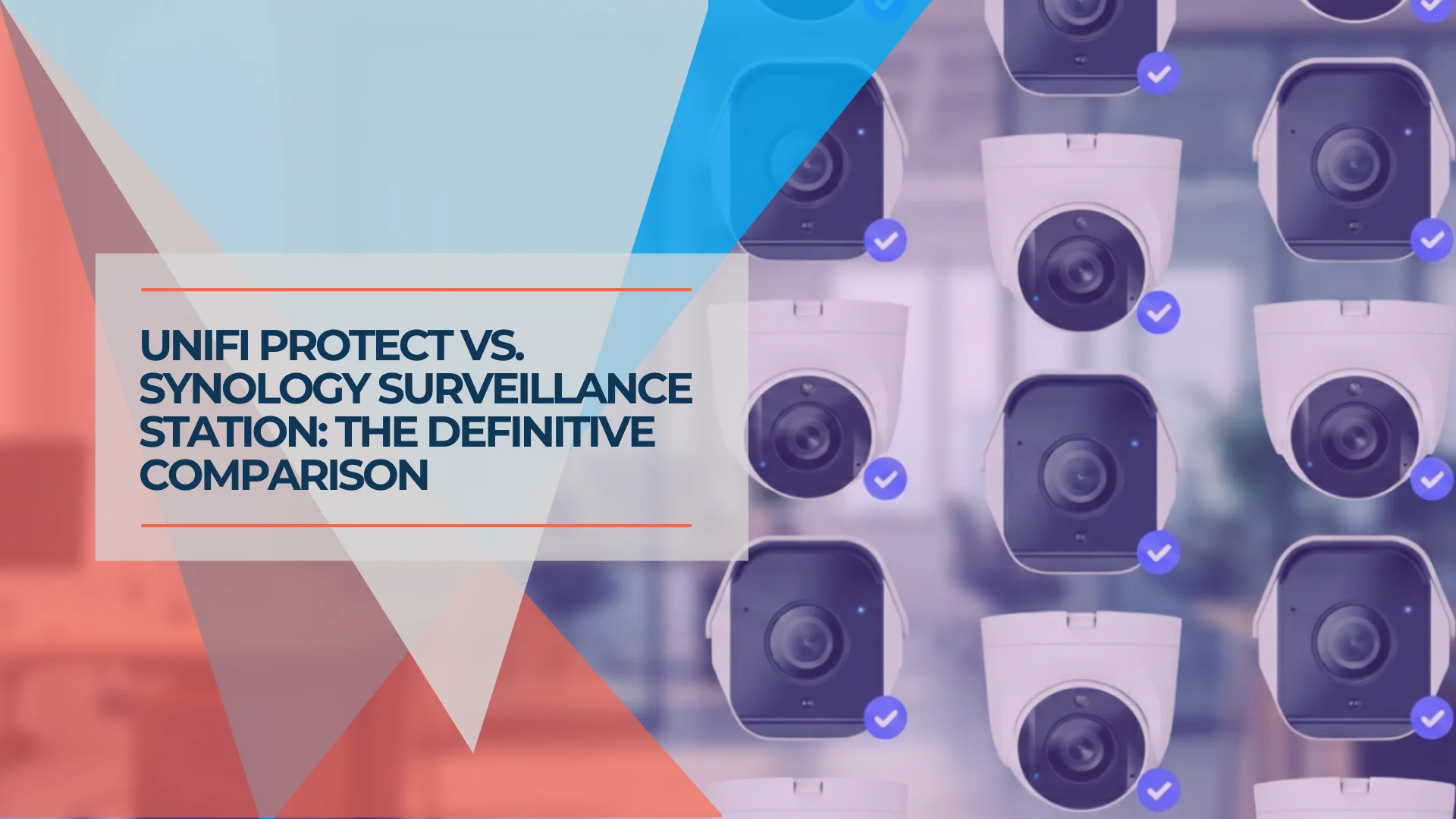
UniFi Protect vs. Synology Surveillance Station: A Complete 2026 Comparison
A detailed comparison of UniFi Protect and Synology Surveillance Station for small business and home security. We examine hardware, software, pricing, and real-world use cases to help you choose the right system.

Quick Summary
UniFi Protect offers a polished mobile app, 4K camera resolution, native off-site archiving (to NAS or cloud), and flexible deployment options from all-in-one gateways to dedicated NVRs. Synology Surveillance Station provides more granular AI detection zones, advanced analytics (face recognition, people counting), and built-in HDMI output. Both systems now offer viable backup solutions and zero license fees with native cameras.
UniFi Protect and Synology Surveillance Station are the two most established local-recording security platforms in 2026. Both offer AI-powered detection without monthly subscription fees, and both have matured into reliable systems for homes and small businesses.
This guide compares the two ecosystems using their respective native hardware—UniFi cameras with UniFi NVRs, and Synology cameras with Synology DVA units. We cover the practical differences that affect day-to-day use, total cost, and long-term scalability.
A note on Synology licensing: Synology's BC500 and TC500 cameras include a perpetual license at no extra cost. Additionally, the DVA1622 ships with 8 camera licenses included—if you use third-party ONVIF cameras, you only need to purchase additional licenses for cameras 9-16.
Hardware Specs: Sensors, Resolution & Build
The most significant difference between these platforms is in camera hardware specifications. UniFi's current lineup uses larger sensors and higher resolutions, though at higher price points than some may expect.
UniFi NVR and Gateway Options
UniFi offers multiple ways to run Protect, from all-in-one gateways to dedicated NVRs:
All-in-One Gateways (Network + NVR Combined):
- Cloud Gateway Max — Handles ~5 4K cameras (or ~8 2K). Ideal for home users who want a single device for networking and cameras.
- UDM Pro Max — Handles ~15 4K cameras (or ~25 2K). Popular with small businesses already buying it as their firewall/router—the NVR functionality is essentially free, just add a hard drive. (Note: The UDM Pro Max shares its processor between network routing and cameras. It handles 15 cameras easily, but extremely high-traffic networks may see slightly reduced throughput under max camera load.)
Dedicated NVRs:
- UNVR ($299) — Supports up to 18 cameras at 4K with four drive bays. Best when you want to separate camera recording from network hardware.
- UNVR Pro ($499) — Supports 24 cameras with seven drive bays. Allows stacking with another unit for unified management of up to 50 cameras.
For details on choosing between dedicated units, see our UNVR vs UNVR Pro comparison.
UniFi's current flagship camera is the G6 Pro Turret ($479):
- 1/1.2" sensor — over 4x the surface area of standard 1/2.8" sensors, enabling full-color night vision without the ghosting common in cheaper cameras
- 4K (8MP) resolution at 30fps
- 2.36x optical zoom for adjustable framing after installation
- On-device AI processing for person, vehicle, and license plate detection
For standard deployments, the G6 Turret ($199) provides 4K resolution in a compact housing without optical zoom. All G6 cameras process AI detections on the camera itself, keeping NVR resources dedicated to recording.
Introducing: UniFi Protect 6.2
Synology DVA and Camera Options
The Synology DVA1622 (~$599) is a 2-bay NVR with dedicated GPU hardware for AI processing. Unlike repurposing a standard Synology NAS, the DVA series is purpose-built for video surveillance and handles facial recognition, people counting, and zone intrusion detection without overloading the CPU.
Scalability consideration: The DVA1622 supports a maximum of 16 cameras with no expansion option. If you need 17 cameras, you'll need to either replace the unit with a larger DVA model or configure a more complex multi-NVR setup using Synology's Central Management System.
Synology's native cameras:
- BC500 (Bullet, ~$219): 5MP resolution, IP67 weatherproof, PoE powered, fixed lens
- TC500 (Turret, ~$219): 5MP sensor in turret form factor, fixed lens
These cameras include a perpetual Surveillance Station license. The trade-off is 5MP resolution with fixed lenses, compared to UniFi's G6 series with 4K resolution and optical zoom options.
Where Synology's approach has advantages: Server-side AI processing allows more detailed configuration of detection zones. If you need precise "virtual tripwire" alerts at specific entry points or complex multi-zone logic, the DVA's software provides more granular control than UniFi's camera-based presets. This comes with additional setup time.
Introducing Surveillance Station
App Usability: UniFi Protect vs. DS Cam
The mobile app is where many users interact with their security system most frequently, and the two platforms differ noticeably here.
UniFi Protect App
UniFi Protect's timeline interface allows smooth scrubbing through recorded footage. Dragging your finger across the timeline updates the video without noticeable delay, making it faster to find specific moments than navigating event lists.
The app supports multi-site management, live feed grids, and push notifications with thumbnail previews. It's intuitive for non-technical users.
Synology DS Cam
DS Cam handles live viewing and event playback adequately, but the experience is more utilitarian. Reviewing footage typically involves selecting individual event clips from a list rather than scrubbing through a continuous timeline.
For checking camera status or viewing recent alerts, DS Cam works well. For reviewing extended periods of footage to find specific incidents, the process is slower.
App Consideration
If non-technical users—family members, employees, or property managers—will regularly review footage on their phones, UniFi's app provides a smoother experience. If mobile access is primarily for checking live feeds and receiving alerts, DS Cam handles those tasks adequately.
Desktop Interface and Local Display
Web Interface
UniFi Protect uses a clean, minimalist web interface. The "Spotlight" feature automatically highlights detected events (people, vehicles, packages), and a unified timeline shows activity across all cameras for easy correlation.
Synology Surveillance Station offers a denser interface with more configuration options. Customizable dashboards, detailed alert rules, and multi-stream display walls give administrators precise control. The learning curve is steeper, but the flexibility is greater for complex deployments.
Local Monitor Output
Synology DVA1622 includes a built-in HDMI port for connecting a dedicated monitor—useful for retail environments or reception areas where you want a visible security display.
UniFi UNVR requires the separate Viewport accessory (~$199) for local display output. Viewport works well, but it's an additional cost that Synology includes by default.
Feature Comparison
| Feature | UniFi (G6 Pro) | Synology (DVA + TC500) |
|---|---|---|
| Camera Resolution | 4K (8MP) | 5MP |
| Sensor Size | 1/1.2" (G6 Pro) | Standard 1/2.8" |
| Night Vision Tech | Large sensor color night vision | Standard IR |
| Optical Zoom | 2.36x (G6 Pro) | Fixed lens |
| NVR Options | Gateways, dedicated NVRs, stacking | DVA units only |
| AI Processing | On-camera (distributed) | On-server (centralized) |
| AI Customization | Preset detection types | Configurable zone rules |
| Advanced Analytics | Person/vehicle/package detection | Face recognition, people counting, POS |
| Maximum Cameras | 50 (stacked UNVRs) | 16 (DVA1622) |
| Multi-NVR Management | Stacking (unified interface) | CMS (more complex) |
| License Fees | $0 | $0 with native cameras |
| Off-Site Backup | Native (free) — NAS/OneDrive/Google | C2 Surveillance (paid) |
| Local Display | Viewport required ($199) | HDMI built-in |
| Mobile App | Polished, smooth scrubbing | Functional, event-based |
| Home Assistant | Strong community integration | API available, less common |
| Initial Setup | ~15 minutes | 1-2 hours |
Total Cost: 10-Camera System
When comparing equivalent deployments, UniFi's system costs less while providing higher camera resolution. The gap widens significantly if you're already purchasing UniFi networking equipment.
UniFi Option A: Dedicated NVR
| Item | Price |
|---|---|
| 1x UNVR | $299 |
| 10x G6 Turret (4K, $199 each) | $1,990 |
| 2x 4TB WD Purple Drives | ~$200 |
| Total | ~$2,489 |
For the flagship G6 Pro cameras with the 1/1.2" sensor and optical zoom, substitute 10x G6 Pro Turret ($479 each) for a total of approximately $5,290.
UniFi Option B: Gateway-Based (If Upgrading Network)
If you're already purchasing a UDM Pro Max as your firewall/router, the NVR functionality is included:
| Item | Price |
|---|---|
| UDM Pro Max (already purchasing for network) | $0 incremental |
| 10x G6 Turret (4K, $199 each) | $1,990 |
| 1x 4TB WD Purple Drive | ~$100 |
| Total | ~$2,090 |
Note: Running cameras on your gateway shares resources with your network. For 10 4K cameras, the UDM Pro Max handles the load comfortably, but a dedicated UNVR is recommended for larger deployments or mission-critical environments.
Synology Configuration
Cost Context
The price difference ranges from $500 (dedicated UNVR) to $900 (gateway-based) in UniFi's favor, while providing higher resolution (4K vs 5MP). Synology becomes more cost-competitive if you already own a compatible NAS and use third-party ONVIF cameras—though that reintroduces license fees ($50 per camera after the 8 included licenses).
Off-Site Backup and Archiving
One scenario worth considering: if someone steals your NVR during a break-in, your recorded footage goes with it. Both platforms now offer solutions to this problem.
UniFi Protect Continuous Archiving
UniFi Protect now includes native archiving to off-site storage. You can configure continuous or detection-based archiving to:
- SMB/NAS shares — Mount any network storage (including a Synology NAS) as a backup target
- Cloud storage — Archive directly to OneDrive or Google Drive
This solves the "stolen NVR" problem without third-party software or complex RTSP configurations. Footage archives automatically while maintaining full UniFi Protect functionality, including AI detections and the native app experience.
Synology C2 Surveillance
Synology offers C2 Surveillance, a paid cloud backup service with end-to-end encryption. Footage uploads automatically, providing a fully managed solution if you prefer Synology's ecosystem.
Backup Comparison
Both platforms now offer viable off-site backup. UniFi's archiving to cloud storage (OneDrive/Google Drive) or local NAS is included at no extra cost. Synology's C2 Surveillance is a paid service but offers a more managed experience. For most users, the backup gap that once favored Synology no longer exists.
Scalability
Entry-Level: Gateway-Based Recording
For smaller deployments, UniFi's all-in-one gateways can handle Protect recording without a dedicated NVR:
- Cloud Gateway Max — Suitable for home users with up to ~5 4K cameras (or ~8 2K cameras). Combines router, controller, and NVR functionality.
- UDM Pro Max — Handles up to ~15 4K cameras (or ~25 2K cameras). If you're already purchasing this as your firewall/router, your effective "NVR cost" is $0—just add a hard drive.
Trade-off: Running cameras on a gateway shares resources with your network. For mission-critical deployments or larger camera counts, a dedicated UNVR is recommended.
Mid-Range: Dedicated NVR
The UNVR ($299) supports up to 18 cameras at 4K with four drive bays. The UNVR Pro ($499) supports 24 cameras with seven drive bays.
Large Deployments: NVR Stacking
UniFi supports stacking two UNVR units for unified management of up to 50 cameras through a single interface. Adding capacity means adding hardware—no migration required. Note that stacking provides unified management, not automatic failover; if one NVR goes offline, cameras connected to that unit stop recording.
Synology DVA1622 has a hard limit of 16 cameras. Expanding beyond this requires either replacing the unit or configuring Central Management System (CMS) across multiple NVRs, which adds administrative complexity. Neither platform offers true automatic failover without additional configuration.
Archiving Strategy: Using a NAS as Backup Target
If you already own a Synology NAS (or any NAS with SMB support), you can use it as a backup target for UniFi Protect without switching ecosystems.
Recommended Approach: SMB Archive Target
Configure your Synology NAS as an SMB share and point UniFi Protect's Continuous Archiving to it. This approach:
- Preserves all UniFi features — AI detections, the Protect app, and camera-side processing remain fully functional
- Provides off-site redundancy — Footage archives to the NAS automatically, surviving NVR theft
- Costs nothing extra — No license fees, no subscriptions, just storage space on your existing NAS
This is the cleanest hybrid setup: UniFi handles all camera and recording functionality while your NAS acts as "dumb" backup storage.
What We Don't Recommend: RTSP/ONVIF Streaming
While Synology Surveillance Station can record ONVIF streams from UniFi cameras, this approach sacrifices UniFi's on-camera AI processing and the Protect app experience. The cameras become generic streams, and you'd need to pay Synology license fees for cameras beyond the 8 included with the DVA.
For most users, using the NAS as an archive target (rather than a replacement NVR) is the better solution.
Smart Home Integration
For users building automated homes, smart home integration is worth considering.
UniFi Protect has a large community following among Home Assistant users. While there's no official integration, the community-maintained UniFi Protect integration provides reliable access to camera feeds, motion events, and doorbell notifications within Home Assistant automations. This makes UniFi a popular choice for hobbyists who want their security system to trigger lights, send custom notifications, or integrate with other smart home devices.
Synology Surveillance Station also works with Home Assistant through its API, though the integration is less commonly used. Synology's strength is in its native automation rules within Surveillance Station itself—triggering recordings, sending alerts, or activating outputs based on detection events.
If Home Assistant integration is a priority for your setup, UniFi Protect's active community support gives it an edge in this category.
Which System Fits Your Needs?
UniFi Protect May Be the Better Fit If
- Mobile app quality matters—you or your users will frequently review footage on phones
- You want 4K resolution and better low-light performance (large sensor color night vision)
- You're already buying UniFi networking equipment (gateway-based recording saves ~$300)
- You may need more than 16 cameras in the future
- You want native archiving to cloud storage (OneDrive/Google Drive) or NAS
- You want strong Home Assistant integration for smart home automation
- You prefer minimal setup and configuration
Synology Surveillance Station May Be the Better Fit If
- You need advanced analytics: face recognition with VIP/blacklist databases, people counting, or retail POS integration
- You need highly customizable AI detection zones with complex logic rules
- You want built-in HDMI output for a local monitor without extra hardware
- You want flexibility to mix camera brands via ONVIF
- You prefer Synology's managed C2 cloud backup over self-configured archiving
- You already own Synology infrastructure
What We've Observed in Practice
In our installation experience, UniFi tends to work well for residential clients and small businesses where users want a polished app experience without managing complex configurations. The combination of gateway-based recording (for smaller setups) and native cloud archiving has closed the gap that once favored Synology.
Synology DVA units excel in retail and enterprise environments that need advanced analytics—people counting for foot traffic analysis, face recognition for loss prevention, or integration with POS systems. The additional configuration options are valuable when you have specific analytical requirements that go beyond standard motion and object detection.
The decision now comes down to: ease of use and camera quality (UniFi) versus advanced enterprise analytics (Synology). Both platforms offer backup solutions, both are license-free with native cameras, and both are reliable and well-supported.
Where to Buy
UniFi Ecosystem:
- UniFi Cloud Gateway Max — All-in-one gateway with Protect support
- UniFi UDM Pro Max — Network gateway + NVR for up to 15 4K cameras
- UniFi UNVR — $299 dedicated NVR at UniFi Store
- UniFi UNVR Pro — $499 dedicated NVR at UniFi Store
- UniFi G6 Cameras — Various models at UniFi Store
Synology Ecosystem:
- Synology DVA1622 — ~$599 on Amazon
- Synology TC500 — ~$219 on Amazon
- Synology BC500 — ~$219 on Amazon
Storage (Both Systems):
- WD Purple Pro Drives — Surveillance-optimized HDDs on Amazon
For detailed UniFi camera specifications and installation guidance, see our UniFi Protect CCTV Guide. For storage sizing and retention calculations, see our Protect Storage Planning Guide. For information on Synology's broader NAS ecosystem, see our Synology NAS Business Guide.
Affiliate Disclosure: This article contains affiliate links. If you make a purchase through these links, we may earn a small commission at no extra cost to you. As an Amazon Associate, iFeelTech earns from qualifying purchases.
Related Articles
More from UniFi Networks
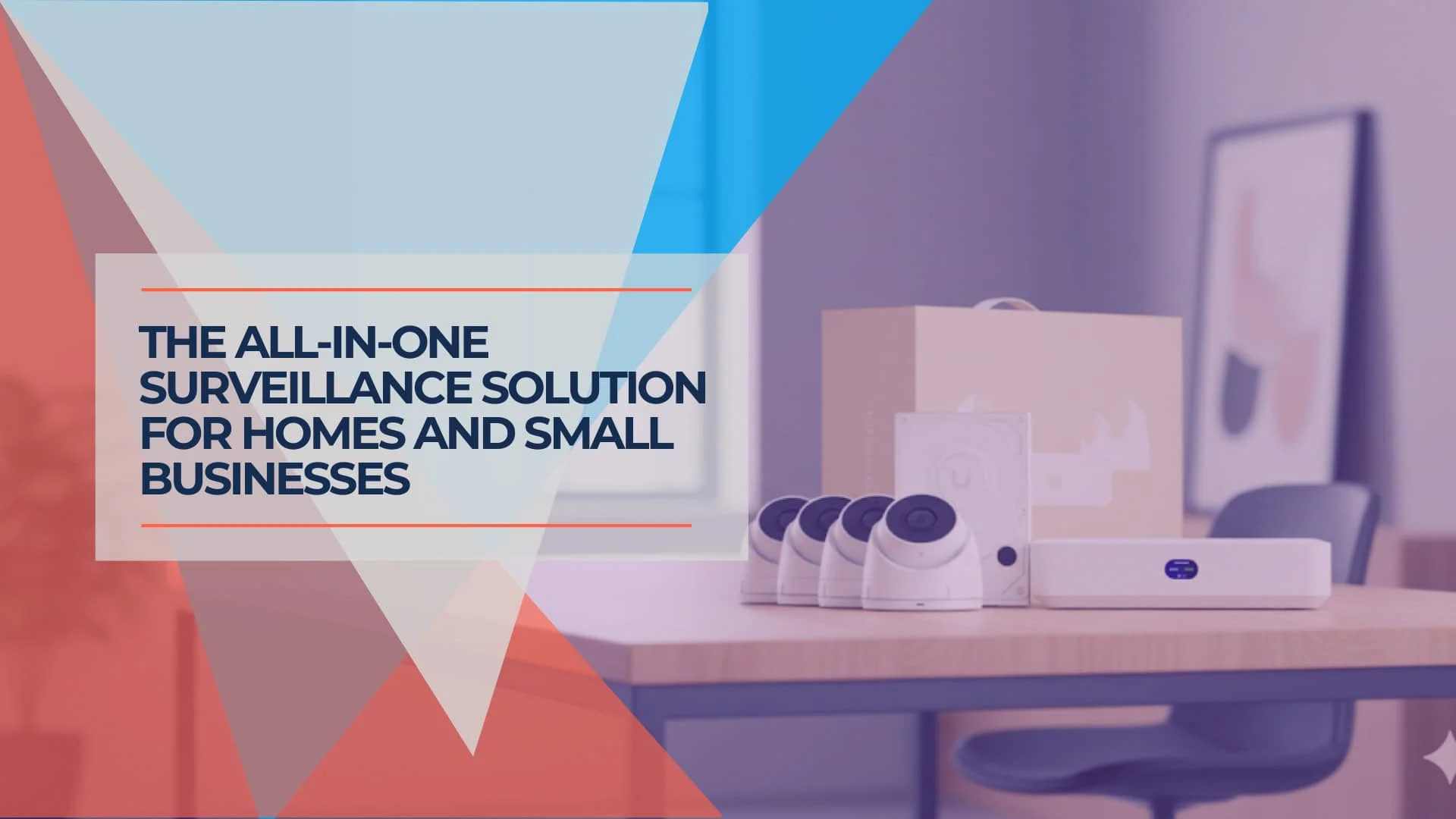
UniFi UNVR Instant Review (2026): The Best All-in-One NVR for Homes?
Complete review of the UniFi UNVR Instant NVR with integrated PoE switch. Perfect for residential homes and small businesses needing 4-6 cameras with professional-grade surveillance.
12 min read
UniFi Protect Setup Guide 2026: Cameras, NVRs, Storage and Real Costs
Plan a UniFi Protect camera system with current 2026 NVR and camera choices, complete budgets, storage and PoE sizing, ONVIF support, installation steps and no-license-fee trade-offs.
23 min read
UniFi Protect vs. Reolink vs. TP-Link: Which Camera System Is Best for Your Business?
UniFi Protect, Reolink, and TP-Link (Tapo vs. VIGI) compared for small business use — current 2026 lineups, real 8-camera pricing, and iFeelTech's multi-year UniFi fleet reliability data.
19 min read