

Can UniFi Protect Use a NAS? UNAS, UNVR, and Archiving Explained
Can UniFi Protect record to a NAS? Here's the practical answer, plus when to buy UNAS, UNVR, both, or neither for your business.

UNAS is not a UniFi Protect recorder. Protect stores video on the UniFi OS console running the application — a Cloud Gateway or a dedicated UNVR. A NAS handles file storage, shared drives, and off-site archiving. Both boxes have drive bays. Both are managed through the same UniFi interface. They do not do the same job.
If you're mid-build on a UniFi camera system and wondering whether the UNAS you're already ordering can replace the UNVR, this guide gives you the direct answer and the architecture behind it.
Affiliate Disclosure: This article contains affiliate links. If you make a purchase through these links, we may earn a small commission at no extra cost to you. As an Amazon Associate, iFeelTech earns from qualifying purchases.
Can UniFi Protect Use a NAS for Live Recordings?
No, UniFi Protect cannot use a NAS for live recordings. It strictly records to the internal storage of the UniFi OS console hosting the application.
Ubiquiti's own documentation states: "All video recordings are stored locally on your UniFi OS Console, such as the UNVR or Cloud Gateway Max." A UNAS does not qualify as a UniFi OS console and is not a supported Protect recording destination.
The three storage jobs, and which hardware handles each:
| Storage job | Where it happens | Can UNAS do this? |
|---|---|---|
| Live recording (primary) | UniFi console running Protect (gateway or UNVR), or microSD card on standalone G6 Edge cameras (Q3 2026) | No |
| Off-site archiving | Google Drive, OneDrive, Dropbox, or NAS via Settings > Off-Site Archiving | Yes — via SMB share |
| File storage / business backups | UniFi Drive on UNAS | Yes — this is UNAS's primary job |
Archive ≠ Record
Protect's NAS archiving option (Settings > Off-Site Archiving) sends footage off the console after it's been recorded. It does not replace the console as the primary recording destination. If the console runs out of space, footage is deleted — not shifted to the NAS automatically.
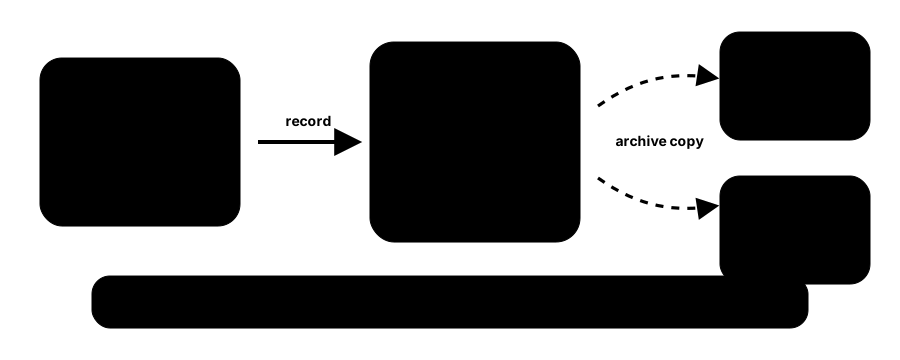
That distinction matters before you buy anything. With it in mind, the rest of the UniFi storage lineup starts to make sense.
The Three Types of UniFi Storage Configurations
UniFi network storage is divided into three distinct roles: live video recording, off-site footage archiving, and local business file storage.
Job 1: Live Recording (UNVR or Cloud Gateway). A UniFi console — cloud gateway or dedicated NVR — runs the Protect application, receives streams from cameras, and writes recordings to internal drives. There is no officially supported way to outsource this primary storage to a third-party NAS or a UNAS. The console is the recorder.
Job 2: Off-Site Archiving (UNVR or Cloud Gateway → Google Drive, OneDrive, Dropbox, or NAS). Once footage has been recorded to the console, you can push important clips or continuous footage archives to an external destination via Settings > Off-Site Archiving. A UNAS with an SMB share configured can receive this archive data — but the footage first had to be written to the console. The NAS is the destination, not the source of truth.
Job 3: File Storage and Business Backups (UNAS). UniFi Drive (the software on UNAS) handles SMB/NFS file shares, user access, and backup destinations. It's the right tool for shared document storage, Microsoft 365 backups, and team file access — not for surveillance recordings.
UNVR owns Job 1. UNAS owns Job 3. Both can participate in Job 2, but through different paths.

Hardware Requirements for UniFi Protect Storage
UniFi Protect requires a dedicated UniFi OS console with built-in storage capabilities, such as a Cloud Gateway or a dedicated Network Video Recorder.
There are two classes of hardware that can run it:
Cloud Gateways with built-in Protect support. The UCG-Max and UCG-Fiber each support up to 5 4K cameras (or 15 HD cameras) as of Protect v4.0. These are the entry points for small offices that want cameras without a dedicated recorder. Storage runs on internal NVMe rather than spinning disks, which limits raw capacity but simplifies the setup. For a three-camera office or a single retail location, this is often the right starting point.
Dedicated NVRs. Once you need more cameras or longer retention, the dedicated NVR line takes over. The UNVR ($299) handles up to 18 4K cameras with four HDD bays. The UNVR Pro ($499) scales to 24 4K cameras across seven HDD bays. The UNVR Instant ($199) sits below the UNVR at six 4K cameras with a single HDD bay and a built-in 6-port PoE switch — the right fit for branch locations or a cost-constrained first deployment.
Standalone Edge Cameras (G6 Edge Series, announced March 2026, available Q3 2026). The G6 Edge Series introduces a third path. These cameras include built-in Edge AI, record locally to a microSD card, and connect directly to UniFi Site Manager for zero-touch cloud management — no local Gateway or UNVR required for basic operation. For organizations that need centralized, redundant recording at scale, G6 Edge cameras integrate with a standard UNVR. For smaller deployments that don't need a local console, they're the first UniFi Protect option that removes the NVR from the hardware list entirely. That said, microSD-based recording is not equivalent to NVR-backed storage with RAID and multi-drive retention — when retention depth and redundancy matter, the UNVR remains the right choice.
The camera limits table for console-based hardware, as of Protect v4.0:
| Console | HD cameras | 2K cameras | 4K cameras |
|---|---|---|---|
| UCG-Max / UCG-Fiber | 15 | 8 | 5 |
| UNVR Instant | 15 | 8 | 6 |
| UNVR | 60 | 30 | 18 |
| UNVR Pro | 70 | 35 | 24 |
Use CMR Drives, Not SMR
UniFi NVRs require CMR (Conventional Magnetic Recording) hard drives. SMR (Shingled Magnetic Recording) drives cause system instability, missed recordings, and RAID failures on all UNVR models. Use WD Purple (CMR), Seagate SkyHawk, or Seagate Exos when populating NVR bays. Verify against Ubiquiti's qualified drive list before purchasing.
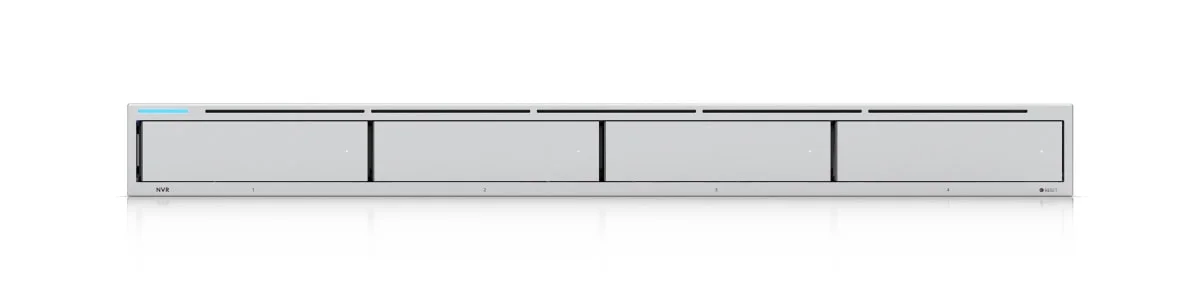
UniFi UNVR
$29918 4K cameras, 4 HDD bays. The standard Protect recorder for 6–18 camera deployments.
- 4 Drive Bays
- 18 4K / 60 HD Cameras
- RAID 5 Support
- Protect-Ready
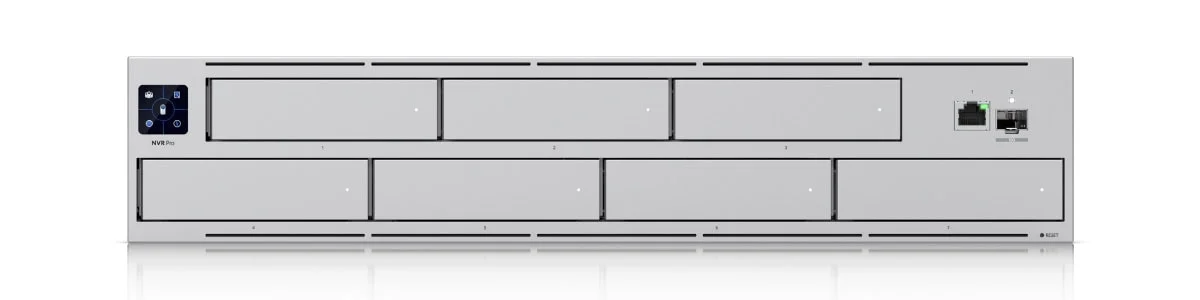
UniFi UNVR Pro
$49924 4K cameras, 7 HDD bays, RAID 10. For larger deployments with extended retention needs.
- 7 Drive Bays
- 24 4K / 70 HD Cameras
- RAID 10 Support
- Hot-Swap Ready
The practical implication for migration: when you move Protect from a Cloud Gateway to a UNVR, settings and camera management migrate — but recordings do not. Ubiquiti's official migration guide states clearly: "Export clips that you want to keep; recordings will not migrate." Plan for that gap before you swap hardware.
This is also why the question "can I add a UNAS later and move my recordings there?" has a straightforward answer: no. Recordings live on the console. The only way to preserve them during a migration is to export them before you migrate.
For a deeper look at sizing Protect storage for your camera count and retention goals, see the UniFi Protect storage planning guide.
Primary Functions of UNAS in a UniFi Network
A UNAS provides network-attached file sharing, business data backups, and off-site archiving destinations for existing UniFi Protect footage.
None of the above means UNAS is irrelevant to a camera deployment. It means UNAS is doing a different job — and doing it well.
The UNAS Pro 4 ($499) is a 1U rack-mount NAS with four HDD bays, two M.2 NVMe SSD cache slots, and 10 Gbps networking. The UNAS Pro 8 ($799) doubles the bay count to eight, adds hot-swap power module support, and is built for deployments where raw storage capacity matters from day one. Both run UniFi Drive, Ubiquiti's NAS software, and integrate directly into the UniFi console.
The Pro 8 earns its price point in two specific scenarios: multi-tenant commercial buildings where a single UNAS serves multiple office suites sharing file infrastructure, and media-heavy environments — architecture firms, video production shops, real estate agencies — where large file sizes and fast 10 Gbps throughput with NVMe cache eliminate the bottlenecks common on consumer-grade NAS hardware. For a standard 10–20 person office with normal document workloads, the Pro 4 is sufficient.
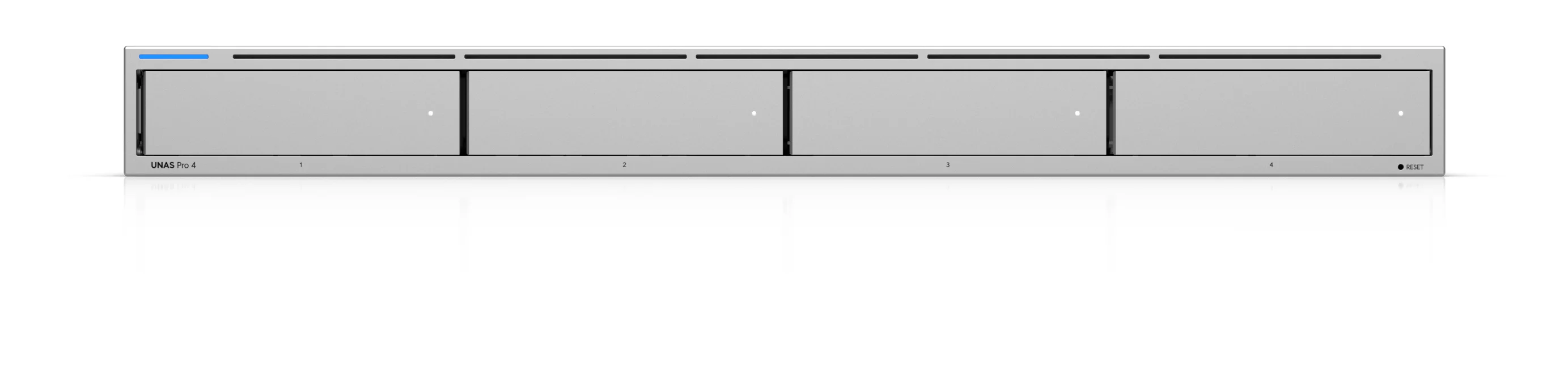
UniFi UNAS Pro 4
$4991U rackmount NAS, 4 bays, dual 10G SFP+, NVMe caching. File storage and backup for 10–50 person offices.
- 4 Hot-Swap Bays
- Dual 10G SFP+
- 2× M.2 NVMe Cache
- License-Free UniFi Drive

UniFi UNAS Pro 8
$7992U, 8 HDD bays, hot-swap PSU, 10 Gbps. For media-heavy environments and multi-tenant deployments.
- 8 Hot-Swap Bays
- Redundant PSU
- Dual 10G SFP+
- 2× M.2 NVMe Cache
Where they add real value in a business with cameras:
File storage and shared drives. If your office has staff who need shared access to files, the UNAS handles that cleanly without adding a separate Synology or QNAP to the rack. SMB/NFS shares, user permissions, and access management all live in the same UniFi interface as the rest of your network.
Business backup destination. UNAS works as a local target for Microsoft 365 backups, workstation backups, and server image backups. For small offices that lack a dedicated backup appliance, this is a real use case — not a stretch.
Off-site archiving receiver. Once Protect's off-site archiving is configured (Settings > Off-Site Archiving, NAS destination), a UNAS SMB share can receive archived footage. Protect pushes footage to the NAS based on your archive settings. This gives you a local secondary copy of important footage without cloud storage costs — useful for businesses with retention compliance requirements. Verify this works in your specific Protect version before designing around it, but as of current Protect releases, NAS is a supported archiving destination.
Long-term video export storage. When you manually export clips from Protect — for evidence, incident review, or compliance — those exported files need to go somewhere. A UNAS provides a local, organized destination with access control, instead of cluttering a PC or sending everything to a personal cloud drive.
For more on what the UNAS Pro 4 handles in a full office rack, see the UNAS Pro 4 review and the complete UniFi NAS guide.
When to Buy a UniFi Cloud Gateway, UNVR, or UNAS
Selecting between a Gateway, UNVR, or UNAS depends entirely on camera count, video retention requirements, and internal file-sharing needs.
Here are four scenarios with direct recommendations.
1–3 cameras, short retention, no shared-file need → Gateway only
A UCG-Max or UCG-Fiber with internal storage handles a small camera system without any additional hardware. A dental office waiting room with two cameras and 14-day retention fits here. Add a UNVR when the camera count grows or retention requirements extend. Don't buy a UNVR "just in case" — the gateway is the right starting point when the need is modest.
Growing camera count or longer retention → Add UNVR
Once you hit 6+ cameras, or you're being asked for 30+ days of retention for compliance reasons, the gateway's storage becomes the limiting factor. The UNVR's four HDD bays and 18 4K camera capacity give you room to grow. A six-camera retail storefront with 30-day retention is a clear UNVR use case. See the UNVR vs UNVR Pro comparison if you're deciding between the two.
Shared files or backup need, modest camera system → Gateway or UNVR plus UNAS
A ten-person office that needs shared document storage and also has four cameras doesn't need to choose between file storage and surveillance. Add a UNAS for the file-sharing job. The cameras stay on the gateway. The UNAS earns its rack unit through the file-storage and backup use case, not because it helps with cameras. The two boxes do different things and don't compete.
Business with both surveillance retention and office file-storage needs → Buy both
A mid-sized office with 10+ cameras, 30-day minimum retention, and staff who need shared file access has two real needs. Buy the UNVR for surveillance and the UNAS for files. These are not redundant boxes — they're solving two genuinely different problems. The combined cost ($299 UNVR + $499 UNAS Pro 4 = $798 before drives) is less than many proprietary camera system subscriptions over two years.
For a full picture of camera system planning, see the UniFi Protect business camera guide.
Common Assumptions That Lead to the Wrong Purchase
"UNAS replaces UNVR." A common source of confusion. Both have drive bays. Both are in the UniFi ecosystem. But UNAS runs UniFi Drive; UNVR runs UniFi Protect. They're different applications on different hardware, and neither runs on the other's platform in any officially supported way. Designing a camera system around a UNAS as the recorder means building on unsupported ground.
"Archive to NAS means record to NAS." Protect's off-site archiving sends footage from the console to a NAS — it doesn't write recordings to the NAS directly. The console still does all the recording work. If the console fills up before the archiving job runs, footage is deleted according to local retention settings. The archive destination doesn't prevent that.
"If I move Protect later, my footage moves too." Recordings stay on the original console. Ubiquiti is explicit: export clips before migration. When you restore a Protect backup onto a new console, settings and cameras migrate; recordings stay on the original hardware's drives. Plan for this before any hardware upgrade.
"My gateway SSD adds recording capacity after I move Protect to a UNVR." Once Protect is running on the UNVR, the gateway is no longer the Protect host. The gateway's local storage no longer holds active Protect recordings. You're starting fresh on the UNVR's drives.
"Installing Protect on UNAS is an option." There are community posts about running Protect on non-supported hardware. These are unofficial workarounds that can break with firmware updates and are not supported by Ubiquiti. Production deployments shouldn't rely on them.
The Best UniFi Storage Architectures for Small Business
Solo or small office (1–5 cameras, basic retention)
UCG-Max or UCG-Fiber with internal NVMe storage. No additional storage hardware is needed at this scale. Revisit when camera count grows past five or retention requirements extend past 14 days.
Small business with 6–15 cameras
Cloud Gateway for network management + UNVR for Protect. The gateway handles routing and switching; the UNVR handles all camera recording. This separation also means you can upgrade one without touching the other. If you want to add file storage later, drop in a UNAS Pro 4 — it slots into the same rack without disrupting anything.
Office with file shares and cameras (10+ staff, 6–20 cameras)
Cloud Gateway + UNVR + UNAS Pro 4. Three boxes, three jobs, clean separation. The UNAS carries the file-sharing and backup workload that would otherwise fall on a PC or a consumer NAS. Staff get shared drives. Cameras get dedicated recording hardware. Combined idle power draw for this three-device stack runs roughly 60–100W loaded — well below a comparable Windows Server-based NVR (150–300W+), which simplifies UPS sizing and reduces long-term electricity overhead.
Standalone Edge deployment with file-sharing needs (G6 Edge + UNAS, Q3 2026)
For offices planning around the G6 Edge Series that want to avoid a local NVR, the rack hardware list simplifies significantly. G6 Edge cameras deploy directly to UniFi Site Manager without a local console — footage stores to the camera's microSD card, with on-device Edge AI handling detection and search. The only rack hardware the business needs to buy is whatever handles file sharing and backups. That's exactly what a UNAS Pro 4 ($499) does. If the primary business need is shared files, Microsoft 365 backups, and fast team storage, a UNAS Pro 4 fits cleanly alongside standalone G6 Edge cameras without a dedicated NVR in the rack at all.
One caveat: microSD recording has different retention and redundancy characteristics than a UNVR with spinning CMR drives. When compliance retention, drive-level redundancy, or 30+ day continuous recording is required, adding a UNVR to this stack is the right move. The architectures aren't mutually exclusive.
Larger deployment (20+ cameras, compliance retention needs)
UNVR Pro for Protect (24 4K cameras, seven HDD bays) + UNAS Pro 4 or UNAS Pro 8 for files and archive storage. Enable off-site archiving in Protect to push flagged footage to the UNAS. For compliance-heavy environments — legal, medical, financial — this stack gives you both local redundancy and a secondary copy of archived footage on a different physical device in the same rack. Maintaining a local secondary copy on a separate physical device is a practical step for any business with documented retention or compliance requirements.
Start with the box that matches your primary need
Choose the box that matches your primary job. If cameras come first, start with a compatible gateway. If files come first, start with a UNAS. Add the second box only when the second job is real — not because the first box "might" handle both someday. The UniFi ecosystem makes it easy to add hardware later without rebuilding anything.
Related Resources
- UniFi Protect Storage Planning Guide — Size your Protect storage correctly for camera count, resolution, and retention requirements.
- UNVR vs UNVR Pro: Which UniFi NVR Is Right for Your Business? — Side-by-side breakdown of the two dedicated Protect recorders.
- UniFi NAS Complete Business Guide — Everything you need to know about deploying UNAS for file storage and backup.
- UNAS Pro 4 Review — Hands-on look at Ubiquiti's 1U NAS in a real small-business rack.
- UniFi Gateway Comparison Guide — Which Cloud Gateway to buy for your office size and camera needs.
- UCG-Max Review — Full review of the most popular gateway-based Protect starting point.
- UniFi Protect Business Camera Guide — Complete planning guide for UniFi camera systems in commercial deployments.
Frequently Asked Questions
Related Articles
More from UniFi Networks
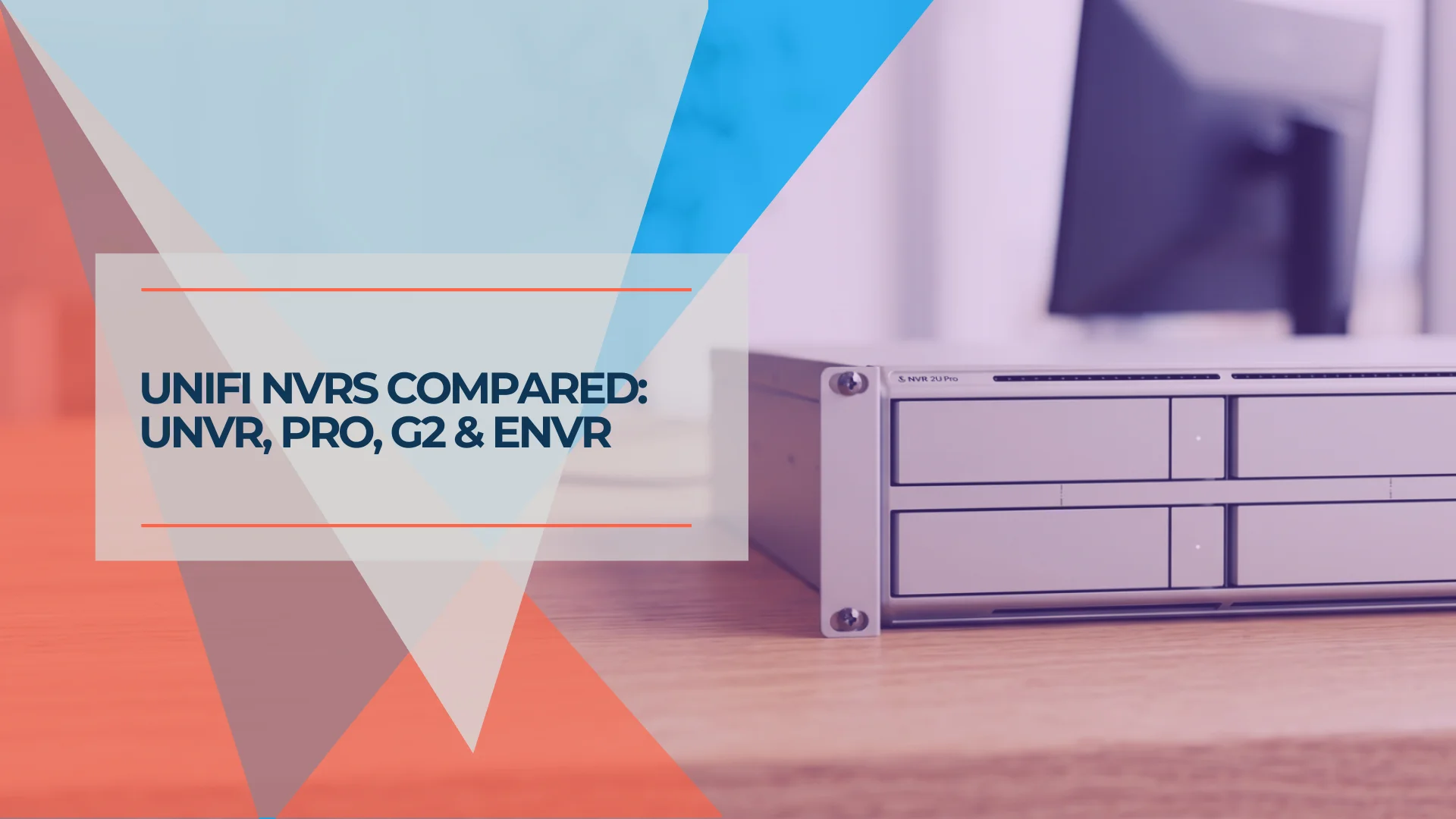
UNVR vs UNVR Pro vs UNVR G2: Which UniFi NVR Should You Buy in 2026?
Complete comparison of UniFi UNVR vs UNVR Pro network video recorders, plus the new 2026 UNVR G2 and G2 Pro. Compare specs, storage, RAID options, stacking, and total cost to choose the right NVR for your surveillance system.
20 min read
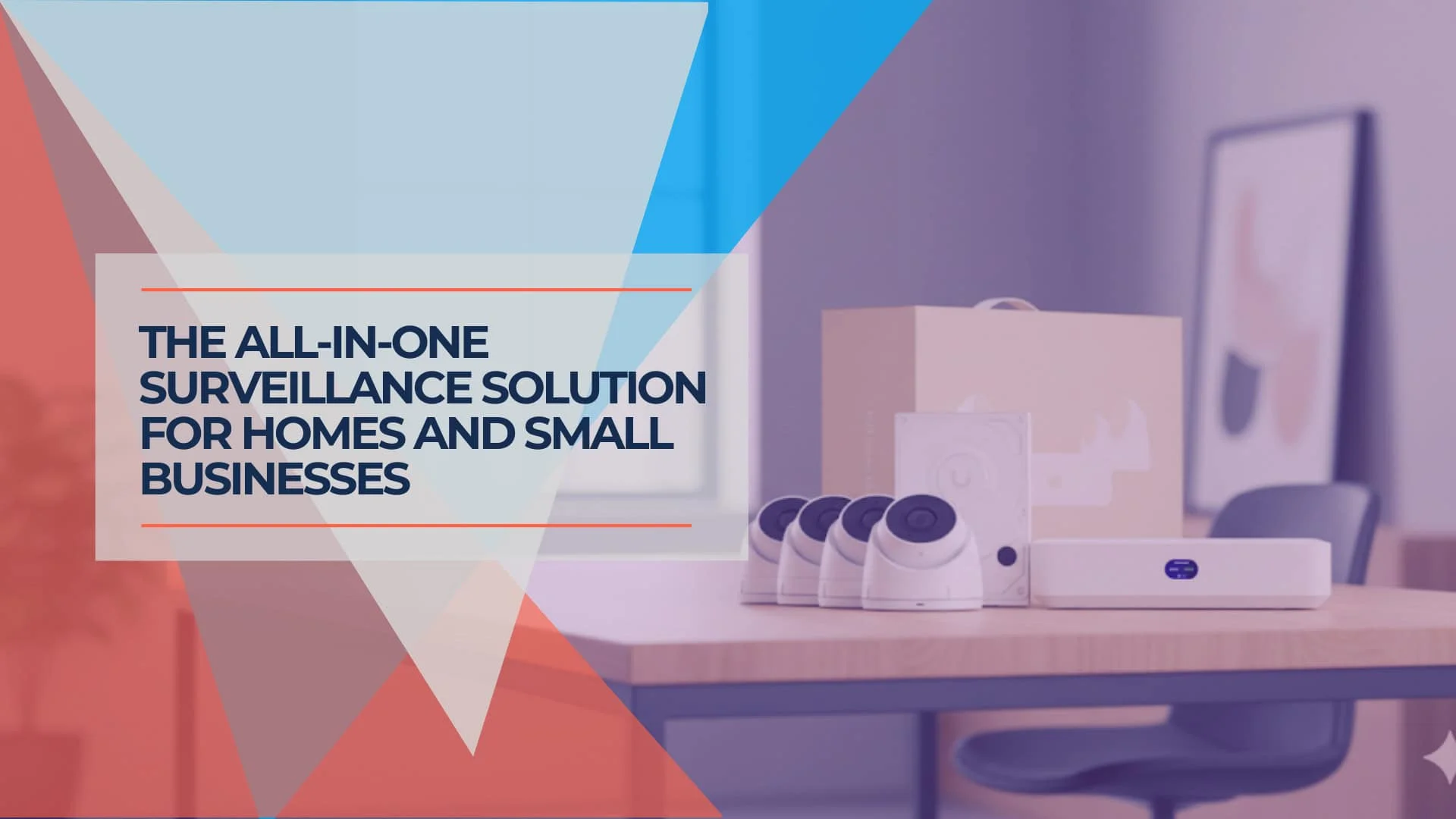
UniFi UNVR Instant Review (2026): The Best All-in-One NVR for Homes?
Complete review of the UniFi UNVR Instant NVR with integrated PoE switch. Perfect for residential homes and small businesses needing 4-6 cameras with professional-grade surveillance.
12 min read
UniFi Protect vs. Reolink vs. TP-Link: Which Camera System Is Best for Your Business?
UniFi Protect, Reolink, and TP-Link (Tapo vs. VIGI) compared for small business use — current 2026 lineups, real 8-camera pricing, and iFeelTech's multi-year UniFi fleet reliability data.
19 min read