

Multi-Gig Ubiquiti Home Network Guide: Utilizing AT&T Fiber Over-Provisioning (2026)
Technical case study showing how to build a multi-gigabit home network with UniFi equipment to fully utilize AT&T Fiber's over-provisioned 1.25 Gbps speeds. Covers router selection, Flow Control configuration, and Wi-Fi 7 optimization.

Many of us now have access to fast internet plans, with fiber optic services delivering speeds of 1 Gbps, 2 Gbps, or even higher directly to our homes. Yet, there's a common point of confusion: why doesn't the Wi-Fi speed on our laptop or the download progress bar always reflect the multi-gigabit speeds advertised by our provider? Often, the answer lies not with the service coming into the house, but with the network infrastructure inside it.
Standard home networking gear, widely deployed over the last decade, was largely built around a 1 Gbps speed limit. As internet plans surpass this threshold, the internal network itself can become a bottleneck, preventing us from fully utilizing the bandwidth we subscribe to. This article walks through a practical example of how a modern home network was designed and implemented to overcome these limitations.
The setting is a newly constructed home where the owner subscribed to AT&T Fiber's 1 Gig plan (Fiber 1000). Note that AT&T typically over-provisions this plan to approximately 1.25 Gbps (1,260 Mbps) to ensure customers consistently see advertised speeds. To fully utilize this bonus bandwidth, a 2.5 Gbps WAN connection is required. The goal was clear: create a network capable of delivering this speed reliably throughout the property. We'll explore the planning process, the specific hardware choices from Ubiquiti's UniFi line (including their Pro Max devices and Wi-Fi 7 access points), and the rationale behind these choices.
Affiliate Disclosure: This article contains affiliate links. If you make a purchase through these links, we may earn a small commission at no extra cost to you. As an Amazon Associate, iFeelTech earns from qualifying purchases.
Key Takeaways
| Focus Area | Quick Insight | Why It Matters for Your Multi-Gigabit Plan |
|---|---|---|
| The Speed Gap | Your fast internet needs an equally fast internal network. | Standard 1 Gbps home network gear often bottlenecks faster plans. |
| AP Uplink is Key | Fast Wi-Fi needs a fast wired connection back to the network. | Look for Access Points with 2.5 Gbps+ Ethernet ports (like U7 Pro Max) to avoid limiting Wi-Fi 6E/7 speeds. |
| Multi-Gig Chain | Every link matters: Modem > Router > Switch > Device. | Ensure that the ports connecting these core devices (WAN, LAN, and Uplinks) exceed your internet speed (e.g., 2.5 Gbps or 10 Gbps). |
| ISP Gateway Hack | Use your modem's fastest port. | Leverage multi-gig ports (like AT&T BGW320's 5 Gbps port) and consider IP Passthrough for optimal routing. |
| Cabling Counts | Don't let outdated wires hold you back. | Use Cat 6 or Cat 6a cabling for reliable multi-gigabit wired performance. |
| Test & Confirm | Verify speeds post-installation. | Test with capable wired (multi-gig port) & wireless clients to ensure you're getting the speeds you built for. |
Chapter 1: Understanding Network Bottlenecks
To build a faster network, it helps to understand what might be slowing it down. Think of your internet connection as water flowing through a pipe into your house. A bottleneck is like a narrower section of pipe somewhere downstream – it restricts the flow, regardless of how wide the main pipe is. In networking, data is the water, and the network components are the pipes.
Here are common places where bottlenecks can occur in a typical home network:
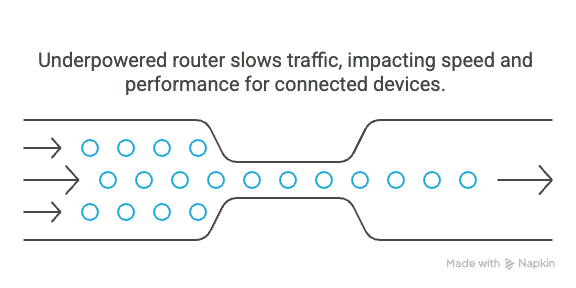
Common Network Bottlenecks
-
ISP Equipment – The modem or gateway provided by your ISP is the entry point. While newer models often feature faster ports (2.5 Gbps or 5 Gbps), many older units only have 1 Gbps Ethernet ports.
-
Your Router – Can be limited by port speeds (many have only 1 Gbps ports) or processing power (handling multi-gigabit speeds requires a capable processor).
-
Network Switches – Most common unmanaged switches are limited to 1 Gbps per port, capping any connected device at 1 Gbps.
-
Wireless Access Points – Even APs supporting fast Wi-Fi often have only a 1 Gbps Ethernet port for the "uplink," limiting actual internet speed over Wi-Fi.
-
Cabling – Cat 5e might struggle above 1 Gbps over longer distances. Cat 6 is good for 2.5-5 Gbps, while Cat 6a is recommended for 10 Gbps.
-
Your Devices – A laptop might only have a 1 Gbps Ethernet port or an older Wi-Fi card.
In this project, with a 1.25 Gbps internet service, any component limited to 1 Gbps would compromise the goal. The network design needed to ensure every critical link offered more capacity than the incoming internet speed.
Chapter 2: The Starting Point – Internet Service and Gateway
The foundation for this network was AT&T's Fiber 1000 plan, which is consistently over-provisioned to 1.25 Gbps symmetrical real-world speed (meaning 1.25 Gbps download and 1.25 Gbps upload). Fiber optic offers significant advantages in speed and latency compared to older technologies.
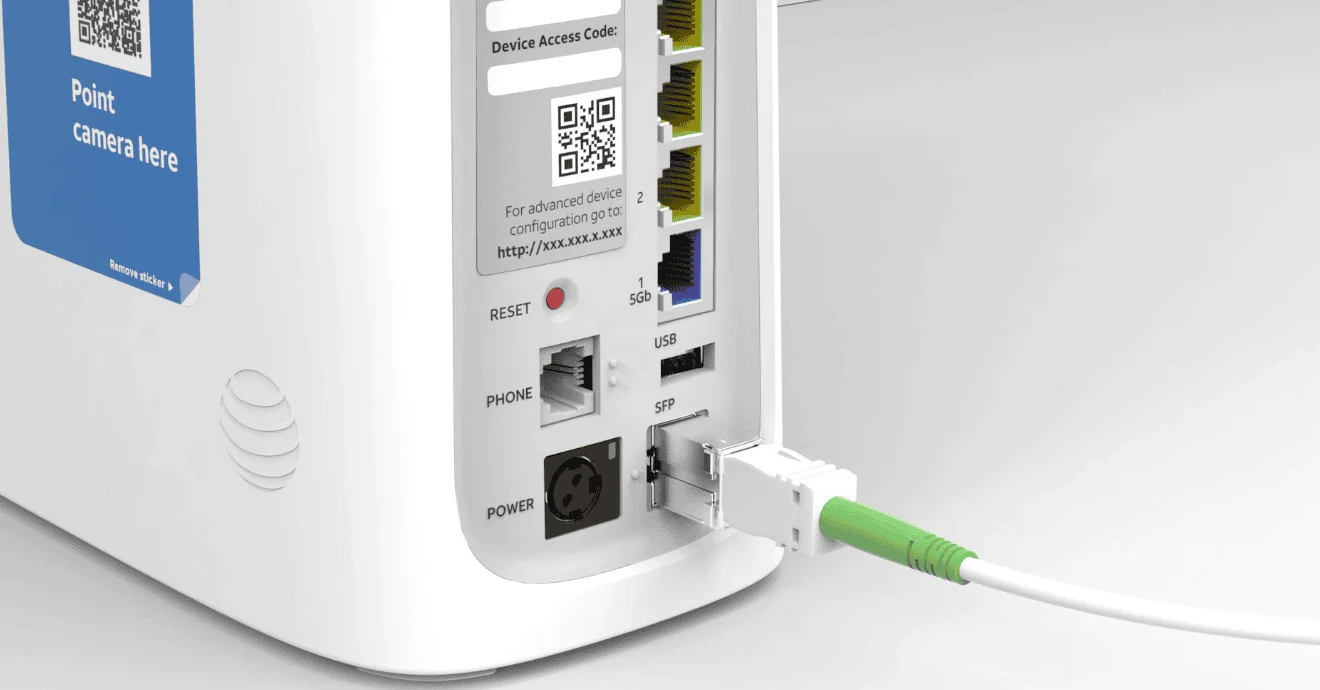
AT&T supplied their BGW320-500 gateway. This unit integrates the Optical Network Terminal (ONT), which translates the fiber optic signal into an Ethernet signal. The key feature of this gateway is its 5 Gbps Ethernet port, typically marked by a blue color. This port provides the necessary capacity to pass the full 1.25 Gbps (and potentially faster future service tiers) into the home network.
IP Passthrough Configuration
For a custom network build like this, the BGW320 is best used in "IP Passthrough" mode. This setting allows the BGW320 to pass the public internet IP address directly to a more capable downstream router. Effectively, the BGW320 acts primarily as a modem or media converter, letting the dedicated router (in this case, the UDM Pro Max) manage all network traffic, security policies, and device connections.
Chapter 3: Selecting the Network's Core – UniFi Dream Machine Pro Max
Choosing the right router is fundamental. It needs to handle the multi-gigabit internet connection efficiently and serve as the central management point for the network. Ubiquiti's UniFi ecosystem was selected for its combination of robust performance, centralized management, and scalability.
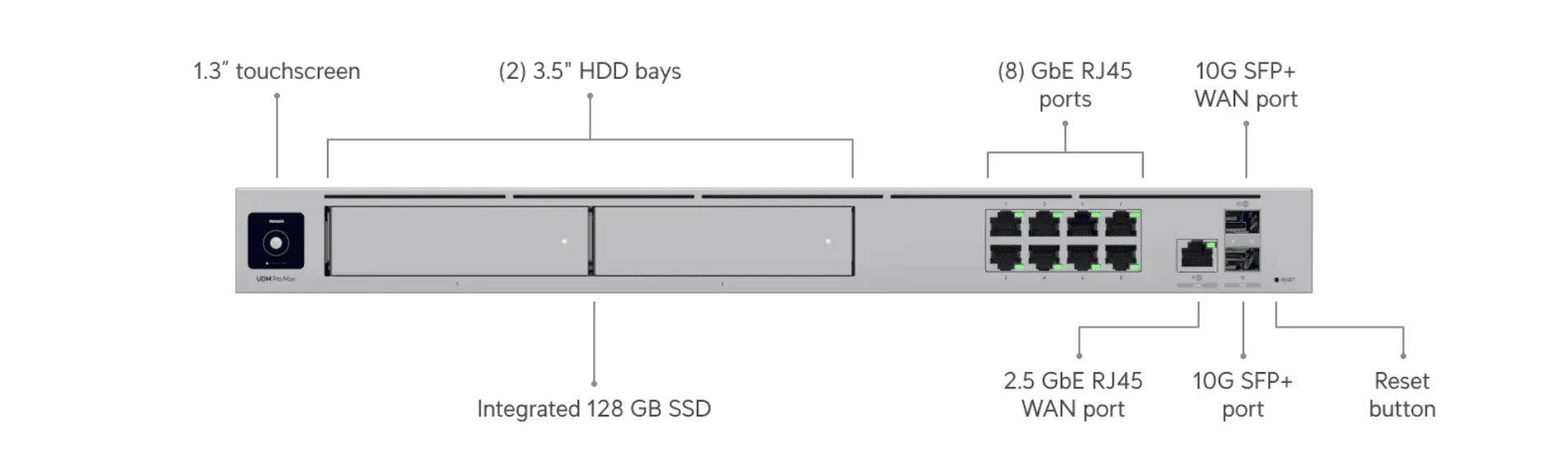
The UniFi Dream Machine Pro Max (UDM-Pro-Max) was chosen as the core router and network controller. It represents a step up in processing power and connectivity compared to earlier UniFi models, making it well-suited for multi-gigabit demands. For a detailed analysis, see our UDM Pro Max review.
Why the UDM Pro Max Was a Good Fit
-
Flexible Multi-Gigabit WAN – Offers both a 2.5 Gbps RJ45 Ethernet port and a 10 Gbps SFP+ port for the incoming internet connection.
-
Low-Latency Processing – Equipped to handle 1.25 Gbps (and higher) while managing firewall rules and other network services.
-
High-Speed LAN Connection – Dedicated 10 Gbps SFP+ LAN port prevents bottleneck between the router and the internal network.
-
Integrated Management – Runs the UniFi Network Application directly, providing a single interface to manage all connected devices.
Connecting the Gateway to the Router
The BGW320's 5 Gbps port was connected to the UDM Pro Max's 2.5 Gbps RJ45 WAN port using a standard Cat 6a Ethernet cable. Why this choice? While the UDM Pro Max also has a 10 Gbps SFP+ WAN port (which could be used with an adapter), the 2.5 Gbps port is simpler to connect, avoids the need for a hot-running SFP+ to RJ45 transceiver module, and already provides double the capacity of the 1.25 Gbps internet service, ensuring no bottleneck at this critical entry point.
Chapter 4: Distributing the Speed – The UniFi Pro Max Switch
With the internet entering the router at full speed, the next task is distributing that connectivity effectively throughout the house. This is the job of a network switch. For a multi-gigabit network, the switch needs ports that match or exceed the required speeds.
The UniFi Switch Pro Max 24 PoE (USW-Pro-Max-24-PoE) was selected. This switch is designed specifically to support devices needing faster-than-gigabit connections.
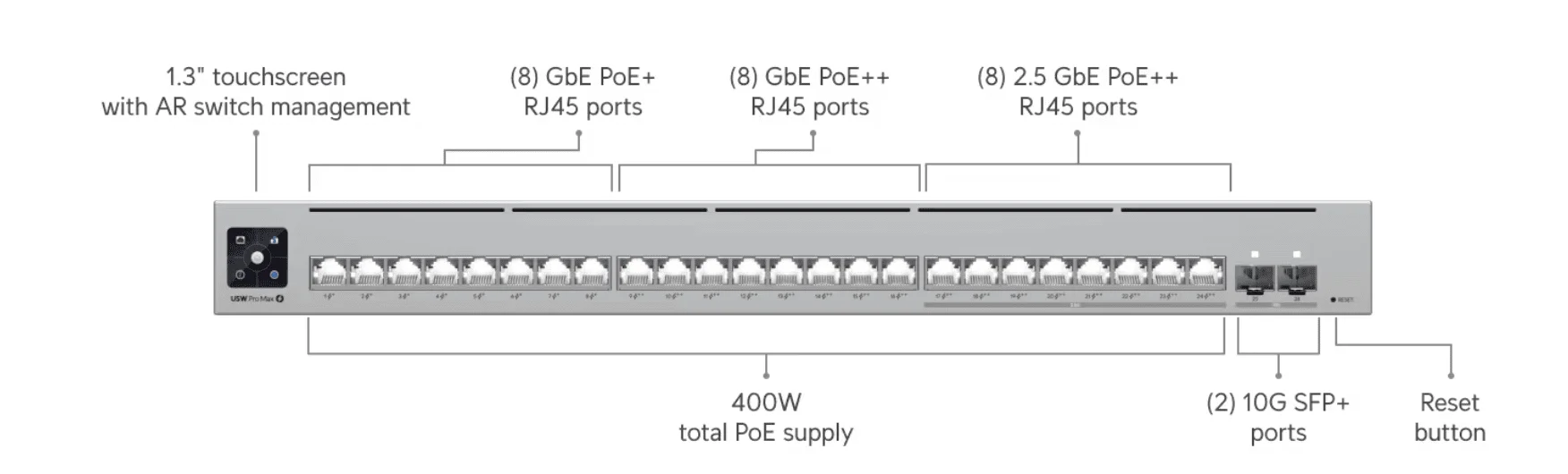
Key Capabilities of the USW-Pro-Max-24-PoE
-
10 Gbps Uplinks – SFP+ ports capable of 10 Gbps. A Direct Attach Copper (DAC) cable creates a fast backbone between the switch and the UDM Pro Max.
-
2.5 Gbps Access Ports – 8 x 2.5 Gbps Ethernet ports essential for connecting high-performance devices like modern Wi-Fi access points.
-
Higher Power PoE (PoE++) – The 2.5 Gbps ports support PoE++ (802.3bt), providing up to 60W per port for power-hungry Wi-Fi 7 access points.
-
Standard Gigabit Ports – 16 x 1 Gbps Ethernet ports with PoE+ for UniFi cameras, printers, and other devices not requiring multi-gig speeds.
-
Management Integration – Seamlessly integrates into the UniFi Network Application for configuration and monitoring.
This switch ensures that traffic can flow from the router at 10 Gbps and be distributed to key devices at 2.5 Gbps without hitting an artificial 1 Gbps limit.
Chapter 5: Wireless Performance – UniFi U7 Pro Max Access Points
In most homes, Wi-Fi carries the bulk of the network traffic. To deliver multi-gigabit speeds wirelessly requires capable access points. The U7 Pro Max APs were chosen, supporting the latest Wi-Fi 7 (802.11be) standard.
Wi-Fi 7 offers several advancements aimed at boosting speed and reliability:
- It can use wider radio channels (up to 320 MHz in the 6 GHz band) and more efficient data encoding (4K-QAM) to increase potential throughput.
- It introduces Multi-Link Operation (MLO), enabling compatible devices to utilize multiple bands simultaneously (such as 5 GHz and 6 GHz) for lower latency.
- It improves efficiency in environments with many Wi-Fi devices, leveraging the relatively uncongested 6 GHz band.
Why U7 Pro Max Over U7 Pro?
While both support Wi-Fi 7, the Pro Max features 4x4 MIMO on the 5 GHz band, offering superior performance for the dozens of legacy (Wi-Fi 5/6) devices in a typical smart home, while the 6 GHz band handles high-speed traffic. Note that the U7 Pro Max is 4x4 MIMO on 5 GHz but only 2x2 MIMO on 6 GHz. While it easily handles 1.25 Gbps, the "Max" benefit is density on 5 GHz, not raw speed on 6 GHz versus the regular U7 Pro.
Critical Feature: 2.5 Gbps Ethernet Uplink
The most critical feature of the U7 Pro Max for this specific project was its 2.5 Gbps Ethernet Uplink Port. This ensures the AP has a fast enough wired connection back to the switch so that the AP itself doesn't bottleneck the high speeds achievable with Wi-Fi 7.
Without a multi-gigabit uplink, even the fastest Wi-Fi connection would be limited by a 1 Gbps pipe back to the network.
Wi-Fi 7 Client Requirements
Achieving 1.25 Gbps on Wi-Fi requires a client device (phone/laptop) that supports 6 GHz (Wi-Fi 6E or 7). A standard 5 GHz Wi-Fi 6 client will likely cap out around 700-900 Mbps real-world, regardless of the access point capabilities.
These APs require PoE+ power, which the Pro Max switch provides. Three units were installed to ensure good coverage throughout the large home.
If you're looking for more affordable Wi-Fi 7 options, consider the U7 Pro or for budget-conscious builds, the U7 Lite offers excellent value while still supporting the Wi-Fi 7 standard.
Chapter 6: Configuration and Checking Performance
With the hardware installed using Cat 6a cabling, the system was configured using the UniFi Network Application. This involved:
- Setting up the UDM Pro Max to connect to the AT&T gateway.
- "Adopting" the switch and access points into the UniFi controller so they could be managed centrally.
- Configuring the network settings and creating the Wi-Fi network names (SSIDs) and passwords. Enabling the 6 GHz band is important for accessing Wi-Fi 7's full potential.
- Essential Setting: Enable Flow Control on the USW-Pro-Max switch. When mixing 10 Gbps backbones with 1 Gbps clients, Flow Control helps manage data bursts and prevents packet loss that can ironically make a faster network feel slower. This is critical in multi-speed environments.
- Set Wi-Fi Channel Widths: Configure the 5 GHz radio to 80 MHz (or 160 MHz) and the 6 GHz radio to 160 MHz or 320 MHz for maximum throughput. Default settings are often 40 MHz/80 MHz, which will limit speeds significantly.
- Crucially, verifying port speeds within the UniFi interface ensured that the UDM WAN connection displayed 2.5 Gbps, the UDM-to-switch link showed 10 Gbps, and the connections from the switch to the U7-Pro-Max APs also showed 2.5 Gbps.
Confirming the Results
Performance was verified through speed tests:
| Test Type | Client | Result |
|---|---|---|
| Wired | Laptop with 2.5 Gbps Ethernet adapter | Consistently achieved speeds very close to the full 1.25 Gbps download and upload |
| Wireless | Wi-Fi 7 compatible smartphone on 6 GHz band | Achieved internet speed test results approaching the 1.25 Gbps mark |
This confirmed that the wireless system could deliver the full internet speed to capable clients.
Chapter 7: The Outcome – A Network Without Internal Speed Limits
The result of this systematic approach was a home network where the internal infrastructure was no longer the limiting factor for the 1.25 Gbps internet service. Data could flow from the internet connection, through the router and switch, and out to both wired and wireless devices without being artificially capped at 1 Gbps.
This translates to a noticeably better user experience:
- Downloads complete faster
- High-resolution video streams start instantly and play smoothly
- Online games feel responsive
- The network handles numerous devices simultaneously without strain
Chapter 8: Looking Ahead – Future Readiness and Considerations
This network setup provides a solid foundation for the future:
Future-Proofing Benefits
-
Supports up to 2.5 Gbps via the current WAN connection, with potential for speeds up to 10 Gbps using the SFP+ WAN port and an appropriate transceiver.
-
10 Gbps internal backbone and 2.5 Gbps access ports provide significant headroom for future growth.
-
Wi-Fi 7 access points ensure compatibility with the latest generation of wireless devices.
Investment and Cabling
It's worth noting that building a network with this level of performance requires the use of prosumer or enterprise-grade equipment, which incurs a higher cost than typical consumer-grade gear. The investment aligns with the goal of achieving maximum performance from a premium internet service.
Reliable cabling (Cat 6a was used here) is also fundamental for multi-gigabit speeds and should be factored into any similar project. You'll also need quality connectors and a cable tester for professional installations. For more on cabling, see our network cabling services and Cat6a wiring guide.
Conclusion: Aligning Your Network with Your Internet Potential
As internet speeds continue to increase, the network inside our homes must keep pace. This case study demonstrated that by carefully selecting components with appropriate multi-gigabit capabilities – from the router's WAN port, through the switch backbone, down to the access point uplinks and client ports – it's possible to build a network that fully utilizes the potential of services like AT&T's 1.25 Gbps fiber.
Eliminating internal bottlenecks ensures a smoother, faster, and more reliable connection for all your online activities. Whether upgrading an existing network or planning a new one, considering the speed capacity of each link in the chain is key to truly enjoying the benefits of multi-gigabit internet.
Equipment Used in This Project
| Component | Model | Key Specification | Link |
|---|---|---|---|
| Router/Gateway | UniFi Dream Machine Pro Max | 2.5G WAN + 10G SFP+ LAN | View Product |
| Switch | USW-Pro-Max-24-PoE | 8x 2.5G PoE++, 2x 10G SFP+ | View Product |
| Access Points | U7 Pro Max (x3) | Wi-Fi 7, 2.5G Uplink | View Product |
| ISP Gateway | AT&T BGW320-500 | 5 Gbps Ethernet port | Get AT&T Fiber |
| Cabling | Cat 6a Bulk Cable | 10 Gbps capable | View Product |
Related Resources
- UDM Pro Max Review – In-depth review of the flagship gateway
- Budget 2.5 Gbps UniFi Network – More affordable multi-gig options
- 10 Gigabit Ethernet Guide – Understanding 10G networking
- Power over Ethernet Guide – PoE standards explained
- Best Ethernet Cable Guide – Cat6a cabling specifications
- UniFi Network Installation Services – Professional setup and configuration
- Network Cabling Services – Professional installation
Related Articles
More from Network Infrastructure
Homelab Network Cables: Cat6A, Cat8, DAC, or Fiber for Each Link
Which cable links your switch, NAS and APs? DAC, fiber, Cat6A and RJ45 SFP+ modules mapped to UniFi, Omada, Synology and UGREEN ports, with cost and power.
20 min read
Mesh Wi-Fi vs Access Points: Keep, Wire, or Upgrade?
Already have eero or Deco? Compare keeping it, adding Ethernet, using bridge/AP mode, or moving to UniFi or Omada—with practical small-business scenarios.
18 min read
Dental Office Network Requirements: Dentrix, Eaglesoft & Open Dental
Eaglesoft, Dentrix and Open Dental server requirements for 2026, plus the imaging, VLAN and cabling design a dental practice network needs.
19 min read