

WiFi Keeps Disconnecting? A Technician's Troubleshooting Guide
A systematic guide to isolating exactly why your WiFi drops — covering driver fixes, router configuration, interference, and when it's time for new hardware.

WiFi disconnections trace back to one of five causes: ISP instability, router hardware failure, device-side power management, wireless interference, or misconfigured band steering. This guide uses a systematic isolation process to pinpoint the root cause before changing any settings.
Affiliate Disclosure: This article contains affiliate links. If you make a purchase through these links, we may earn a small commission at no extra cost to you. As an Amazon Associate, iFeelTech earns from qualifying purchases.
Prefer to watch it done? This video walks through the whole process in under nine minutes, from the quick checks to the router and office-specific fixes. The written steps follow below.
WiFi Keeps Disconnecting? Fix It for Good (Full Guide)
Why Does My WiFi Keep Disconnecting?
Most WiFi disconnections come from one of three layers: the internet service itself, the router or access point, or the individual device. Identifying the layer first prevents hours spent changing settings that were never the problem.
Before working through the diagnostic process below, three checks resolve a meaningful share of cases in under five minutes:
- Power cycle in order. Unplug the modem and router. Wait 60 seconds. Plug in the modem first, wait until its status lights settle (2–3 minutes), then plug in the router. Restoring them in the wrong order can leave the router holding a stale WAN address.
- Check whether one device or all devices drop. This single observation splits the problem in half — a device-side fix versus a network-side fix — and determines which section of this guide applies.
- Check what changed recently. A firmware update, an operating system update, a new smart-home device, or a neighbor's new router are the most common triggers when a previously stable network starts dropping.
If the drops continue after those three checks, the isolation process below identifies the cause rather than guessing at it.
How to Isolate the Cause of WiFi Disconnections
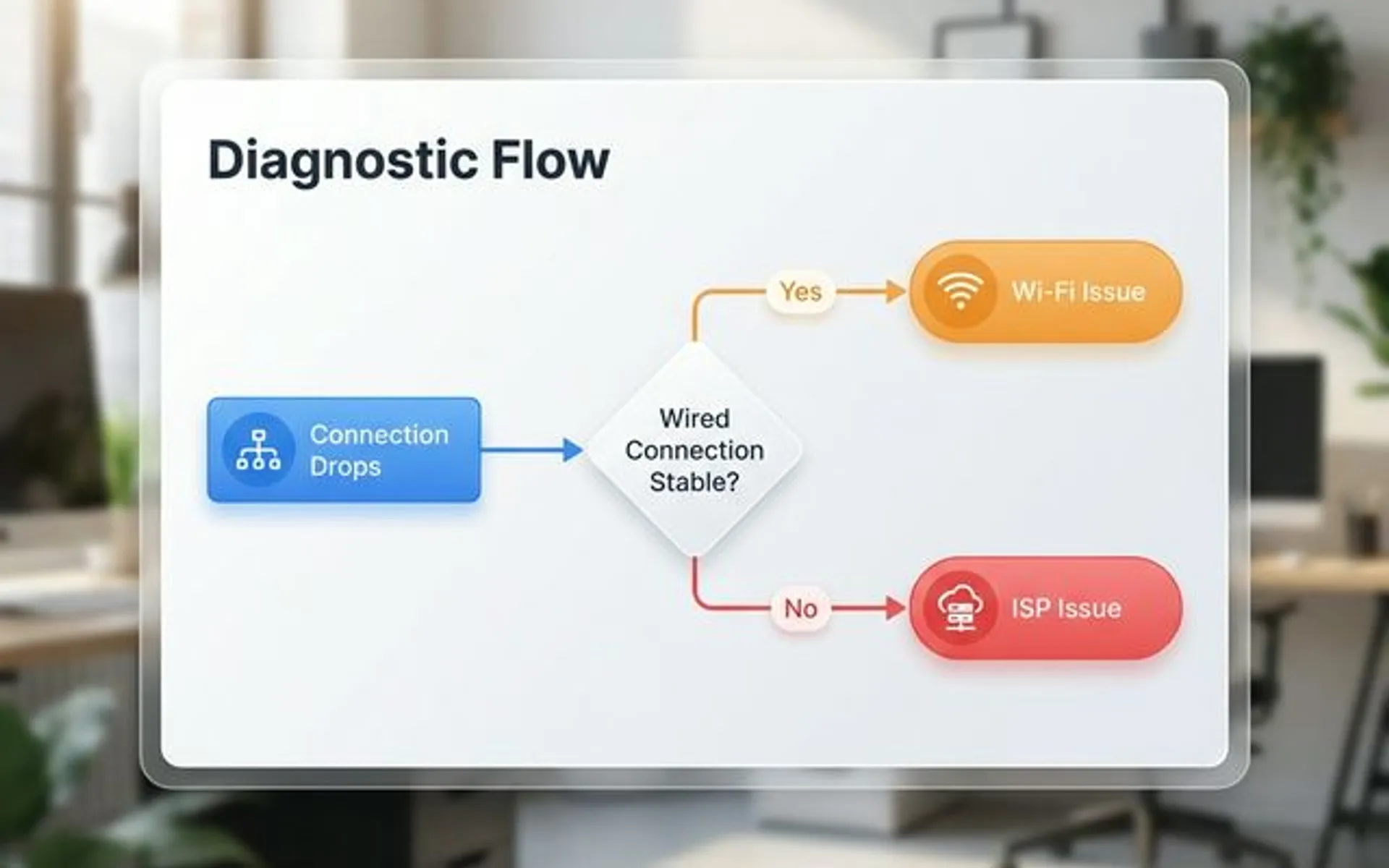
Network isolation testing determines whether connection drops are caused by the ISP, the router hardware, or a specific client device. Run these three checks in order before changing any settings.
Test the ISP (Wired Connection)
Connect a computer directly to the modem via an ethernet cable. Monitor the connection for 10–15 minutes.
Signal Drop vs. Internet Outage
If your WiFi icon shows connected but webpages won't load, this is typically a DNS or ISP outage, not a WiFi signal drop. The wired test below will confirm this.
- If the wired connection also drops → The issue is upstream — modem, ISP infrastructure, or the cable between them. Skip to environment and hardware checks.
- If the wired connection stays stable → The internet service is functioning. The problem is wireless.
Test the Router (Wireless Broadcast)
When the WiFi drops on your laptop, immediately check your phone or another device on the same network.
- All devices lose WiFi at the same time → The router is likely the cause. Jump to router configuration fixes.
- Only one device drops while others stay connected → The issue is isolated to that device's drivers or power settings.
Run a Continuous Ping While You Test
Running a continuous ping during testing provides more precise data than waiting for a webpage to fail. On Windows, open Command Prompt and type ping 8.8.8.8 -t. On Mac, open Terminal and type ping 8.8.8.8 (press Ctrl + C to stop). You will see the exact moment packets start dropping.
Why Does Windows WiFi Disconnect to Save Power?
Windows default power management settings frequently disable network adapters to conserve battery, causing connection drops even when the laptop is plugged into power. If only one device is dropping while the rest of the network stays online, the following three fixes resolve the issue in order of likelihood.
The Windows Power Saving Bug
Windows disables the WiFi adapter to conserve battery, even when the laptop is connected to wall power. This is the most common cause of single-device WiFi drops on Windows machines.
Check Whether a Windows Update Triggered It
Windows updates occasionally introduce connectivity regressions. The clearest recent example is KB5077181, the February 10, 2026 cumulative update for Windows 11 (builds 26100.7840 and 26200.7840). Affected systems reported DHCP failures that left WiFi showing as connected with no internet access, alongside boot loops and sign-in failures on some machines. The mitigation that worked for affected users was uninstalling the update and pausing Windows Update until a fix shipped.
If your drops started immediately after an update, check Settings → Windows Update → Update history for the install date, and re-verify the adapter power settings below — a driver replaced during an update can restore the default power-saving behavior.
The fix:
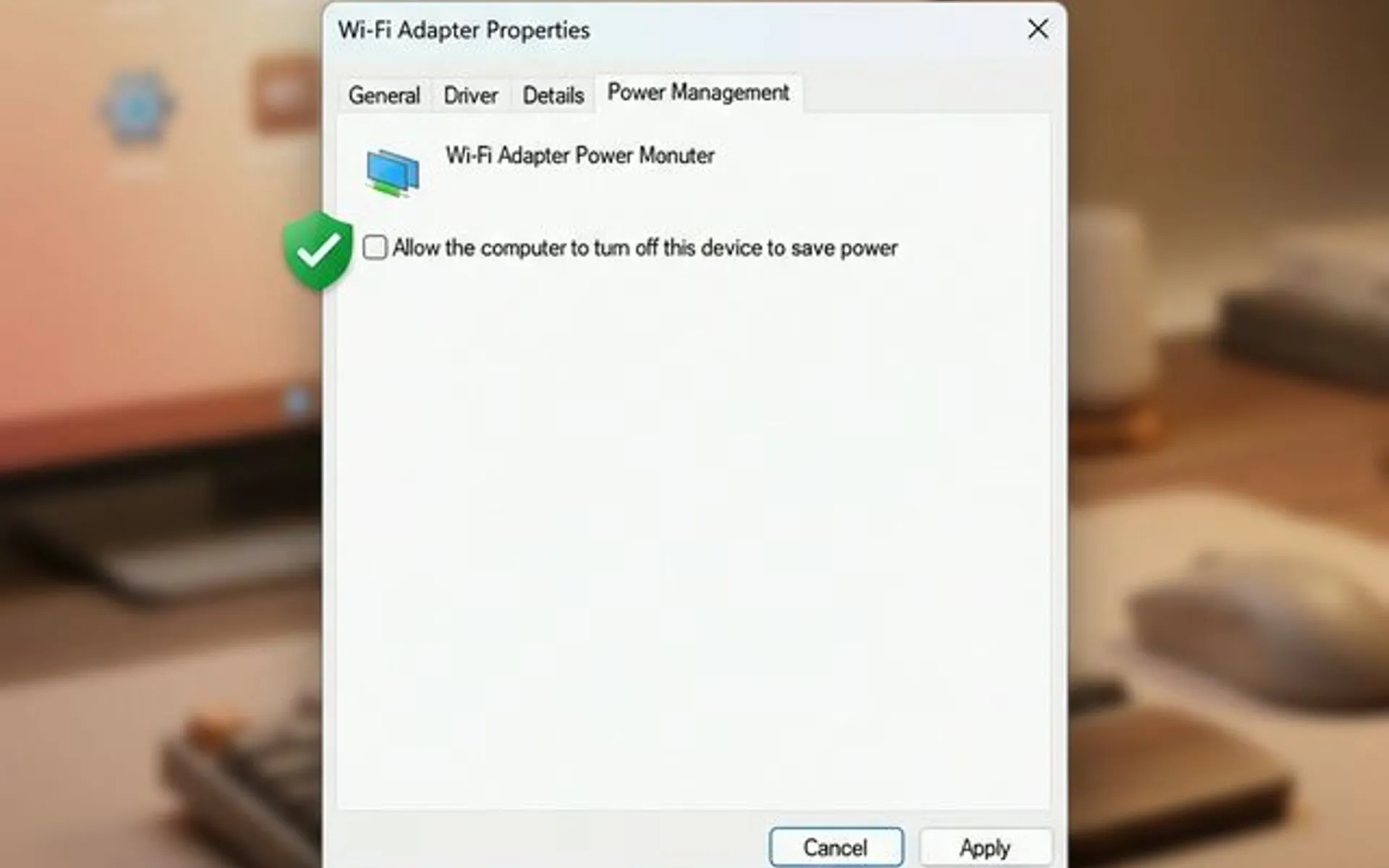
- Right-click the Start button → Device Manager
- Expand Network adapters
- Right-click your WiFi adapter (usually labeled Intel, Realtek, or Qualcomm) → Properties
- Click the Power Management tab
- Uncheck "Allow the computer to turn off this device to save power"
- Click OK
While in the adapter properties, check the Advanced tab. Set Roaming Aggressiveness to Lowest to prevent the adapter from scanning for other networks during active sessions.
Read the Exact Drop Reason in Event Viewer
Right-click Start → Event Viewer → Custom Views → Administrative Events. Look for WLAN-AutoConfig errors (Event IDs 8000 or 11000). These logs show the exact reason Windows dropped the connection, such as "Dynamic key exchange did not succeed" or "Authentication timeout."
Outdated or Broken WiFi Drivers
Windows Update installs generic WiFi drivers that sometimes conflict with specific hardware. Intel, Realtek, MediaTek, and Killer (now Intel) adapters are the most common offenders.
The fix: Don't rely on Windows Update. Go directly to your laptop manufacturer's support page (Dell, HP, Lenovo, ASUS), enter your exact model number, and download the latest WLAN driver from there. These manufacturer-certified drivers are typically more stable than the generic ones Windows installs.
If the disconnections started after a recent Windows update, try rolling back the driver: Device Manager → Network Adapters → Right-click WiFi adapter → Properties → Driver tab → Roll Back Driver.
Network Profile Set to "Public"
When Windows classifies a network as "Public," it enables aggressive firewall rules that can interfere with sustained connections. Your home or office WiFi should be set to Private.
To check: Settings → Network & internet → Wi-Fi → Click your network → Set Network profile type to Private network.
Mac and Mobile Device Fixes
If a Mac, iPhone, or Android device is the one disconnecting while other devices stay connected, these are the most effective fixes for each platform.
macOS:
- Check Private Wi-Fi Address first. macOS Sequoia introduced a rotating Private Wi-Fi Address that some routers treat as a new unknown device on each rotation, causing repeated drops. Go to System Settings → Wi-Fi, click Details next to your network, and set Private Wi-Fi Address to Fixed instead of Rotating.
- Go to System Settings → Wi-Fi and remove the network, then reconnect.
- If the issue persists, reset the Network Location: System Settings → Network → Action menu (three dots) → Locations → select Automatic. This resets network configuration without affecting other settings.
- As a last resort, delete the WiFi configuration files. Open Finder, press Cmd + Shift + G, navigate to
/Library/Preferences/SystemConfiguration/, and remove the files prefixed withcom.apple.wifiandNetworkInterfaces.plist. Restart the Mac to regenerate them.
iPhone and iPad:
Go to Settings → General → Transfer or Reset → Reset Network Settings. This clears all saved WiFi networks, VPN configurations, and Bluetooth pairings, but it resolves the majority of persistent iOS WiFi drops.
Android:
Go to Settings → System → Reset options → Reset Wi-Fi, mobile & Bluetooth. As with iOS, this clears saved networks and forces the device to establish a fresh connection.
Should You Disable Smart Connect to Stop WiFi Drops?
Disabling Smart Connect (band steering) resolves stability issues on WiFi 5 and WiFi 6 routers by preventing devices from aggressively switching between 2.4 GHz and 5 GHz bands. If every device on your network drops simultaneously, these configuration changes should be tested before replacing hardware.
Band Steering and Smart Connect
Many routers combine the 2.4 GHz and 5 GHz bands into a single network name and promise to steer devices to the optimal band automatically. On WiFi 5 and WiFi 6 hardware, this feature frequently causes disconnections due to sticky clients — devices that connect to the weaker 2.4 GHz band and refuse to switch, or get forcibly moved mid-session.
For WiFi 5/WiFi 6 routers: Log into your router's admin panel and create two separate networks — one for 2.4 GHz (e.g., "Office") and one for 5 GHz (e.g., "Office-5G"). Connect latency-sensitive devices to the 5 GHz network. Reserve 2.4 GHz for IoT devices, printers, and anything that doesn't support 5 GHz.
For WiFi 7 routers: Keep bands combined. WiFi 7 introduces Multi-Link Operation (MLO), which allows a client to transmit and receive across multiple bands simultaneously — maintaining two active links so that if one band encounters interference, the other sustains the connection without a dropout. Splitting bands on WiFi 7 hardware disables MLO and removes the primary advantage of the upgrade. Our Multi-Link Operation explainer covers how it behaves in practice. Only split bands on WiFi 7 if legacy devices consistently fail to connect.
Check for Channel Congestion
If you're in an apartment building or dense office park, dozens of nearby networks may be competing on the same WiFi channel. This causes intermittent drops, especially during peak hours. In office environments, building materials, neighbor density, and client load often interact to produce drops that look random but aren't — see why office WiFi underperforms for a full breakdown of environment-related causes.
How to check: WiFiman from Ubiquiti is free and ad-free on both iOS and Android. On Android it lists nearby networks and the channels they occupy. On iOS, Apple restricts third-party apps from scanning neighboring networks, so channel analysis there is limited — use an Android device, or run the RF scan built into your router or UniFi controller.
For the 2.4 GHz band, stick to channels 1, 6, or 11 — these are the only non-overlapping channels. For 5 GHz, automatic channel selection is usually adequate.
DFS Channels Can Cause the Drops You're Troubleshooting
DFS channels (52–64 and 100–144 in the US) are less crowded, which is why they are often recommended. They also carry a specific risk when the symptom is disconnection. Access points on DFS channels must yield to radar. When one is detected — from an airport, a weather station, or a marine radar — the AP vacates the channel immediately and drops every client on it, then performs a Channel Availability Check (CAC) before transmitting again. Under FCC rules the CAC is at least 60 seconds on all DFS channels. In the US, channels 120, 124, and 128 sit near Terminal Doppler Weather Radar (TDWR) frequencies, and many AP vendors disable them by default within 35 miles of a TDWR installation. Under ETSI rules (Europe, and now Canada for these channels), the CAC extends to 10 minutes — long enough to look like a complete network outage.
The result looks exactly like a random WiFi drop. If you are near an airport, coastline, or weather radar installation and your network uses DFS channels, test with DFS disabled for a week before pursuing other causes.
WPA3 Compatibility Issues
WPA3 is the latest WiFi security standard, but older devices — particularly IoT gadgets, older printers, and some smart home devices — don't support it. When these devices attempt to connect to a WPA3 network, they experience repeated authentication failures and may fail to connect entirely.
The fix: If you have a mix of old and new devices, set your router to WPA2/WPA3 Transitional mode. If drops persist on older devices specifically, test with WPA2 Personal (AES) to verify WPA3 is the culprit, then decide whether the security upgrade is worth the compatibility headaches.
Update Your Router's Firmware
Router manufacturers regularly patch bugs that cause disconnections. This is particularly relevant for models running newer firmware stacks, where early releases may contain stability issues.
Log into your router's admin panel and check for firmware updates. Apply any available updates and allow the router to reboot completely (this takes 2–5 minutes).
How to Check for WiFi Interference and Hardware Failure
If software and configuration changes haven't solved it, the problem may be physical.
Router Overheating
Routers generate heat. When that heat can't dissipate — because the router is stuffed in a closet, stacked under other equipment, or sitting on carpet — it triggers thermal throttling or spontaneous reboots.
Signs of overheating: disconnections that happen more frequently during the afternoon (when ambient temperature peaks), or drops that increase the longer the router has been running.
The fix: Move the router to an open, ventilated area. If it's in a network rack, verify it has adequate airflow. The UniFi Dream Router 7 uses active cooling and handles sustained loads well, though the fan is audible under heavy traffic. The UniFi Express 7 is fanless, which suits quiet rooms and low-density environments but leaves less thermal headroom. Our Express 7 vs Dream Router 7 comparison covers the trade-off in detail. Older consumer routers typically lack any active thermal management.
Wireless Interference
The 2.4 GHz band is crowded. These devices operate in the same frequency range and can cause periodic WiFi drops:
- Microwave ovens (a common source of 2.4 GHz interference during operation)
- Cordless phones (older 2.4 GHz models — modern DECT 6.0 phones use 1.9 GHz and do not interfere)
- Baby monitors
- Bluetooth devices in close proximity to the router
- Neighboring WiFi networks (in apartments and shared office buildings)
The fix: Move the router away from these sources. Switching primary devices to 5 GHz avoids most 2.4 GHz interference. The 6 GHz band (WiFi 6E/7) is even cleaner, but be aware that 6 GHz has significantly lower wall penetration than 5 GHz — a device that moves two rooms away from the access point on 6 GHz will likely disconnect. Use 6 GHz for devices with direct line-of-sight to the router; use 5 GHz for everything else.
Cable Integrity
The ethernet cable between your modem and router is easy to overlook, but a partially damaged cable produces symptoms identical to WiFi instability. Bent pins, cables crushed under furniture, or old Cat5 cables can all cause intermittent packet loss.
The fix: Replace the cable with a known-good Cat6 or Cat6a cable. This is a 10-second test that rules out a frequently missed cause of connection drops that appear wireless but are actually wired.
Why Office WiFi Drops When Home WiFi Doesn't
Business networks fail differently than home networks. Four causes account for most office disconnections, and none of them appear in consumer troubleshooting guides because none of them occur on a single-router network.
Sticky Clients and Roaming Between Access Points
In a multi-AP office, a laptop carried from one end of the floor to the other often holds onto the first access point well past the point where the signal is usable. The client, not the network, decides when to roam. The connection degrades until it fails, then reconnects — which the user experiences as a random drop tied to walking around.
The fix: Set a minimum RSSI threshold on the access points, typically between -70 and -75 dBm. Below that, the AP stops serving the client, forcing it to associate with a nearer AP. Set the threshold too aggressively and clients bounce between APs; -75 dBm is a reasonable starting point to tune from. On UniFi, this is configured per WiFi network under the radio settings.
DHCP Pool Exhaustion
A /24 subnet with a DHCP pool of 100 addresses runs out when an office has 40 staff carrying phones and laptops, plus printers, cameras, VoIP handsets, and thermostats. New devices fail to get an address and show as connected with no internet — a symptom easily mistaken for a wireless problem.
The fix: Check the gateway's DHCP lease table against the pool size. If utilization is above roughly 80%, widen the pool or shorten the lease time. IoT devices belong on a separate VLAN with their own pool — our guest WiFi setup guide covers the segmentation approach.
PoE Budget and Switch Power
Access points powered over ethernet cut out when the switch's total PoE budget is exceeded. The AP reboots, every client on it drops, the AP comes back, and the cycle repeats under load. A single high-draw device added to a switch that was already near its budget can destabilize several APs at once.
The fix: Compare the switch's PoE budget against the sum of connected device draw, including cameras and phones. Leave headroom rather than provisioning to the limit.
Channel Reuse Across Too Many Access Points
Adding access points to fix coverage can make stability worse. When neighboring APs share channels, they compete with each other, and clients caught between two equally strong signals drop while re-associating.
The fix: Reduce transmit power before adding APs, and verify channel assignments so adjacent APs do not overlap. Our guide to why office WiFi underperforms covers the full site-survey process.
What Is the Best WiFi Hardware to Stop Disconnections?
Persistent disconnections that survive configuration fixes usually indicate failing router hardware or a client density that exceeds the device's capacity. Hardware replacement is warranted if:
- The router is more than 4–5 years old. WiFi components degrade over time, particularly in routers that run 24/7 without active cooling.
- Disconnections increase under load. Five devices work fine. Fifteen cause constant drops. The radio can't handle the client density.
- You've done a factory reset and the problem returned. This rules out configuration and points to hardware.
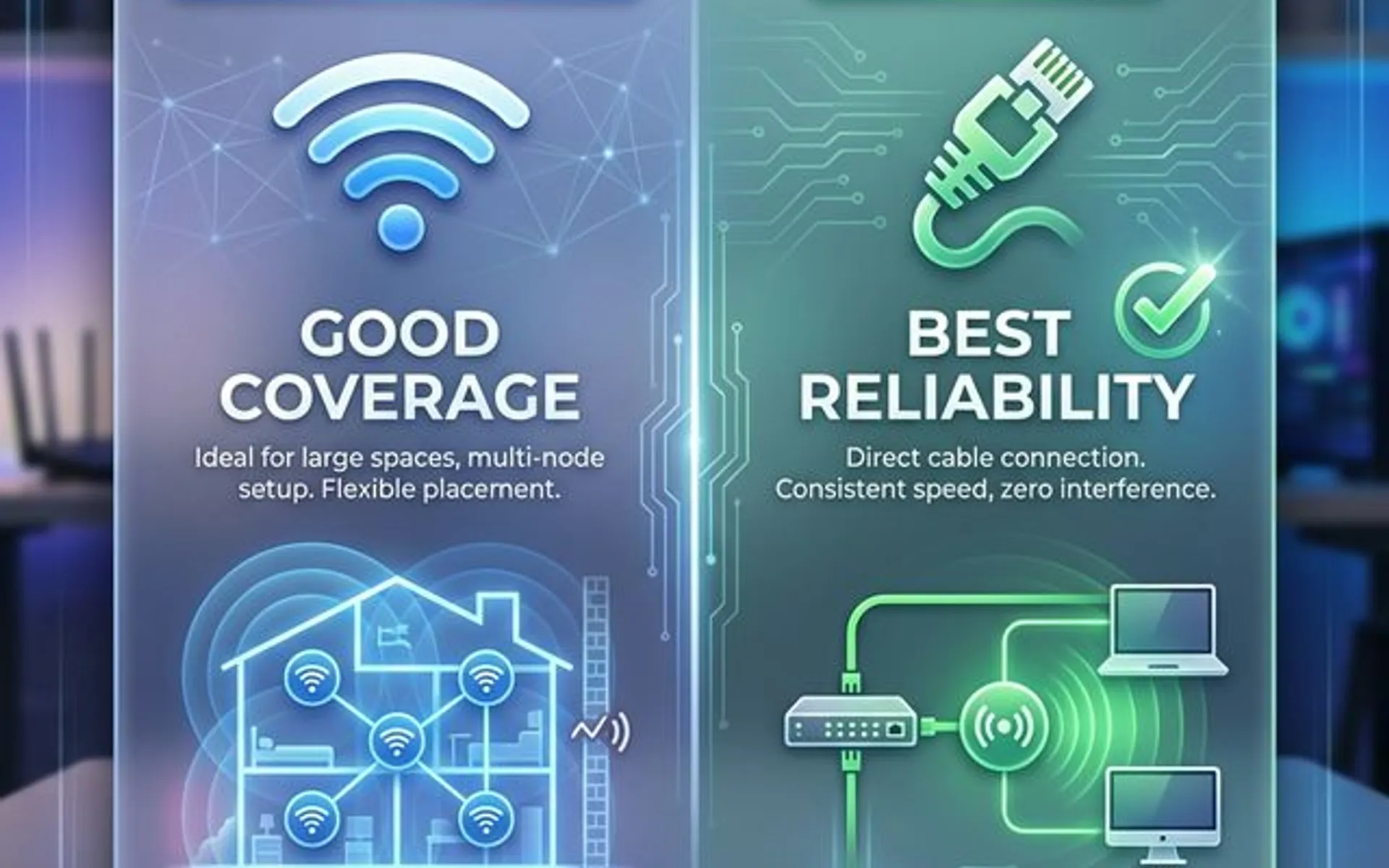
The right replacement depends on your environment. Consumer mesh systems and professional-grade access points serve different needs, and selecting the appropriate solution from the start avoids repeated troubleshooting. If your current mesh or router is otherwise working and this is a single-room problem, our mesh Wi-Fi vs access points guide covers repositioning and wiring an existing node before buying anything new.
Apartments and Small Spaces — Get a Mesh System
The problem: Concrete walls, steel studs, and tight floor plans where running ethernet is not practical.
The fix: A WiFi 7 mesh system like the TP-Link Deco BE63 uses wireless backhaul to relay signal between nodes without requiring cabling. Place one node near your modem and the other in the room with the weakest signal.
Why mesh works here: No ethernet runs are needed between nodes. The BE63 is tri-band (2.4, 5, and 6 GHz) and defaults to the 6 GHz band for node-to-node traffic, falling back to 5 GHz or 2.4 GHz as distance increases.
Tri-Band Does Not Mean Dedicated Backhaul
A common misreading: on the Deco BE63, the third band is 6 GHz for clients, not a reserved backhaul radio. Backhaul traffic shares a client-serving band, so throughput degrades as nodes move apart. If a wired run between nodes is possible — even a single existing cable, or MoCA over coax — ethernet backhaul makes a larger difference on this system than on mesh systems that do reserve a radio.
| What You Get | Mesh System (e.g., Deco BE63) |
|---|---|
| Best for | Apartments, condos, small homes |
| Coverage | TP-Link rates the 2-pack at up to 5,800 sq ft and the 3-pack at up to 7,600 sq ft |
| Backhaul | Wireless by default (6 GHz, shared with clients); wired ethernet supported and recommended where possible |
| Setup complexity | App-guided, 10 minutes |
| Client capacity | 200+ devices (manufacturer figure) |
Houses and Large Homes — Go UniFi with Dedicated Access Points
The problem: Multiple floors, detached garages, backyards — areas where wireless backhaul degrades with distance and obstacles, even on high-end mesh systems.
The fix: A UniFi Cloud Gateway Ultra paired with one or more U7 Pro access points, hardwired to each floor. This separates the control plane (gateway) from the WiFi radio (access points), which is how commercial-grade networks maintain consistent uptime.
Why this approach works for houses: Each access point connects back to the gateway via ethernet — no wireless hops, no throughput loss. Ubiquiti rates the U7 Pro at 300+ simultaneous clients, and the Cloud Gateway Ultra at 30+ UniFi devices, 300+ clients, and 1 Gbps IPS routing, which covers the large majority of residential deployments. Our Cloud Gateway Ultra review documents how it holds up in the field, and the UniFi WiFi 7 access points guide covers the full AP lineup.
| What You Get | UniFi Gateway + AP Setup |
|---|---|
| Best for | Houses, multi-floor homes, estates |
| Coverage | Ubiquiti rates the U7 Pro at 1,500 sq ft maximum per AP; add APs per floor or wing |
| Backhaul | Wired ethernet (full speed, no degradation) |
| Setup complexity | Moderate — requires running ethernet to AP locations |
| Client capacity | 300+ per AP |
For a real-world example of this setup, see our luxury home WiFi 7 network case study.
Offices and Commercial Spaces — Build a Business Network
The problem: 50+ devices, VoIP phones, security cameras, and staff who depend on consistent connectivity. Consumer and prosumer equipment typically cannot handle this client density, nor the security and failover requirements of a business environment.
The fix: The UniFi Dream Machine Pro Max is a rackmount gateway with built-in IDS/IPS, multi-WAN load balancing and failover, and 10G SFP+ WAN alongside a 2.5 GbE RJ45 WAN port. Ubiquiti rates it at 5 Gbps IDS/IPS throughput and 200+ UniFi devices with 2,000+ clients. Pair it with ceiling-mounted U7 Pro access points — plan roughly one per 1,500 sq ft, closer in high-density areas — wired back to PoE switches in the rack. Our UDM Pro Max review covers the benchmarks behind those figures.
Why this investment pays off: Multi-WAN failover addresses internet-side disconnections by maintaining a backup path. The IDS/IPS engine screens threats at the network edge. Centralized management through the UniFi dashboard provides visibility into every client and connection from any location. In glass-walled or open-plan offices, AP placement matters as much as AP count — see our access point density analysis for glass offices.
For a detailed comparison of gateway options at this level, see our UniFi gateway comparison. If you're planning a full office buildout, our UniFi office network blueprint covers the complete stack.
Bottom Line
WiFi disconnections are a symptom, not a diagnosis. The appropriate fix depends on where the problem originates:
- Single device dropping: Check power management and driver settings on Windows or reset network configuration on Mac and mobile devices.
- All devices dropping simultaneously: Test with Smart Connect disabled, check for channel congestion, and update your router's firmware.
- Drops persist after configuration changes: Inspect for overheating, wireless interference, DFS radar events, and cable integrity.
- Drops happen in an office with multiple access points: Check roaming thresholds, DHCP pool utilization, PoE budget, and channel reuse before touching hardware.
- Drops continue after all software and environmental fixes: The router hardware is likely degrading. Select the replacement that matches your environment — a mesh system for apartments, a UniFi gateway with dedicated APs for houses, or a business-grade setup for offices.
For help determining the right path, our small business network setup guide covers the planning process. You can also contact our team for a professional network assessment.
Frequently Asked Questions
Why does my WiFi disconnect at the same time every day?
Recurring disconnections at the same time usually point to interference from a device on a timer (like a microwave at lunchtime), ISP maintenance windows (typically late at night), or thermal throttling from a router that overheats after running all day. Start a continuous ping test (ping 8.8.8.8 -t on Windows) and log when the drops happen — the pattern reveals the cause.
Why does my WiFi work fine on my phone but not my laptop?
This almost always traces back to the Windows WiFi power management bug. Windows disables the WiFi adapter to save battery, even when plugged in. Open Device Manager, find your network adapter, go to the Power Management tab, and uncheck "Allow the computer to turn off this device." Also check for outdated drivers — download the latest WLAN driver from your laptop manufacturer's website directly.
Does a WiFi extender fix disconnection problems?
Rarely. Extenders repeat the signal on the same channel, which cuts throughput in half and often introduces more disconnections due to the device constantly switching between the main router and the extender. If you need extended coverage, a mesh system (for apartments) or a hardwired access point (for houses and offices) is the correct solution. See our dead zone solutions guide for the full breakdown.
Why does only my smart TV or streaming device keep disconnecting?
Smart TVs, streaming sticks, and game consoles commonly use single-band 2.4 GHz radios with small internal antennas, and many enter a low-power state that drops the WiFi association when idle. If one TV drops while phones and laptops stay connected, check whether the TV supports 5 GHz, disable any "quick start" or power-saving setting in its network menu, and confirm it is not sitting behind a wall from the router. Wall-mounted TVs with the router below or behind them are a frequent offender. Where a wired run is practical, ethernet resolves the issue permanently.
How do I know if the problem is my ISP?
Connect a computer directly to your modem with an ethernet cable and run a speed test and ping test. If you see packet loss or speed drops on a wired connection, the problem is upstream — either your modem, the ISP's infrastructure, or the cable between them. Call your ISP with this data. For more on the relationship between your modem and router, see our modem vs router guide.
Related Reading
- Modem vs Router: What's the Difference? — Understand the devices that power your connection
- Best Ethernet Cable Guide — The wiring foundation under every stable network
- Business WiFi Dead Zone Solutions — Coverage fixes for offices and large spaces
- UniFi WiFi 7 Access Points Guide — The full AP lineup breakdown
- UniFi Gateway Comparison: UDR7, UX7, UCG Fiber — Choosing the right gateway
- How to Find Your Router IP Address — Access your admin panel on any device before changing network settings
- WiFi 7 Multi-Link Operation Explained — Why MLO changes how you configure bands
- Why Office WiFi Underperforms — Environment and density causes behind business network drops
Related Articles
More from Network Infrastructure
How to Find Your Router IP Address on Windows, Mac, iPhone, Android & Linux
Find your router IP address on Windows, Mac, iPhone, Android, or Linux. Includes default IPs and login notes for common router brands and app-managed systems.
12 min read
SSID Meaning: What It Is and Why Your Network Name Is a Security Decision
SSID stands for Service Set Identifier—your Wi-Fi network name. Learn what it means, why hiding it is a myth, and how to configure SSIDs properly for business security.
11 min read
Modem vs Router: What's the Difference? (Business Owner's Guide)
A modem connects you to the internet. A router creates your office network. Learn which one actually matters for your business and which upgrades are worth it.
12 min read