
How to Get Your Small Business Online: The Complete Setup Guide
Domain, email, authentication, website, Google Business Profile, and first software stack — in the right order, with prices checked October 2026 and specific product recommendations.


Getting a business online involves more decisions than most guides cover, and the steps build on each other in ways that aren't always obvious upfront. The domain affects the email. The email affects deliverability. A domain without proper email authentication will have deliverability problems. Most guides treat these as independent tasks, or skip the authentication steps that protect deliverability downstream.
This guide covers all six steps — domain, email, email authentication, website, Google Business Profile, and first software stack — in the sequence that makes each one work properly. Prices checked in October 2026 throughout, specific product recommendations in every section, and links to the full comparisons for anyone who wants to dig deeper before committing.
Affiliate Disclosure: This article contains affiliate links. If you make a purchase through these links, we may earn a small commission at no extra cost to you. As an Amazon Associate, iFeelTech earns from qualifying purchases.
Why Does the Order of Online Business Setup Matter?
Setting up a business online requires sequential execution because domains anchor email, and email enables secure software authentication. Your domain must be registered first to configure professional email. Email authentication records must then be established in the domain's DNS to ensure deliverability before you create third-party software accounts or launch a website.
Step 1: Register a Business Domain Name
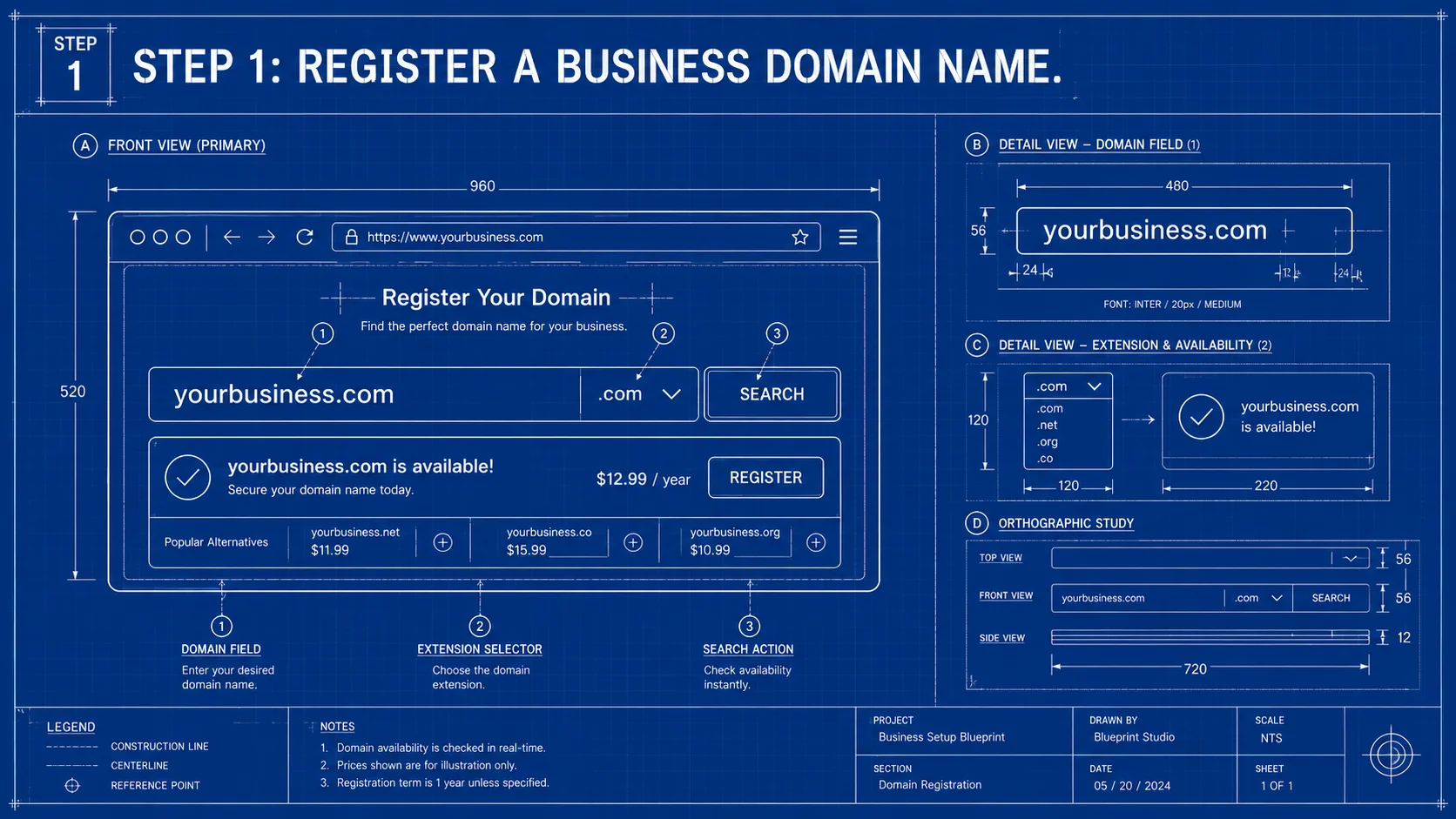
Register a .com domain name first to secure the foundational identity required for professional email, website hosting, and authentication. Stick with a .com extension for US-based businesses to align with consumer typing habits. Keep the domain concise and register it for a minimum of two years to prevent accidental expiration. Compare the renewal price, not just the first-year offer.
The three registrars worth using in 2026:
Porkbun is the best all-around choice for most new businesses. A .com runs $11.08/year for registration, renewal and transfer — the same price every year, with no introductory-rate bait-and-switch. Free WHOIS privacy is included, along with free DNS management and a free SSL certificate for domains registered there. One caveat: Verisign, the registry behind .com, is raising its wholesale price, and Porkbun has said its .com price rises to about $11.81 on November 1, 2026. Every registrar passes that increase on, so treat the prices in this section as a snapshot. This is the default recommendation.
Namecheap is a solid alternative if you want a slightly more established registrar with a broader product ecosystem (SSL, email hosting, DNS management). Its .com list price is $14.98 for the first year, often discounted — $11.28 at the time of writing, and a new-customer coupon can go lower — but it renews at $18.48/year plus a $0.20 ICANN fee, noticeably more than Porkbun. Free WHOIS privacy is included for life on eligible domains, and the interface and documentation are among the best for someone registering a domain for the first time.
Cloudflare Registrar offers at-cost pricing (currently $10.46/year for .com, rising to about $11.17 on November 1, 2026 with the registry increase) with zero markup, and it now registers new domains as well as accepting transfers. The catch: every domain on Cloudflare Registrar must use Cloudflare's nameservers, so your DNS records — including the email authentication records in Step 3 — live in Cloudflare DNS, and you cannot point the domain at another DNS provider unless you transfer it away. That suits businesses happy to manage DNS in Cloudflare. Free WHOIS redaction is included.
GoDaddy's Pricing Math
GoDaddy's promotional pricing looks appealing — a .com can be as low as $0.01 for the first year, but that headline price requires a three-year purchase. The renewal price for a .com is typically around $23/year in 2026, roughly double Porkbun or Cloudflare, and the checkout flow includes multiple pre-selected add-ons. Domain privacy is free on eligible GoDaddy domains, so decline paid protection upsells you do not need. On total multi-year cost, lower-priced registrars are the better value. Check the renewal price shown in your GoDaddy account before you commit.
One thing applies regardless of which registrar you use: confirm WHOIS privacy is enabled immediately after registering. Without it, your name, address, phone number, and email can be published in the public WHOIS database. Porkbun, Namecheap, Cloudflare and GoDaddy all include a free privacy or redaction service on .com domains — there's no reason not to confirm it is on.
Step 2: Set Up Professional Business Email
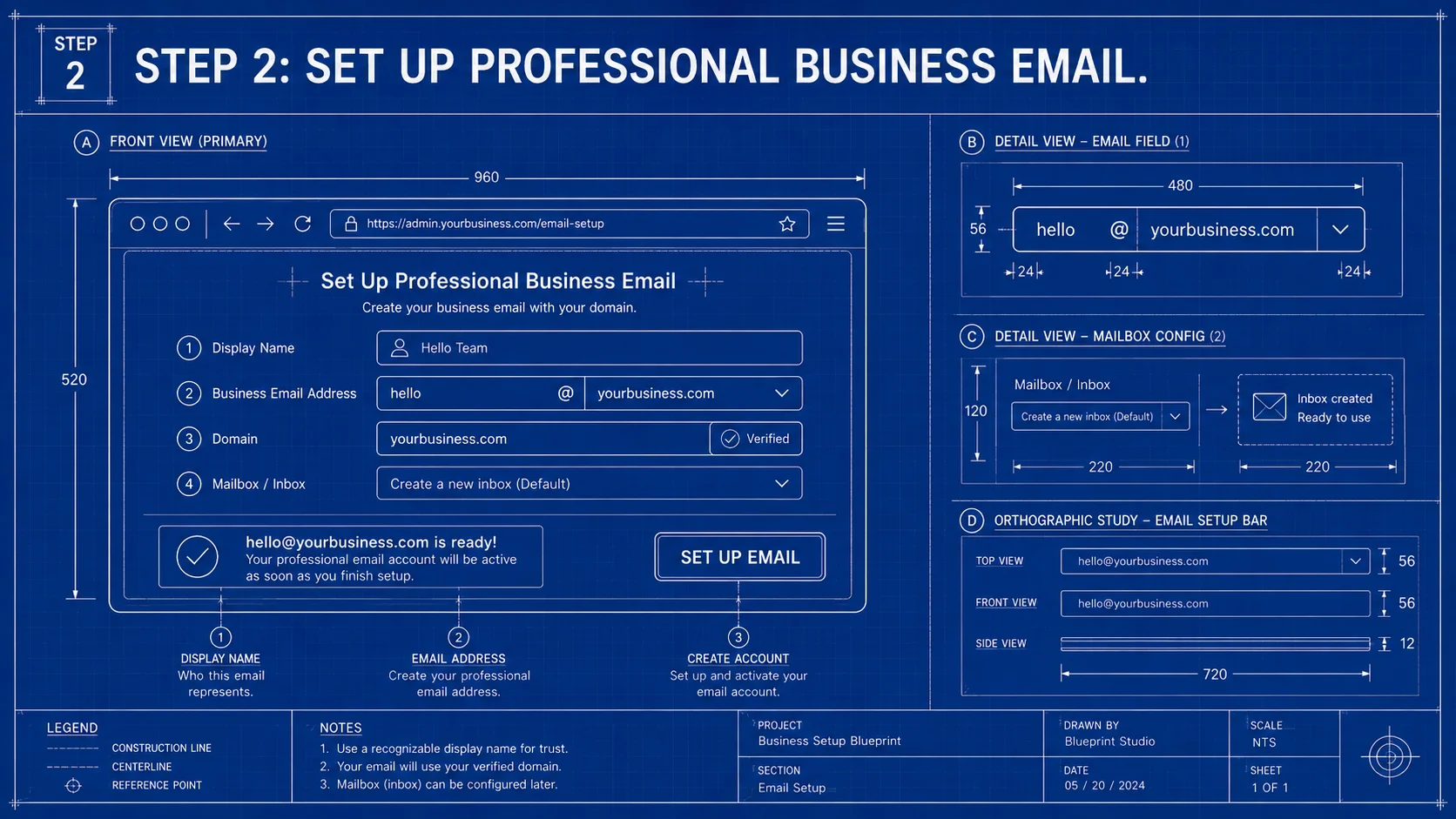
A custom domain email address builds client trust and provides the administrative control required for secure business communications. Choose your email ecosystem based on operational requirements: Google Workspace is ideal for browser-centric collaboration, while Microsoft 365 is required for native desktop Office application compatibility.
Google Workspace is the default recommendation for most businesses. Business Starter at $7/user/month (with an annual commitment; $8.40 on the flexible monthly plan) covers 1–10 users cleanly: Gmail with custom domain, Google Meet (100-participant video calls), 30GB pooled storage per user, and Gemini in Gmail at the base tier. Business Standard at $14/user/month adds 2TB of pooled storage, Meet recording, appointment booking pages, and broader Gemini access — worth upgrading to once your team is running regular client calls. If your team lives in a browser, this is the right call.
Microsoft 365 Business is the right choice for Windows-heavy teams or businesses that rely on desktop Office applications. If your clients regularly send Word and Excel files and expect native Office compatibility, Microsoft 365 is the cleaner fit. Microsoft's pricing change took effect July 1, 2026: Business Basic is now $7/user/month (from $6), Business Standard $14/user/month (from $12.50), and Business Premium holds at $22/user/month. Business Basic includes web and mobile Office apps; Business Standard adds the desktop apps. Business Premium adds Intune device management and Defender for Business — worth it for teams with compliance requirements or 10+ employees using company devices.
Proton Business — now sold as Proton Workspace — is the right pick for legal practices, healthcare-adjacent businesses, or any operation where privacy and end-to-end encryption are a core requirement. Workspace Standard is $12.99/user/month (annual) and includes encrypted Mail, Calendar, Drive, Docs and Sheets, Meet, VPN and Pass with 1TB of storage per user; Workspace Premium is $19.99/user/month and adds 3TB and the Lumo AI assistant. Proton is ISO 27001 certified, SOC 2 Type II audited, and based in Switzerland. It's not the default — but for the businesses it fits, it's the correct choice.
| Google Workspace Starter | M365 Business Basic | M365 Business Standard | Proton Business | |
|---|---|---|---|---|
| Price (annual) | $7/user/mo | $7/user/mo | $14/user/mo | $12.99/user/mo (Workspace Standard) |
| Email client | Gmail | Outlook | Outlook | Proton Mail |
| Storage | 30GB pooled/user | 1TB OneDrive/user | 1TB OneDrive/user | 1TB/user |
| Video meetings | Meet (100 participants) | Teams (300 participants) | Teams (300 participants) | Proton Meet |
| AI included | Gemini in Gmail | Copilot Chat (basic) | Copilot Chat (basic) | Lumo (Premium plan only) |
| Best for | Most SMBs | Windows/Office-reliant teams | Desktop Office required | Privacy-sensitive industries |
For the full comparison, see Google Workspace vs Microsoft 365: An IT Pro's Guide.
Step 3: Authenticate Business Email (SPF, DKIM, DMARC)
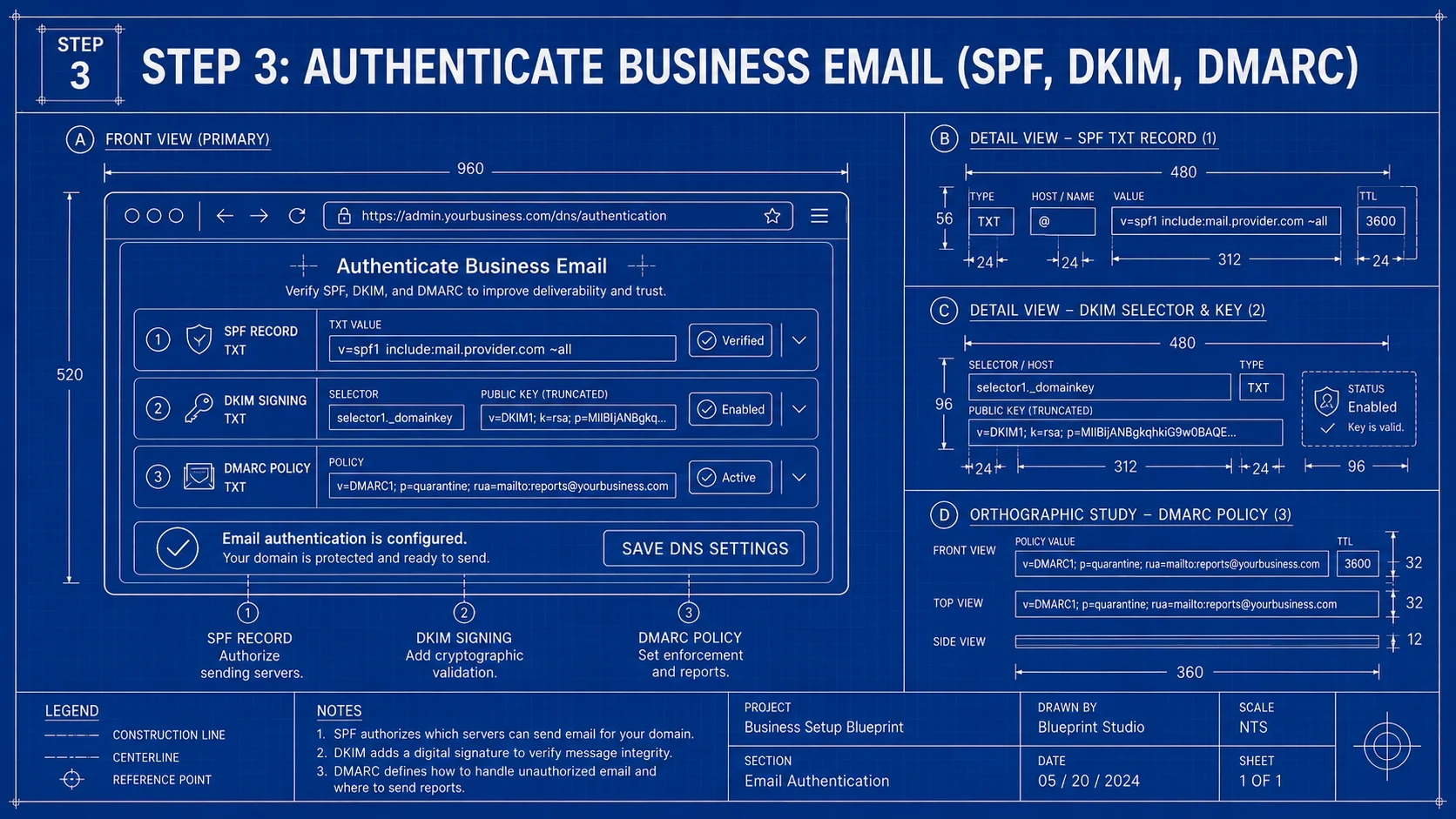
Configure SPF, DKIM, and DMARC DNS records before sending emails to ensure high deliverability and protect the domain against spoofing. These authentication protocols verify your sender identity to receiving servers. Establishing these records before initial outreach prevents early business communications from severely damaging your domain's initial sender reputation.
Set This Up Before You Start Sending
Authentication records take time to propagate and establish a sending reputation. Setting them up before regular email begins means your first messages go out with full deliverability. Doing it after means some of those early messages — including outreach, quotes, or invoices — may already have landed in spam.
Without authentication in place:
- Your emails are more likely to land in recipients' spam folders
- Anyone can send email impersonating your domain — including phishing attacks targeting your clients
- Gmail requires every sender to authenticate with SPF or DKIM, and senders of 5,000+ messages a day to Gmail must have SPF, DKIM and a DMARC record. Google began ramping up enforcement in November 2025, so non-compliant messages can now be temporarily or permanently rejected. Yahoo requires SPF, DKIM and a DMARC policy from bulk senders
Setting up all three records costs nothing beyond your email plan, and most of it is copy-and-paste from your provider's instructions. DNS changes can take time to take effect, so do it before you need it.
SPF (Sender Policy Framework) is a DNS TXT record that lists which mail servers are authorized to send email from your domain. Google Workspace and Microsoft 365 both provide the exact record to add to your DNS — it's a copy-paste operation.
DKIM (DomainKeys Identified Mail) is a cryptographic signature attached to every outgoing email. Your email provider generates the key pair; you copy the public key into a DNS record. This tells receiving servers that the message came from you and wasn't altered in transit.
DMARC (Domain-based Message Authentication, Reporting & Conformance) tells receiving mail servers what to do when SPF or DKIM checks fail — and sends you aggregate reports showing who is sending email from your domain. Start with p=none (monitoring only), review a few weeks of reports to confirm your own mail passes, then move to p=quarantine or p=reject.
For step-by-step DNS setup, see DMARC for Small Business and Why Your Business Emails Go to Spam. Set this up before your first client email goes out.
Step 4: Build the Business Website
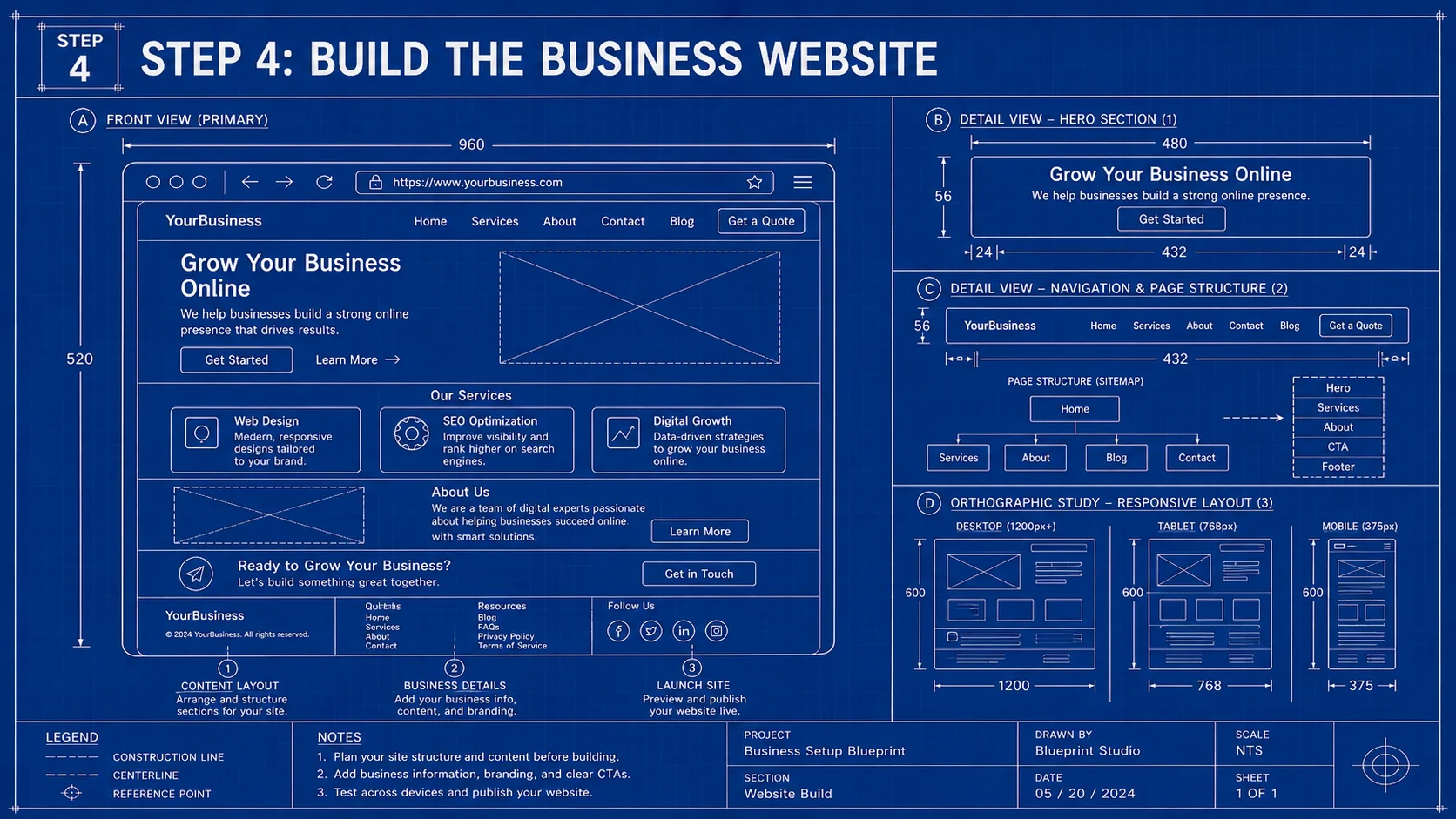
Select a website builder or CMS based on specific operational needs, such as service scheduling, lead generation, or e-commerce transactions. Service businesses benefit from the zero-maintenance infrastructure of Squarespace. Content-heavy organizations require the flexibility of managed WordPress hosting, while retail operations should default to Shopify.
Path A: Website builders — for service businesses, consultants, and local retailers
If you need a credible professional site without custom development, a website builder is the right call. No server to configure, built-in SSL, and mobile responsiveness by default.
Squarespace ($19/month on annual billing, $25 month-to-month, for the Basic plan) is the default recommendation for service businesses and professional services. Design quality is consistently high without requiring design skill. Basic allows up to two contributors and charges a 2% fee on online store sales; Core at $29/month (annual) adds unlimited contributors and removes the store transaction fee — worth it if more people will edit the site or you plan to sell online. Good for: lawyers, consultants, healthcare practices, hospitality, and creative services.
Wix ($17/month for Light, $29/month for Core, billed annually) offers more design flexibility and a larger feature set. Light covers an informational site; Core is the first plan that accepts payments. Wix Harmony, announced in January 2026 and included with Wix plans, lets you build via natural language prompts through Wix's Aria AI agent — practical for getting up quickly if you know what you want but don't want to make design decisions. Good for: businesses that want more visual control and are comfortable experimenting with layout.
Both include SSL, hosting, and mobile responsiveness. No separate infrastructure to manage.
Path B: WordPress on managed hosting — for content-heavy sites or businesses that need stack control
WordPress powers about 40% of all websites (W3Techs, October 2026) because of its flexibility. It's the right choice for businesses that expect significant content volume, custom functionality, or want long-term control over their tech stack.
SiteGround is the managed WordPress host we recommend for most small businesses. StartUp plan runs $2.99/month promotional (renews at $17.99/month; prepaid for 12 months) for one site and roughly 10,000 monthly visits. GrowBig at $4.99/month promo ($29.99/month renewal) handles roughly 100,000 visits and allows unlimited websites — the better starting point if you might manage more than one site or expect to scale. Budget for the renewal price from day one. See SiteGround vs Cloudways for the full comparison.
Path C: E-commerce first — for businesses selling products online
If online product sales are your primary use case, a purpose-built platform beats a website builder with a shop bolted on.
Shopify is the recommendation. Clean setup, built-in payment processing via Shopify Payments, strong inventory management, and multichannel selling across social platforms and marketplaces. Basic plan starts at $29/month (annual). WooCommerce on WordPress is the alternative for businesses that want more control over transaction fees at larger volume. See Best E-Commerce Platform for Small Business for the full comparison.
| Platform | Monthly Cost (annual) | Best For | E-Commerce |
|---|---|---|---|
| Squarespace Basic | $19/mo | Service businesses, professional services | Add-on |
| Wix Core | $29/mo | Design-flexible sites, AI-assisted builder | Add-on |
| WordPress + SiteGround | $2.99/mo promo ($17.99 renewal) | Content-heavy, custom needs | WooCommerce plugin |
| Shopify Basic | $29/mo | Product retail, multichannel selling | Built-in |
Five things every website must have from day one:
- SSL certificate — included automatically on all platforms above. Without it, browsers flag your site as insecure. If you later add services under your domain, such as a client portal or VPN login page, see our guide to SSL certificate renewal under the 200-day limit.
- Mobile responsiveness — roughly half of global web traffic now comes from mobile devices (StatCounter, 2026). Verify your site looks correct on a phone before you launch.
- A contact method on every page — a form, phone number, or email address. Don't make potential clients hunt for how to reach you.
- A clear homepage — within five seconds of landing, a visitor should understand what you do, who you serve, and what they should do next. If it takes three paragraphs to establish that you're a Miami-based IT company, the homepage needs work.
- A Privacy Policy page — put one in place as soon as you collect any visitor data through contact forms, analytics, or payments; many platforms and laws expect it. Add a cookie consent banner if you serve EU or UK customers. Policy generators like Termly or Iubenda give you a solid starting draft in minutes, and it is worth having a lawyer review it if you handle sensitive customer data. The cost of not having one is higher than the time it takes to set up.
Deploy Analytics Before You Announce Your Launch
Connect Google Analytics 4 (GA4) and Google Search Console before sending any traffic to your site. GA4 tracks visitor behavior, traffic sources, and conversion events. Google Search Console shows which queries surface your site in Google's index and flags technical crawl issues. Both tools are free and require a Google account. Install before launch — retroactive traffic data cannot be recovered.
Step 5: Claim a Google Business Profile
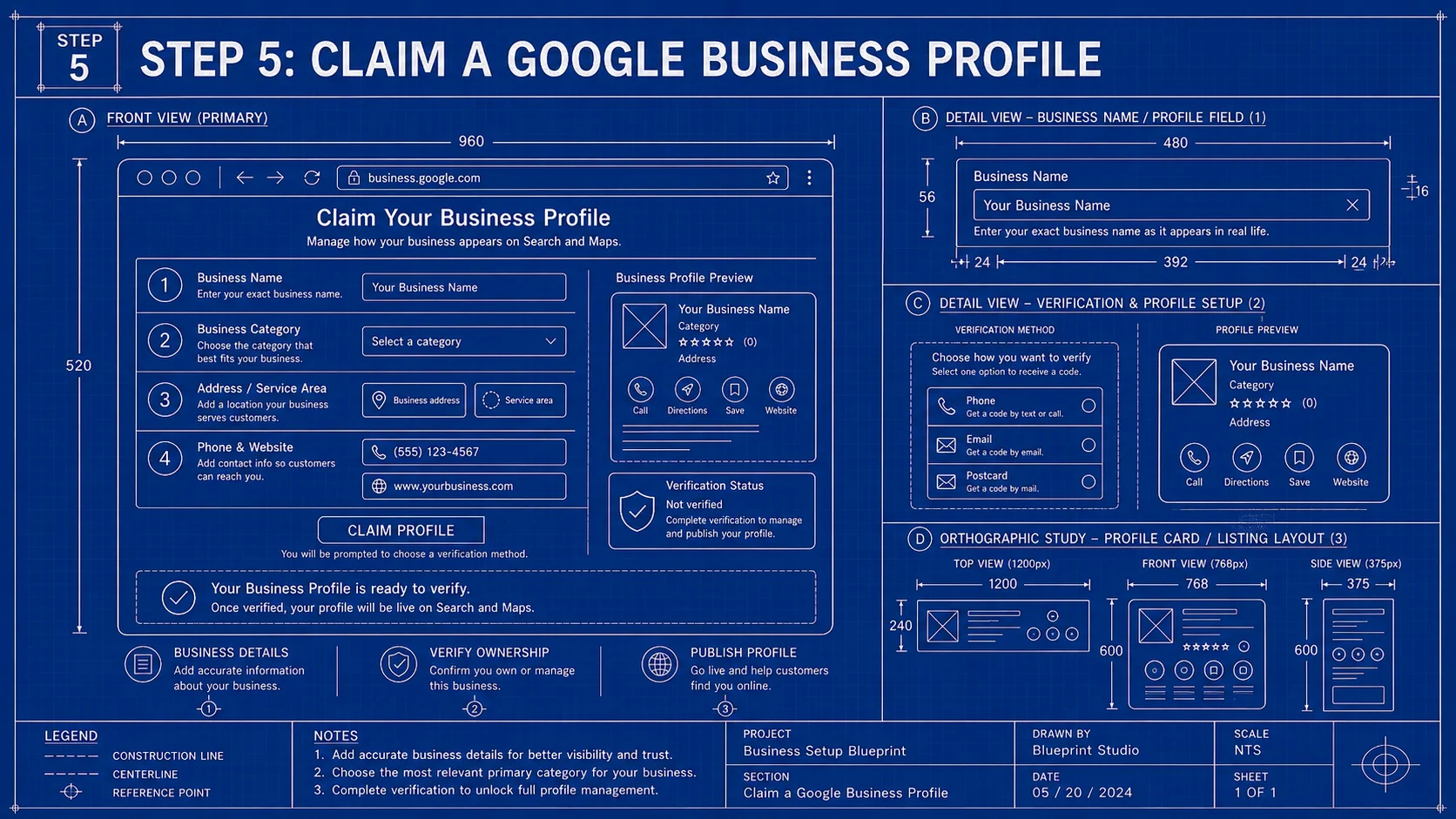
A verified Google Business Profile drives local search visibility and lead generation through Google Maps and localized query results. Service businesses can secure this profile prior to website completion. Complete all available fields, add real photos of your business, and use video verification if Google offers it.
Don't Wait for the Website
You can claim and verify your Google Business Profile before your website is ready. Start immediately — every week without a profile is a week without building local search presence and review history.
Go to business.google.com and create or claim your listing. For businesses with a physical address, add it. For service-area businesses that go to clients, specify your service area instead.
Fill in every field at setup: business name exactly as it appears on your signage and stationery (no keywords, taglines or extra information — Google can suspend profiles that do this), primary category as specific as possible, secondary categories for all relevant services, hours, phone number, website URL, and a description of up to 750 characters, without URLs, that leads with what you do and who you serve.
Verification: Google decides which verification methods are available for your profile, and you cannot choose or change them. Depending on your business type and region, the options can include video recording, phone or text, email, a live video call, or a postcard with a code (not available for every business). Google recommends video verification when it is offered: you record a walkthrough that shows your location, business signage and proof that you manage the business.
Photos: Add real photos at launch. Google's guidance suggests at least three in each relevant category — your exterior, your work in progress, and your team — and photos should be in focus, well lit, and accurately represent the business.
Ongoing signals that affect local ranking:
- Reviews: Reply to reviews — positive and negative — promptly, politely and without sharing private details. Google asks for replies that are professional and personalized, and you can only reply after your profile is verified. Our own standard is a reply within one or two business days.
- Posts: Our recommendation is one or two a week to keep the profile looking active.
- Profile details: Google has been replacing the public Q&A section with an AI-powered Ask feature that answers from your profile details and reviews, so keep your services, hours and attributes complete and current, and publish common questions and answers on your own website.
Business Banking and EIN — Prerequisites for Accounting Setup
Before configuring accounting software, ensure two prerequisites are in place: an Employer Identification Number (EIN) from the IRS (free, issued immediately at irs.gov), and a dedicated business checking account. Most banks require an EIN to open a business account. QuickBooks and Xero require a linked bank account to automate transaction imports and reconciliation. Commingling personal and business finances creates tax liability exposure — a dedicated business account is required, not optional.
Step 6: Select the Foundational Software Stack
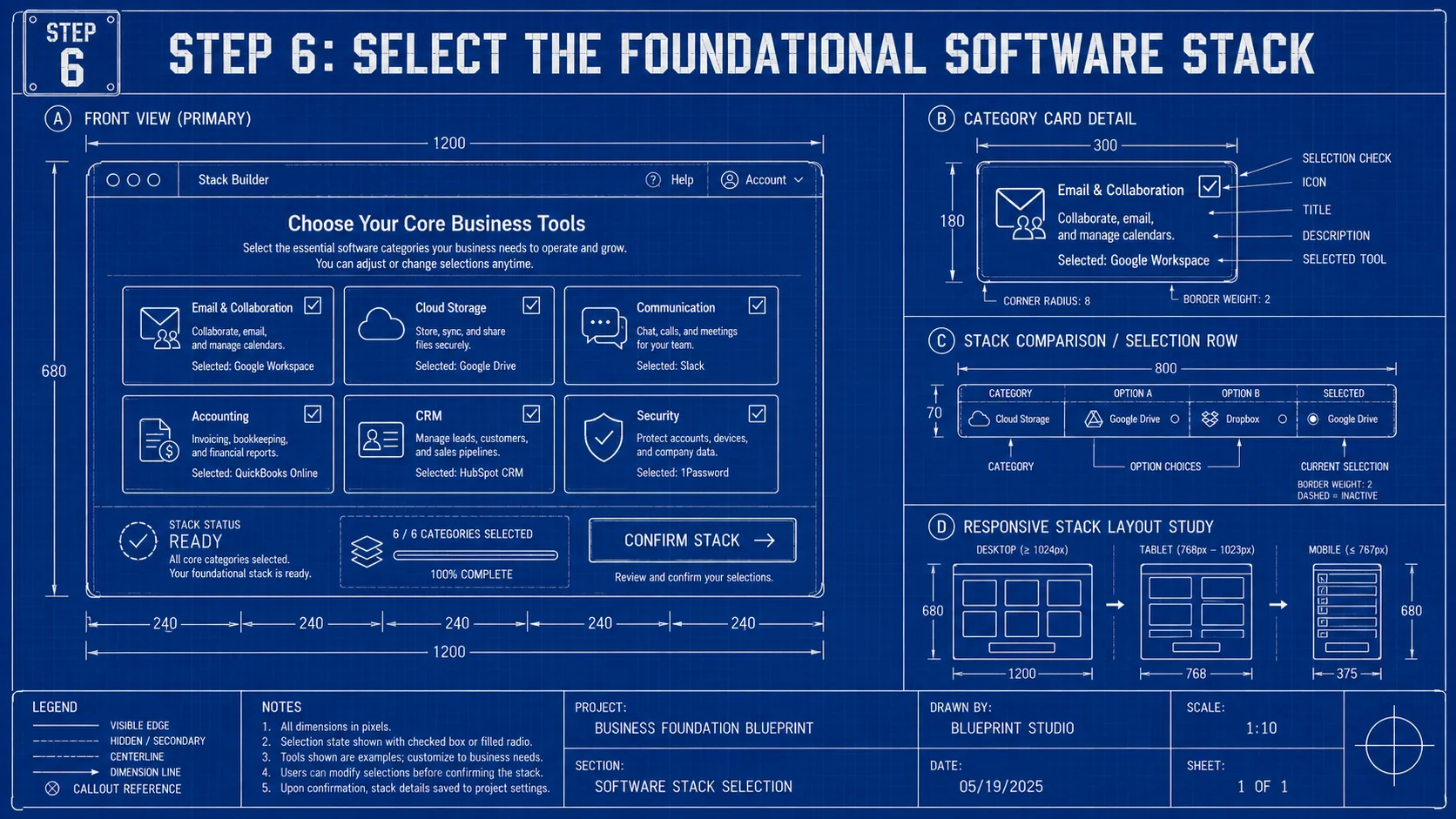
A foundational small business software stack consists of a centralized password manager, automated accounting software, and a client relationship management (CRM) tool to secure credentials, maintain accurate financials, and ensure client data continuity from day one.
Password manager — do this before creating any other accounts
Every tool you add from here creates a credential. You want those in a manager from the start, not retroactively imported from sticky notes, spreadsheets, or someone's head when they leave.
1Password Business ($8.99/user/month, billed annually; the Teams Starter Pack is $24.95/month for up to ten members) is the recommendation for teams: strong admin controls, clean interface, easy to onboard non-technical team members, and clear offboarding when someone leaves. Bitwarden Teams ($4/user/month, billed annually) is the open-source alternative if cost is the primary constraint — the interface is less polished but the security is solid. See the 1Password Business Review for a detailed breakdown, or the Best Password Manager for Small Business comparison for a full side-by-side.
Accounting — set this up before the first invoice
Retroactive bookkeeping cleanup is time-consuming and error-prone — configuring this before the first invoice avoids it entirely.
Three tiers to match where you are:
- Wave — the Starter plan is free for solo operators and very small businesses, with unlimited invoicing, estimates and bills and manual bookkeeping. Automatic bank import, receipt scanning and extra users need the Pro plan ($19/month per business); payroll and payment processing are paid add-ons, and new sign-ups are limited to the US and Canada. If your books are straightforward and your team is one or two people, Wave works well. See Wave Accounting Review.
- QuickBooks Online Simple Start ($38/month, one billable user) — the industry standard for growing businesses. Wider integration support than any alternative — most accountants and bookkeepers know QuickBooks. See QuickBooks vs Xero.
- Xero Early ($27/month since October 1, 2026) — cleaner interface, unlimited users on every plan, better fit for businesses working with accountants who prefer Xero's ecosystem. Early is limited to 20 invoices and 5 bills a month; the Growing plan ($59/month) removes those limits.
Payment processing — before you send the first invoice
Wave, QuickBooks, and Xero all support payment add-ons, but if you take card payments directly — online or in person — connect a dedicated processor at launch. Stripe (no monthly fee, 2.9% + $0.30 per successful domestic card transaction) integrates natively with most website platforms and works with Wave and QuickBooks. Square (no monthly fee on its free plan; 2.6% + $0.15 in person and 3.3% + $0.30 online on that plan) is the better choice if you also take payments on-site — in-person and online sales sync to the same dashboard. Rates vary by plan and card type, so check each processor's pricing page.
CRM — contact management before you need it
Client history that lives in someone's memory is a business continuity problem. A CRM solves this before it becomes one.
HubSpot's free CRM is the right starting point for a solo owner or a pair. Contact management, deal tracking, email logging, and basic reporting — genuinely free, no credit card required, but limited to two users and no workflow automation. Upgrade to a paid tier when you need a third user, sequences or advanced automation. For businesses with a clear outbound sales pipeline, Pipedrive (Lite plan, $14/seat/month billed annually) is the cleaner choice. See Best CRM for Small Business and HubSpot CRM Review.
What not to add yet: project management software, marketing automation, an HR platform, a dedicated video conferencing tool beyond what your email suite includes. Add each of those only when a specific operational need makes itself unmistakably clear.
What Comes Next
Enable MFA on Every Account Before Going Live
Multi-factor authentication (MFA) is the single highest-impact security control available to a small business at zero cost. Enable it on your domain registrar, email provider, password manager, and every software tool before production use. A compromised email account without MFA gives an attacker access to password reset flows across your entire stack. Use a free authenticator app (Google Authenticator or Microsoft Authenticator, or the authenticator built into your password manager) or a hardware key such as a YubiKey — there is no cost barrier. For the full security baseline, see Small Business Cybersecurity Upgrade Guide.
Backup — Google Workspace and Microsoft 365 are not independent backup services. Accidental deletion, ransomware, and account compromise can all eliminate access to files and email that your business depends on, and deleted items are recoverable only for a limited time. A dedicated backup tool protects against this. See Does Microsoft 365 Need a Backup?.
Network — if you have a physical office, your router and WiFi setup matters. Consumer gear from a big-box store is not the same as a managed business network. Separate guest WiFi, VLAN segmentation, and managed access points is a one-time project. A UniFi Cloud Gateway paired with a dedicated access point is the standard starting hardware for a 1–15 person office — centrally managed, scalable, and considerably more capable than anything from a consumer retail shelf. See Small Business Network Setup Guide.
A solid foundation won't eliminate every operational challenge, but it removes a category of entirely preventable ones and frees up attention for the work that actually matters.
Year 1 Cost to Get a Small Business Online
| Component | Recommended Option | Annual Cost |
|---|---|---|
| Domain (.com) | Porkbun | ~$11 |
| Business email (1 user) | Google Workspace Starter | $84 |
| Business email (2 users) | Google Workspace Starter | $168 |
| Website (WordPress, promo year) | SiteGround StartUp | ~$36 (renews at about $216) |
| — or website (builder) | Squarespace Basic | $228 |
| Password manager (2 users) | Bitwarden Teams | $96 |
| — or password manager (2 users) | 1Password Business | ~$216 |
| Accounting | Wave Starter (manual entry) | $0 |
| — or accounting | QuickBooks Simple Start | $456 |
| CRM | HubSpot free tier | $0 |
| Google Business Profile | — | $0 |
| Minimum viable setup | Domain + GWS (1 user) + SiteGround + Wave + Bitwarden + HubSpot | ~$227/year |
| Standard setup (2 users) | Domain + GWS (2 users) + Squarespace + QuickBooks + 1Password + HubSpot | ~$1,079/year |
Related Resources
- Google Workspace vs Microsoft 365: An IT Pro's Guide — Side-by-side comparison for businesses choosing between the two platforms.
- DMARC for Small Business — Step-by-step DNS setup for SPF, DKIM, and DMARC.
- Why Your Business Emails Go to Spam — Diagnosing and fixing deliverability problems.
- SiteGround vs Cloudways — Managed WordPress hosting compared for small business use cases.
- Best E-Commerce Platform for Small Business — Shopify vs WooCommerce vs Squarespace Commerce.
- QuickBooks vs Xero for Small Business — Full accounting platform comparison.
- Small Business Cybersecurity Upgrade Guide — The security baseline every online business needs.
Frequently Asked Questions
Related Articles
More from IT Guides

Small Office IT Checklist: Your Annual 12-Stop Walk-Through
A small office IT checklist with 12 stops, from UPS battery and power strips to Wi-Fi and backups. Rate each one and print your own fix list.
14 min read

Where Should Your Business Files Actually Live?
A NAS, Google Drive, and Proton Drive solve three different problems. Which one your files belong in depends on four questions — here they are.
14 min read
Your Business Files Are Everywhere. Here's How to Get Them Under Control.
Build a usable company file system without buying more storage first. Follow a folder template, assign owners and move files safely in a small pilot.
11 min read