

Why Your Business Emails Are Going to Spam (And the 3-Step Fix)
If a client has ever said 'I never got your email,' your domain authentication is probably broken. Here's the 3-step fix for SPF, DKIM, and DMARC — takes about 20 minutes.


If you've ever had a client say "I never got your email," it probably wasn't their spam filter. It was yours. And there's a three-step fix that takes about 20 minutes.
The invoices, proposals, and follow-ups that disappear into junk folders almost always have the same root cause: your domain doesn't have the authentication records that tell mail providers you are who you say you are. Gmail, Outlook, Yahoo, and Apple Mail check for these records on every email they receive. If yours are missing or broken, your messages get flagged — quietly, automatically, with no error message on your end.
Here's how to check whether you have a problem and how to fix it.
Affiliate Disclosure: This article contains affiliate links. If you make a purchase through these links, we may earn a small commission at no extra cost to you. As an Amazon Associate, iFeelTech earns from qualifying purchases.
What This Guide Covers
- Step 1: Check your domain's current authentication score (takes 60 seconds)
- Step 2: Add or fix your SPF record — tells providers which servers can send for you
- Step 3: Add DKIM and DMARC — the digital signature and the enforcement policy
- Also covers: Authorizing email marketing tools, DNS propagation timelines, and BIMI as your next milestone
Why Are My Business Emails Going to Spam?
Business emails land in spam when a domain lacks valid SPF, DKIM, and DMARC records, causing major mail providers to flag them as unverified.
Think of sending email like showing ID at the door. When you send a message from you@yourcompany.com, the receiving mail server doesn't automatically trust that it came from you. Anyone can claim to be sending from any domain. So mail providers check three DNS records — essentially three forms of ID — before deciding whether to deliver your email, send it to junk, or reject it entirely.
SPF, DKIM, and DMARC: What Each One Does
SPF (Sender Policy Framework) — A record on your domain that lists which servers are allowed to send email on your behalf. Think of it as the guest list. If your email comes from a server not on the list, it fails.
DKIM (DomainKeys Identified Mail) — A cryptographic signature attached to every outgoing message that proves it wasn't tampered with in transit. Think of it as the wax seal on a letter.
DMARC (Domain-based Message Authentication, Reporting & Conformance) — The policy that tells receiving servers what to do if SPF or DKIM fails: deliver it anyway, send it to junk, or reject it outright. It also sends you reports so you can see who's sending email using your domain.
Most small businesses have none of these set up, or have SPF but not DKIM or DMARC. All three work together — having one or two isn't enough for reliable deliverability in 2026. Google and Yahoo have required authentication for bulk senders since February 2024, and Microsoft extended similar requirements from May 2025.
Even with all three records in place, exceeding Google and Yahoo's 0.3% spam complaint rate threshold will route your emails to spam regardless of authentication status. Monitor your complaint rate using Google Postmaster Tools — free, and takes about five minutes to set up.
| Protocol | What It Does | DNS Record Type | Setup Difficulty |
|---|---|---|---|
| SPF | Lists servers authorized to send for your domain | TXT | Easy |
| DKIM | Cryptographic signature proving message integrity | TXT | Medium |
| DMARC | Enforcement policy + reporting when SPF/DKIM fails | TXT | Medium |
Step 1 — Check Your Domain Email Authentication
Use a free DNS checking tool like Valydex or MXToolbox to scan your domain's SPF, DKIM, and DMARC records for existing misconfigurations.
The Valydex Email Security Checker is a free tool built by the iFeelTech team — no account required. Enter your domain and it runs live DNS checks, returns a score from 0 to 100, and explains in plain English exactly what's missing and what the fix looks like.
A healthy domain scores 85 or above. If you're below 60, your emails are likely landing in spam or being rejected outright for some recipients. The tool will tell you exactly which records are missing, misconfigured, or failing.
What a broken result looks like:
- SPF: "No SPF record found" or "SPF record has too many DNS lookups"
- DKIM: "No DKIM record detected" (most common for businesses that never set it up)
- DMARC: "No DMARC record found" — extremely common for small businesses
- Microsoft bounce: If you're getting hard bounces from Outlook or Hotmail recipients, look for error code
550 5.7.515 Access denied— this is Microsoft's rejection code for domains that don't meet their 2025 authentication requirements
What a healthy result looks like:
- SPF: "Valid — lists authorized sending servers"
- DKIM: "Valid — cryptographic signature verified"
- DMARC: "Valid — policy set to quarantine or reject"
If everything shows green and you scored 85+, your authentication is in good shape. The culprit for deliverability issues may instead be content, sending reputation, or your domain being relatively new. But in our experience working with South Florida businesses, missing or broken authentication is the cause the overwhelming majority of the time.
Step 2 — Add (or Fix) Your SPF Record
SPF tells the world which mail servers are allowed to send on behalf of your domain. Adding it is a single DNS TXT record.
Log into wherever you manage your domain's DNS. This is usually your domain registrar (GoDaddy, Namecheap, Google Domains, Cloudflare) or your hosting provider. Look for a section called "DNS Management," "DNS Records," or "Advanced DNS."
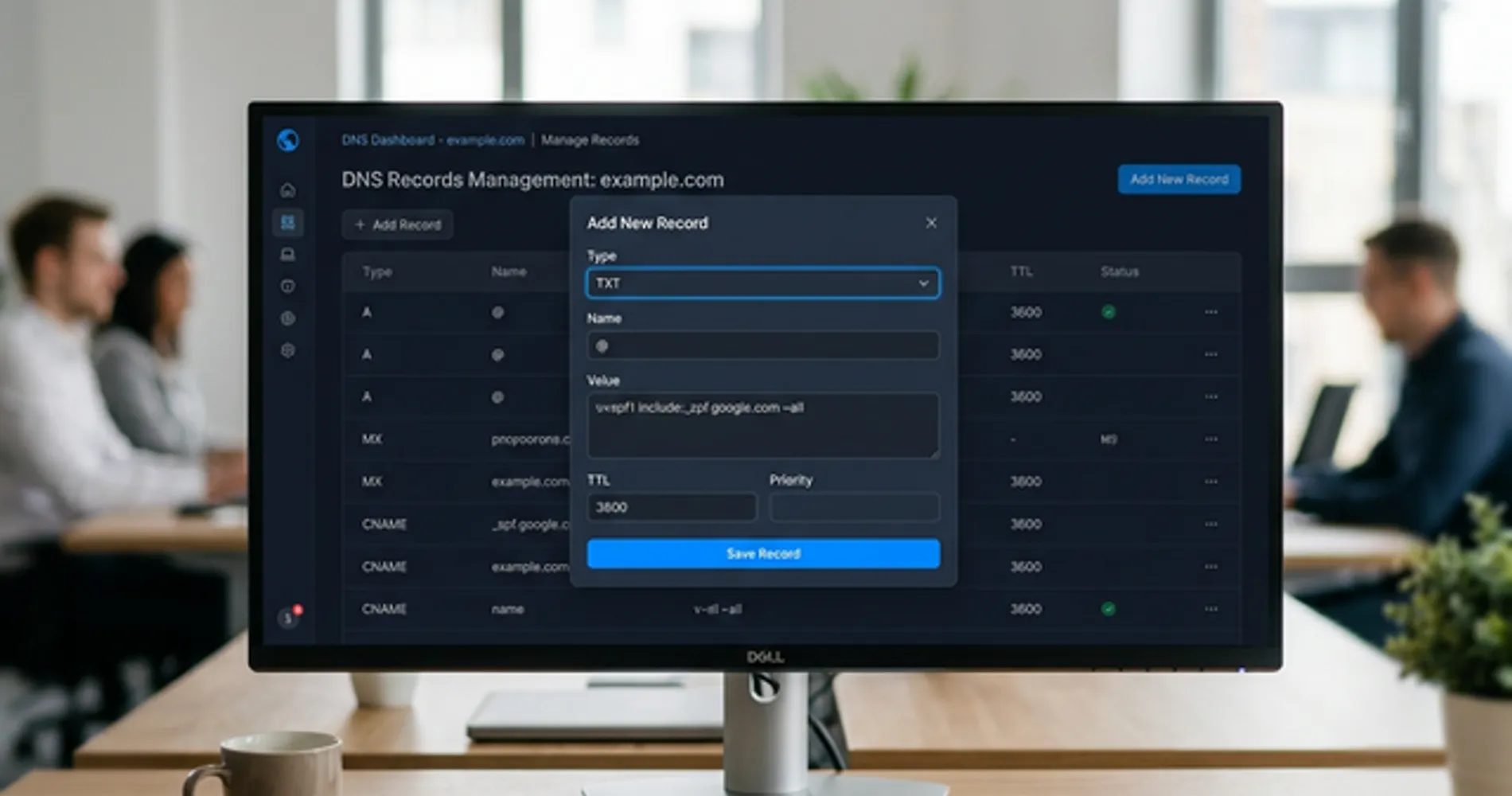
Add a new TXT record with these values:
| Field | Value |
|---|---|
| Type | TXT |
| Host / Name | @ (or your domain name, depending on your registrar) |
| TTL | 3600 (or "Automatic") |
| Value | See below |
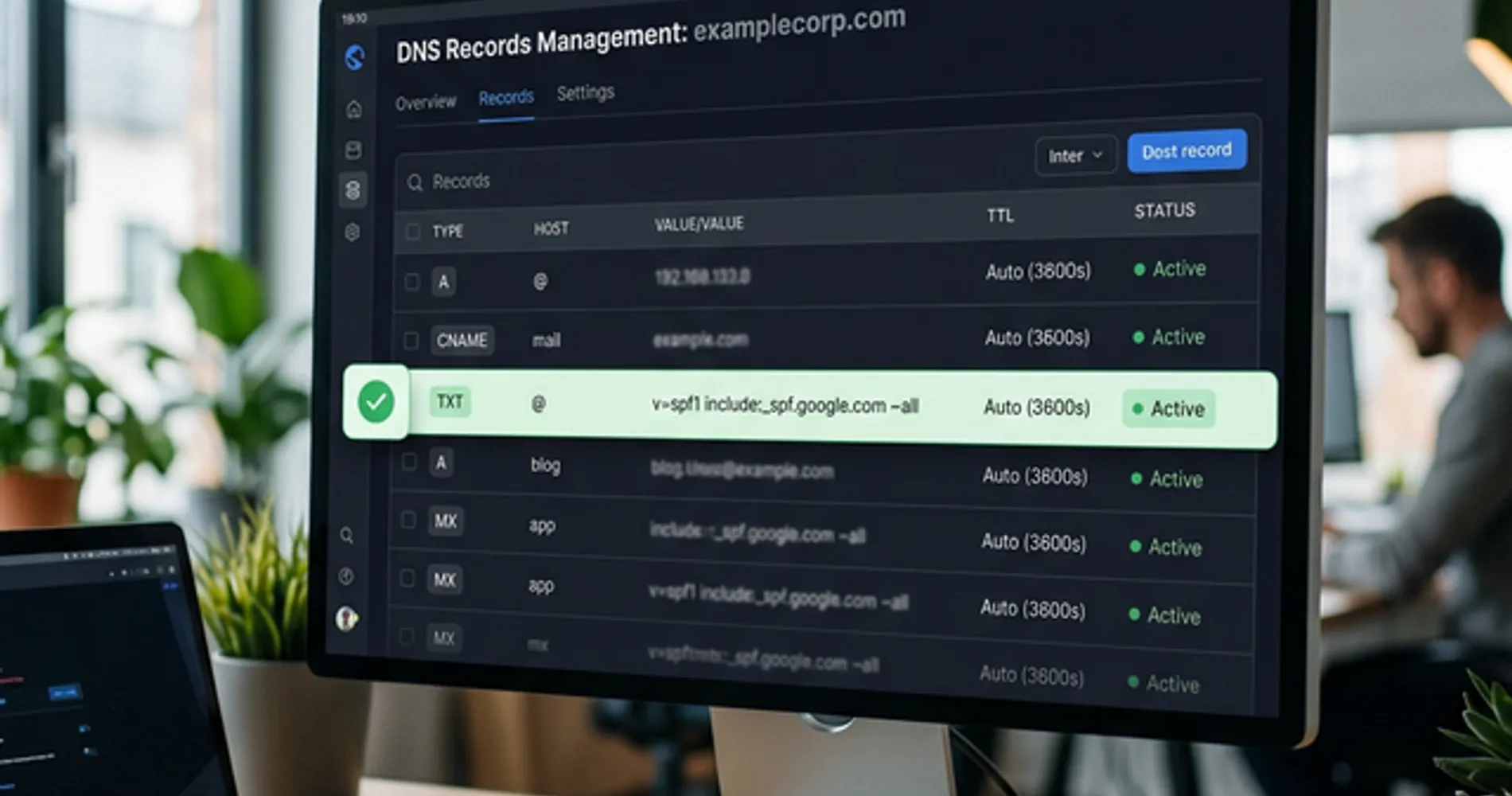
If your business email runs on Google Workspace:
v=spf1 include:_spf.google.com ~all
If your business email runs on Microsoft 365:
v=spf1 include:spf.protection.outlook.com ~all
If you're still using a free Gmail or Outlook address for business, neither of these will apply — but it's also a good time to consider moving to a proper business email address. Both Google Workspace and Microsoft 365 include full email authentication support as part of the setup process.
Important: You can only have one SPF record per domain. If you already have one, don't add a second — edit the existing one. Multiple SPF records cause an immediate fail. If you use additional services (like a CRM or marketing platform) that also send email from your domain, add their include: values to the same single record before the ~all at the end.
Save the record. That's Step 2 done.
Step 3 — Add DKIM and DMARC
DKIM and DMARC require slightly more setup but follow the same pattern: copy a record value from your email platform's settings, add it as a DNS TXT record on your domain.
DKIM setup:
In Google Workspace, go to Admin Console → Apps → Google Workspace → Gmail → Authenticate Email. Google generates a DKIM key for you — you copy the TXT record value and add it to your domain's DNS. The host/name for the record will look like google._domainkey.
In Microsoft 365, go to Security → Email & Collaboration → Policies → DKIM. Select your domain, enable DKIM, and follow the prompts. Microsoft provides two CNAME records to add to your DNS.
DMARC setup:
Add one more TXT record with:
| Field | Value |
|---|---|
| Type | TXT |
| Host / Name | _dmarc |
| Value | v=DMARC1; p=none; rua=mailto:dmarc-reports@yourdomain.com |
Replace yourdomain.com with your actual domain.
One common deliverability gap that survives proper authentication: auto-forwarding. If your domain forwards info@yourcompany.com to a personal Gmail or Outlook, SPF will fail on the forwarded copy because it arrives from the forwarding server, not your authorized one. DKIM survives forwarding — it's another reason having both records set up is required, not optional.
The p=none policy starts in monitor-only mode — it collects reports without blocking any mail. This is intentional. You want at least two to four weeks of data before tightening the policy to p=quarantine or p=reject, to make sure all your legitimate sending sources are properly authenticated first.
What comes after DMARC: BIMI
Once your DMARC policy reaches p=quarantine or p=reject, you become eligible for BIMI (Brand Indicators for Message Identification) — a protocol that displays your company logo next to your email in Gmail, Yahoo, and Apple Mail inboxes. BIMI requires a valid DMARC enforcement policy, a logo in SVG format, and for some providers, a Verified Mark Certificate (VMC). It's not required for deliverability, but it's the natural next milestone once your authentication foundation is solid. For the full path from p=none to BIMI eligibility, see our DMARC setup guide.
Let EasyDMARC Handle the Hard Part
DMARC aggregate reports are delivered in raw XML, making them difficult to interpret without a parsing tool. EasyDMARC parses those reports into a clean dashboard, shows you which sources are passing and failing authentication, and flags when you're ready to move to a stricter policy. The free tier covers most small businesses. It's what we recommend to clients who want visibility without hiring a dedicated email security person.
Prefer a Done-for-You Setup?
If you'd rather hand this off, schedule a 15-minute consultation and our team will handle the DNS setup, verify all three records are working correctly, and confirm your DMARC reporting is configured before you leave the call.
For the full technical walkthrough of DMARC policies, enforcement phases, and PCI DSS compliance requirements, see our DMARC setup guide for small business.
What About Email Marketing Tools?
If you send newsletters, promotional emails, or automated sequences through a platform like Mailchimp, Constant Contact, or HubSpot, those tools send email from their own servers — not yours directly. That means they need their own authentication records added to your domain.
One Setup Doesn't Cover Everything
Your SPF, DKIM, and DMARC records for business email do not automatically protect or authorize your marketing platform. Each platform you use to send email from your domain needs its own DKIM key added to your DNS, and its sending servers need to be included in your SPF record. If you skip this, your marketing emails will fail authentication even if your regular business email is fully set up.
Most marketing platforms walk you through this in their setup flow — look for "domain authentication," "email authentication," or "DKIM setup" in your platform's help documentation. It's typically two or three DNS records they provide for you to copy.
If you're not yet sending email marketing but are thinking about it — getting your domain authentication in place now is the right first step. It also tells your future email platform that the domain has a clean, established sending reputation, which improves deliverability from day one.
How Long Do DNS Email Record Changes Take?
DNS updates for SPF, DKIM, and DMARC typically take 15 minutes to a few hours to propagate, with full global updates completing within 48 hours.
In practice, if you're using Cloudflare or a major registrar, changes often take effect within 15 to 30 minutes for Gmail and Outlook. Older hosting providers and smaller mail servers can take longer — allow up to 48 hours if you need to be certain. You don't need to resend anything; the next email you send will automatically be checked against the new records.
To confirm propagation is complete, re-run the Valydex Email Security Checker or check MXToolbox's SPF and DKIM lookups for your domain. When all three show green, you're done.
One thing to watch: if you're transitioning from no DMARC to p=none and eventually p=quarantine or p=reject, don't rush it. Each policy change deserves a few weeks of monitoring. Moving too fast to p=reject before your SPF and DKIM are fully dialed in on all sending sources is one of the most common ways businesses accidentally block their own legitimate email.
Frequently Asked Questions
Will fixing SPF, DKIM, and DMARC stop emails going to my own spam folder?
No. SPF, DKIM, and DMARC control how receiving servers treat email you send — they protect your outbound reputation. If you're receiving spam, that's a separate issue managed by your mail provider's incoming filters (Gmail, Outlook, etc.).
What if I use Mailchimp or another email marketing platform?
Marketing platforms send email from their own servers, so they need their own authentication records alongside your regular email setup. Mailchimp provides its own DKIM keys and a separate SPF include: you add to your DNS. Your core SPF/DKIM/DMARC setup for business email doesn't automatically cover marketing tools — each sending platform needs to be authorized separately.
Do I need an IT person to fix this?
Not necessarily. If you're comfortable logging into your domain registrar and adding a DNS TXT record, you can do this yourself in about 20 minutes. If the phrase "DNS management" sounds unfamiliar, it's worth 30 minutes of IT time — the fix itself is straightforward once you're in the right place. We help businesses throughout South Florida with exactly this kind of setup as part of a broader security assessment.
Ready to check your domain? Run a free scan at Valydex to see your current SPF, DKIM, and DMARC status in under a minute. If you'd prefer to have it handled for you, reach out to the iFeelTech team.
Related Resources
- DMARC for Small Business: 2026 Setup Guide — The complete technical guide to DMARC policy phases, aggregate report analysis, and PCI DSS v4.0 requirements.
- Hosting & Security Checklist for Small Business — Email authentication is one item on a longer list. This checklist covers the full perimeter.
- How to Spot a Phishing Email — Learn the visual cues of a spoofed email to train your team.
- Small Business Security Assessment Guide — Not sure where your biggest risks are? Start here.
- How to Get Your Small Business Online — Complete setup guide covering domain registration, business email setup, and email authentication in the correct sequence.
Related Articles
More from Cybersecurity
Secure Boot Certificate Updates: How to Verify and Update Your Windows PCs
Secure Boot certificate expiration began in June 2026. Verify the full certificate and boot-manager update, review errors, and deploy safely to a Windows fleet.
4 min read
Windows 10 End of Life: Navigating the 2026 Secure Boot Certificate Expirations
Windows 10 support has ended and Secure Boot certificates need renewal. Check consumer versus commercial ESU eligibility, certificate status, and Windows 11 compatibility.
4 min read
DMARC for Small Business: 2026 Google & Microsoft Requirements Guide
Complete DMARC implementation guide for 2026 Google, Yahoo, and Microsoft email requirements. Learn SPF, DKIM setup, policy phases, and PCI DSS v4.0 compliance to prevent email spoofing and ensure deliverability.
15 min read