

Proton Mail Custom Domain Setup: DNS and Authentication Checks
How to set up a custom domain on Proton Mail: verify it, add SPF, DKIM, DMARC and MX records, then test a real message. Includes DNS examples and fixes.


To use a custom domain with Proton Mail, you verify the domain, create your addresses, add SPF, DKIM and DMARC records, and then point your MX records at Proton. Each step happens in two places: the Proton settings page that shows you the values, and the DNS host where you publish them.
The step people skip is the last one. Proton's dashboard tells you whether it can see your records. A message received by another provider shows how that provider judged it, and that is the result that matters for delivery. This guide walks through the records in a safe order and then shows how to test them.
It draws on Proton's setup pages, the relevant standards and public DNS checks run on 23 October 2026. We did not set up a new domain on a paid plan for this article, so treat it as a documented guide rather than a before-and-after test.
Affiliate Disclosure: This article contains affiliate links. If you make a purchase through these links, we may earn a small commission at no extra cost to you. As an Amazon Associate, iFeelTech earns from qualifying purchases.
The setup in brief
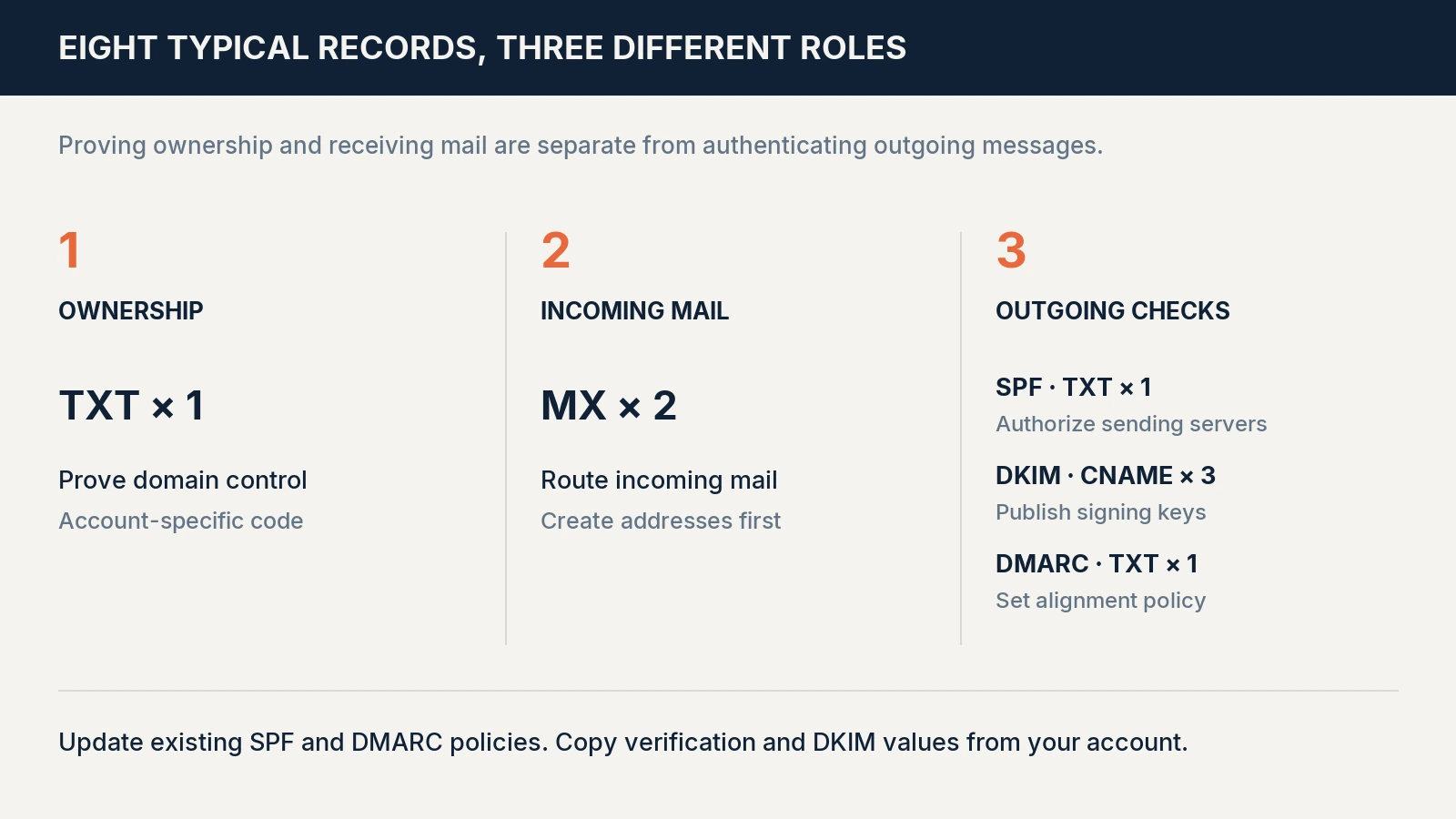
Prepare the addresses and authentication first, and change MX last. A typical Proton domain has eight relevant DNS records across five jobs: ownership verification, incoming routing, SPF, DKIM and DMARC. If you already have an SPF or DMARC record, update it instead of adding a second one. Copy the verification code and DKIM targets from your Proton account, then test both incoming and outgoing mail.
What you need first
You need a Proton plan that includes custom domains. Free Mail does not. These are the domain limits Proton lists:
| Plan | Included custom domains |
|---|---|
| Mail Plus | 1 |
| Unlimited, Duo or Family | 3 |
| Mail Essentials | 3 |
| Workspace Standard | 15 by default |
| Workspace Premium | 20 by default |
The allowance applies to the account or organization, not to each user, and it is separate from the number of users and addresses a plan includes. Workspace plans can add more domains; confirm the terms in your account. A standalone VPN, Pass or Drive subscription may include only free Mail, so check that your plan covers Proton Mail custom domains before you buy.
For one person or a household, Mail Plus, Unlimited, Duo or Family can cover a domain, and our Proton plans guide compares them. For an office, weigh user administration, storage and group addresses before choosing Mail Essentials or Workspace.
Gather three things before you start:
- Access to the authoritative DNS host. This may not be your registrar. Edit records where your domain's nameservers point, because changes to an inactive DNS zone have no effect on mail.
- A copy of your current DNS zone. Save your MX, SPF, DKIM and DMARC records, plus unrelated website records, so you can roll back.
- A list of addresses and senders. Include aliases, groups, forwarding, website forms, invoicing tools and scanners. Every receiving address and every legitimate sending service needs a plan.
If you already receive business mail on this domain, keep the old service running and read the migration runbook. Adding DNS records does not import mailbox history.
Step 1: Add and verify your domain in Proton
In Proton, open Settings → Domain names → Add domain. Depending on your account, Domain names may sit under All settings or Organization. Business accounts that have not finished organization setup need to do that first, and Proton's setup guide shows the current screens.
Enter your domain and add the verification record Proton supplies:
| DNS field | Value |
|---|---|
| Type | TXT |
| Host/name | @, blank or the full domain, depending on what your DNS host accepts |
| Value/content | protonmail-verification= followed by your account's code |
| TTL | 300 seconds if offered, or the closest setting your provider supports |
Save the record, then ask Proton to run its verification check. This record proves you control the domain. It does not move your mail or your website, and you should leave any other verification TXT records in place.
A five-minute TTL helps when a resolver fetches this new record. It does not clear an old MX answer that is already cached elsewhere. If you plan to lower the TTL on your existing MX records, do it ahead of the cutover and wait out the previous TTL. Cloudflare's TTL documentation explains how caching works.
Step 2: Create the receiving addresses
Create every address you need in Proton before you change MX. Add address puts another address on an existing user. Add user creates a separate account where your plan supports it. Buy seats for people who need their own business account, rather than treating every alias as another seat.
Check each alias, such as accounts@, and each group address, such as sales@, one by one. An extra address in one inbox is not the same as a distribution group or a shared inbox. Use a catch-all only if you have turned it on and tested it.
Once incoming mail routes to Proton, an address that exists only at the old provider can bounce, so keep your address list beside you while you work.
Step 3: Add Proton to a single SPF record
SPF lists the servers allowed to send mail for the envelope-sender domain. In Proton's domain settings, copy the SPF value or merge its authorization into your existing record. The part that matters is Proton's include:
include:_spf.protonmail.ch
For a domain that sends only through Proton, a basic record looks like this:
v=spf1 include:_spf.protonmail.ch ~all
Do not use that record unchanged if Microsoft, an invoicing service or another tool still sends as this domain. Keep their authorization in place through the transition. A domain should publish one SPF record at the same hostname, with one v=spf1 at the start and one final all mechanism. Other TXT records can sit alongside it.
SPF allows ten DNS-lookup terms, counting nested includes, not ten visible includes. In public DNS on 23 October 2026, Proton's include pointed on to _spf2.protonmail.ch. How many lookups a given message uses depends on the sending IP and where evaluation stops, so test your complete merged record rather than counting by hand.
~all gives a softfail for an unlisted sender and -all gives a fail. Those are authentication results, not commands to accept or reject mail; each receiver applies its own handling. RFC 7208 defines SPF, and our SPF, DKIM and DMARC guide explains the practical differences.
Step 4: Add Proton's three DKIM records
Proton signs your outgoing messages, and receivers check the signature against a public key in your DNS. Add the three CNAME records from your account's DKIM tab. The selector names in Proton's Cloudflare guide are:
protonmail._domainkey
protonmail2._domainkey
protonmail3._domainkey
The targets are generated for your domain, so copy all three exactly instead of building them from an example. Keep all three published so automatic rotation can continue. Proton documents a new 2048-bit key every six months.
A few details cause most of the trouble:
- On Cloudflare, set each DKIM CNAME to DNS only, as Proton's Cloudflare instructions require.
- Some DNS hosts add your domain to the name automatically. Entering a short host such as
protonmail._domainkeyavoids a doubled domain when your editor works that way. - Trailing-dot rules vary. Follow your DNS host's format and check the target as published.
- If you are upgrading Proton's legacy manual DKIM setup, follow Proton's TXT-to-CNAME instructions. Leave your Microsoft, Google and marketing-service DKIM selectors alone; different selectors can coexist.
Wait for Proton to verify the keys before you rely on the domain for sending.
Step 5: Set up or review your DMARC record
DMARC is a TXT policy record at _dmarc. It compares authentication results with the domain the reader sees in the From address. SPF or DKIM must pass and align with that domain for DMARC to pass. Both can pass for unrelated domains and DMARC can still fail.
If you already have a working DMARC record, change only what you need and keep its reporting address. Publishing a second record, or loosening enforcement just because the mail provider changed, creates problems later.
For a new rollout, we suggest watching your legitimate senders before enforcing anything. A starting record looks like this:
v=DMARC1; p=none; rua=mailto:dmarc-reports@example.com
Replace the address with a real mailbox or the destination your reporting service gives you. p=none does not request reports by itself; the rua address does. An external reporting service may also need authorization records, which RFC 9990 describes. Review the reports for every sender, not only Proton. Our DMARC guide goes deeper on reports and the move from monitoring to enforcement.
Proton recommends p=quarantine for most domains. Move toward quarantine or reject once you have confirmed that legitimate mail, including forwarded mail and mailing lists, passes. Those policies ask receivers to treat failing mail a certain way; they do not stop every kind of impersonation. The current DMARC standard, RFC 9989, keeps authentication separate from receiver policy and removed the older pct tag, so do not use pct= to stage a new rollout.
Step 6: Point your MX records at Proton
MX records route incoming mail. When your addresses and authentication are ready, publish these at the root of the domain:
| Type | Host/name | Priority | Target |
|---|---|---|---|
| MX | @ | 10 | mail.protonmail.ch |
| MX | @ | 20 | mailsec.protonmail.ch |
Lower numbers are tried first. Once you have moved to Proton, remove the previous provider's MX records. Leaving them at a higher number is not a backup plan, because senders can still try them when the preferred servers are unreachable.
Keep your other website records and nameservers as they are. Changing mail routing does not require moving your registrar or your website hosting.
Proton says its verification checks can take minutes to hours, and some senders keep old settings for 1 to 3 days. Keep the old inbox reachable, watch for late deliveries and reconcile anything the import missed before you cancel the previous subscription. A lower TTL helps the switch happen faster; it does not make cancelling safe on its own.
Step 7: Test your DNS and a real message
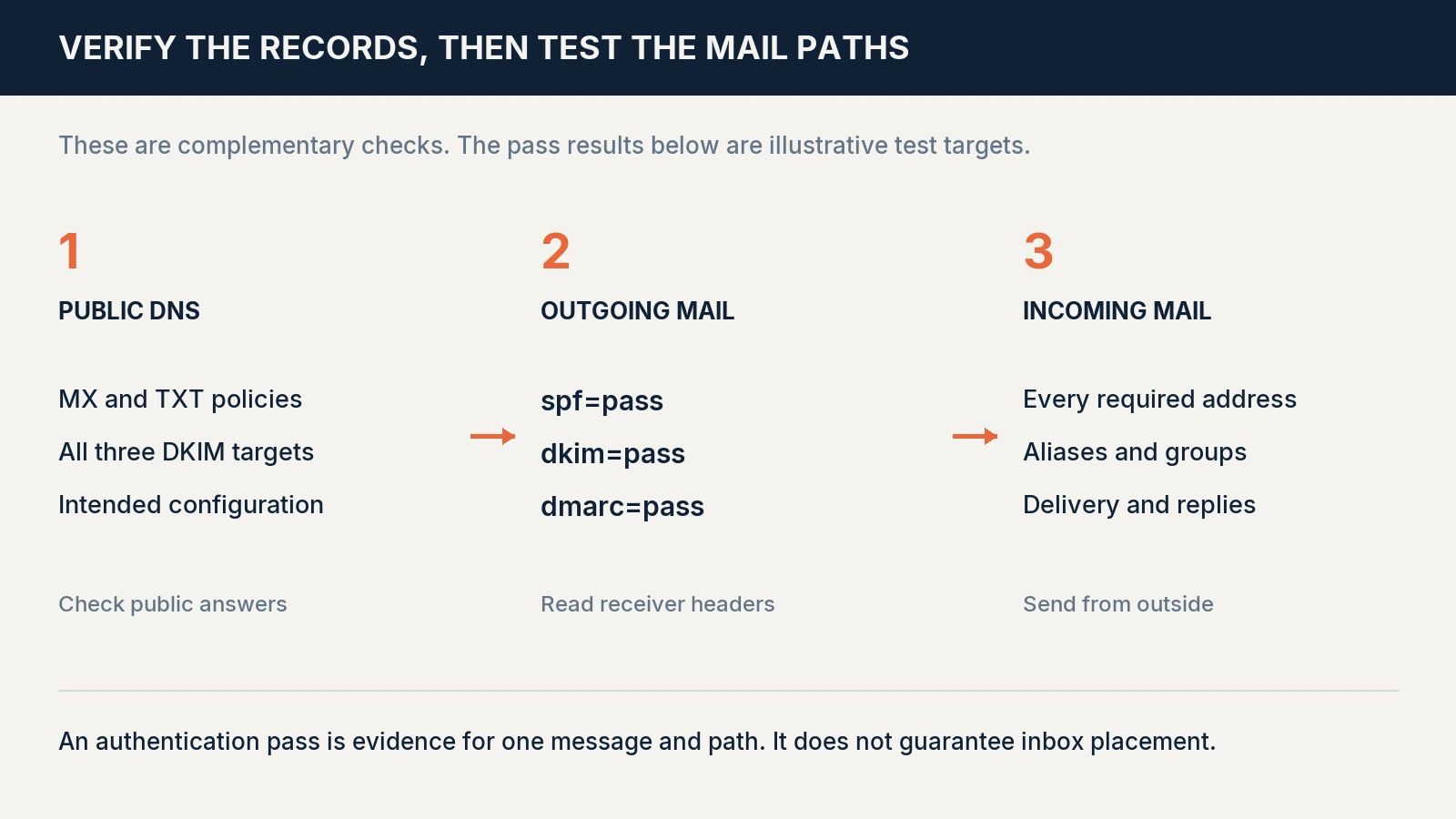
DNS inspection and a received message answer different questions. DNS shows what you have published. The Authentication-Results header on a received message shows how that provider evaluated one real message. You need both, and neither one alone proves that every address and sending tool works.
Check the public records
The quickest way is our free Email Health Check: it reads your MX, SPF, DKIM and DMARC records from public DNS, recognizes Proton's three DKIM selectors and shows what to fix. If you prefer the command line, on macOS or Linux with dig installed, replace example.com with your domain and run:
dig MX example.com +noall +answer
dig TXT example.com +noall +answer
dig CNAME protonmail._domainkey.example.com +noall +answer
dig CNAME protonmail2._domainkey.example.com +noall +answer
dig CNAME protonmail3._domainkey.example.com +noall +answer
dig TXT _dmarc.example.com +noall +answer
On Windows, equivalent queries include nslookup -type=MX example.com, nslookup -type=TXT example.com and nslookup -type=CNAME protonmail._domainkey.example.com.
You are looking for Proton's two MX hosts, one SPF policy, three CNAME targets that match your DKIM tab and one DMARC policy. A long TXT value can appear as several quoted chunks that make up a single record, so do not count chunks as separate SPF records. A timeout or SERVFAIL means the lookup needs another try, not that the record is missing.
For reference, here is what we found when we queried proton.me on 23 October 2026:
MX:    10 mail.protonmail.ch.
       20 mailsec.protonmail.ch.
SPF:   v=spf1 include:_spf.protonmail.ch ~all
DMARC: v=DMARC1; p=quarantine; fo=1; aspf=s; adkim=s;
This is a dated public-DNS observation, not a configuration to copy. The strict alignment settings, for example, may not suit a domain with other senders.
Send a message and read the receiving server's result
- Send a message from your new custom-domain address to an outside inbox, such as Gmail.
- In Gmail on the web, open the message and choose More → Show original. Google documents this view.
- For a message sent directly from Proton, look for
spf=pass,dkim=passanddmarc=pass. Check that the DKIM signing domain and the DMARC From domain match your own domain.
An illustrative result, not a captured customer header, looks like this:
Authentication-Results: receiver.example;
    spf=pass smtp.mailfrom=name@example.com;
    dkim=pass header.d=example.com;
    dmarc=pass header.from=example.com
Read the result added by your receiving provider rather than any header with the same name. A forwarded message can fail SPF while an aligned DKIM signature still passes DMARC, so read each result in context. If one of them is not a pass, this table shows where to look:
| Result | What to investigate |
|---|---|
spf=softfail or spf=fail | The sending IP, the envelope-sender domain and your merged SPF record |
spf=permerror | Duplicate SPF records, invalid syntax or too many lookups |
spf=none | Whether the tested SPF identity has a policy; root-domain DNS alone may not explain it |
dkim=none | Whether the message was signed, and which d= domain and s= selector the sender used |
dkim=fail | The key lookup and signature check; changes to the message in transit can also cause it |
dmarc=fail | Alignment with the visible From domain, along with the underlying SPF and DKIM results |
Check receipt, replies and other senders
Send to every Proton address and alias from an outside account, and reply to each. Test group delivery and replies separately. Then send from each invoicing system, website form or other tool on your list and read their authentication results too.
For an extra diagnostic, send a test message to the address generated by Mail Tester. It analyzes the received message and the infrastructure behind it. Its FAQ notes that a perfect score can still end up in spam, so read the report as evidence about that one test rather than a universal delivery score. A checker that only looks at DNS cannot verify a message signature or show where mail lands.
Common Proton custom domain mistakes and fixes
| Mistake | Fix |
|---|---|
| A second SPF or DMARC record | Edit the existing policy at that hostname instead of adding another |
| Domain name added twice to a record name | Check the saved fully qualified name and use the input format your DNS host expects |
| DKIM CNAMEs proxied on Cloudflare | Switch all three to DNS only |
| Old MX records left in place after the cutover | Remove the previous provider's MX records once the receiving addresses work |
| Enforcing DMARC before checking other senders | Keep the working policy, list your legitimate senders and use the reports to plan changes |
If your records look right and Proton still cannot verify them, confirm you edited the authoritative DNS zone and allow for the previous TTL. Changing a correct record repeatedly makes the problem harder to trace.
Notes for Cloudflare, GoDaddy and Namecheap
- Cloudflare: follow Proton's Cloudflare guide and keep DKIM CNAMEs on DNS only.
- GoDaddy: Proton's GoDaddy page currently lists the second and third DKIM selector names differently from its other guides. Use the names and targets in your account's DKIM tab as the source of truth.
- Namecheap: Proton's Namecheap guide puts MX under Advanced DNS → Mail Settings → Custom MX, and TXT and CNAME records under Host Records.
Keeping control of your domain
Protect the registrar and DNS-host accounts with unique passwords and two-factor authentication. A registrar transfer lock restricts transfers, but it does not stop someone with DNS access from editing your MX records. Keep a recovery address that is not on the domain itself, and keep renewal and payment details current, because your mail address depends on continued control of the domain.
A custom domain gives you address portability, not anonymity, and it does not change Proton's encryption boundaries for ordinary mail exchanged with other providers.
When your Proton domain is ready
The domain is ready when public DNS matches your plan, incoming mail and replies reach every address you need, and real messages from each sending service show the authentication results you expect. Monitoring with p=none is a reasonable stage to stay in for a while; moving to a stricter DMARC policy is a separate decision to make after those checks.
If authenticated mail still lands in spam, look at recipient filtering, reputation, content and the delivery path. Google notes that authentication alone does not guarantee delivery, and our spam troubleshooting guide covers the next steps.
If you are moving an existing mailbox, the migration walkthrough adds import and rollback checks. Our five-person studio example shows why a quick DNS change can still go with a slower import of old mail.
Related Resources
- SPF, DKIM and DMARC Explained — What each record does and how to read the results.
- DMARC for Small Business — Reports, alignment and the path from monitoring to enforcement.
- Microsoft 365 to Proton Workspace Migration — Imports, cutover and rollback.
- Leaving GoDaddy and Microsoft 365 for Proton — A small-office example of the move.
- Proton Unlimited vs Proton Business — Mail Plus, Unlimited, Duo, Family and business plans.
- Proton Mail for Business Review — Mail Essentials capabilities and limits.
- Why Business Email Goes to Spam — Troubleshooting beyond authentication.
Frequently Asked Questions
Related Articles
More from Cybersecurity

SPF, DKIM and DMARC Explained for Small Business
SPF, DKIM and DMARC explained for small businesses: what each record does, how alignment works, what our own domain's C grade showed, and what to fix first.
13 min read
DMARC for Small Business: 2026 Google & Microsoft Requirements Guide
Complete DMARC implementation guide for 2026 Google, Yahoo, and Microsoft email requirements. Learn SPF, DKIM setup, policy phases, and PCI DSS v4.0 compliance to prevent email spoofing and ensure deliverability.
16 min read

Leaving GoDaddy and Microsoft 365 for Proton: A Privacy-Driven Switch
What leaving GoDaddy-hosted Microsoft 365 for Proton involves: a five-person studio's case, privacy limits, SPF and cancellation checks, and who should stay.
12 min read