

UniFi Home Network Upgrade: Cat5e, Cloud Gateway Max, and U7 In-Wall in a 2,500 sq ft House
A residential UniFi installation using the Pro Max 16 PoE switch, Cloud Gateway Max with 512GB storage, and four U7 In-Wall access points — built on existing Cat5e cabling and a 500 Mbps AT&T fiber connection.

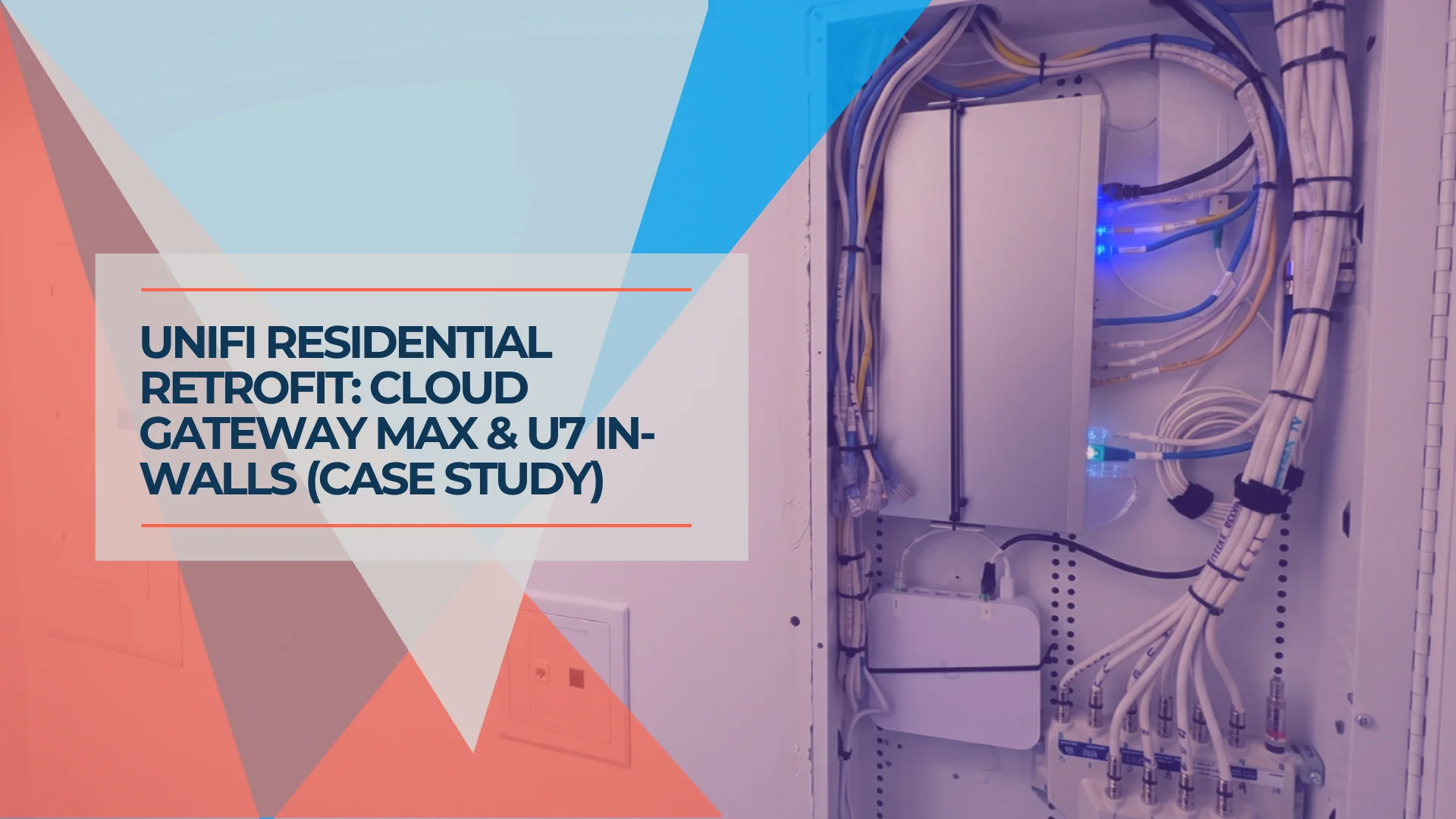
Most of the networks we build are for businesses — offices, retail spaces, light commercial. When a referral came in for a residential job, we took it. This write-up documents what we did, why we made each equipment choice, and what someone in a similar situation should expect.
The house is roughly 2,500 square feet spread across two floors, with a garage and an outdoor area that includes a pool. The existing infrastructure had an AT&T fiber connection running at 500 Mbps, Cat5e cabling throughout, and a network enclosure that had accumulated years of additions from different contractors. The owner wanted something clean, reliable, and capable of growing — specifically, the ability to add security cameras later without overhauling the system.
Project At a Glance
- Property: ~2,500 sq ft, 2-story home with garage and pool area
- Existing cabling: Cat5e throughout
- Internet: 500 Mbps AT&T fiber
- Equipment installed: UniFi Cloud Gateway Max (512GB), Pro Max 16 PoE switch, 4× U7 In-Wall access points
- New cabling pulled: None
- Budget approach: Cost-effective, scalable, no unnecessary hardware
Affiliate Disclosure: This article contains affiliate links. If you make a purchase through these links, we may earn a small commission at no extra cost to you. As an Amazon Associate, iFeelTech earns from qualifying purchases.
Step One: Infrastructure Cleanup Before Anything Else
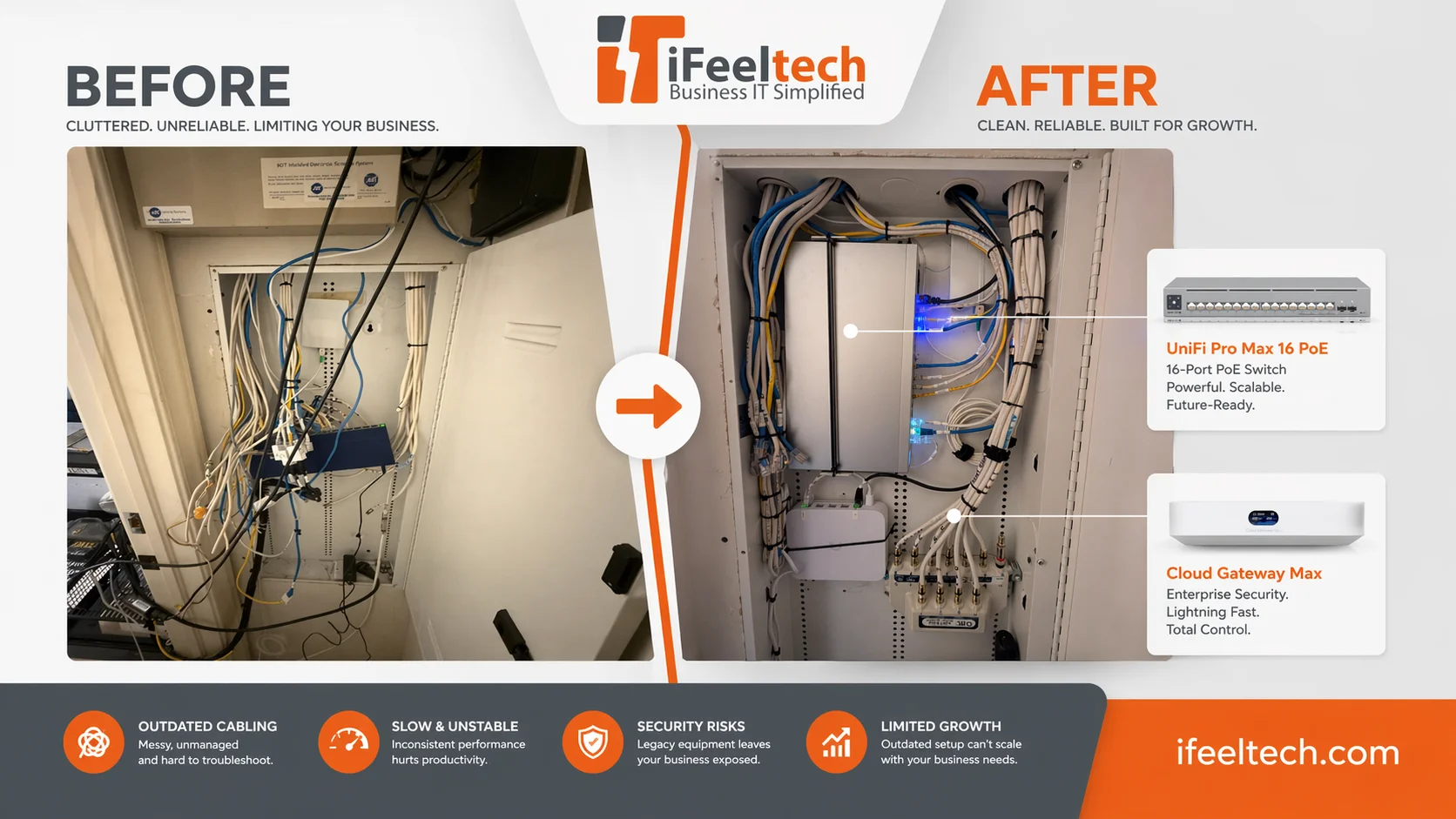
The enclosure as we found it is a common condition in homes that have had multiple contractors over the years — cable modems swapped, ISPs changed, security systems added. Labeling and cable management are rarely prioritized in the moment.
Before any equipment gets mounted, we do three things:
Tone test every cable. A cable toner traces each run from the enclosure to its wall port. This confirms which port corresponds to which room and whether the run is continuous. It also catches cables that were cut, spliced badly, or never properly terminated.
Label everything. Every cable in the enclosure gets a label at both ends — room name and port number. This takes time, but it makes every future service call faster and reduces the chance of someone disconnecting the wrong thing.
Verify throughput capability. A visual inspection of Cat5e tells you almost nothing. What matters is whether each run can sustain Gigabit. We use a cable certifier to check for crosstalk, attenuation, and termination quality. Runs that fail don't get connected to the new switch — they either get re-terminated or noted as limited-speed ports.
In this case, all runs passed. The Cat5e was in reasonable condition throughout, properly terminated at both ends. No new cabling was needed.
Why We Did Not Pull New Cable
This is the question we get most often in retrofit residential jobs. The short answer: the existing cable was adequate for what the homeowner needed, and the budget did not support the disruption of rewiring a finished two-story house.
Cat5e is rated for Gigabit Ethernet (1,000 Mbps) over runs up to 100 meters. The AT&T fiber connection coming into the house delivers 500 Mbps symmetrical. There is no throughput argument for replacing Cat5e with Cat6 or Cat6A when your internet connection is 500 Mbps and your internal traffic is typical residential — streaming, video calls, file syncing.
The argument for new cabling would apply if the owner had a multi-gigabit fiber plan (2.5 Gbps or faster), was planning a high-density home office setup, or wanted to use the U7 Pro XG Wall access points that require 10GbE uplinks. None of those applied here.
Cat5e vs Cat6 for Home Networks
Cat5e handles Gigabit reliably. Cat6 handles 2.5–10 Gbps depending on run length. If your internet plan is under 1 Gbps and you're not doing heavy local file transfers between machines, Cat5e is adequate. If you're planning a multi-gig upgrade in the next few years, pulling Cat6A while walls are open is worth the cost. Doing it in a finished home later is expensive and disruptive.
For more on this decision, see our ethernet cable guide.
Equipment Selection
Cloud Gateway Max (512GB)
The Cloud Gateway Max is a wired gateway that handles routing, firewall, VPN, and local NVR storage in a single fanless device the size of a paperback book. It runs the full UniFi OS — meaning UniFi Network, Protect, Talk, and Access all run locally, without a separate cloud key or controller.
For this installation, the deciding factor was the 512GB NVMe storage option. The homeowner did not have any cameras at the time of installation. But the plan — as budgets allow — is to add UniFi Protect cameras to cover the driveway, garage, and pool area. Buying the $279 version with storage built in eliminates a hardware visit when the cameras arrive. The gateway is already ready.
The alternative would have been the $199 no-storage version, which is the right call for a pure networking use case. Here, the $80 difference bought meaningful future flexibility.
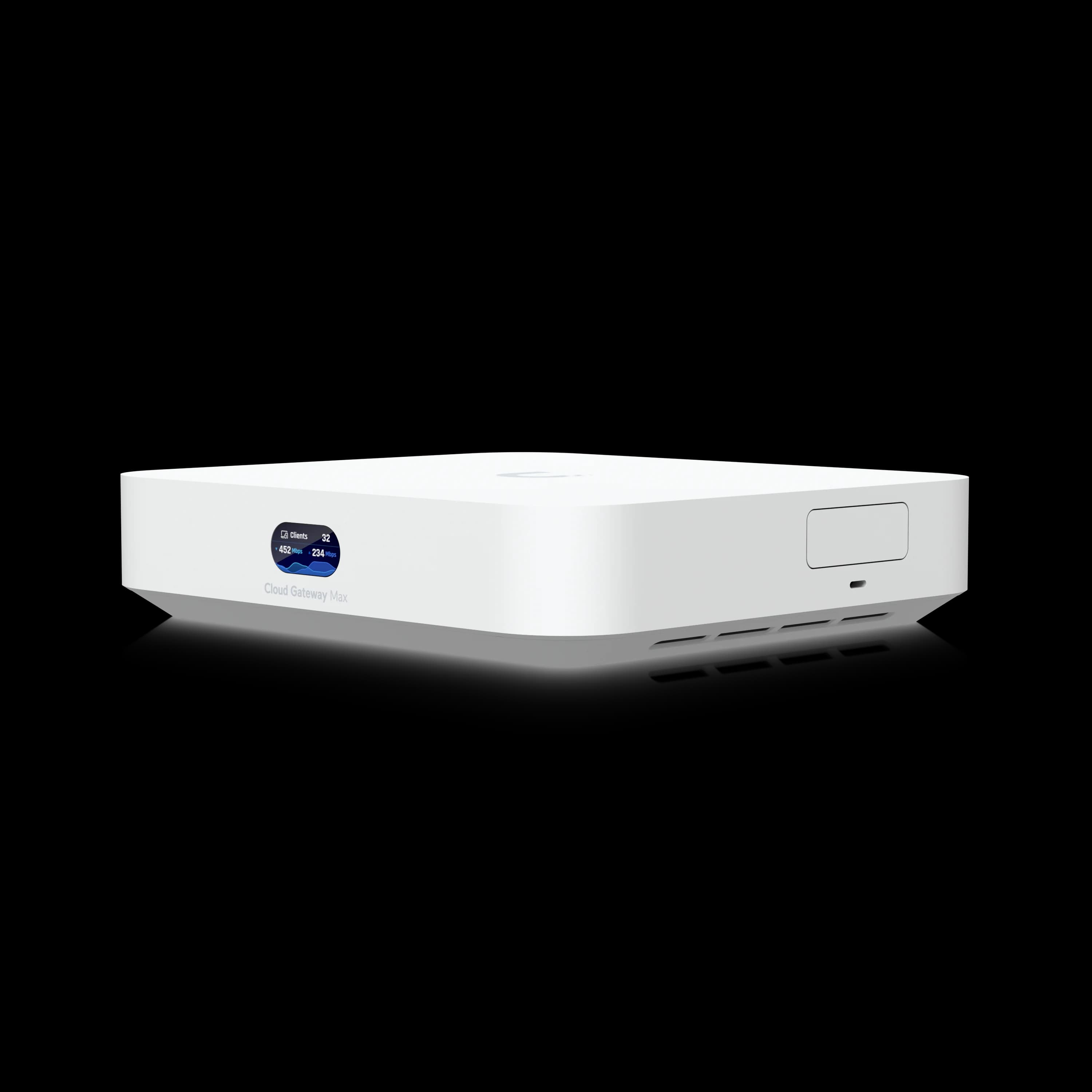
Cloud Gateway Max (512GB)
Compact wired gateway with routing, firewall, and built-in NVMe storage for UniFi Protect. Fanless and silent.
- 2.3 Gbps IDS/IPS throughput
- 512GB NVMe for UniFi Protect cameras
- Four 2.5 GbE ports
- Supports up to 15 HD cameras
*Price at time of publishing
UniFi Pro Max 16 PoE Switch
The Pro Max 16 PoE is a 16-port managed PoE switch with 2.5 GbE uplinks and a non-blocking switching architecture. In a business context, we often use the 24-port version. Here, 16 ports covered everything — four access points, the gateway uplink, a few wired drops for the home office and media room, and spare capacity.
The reason for choosing the 16-port over the 24-port was physical: it fit in the original network enclosure without requiring a rack shelf. The homeowner did not want a rack build in the utility closet. The Pro Max 16 PoE sits flush on the existing panel, keeps the overall footprint small, and still delivers the PoE budget needed to power four U7 In-Wall access points without injectors.
The Pro Max series also includes Layer 3 switching features, VLAN support, and full UniFi controller integration — which matters for anyone who wants to segment IoT devices from the main network, which we did here (smart home devices got their own VLAN).
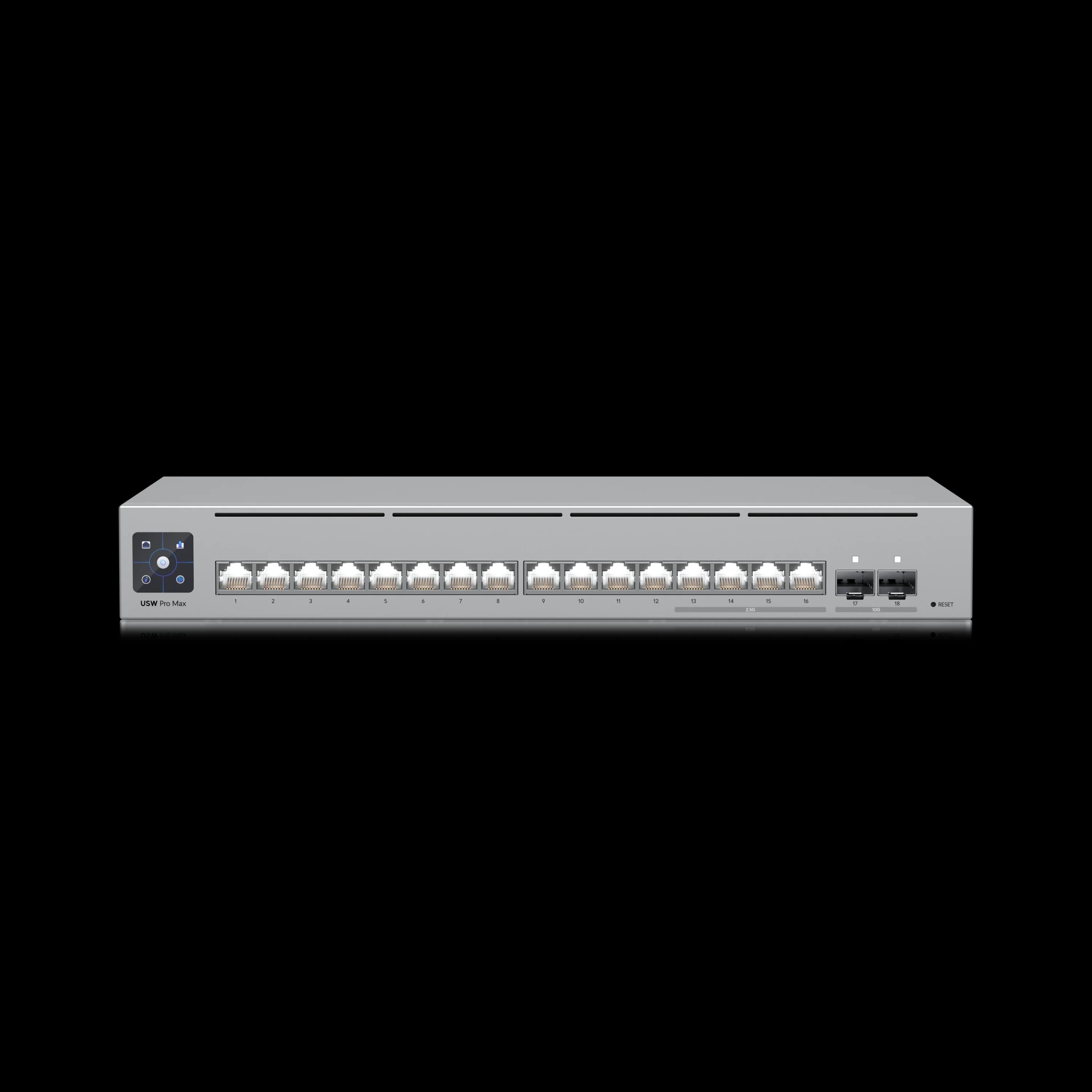
UniFi Pro Max 16 PoE
$39916-port managed PoE switch with 2.5 GbE uplinks. Compact enough for residential enclosures, capable enough for long-term scalability.
U7 In-Wall Access Points (×4)
The U7 In-Wall is a dual-band WiFi 7 access point that mounts in a standard single-gang electrical box at the wall — the same location as a standard ethernet wall port.
The relevant feature for retrofit jobs is the built-in 3-port 2.5 GbE switch with PoE passthrough. Each U7 In-Wall has one uplink port (connected back to the Pro Max 16 PoE) and two downstream ethernet ports for wired devices. In this house, that meant:
- The U7 In-Wall in the home office replaced an ethernet wall plate — and now provides WiFi coverage plus a port for the desktop computer and a port for a printer
- The unit in the living room provides WiFi coverage plus ports for the streaming device and a game console
- The units on the second floor and garage follow the same principle
In each case, one cable run in the wall now does the work that previously would have required a separate AP, a separate wall plate, and a small desktop switch. The owner gained both better wireless coverage and additional wired ports without touching a single wall.
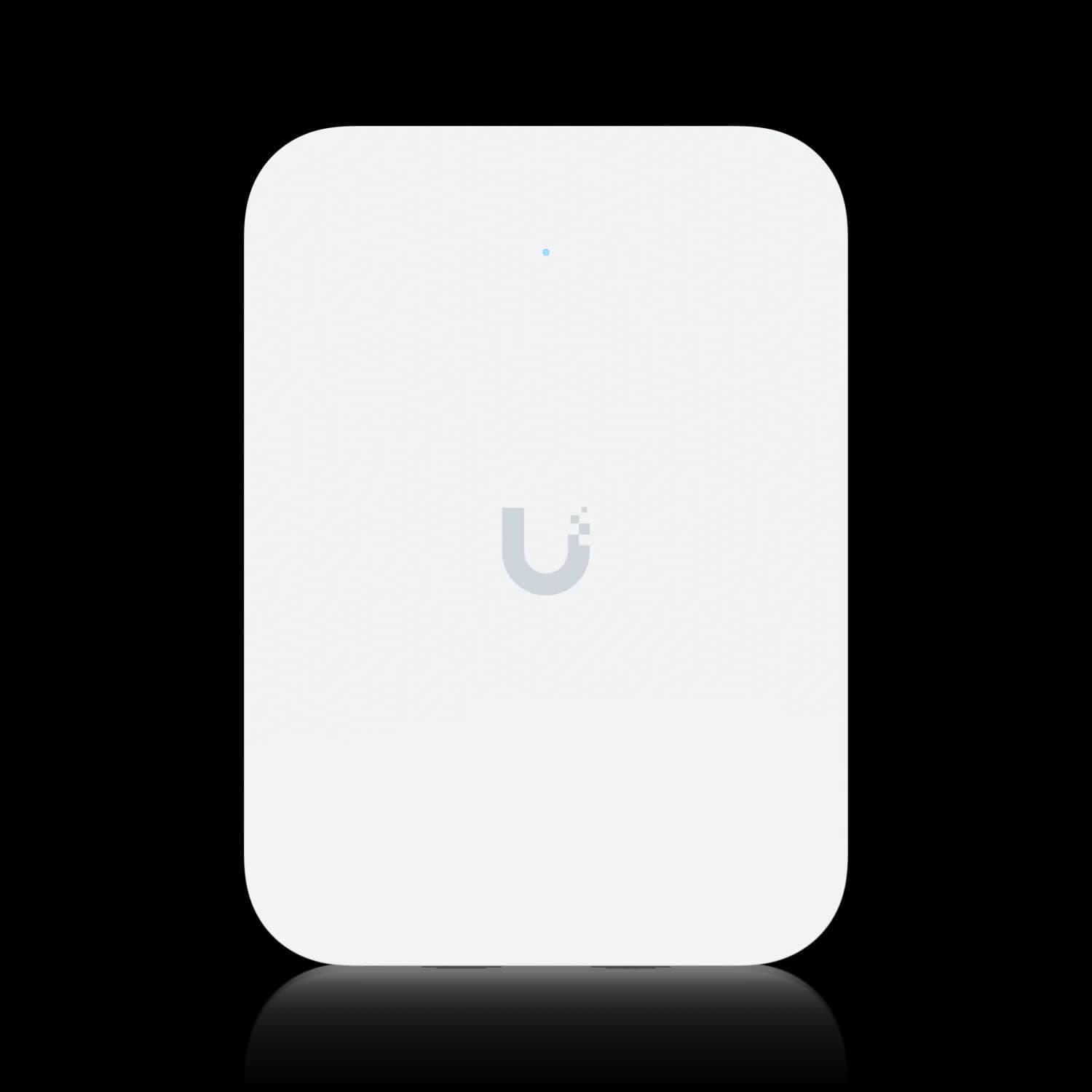
U7 In-Wall
$149Dual-band WiFi 7 access point with a built-in 3-port 2.5 GbE switch. One cable run delivers WiFi coverage and wired device connectivity.
U7 In-Wall vs U7 Pro Wall — Which One For Homes?
The U7 Pro Wall ($199) is a pure access point with tri-band WiFi 7 and a 2.5 GbE uplink — but no downstream switch ports. The U7 In-Wall ($149) is dual-band (no 6 GHz), but includes the 3-port switch that makes it practical for rooms where you need both wireless and wired connections from a single cable run. For most residential retrofits on Cat5e, the In-Wall is the more useful product. The Pro Wall makes more sense in new construction where you're pulling dedicated AP cable separate from wired-device drops.
The After: What the Enclosure Looks Like Now
Every cable is labeled, routed cleanly, and secured. The Pro Max 16 PoE sits in the enclosure with room above it for the Cloud Gateway Max and the AT&T fiber ONT connection. The coaxial splitter at the bottom handles the existing cable TV distribution separately from the data network — no changes were needed there.
The blue activity lights on the switch confirm the four access point uplinks, the gateway uplink, and the wired room drops — all live and negotiating at Gigabit. The homeowner can see network health and connected devices in the UniFi mobile app.
Network Configuration
Beyond hardware, a few configuration decisions are worth documenting:
IoT VLAN. The house has a mix of smart home devices — thermostats, door locks, smart lighting, a robot vacuum. These went onto a dedicated VLAN, isolated from the main network. They can reach the internet but cannot communicate laterally with computers or NAS devices. This is standard practice for any home with connected devices that run firmware of unknown provenance.
Guest network. A separate SSID with client isolation for guests and family visiting. Gives full internet access without touching the main network.
UniFi Protect pre-staged. The Cloud Gateway Max is running Protect with no cameras enrolled yet. When the homeowner is ready to add cameras, the process is plug-in and assign — no configuration work needed at the gateway level.
WPA3 on primary SSIDs. All WiFi 7-capable devices in the house support WPA3. The access points are configured with WPA3/WPA2 transition mode to maintain compatibility with older devices while preferring the stronger authentication standard where available.
Radio tuning. The U7 In-Wall units were left at auto transmit power rather than maximum — in a home this size with four overlapping APs, full power causes co-channel interference that degrades roaming performance. The 5 GHz band was set to 80 MHz channel width; 160 MHz is available and delivers higher peak throughput in the same room, but increases interference in adjacent rooms on a dense layout like this one. For a single AP serving a large open area, 160 MHz is worth enabling. For four APs covering two floors, 80 MHz is the more reliable baseline. Minimum RSSI was enabled on the 2.4 GHz band to push capable devices onto 5 GHz and reduce band congestion.
Coverage and Performance
Four U7 In-Wall units across a 2,500 square foot two-story house provides good overlap on both floors. The placement followed standard practices: one unit per floor on the main living side, one in the garage, and one in the far end of the upper floor. Coverage testing found no dead zones.
On the 5 GHz band with a WiFi 7-capable device (MacBook Pro, iPhone 16), throughput at the far edges of coverage comes in around 400–500 Mbps — consistent with the 500 Mbps fiber connection. In the same room as an access point, speeds exceed 800 Mbps. The Cat5e uplinks are not the bottleneck at this internet speed.
AP Placement for Two-Story Homes
For a standard 2,000–2,500 sq ft two-story home with Cat5e drops, four access points is typically the right number — two per floor with enough overlap that roaming between floors is seamless. Going to three APs (all ceiling-mounted) can work for single-story homes, but two floors with a garage almost always warrant four. The U7 In-Wall's 1,250 sq ft coverage rating is conservative; in practice, coverage extends further in open floor plans.
Total Equipment Cost
| Equipment | Qty | Unit Price | Total |
|---|---|---|---|
| Cloud Gateway Max (512GB) | 1 | $279 | $279 |
| UniFi Pro Max 16 PoE | 1 | $399 | $399 |
| U7 In-Wall | 4 | $149 | $596 |
| Equipment Total | $1,274 |
This does not include labor, cable management materials, or any cable certification work. For a project of this scope — two floors, four access point drops, full enclosure cleanup — expect professional installation to add several hours of work on top of the equipment cost.
The equipment total is competitive for what it delivers. A comparable consumer solution from a single-vendor mesh system (Eero Max 7, Orbi RBK963, etc.) at four nodes runs $800–$1,200 for hardware alone, without the managed switch, gateway firewall, NVR capability, or any future scalability into cameras, access control, or VLANs.
The Case for UniFi in a Residential Setting
We do not typically push clients toward UniFi for residential work. Consumer mesh systems are genuinely good for most households, and the setup experience is simpler. The tradeoffs are visible when your requirements include any of the following:
- Future security cameras on the same platform and storage as the network
- IoT segmentation with VLAN enforcement
- Multi-location management (if the homeowner also has a vacation property or office on UniFi)
- Longevity — the ability to swap a failed access point for the same model years later, without replacing the whole system
- Wired device density — the U7 In-Wall's built-in switch ports replace small desktop switches in every room
This project checked several of those boxes. The camera expansion path was the primary driver of the platform choice, and the available form factors meant the equipment fit the enclosure and stayed within budget.
Related Reading
- UniFi Cloud Gateway Max Review — Full specs, performance benchmarks, and comparison with the UCG Fiber and Dream Router 7
- U7 Pro Wall vs U7 Pro XG Wall — If you're considering the Pro Wall line for new construction or Cat6A infrastructure
- UniFi Pro Max Switch Line Overview — Where the Pro Max fits in the UniFi switching lineup
- Best Ethernet Cable Guide — Cat5e vs Cat6 vs Cat6A — when the upgrade is worth it and when it isn't
- UniFi Protect Camera System Under $2,000 — Next steps for adding cameras to a setup like this one
- Business Fiber Network Upgrade Guide — The commercial equivalent of this type of project
Our team handles network installations throughout South Florida for businesses and residential referrals. If you're planning a similar project, reach out — we're happy to talk through the equipment selection before you buy anything.
Frequently Asked Questions
Is Cat5e good enough for a 500 Mbps fiber connection?
Yes. Cat5e supports Gigabit Ethernet (1,000 Mbps), so a 500 Mbps fiber connection has plenty of headroom — provided the runs are properly terminated and pass a cable certifier test.
Can the UniFi Pro Max 16 PoE fit in a standard residential network enclosure?
Yes. The 16-port model fits in a standard 14- or 18-inch structured media center without a rack shelf. The 24-port version is typically too wide for residential enclosures.
Why use the U7 In-Wall instead of ceiling-mounted access points?
In a retrofit with existing wall-port drops, the U7 In-Wall's built-in 3-port 2.5 GbE switch means one cable run provides both wireless coverage and wired device connections — no new ceiling cable or desktop switch required.
Why buy the 512GB Cloud Gateway Max if there are no cameras yet?
Storage cannot be added transparently after the fact on the no-storage model. The $80 upgrade at install time avoids a return visit and a separate NVMe sled purchase when cameras are added later.
Do you recommend UniFi for residential clients?
For homeowners who want cameras, IoT segmentation, or long-term scalability, yes. For someone who only needs reliable WiFi and no ongoing management, a consumer mesh system is a simpler fit.
Related Articles
More from UniFi Networks
We Ran 538 Ubiquiti Devices for 4 Years. Here's What Actually Failed.
Real fleet data: 538 UniFi devices tracked over 4 years. 0.74% replacement rate, 99.99% core uptime, and five incident post-mortems from commercial sites.
15 min read
UniFi Small Office Setup: Professional Office Case Study
How we designed and installed a complete UniFi network for a 7-person professional office — WiFi 7, cameras, and door access in one system. Includes floor plan, priced BOM, and VLAN config.
19 min read
UniFi 5G Backup Review: $99 Cellular Failover for Small Business, Tested
The UniFi 5G Backup ($99) adds automatic cellular failover to any UniFi gateway via a single PoE connection. Full review, setup guide, and real TCO for small business.
14 min read